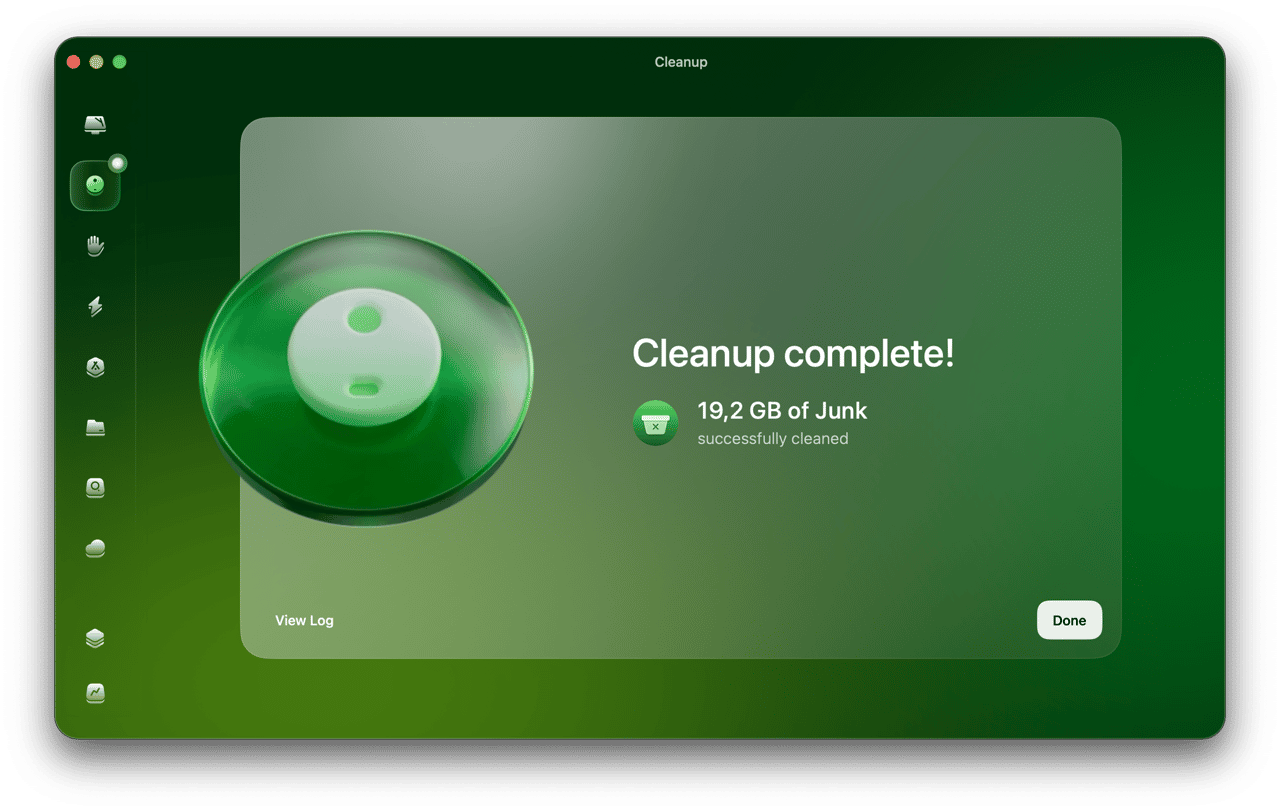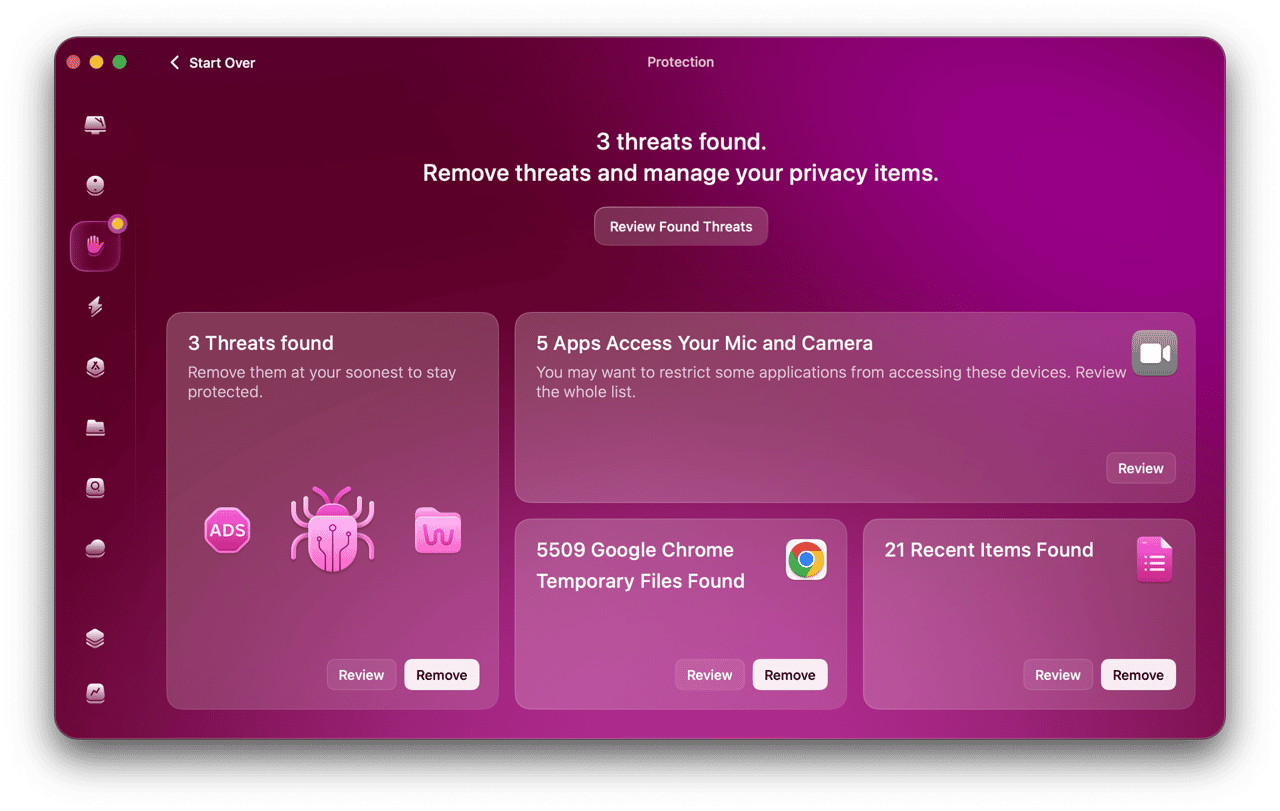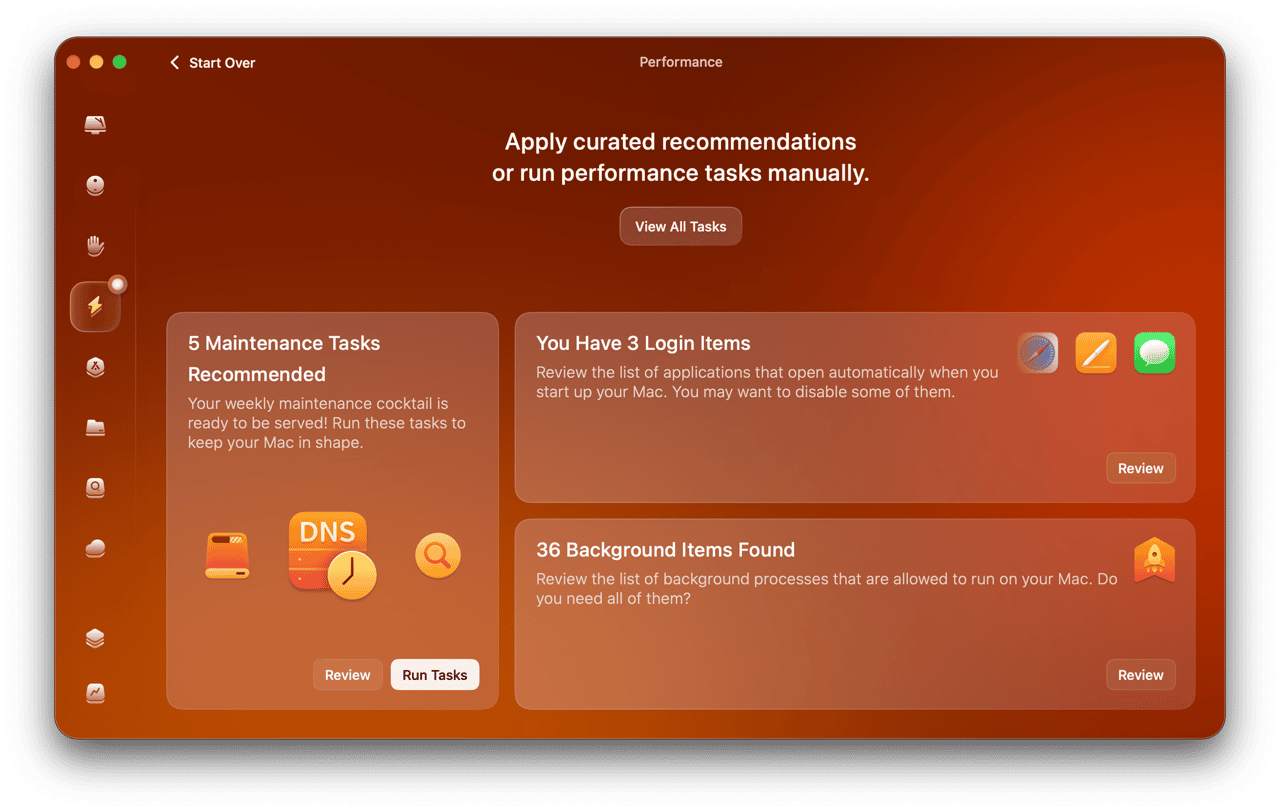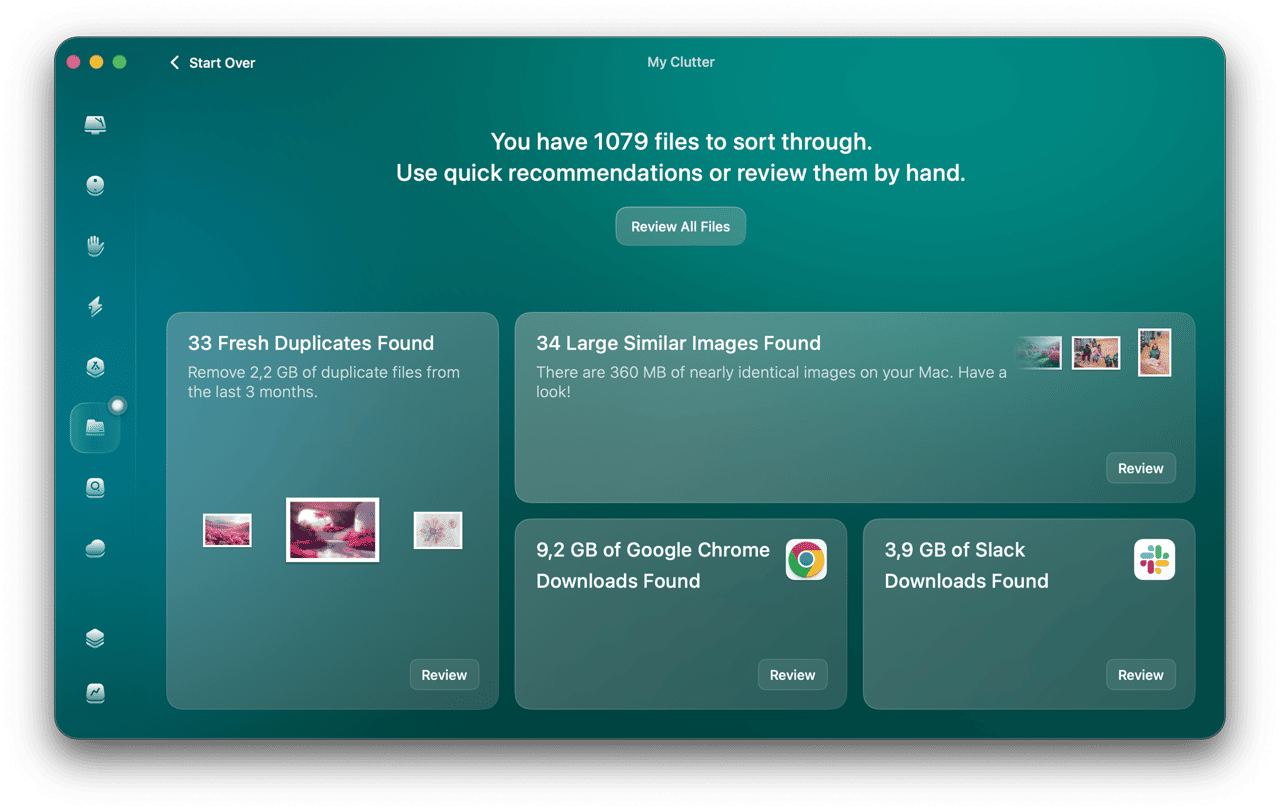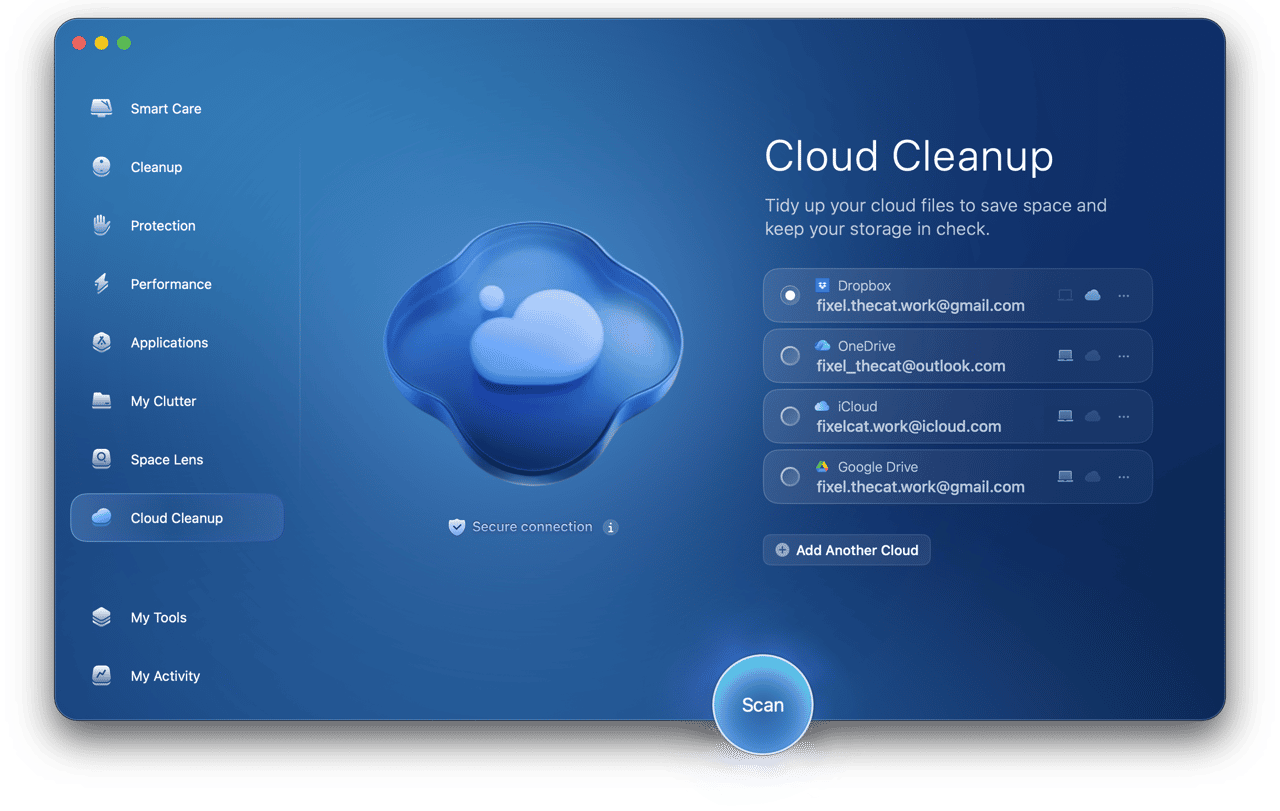

We know everything about your system. What files are safe to clean and what should be kept untouched. You can just hit Scan and Remove and your Mac Will be Clean And Healthy.

CleanMyMac is able to find system and user cache files which can slow down your computer speed. It can also analyze and clean specific Leopard and Snow Leopard '/var/folders/...' to clean.
Every time you sync photos to your iPod or iPhone via iTunes, it accumulates caches to speed up image processing. However, when you have new photos in your library iTunes won't remove old ones.

CleanMyMac will help you quickly and securely remove trashed files even without using the ordinary Trash can. It will also come to rescue when you have some strange files that cannot be removed from Finder Trash due to some permission errors.
If you use your flash drive to share data with Windows machines or you have an mp3 player, you can easily clean Mac OS X system files created for caching images or resource forks, because these files will become really annoying on the non-Mac devices.
Mac OS X and most applications come with a dozen of different localization, but you will need only the languages you speak. Basically, there is no point in keeping all the rest and wasting your disk space. You can save gigabytes using this single feature.

Sometimes Developers add some debug symbols or nib class files to their applications for some debugging purposes, but, as a rule, these files are never used after the installation and can be safely removed.
To run on all Macs most applications come with two types of code, compiled for both Intel and PowerPC architectures. One of these will never be needed on your Mac, so you can easily get rid of it using CleanMyMac.
Mac OS keeps track of every application activity, warnings and errors. All this info is stored in log files which you will never read. Unlike other applications, CleanMyMac can safely clean user and system log files without affecting the functionality of any application.
You can easily remove all the service files from any of your volumes even if they have Windows junk files.
This may sound funny, but most users don't even know that iPhoto has a separate inbuilt Trash. If you remove photos in iPhoto they will stay on the disk until you cleanup your iPhoto Trash. CleanMyMac can show the photos you have removed and will help you save additional gigabytes of disk space.
Even widgets pile up some support files while they function. It is not a big deal for CleanMyMac to cope with those.

We have a built-in caches blacklist. So we won't select important caches to remove by default. Only if you decide to remove them manually.
Wasn't that annoying to see a number of Windows system files like Thumbs.db or others every time you mount your flash drive? Or did you know that when you remove a file from your flash drive it is just moved into the Volumes Trash and not removed at once. CleanMyMac helps you automate mountable volume cleaning, so you don't have to worry about those hidden files created by the system.
Some applications will not launch due to broken preference files and your system can create preference files with broken names or empty ones. All of these possible issues affect your system performance and application launch time. Resolve the problem easily with CleanMyMac.
When you remove applications without CleanMyMac simply by moving them to Trash they will leave a number of support files behind. Those might be preferences, plugins, application data. CleanMyMac will help you find and remove those leftovers.
Find and isolate corrupted or missing startup and login items. They will only slow down your boot-up time.
You can easily remove your widgets with CleanMyMac, just open the Manage Extensions module, select the ones you don't need and click Uninstall.
Remove your preference panes correctly including all the related files and daemons.
If you don't want an application or a daemon to start every time you launch your Mac, just Open CleanMyMac and disable the startup items you find annoying.
Mac OS supports dozens of different system extensions and plugins. You can manage all of these easily in one place. CleanMyMac will deal with: Services; Input Managers; Screen Savers; Scripting Additions; QuickTime, QuickLook, Spotlight, Dictionary, Address Book, Itunes, Finder, Safari and Growl Plugins and many more items.
CleanMyMac automatically monitors every time you insert your flash drive and cleans it up as fast as possible from hidden trash files that you removed long ago and useless system junk.

You can set up how much trash would you like to store. If the trash size is larger than your limit, CleanMyMac will launch and help you to cope with files you removed.

CleanMyMac can catch application you have just removed and automatically cleanup all relative files to this application. So you don't have to worry that you missed something. Just do it your usual way.
Just select the required components and hit scan. In a few minutes you will get complete report about how much junk your system has.

If you don't want to remove something, you can just disable the item and next time you want to perform system cleanup we load your choices and won't enable items from your skip list.
We have a built-in Quick Viewer feature to let you preview your trashed iPhoto pictures or other items before removal. And guess what? It even works on Tiger!

You can just press the info button to get quick info about the Items you are about to clean. The info drawer will explain you in a few words what every module of CleanMyMac means and what it does.
Just select an item you are about to remove to see an extended row with the additional info about it. You can also reveal it in Finder or just preview with quick look.
If you would like to clean any volume from trash or hidden system files, just drag it into CleanMyMac.
CleanMyMac comes in two default themes, but the number of themes it will support is only limited by your imagination. Just place them into the “~/Library/Application Support/CleanMyMac/Themes” directory to add to CleanMyMac and make it look whatever you like.

You can drop any file onto the CleanMyMac Dock icon and select a desired action from the dialog window that appears. This make it even easier for you to interact with CleanMyMac and deal with the items you need to clean.
Don't have enough permissions to remove a file from Finder? CleanMyMac uses authorized cleaning to remove some locked or protected files with unix permissions.

Leopard and Snow Leopard System Firewall will check application signatures to allow them initiate incoming network connections. You can skip slimming code-signed applications if you have the Firewall enabled. This will make sure it does not disturb you with those alerts every time you launch such apps.
You can run CleanMyMac in background and receive a Growl notification when it finishes Scanning or Cleaning.
CleanMyMac supports a wide range of drag and drop features and operations. Try it yourself, it is very intuitive and will help you not miss a thing.
Some cache files are used really frequently and there which is why CleanMyMac has a special grey list for those, All cache files that are used very frequently will be unchecked, but you can remove them any time if you think they take to much space on your disk.
With secure erase option enabled all the files you remove with CleanMyMac will be removed forever! you will not be able to restore them as they are overwritten several times.

Some developers make their applications check themselves for any internal modifications to protect from piracy. We have a shared black list built into CleanMyMac to prevent breaking such applications.
Every time you test a new application, it will invisibly create support files needed for its operation. But when you just move the app file to Trash, all the related files will stay on your system, using free space and damping performance. CleanMyMac will easily help you remove most of the applications correctly. In cooperation with our smart Package Analyser, CleanMyMac will find more useless files than any other uninstaller. Nevertheless, it probably has never been safer to use an uninstaller.

You can add any number of applications to the Ignore List to prevent them from slimming. Also you can share this list so that we give it a test and make sure that other users do not have any issues with similar applications.
If you need to erase some files quickly and securely, it is the right job for CleanMyMac. Just drop a file into Quick Erase and remove it without leaving trace and using Trash!

In case you have an old launch services database you will have file association that are not working anymore. CleanMyMac will help you to rebuild the launch services database.
CleanMyMac has a very unique feature of packages cleanup. If you need to remove a package but you don't have a dedicated uninstaller for it, just drop it into CleanMyMac and it will find every file installed by the package.
Be social and share with the whole world that your Mac added a few gigabytes of free space.

CleanMyMac will automatically warn you about some important setup decisions like language selection or slimming protected applications, but in most cases you will only have to click scan and clean. It is that easy!
CleanMyMac works on Tiger, Leopard and Snow Leopard and we support our full list of features on all systems even if they are limited by the system. Quick Look on Tiger, for example.
Be sure that you have latest version of CleanMyMac, because with each update we are adding new features and making numerous improvements.
In case you have any problems or difficulties using CleanMyMac, just click 'Report Problem...' and we will automatically gather debugging information to resolve your problem and improve our product.
If you think that CleanMyMac is not intuitive enough or you cannot find how to accomplish your task, just refer to our User Guide.
In case you think of a new feature that would be great for you to have in CleanMyMac, just post it as a suggestion on the 'Wish List' page of our web-site. If more people like the idea, we will definitely implement it!
You can drag your iPhoto Library into CleanMyMac to get a quick analysis of iPhoto Trash and all the possible junk files in it. This operation will help you free space, but won't affect your photos in any way.

All these amazing features are available in CleanMyMac today.