




-

29 million downloads
-

Notarized by Apple
-

-

-

-

Featured in 50+ top tech blogs
Five routines.
One Smart Care.
Smart Care is your Mac optimization routine that performs five tasks in one.
- Deep clean your Mac
- Scan for potential threats
- Boost Mac performance
- Run software update
- Declutter your storage
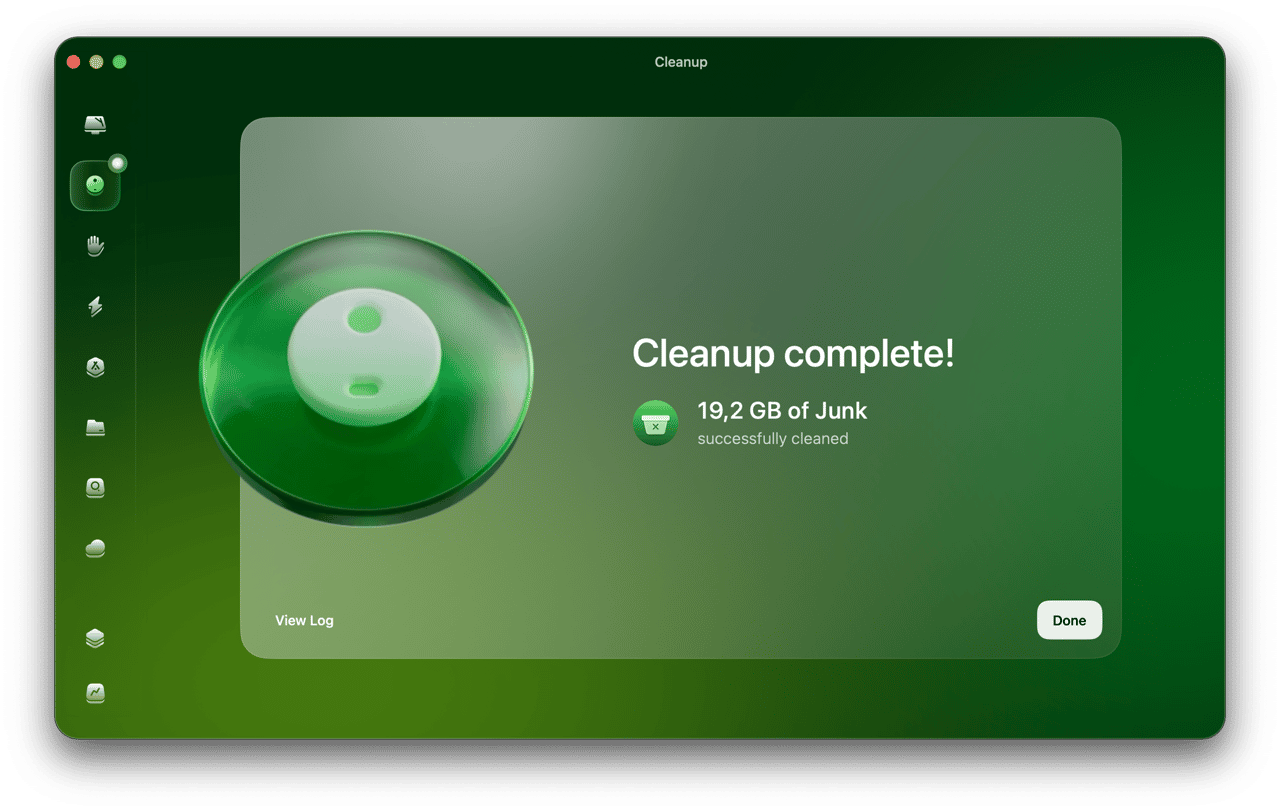

Free up space for things
you truly need
Clear out hidden system junk to make room for your apps, photos, and other important stuff. Let go of the outdated, unneeded files to reclaim GBs of space.

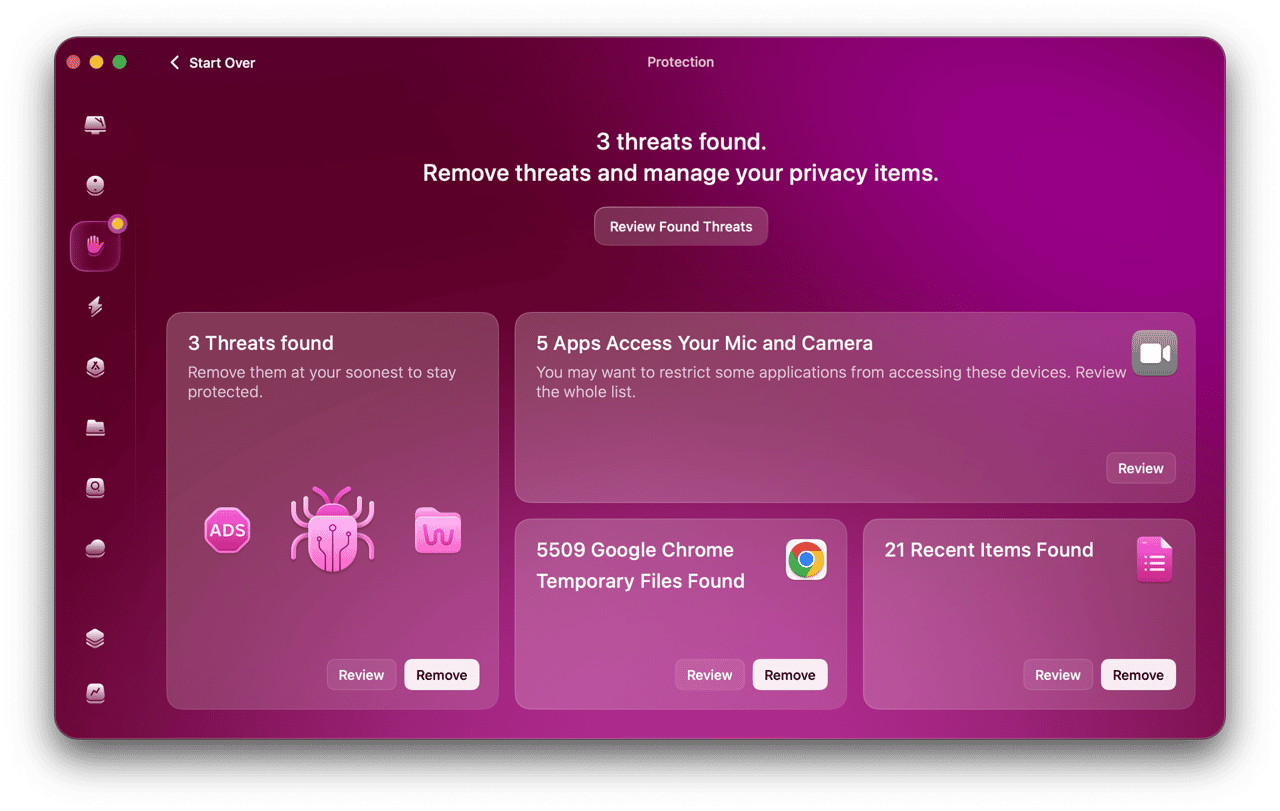

Neutralize threats before
they do any harm
Spot and remove malware that may hide itself within seemingly innocent software. Stay secure, knowing your Mac is always protected.
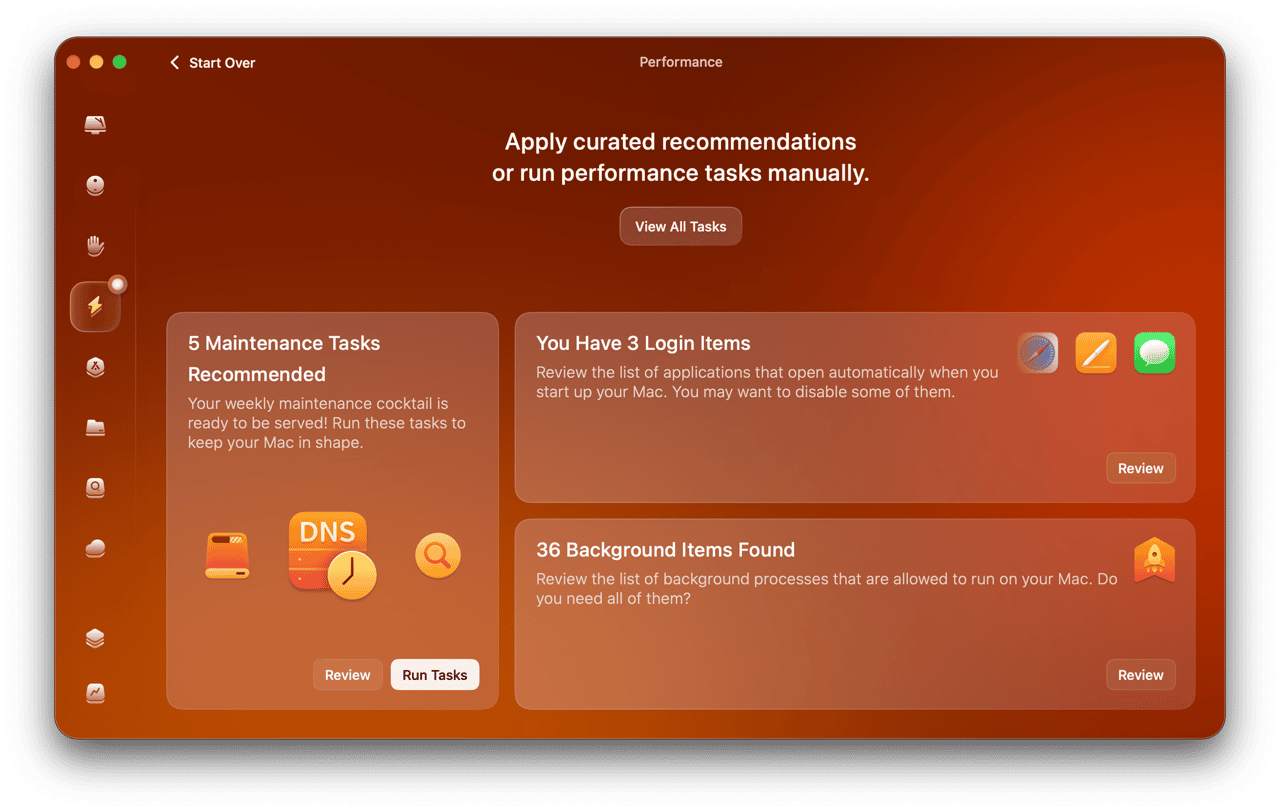

Make your slow Mac fast again
Multitasking, editing, or whatever you’re doing, your Mac will run efficiently no matter the job. Control memory and CPU load to keep your Mac productive in intensive workloads.

-
35M GB
of junk
cleaned monthly. -
329K
threats removed in one month -
5.5 GB
of junk cleaned on the first scan
The average number removed on Mac computers
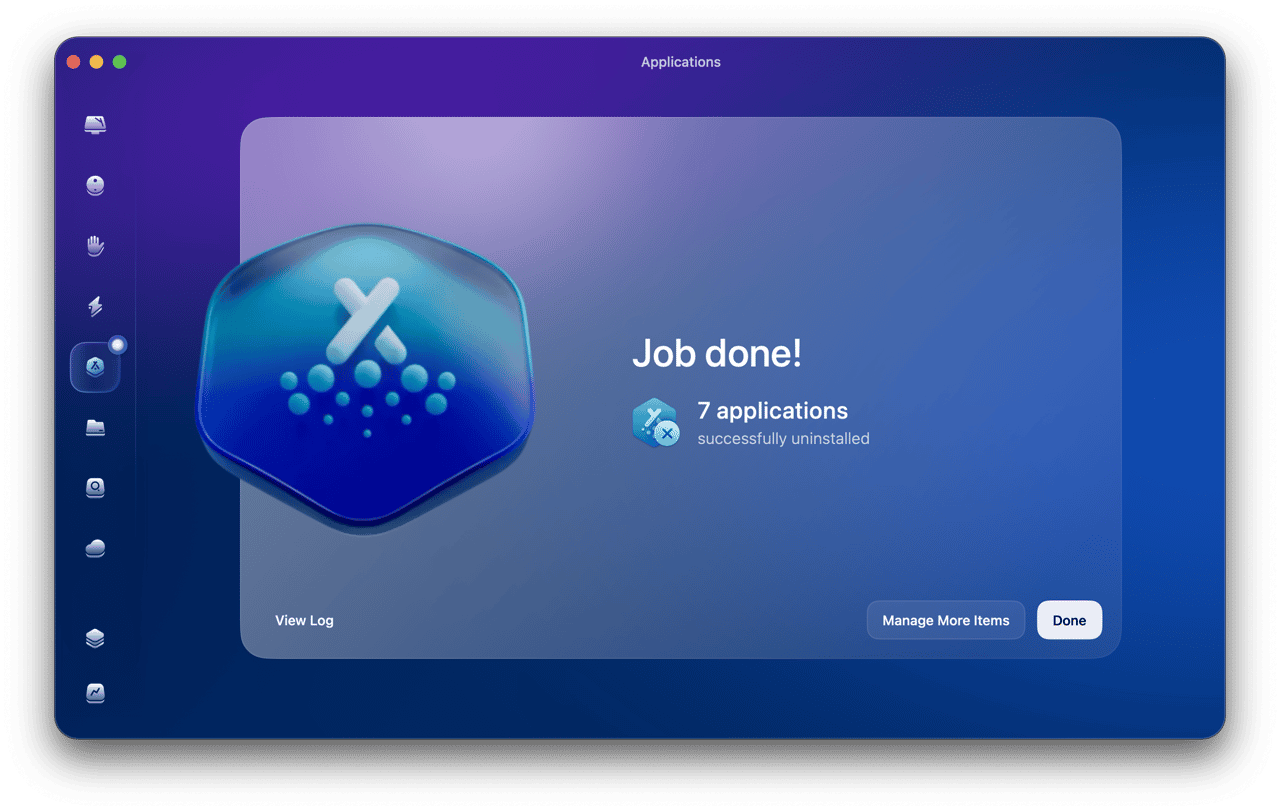

Uninstall apps without
leaving a trace
Stopped using an app? Uninstall it completely with CleanMyMac, clearing leftover data. Update all your software right here to improve app security and stability.
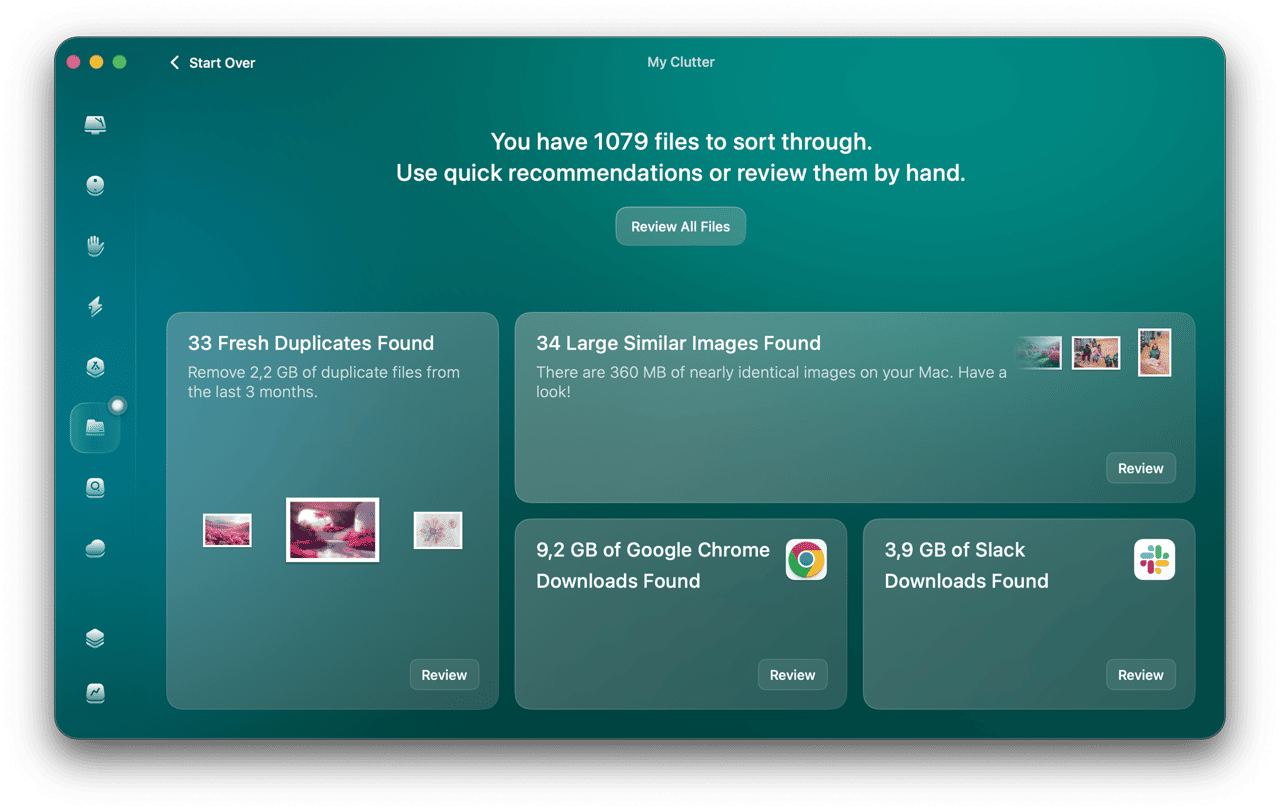

Take control of the clutter
Curb the file chaos by removing duplicates and similar photos. CleanMyMac sorts through your files, finding large and forgotten items to ensure you always have enough space for what matters.
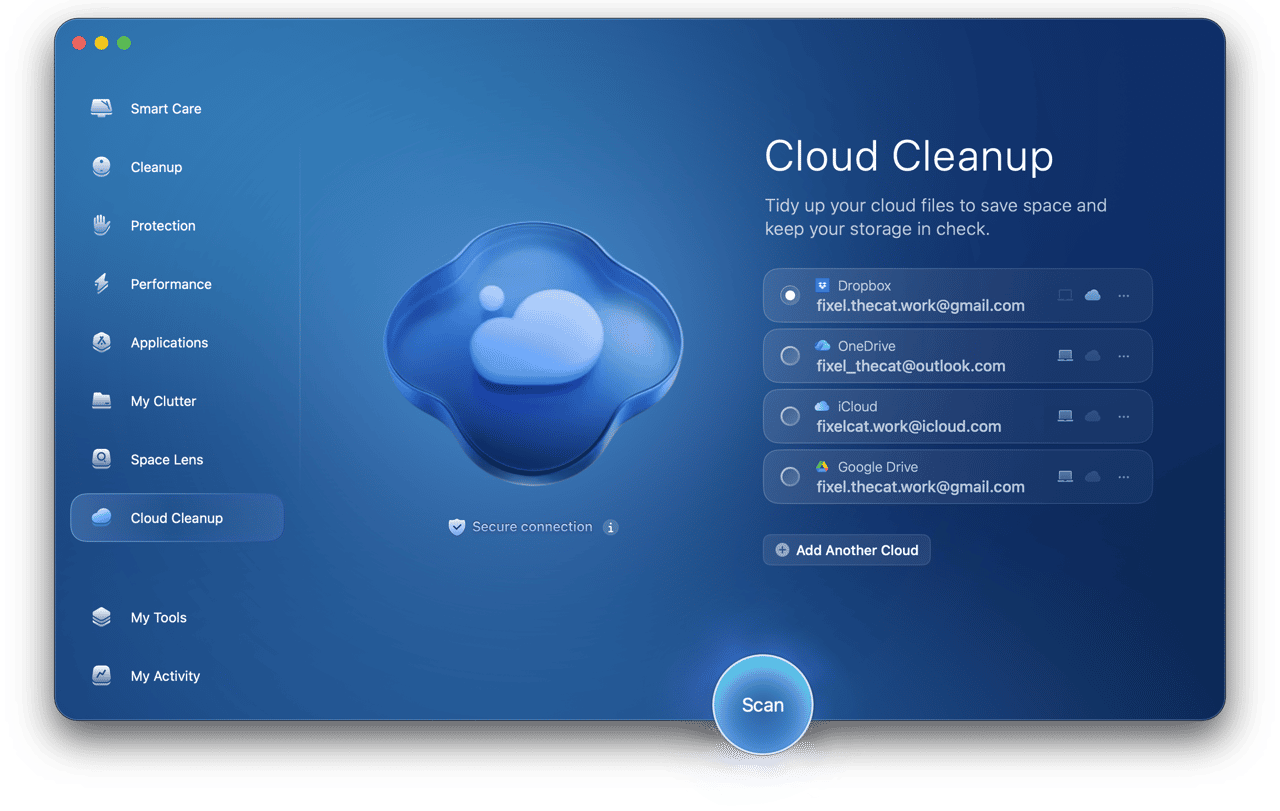

Clean up your cloud storage
Restore order everywhere: on your Mac and in your cloud. Reveal large files that take up most of your cloud storage, and find redundant local copies cluttering your Mac.
See it with
your own eyes
Trusted by millions of Mac users
Andrew Walker
Smooth performance


Bryan and his cat Pippa
Impressed with the speed
Stunning design
Madeleine Pleasants
The interface is fantastic!
Just tried the app and wow! Really impressed with its performance and fantastic interface.


Level up your Mac experience
Check your inbox and confirm your subscription.
One last click and you’re all set.