
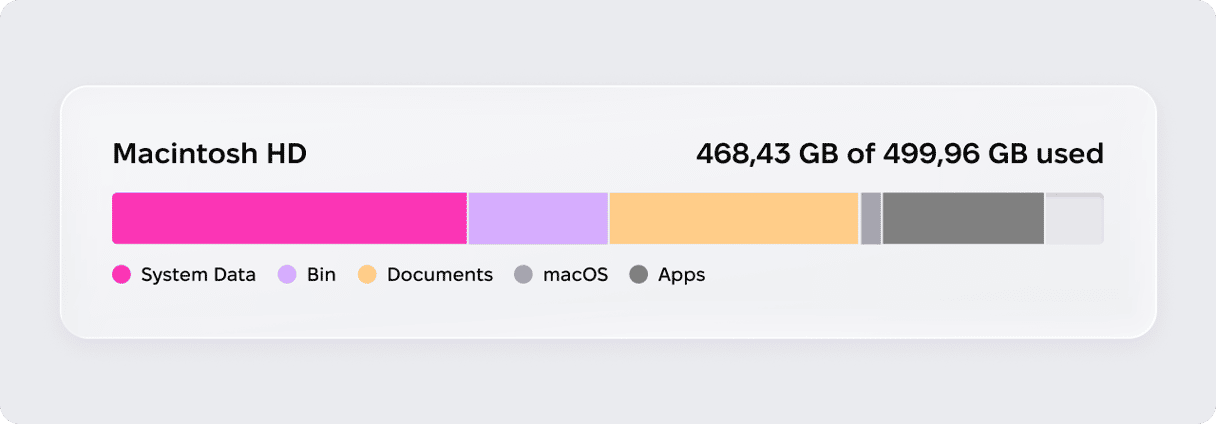
No matter how much storage you have, it eventually fills up with apps, downloads, images, and other files you forgot existed. The first thing we all do is open System Settings and go to General > Storage, only to find the bar nearly full.
But what’s exactly taking all of that space? We’ve analyzed 9.5 million CleanMyMac cleanups run between September 2025 and September 2026, and examined Mac storage closely to learn what hides behind that full storage bar.
How Mac storage actually fills up
The single biggest thing eating your Mac's storage isn't files you can see. Your daily Mac use generates many items: caches, logs, language packs, and temporary files. App leftover files such as preference and configuration files, caches, settings, and support folders may also add up to that undefined System Data storage on your Mac.
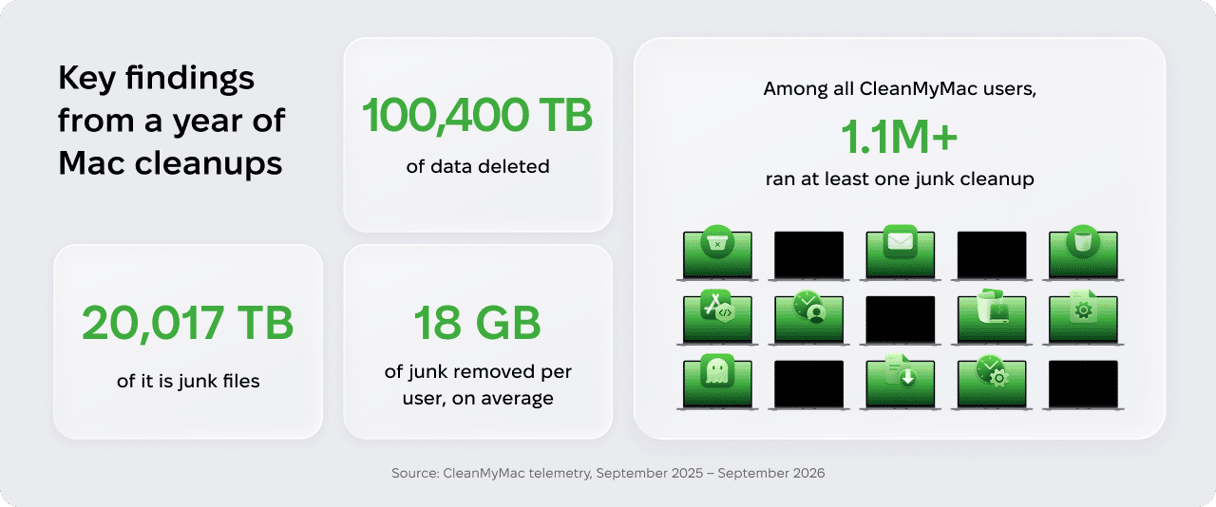
Over the past year, CleanMyMac users deleted 100,400 TB of data. That huge number made us curious, so we looked at what was in it. Here's what one year of cleanups, from September 2025 to September 2026, briefly told us:
The junk culprits ranked by volume
Unneeded system junk files can take up more space than we realize. Let’s break down what these files are.
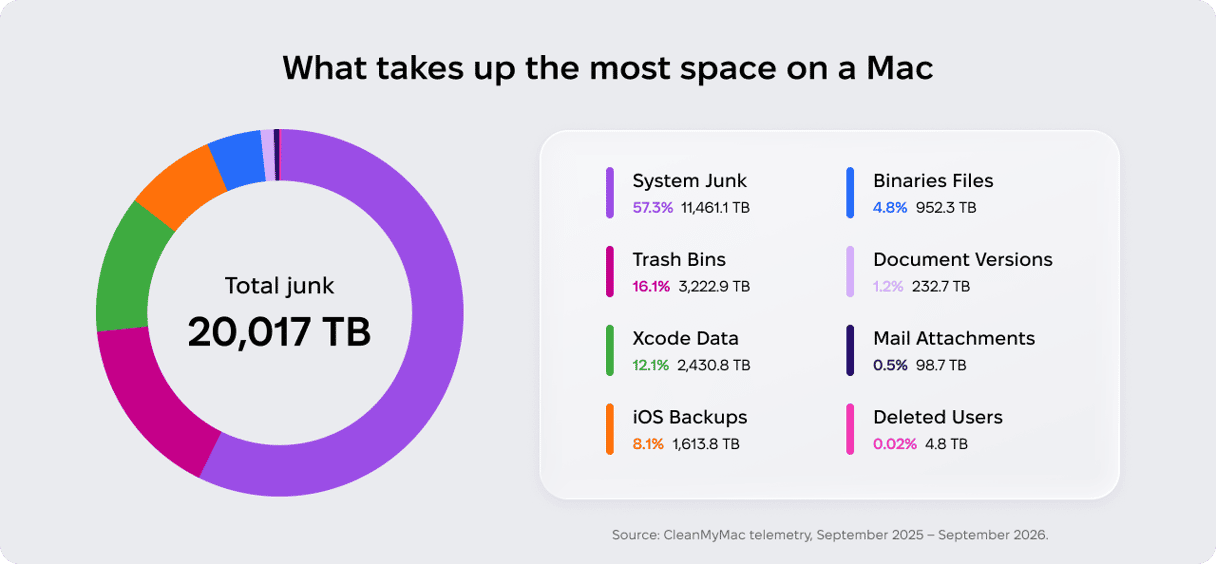
1. System Junk — 11,461.1 TB removed
System junk is user and system caches, user and system logs, and language files. It's what both macOS and your apps create on your behalf and store in the folders you never open. On its own, it accounts for 57% of everything CleanMyMac users cleared this year.
This is what most people mean when they see "System Data" in the storage bar and can't work out what it is. If that category is eating your drive, here's what System Data on Mac is, in more detail.
- Caches. Temporary files that apps and macOS store locally to help web pages, images, and document previews load faster.
- Logs. Records of system events, operations, background processes, and error messages that help diagnose crashes when they happen.
- Language files. Localization data components that allow macOS and apps to display interfaces in different languages, beyond the one you use.
These files exist to make your experience smoother. However, over time they become useless. Caches stay long after the apps that created them are deleted. Logs record crashes fixed two macOS releases ago. Clearing them is safe and can also save you a lot of storage space.
2. Trash Bins — 3,222.9 TB removed
Deleting files doesn’t mean removing them for good. This data shows that many Mac users ignore emptying the Trash, and deleted items waste a lot of storage space without many realizing.
Until you empty the Trash, each of those files still counts against your storage, which is why more than 3,200 TB of clutter that their owners had already mentally removed was still sitting on disk in our dataset.
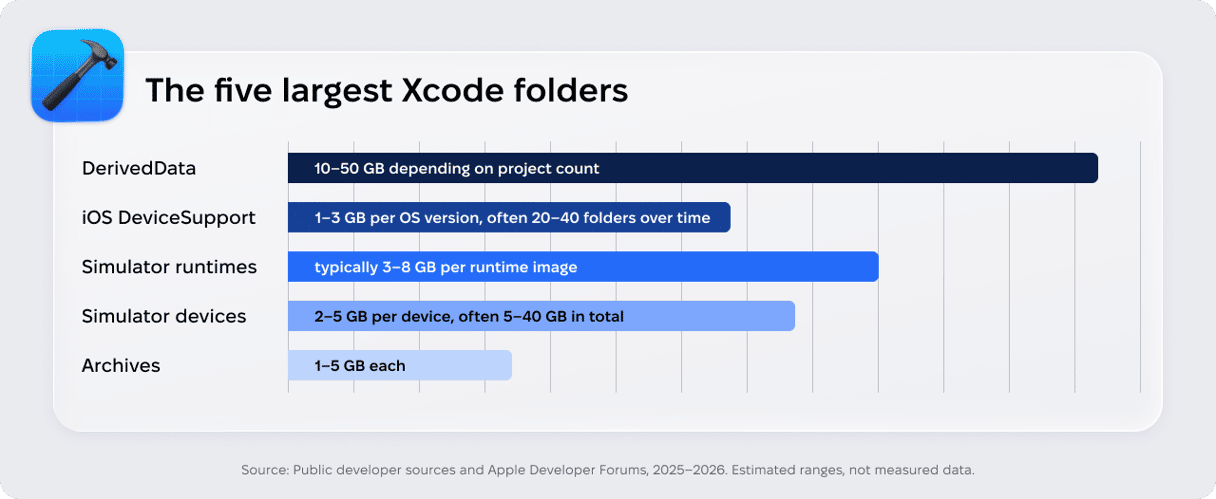
3. Xcode Data — 2,430.8 TB removed
Xcode writes build data, device support files, and simulators, and it never reclaims them. This category only exists on Mac computers used for development, which makes its position here the most surprising finding in the data: even on that smaller group of machines, it outweighed every category except System Junk and the Trash. If you have ever used Xcode, its leftovers are the largest single thing you can delete.
4. iOS Backups — 1,613.8 TB removed
Every time you back up an iPhone or iPad to your Mac, macOS creates a local file that can take up tens of gigabytes. While your Mac updates the existing backup for your current device instead of saving a new copy each time, it creates separate, permanent files for new devices. As a result, backups from phones people no longer own make up a huge part of this number.
5. Binary Files — 952.3 TB removed
Most apps ship as universal binaries, including code for both Macs with Apple silicon and Intel-based Mac so that one download runs on either. Your Mac executes one architecture but stores both, meaning the unused part is duplicated across almost every app you have installed.
6. Document Versions — 232.7 TB removed
Apps like Pages and Keynote save a snapshot every time you work on a file so that you can revert to an earlier draft. Those old snapshots (or document versions) may stay on your Mac longer than the original.
7. Mail Attachments — 98.7 TB removed
Every PDF, image, or spreadsheet anyone has ever emailed you accounts for some gigabytes of lost space. It is a small category in absolute terms, but the most consistent one: virtually every Mac with a mail client accumulates attachments invisibly over years.
What this means for your Mac
On average, each user who ran a junk cleanup removed roughly 18 GB over the twelve months we measured. That's 20,017 TB removed in total, divided among everyone who ran at least one junk cleanup — counting every cleanup in the period, not a single session.
This is roughly two hours of 4K video, or around 3,500 high-resolution photos. If you remove the same amount over the same period a few times, it adds up to an impressive number.
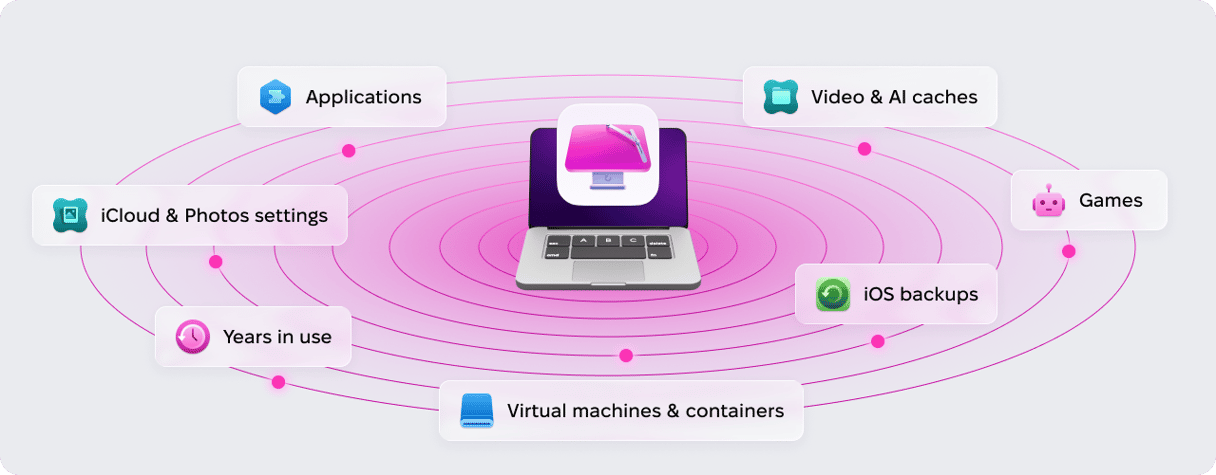
How much your own Mac accumulates depends on a lot of factors: how many apps you have installed, how long the machine has been in use, whether you edit videos or run AI and development tools that write large caches, how many iOS devices you back up to it, and whether you’ve ever cleaned your Mac before.
How to find and remove junk on your Mac
Here’s where each category lives on your Mac, in the same order as the ranking above. The first three rows together make up System Junk.
Category | Where it lives |
Caches | Folders in ~/Library/Caches are safe to clear. /Library/Caches and /System/Library/Caches are system-wide — leave those alone. |
Logs | ~/Library/Logs holds app logs and crash reports. /var/log is system logs; macOS clears those itself. |
Language files | Inside each app bundle, in folders ending .lproj. Safe to remove, but app updates put them back. |
Trash | ~/.Trash — open Trash and select Empty. Every other volume has its own hidden .Trashes folder, so check external drives separately. |
Xcode Data | ~/Library/Developer/. DerivedData rebuilds itself, so it's free to clear. Leave Archives — they hold shipped builds and crash symbols. |
iOS Backups | ~/Library/Application Support/MobileSync/Backup/, tens of GB each. Or in Finder: connect the device > Manage Backups. |
Binaries Files | Inside the app. Command-I in Finder shows Kind: Application (Universal). You can spot them, not split them — that breaks the code signature. |
Document Versions | /.DocumentRevisions-V100 at your drive's root. SIP-protected, so you can't open or clear it in Finder. |
Mail Attachments | ~/Library/Containers/com.apple.mail/Data/Library/Mail Downloads/. In Mail, select a message > Message > Remove Attachments. |
One category from the ranking isn't here: Deleted Users, the home folders left behind when you remove a macOS account. At 4.8 TB across the whole year, it's the rarest thing on the list, and it only shows up on Macs that have had an account deleted (worth knowing about, not worth looking for).
Making regular cleanup a habit
Going through your files and clearing what you don't need is a good habit if you want to leave your Mac room to breathe. CleanMyMac covers a different part of the job: the categories in the table above that you can't safely reach yourself. It scans your Mac for outdated files that no longer serve you and clears only what’s safe to delete, letting you review everything beforehand.
Get your free CleanMyMac trial, then:
- Open CleanMyMac and go to Cleanup in the sidebar.
- Click Scan. Review what it found.
- Deselect anything you want to keep. Nothing is removed until you say so.
- Click Clean.
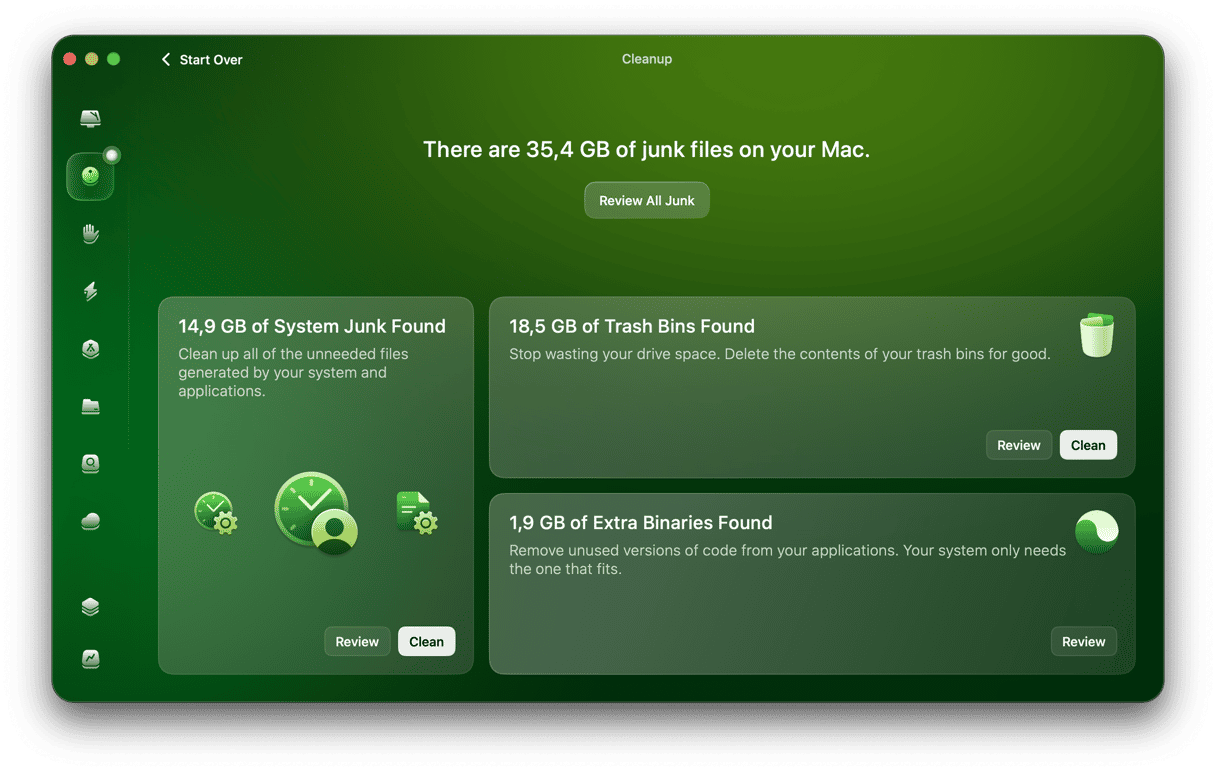
Cleanup is a good place to start. Then, move to My Clutter to sort through your files, remove duplicates, similar images, and forgotten downloads. If you still need space, Space Lens will show you what's stored in the folders you rarely open.
Key conclusions
Over the years, your Mac accumulates two different kinds of files. Some are created to make your experience smoother: caches, logs, saved versions of documents. The rest is your own making: documents, downloads, apps, photos. The latter is easier enough to stay on top of, because you know it's there, while the first may be difficult to track on your own.
Cleanup shouldn't be a single session; it's only helpful when it's a habit. In total, people who cleaned with the Cleanup feature did so 9.5 million times over the period — about eight cleanups per person, or one roughly every six weeks. And junk is only part of the picture: 100,400 TB is the total cleaned across all CleanMyMac features; junk accounted for 20,017 TB of that, about a fifth. The rest was files people put there themselves.
One thing worth noting: the median junk scan finishes in 5 seconds, and the median cleanup takes the same. So a regular cleanup takes about that long, not counting the time you spend reviewing what CleanMyMac has found.
FAQ
What takes up the most space on a Mac?
Based on CleanMyMac data from 9.5 million cleanups, System Junk is the single biggest space waster — 11,461.1 TB removed in a single year, 57% of all the junk our users cleared. It covers caches, logs, and language files generated silently by macOS and apps.
How much junk does the average Mac accumulate?
The average CleanMyMac user removed 18 GB of junk between September 2025 and September 2026. The median per-session removal was 0.2 GB, but averages are skewed upward by heavily cluttered Macs.
Is it safe to delete junk files on a Mac?
Yes, if you remove outdated files that don’t serve a purpose anymore: unneeded caches, leftovers from uninstalled apps, old logs. CleanMyMac only removes what’s safe to delete, keeping essential system files intact. Never delete files from /System or /Library manually unless you know exactly what they are.

