I’ve seen a lot of people asking lately, are browser extensions safe? I’d say that the answer to that is mostly yes. But that doesn’t mean you should go ahead and install every single one you see. Because don’t forget they have access to your browsing history and data and have the ability to add and make changes to your actual browser.
Also, one thing I’ve found is that just because the browser was safe when you first installed it doesn’t mean it will stay that way. Corruption, even updates and changes in app ownership, all bring risks. Meaning that no check can guarantee that an extension is 100% safe, but these habits will help you spot problems early.
I’ll show you what you absolutely must know about extensions for Chrome, Safari, and Firefox.
What can browser extensions actually access?
Browser extension permissions, once granted, give your extensions the power to do more than just add features; they have a lot of access to your data. That doesn’t automatically mean extensions are dangerous, but you do need to take a moment to think about what apps you give control to. If an extension is asking for access that doesn't seem connected to what it's supposed to do, just don't approve it until you fully understand why.
Permissions | What that really means | When to question it |
Read and change data on all websites | Can access and modify content on pages you visit. | A simple utility wants access to everything. |
Browsing history | Can see websites you've visited. | The extension doesn't need your browsing activity to work. |
Tabs | Can access information about open tabs, including page titles and addresses. | It has nothing to do with managing tabs. |
Clipboard | Can read copied content or write to your clipboard, depending on the permission. | It has no reason to access what you copy and paste. |
Downloads | Can view and manage browser downloads. | It isn't a download manager or related tool. |
Cookies | Can access browser cookies for websites it has permission to use. | Its purpose doesn't involve website sessions or logins. |
Are Chrome extensions safe?
Most extensions downloaded and installed from official websites and stores are likely safe, but you should always stay vigilant. They all collect data, and that's always going to be a privacy risk. I never install an extension I don’t fully trust and understand what it does and what access it has to my Mac and personal info.
I’d say there are around four areas you need to keep in mind: First, data collection, how it’s tracking your online activity and what it's doing with that insight. Second, Adware and browser hijackers. They still exist, inserting malicious redirects or annoying ads and pop-ups; you need to trust the app. Third, if an app gets bought out and is under new ownership, a new update could bring changes and unwanted behavior. Fourth, fake extensions altogether; they can be designed to scam users and capture data.
Safari, Firefox, and Chrome extension permissions
I appreciate some of this might sound scary, and it’s really not the intention of the article; malicious browser extensions do exist, but knowing how to check which extensions have access and permissions across your Mac is a great way to stay on top.
Google Chrome
- Open up Chrome and click on the three-dot menu in the top-right corner.
- Go to Extensions > Manage Extensions.
- Find the extension you want to check and click Details.
- Look under Permissions and Site access to see what it can read or change. (On click, on specific sites, or all sites).
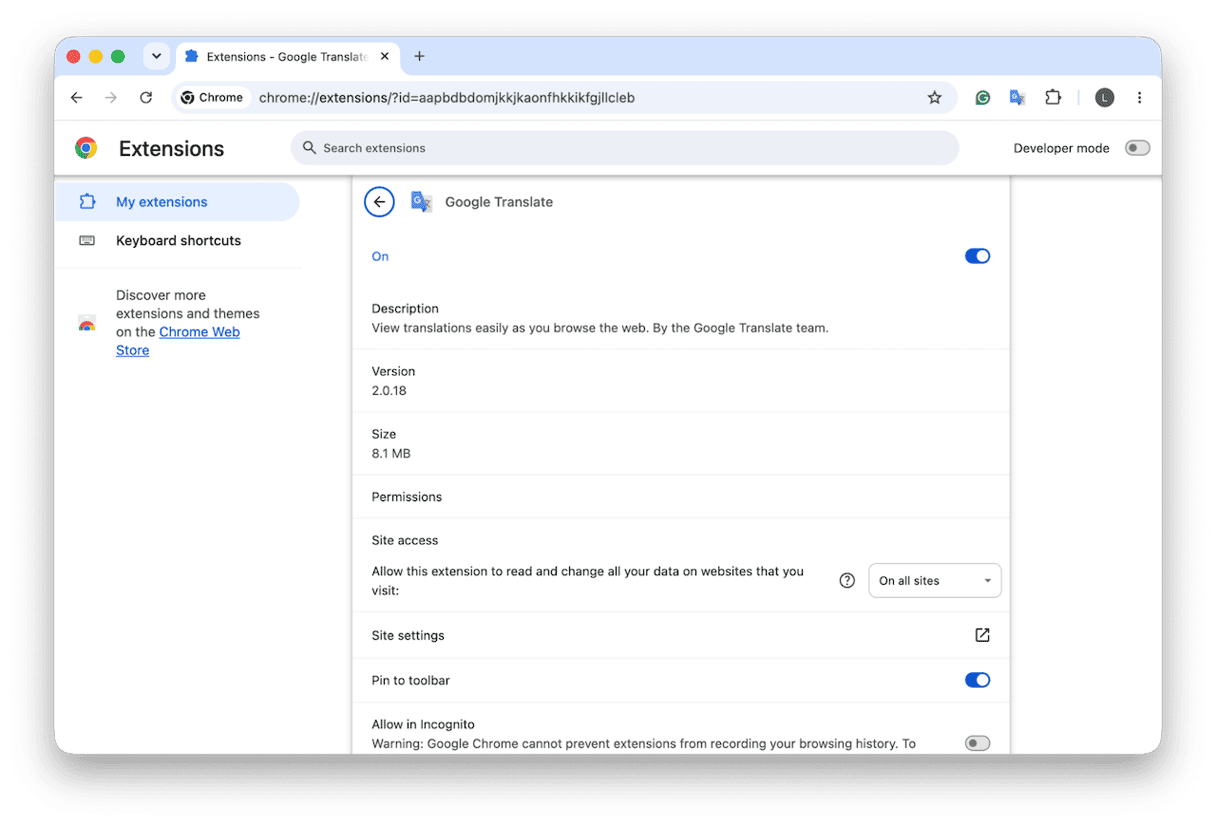
Only give the extension access to all websites when it needs it.
Safari
- Open a Safari window and go to Safari > Settings Extensions.
- Click on any installed extension from the list on the left to review its settings and website permissions.
- Adjust which websites it can access instead of allowing it everywhere.
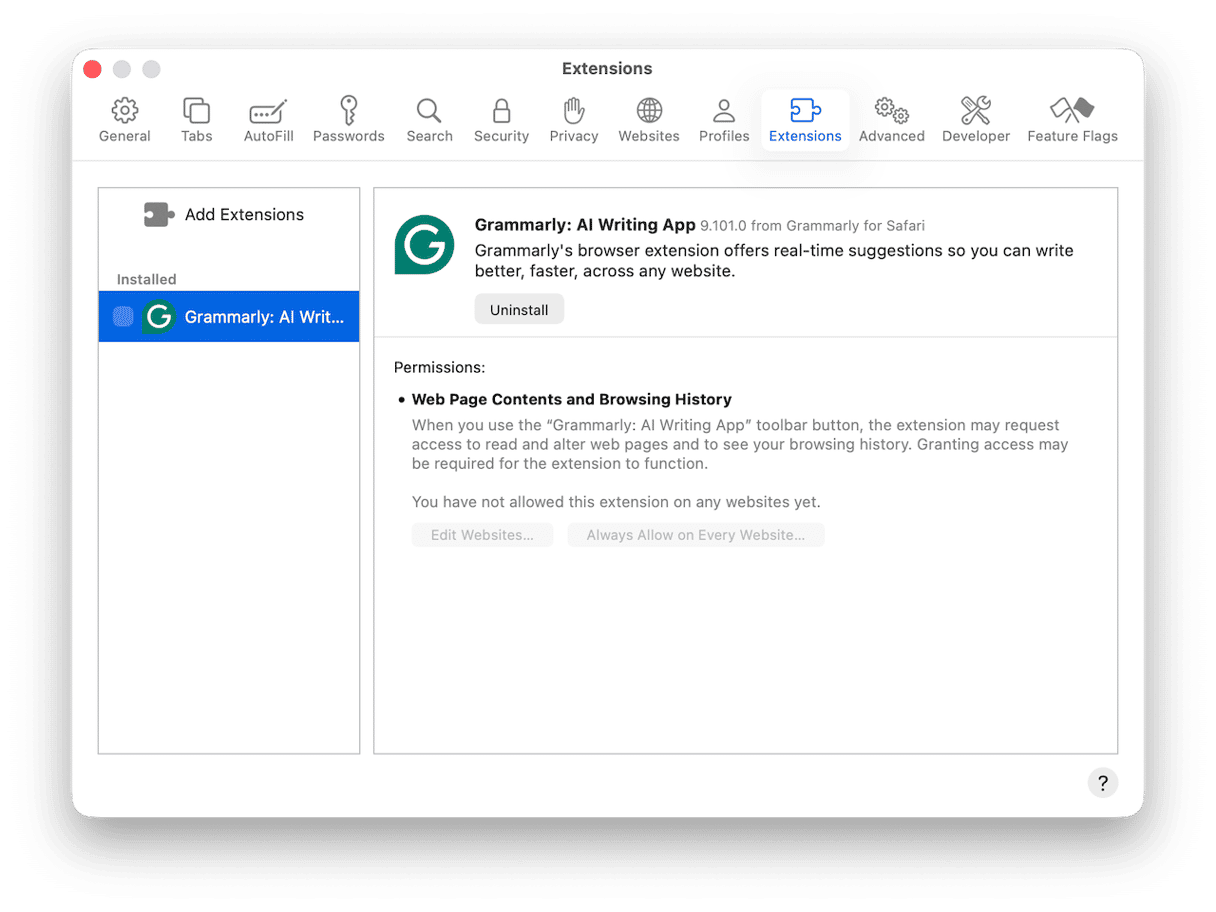
Safari does let you limit website access for supported extensions, so it's worth reviewing anything you've previously allowed on every site.
FireFox
- In a Firefox window, click on the three-line menu.
- Press Extensions and Themes > Extensions.
- Select the extension to review it.
- You can open up the Permissions and data tab to see what access it requests.
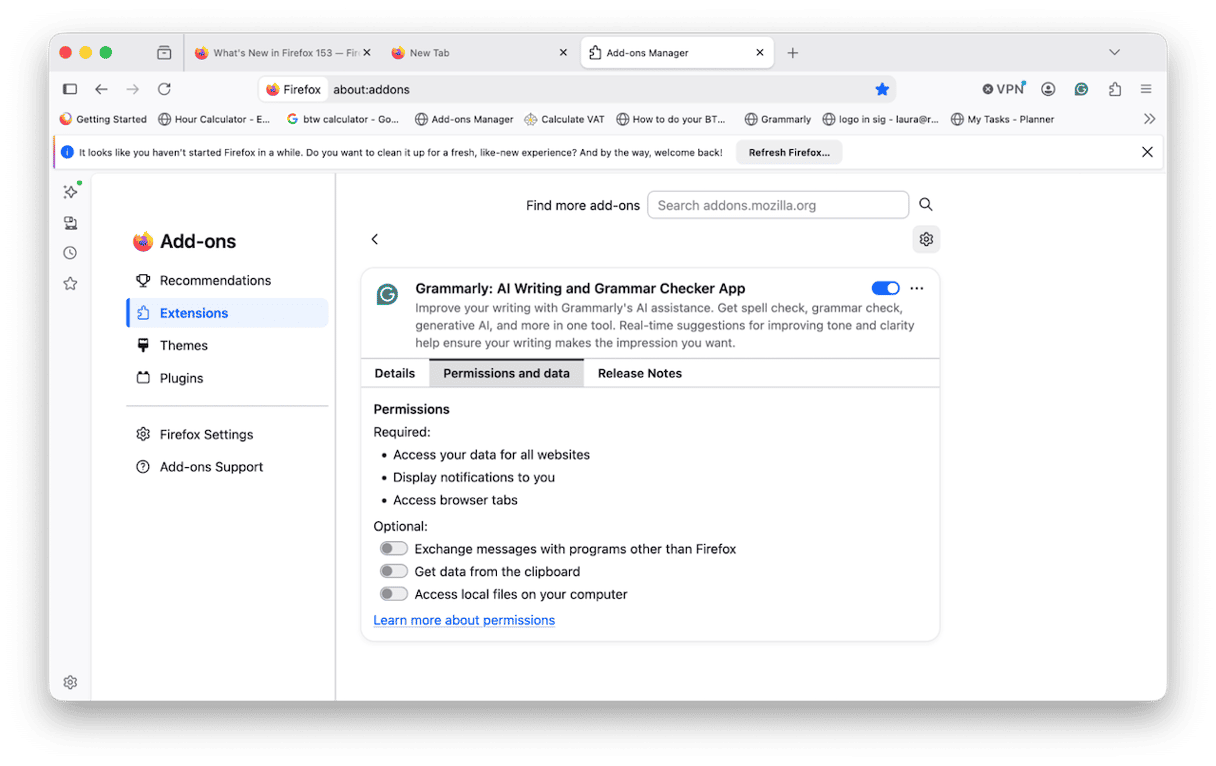
Are browser extensions safe? How to check
If you’re ever in doubt, here’s a reminder of the things to check.
- Is it a trusted and well-known developer? And available from their official website for download?
- What are the customer reviews like?
- Is it regularly updated?
- Does it even have a privacy policy on its website that fully explains how your data will be used?
- Is it going to need full system access, and does that make sense to you for what you need the extension for?
Warning signs for malicious browser extensions
If you’re reading this because you’re concerned you might have installed something suspicious, or you’ve updated an old extension and it’s started to act differently, here are some things to watch out for.
If your homepage suddenly changes, that’s a really common sign you’ve got a bad extension installed. Repetitive ads and pop-ups are usually an indication too. Also, if your browser suddenly starts running slowly or you see extensions in your list that you don’t remember installing.
If any of these things sound and feel familiar, then don’t hang around; you need to jump into quick action.
How to remove malicious browser extensions
In Chrome, you need to click the three-dot menu > Extensions > Manage Extensions. Find the extension and click Remove.
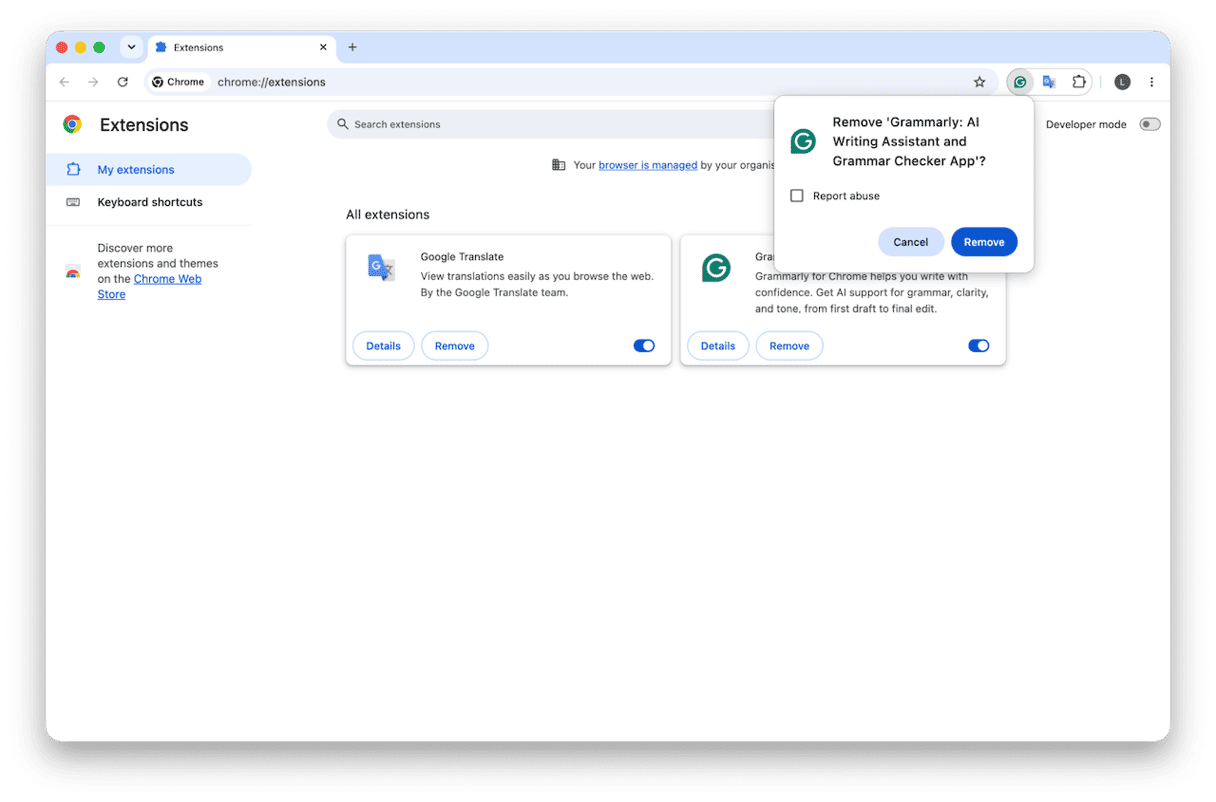
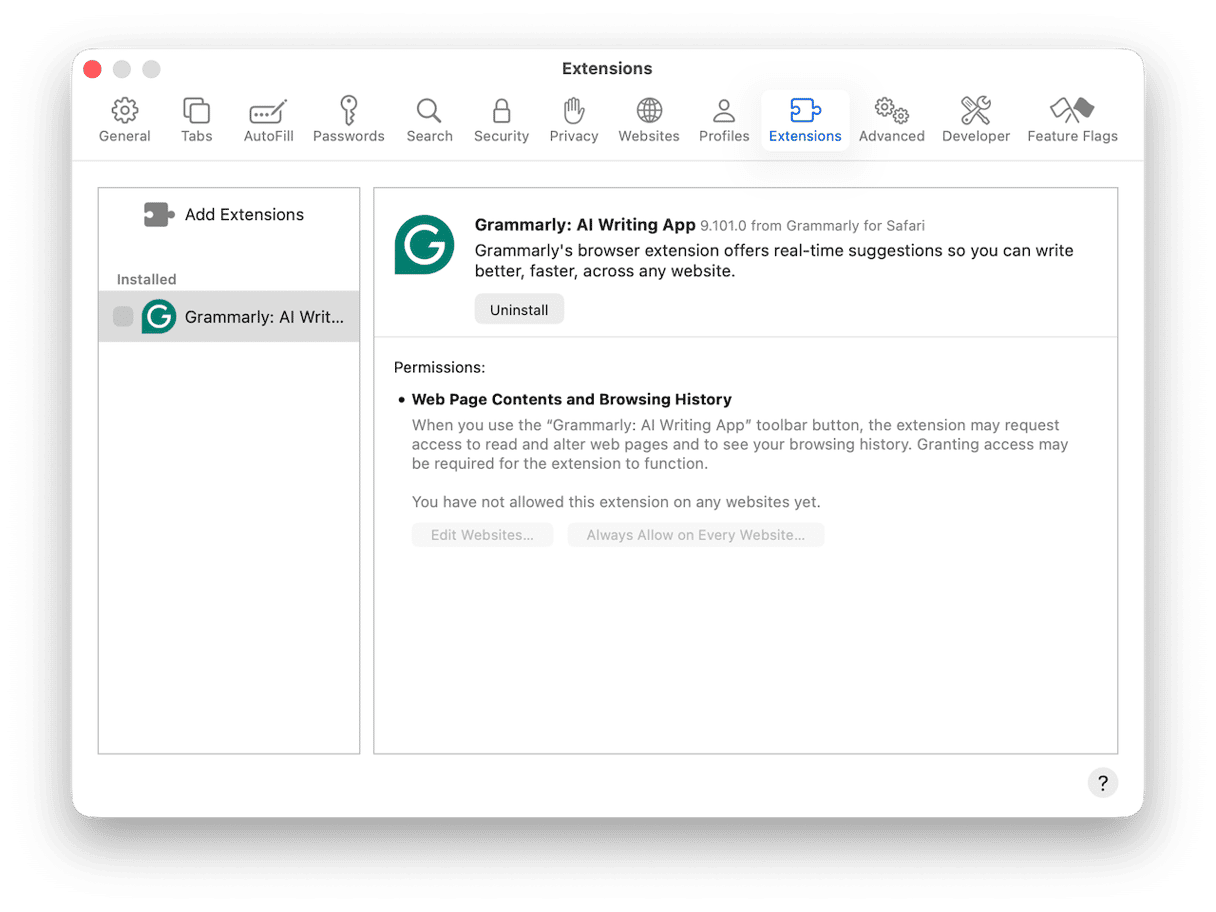
For Safari, click on the main Safari menu > Safari Extensions, select the extension, and click Uninstall.
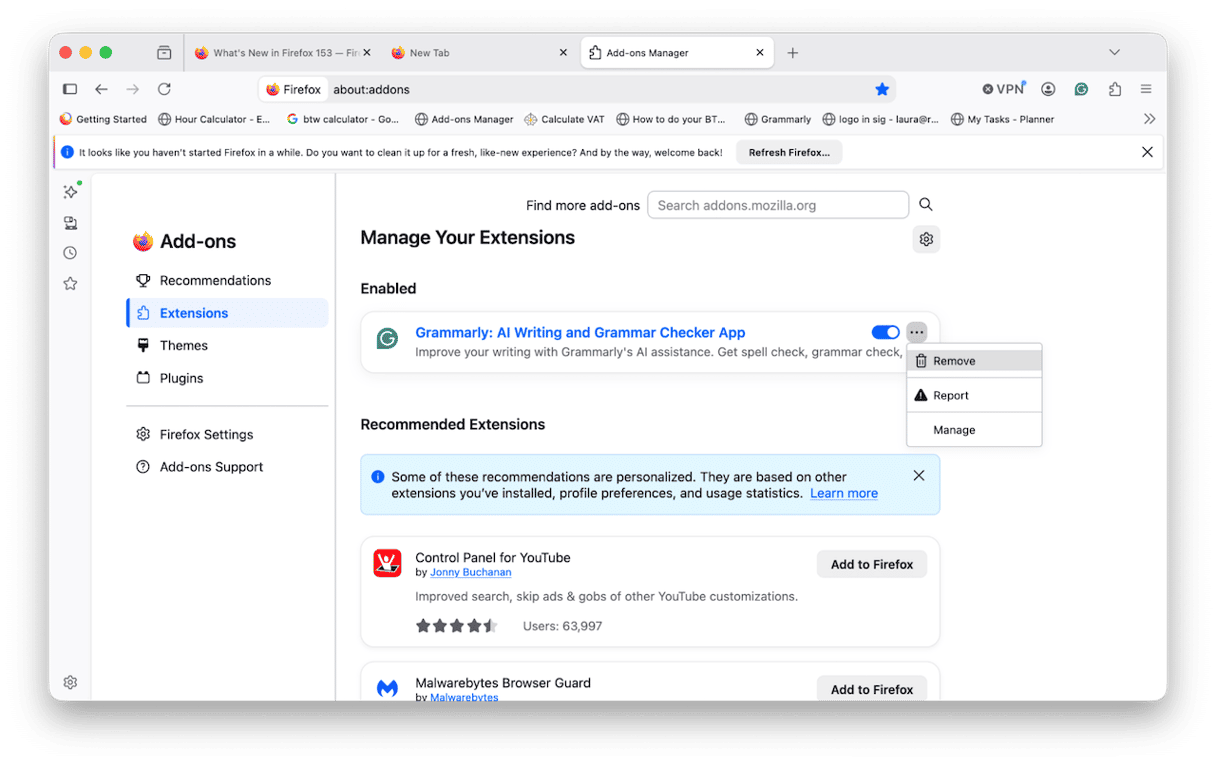
In Firefox, click the three lines > Extensions and Themes > Extensions, click the three dots beside the extension, and press Remove.
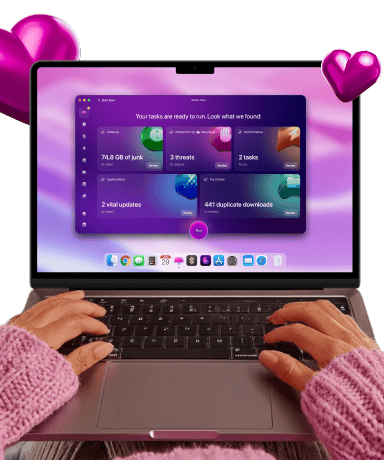
I also wouldn’t stop there; it's quite important that you check the rest of your Mac too for malware. I’d run an extra or manual scan with your antivirus software just to be on the safe side. I can really recommend the Protection feature from CleanMyMac (powered by the Moonlock Engine with a regularly updated malware database).
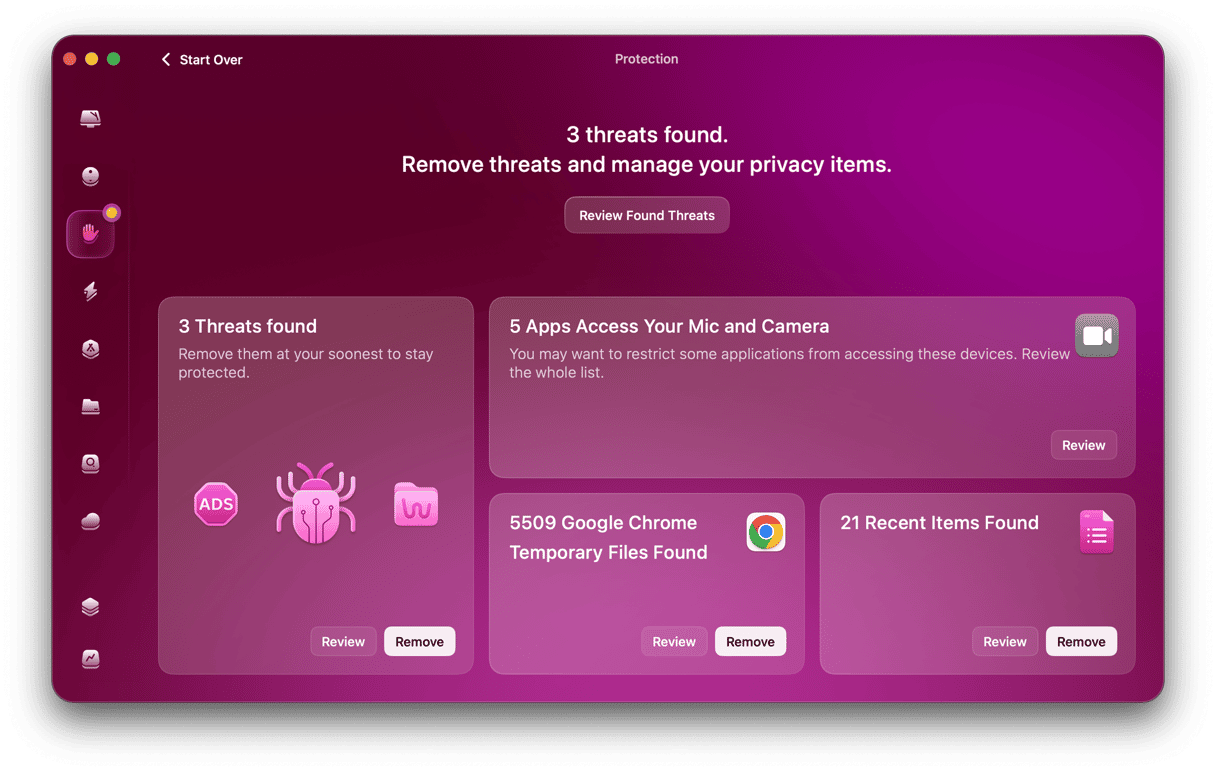
Just open the app, press Protection > Scan, and see what it finds. If you’re just hearing about this tool, you can test it for 7 days (get your free trial here), and Protection is included.
Are browser extensions safe? Loads of browser extensions can be genuinely useful and safe, but it's worth knowing what access you're giving them.
Frequently asked questions
Can extensions steal passwords?
Some malicious extensions with access to website content can capture sensitive information, including your passwords entered on webpages.
Are Safari extensions safe?
Generally, I’d say yes. Apple reviews extensions distributed through the App Store, but you should still check their permissions.
How often should I review extensions?
Once a month is a really good habit to get into. Remove anything you no longer use and check permissions after major updates. I’d also keep an eye on your open tabs too. If you use Chrome as your main browser, the Browser Care feature from CleanMyMac helps you spot heavy background tabs, pause them to free up Mac memory, and clear out duplicate or long-inactive tabs. It is already included in your CleanMyMac subscription. So, just install Browser Care from Chrome Web Store (find a link to it in CleanMyMac > My Tools) and see it in action.
Are extensions safe in private browsing?
Private browsing doesn't protect you from extensions you've allowed to run there. This actually catches a lot of people out.