

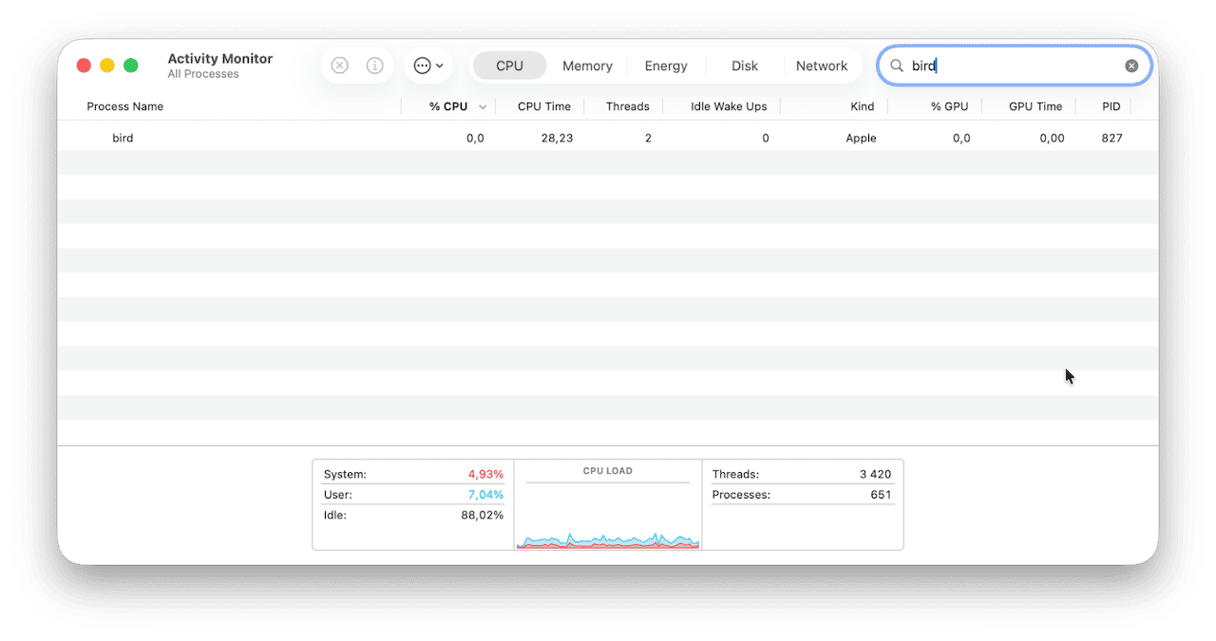
If you’ve noticed your Mac is running slowly or beachballs a lot, you may have checked Activity Monitor to try and find out more about what is happening and how you can fix it. It’s possible that when you do that, you will see a process called ‘bird’ taking up more than 100% of CPU cycles. But what is ‘bird’? What does it do and why is it running on your Mac? In this article, we’ll explain everything and show you how to fix it when the bird process has high CPU usage.
What is the bird process on Mac?
bird is the name of a daemon — a kind of background process — that is a core part of iCloud. Specifically, bird is one of the processes responsible for syncing files between your Mac and iCloud Drive. If it weren’t there, iCloud Drive wouldn’t function properly.
What does bird do?
Apple doesn’t provide detailed documentation on every one of macOS’ background processes, so it’s not clear what bird does other than that it’s a core part of the iCloud syncing feature and seems to run whenever files are being copied to or from your iCloud Drive.
Why does the bird process have high CPU usage on my Mac?
The most common reason for bird having high CPU usage is that it gets stuck while copying a file to or from iCloud. The reason for this could be:
- The file is very large and takes a long time to copy.
- The file is corrupt and can’t be copied.
- The file or other files on your Mac are infected with malware.
- There is an issue with your Wi-Fi or broadband connection.
- iCloud settings files are corrupt.
Can I quit the process?
Normally, when you see a process using lots of CPU cycles or RAM in Activity Monitor, you would select and quit the process. However, because bird is a core part of macOS, it’s not as simple as that. If you quit it, it will start running again immediately.
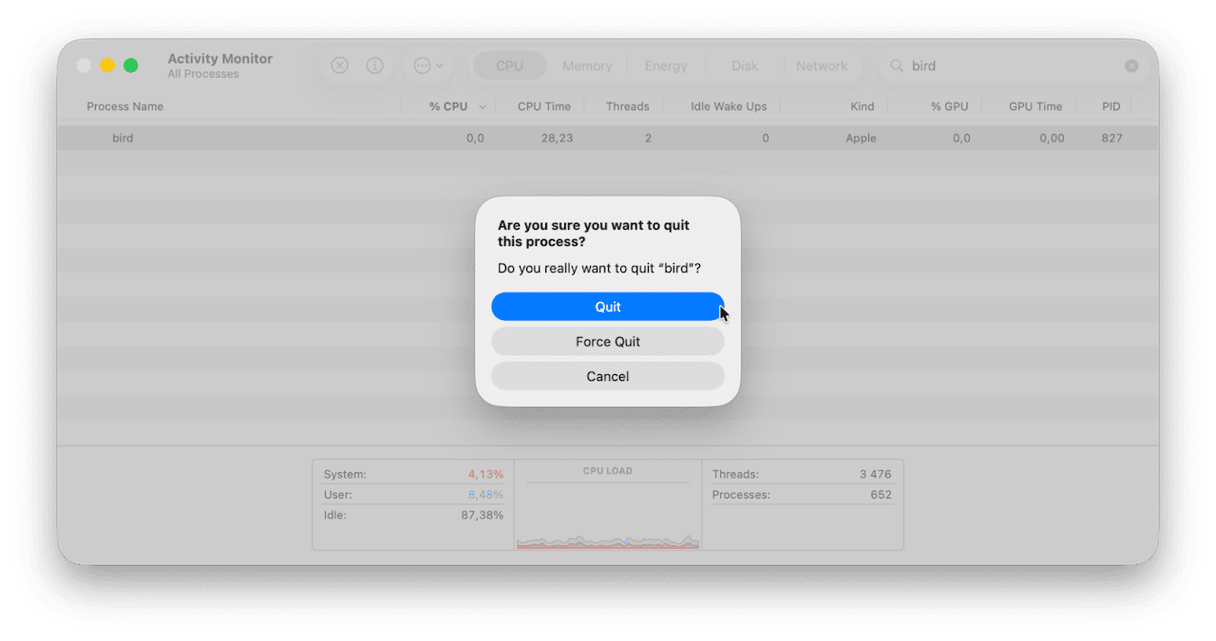
How to fix it when the bird process uses lots of CPU cycles on your Mac
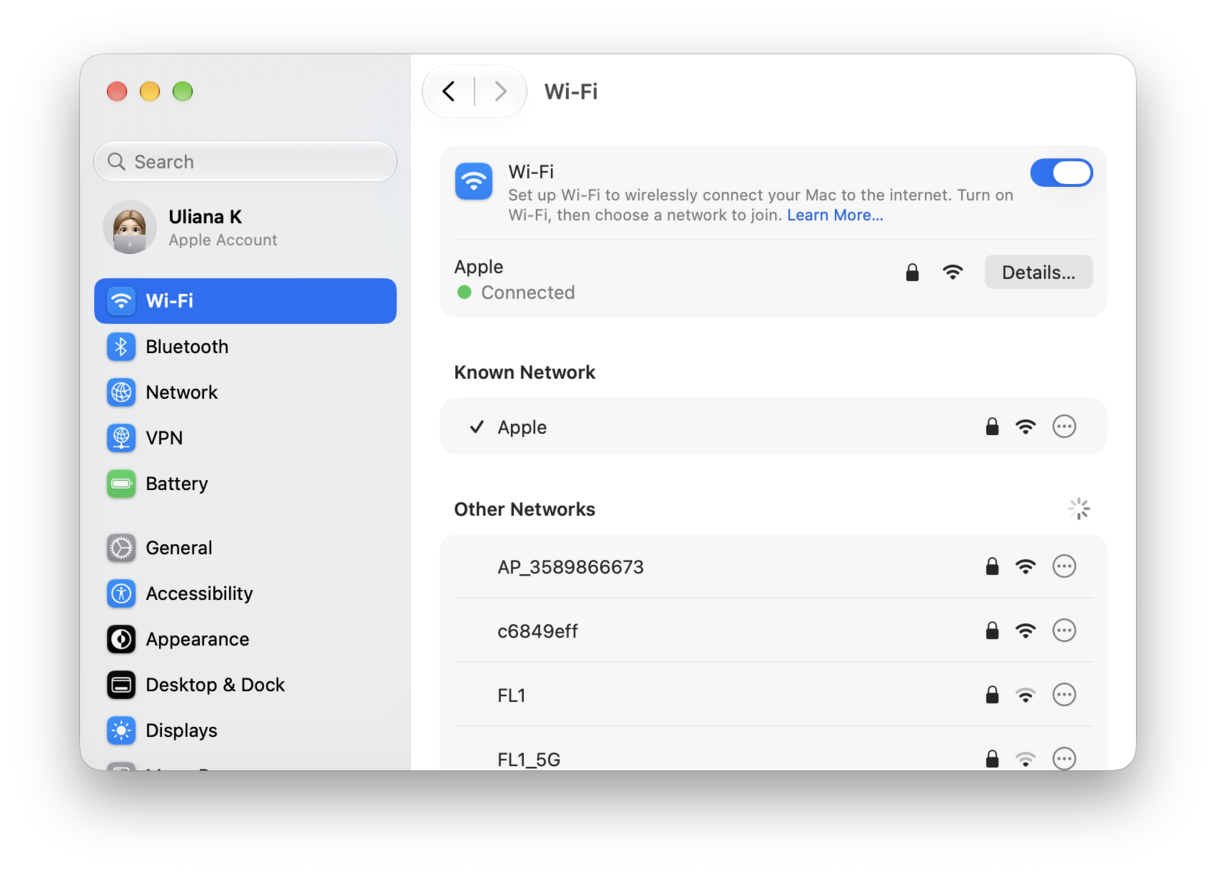
1. Turn off Wi-Fi and turn it on again
Make sure that your Wi-Fi and broadband connection are working properly. If they are, turn Wi-Fi on your Mac off and then on again. Check Activity Monitor to see if bird is still using lots of CPU cycles.
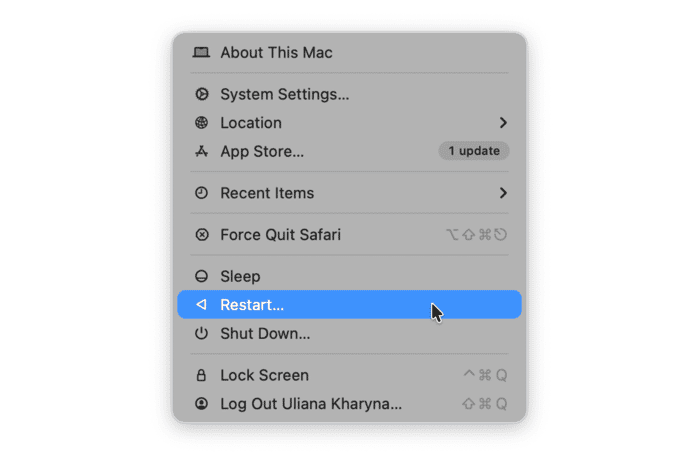
2. Restart your Mac
If that doesn’t fix the problem, restart your Mac and wait a little while before checking again. Restarting your Mac clears out temporary files, frees up RAM, and on Macs with Apple silicon, resets NVRAM and the system management controller (SMC).
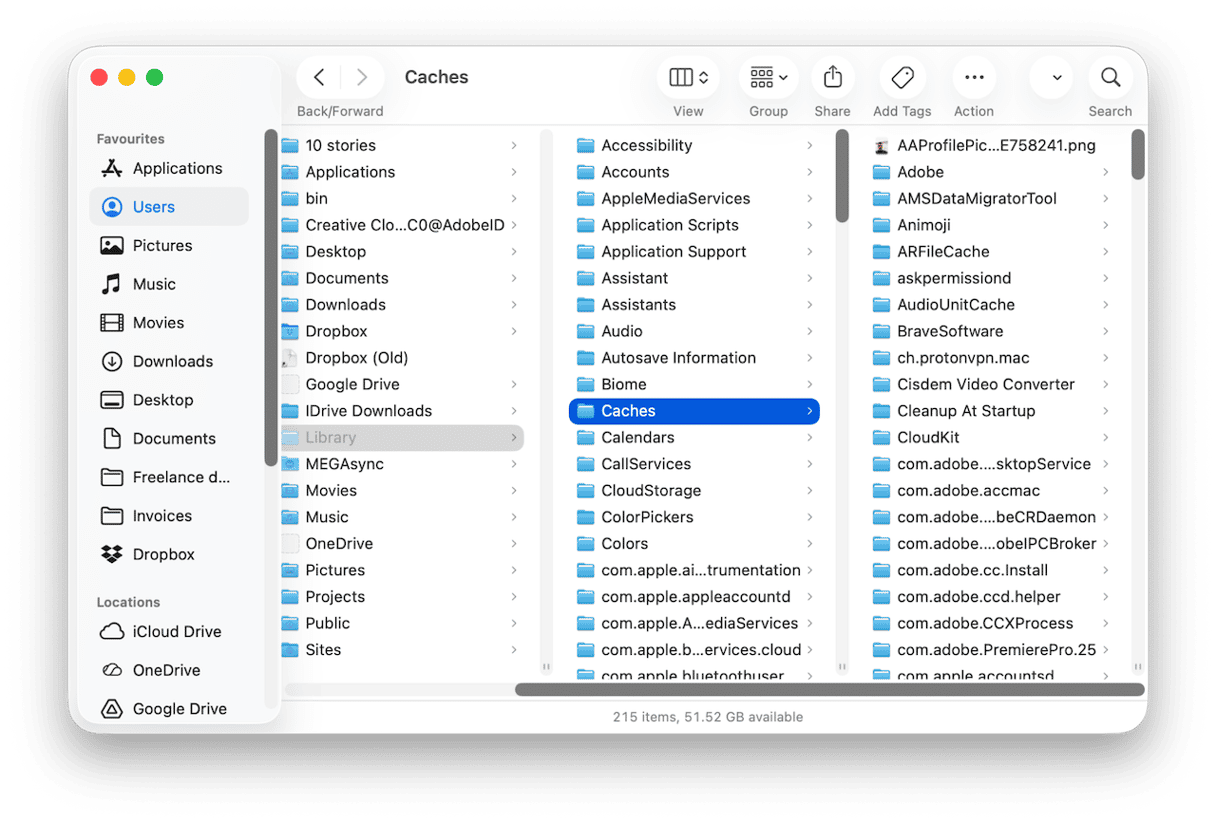
3. Delete com.apple.bird cache
If the problem is that bird’s cache is corrupt, this will fix it. iCloud will create a new cache file next time it tries to sync.
- Click the Finder icon in the Dock and choose the Go menu.
- Select Go to Folder and paste this path into the text box:
~/Library/Caches/ - Locate com.apple.bird and drag the files and folders in it to the Trash.
4. Run maintenance tasks on your Mac
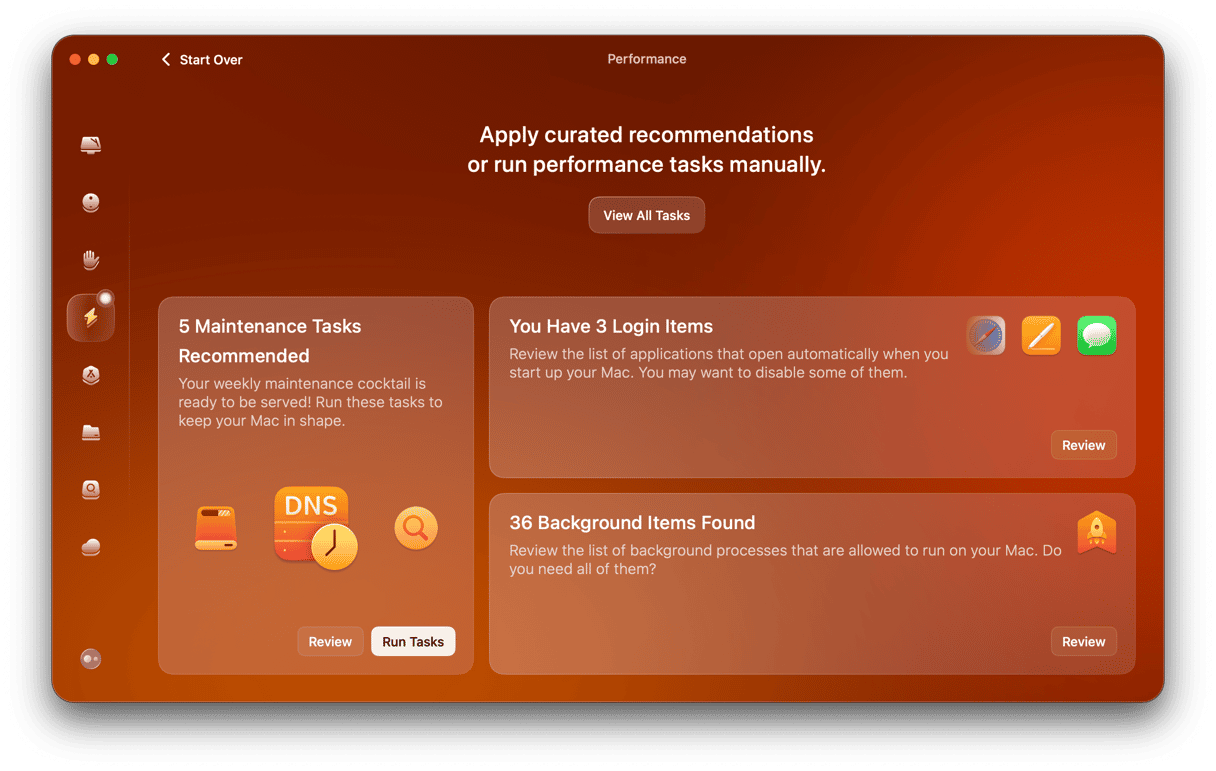
It’s a good idea to run maintenance tasks like reindexing Spotlight, thinning out Time Machine snapshots, and flushing DNS cache regularly. But it can be difficult to know how to do it, and even if you know how, it’s time-consuming. Luckily, CleanMyMac is at hand to help. Its Performance feature can run them for you.
- Get your free CleanMyMac trial — you can test it for 7 days for free.
- Choose Performance in the sidebar and click Scan.
- When it’s done, click Run Tasks in the Maintenance pane.
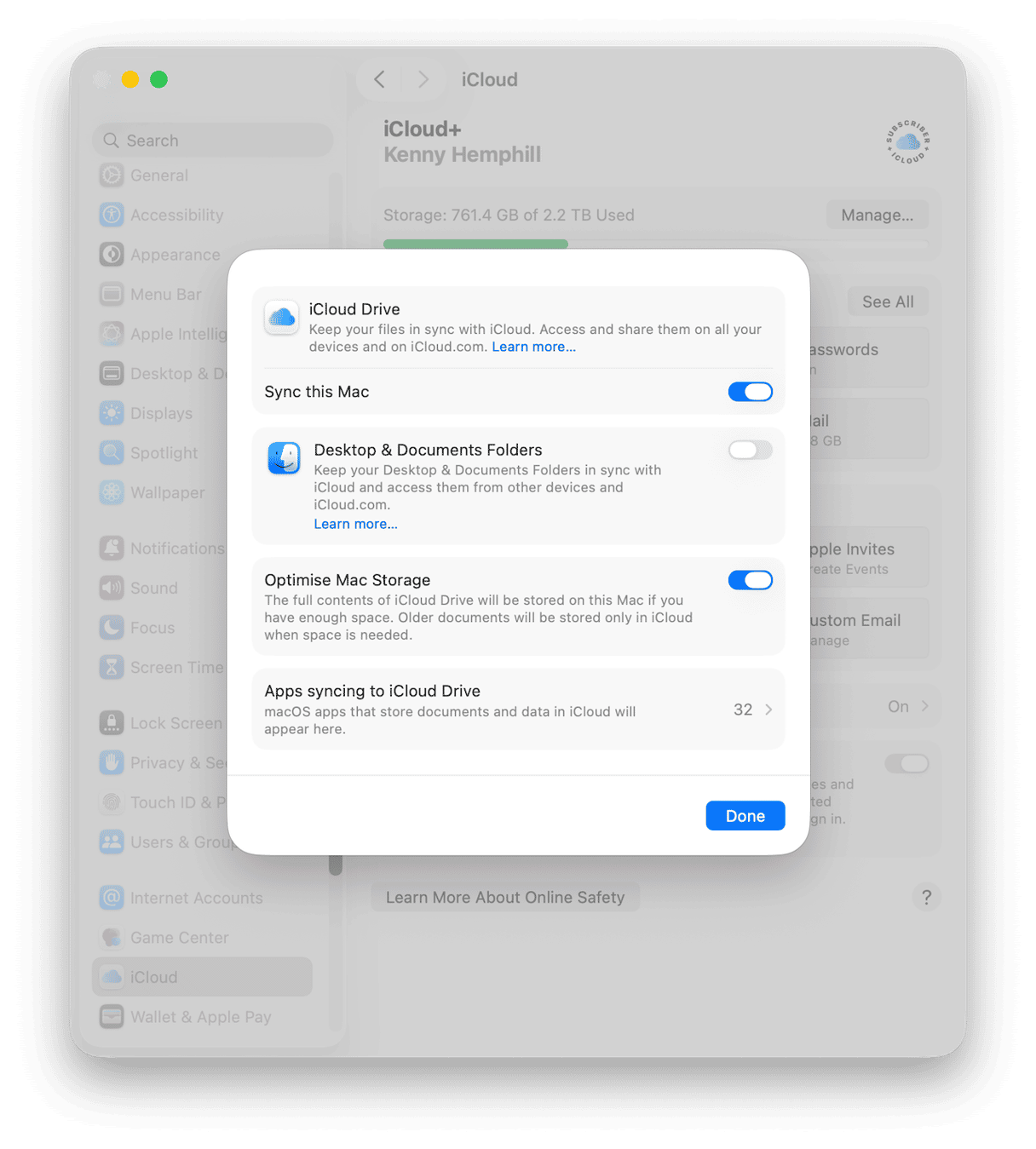
5. Try turning off iCloud Drive syncing
This will remove all the files stored in iCloud Drive from your Mac but keep them in iCloud, and you will be able to access them from your other Apple devices. If you don’t have other Apple devices or are worried about losing files, back up iCloud Drive to an external disk before turning it off.
- Go to System Settings > iCloud (on older versions of macOS, you may need to choose your Apple ID > iCloud).
- Choose Drive.
- Toggle Sync this Mac to off.
- Wait for a few minutes and then turn Sync this Mac back on again.
- When you turn it back on, wait for a few minutes, and then check Activity Monitor again.
6. Reset iCloud accounts
iCloud stores details of your account in a cache file inside your Library folder. If nothing so far has worked, you can try removing the account files from their folder and copying them to your Desktop. When iCloud next tries to sync, you will have to log in with your account details, and it will create a new file.
- Click the Finder icon in the Dock.
- Choose the Go menu, then Go to Folder.
- In the text box, paste this file path and press Return:
~/Library/Application Support/iCloud/Accounts/ - Drag the files in the Accounts folder to your Desktop.
- Close the Finder window, wait a few minutes, and then check Activity Monitor again.

7. Sign out of iCloud on your Mac and sign back in again
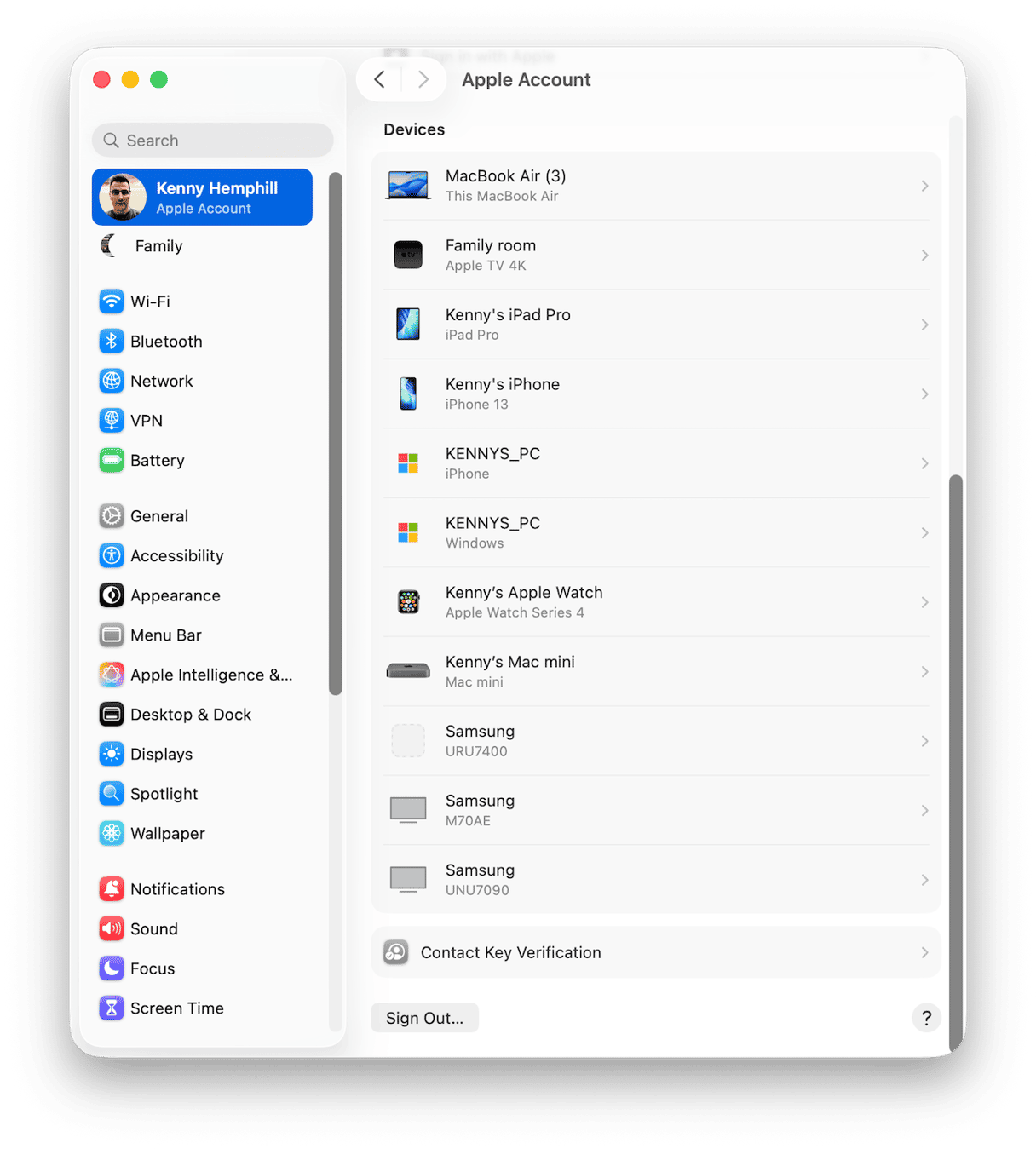
If you’re unsure about removing the files from your Accounts folder or if it doesn’t work, go to System Settings > Apple Account. Scroll to the bottom of the window and click Sign Out. Confirm you want to sign out if you’re asked, wait a few minutes, then sign back in again.
If you see high CPU usage by the bird process in Activity Monitor, it usually means iCloud Drive has got stuck syncing files. Follow the steps above to fix it.



