
Wanting to install Oh My Zsh on your Mac? macOS uses Zsh by default, but it’s pretty well known that the out-of-the-box Terminal experience is quite frankly bare. No helpful Git context in the prompt, no autosuggestions, and no syntax highlighting. It’s just not the best if you’re trying to move between projects.
Oh My Zsh gives Zsh the setup that most developers actually need and expect. It’s a community-driven framework with literally hundreds of plugins and themes, and the good news is, you can get it running on a Mac in a few minutes.
Before you get started with Oh My Zsh on Mac
Before installing Oh My Zsh, check that your Mac has the basics in place.
First up, check you’re using Zsh:
echo $SHELL
On Catalina and later, the default shell is Zsh, so you should usually see something like: /bin/zsh
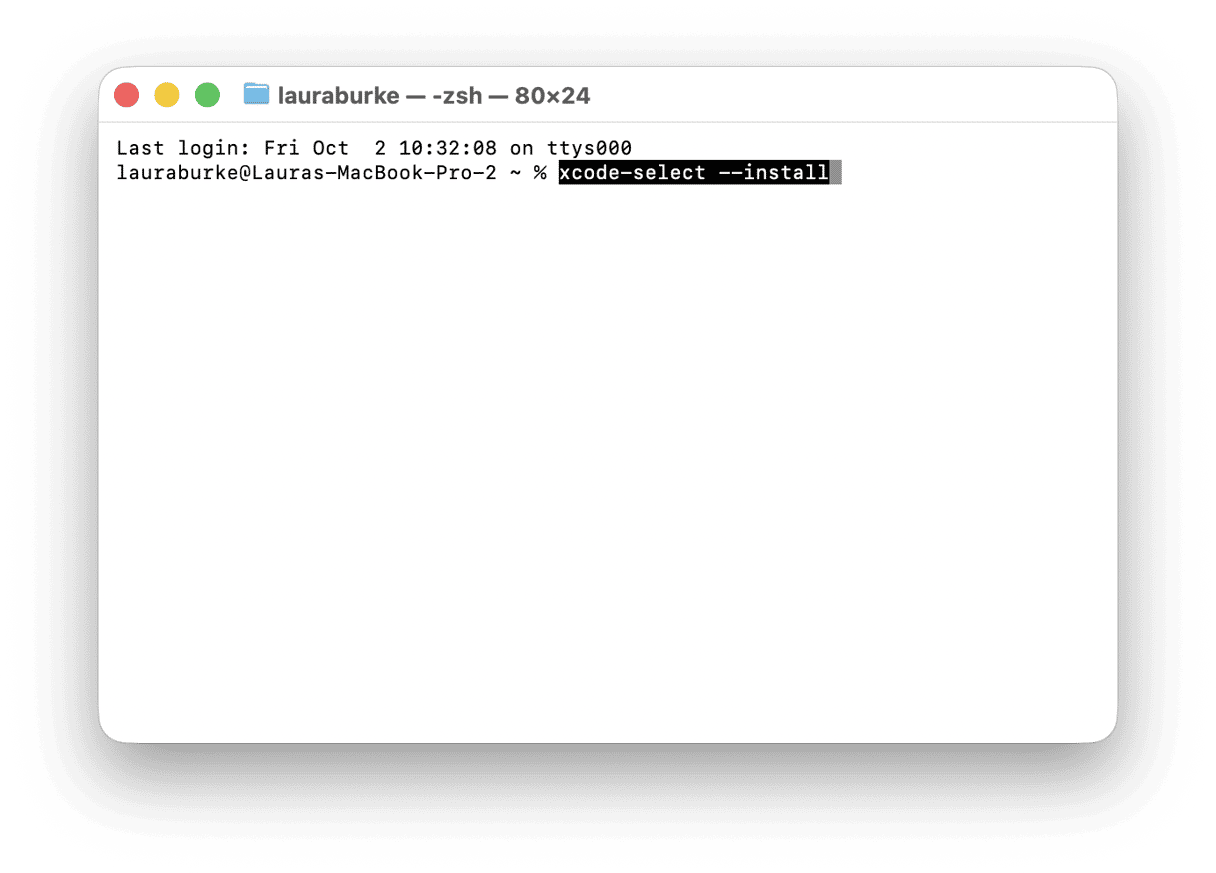
You’ll also need to make sure you’ve got Xcode Command Line Tools installed:
xcode-select --install
Homebrew isn’t actually required for the core Oh My Zsh install, but it will definitely come in handy later, so I always recommend getting that installed too:
brew.sh
You can also check that Curl is working with:
curl --version
Alright, now we’re ready to install Oh My Zsh.
How to install Oh My Zsh
There’s actually nothing to it. Just open up Terminal and run the official Oh My Zsh install command:
sh -c "$(curl -fsSL https://raw.githubusercontent.com/ohmyzsh/ohmyzsh/master/tools/install.sh)"
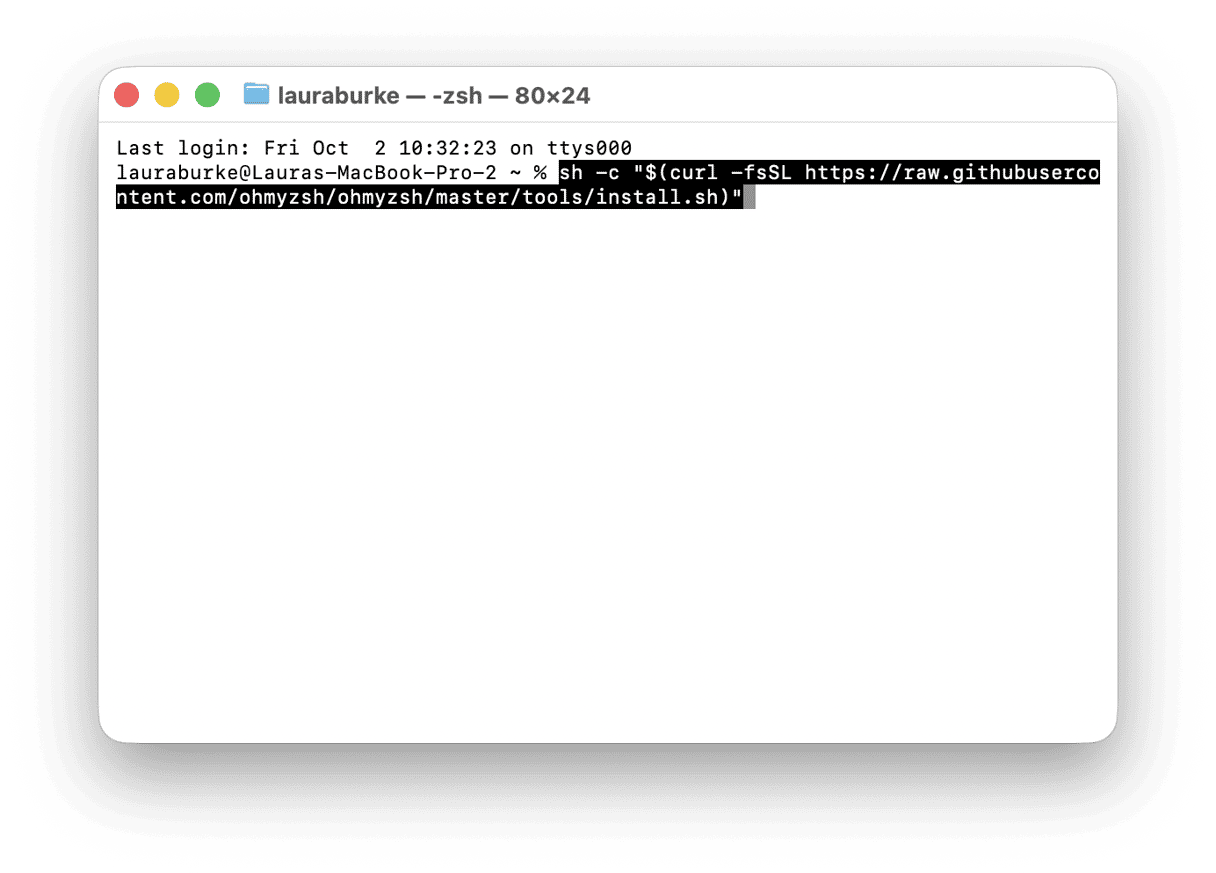
Curl downloads the installer from the Oh My Zsh GitHub repo, and sh runs that installer in your shell.
This will install Oh My Zsh into: ~/.oh-my-zsh
It’s also going to back up your existing .zshrc, create a new one, and set Zsh as your default shell (if needed). When it’s finished, open up a new Terminal window, and you should see the default robbyrussell theme. This is how you know it’s all in order.
Understand the .zshrc file
Oh My Zsh is controlled from your .zshrc file. Where you’ll set the active theme, enable plugins, add aliases, or manage any PATH changes for tools like Homebrew, pyenv, or Node.
Open it with:
open ~/.zshrc
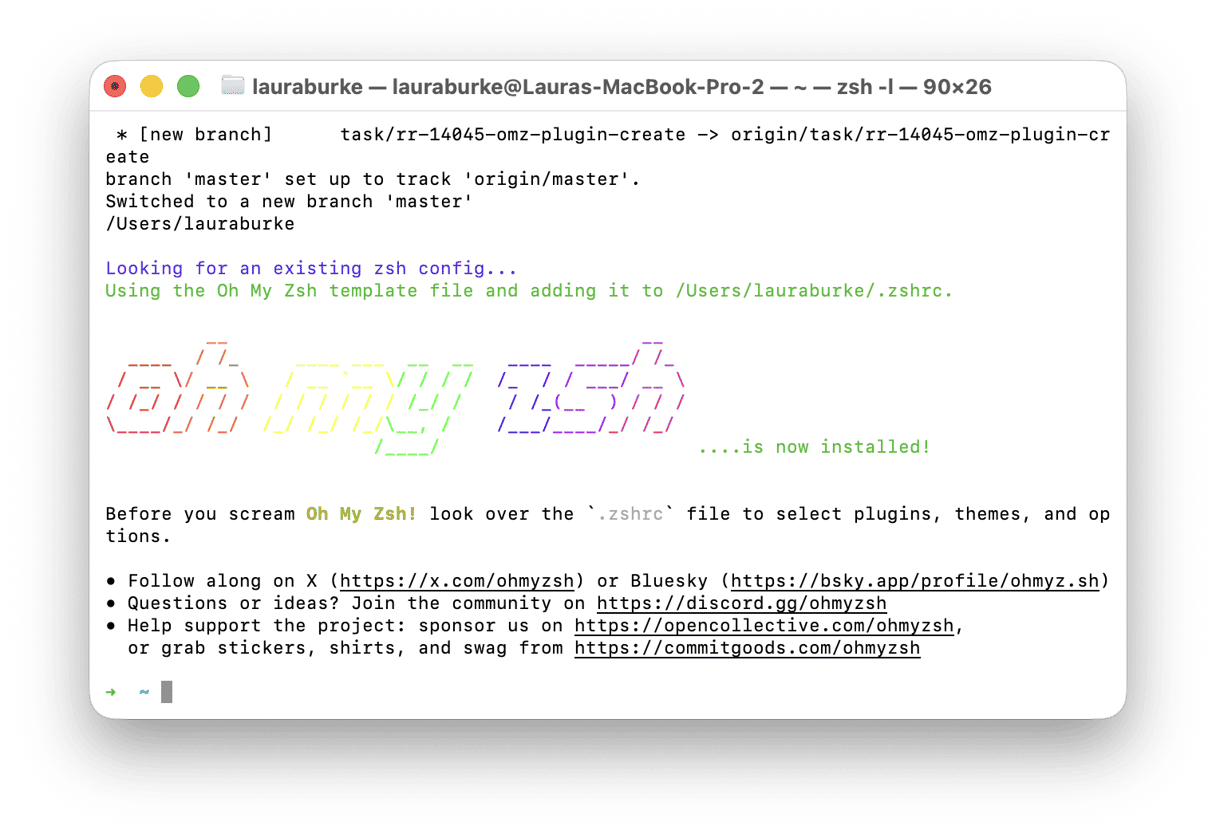
Or you can also use a terminal editor:
nano ~/.zshrc
I’d say these are the main settings you need to know.
Setting in .zshrc | What it controls |
| Active theme (change to any theme name) |
| Active plugins (space-separated list) |
| PATH additions (add Homebrew, pyenv, etc. here) |
After you edit .zshrc, reload it without restarting Terminal with:
source ~/.zshrc
If something breaks, check the last lines you edited first. Most Oh My Zsh issues come from a typo in .zshrc or a plugin listed there before it’s installed.
Essential plugins
Plugins fall into two groups. First you’ve got all the built-in plugins, which you enable in .zshrc, and second, external plugins, which you install first, usually with Homebrew.
I’d personally start with a small plugin list, because loading every plugin that sounds useful will end up slowing your shell down and make debugging harder.
Plugin | What it does | How to install |
git | Git aliases (gst, gco, gl, etc.) This will save you dozens of keystrokes daily | Built-in. Add to |
brew | Homebrew aliases (bubu = brew update && upgrade) | Built-in. Add to |
zsh-autosuggestions | Grey ghost suggestions as you type, based on history |
|
zsh-syntax-highlighting | Real-time colour feedback: green = valid, red = error |
|
z | Jump to frequently used directories with z dirname | Built-in. Add to |
docker | Tab completion for Docker commands and containers | Built-in. Add to |
history | Better history search: h searches previous commands | Built-in. Add to |
After installing external plugins via Homebrew, add these source lines to .zshrc:
source $(brew --prefix)/share/zsh-autosuggestions/zsh-autosuggestions.zshsource $(brew --prefix)/share/zsh-syntax-highlighting/zsh-syntax-highlighting.zsh
Oh My Zsh themes
Change your Oh My Zsh theme by editing the ZSH_THEME value in .zshrc.
Theme | Best for | Preview |
robbyrussell (default) | Clean, minimal, shows git branch. | Included, it works out of the box |
agnoster | Powerline-style with git status icons. | Requires a Nerd Font (install via Homebrew) |
powerlevel10k | Fully customizable, interactive setup wizard (very fast). |
|
af-magic | Two-line prompt, shows Python venv, clean layout. | Built-in. No extra install needed |
To install a Nerd Font for agnoster or powerlevel10k, use this:
brew install --cask font-hack-nerd-font
Then set that font in Terminal.app or iTerm2. To install powerlevel10k, you’ll need to run:
brew install romkatv/powerlevel10k/powerlevel10k
Useful customizations
For commands you run constantly, add custom aliases, for example:
alias ll='ls -lah'alias gs='git status'alias ..='cd ..'
Oh My Zsh updates automatically (including plugins) on a weekly schedule, but you can also update it manually with:
omz update
Clean up Oh My Zsh & Homebrew caches
Any Oh My Zsh plugins installed via Homebrew are going to leave package caches behind. And if your plugin list is continually growing, that means all those autosuggestions, syntax highlighting, powerlevel10k, and fonts are going too as well, not to mention Homebrew’s local cache. Weeks of zsh usage also accumulate completion caches in ~/.zcompdump files.
I use CleanMyMac CLI to clean up my Homebrew package caches and other dev-tool leftovers directly from Terminal. If you haven’t tried it yet (it does require macOS 11+), install it with:
brew install --cask macpaw/taps/cleanmymac-cli
You can then clean all dev-tool caches in one go (includes Homebrew, npm, pip, and more), with:
cleanmymac clean dev
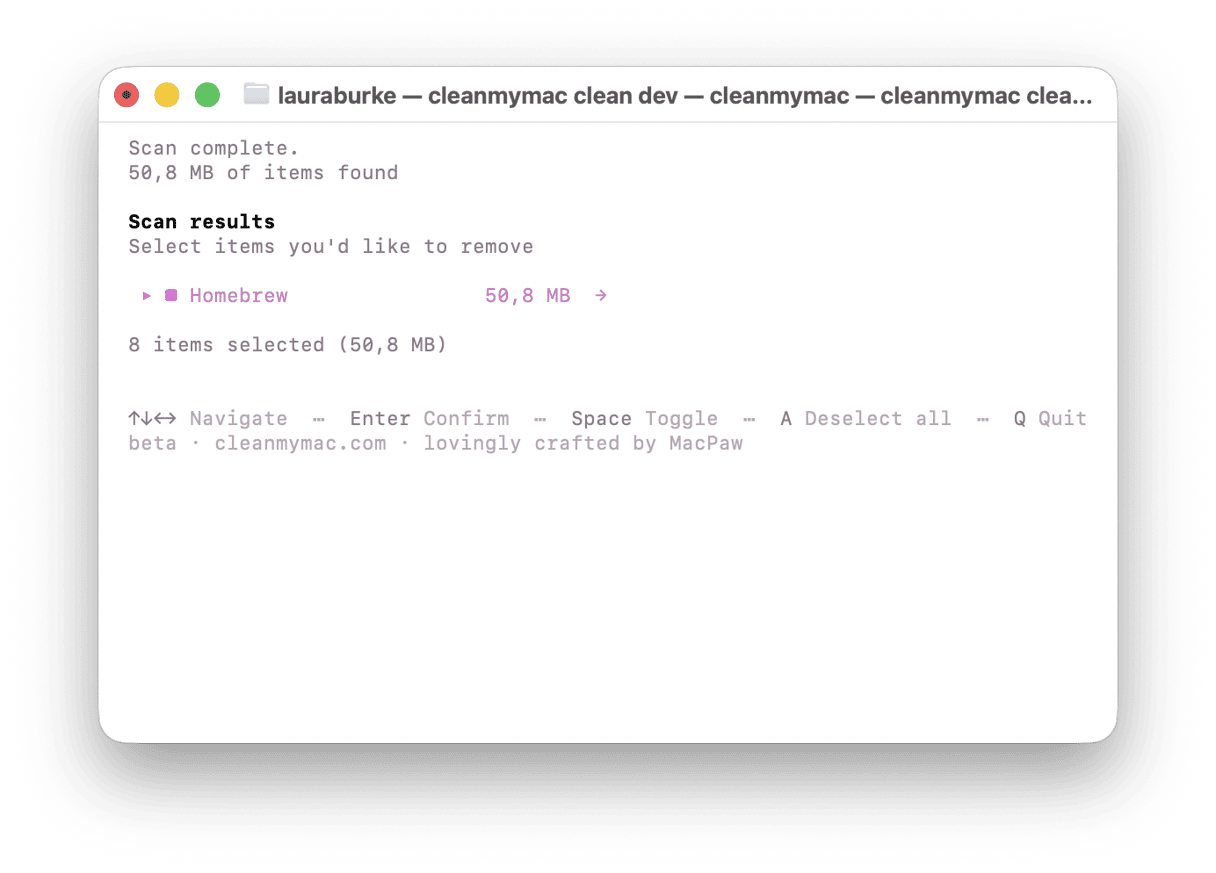
This will show you what’s been found before removing anything, and then you can also run a full clean, which includes system junk and trash, with:
cleanmymac clean
You can read all the full documentation on GitHub here.
Oh My Zsh can definitely transform your Mac Terminal experience. And to keep it fast, pair it with CleanMyMac CLI.
Frequently asked questions
Does Oh My Zsh work on Apple silicon (M1/M2/M3/M4/M5) Macs?
Yes. Just make sure Homebrew paths are correct for Apple Silicon, usually /opt/homebrew.
Will Oh My Zsh slow down my Terminal?
I’d definitely keep your plugin list lean, because it can slow down if you load too many plugins or use a heavy theme.
How do I uninstall Oh My Zsh?
Run the built-in uninstall command: uninstall_oh_my_zsh
What’s the difference between Oh My Zsh themes and Starship?
Oh My Zsh themes are part of the Oh My Zsh framework. Starship is a separate cross-shell prompt that works with Zsh, Bash, Fish, and others.