How to uninstall VPN on Mac was my Saturday troubleshooting list, after a week of flaky Wi-Fi and a stubborn menu bar icon that would not quit. I’m running Tahoe on my machine, and whilst figuring out the quickest and safest way to uninstall mine, I quickly figured out two things. Air Deleting my VPN app is only half the story; VPN profiles and extensions can linger and keep intercepting traffic until you pull them out correctly. So here’s everything I learnt.
Why I still like VPNs, when they’re set up right
I’m not anti-VPN, actually far from it. They’re great for shielding traffic on hotel networks, getting a stable route back to a work gateway, and dodging sketchy DNS. Nowadays, some providers even add tracker and phishing blocks, which can be really useful on public Wi-Fis. If the app behaves and the connection is solid, there’s no harm in them.
When to get rid of a VPN
- The app auto-starts and fights macOS network settings.
- Work changed stacks, and I no longer need the client.
- Performance tanks or the split tunnel rules break my dev tooling.
- I’m selling the Mac and don’t want any leftover profiles to confuse the next owner.
I cover all the steps on how to uninstall global protect VPN and other tools on Mac below.
How to uninstall VPN on Mac
When it comes to how to uninstall Proton VPN on a Mac or any other VPN, the key is the uninstall order. This really matters, so follow through these steps, one by one.
1. Use the app’s own uninstaller if it has one
- Open Applications in Finder and locate your VPN.
- Some VPNs ship a separate Uninstaller inside their folder or offer a Remove or Uninstall option in the app.
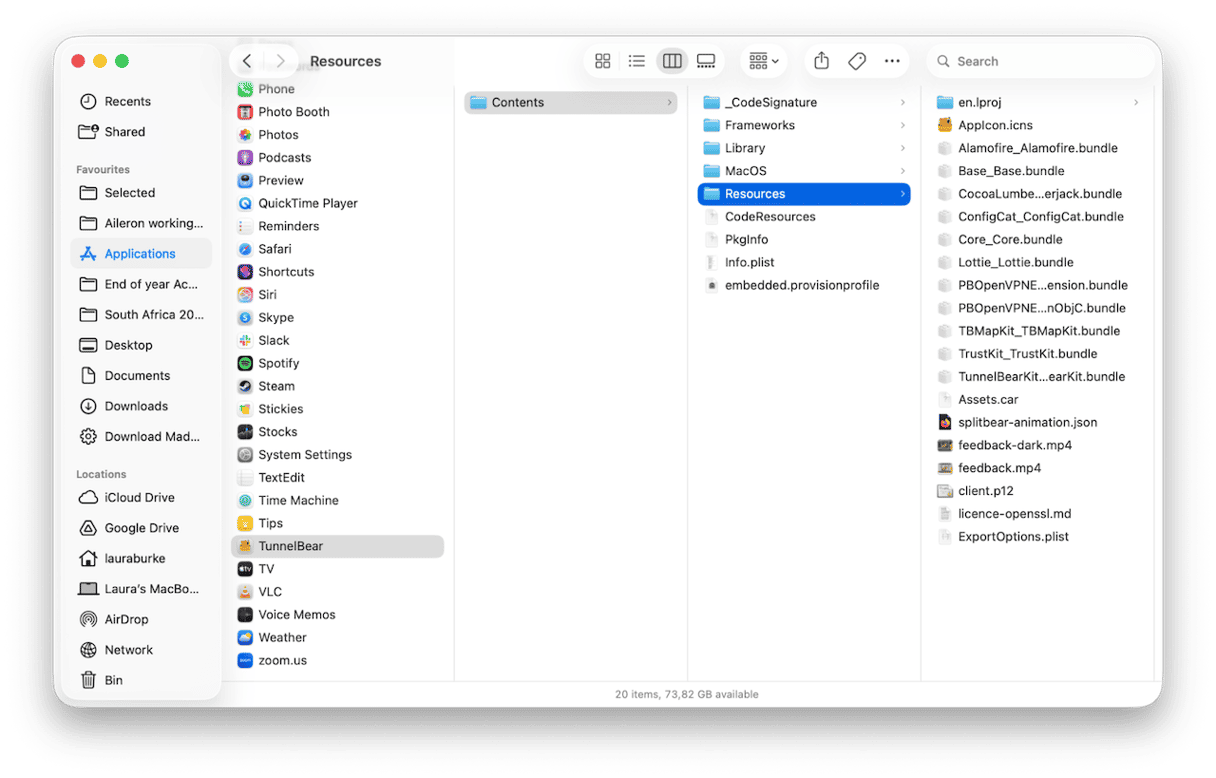
Apple’s current guidance on third-party apps is clear: if the developer provides an uninstaller, that's best because it can remove login items and extensions installed elsewhere by the app.
If there’s no uninstaller, like the one in my image above, dragging to Trash still works, but you’ll need to do a couple of extra checks, which I cover below.
2. Sweep for leftovers after dragging app icon to Trash
So, if you couldn’t remove your VPN with an official uninstaller and you dragged the app icon to the Trash, you now need to sweep leftovers; here’s how:
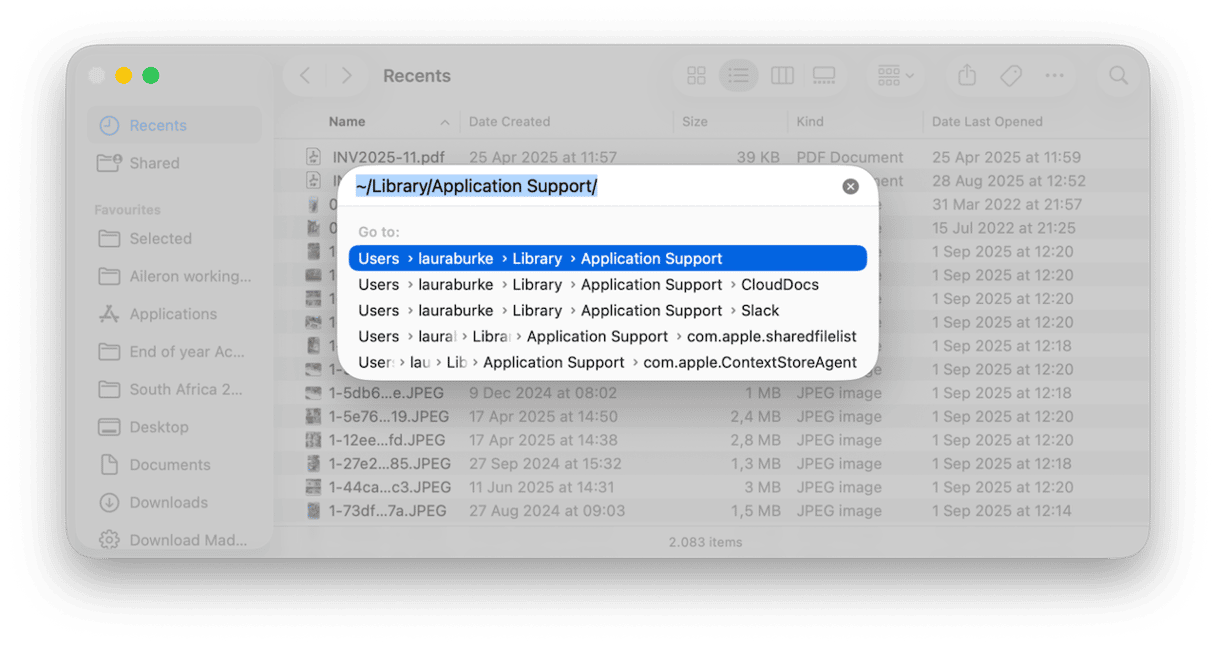
- In Finder, press Shift - Command - G, then paste each path below and remove any folders that clearly match the VPN’s name or vendor.
~/Library/Application Support/
~/Library/Preferences/
~/Library/LaunchAgents/
/Library/Application Support/
/Library/LaunchDaemons/ - Empty your Trash and restart your MacBook.
An easier way to uninstall apps
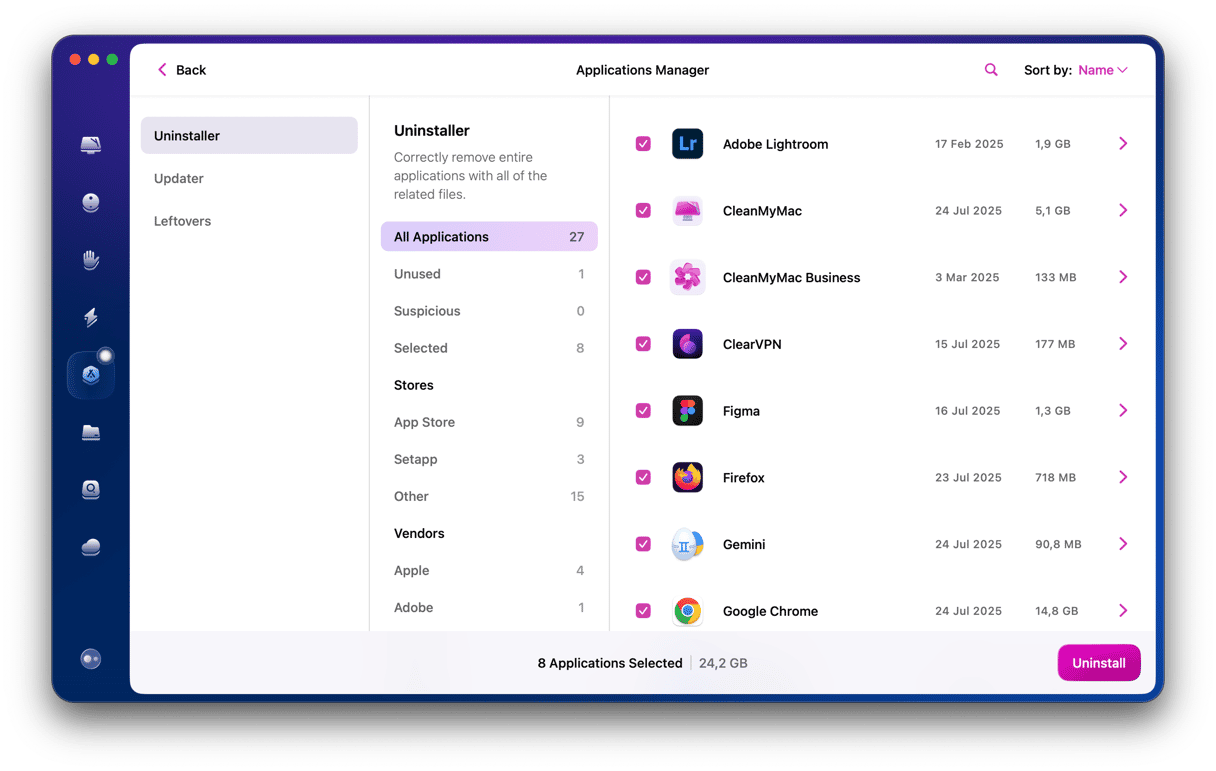
An easier way to remove apps is to use the Uninstaller feature from CleanMyMac, no searching through system folders; here’s how:
- Get started with a free CleanMyMac trial — you can test it for free for seven days.
- Open the app and click Applications > Scan > Manage My Applications.
- Find your VPN in the Applications list and click Uninstall.
- Switch to Leftovers and remove anything that remains.
- Restart your Mac.
3. Remove the VPN configuration in System Settings
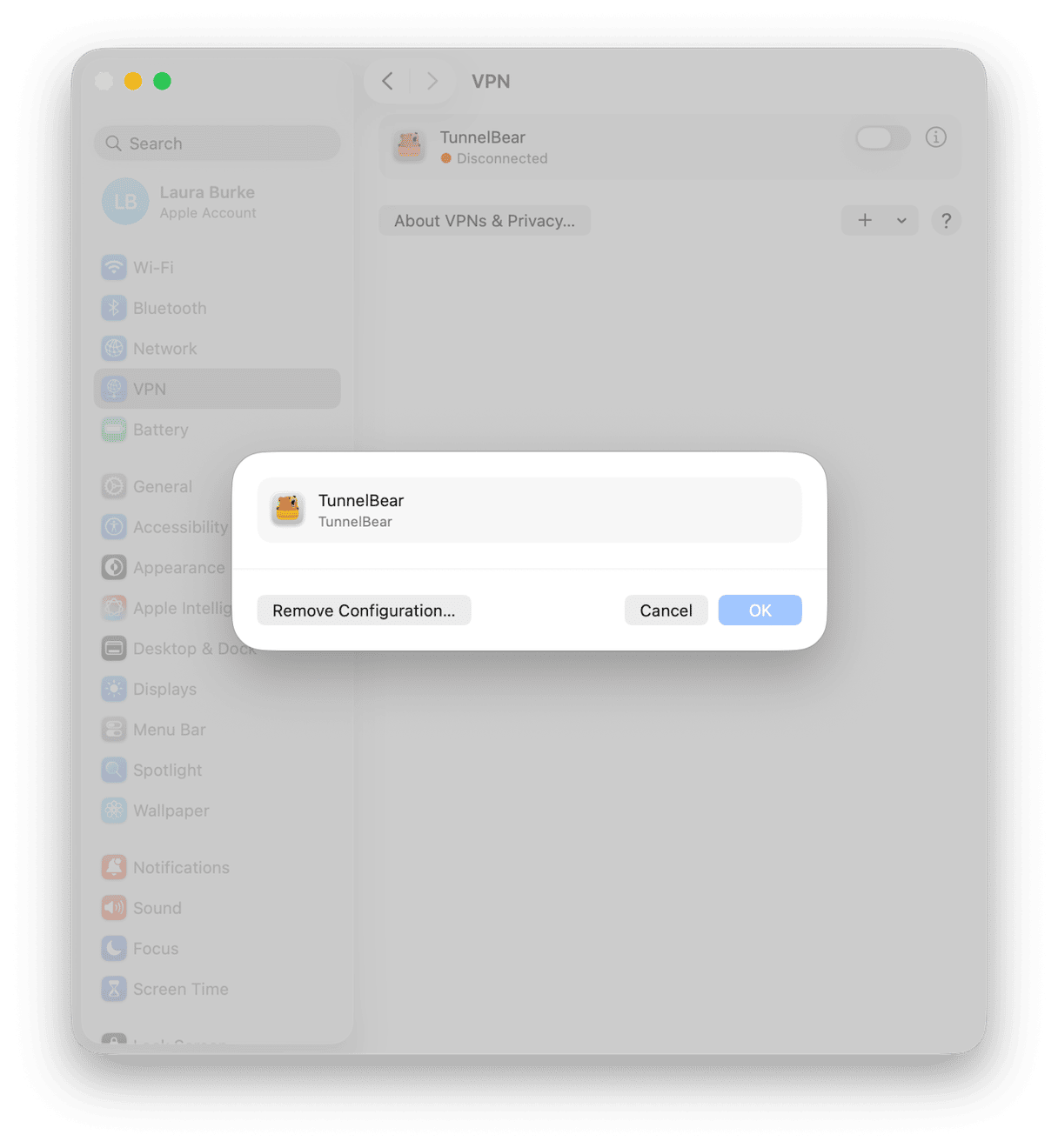
macOS treats VPN configurations like network services. Deleting the app does not always remove the service, so you’ll need to do this step too.
- Open System Settings > VPN.
- Select the information icon next to your VPN and press Remove Configuration > Done.
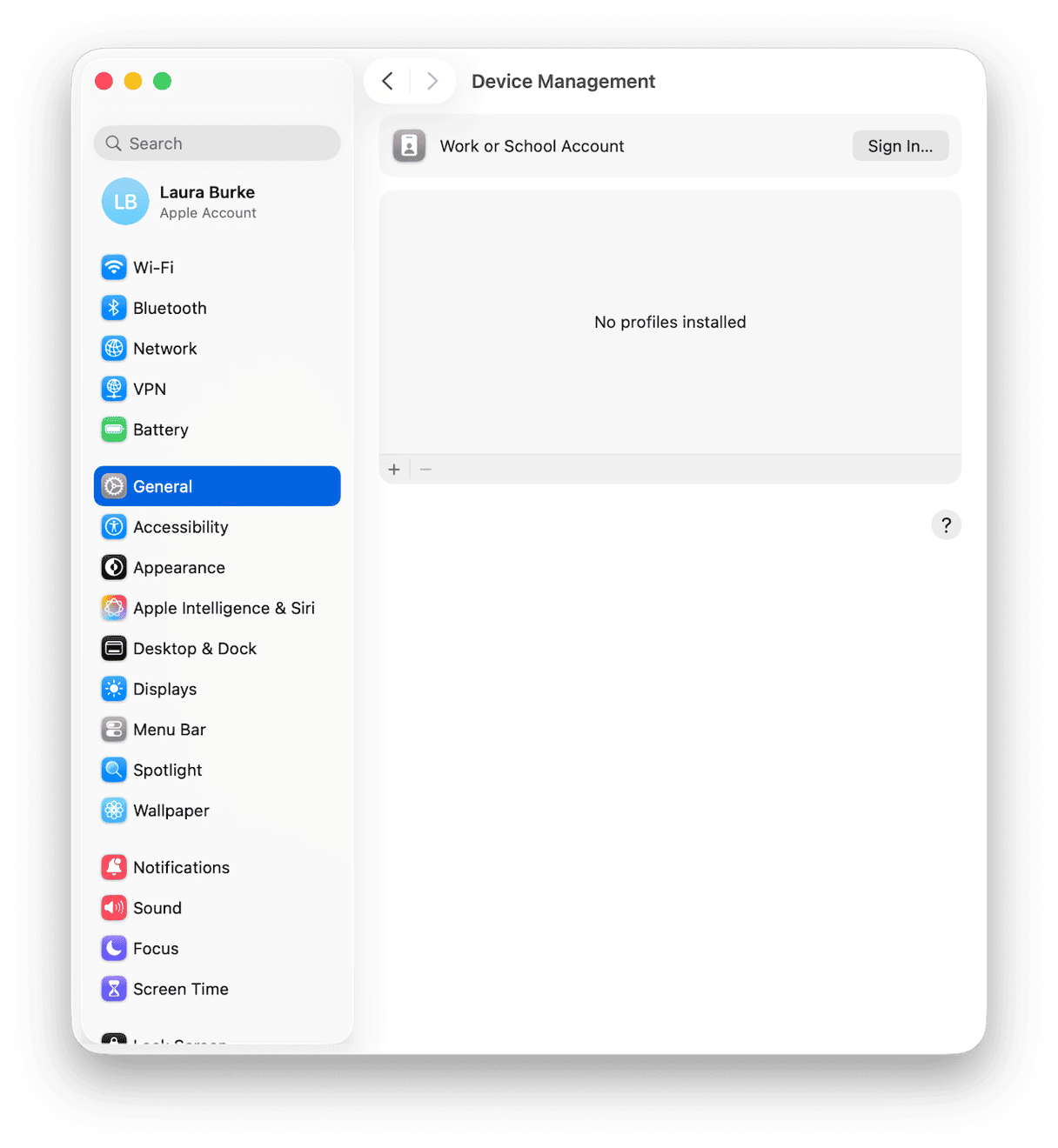
4. Check for device management profiles
Some corporate or consumer VPNs install a configuration profile. If one is present, remove it.
- System Settings > General > Device Management > select Profile > Remove.
5. Clean up login items
- Open System Settings > General > Login Items & Extensions.
- Turn off any leftover helper that mentions your VPN Opens and login.
- Scroll down and toggle off anything under Apps and Background Activity.
- And under Extensions, press the information button and turn off anything here next to your VPN name.
- Restart your Mac.
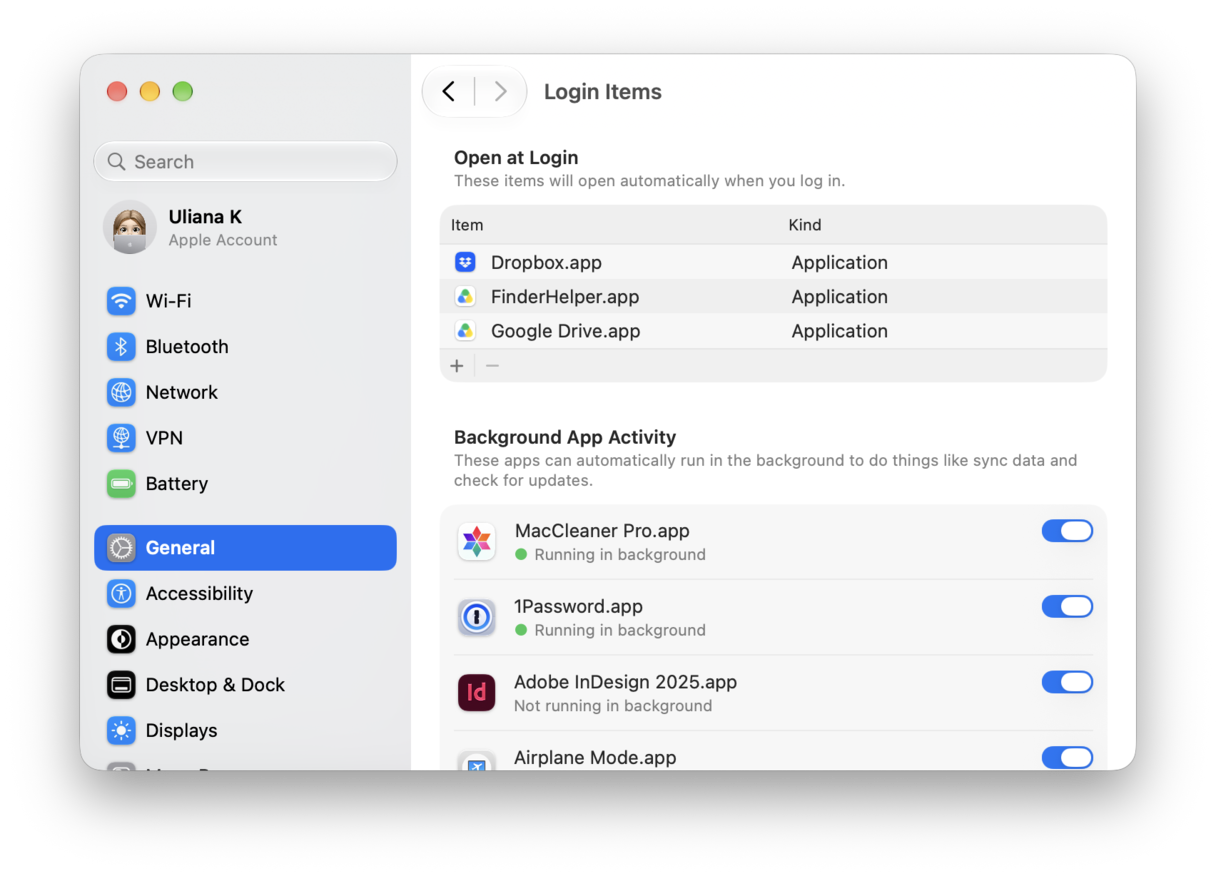
This stops auto launchers from trying to hook networking even after you’ve removed them. Surprisingly, still, in 2026, many uninstallers can’t remove these for you, so this manual check is necessary.
Specific app removal tips
How to uninstall GlobalProtect VPN on Mac
The official instructions are to use the GlobalProtect Installer to remove it from your Mac; here’s how:
- Download or locate the same GlobalProtect installer package you used.
- Open it and right-click on Uninstall GlobalProtect.
- Follow the prompts, then restart.
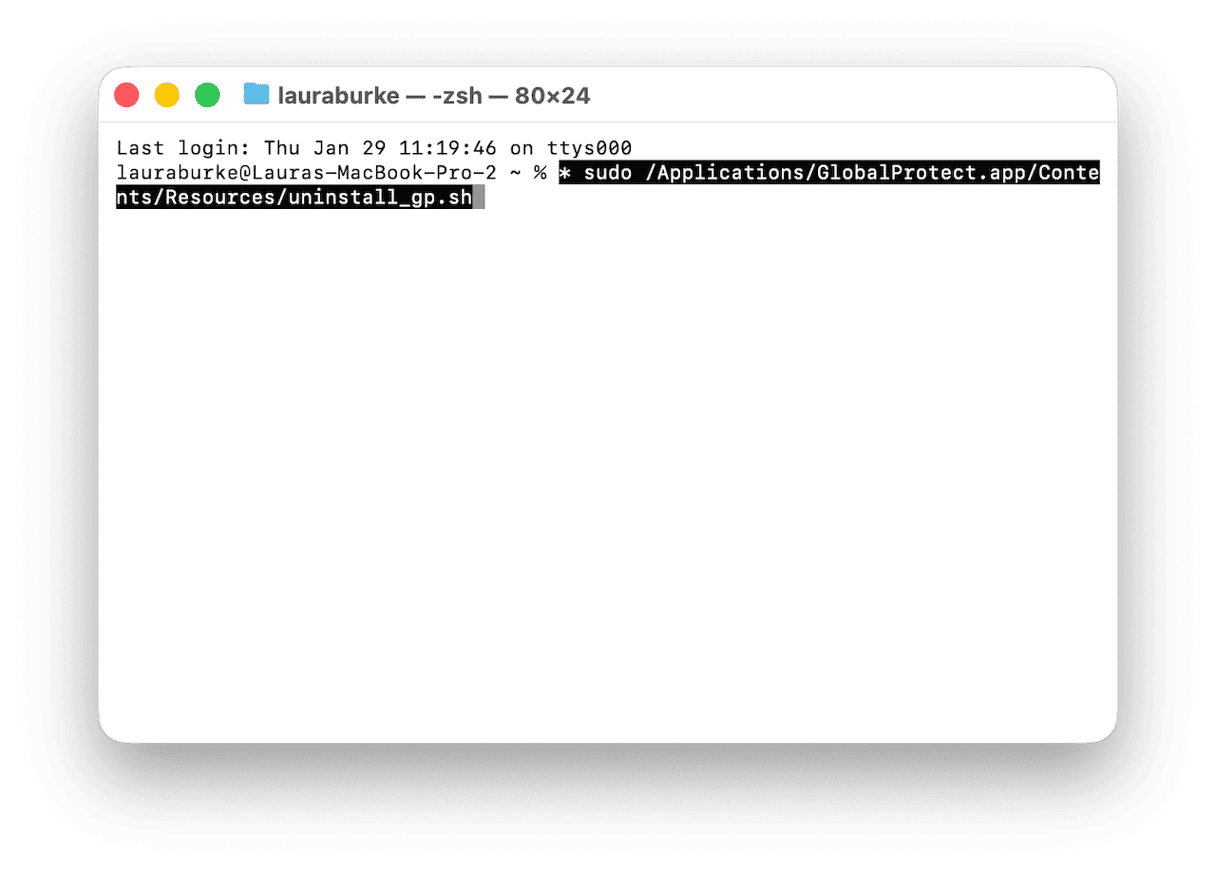
This removes the app and its services cleanly. If the app is still present and you cannot get the installer, many universities document the fallback script:
- Open Terminal from Utilities and enter this command:
sudo /Applications/GlobalProtect.app/Contents/Resources/uninstall_gp.sh - Restart your Mac afterwards.
How to uninstall Proton VPN on Mac
Proton’s Mac app can be removed like any other app, but be sure to clear the VPN service and any extensions.
- Quit Proton VPN and Drag ProtonVPN.app from Applications to your Trash.
- Empty Trash.
- System Settings > VPN > remove any Proton or WireGuard/OpenVPN service the app created.
- System Settings > General > Login Items & Extensions.
- Remove or disable any Proton VPN entry under Login Items and check Network Extensions for a Proton item. Delete it if present. The Tahoe unloading quirk is real, so check.
How to uninstall Bitdefender VPN on Mac
Bitdefender provides a dedicated uninstaller.
- Finder > Applications > Bitdefender folder.
- Double-click Bitdefender Uninstaller.
- Check Bitdefender VPN, authenticate, and proceed. Restart afterward.
I would still open System Settings > VPN and remove any remaining service, just to be safe.
That’s my full removal playbook on how to uninstall VPN on Mac.
FAQs: How to uninstall VPN on Mac
Will removing my VPN break my internet?
No. If you remove your VPN configuration and any remaining network extension, then your macOS routes traffic normally.
Why does my Mac still ask for VPN permissions after I removed it?
That prompt is coming from a leftover background helper or a browser extension trying to reach the old service. I disable the browser add-on and quit background menu bar helpers, then the prompts stop.