

Easily overlooked, the macOS Help Menu is always there in your Mac's menu bar. macOS Help has been a part of every version of OS X and macOS for years, and yet how many of us have given it a second thought or used it?
Well, for those who want to know more, this is a useful article on how to use the Help Menu on macOS.
What is the macOS Help Menu for?
So we all know and have probably used more times than we can count, Spotlight Search and Siri.
Both are very helpful native macOS apps for finding what we need, either on our own Macs or on the web.
This is why it's worth asking: what is the Help Menu designed to do?
It was designed as a menu navigator. At some point, macOS became so complex, with so many apps and programs (native and third-party), that Apple decided we needed something that would make it easier to find our way around.
It was also designed as a way of making more sense — working out how to use and figuring out in-app menu shortcuts — of the apps on your Mac.
Let's take a closer look at how we use the macOS Help Menu.
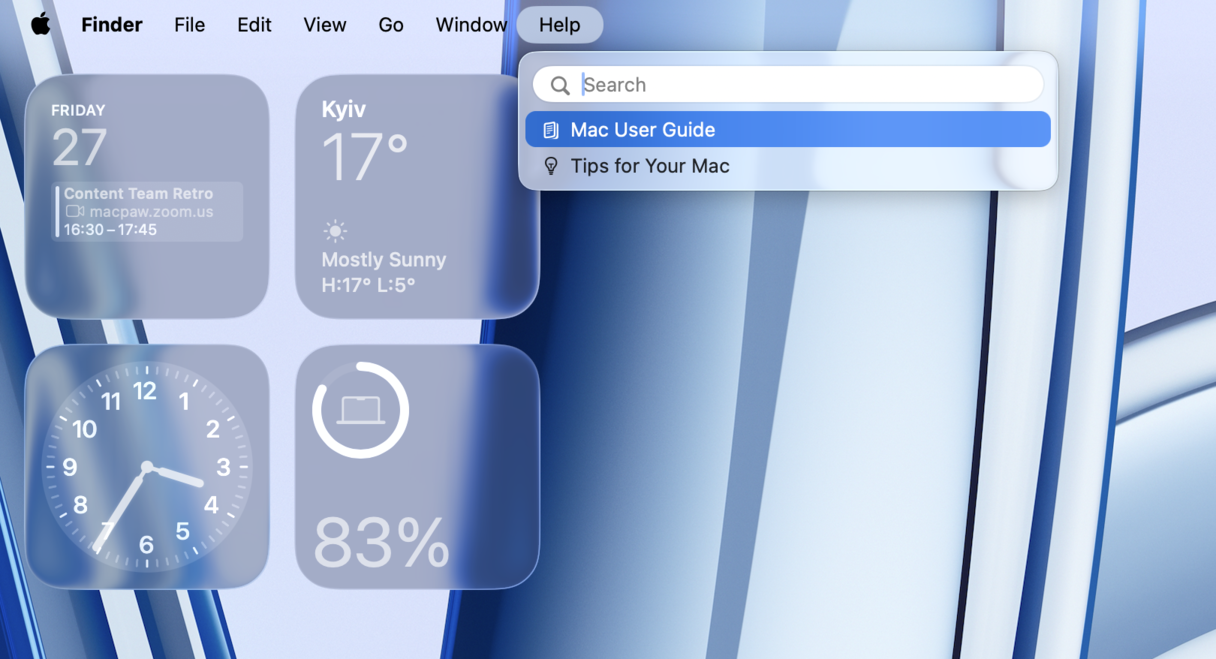
macOS Help Menu: How to use it?
The menu can be accessed in one of two ways:
Method 1: Using the menu bar
- Click Help in the menu bar at the top of your screen.
- Type your search terms into the Search field at the top of the menu.
- Click a result to open the relevant help page or highlight the menu item.
- Alternatively, click macOS Help to open the full Help Viewer for the active app.
Method 2: Using the keyboard shortcut
- Press Command-Shift-/ to open the Help menu directly, with the Search field already focused.
Now that you've got into the macOS Help Menu, let's see what it can do.
It basically functions as a search tool to give you more information about apps on your Mac. So what it should show straight away is a series of Help Topics from one of the apps currently in use. Chances are, you've got more than one app running at any one time.
For macOS apps, the pages it brings up come straight from the official and most relevant (version of that app currently in use) macOS User Guide for that app. If you type in the name of another macOS app, then it will bring pages up from that macOS User Guide.
When you want to find more about a third-party app, the macOS Help Menu will usually pull information up from the developer's website. What it finds depends on how much effort a developer or company has put into creating help documentation, such as user guides and FAQs. Failing that, if the app is published through the Mac App Store, the help menu might pull information from that source.
But that isn’t all it can do.
What else can the macOS Help Menu do?
Built into this handy menu is the ability to create menu navigation shortcuts within apps on your Mac. When using this menu, it can also pull menu items from apps currently in use.
You can use this to point to actions within the menu of an app. Hover over one of the menu search results and macOS will automatically find the relevant action within that app; pressing Return will then perform that action. Depending on the app, it can also potentially perform some limited contextual menu item functions.
What if Help doesn't help?
If your Mac isn't working as well as normal, or as effectively as it should, perhaps you need more than the Help Menu can offer.
It could be running slowly. It could be overheating. Normal functions could be taking longer to perform, or apps could start crashing unexpectedly. It can be annoying when a Mac stops working properly.
Thankfully, there is a cure for many common Mac problems.
One app worth trying to help solve these is CleanMyMac. It can solve a whole load of problems: clear out junk, remove malware, reset apps, and so much more. Give it a try — get your free trial here. Explore various features to improve the performance of your Mac.
- With the CleanMyMac Menu, you can even benefit from personalized maintenance tips for your Mac — a useful alternative to the Help Menu. It looks like this:

As you can see, here you can keep an eye on processor load and temperature (CPU), test internet speed, and free up memory. A handy way to keep an eye on what's going on without having to dig into settings.
An analog to macOS Help: CleanMyMac’s Assistant
Let's be frank: the type-in menus aren't very intuitive. When you need to know why your Wi-Fi isn't working or where all your music has gone, referring to a tiny search bar isn't likely to help. You'd rather ask Siri or call your tech-savvy friend.
On the other hand, software solutions are getting increasingly personalized. When you need specific advice about your Mac's health, you may look into CleanMyMac's Assistant. It offers personalized tips for your Mac. Just open the app and click My Activity from the sidebar. Now, check recommendations.

For example, I found out I can delete 86 unused applications. A fact I wouldn’t know otherwise.
Mac Help Menu has something to offer even for experienced users. Most importantly, it can show you alternative ways to perform the same Mac operations. And if your Mac isn't performing as well as it once did, try CleanMyMac for free — a virtual consultant to have by your side.



