
Most of us are by now used to the idea that web browsers track us while we use the internet. We’ve all seen ads for products on one website that we’d previously researched on another. But most of us don’t realize just how much information the websites we visit collect about us. Details like screen size, time zone, and language can all be identified when you visit a site. These data are known as fingerprints, and the process of collecting them is called browser fingerprinting. Now that you know what it is, you might be wondering if you can reduce what data websites collect. Well, yes, you can, and we’ll show you how.
What is browser fingerprinting?
Apple, which has become increasingly privacy-focused and provides lots of tools for keeping your data private, describes browser fingerprinting as the process of identifying your device from data collected while you browse. The list of data that websites collect is a long one, but includes: details of your Mac’s hardware, the browser and version you’re using, extensions and other add-ons you have running in your browser, the fonts you have installed on your Mac, your time zone, your system language, your keyboard layout, and more.
The data collected is contained in the HTTP request made by your browser whenever you view a web page. It broadcasts the data to ensure you get the version of the page that is most suitable for your computer, browser, time zone, etc. Importantly, fingerprinting doesn’t rely on cookies, so even if you delete those, you can still leave those fingerprints behind.
How to check your browser fingerprint
There are a few specialist websites that can tell you what data your web browser is giving away. Here’s how to use two of them.
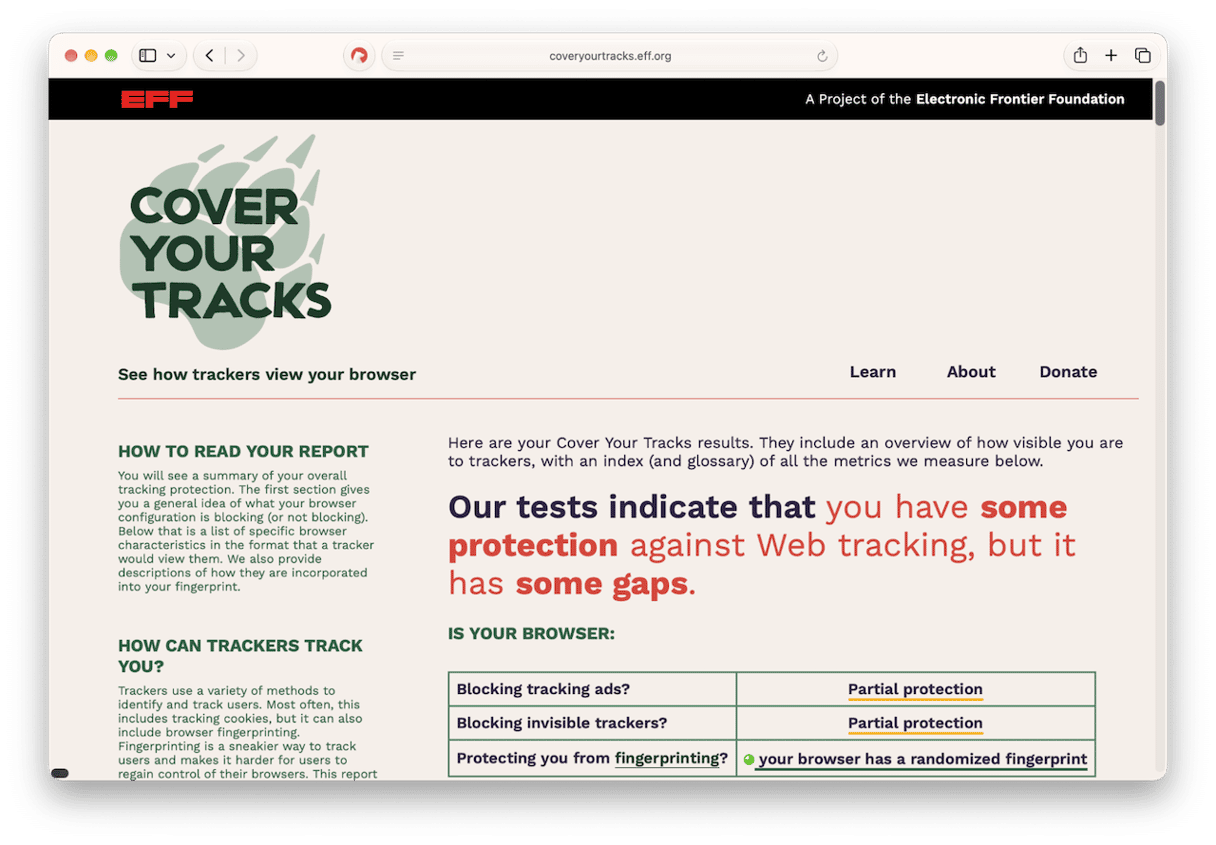
The Electronic Frontier Foundation has its own tool for checking browser fingerprints at coveryourtracks.eff.org. According to the EFF, it shows you how trackers see your browser and gives you an overview of your browser’s unique and identifying characteristics.
- To start using it, click the link above, then choose Test Your Browser.
- Wait for it to finish checking, then read the results. The top of the page gives you an overview of how well protected your browser is from fingerprinting, and further down there is more detail. In the Detailed Results section, you can choose a characteristic from the dropdown menu to learn more about the details of that characteristic that your browser is giving away.
Another site that allows you to check your browser fingerprint is AmIUnique (https://amiunique.org). This is a project set up to study the diversity of browser fingerprints and provide developers with data to help build defenses. Here’s how to use it.
- Go to https://amiunique.org
- Click See My Fingerprint.
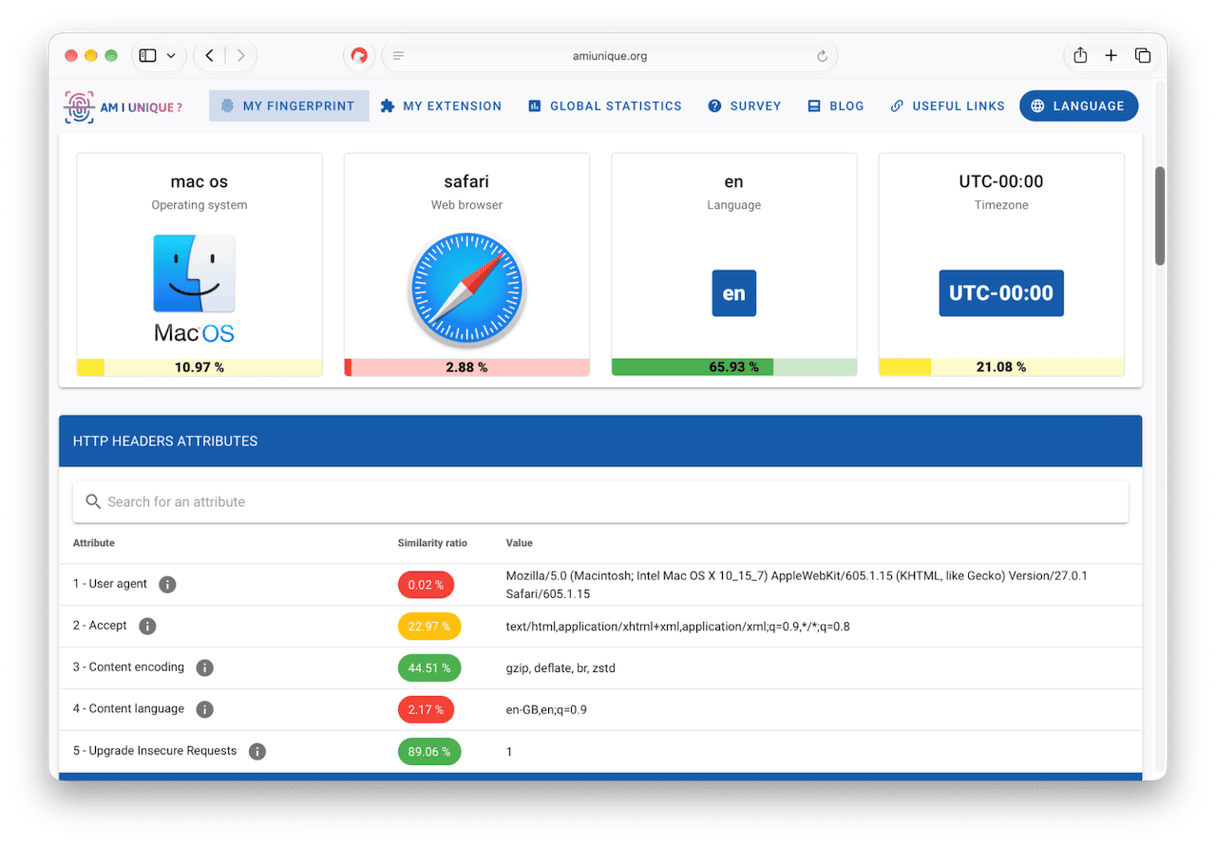
- When it’s finished, you will be able to see all the data it has collected about your browser and Mac.
- AmIUnique’s results are easier to read than those on Cover Your Tracks thanks to its Dashboard system. At the top, you will immediately see what the browser fingerprint has told the website about your OS, web browser, language, and time zone. Beneath that, you’ll see other attributes, split into HTTP and JavaScript and clearly labeled, with a traffic light system to indicate the level of similarity with other visitors. For example, using Safari immediately puts you in a red light zone because so few visitors to the site use it.
How to reduce browser fingerprinting on Mac
While you can’t eliminate browser fingerprinting completely — because some of the information provided via HTTP headers is necessary for a website to display and operate correctly on your Mac — you can reduce the information provided to sites. The steps differ depending on the browser you’re using.
Safari
Apple provides several ways to maximize privacy when you use the web, and fingerprinting is one of the areas where you have several options.
- Click on the Safari menu and choose Settings.
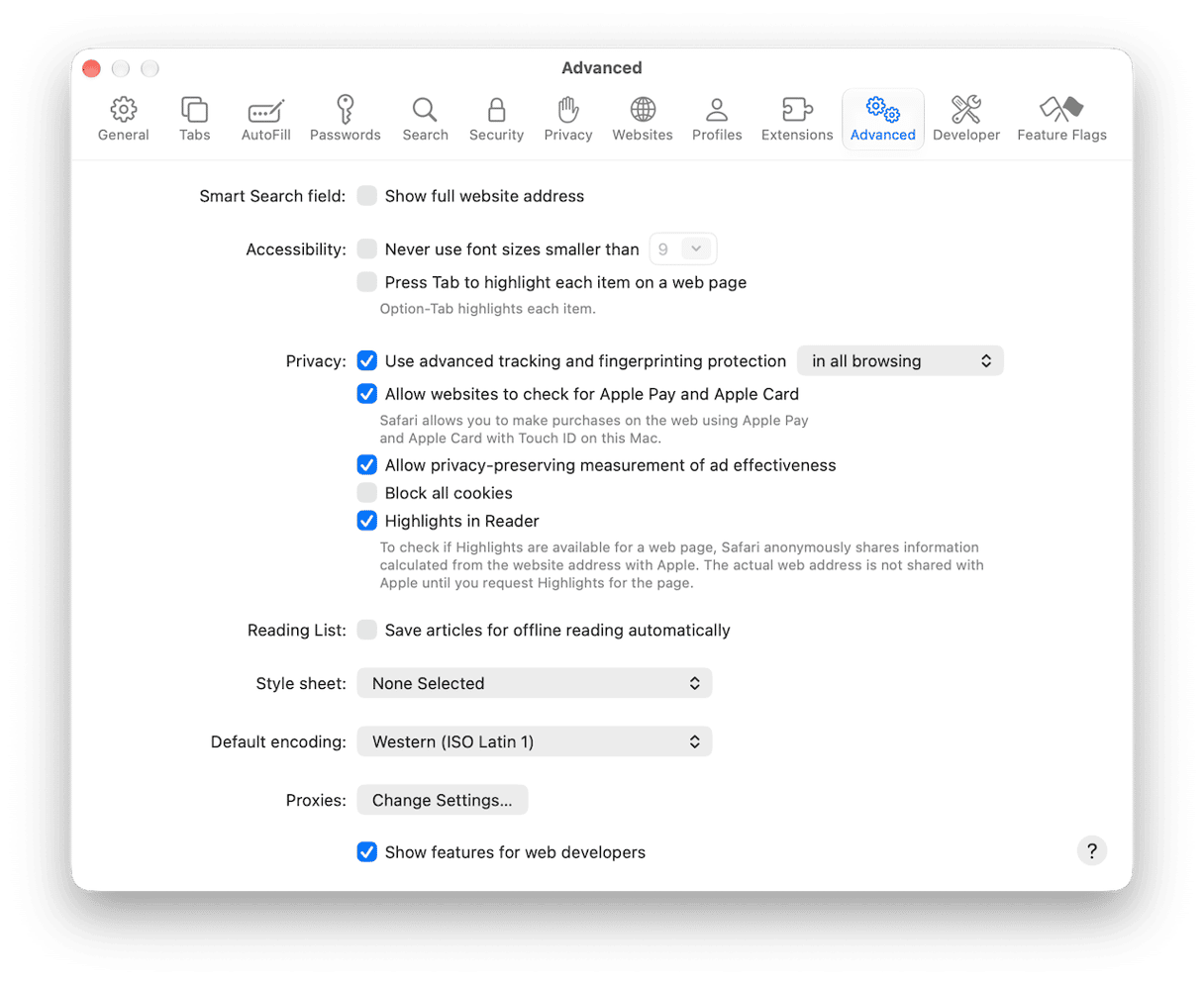
- Go to the Advanced tab and look for ‘Use advanced tracking and fingerprinting protection.’
- You’ll notice that it is currently set to Private Browsing because it’s the default for private browsing mode. Click the menu and choose ‘in all browsing.’
- Apple says that some website features may be affected when you use this setting, so if your experience with sites you visit is that they don’t work as they should, change the setting back to Private Browsing.
Firefox
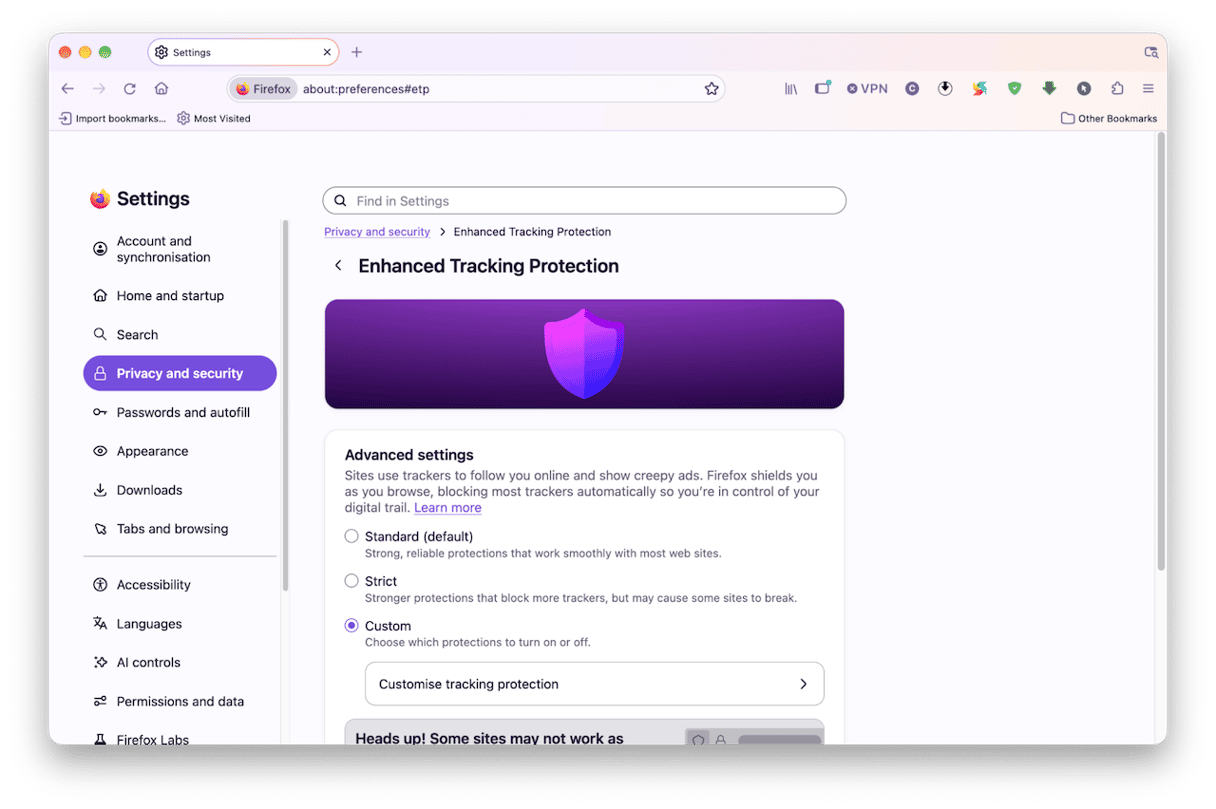
Firefox, developed by the Mozilla Foundation, also has a strong privacy focus and gives you some control over the data provided to websites you visit. It provides three levels of protection:
- Standard, which is the default, blocks cross-site tracking, meaning cookies can only be used by the website that placed them on your Mac.
- Strict also blocks social media trackers, crypto miners, and fingerprinting scripts. However, as with Safari’s advanced protection, it may limit functionality on some web pages.
- Custom allows you to choose which trackers and scripts you want to block or allow.
To choose one of those three levels, click on the Firefox menu, choose Settings, and go to Privacy and security > Enhanced Tracking Protection. You will see the current level of protection. To change it, click Advanced Settings and choose the level you want. If you choose Custom, click Customize tracking protection to choose the options you want.
Chrome
Google is not known as an organization that prioritizes privacy, and that extends to the settings in Chrome. While you can take steps to block some types of tracking — mostly relating to data collected in order to personalize ads — there is no specific setting to limit fingerprinting. And using Incognito mode doesn’t prevent fingerprinting; it removes data stored on your Mac by websites you visit, but doesn’t prevent sites from collecting that data themselves. The best way to limit fingerprinting in Chrome is to use a third-party extension.
What else can you do to maximize privacy?
As we’ve already said, you can’t prevent fingerprinting completely, nor would you want to. If you did, it would mean websites were unable to optimize for your browser, OS, screen size, and time zone, among other things. However, there is plenty you can do to improve your security and privacy when you use the web.
- Keep your browser and macOS updated. This is the simplest and most effective advice. Browser updates fix security flaws and take advantage of new technology. OS updates do the same for macOS.
- Consider using a VPN. VPNs don’t prevent fingerprinting, but they do hide your IP address and, sometimes, your location from the website you visit.
- Understand what private browsing or incognito modes do and, just as importantly, don’t do. In short, they improve your privacy when it comes to other people accessing your Mac, but not when it comes to websites collecting data about you.
- Be careful about the extensions you use. While some extensions allow you to improve privacy by blocking trackers or limiting privacy, others actively collect and share data. It’s important that you research extensions before installing them.
What clearing cookies does and doesn’t do
Cookies are placed on your Mac by websites you visit. They hold data about your browsing session. Depending on the browser you use, that data may be shared by the website with other sites or advertising partners. Clearing cookies removes that data and prevents it from being shared. It will also, for example, remove any items in a shopping cart on a website. And it can remove issues with websites you visit that are caused by corrupt cookies. However, clearing cookies doesn’t prevent websites from seeing or collecting fingerprinting data contained in HTTP headers.
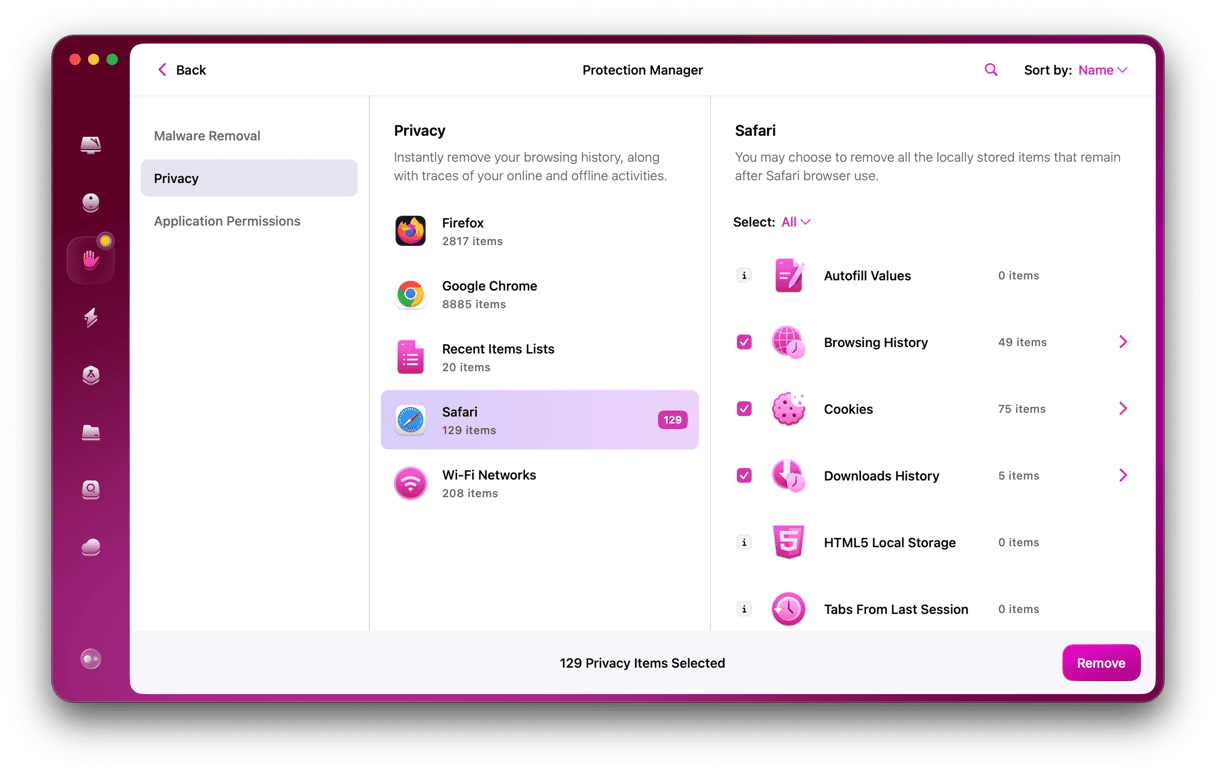
One very easy way to remove cookies is to use CleanMyMac’s Protection feature. It allows you to clear cookies in Safari, Firefox, and Chrome in one go. Here’s how to use it:
- Open CleanMyMac — get your free trial here.
- Choose Protection in the sidebar and click Scan.
- When it’s finished, choose Manage Privacy Items.
- Select a browser, then Cookies.
- Click Remove.
Tip: If you use Chrome as your main browser and regularly have lots of tabs open, CleanMyMac’s Browser Care can help you stay on top of them. It shows your open tabs in one searchable list and pauses tabs that are using lots of resources to free up memory without losing your place or your logins. It works with Google Chrome only and is included in your CleanMyMac subscription at no extra cost.
Frequently asked questions
Does Safari stop browser fingerprinting?
Not completely, but it does limit the information sites you visit can collect.
Does private browsing stop it?
No. Private browsing only impacts data saved on your Mac.
Does a VPN stop it?
No. A VPN shields your IP address. It doesn’t impact HTTP headers.
Should I turn off advanced tracking and fingerprinting protection?
Only if you are having problems with websites not displaying as they should.