Looking for tips on how to update Firefox on Mac? It updates itself automatically by default, but you can always check manually to make sure it’s running the latest version.
All you need to do is open up the browser, click Firefox > About Firefox, and it’ll check for updates for you.
I’ve put together some helpful tips on what to do if an update gets stuck, how to understand your version, and a few other things.
What version are you running? Check for Firefox updates
I saw the question, "How do I know if my Firefox is updated?" on a load of forum threads, so I thought I’d quickly answer that to rule out any confusion.
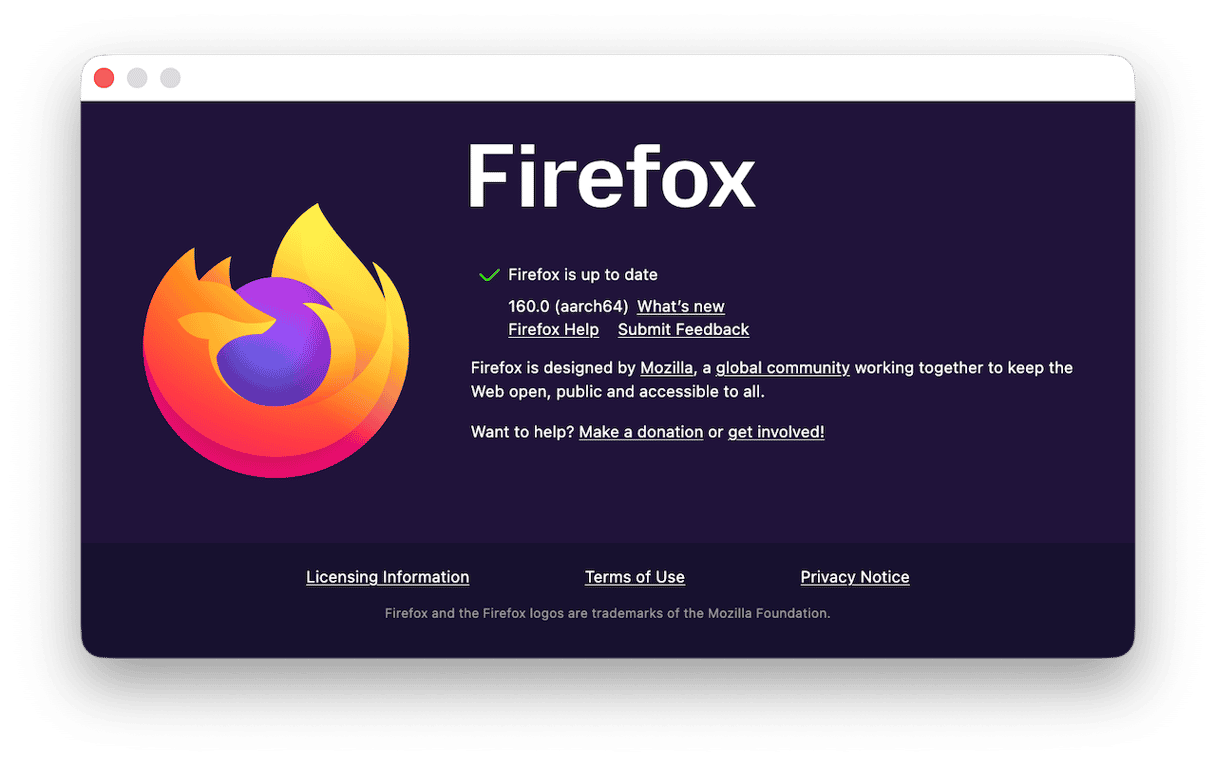
The quickest way to check is to open a browser window > Firefox > About Firefox. That’s where you’ll see your current Firefox version; it’ll say Firefox is up to date if you’re running the latest version, but it’ll also check for any available updates and start automatically downloading them if there’s any waiting.
How to update Firefox
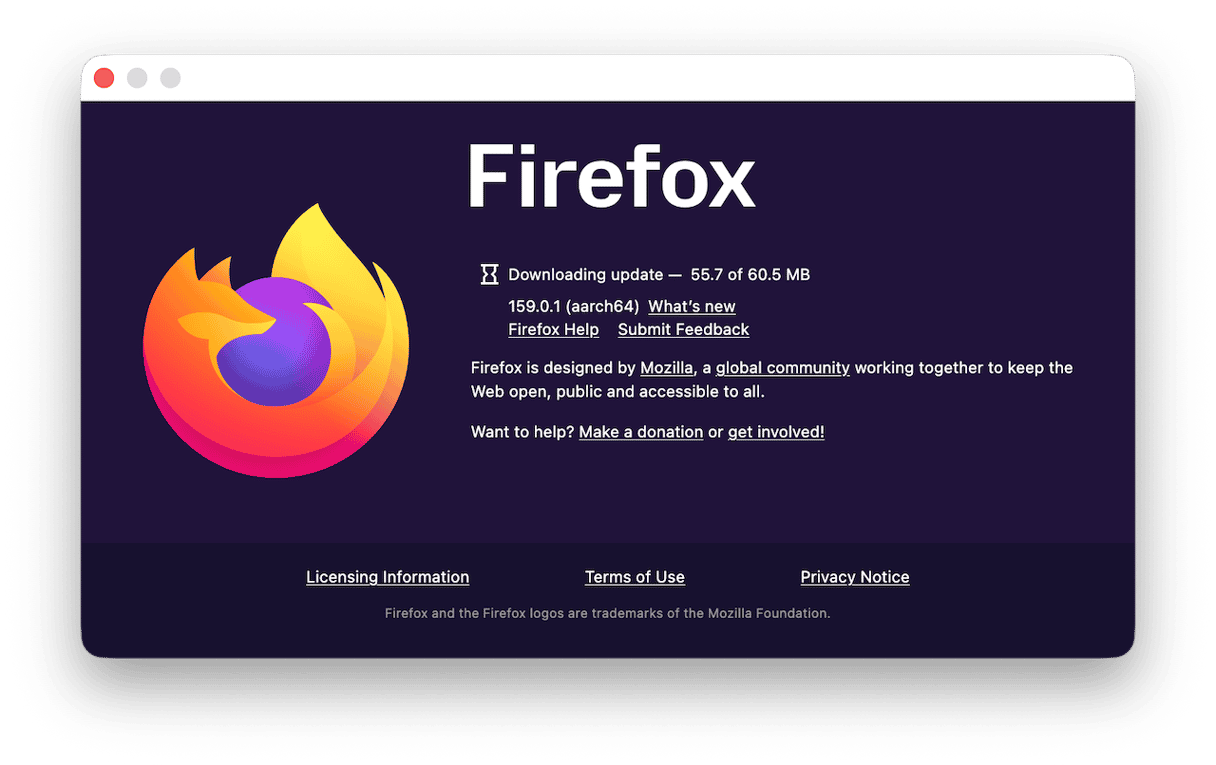
Because Firefox updates automatically, the method for checking your version and starting an update is exactly the same. In the About Firefox menu, you kind of prompt Firefox to check for updates; if there is one, it’ll start, and once it’s complete, you’ll be asked to restart Firefox. That’s it, so easy.
How to turn on automatic updates
By default, automatic updates should be on, but for some reason, if they’ve been disabled, all you need to do is open the browser, select Firefox > Settings > About Firefox (right at the bottom). Under Installation, you’ll see the option to turn Automatic updates on, and when you restart Firefox, that’ll kick in.
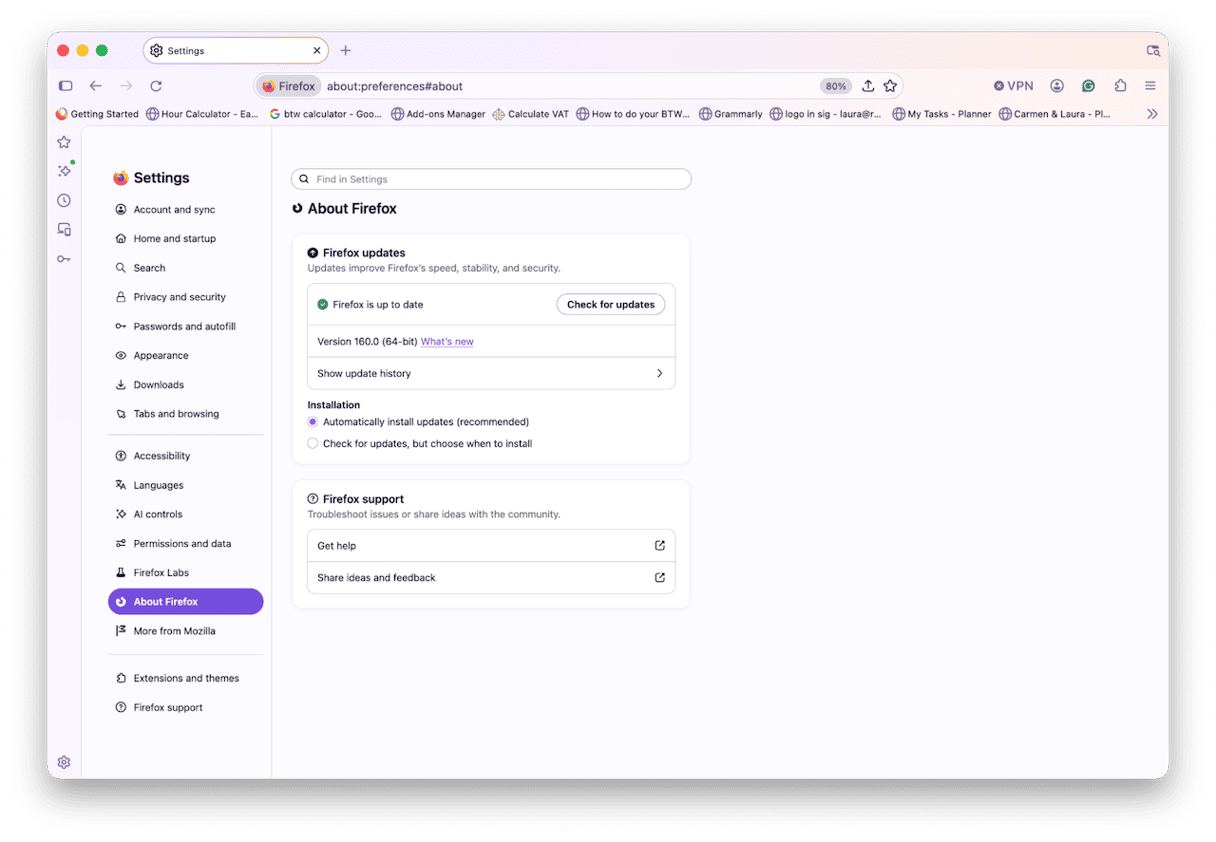
Turning automatic updates off probably isn’t the best idea, because you might run into compatibility issues, and you won’t have all the latest fixes and security updates.
What to do if Firefox won’t update
There can be a few different reasons for a Firefox update failure. My advice here is to try these two troubleshooting tips in this; it’s normally a simple fix.
1. Restart Firefox
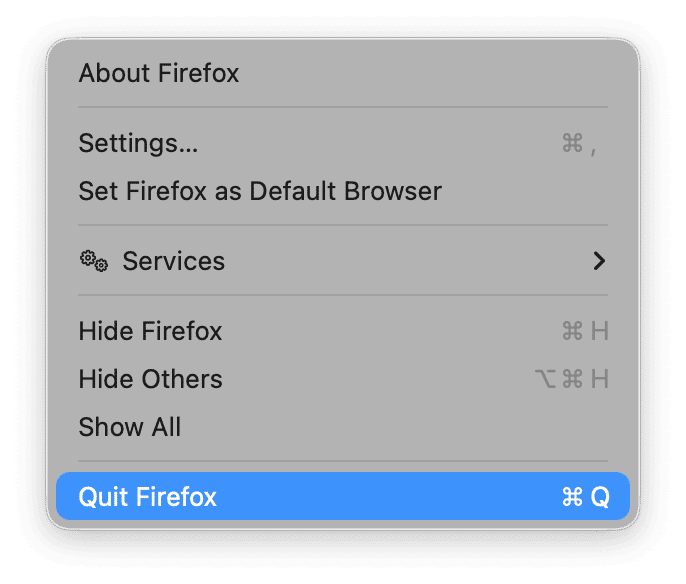
Not just Firefox, but your entire Mac too. This can often be the only fix you need; it helps clear up any stuck background processes and gives your macOS a clean startup. In Firefox, you can press Firefox > Quit Firefox, and on your Mac, it's in the main Apple menu > Restart. Once your Mac reloads, simply open Firefox and check the About Firefox menu to see if the install starts; if it doesn’t, no worries, try the next tip.
2. Download the latest Firefox version manually
From the official Firefox website here, you can install the latest version over your existing one. When you’ve dragged the download file to your Applications, you might be prompted to replace, and that's ok; confirm, and once it’s finished, you should be running the latest version. If you’ve got loads of bookmarks, you might want to back them up first, in case this loses them. It shouldn’t, but you never know.
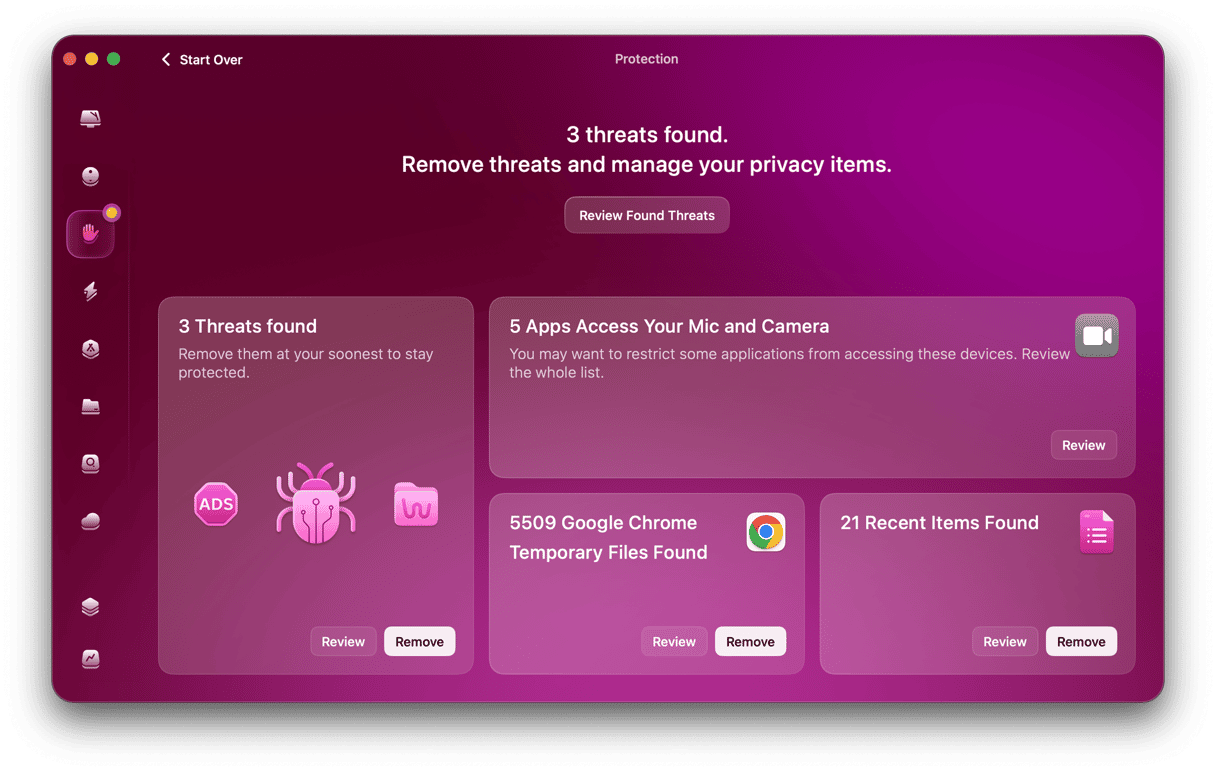
Just as a friendly reminder, be careful when you’re downloading any apps outside of the App Store. Always double-check you’re on the official Mozilla website by carefully looking at the URL. There are some really good fakes out there right now that can install malicious software on your Mac. If you’re worried you have installed it accidentally from an unfamiliar source, or your browser keeps redirecting you or showing unusual ads, run a malware scan via your antivirus software. I use the Protection feature from CleanMyMac to scan for any threats whenever I'm unsure. You can test it for 7 days — get your free trial here.
As a final resort, you may also want to clean reinstall Firefox — remove it and then install it anew. If that is your case, jump to this guide on how to uninstall Firefox. Once you’ve deleted the app, download it from the official website.
So, that’s all there is on Firefox update on Mac.
Frequently asked questions: Update browser Firefox
Do I need to update Firefox?
You always want to keep your apps and tools up-to-date; one of the biggest reasons is that you get the latest security updates and bug fixes. And Firefox is no different.
How do I force Firefox to update?
With the browser open, when you go to Firefox > About Firefox, that essentially forces the tool to check for downloads and start them, if for some reason it hasn’t already.
How often does Firefox update?
According to Firefox, major releases are usually every four weeks, with all the smaller bug patches and security updates in between as and when needed.
Does updating delete my bookmarks?
Updating your browser shouldn’t interfere with any of your saved details like passwords or bookmarks. It's not a bad idea every now and then to back up bookmarks anyway.