Knowing how to check hard drive health is one of those need-to-know Mac skills. I sometimes think of it like a maintenance task; catching any kind of disk issues early can really pay off in the long run. For example, here are a couple of obvious benefits:
- You can spot warning signs before they turn into data loss.
- You can rule out the disk quickly when troubleshooting slowdowns, crashes, or weird file errors.
- If you use external drives for backups or projects, you can catch problems before you have drive mount issues.
- drive that refuses to mount.
Don’t worry, if you’ve never done it before, or don’t know where to start, I’ve put all this info together to guide you through the actually rather simple process, so let’s get started.
What does a hard drive health check mean?
Before we head into the how to do it, tips, I thought I’d just start by clarifying what hard drive health checks actually mean.
On macOS, drive health usually comes down to two things:
- The file system is structurally OK (no directory problems, no damage macOS can detect in the way data is organized).
- The hardware isn’t raising its hand (SMART warnings, failing controller behavior, or recurring errors).
You can have a drive that passes a file-system check but is physically wearing out, and you can also have a healthy drive with a messy file system after a hard shutdown. That’s why I always check both angles. Ok, so let’s get to the how to do it part.
How to check the health of a hard drive on a Mac
I do this in a pretty specific order. So simply follow along at your own pace.
Step one: Check SMART status in Disk Utility
In my opinion, this is the fastest way to figure out if your drive is having issues (especially for internal disks that support SMART). Here’s how:
- Open Disk Utility (Applications > Utilities).
- In the top menu bar, select View > Show All Devices so you see the physical drive, not just volumes.
- Click the top-level disk (the device, not just “Macintosh HD”).
- Look under SMART Status.
- Verified = Good sign, not a guarantee.
- Failing / Not Verified = I stop trusting the drive and treat it like “backup now” territory.
- Not Supported = Common on some external enclosures and some drive types. It doesn’t mean the drive is fine. It just means you can’t read SMART from there.
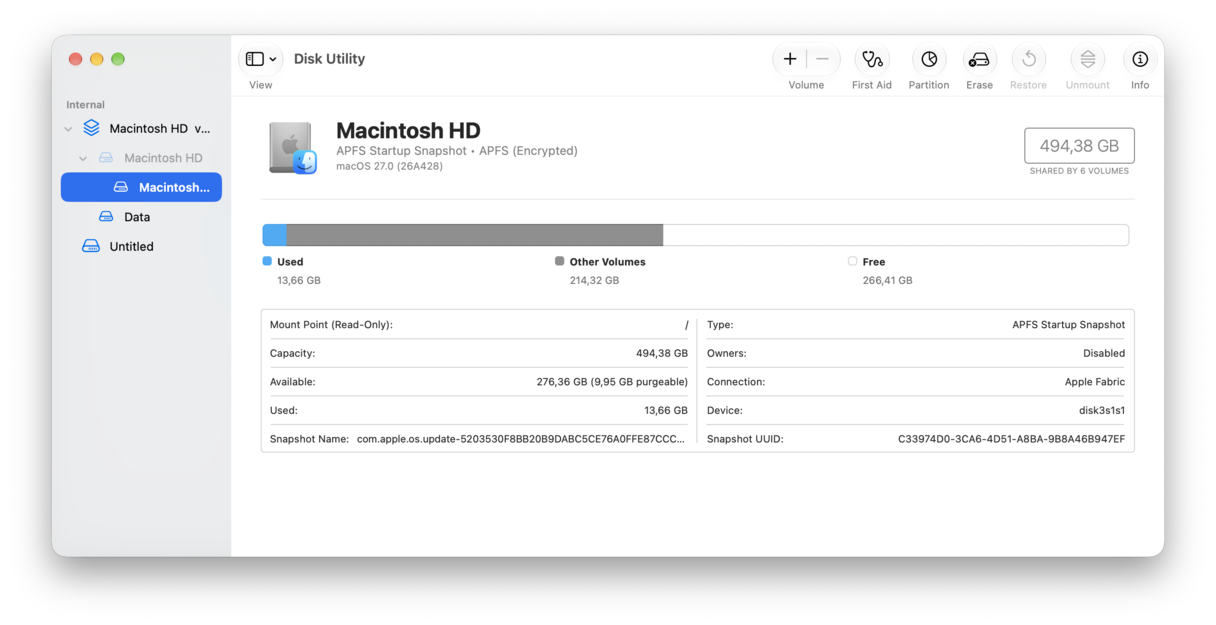
If SMART is failing, I don’t waste time trying to fix the drive. I focus on getting my data safe. You might want to spring into backup action with Time Machine.
Step two: Run First Aid
SMART is more related to your actual hardware, whereas First Aid is more about checking the actual disk structure; here’s how to use it:
- Back in Disk Utility, select a volume from the sidebar.
- Click First Aid on the menu ribbon > Run.
- Repeat this for each volume and container, then run it on the device itself.
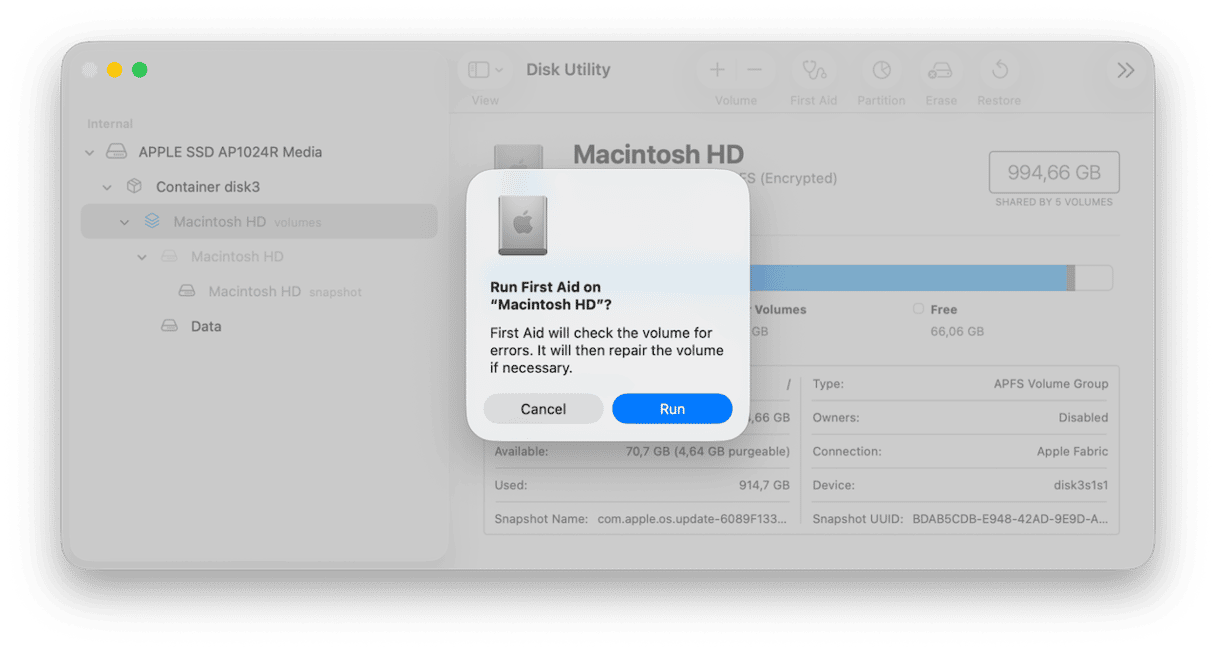
What to look for next
- If First Aid completes cleanly, great.
- If it reports errors that it says are now repaired, run it a second time.
- If it warns that the disk is about to fail, take that seriously; you’ll need to back up immediately.
Step three: Read the disk details
This is the step people often forget to do, but it’s where you can most often spot clues like the real capacity, connection type, or if the disk is almost full. If your disk is almost full, that could explain slowdowns and crashes; if an external drive is having connection issues, it could be down to a flaky USB drive. Here’s how to check:
- Go back to the main view in Disk Utility.
- Select the top-level disk first, and check the following points:
- Capacity: Does it match what you expect?
- Connection: Internal, USB, Thunderbolt, Apple Fabric.
- Free space bar: A nearly full disk can cause all sorts of glitches.
How to check external hard drive health on Mac
All of these three tips work too for external hard drive health checks. Instead of selecting your main Macintosh HD, select the external drive instead.
A simple way to monitor disk health over time
As I mentioned in the very beginning of this article, keeping a regular check on your disk health will help you avoid any nasty surprises when you’re least expecting it. I use the Menu App from CleanMyMac to monitor my disk health in real-time; here’s how:
- Get your free CleanMyMac trial.
- Install the app and launch it.
- In your menu bar, select the app icon and select your Disk.
- Take a look under Health for a quick status check.
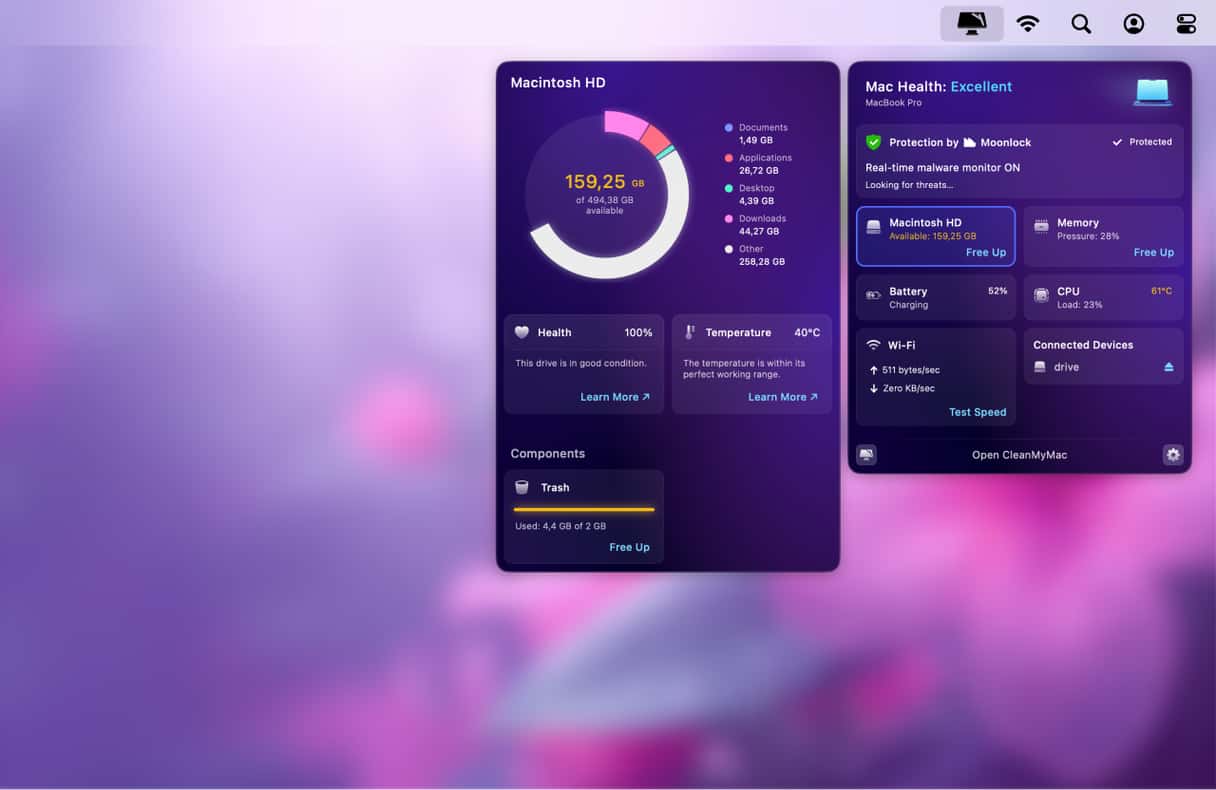
It’s absolutely not a replacement for Disk Utility and First Aid. I treat it more like a dashboard. A “tell me if something changes” layer. Ok, so we can definitely say we now know how to check the health of a hard drive, but what about keeping it healthy in the first place? Keep on reading.
Tips to keep your Mac’s hard drive healthy
Monitoring the health of your disk drive is one thing; keeping it in a state of good health is another. Here are my top recommendations.
1. Make sure you always have extra space
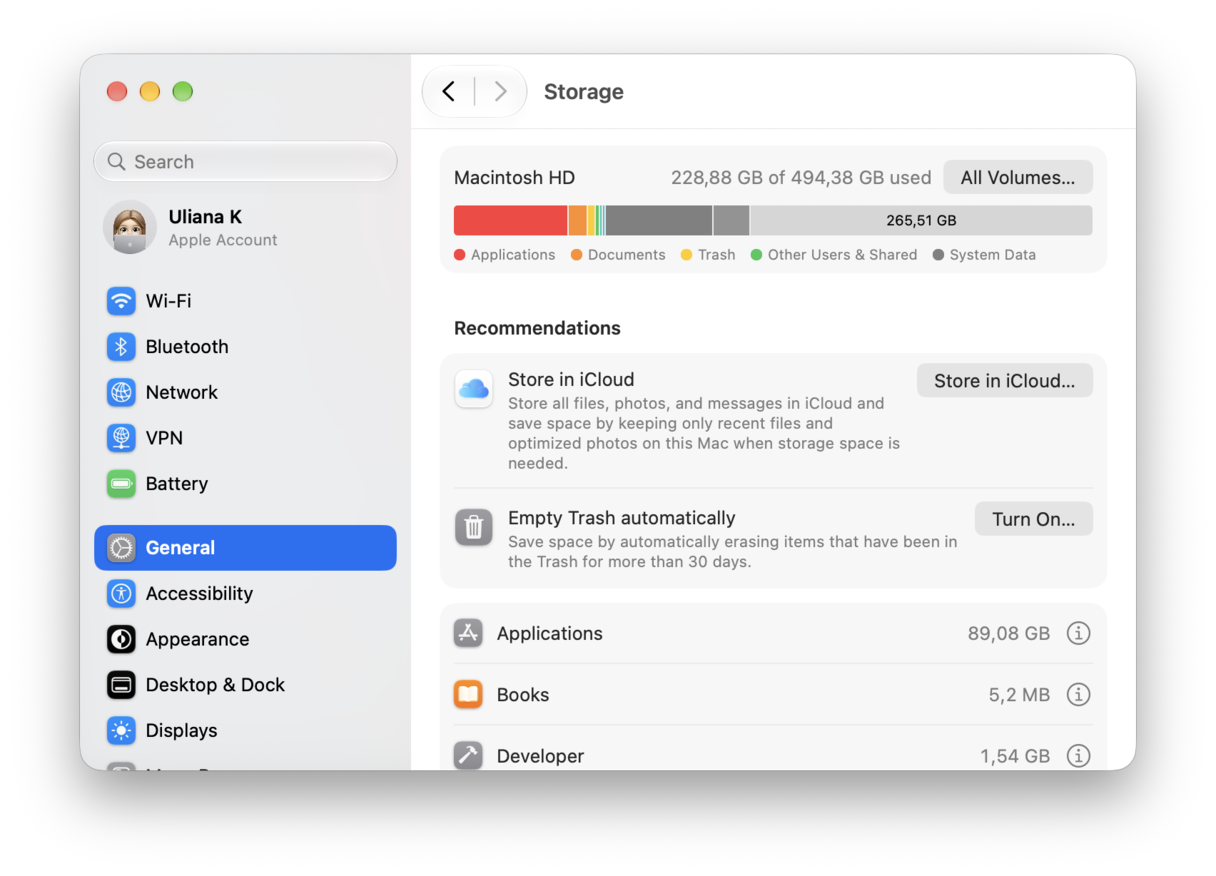
All drives, including externals, work better when they have a tiny bit of breathing room. If your disk is almost full, you’ll notice slowdowns, glitchy start-ups and a bunch of crashing and stalling from apps. Just in case you need a reminder, here’s where you can check:
- System Settings > General > Storage.
- Enable any of the Apple recommendations to get you started.
- Look at removing old, forgotten files from the Desktop and Downloads.
- Consider moving media to cloud storage.
2. Don’t treat external drives like USB sticks
I eject them. Always.
If you’ve ever yanked a drive out mid-write, then you’ve properly encountered the “disk not ejected properly message. You need to watch out; you can cause serious damage to your disk and risk data loss.
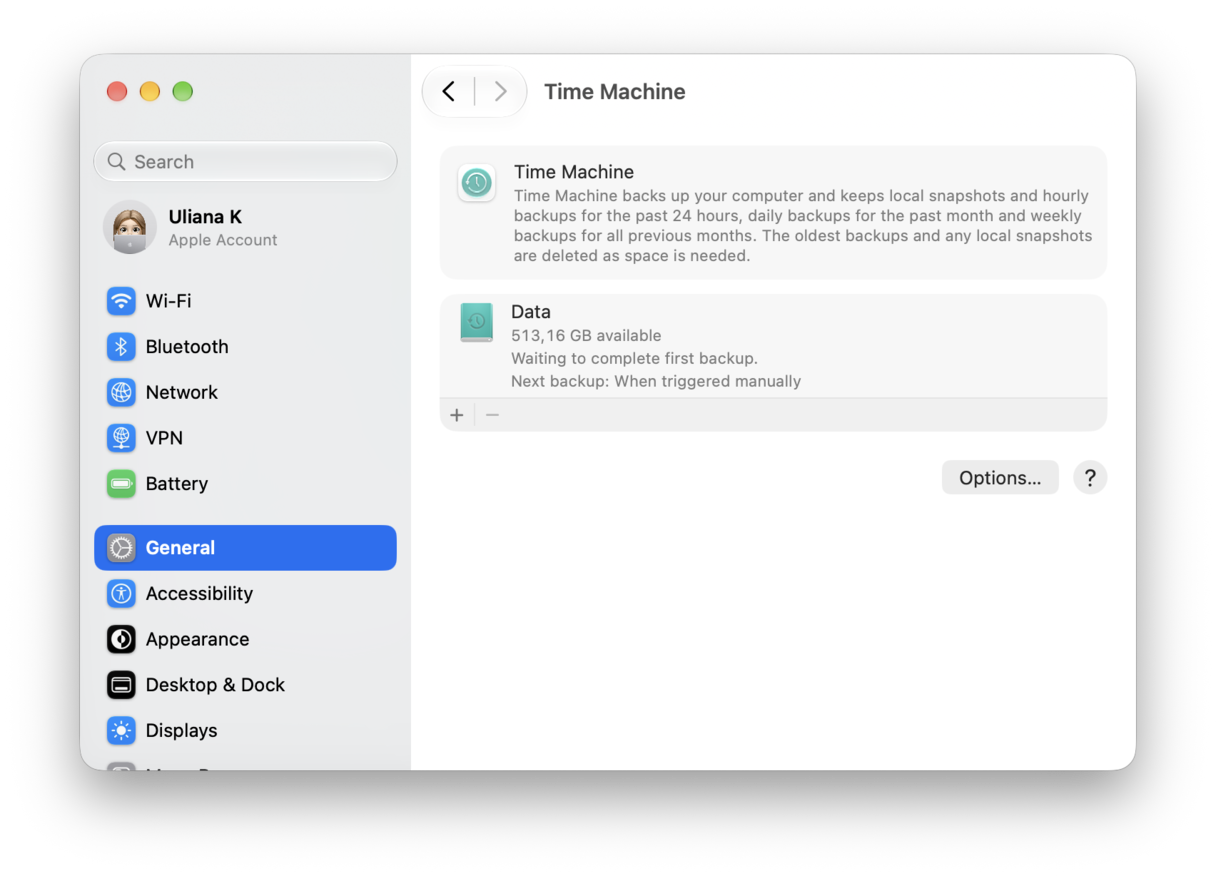
3. Make backups a habit
A healthy drive can still die; things happen that you can’t always account for, such as water damage or heat damage. But if you’ve been regularly backing up your data, even in the worst cases, not all is lost.
4. Shut down your Mac
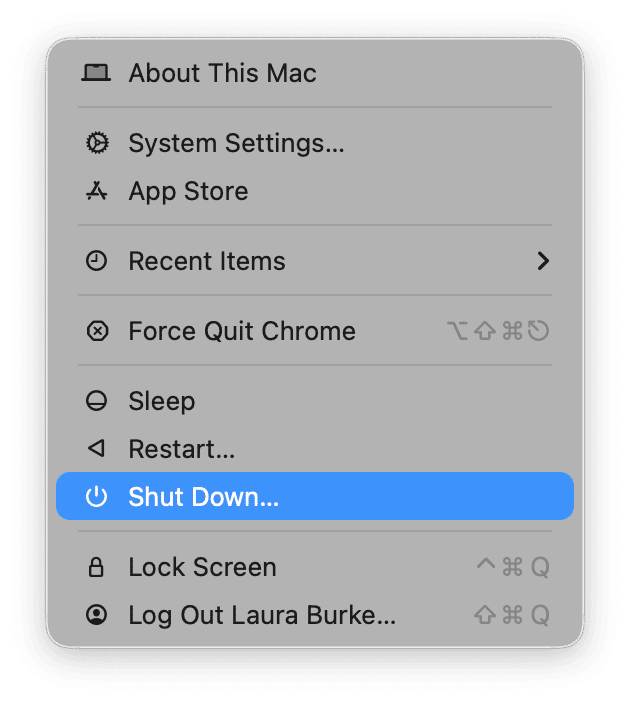
I know a lot of us just close the lid and move on, but a full shutdown can help to clear up stalled processes. It’s such a quick step, and given how much it can make a difference, it’s not one to skip. I try to get in the habit of shutting down from the main Mac menu every week or two, especially before updates or big file transfers. It’s not magic, but it gives the system and the drive a clean reset.
5. Avoid forced restarts and power cuts during disk activity
A lot of file system damage I’ve seen comes from interruptions, not age.
If your Mac is installing a macOS update or copying large files, or even indexing after a restore or migration, you should always let it finish. Holding down the power key might be tempting, but it can actually leave the disk in a half-written state that First Aid then has to clean up. One forced restart probably won’t kill a drive. Making it a habit will.
While the subject of knowing how to check hard drive health on Mac might feel a bit boring, it’s one of the few Mac maintenance practices that can save you from a truly bad week. I’d rather spend ten minutes looking at Disk Utility on a calm day than spend a whole weekend trying to rescue files when a drive decides it’s done.
Frequently asked questions
How often should I run a hard drive health check?
For my internal drive, I do it when something feels off or once every couple of months if I’m in a heavy work season. For external drives I rely on, I check before big transfers and after any scary disconnect.
Is SMART status enough to trust a drive?
I think SMART check is helpful and quick, but it’s not the whole story. I treat SMART as a warning system, not a guarantee.
Why does Disk Utility say SMART “Not Supported” on my external drive?
I saw a lot of threads on this in the help forums, so I thought I’d try to answer here. Basically, many USB enclosures don’t pass SMART data to macOS. So it doesn’t always automatically mean the drive is healthy or unhealthy. It just means SMART can’t be read via that connection.
Are there any signs that a drive is failing, even though First Aid doesn’t find any issues?
I’d suggest looking out for recurring disconnects, super slow reads, repeating file corruption, and the same folders failing to copy again and again. If the behavior repeats, I stop trusting the drive. Back up while you can.