It’s normal for MacBooks to get a bit hot from time to time, especially if the room you’re in is very warm, or you're making significant demands of your Mac’s CPU or GPU. But if it’s got to the stage where it’s too hot to touch or to rest comfortably on your lap, it may be a sign of a problem. In this article, we’ll explain how to check your MacBook’s temperature, what readings are safe in different conditions, and what to do if something is wrong. Most MacBooks run at 40-76˚C under normal conditions — here’s how to know if yours is in that range.
Normal MacBook temperature ranges
Range | CPU Temp (Celsius) | Status | What it means |
Idle/light use | 40-60˚C | Normal | Browsing, documents, 2-3 lightweight apps open |
Moderate load | 60-76˚C | Normal | Video streaming, light photo editing, multiple browser tabs |
Heavy load | 76-90˚C | Elevated | Video export, large Xcode builds, gaming — fans will spin up |
Overheating | 90˚C+ | Warning | Throttling likely; close CPU-heavy apps immediately |
Disk (SSD/HDD) | 37-46˚C | Normal | Above 46°C is a high disk temperature — check ventilation |
As you can see from the table, the harder you work your MacBook, the higher its temperature will be.
Web browsing, checking email, or working on a document won’t stress it too much, and so the temperature shouldn’t get above 60˚C.
But if you’re playing a demanding game, compiling a large Xcode project, or rendering a video in Final Cut, you can expect that temperature to rise as high as 90˚C. Above that, your MacBook will start to take steps to cool down, like throttling CPU and GPU performance, and you should do what you can to minimize the demands on its resources, such as closing down heavy-usage apps or browser tabs you don’t need.
Pay attention to the ambient temperature in the room you’re working in, as that will affect how hot your Mac gets. And try to use your MacBook on a flat surface to keep the vents clear.
How to check your MacBook’s temperature
The fastest way
CleanMyMac’s Menu App sits in your Mac’s menu bar and allows you to check your Mac’s temperature with one click. It shows your Mac’s CPU temperature live, updated every second, and alerts you when it’s running too hot. It also shows you which apps are consuming most of your Mac’s resources so you can quit them quickly.

Start your free CleanMyMac trial — test it for 7 days.
The built-in app way
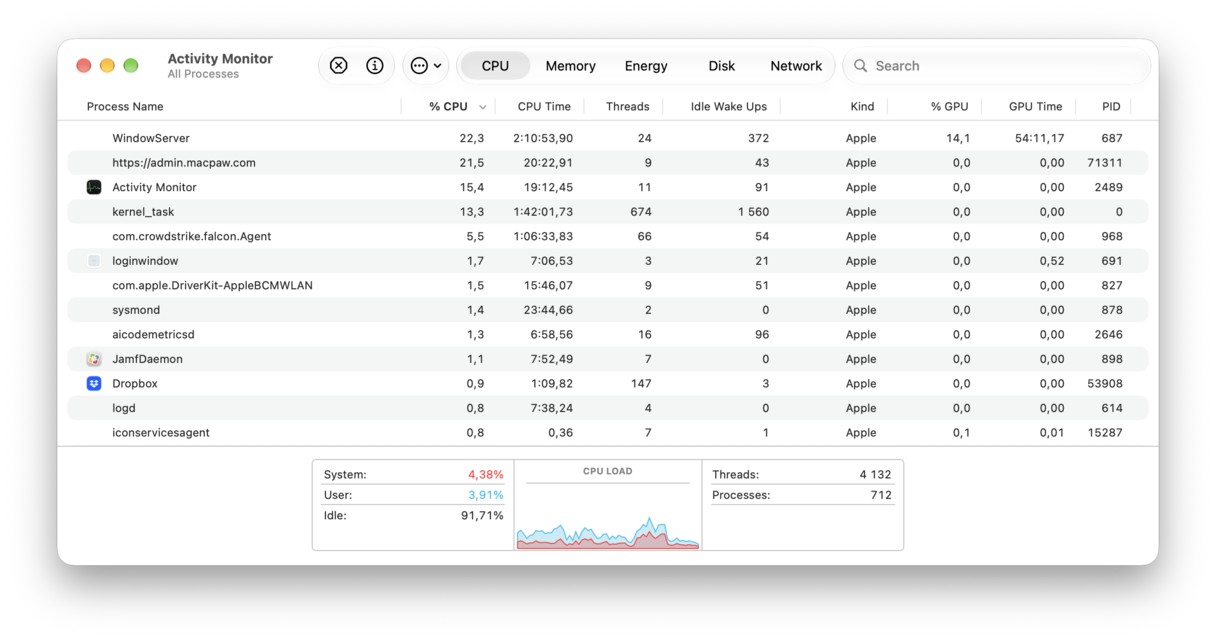
You can use Activity Monitor to check the load on your Mac’s CPU and whether it is being throttled because it's running too hot. But Activity Monitor doesn’t show the temperature. Nevertheless, if you are worried that it’s running too hot, Activity Monitor is a useful starting point for what to do next.
- Go to Applications > Utilities and launch Activity Monitor.
- Choose the CPU tab and then look at the %CPU column. Tasks should be listed according to the % of CPU cycles they are using, starting with the highest. If not, click the top of the column.
- Look for any processes that are using a big chunk of your Mac’s CPU cycles. If, for example, WindowServer or kernel_task are using upwards of 50%, it’s an indication that macOS is throttling CPU cycles because your Mac is too hot.
- If another process that doesn’t belong to macOS is consuming lots of CPU cycles, use the ‘x’ in the toolbar to quit it.
The geeky way
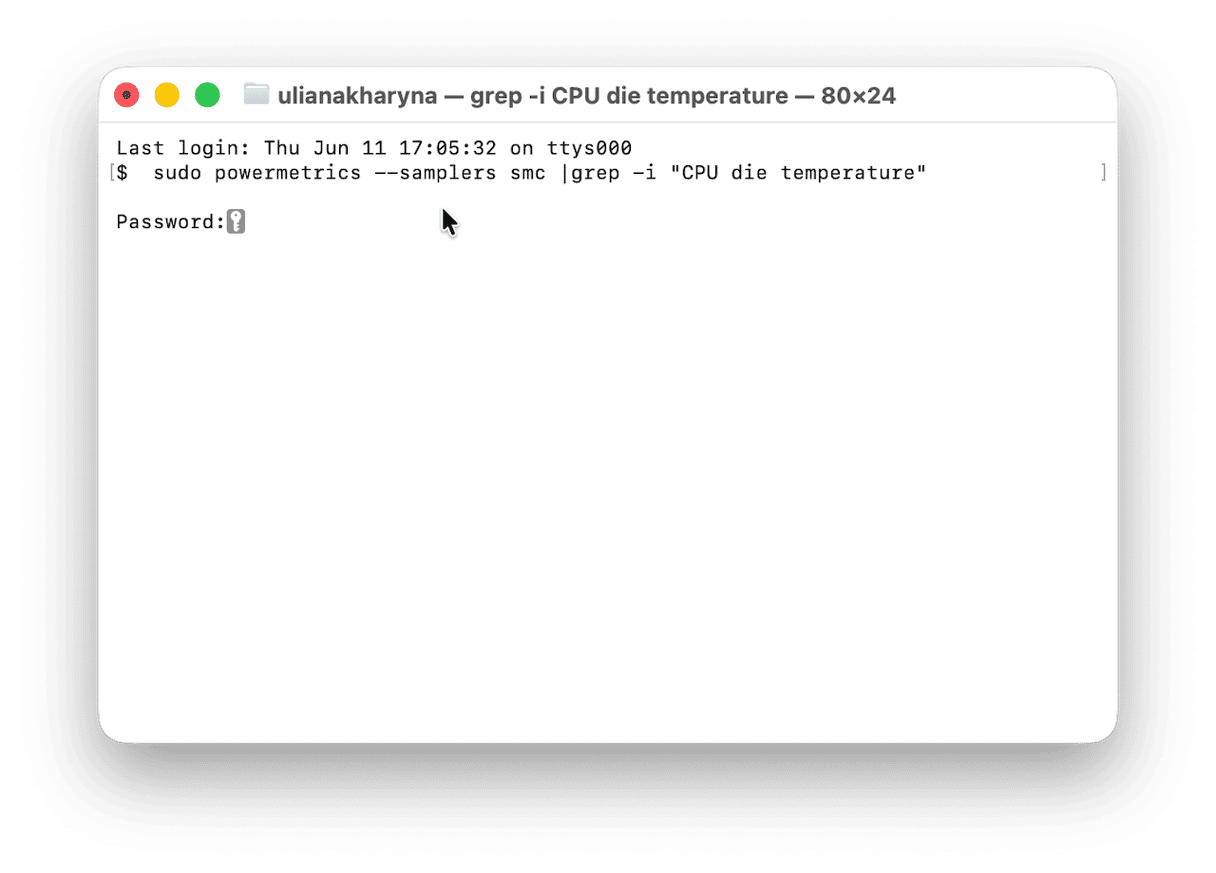
If you have an Intel-based MacBook, you can also use Terminal to check its temperature. This method doesn’t work on Macs with Apple silicon because they don’t expose their temperature sensors to the operating system.
- Go to Applications > Utilities and launch Terminal.
- Paste this command and press Return:
sudo powermetrics --samplers smc |grep -i "CPU die temperature" - Type in your admin when requested.
- You should see your MacBook’s temperature displayed in Terminal.
Warning signs your Mac is overheating
- Fans run loudly constantly.
- Performance drops suddenly — macOS has a built-in process, kernel_task, that throttles the CPU to prevent it from running too fast and generating more heat.
- The surface of your MacBook is hot to the touch, especially close to the keyboard,
- Apps crash or shut down unexpectedly, with no obvious cause.
- Battery drains quickly, even under light use.
Best third-party apps for checking your MacBook’s temperature
- CleanMyMac Menu App
Sits in your menu bar and can display disk and CPU temperature. It has a free trial and is the best option for most users.
- iStatMenus
Provides comprehensive sensor monitoring data. Excellent for power users who want data on GPU, battery, and network traffic, as well as temperature. Price: $14.99
- TG Pro
Best for combining temperature monitoring with fan control, though fan controls should be used with caution to avoid overheating. Works with Apple silicon and Intel-based Macs. Price: $10
- Mac Fan Control
Provides monitoring of temperature and fan speeds. Allows manual adjustment of fan speeds, as well as custom presets and sensor-based fan control. Should be used with caution. Free.
Frequently asked questions
Is 70°C too hot for a MacBook CPU?
No, 70˚C is fine under a normal load. If the temperature rises above 90˚C, that would be the time to worry.
How do I check the temperature on an M1/M2/M3/M4/M5 Mac?
macOS doesn’t expose temperature sensors on an M-series Mac in the same way as on an Intel Mac, so the only way to check the temperature is to use a third-party app like CleanMyMac or iStatMenus.
Why is my MacBook hot, but fans aren't spinning?
Probably because it’s a MacBook Air, and MacBook Airs don’t have fans — they use the chassis to help cool it instead. Some warmth is normal, and if the temperature rises too high, kernel_task will throttle the CPU to prevent overheating.