Wondering how to clear Mail cache on your Mac? It feels like a topic everyone’s researching right now.
If you’ve noticed any changes in Apple Mail’s behavior, like incomplete search results, attachments not opening, or perhaps a mailbox keeps showing unread messages that simply don’t exist. You’ve come to the right place.
If you’ve done even the tiniest bit of research on fixing Mail glitches, then you’ve probably seen resetting or removing cache as one of the potential fixes. And yes, while this absolutely can help, it’s important to really understand what it means and how you do it correctly.
I first started running into issues after a software upgrade. Emails that I 100% knew existed couldn’t be found, no matter how much I searched for them. I ended up doing a lot of research and reading a lot of help articles.
So before you start dragging folders into the Trash, it helps to understand what Mail cache actually is and when clearing it makes sense. Let’s get started.
What is Mac Mail cache?
In very basic terms, Apple Mail stores temporary data, so it does not have to constantly re-download and re-process everything. That includes:
- Indexed message data for search
- Temporary attachment previews
- Cached mailbox data
- Snippets and metadata
This stored cache then lives in your user Library folder. It is not your actual email. Your real messages are stored in mailbox folders or synced from your email provider. The cache is more like a local speed layer.
Think of it this way. Mail cache is the shortcut system. If the shortcuts get messy, Mail starts taking wrong turns.
On macOS Tahoe, I noticed that Mail’s indexing system is more aggressive than older macOS versions. It builds search indexes faster, but if it gets interrupted during a system update or forced shutdown, things can get inconsistent, and that is when clearing cache helps.
When clearing Mail cache on a Mac is useful
I only clear my Mail cache when I see specific symptoms like these items:
- Mail search doesn’t return recent emails
- Continuous Indexing message
- CPU in Activity Monitor is high for my Mail app
- Attachments not loading
- Mail app crashes or freezes
I think it’s also equally important to say when clearing your cache isn’t going to be useful. So just to help you not waste any time, clearing your cache is not going to help with any of these issues:
- Incorrect email passwords
- Server connection issues
- Full iCloud storage
- Corrupt mailbox on the email provider’s side
- Spam filtering problems
OK, now that we’ve covered all the essential info, let’s move on to how to clear Mail cache on Mac.
How to clear Mail cache on Mac
So, let's work through this process, step-by-step and remember, you’re not deleting emails, but instead, removing the temporary files, which Mail will rebuild later.
Step one: Quit Mail completely
- Open Mail.
- From the menu bar, click Mail > Quit Mail.
- Make sure it is not still running in the background; you can double-check in Activity Monitor.
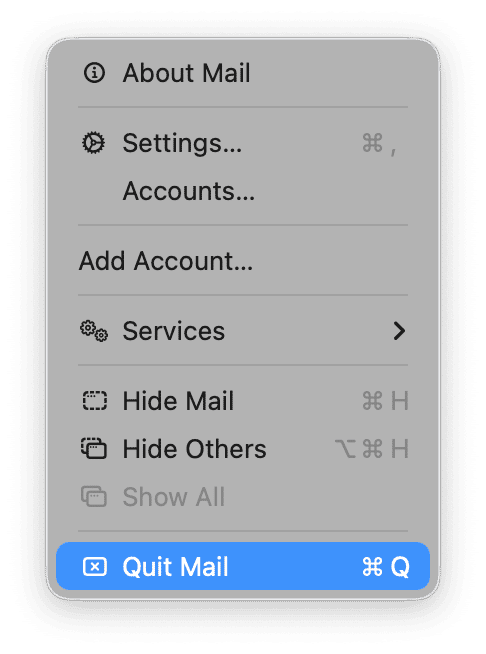
If Mail is frozen, you can Force Quit from the main Mac menu, too.
Step two: Clear Mail’s app cache
This step removes any temporary app cache without touching your actual mailbox.
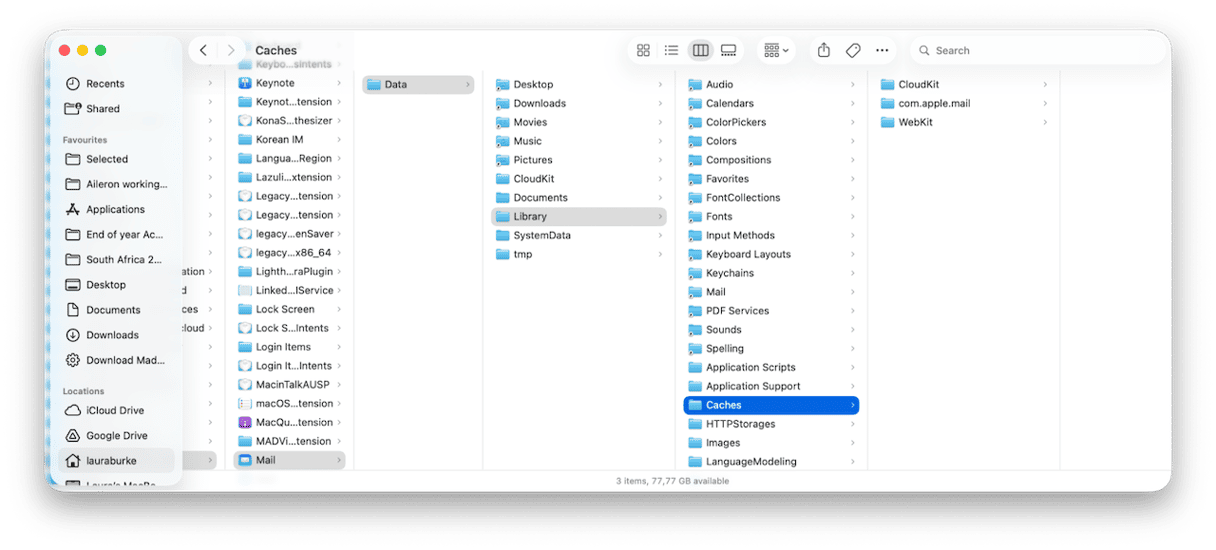
- In a new Finder window, from the Go menu, select Go to Folder…
- Paste this path and press Return:
~/Library/Containers/com.apple.mail/Data/Library/Caches - Do not delete the com.apple.mail folder — that needs to stay, but you can remove any other Items to the Trash.
- Restart your MacBook to rid any lingering background processes and force a clean rebuild cycle.
- Open up Mail again and see how it behaves. If it’s still glitchy, move to the next step.
Step three: Rebuild the mailbox
- Open Mail.
- In your sidebar, select the Mailbox you’re having issues with.
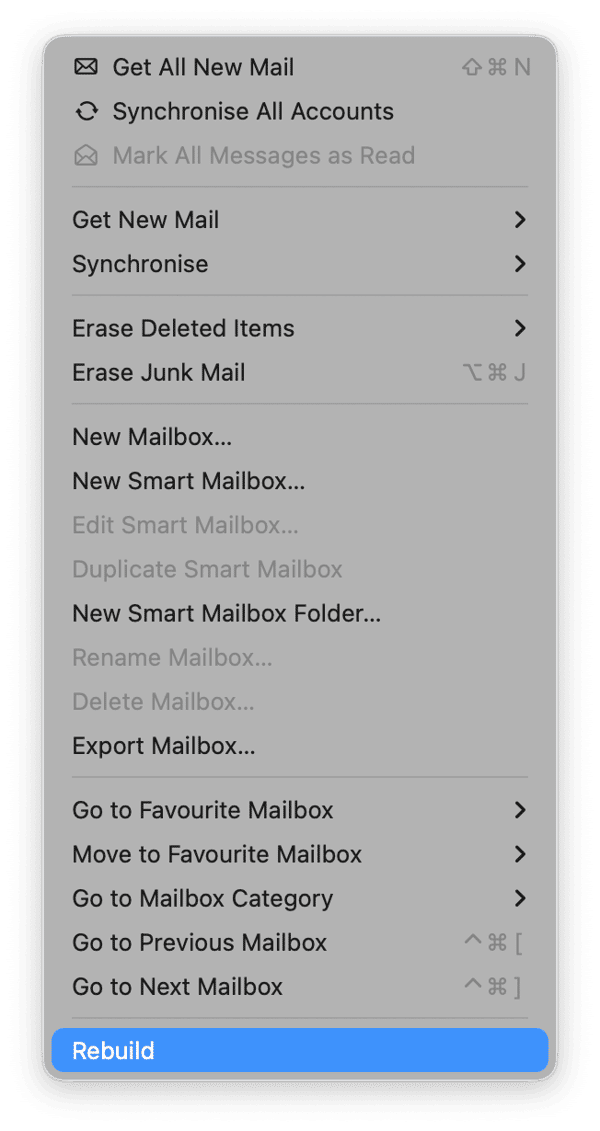
- Then, in your top menu bar, click Mailbox > Rebuild.
- You’ll need to leave the Mail app open while this completes. (You’ll notice a downloading messages notification in the sidebar).
While this process takes place, you might notice the following (it’s completely normal):
- Messages may “jump” while it re-syncs.
- The mailbox can look incomplete for a bit.
- Search can be inconsistent while it catches up.
If your problem is isolated to one mailbox, this step alone often fixes it. If Mail itself feels heavy, slow, or glitchy across the whole app, move on.
Step four: Clear saved Mail state
Sometimes, Mail can almost get stuck in a broken state. If it keeps freezing or restores a strange window layout, here’s what to do.
- Again, quit Mail.
- In the Go to Folder open within Finder, paste in the following:
~/Library/Saved Application State/ - Look for this file and move it to your Trash.
com.apple.mail.savedState - Restart your Mac, then reopen Mail.
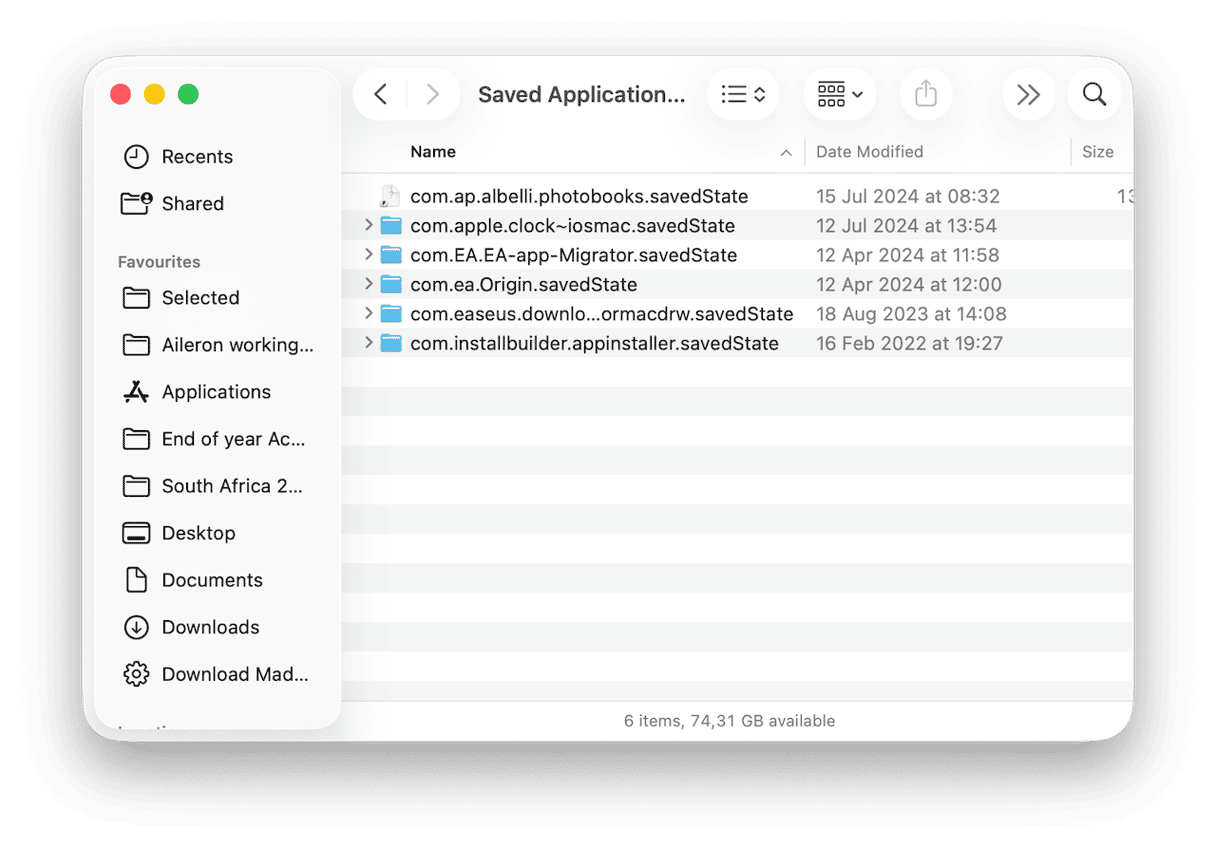
If you do not see it, skip this step. That simply means Mail is not storing a problematic session state.
Step five: If Mail search is broken, reset indexing
Interestingly, this step isn’t something many users associate with clearing Mail cache Mac, and while it’s not officially removing cache, when Mail simply won’t find items you know exist, Spotlight can sometimes be the culprit; here’s what you can do:
- Open System Settings > Spotlight.
- Scroll all the way down and click Search Privacy.
- Click the + button and add your startup disk (usually Macintosh HD).
- Now, remove it right away (select it and click -).
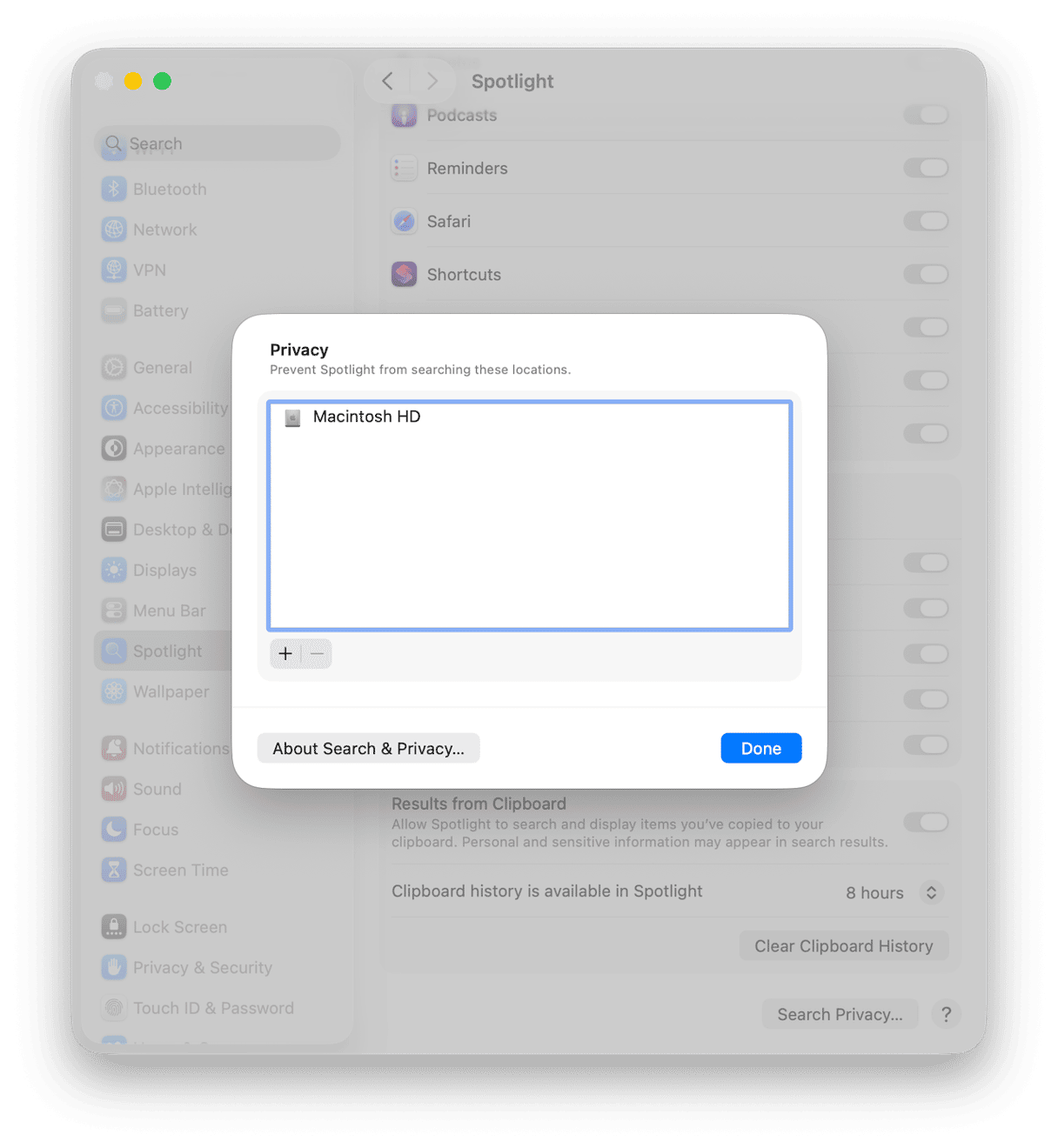
This will force your macOS to restart indexing. It might take a while, so leave your device plugged in, and if you see a temporary CPU spike, that’s to be expected. It will take time to rebuild, and it isn’t an instant fix; you will need a little patience here to let the process complete.
OK, so you know how to clear Mac Mail cache, but what happens next?
What to expect after you clear Mail App cache Mac
The funny thing about clearing cache —and possibly the reason why lots of users think it isn’t a fix — is because at first, things often feel worse. Here’s a look at some common Mail behavior after cleanup:
- Mail may take longer to open the first time.
- CPU may spike briefly.
- Search results may look incomplete while it rebuilds.
- Attachments might need time to re-download.
It’s a bit of a tradeoff. Things need time to rebuild before they work more smoothly again. Depending on the size of your Mailbox, how long this takes can vary. My recommendation is to do this in the evening, so you can leave your Mac on overnight to rebuild, resync and reindex.
Other tips to keep Mail running smoothly
If you’ve cleared Mail cache and given your machine time to rebuild directories, but things still feel a little slow, these tips could help. These tips are less about fixing Mail and more about removing the small friction points that build up over time. Mail is a simple app on the surface, but it’s constantly syncing, indexing, previewing attachments, and talking to your email provider in the background. So even when cache is clean, a few everyday habits and settings can make the difference between Mail feeling snappy and Mail feeling slightly heavy. Think of these as gentle tune-ups, not drastic resets.
1. Review your email attachments
Mail stores downloaded attachments locally, and over time, this can eat away at gigabytes of space, leaving your system feeling heavy. Digging through old Mail attachments manually is not going to be a fun process. Use a tool like the Cleanup feature from CleanMyMac to do this for you automatically. Here’s how:
- Open CleanMyMac — get your free trial here (seven-day trial).
- Click Cleanup > Scan.
- Under the Mail Attachments section, click Review.
- Review each Mailbox and remove the Attachments you no longer need by clicking Clean Up.
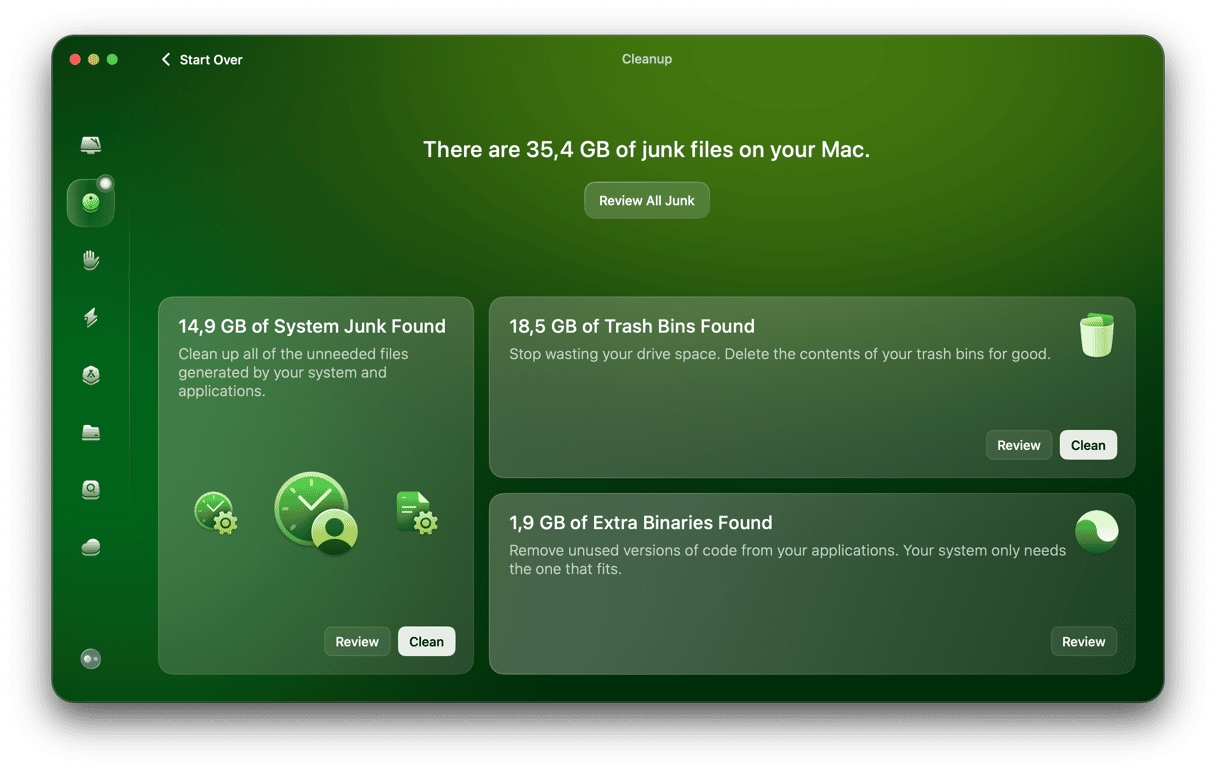
I like this method because it clearly shows attachment size, doesn’t touch my actual emails, and lets me review everything before committing to deletion.
2. Tidy up your general system junk
Things like system log files, leftover caches, and outdated temporary files can pile up across macOS, resulting in a lot of little glitches, not just in the Mail app. If you feel like your system is struggling, I recommend having a general system clutter tidy-up. You can actually use the tool above to do this for you; here’s how:
- Open CleanMyMac again.
- Click Cleanup > Scan.
- This time, under System Junk, click Review.
- Take a look at what's been found and remove a ton of unnecessary cache and temporary system files beyond just Mail by hitting Clean Up.
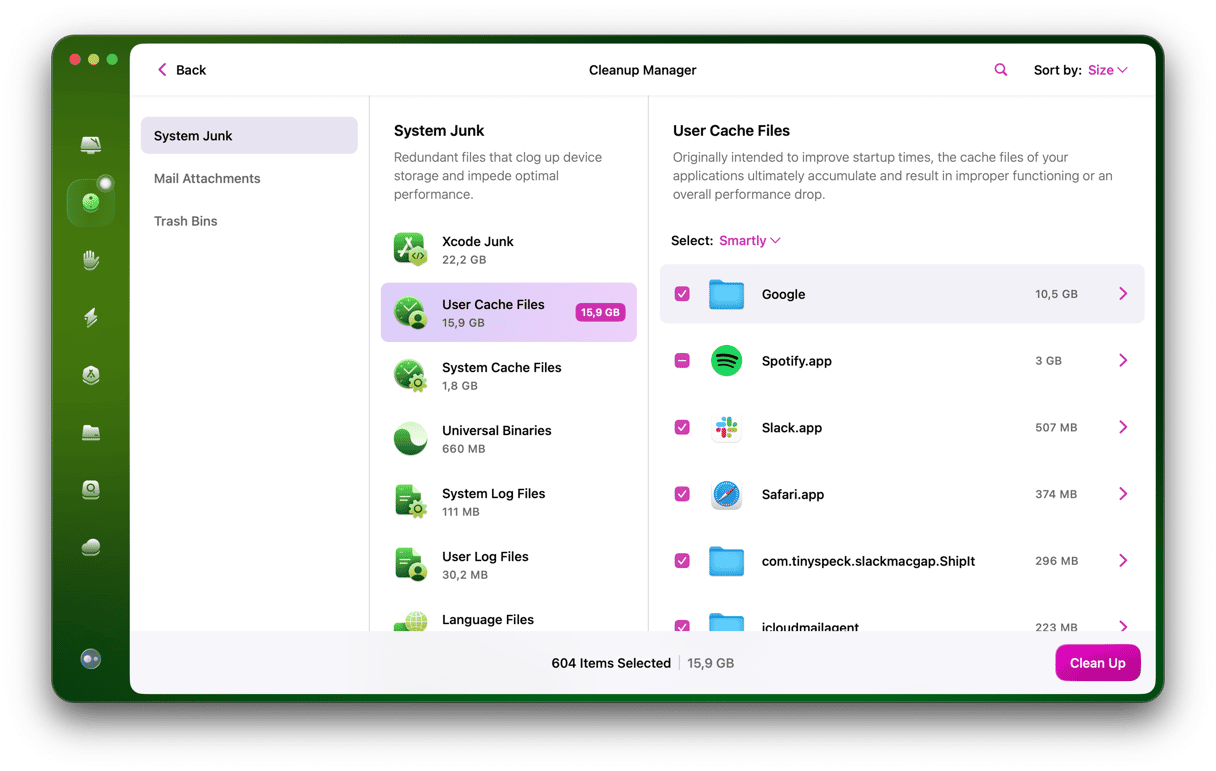
On macOS Tahoe, I noticed Mail behaved better overall after clearing broader system junk, especially after multiple macOS updates.
3. Manage Mail plug-ins
Mail performance can also drop if you use a lot of outdated third-party integrations like CRM tools, tracking pixels or security scanners, which can hook into message rendering and slow everything down.
It’s good to check every now and then, what's still worth having; here’s how:
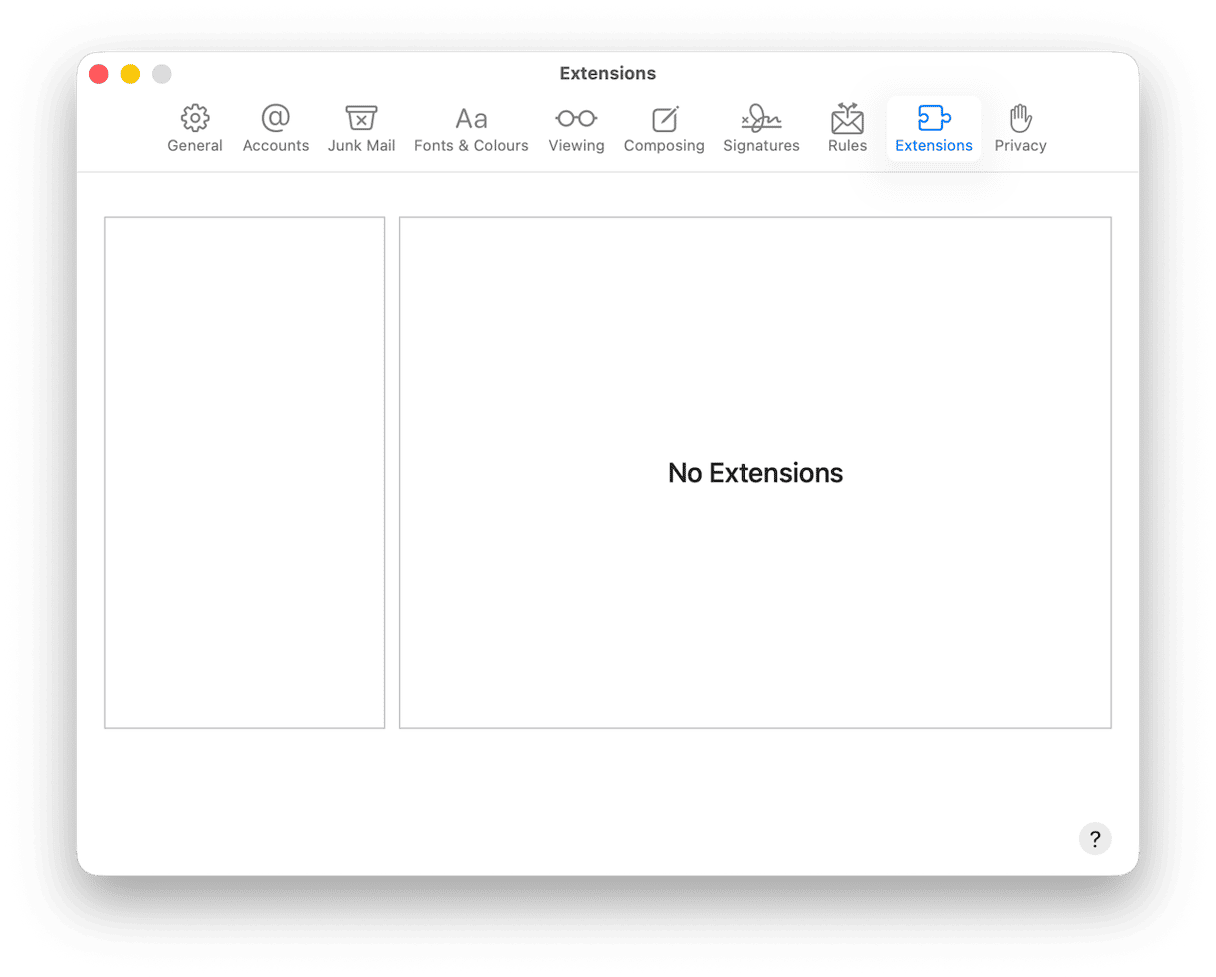
- Open Mail and select the Mail main menu > Settings > Extensions.
- Review any extensions or integrations and delete anything in the list you don’t actively need or use anymore.
- Restart Mail.
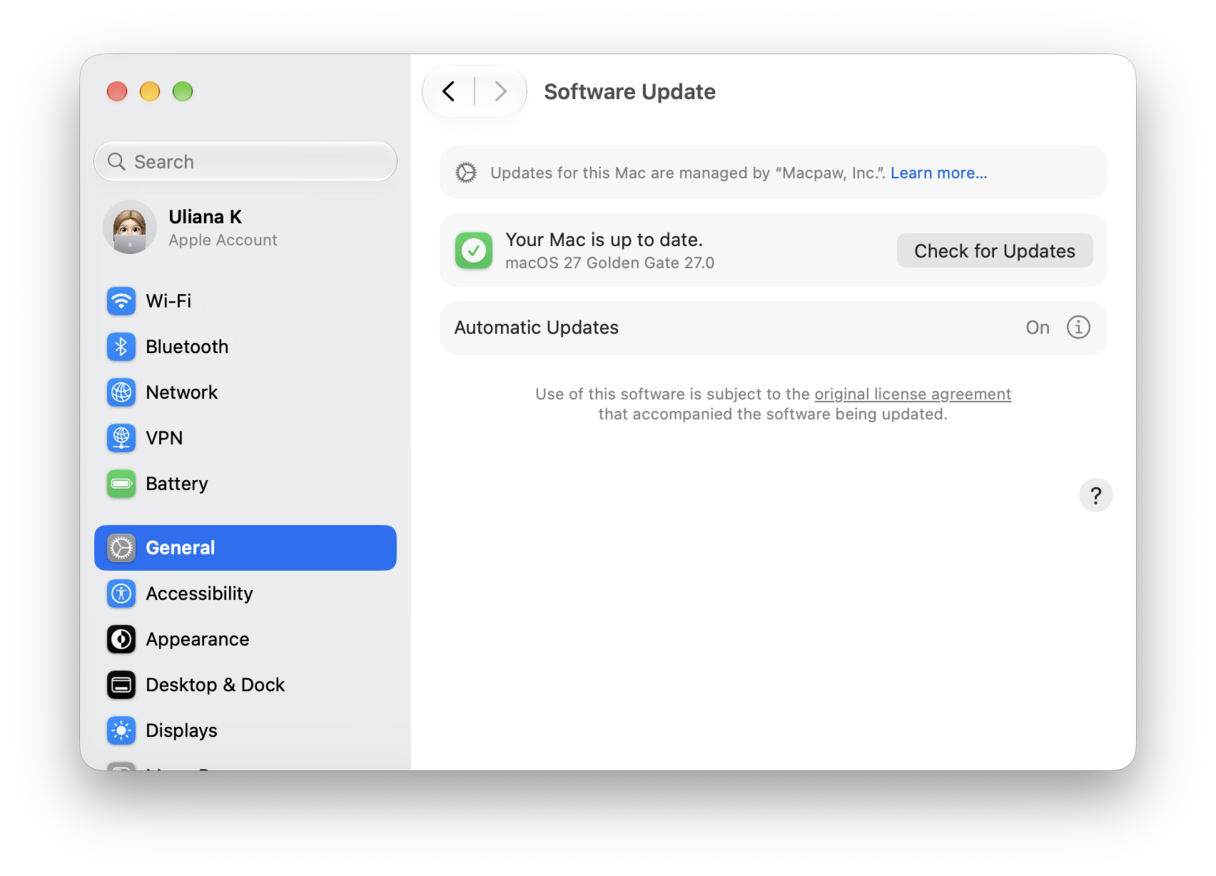
4. Stay on top of any available system updates
Everyone sighs when they see this one in the tips list, but it remains as important as always.
On macOS Tahoe, for instance, Mail is really deeply tied into Spotlight, system indexing, account frameworks, and background sync services. So while it might sound obvious, keeping your MacBook updated has actually never been more important. Here’s a quick reminder on how:
- From your System Settings > General > Software Update.
- Install minor updates, not just major upgrades.
- Restart fully after updating.
Prevent Mac Mail clear cache buildup
Most Mail cache problems I’ve run into aren’t really about one bad file. They’re usually the result of Mail getting interrupted while it’s doing background work, then trying to pick up the pieces later. The good news is you don’t need to babysit the app. A few small habits make the whole thing noticeably calmer.
1. Don’t force-quit Mail when it looks busy
When Mail is indexing, syncing, or doing that vague updating mailbox or downloading messages thing, it can look frozen even when it’s not. The temptation is to kill it. I’ve done that plenty of times, especially when I’m in a rush. But I’ve also noticed that the messier Mail gets, the more often I’ve interrupted it mid-task.
So now, if Mail is clearly working, I give it a few minutes. If I need to close my laptop, I close it. If I need to switch apps, I switch. I only force-quit when it’s truly stuck for a long time, and I’ve already tried quitting normally. It’s not that force-quitting instantly corrupts things every time. It’s more that repeated hard stops tend to create the kind of half-finished indexing that turns into glitches later.
2. Restart after major macOS updates
As I mentioned in the section above, Mail is tied into a bunch of system services (background sync, Spotlight, account frameworks, etc.). When you do a big system upgrade, Mail, like many other apps, can feel seriously out of sorts, and that is normal. Indexing takes time. When you’re in this strange in-between phase, give your Mac a quick restart from the main Mac menu to clear everything from memory, force all updated services to start fresh together and finalize any pending background tasks.
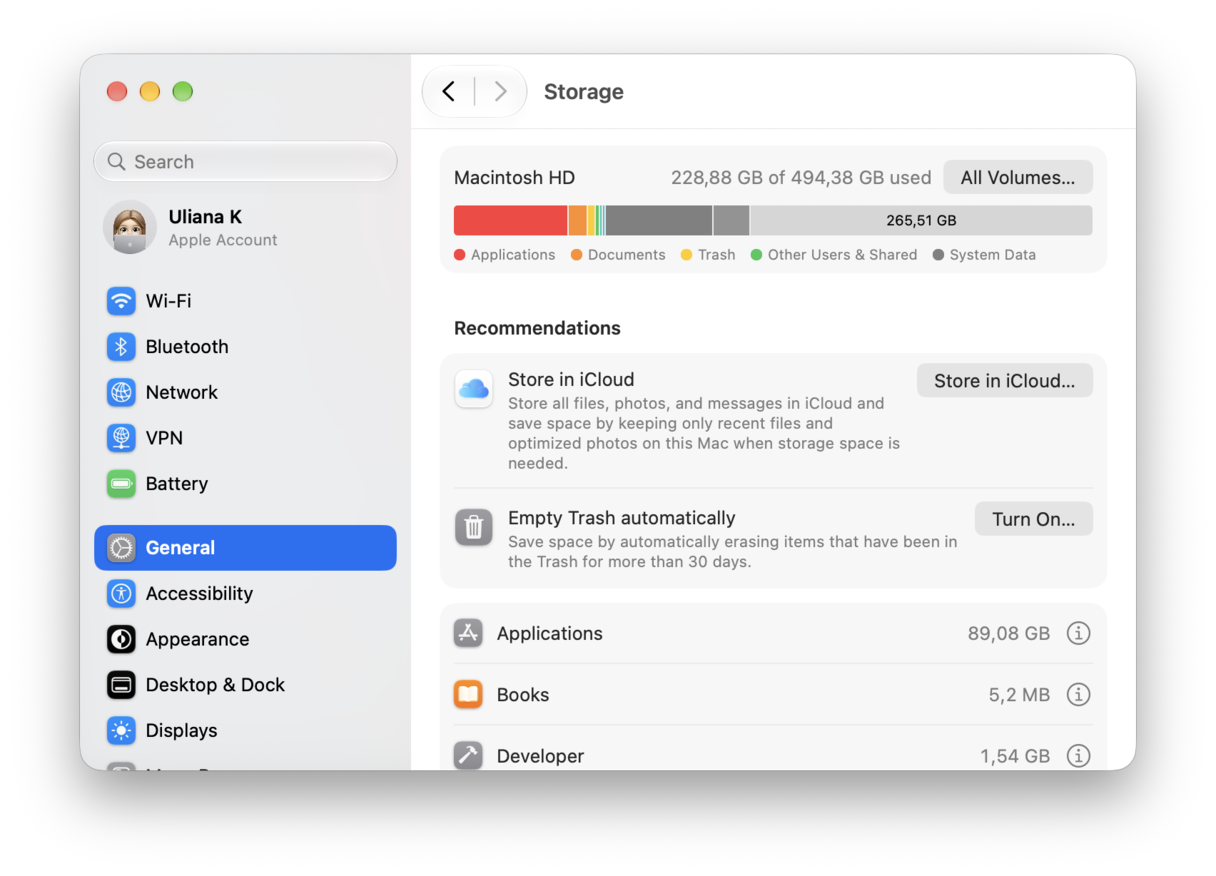
3. Keep an eye on your available storage
If your Mac is tight on space, your macOS will start to juggle storage in ways that feel random from the outside. Having enough free space on your device to keep things running at its best isn’t just a nice-to-have; it’s absolutely essential. When my storage is low, I notice issues machine-wide. So keep an eye on this, and consider moving media into Cloud storage or an external device.
Knowing how to clear the mail cache on a Mac is handy. While Mail problems rarely mean something catastrophic. More often, it is just an index that needs rebuilding or temporary files that have grown messy over time. Clearing the mail cache is not something I do weekly, but when Mail starts acting strange, it is one of the first practical steps I take.
Frequently asked questions
We’ve covered a ton of tips and tricks on how to clear Mail cache on your Mac, but let’s just finish up by answering some frequently asked cache questions.
Will clearing my email cache on Mac delete emails?
I saw loads of people asking this question online, and I wonder if it’s one of the reasons users leave Mail cache cleanup on the to-do list. Clearing your cache only deletes the temporary index and cache files. Your emails themselves are stored locally or on your email provider’s server, so they won’t disappear. The only way they will is if you physically delete them.
Why does Mail keep re-indexing every time I restart my Mac?
If Mail says Indexing every single time you restart your Mac, that’s not normal background behavior. Repeated loops usually mean something is preventing Mail and Spotlight from settling (low space, battery low, forced quits). You’ll need to do a few checks, including:
- Checking your free storage
- Plug your Mac in and leave it idle with Mail open long enough to finish.
- Fully shut down your Mac from the main Apple menu.
Why is my Mail app constantly using high CPU?
When you spot the Mail app under the CPU tab in Activity Monitor, this usually means it’s busy rebuilding something in the background. There’s no getting away from the fact that large mailboxes take time to re-index after cache removal, updates, or account changes. Spotlight could also be reprocessing Mail data at the same time, which will basically compound the spike. Users find this a frustrating tip, but honestly, patience here is your best friend. Just leave your Mac plugged in, keep Mail open, and let it finish whatever rebuild cycle it started.
Can clearing the Mail cache fix missing attachments?
If attachments fail due to cache corruption, then yes, clearing your cache might help to fix the missing attachment, but if they were never downloaded or were removed from the server, then the answer here is no.
Should I clear my Mail cache regularly?
This is a really good question, because honestly, clearing your Mail cache is more of a troubleshooting step, not a maintenance step. I don’t do it monthly, yearly, or on a schedule. I only do it when my Mail app starts misbehaving. If Mail is working normally, there’s no benefit to clearing the cache just for the sake of it. In fact, clearing it too often just forces Mail to rebuild everything again, which can temporarily slow things down.