
Searching online for help articles on clearing npm cache? It’s no surprise that a stale npm or Yarn cache will cause install issues that could cost you half a morning of messing around.
I’m talking about package version conflicts, corrupted tarballs, those annoying repeated install failures, and even mysteriously bloated dev setups.
Well, there is some good news in sight, clearing these kinds of caches is very much considered safe. You’re not deleting your project dependencies or breaking any node_modules; you’re simply removing the cached package files that npm or Yarn can download again on the next install.
Reasons to carry out npm cache clean
Clearing npm cache isn’t necessarily something you need to do daily or even weekly, but I do believe there are a few instances where it becomes important.
The first one is a corrupted cache, and for me, if I start getting failed installs on the same package, this is where I always head first. But it can also come in useful after repeated dependency conflicts, especially when switching branches, lockfiles, or Node versions during active development.
Storage is the second fairly obvious reason. On a busy dev Mac, your npm cache can grow rapidly alongside Yarn, pnpm, Docker, Homebrew, and build artifacts. I do understand that clearing it won’t fix every storage problem, but I do think it’s a good place to start.
One thing I would say is that if you are having inconsistent installs between local and CI environments. Just don’t clear CI caches blindly if they’re intentionally speeding up builds.
Anyway, there are a couple of methods available.
How to clear npm and Yarn cache
Clear npm cache
For npm, the standard cache cleanup command is:
npm cache clean --force
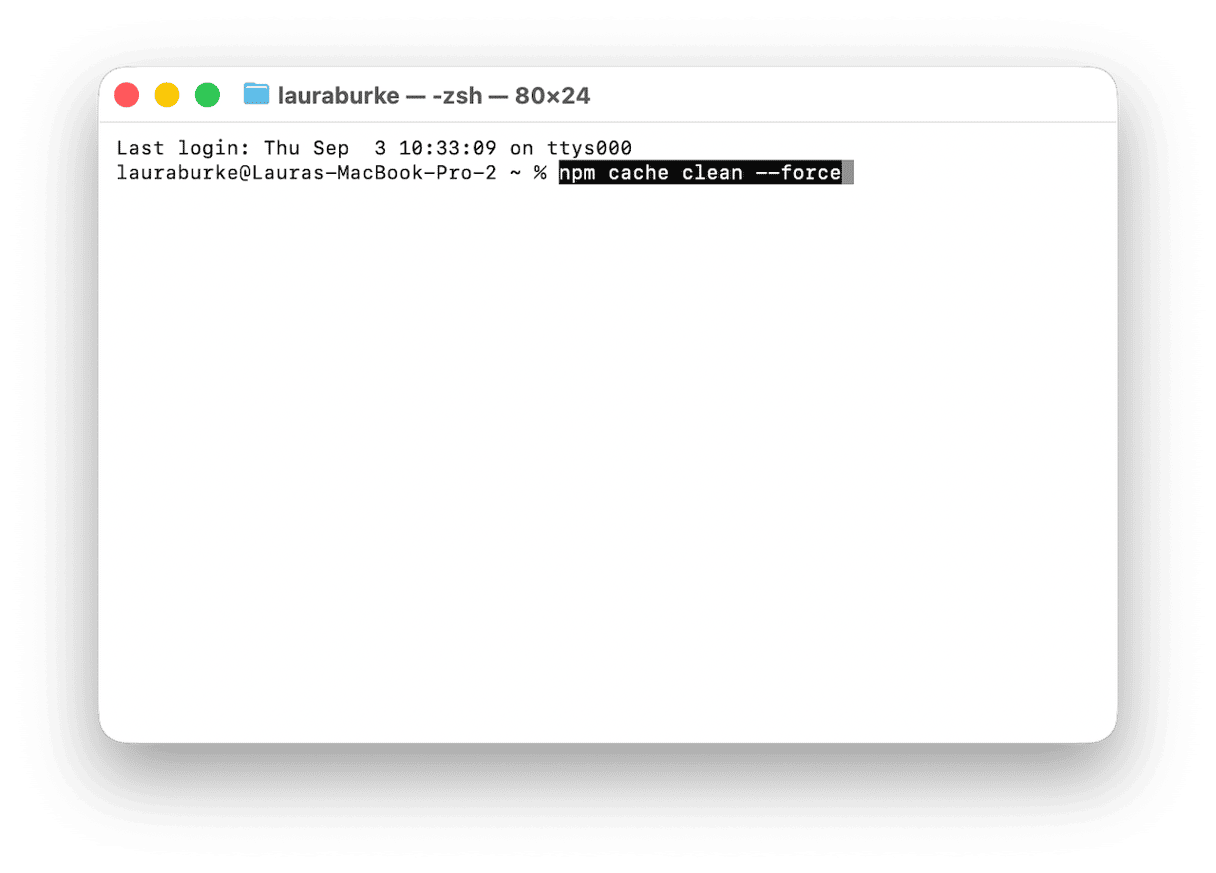
The --force flag is to be expected. Since npm 5, the cache is self-healing, so npm asks you to confirm you want to wipe it explicitly.
After that, run:
npm cache verify
This checks the cache folder, verifies its contents, and confirms it’s in a clean state. If you then want to see where npm is storing cache files on your Mac, use:
npm config get cache
On most setups, this points to something inside your user directory, often ~/.npm.
It’s important to remember that when you start the npm clear cache process, you won’t be deleting node_modules, changing your package.json, or removing any installed project dependencies. It’s purely removing just the cached package files npm can fetch again later, so this is pretty safe to do mid-project.
Yarn cache cleanup
For Yarn v1 Classic, clear the cache with:
yarn cache clean
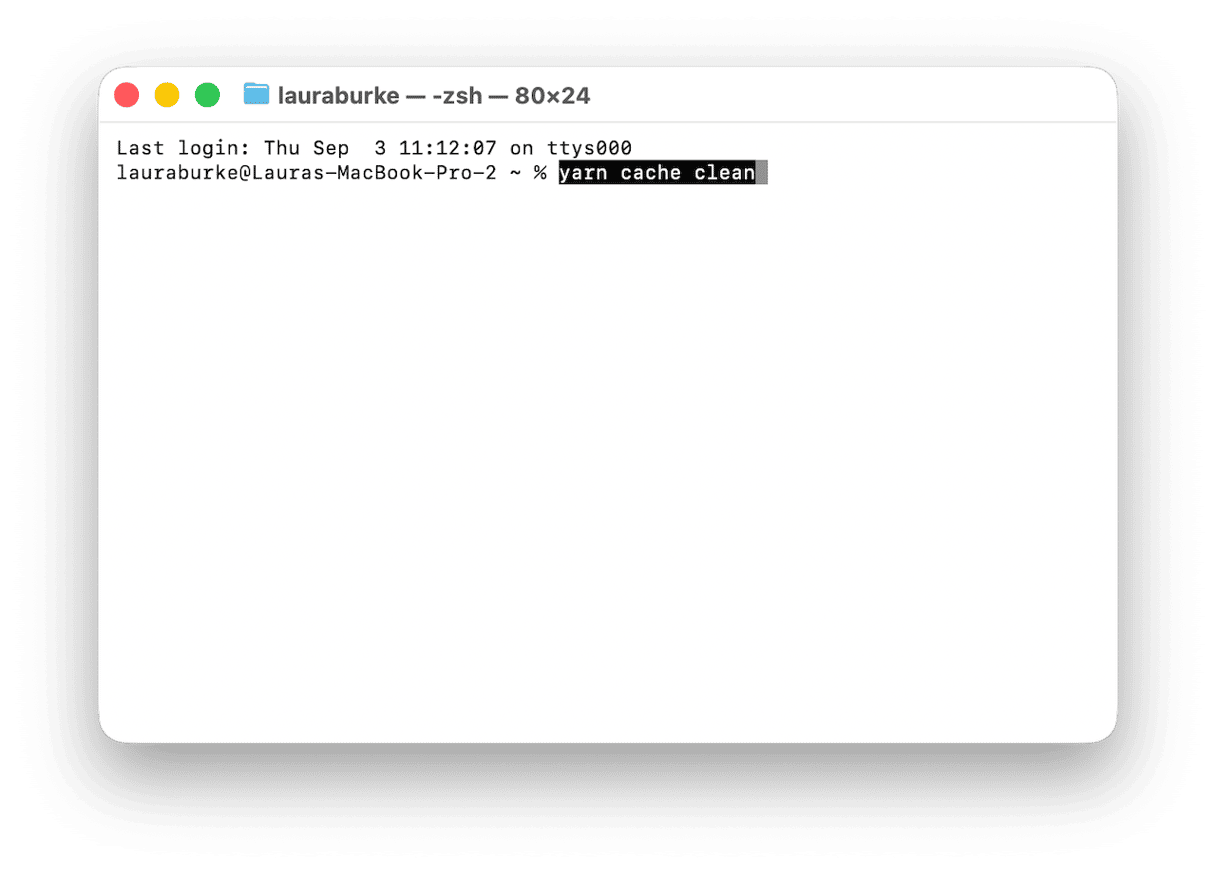
You can also check where those Yarn files are being stored by running:
yarn cache dir
For Yarn v2+ Berry, the cache behavior is a bit more project-based, so you’ll need to run the cleanup from inside the relevant project directory:
yarn cache clean --all
That’s going to remove all cached packages that Yarn no longer needs. As with npm, this doesn’t delete your source code or automatically remove node_modules; it clears package cache files that Yarn can fetch again when needed.
How to clear npm cache and all dev tools at once
If npm and Yarn are only part of your bigger problem, then I’d go straight ahead and use CleanMyMac CLI to clear multiple developer-tool caches in one clean swoop.
It launched in public beta back in July 2026 and is built for exactly this kind of cleanup: anything from npm, Yarn, pnpm, Homebrew, pip, Docker, VS Code, JetBrains, and other toolchains that are building up cache files.
Install it via Homebrew with:
brew install --cask macpaw/taps/cleanmymac-cli
Once that’s complete, run:
- cleanmymac clean dev
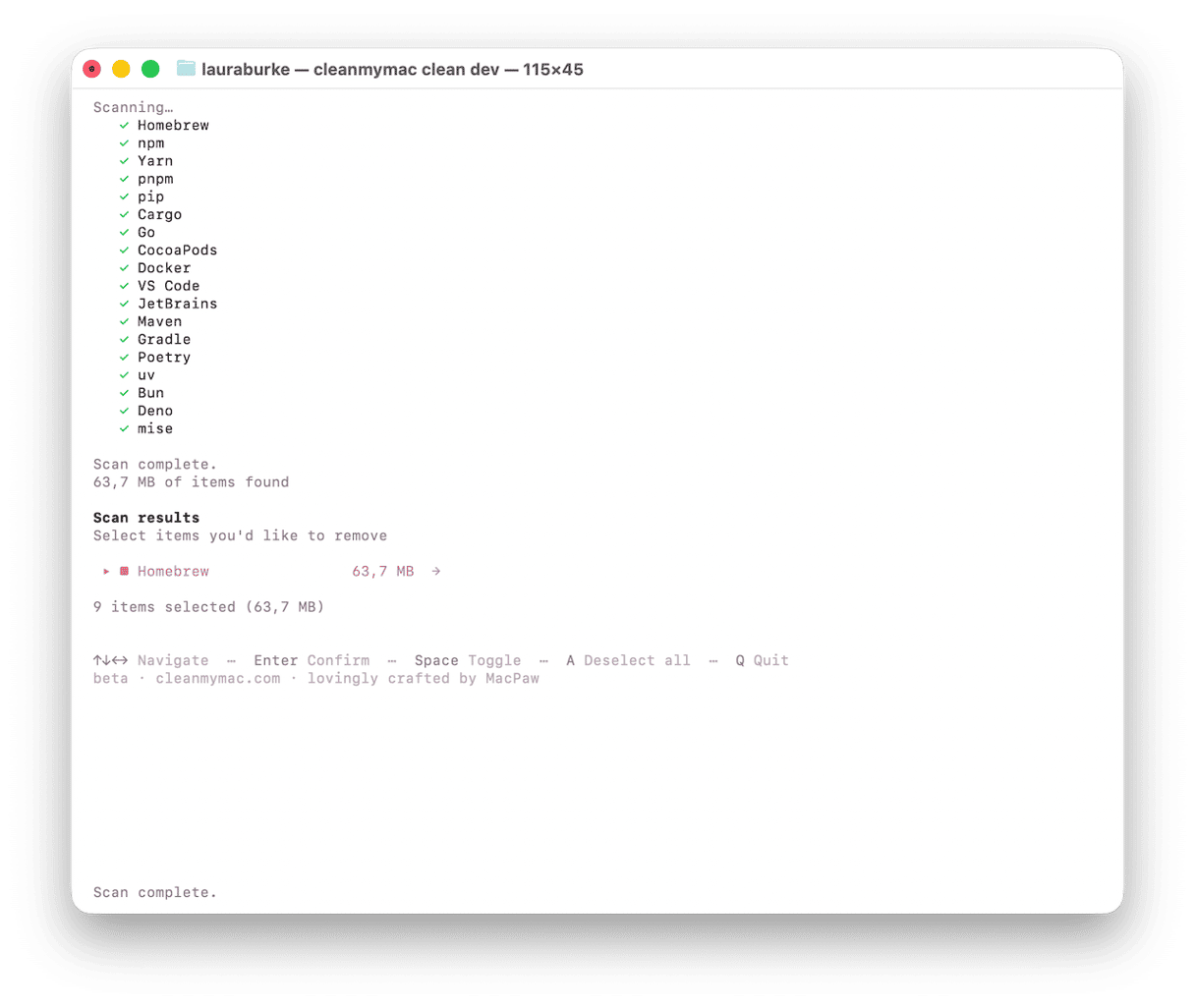
This will scan supported developer caches and, importantly, show you what it finds before removing anything. I think this is really vital; you get that breathing room to double-check, instead of deleting somewhat blindly.
You can also use:
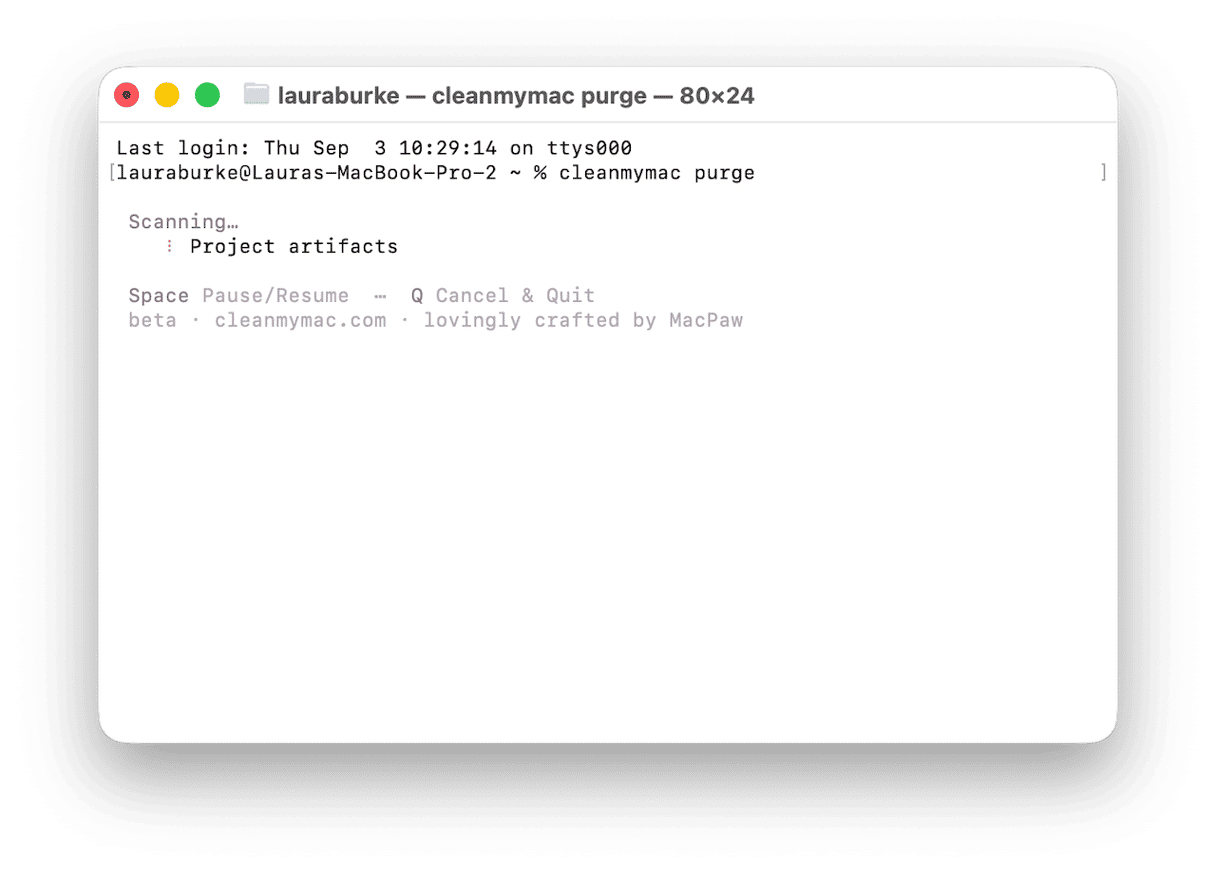
cleanmymac purge
That helps find stale project artifacts like node_modules, .next, .build, and other heavy folders left behind by old projects.
The new CleanMyMac CLI tool requires macOS 11 Big Sur or later. Take a look at it here on GitHub.
Other useful links to check out:
Knowing how to quickly run npm cache cleanup and Yarn cache removal is definitely worth having in your back pocket, but as I mentioned earlier in this article, you don’t need to run them like a weekly ritual, but I would keep the commands handy for broken installs, messy dependency work, or any of those moments when your Mac’s storage suddenly feels bloated or overloaded. A few targeted Terminal commands are usually enough to get things moving again.
Frequently asked questions
I think we’ve covered all the important stuff throughout this article, but I did find the same questions being asked over and over again on the forums, so I’ve tried to answer a few of these here. That way, I can confidently say you should find all the answers you need here.
Is it safe to clear npm cache?
Let’s just quickly answer this: yes. Clearing up your npm cache is safe because it’s only removing cached package files, not your installed project dependencies. npm can download those packages again the next time it needs them.
What does npm cache clean --force do?
That’s going to wipe npm’s cache folder, which is usually located in ~/.npm on macOS. That includes stored package tarballs and metadata npm keeps to speed up installs.
Why does npm need --force?
Since npm 5, the cache is treated as self-healing, so npm expects you to use --force when you intentionally want to delete it.
Will clearing npm cache delete node_modules?
No. npm cache clean --force does not delete node_modules, package.json, or your lockfile. It only clears npm’s package cache.
Can I clear npm and Yarn cache at the same time?
Yes, and you’ve got a couple of options. One, you can run the npm and Yarn commands separately, or two, use CleanMyMac CLI to literally clear all tools at the same time.