Do you know how to close all apps on MacBook? Because if your Mac feels slow, this trick can quickly win you back some bandwidth.
You might not realize it, but if you’ve got a ton of background processes and menu bar items running away silently, alongside your usual apps, this can really start to strain your resources. It’s not always the big, obvious apps either. Sometimes it’s cloud sync tools or old helper apps, and sometimes even browser extensions, or login items you forgot were even there.
Shutting everything down for me is a logical place to start in figuring out if my Macs just overrun or there’s something deeper going on. Anyway, here’s how to do it.
How to quit all apps at one
1. Quit apps one by one
Ok, so if you’re certain you’ve only got a couple of apps open, then quitting them one by one makes sense, and you’ve got a few ways to do this. This is usually what I do when I only have obvious apps running, like Safari, Mail, Notes, or Messages. It’s quick, and it avoids shutting down anything important by mistake.
- By pressing the Command - Q keys together with the app open.
- Or, by right-clicking on the app icon in Dock and pressing Quit.
Also, an interesting fact: When you press the red X in a window, that doesn’t fully quit the app; you might notice a little dot on its icon in the Dock. This means it’s still running; you just got rid of the window. So if your goal is to properly close apps and free up resources, make sure you actually quit them, not just close their windows. A lot of people get caught up in this.
2. Close all apps on MacBook via Force Quit
So, if you’ve got quite a few apps open, quitting them properly one by one might take a bit too much time; instead, you can use Force Quit for multiple apps. I tend to use this when my Mac is lagging, and I know I’ve left too much open, but I don’t want to restart the whole machine. Here’s how:
- Use the Option - Command - Esc shortcut to open the Force Quit window, or select it from your main Mac menu.
- Select all the apps from the list you want to shut down and press Force Quit.
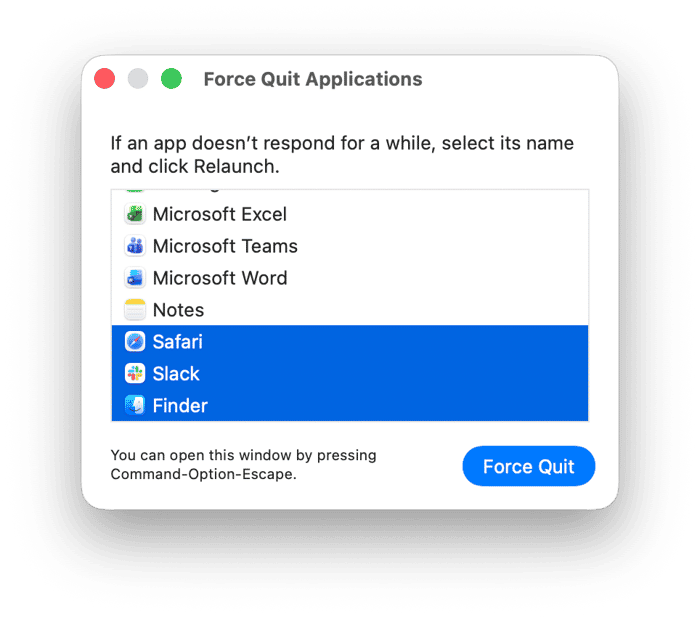
What’s interesting here is that you can only see foreground apps in Force Quit, so any hidden background processes or open menu bar apps won’t appear here. Keep in mind, they could still be eating up resources. Good to know if your device still feels off.
3. Activity Monitor
This is one of my favorite methods for how to close all open apps on MacBook, Activity Monitor gives you total control. This is often my go-to when I’ve closed the obvious, but something is still not right.
- From Applications > Utilities, open up Activity Monitor (You can use a Spotlight search too).
- Press on the CPU column at the top; this will then sort everything by usage, and all the big consumers will then float to the top.
- All you have to do now is select a process and press the X button to kill it.
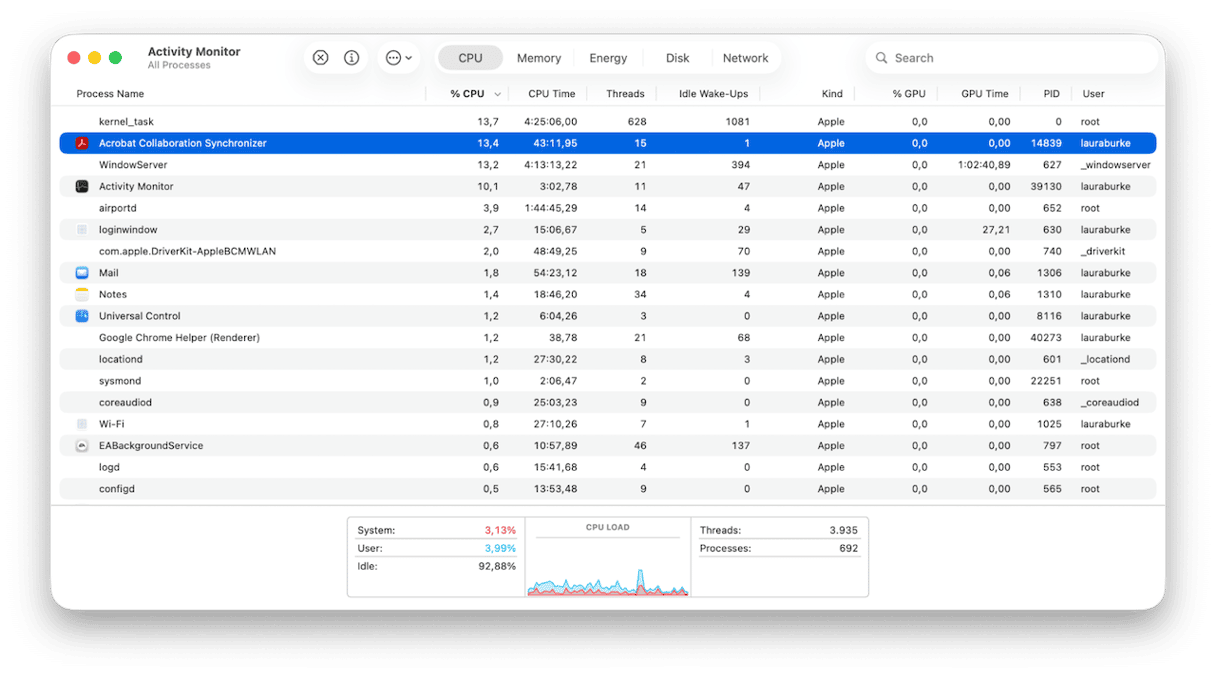
Don't quit kernel_task, WindowServer, or any process you don't recognize; just stick to the apps you know.
If you're not a fan of Activity Monitor or want a visually better way to see everything, then I like to use the Menu App from CleanMyMac. The thing that irritates me with Activity Monitor is that things skip about so much; you often start an investigation because it moves irrationally in the list. With this tool, you can see everything that's running and literally quit the big CPU and RAM hoggers in two clicks.
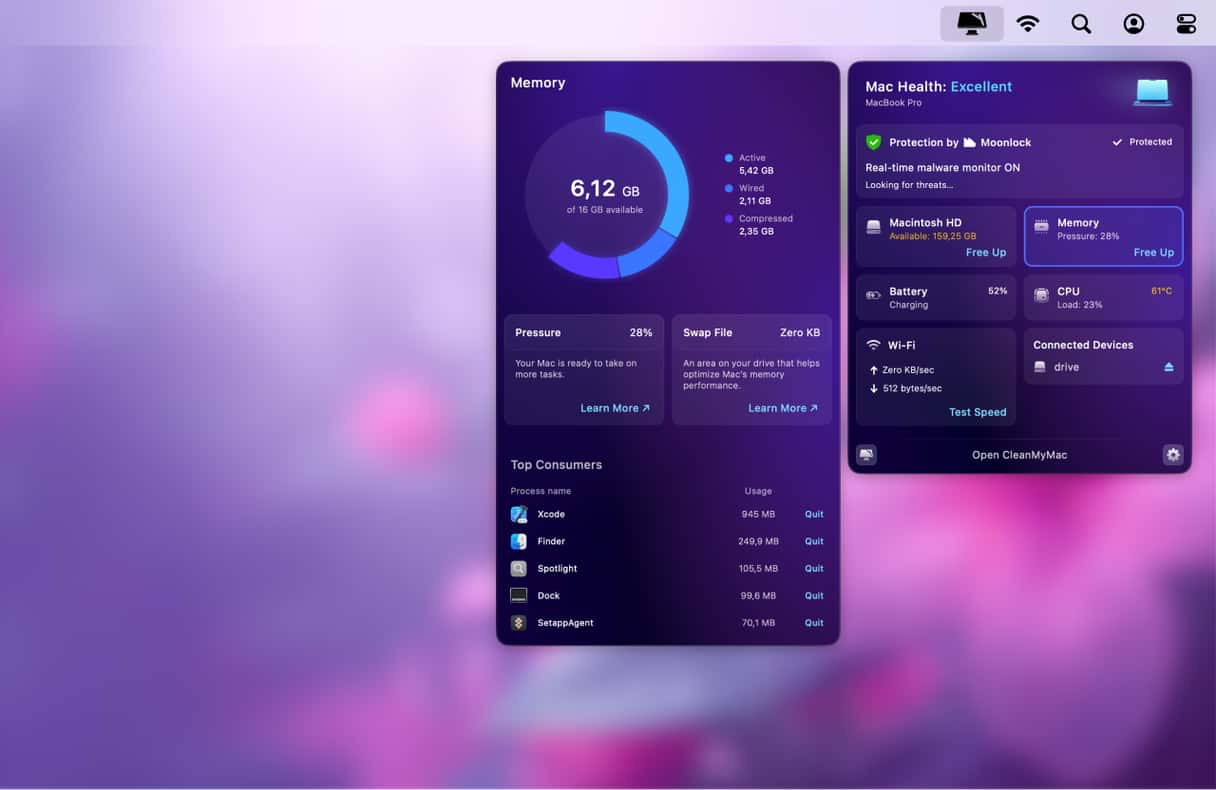
Try CleanMyMac for free — test it for 7 days.
4. Close all apps, including menu bar apps
Menu bar apps run independently and won't ever appear in your Dock or Force Quit window, so if it's those apps weighing your Mac down, you need to make sure you’ve handled them properly. I’m talking about things like cloud sync tools, even VPNs or messaging apps, clipboard managers, screen recorders, and little helper utilities that sit quietly at the top of your screen.
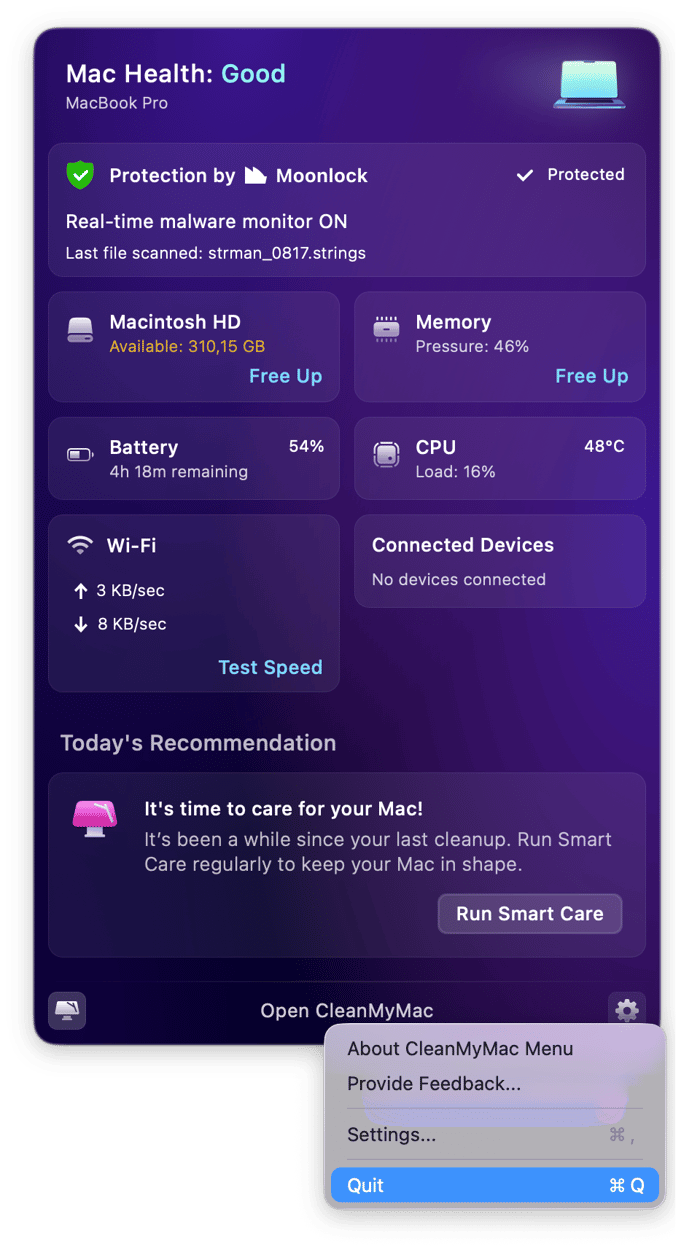
The quickest way is to literally quit its icon in the menu bar, and hit its log out or quit button or alternatively shut it down in Activity Monitor (steps above in method three for this).
That’s pretty much all there is on how to close all apps on MacBook. It’s not complicated; it’s just making sure you know the difference between background processes and menu bar tools, and shutting them down fully definitely isn’t as simple as hitting the X button. While closing apps definitely won’t fix every performance issue, it is a smart first move before you get into troubleshooting or deleting your files when your device feels slow.
Frequently asked questions
Does closing the window quit the app on Mac?
No, it doesn’t, and this really catches people out. This literally just gets rid of the window; you’ll notice a dot on the app’s icon in the Dock that indicates it’s still running.
Will quitting all apps make my Mac faster?
It absolutely should do; it frees up your RAM and your CPU. If you haven’t shut down or restarted your Mac in a while, too, this will seriously help to give your Mac a bit of a boost. If you’re interested in other ways to speed up your Mac, this article has 14 quick fixes.