

If you use Gmail, you’ll know the frustration of logging into your account and finding your inbox flooded with promotional emails, many of them from companies you’d long forgotten having any dealings with. Fortunately, Google makes it very easy to get rid of them, and it takes under a minute on your Mac. In this article, we’ll show you how to delete all promotions in Gmail at once.
How to delete all promotions in Gmail
Desktop (Mac/PC)
- Log in to your Gmail account in a web browser.
- Click on Promotions in the sidebar.
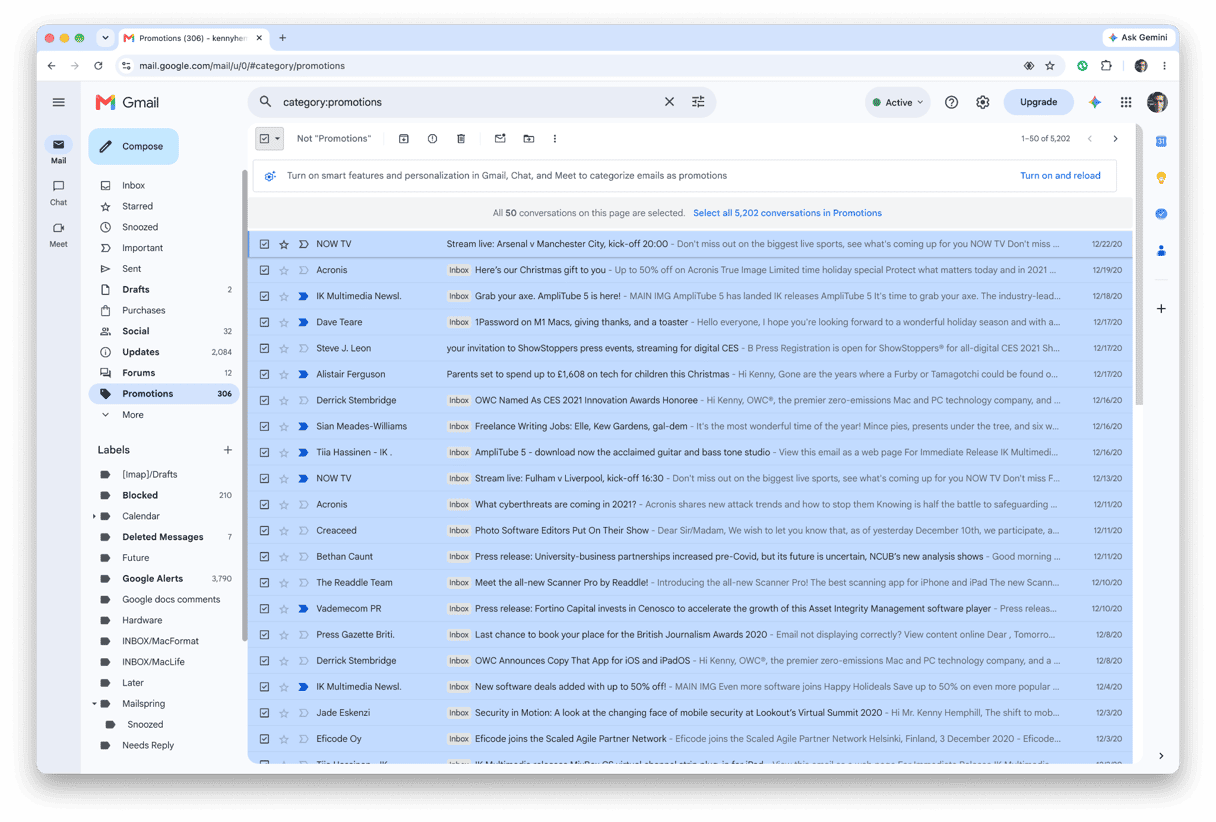
- Check the box just underneath the search box, above the list of messages.
- You will see all the visible messages selected. However, at the moment, it’s only the visible messages that are selected. You will see a message above the message list saying that all the conversations on that page are selected, followed by another message asking if you want to delete all promotional messages. That second message is a link, so click it if you want to get rid of all promotional messages.
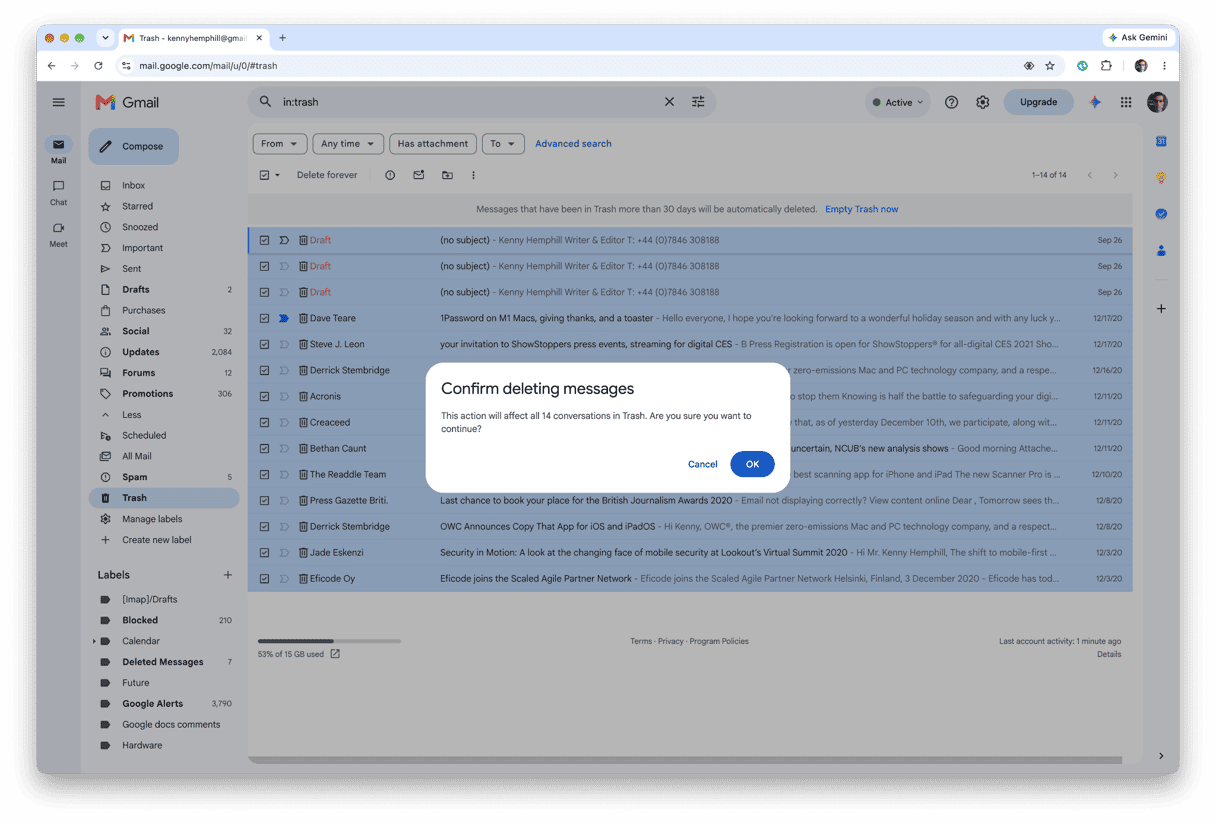
Messages moved to the Trash stay there for 30 days and are then deleted permanently. If you want to get rid of them immediately, choose Trash in the sidebar (you might have to click More) and then click Empty Trash Now.
iPhone/Android
The Gmail app on iPhone and Android used to allow you to select all the messages in a category, such as Promotions, and delete them in a similar way to on the desktop. However, as of the 2026 updates to the app, that’s no longer possible. Here’s how to do it:
- Go to your inbox in the Gmail app.
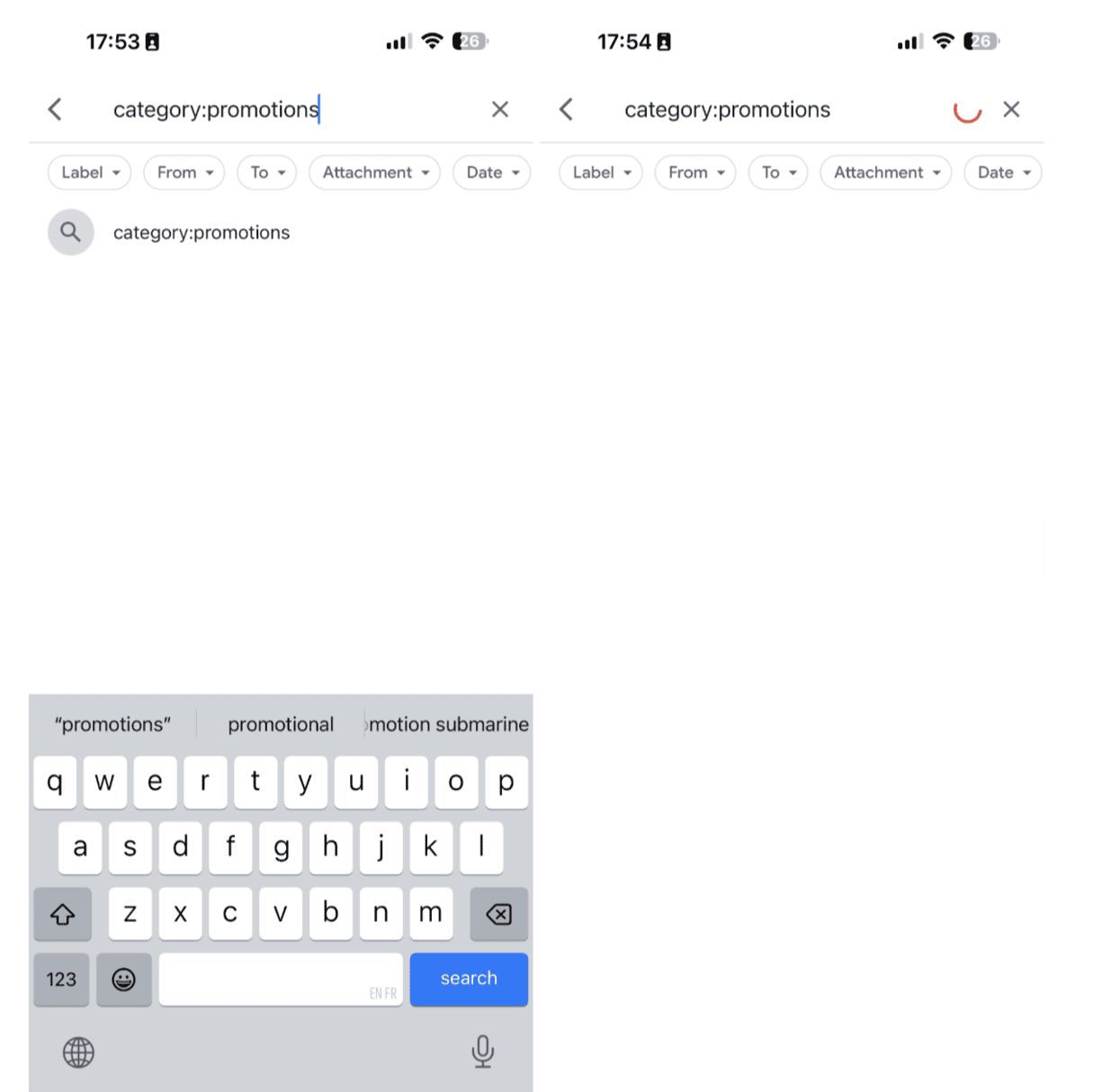
- Tap in the search box and type:
category:promotions - Press Return.
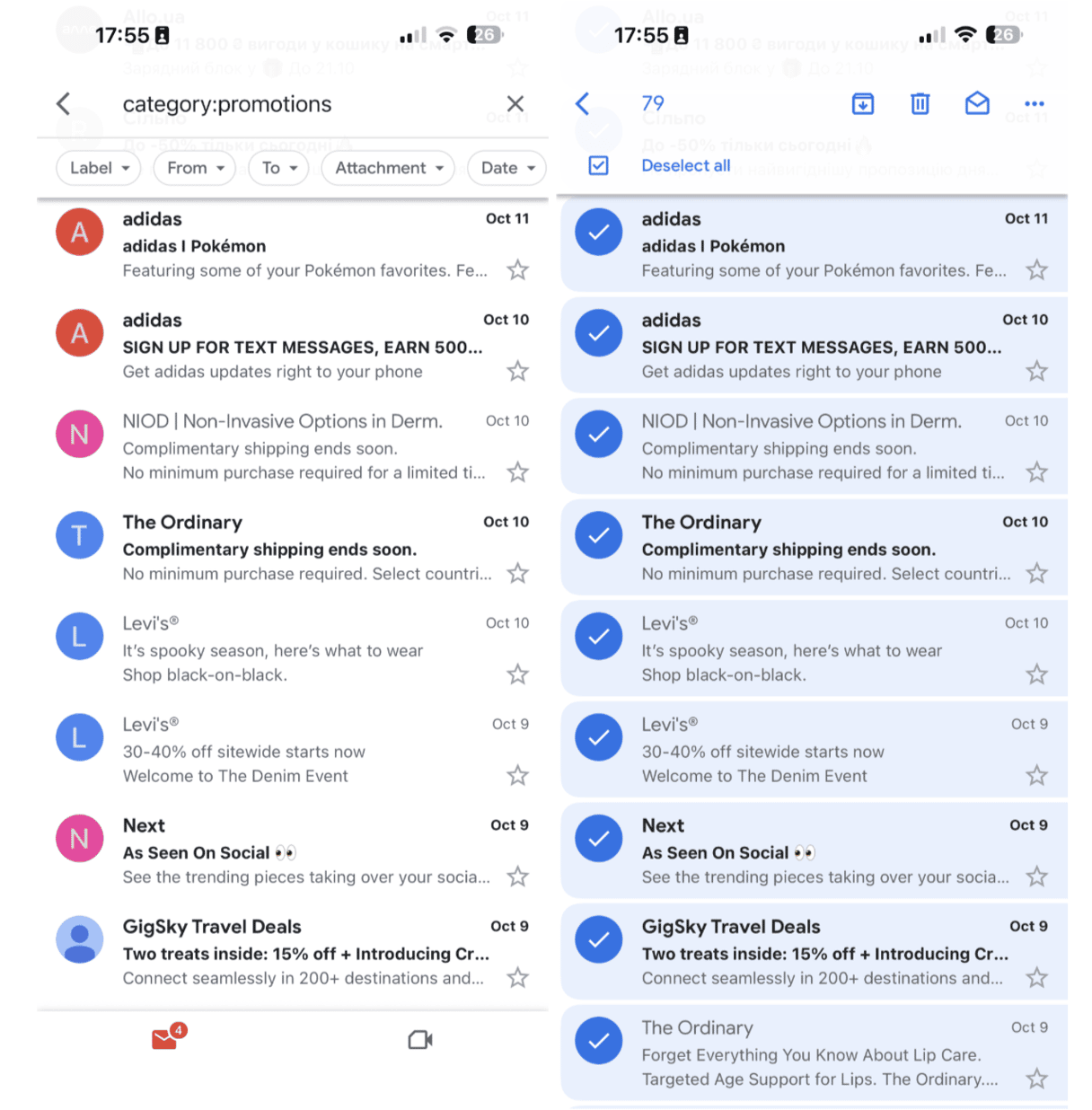
- Tap and hold on the first message.
- At the top of the screen, tap Select All.
- Tap the Trash can to delete the messages.
- If there are still messages in the list, tap Select All again and then the Trash can.
- Repeat step 6 until all the promotional messages are deleted.
As with Gmail on the desktop, messages in the trash stay there for 30 days. To delete them now, choose Trash from the menu and then Empty Trash Now. Then click OK to confirm.
How to prevent promotions from piling up
You can create filters in Gmail to automatically send email messages that meet criteria you specify to the Trash. Or you can use Google’s new Manage Subscriptions feature to unsubscribe from them in bulk.
Follow these steps to use Manage Subscriptions.
- In Gmail in a web browser, click on More in the sidebar.
- Click on Promotions and turn on Smart Features using the link at the top of the inbox.
- Choose Manage Subscriptions. You will see a list of email newsletters with the number of messages from each to the right of its name.
- Click the Unsubscribe button to the right of the number of emails.
- Repeat step 4 for all the promotions you want to unsubscribe from.
If you need more tips, check out our guide on how to unsubscribe from emails in Gmail.
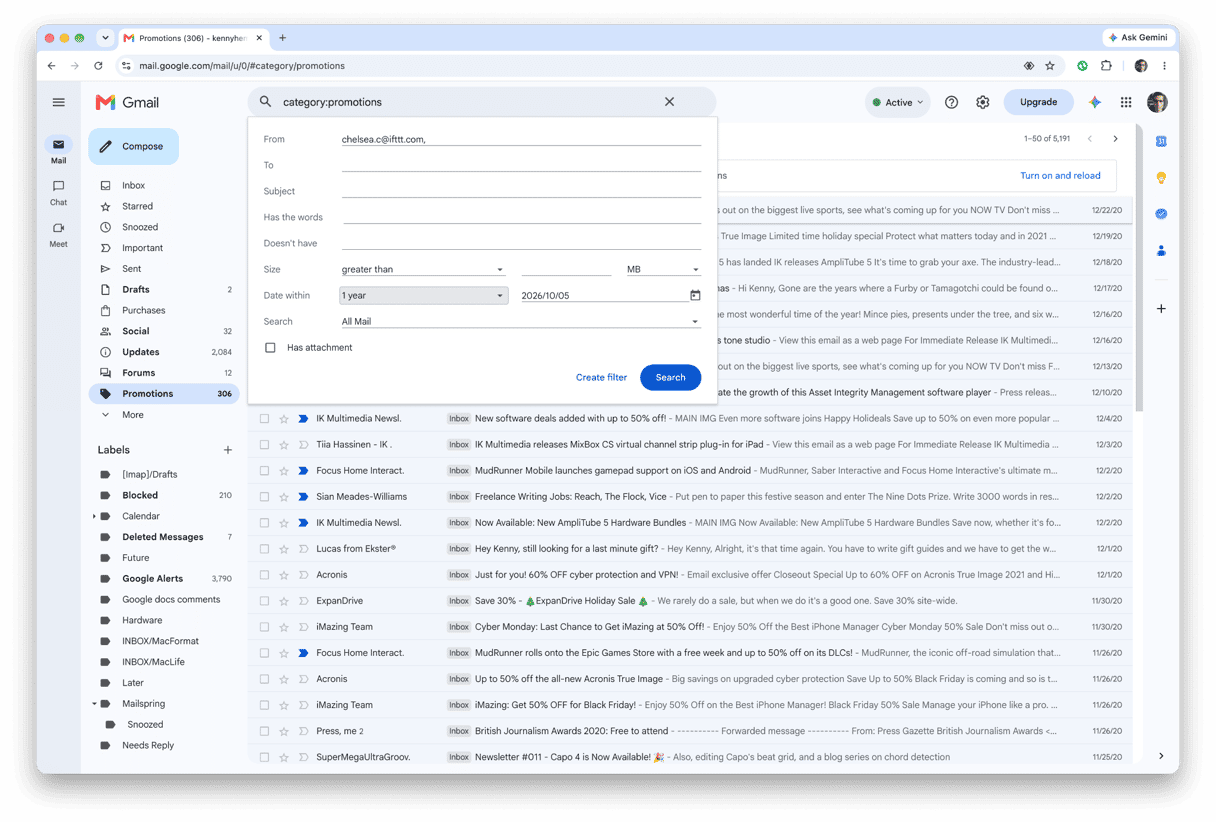
To create a filter, follow these steps:
- Click the search options button to the right of the search bar.
- Fill in the details for the filter you want to create. For example, the email address of the sender or the subject line the promotional email normally uses. You don’t have to fill in all the boxes.
- Select Create Filter.
- Check the box next to the action you want to take. In this case, you probably want to choose to delete the message.
- Click Create Filter.
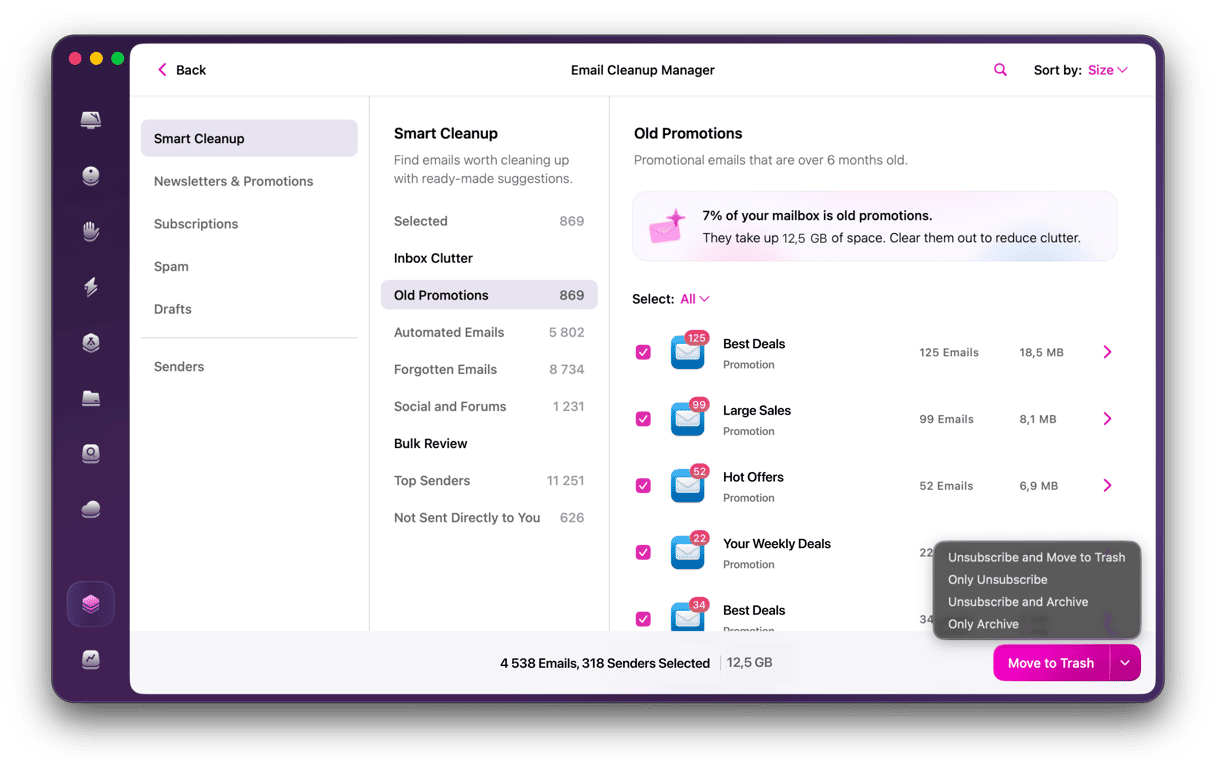
Faster Email Cleanup with CleanMyMac
Deleting promotions is a great way to clean up your Gmail inbox. But if those emails have attachments, they will still be stored locally on your Mac. And that means they will be taking up precious disk space. CleanMyMac’s Email Cleanup tool finds and removes those attachments in minutes. It works with your Gmail account to get rid of background noise: newsletters, promotions, spam, trash, drafts, and large attachments in one place. Then, it organizes messages by type, sender, year, and attachment size. It connects to your account safely through the standard Google sign-in, and you can disconnect permissions anytime directly in the app.
- Start your free CleanMyMac trial — you can test it for 7 days.
- Open CleanMyMac and select My Tools > Email Cleanup.
- Choose Connect Gmail > Continue.
- Follow the instructions to allow CleanMyMac to access your Gmail account.
- Click Scan Gmail and wait for it to finish scanning your Gmail — you can also choose Review Now to review results as it continues scanning in the background.
- Browse the results by attachment size.
- Select senders or individual emails to remove, archive, or unsubscribe — confirm every action.
- Deleted emails move to Gmail Trash and remain recoverable for 30 days, or until you empty the Trash.
It’s easy to delete all promotions in Gmail at once. You can do it in the browser version of Gmail on desktop, or on the mobile app. And to keep promotional emails out of your inbox completely, you can create filters to delete them or move them as soon as they arrive.
Frequently asked questions
Is it safe to delete all Gmail promotions at once?
Yes, it’s perfectly safe. If you want to be sure, you can review the contents of the Promotions folder to make certain that it only contains promotional emails.
Will deleting promotions free up Google Drive / Gmail storage?
Yes, depending on how many messages you delete, once the Trash bin has been emptied, space will be freed up.
How do I stop Gmail from showing the Promotions tab?
Open Gmail in a web browser and click the cog icon, then View All Settings. Click the Inbox tab. In the Categories section, uncheck the Promotions box.
Can I recover deleted promotional emails?
Yes, click on More in the sidebar, then Trash. Locate the email you want to recover, then click it and drag it to your Inbox or whichever folder you want to put it in.