
There can’t be many Gmail users who have never signed up for an email newsletter. Whether it’s because the subject is something you’re interested in, or you wanted a discount on something, or you just checked the wrong box on an account sign-up page, most of us end up subscribed to dozens of newsletters. If you find your Gmail inbox has become flooded with email newsletters you never open or you’re running out of Google Storage, it’s time to start unsubscribing from them. In this article, we’ll show you how to unsubscribe from emails in Gmail, both individually and in bulk.
How to unsubscribe from emails in Gmail
1. Unsubscribe from individual newsletters
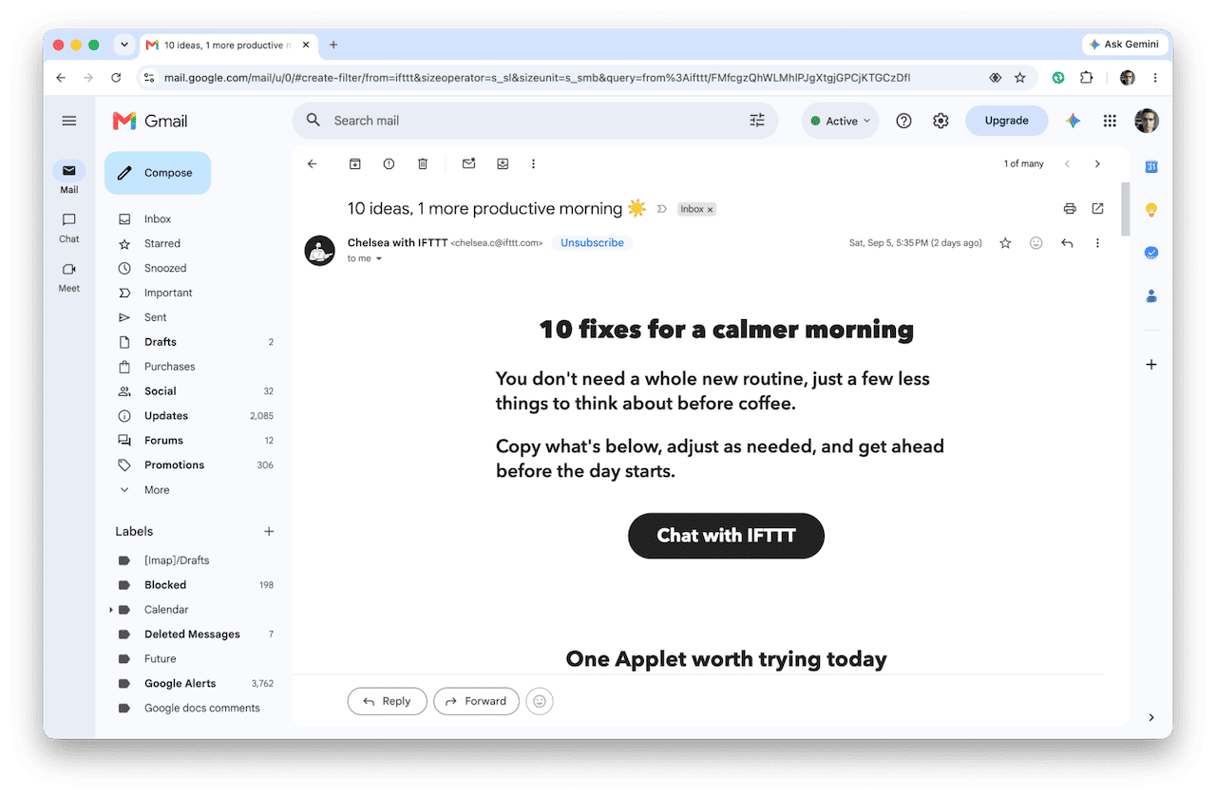
There are a few different ways to unsubscribe from individual email newsletters in Gmail. The easiest is to hover over the email in your inbox, or the Promotions folder if the email has been moved there, and look for the icons that appear to the right of the subject line. You should see an Unsubscribe button. Then, click Unsubscribe to confirm. You can also open the email and look for ‘Unsubscribe’ in blue at the top of the email. Click that and then confirm. Finally, there should always be an unsubscribe link in the email itself or in the footer.
2. Unsubscribe using Gmail's Manage Subscriptions
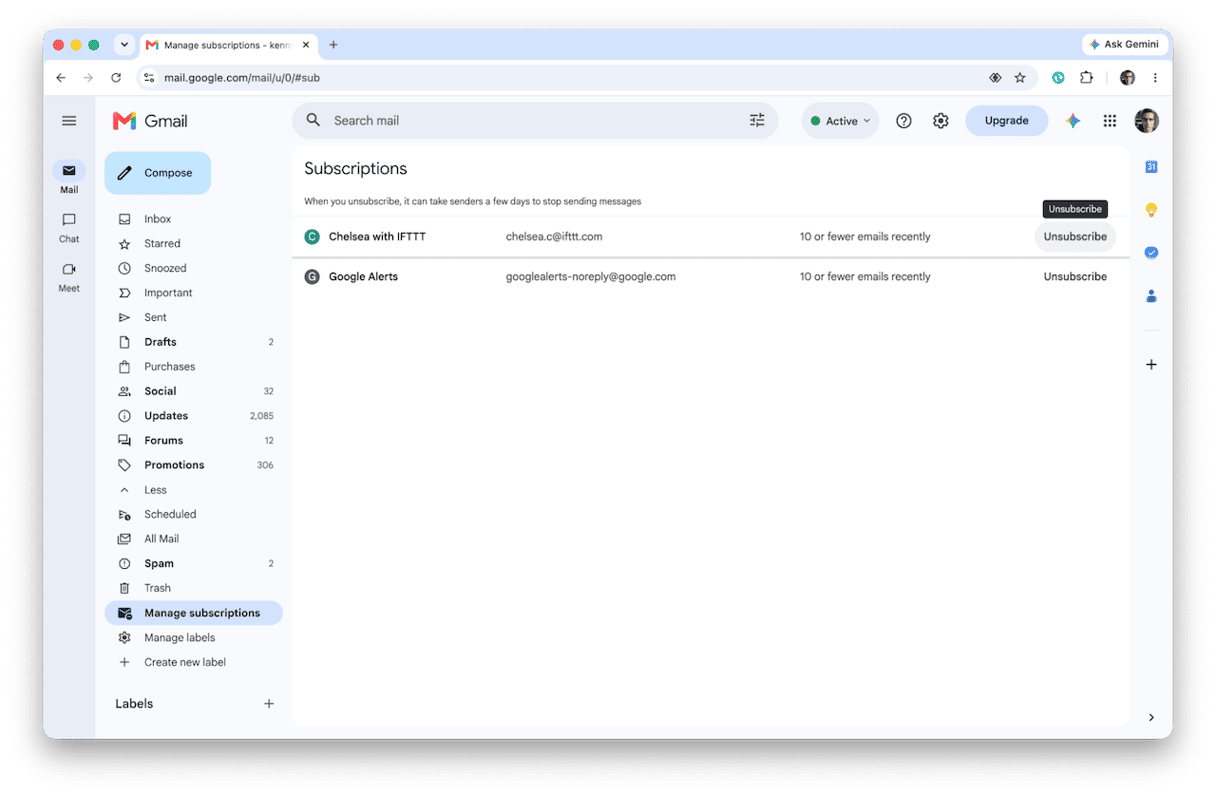
Gmail allows you to unsubscribe from email newsletters in bulk using its Manage Subscriptions feature.
- Open Gmail in a web browser and click the More button under the list of folders on the left.
- You should see a Manage Subscriptions option. If not, click on Promotions and turn on Smart Features using the link at the top of the inbox.
- Choose Manage Subscriptions. You will see a list of email newsletters.
- To unsubscribe, click the Unsubscribe button to the right of the number of emails you have received from the sender.
- Repeat that for every email you want to unsubscribe from. Any future emails from senders you’ve unsubscribed from will go straight to spam.
3. Unsubscribe in bulk with CleanMyMac's Email Cleanup
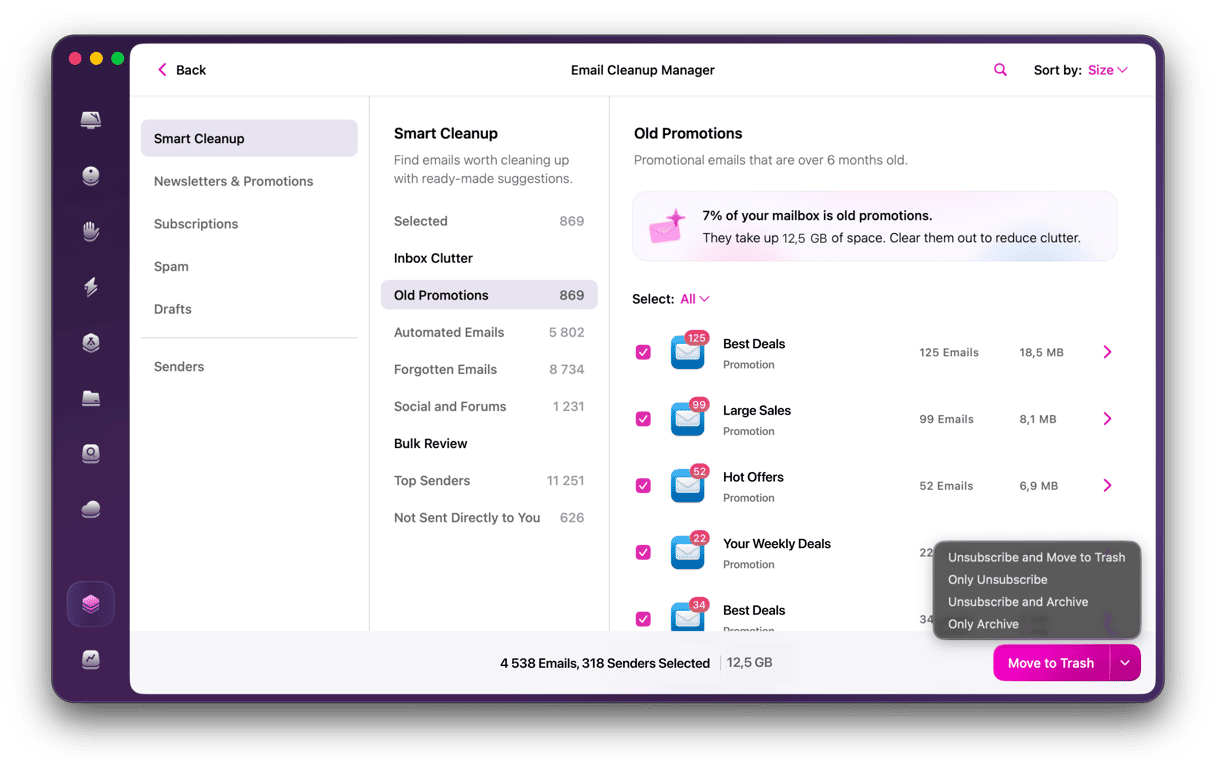
CleanMyMac’s Email Cleanup works with Gmail to get rid of unwanted emails that clutter up your inbox, like newsletters, promotions, spam, and bulk mail, all in one place. It organizes results by type, sender, year, and attachment size, so you can easily see what you want to unsubscribe from. You can choose just to unsubscribe from future emails, or to unsubscribe and remove existing emails from your inbox. Email Cleanup connects safely through standard Google sign-in. And you can disconnect permissions anytime directly in the app.
- Start your free CleanMyMac trial — you can test it for 7 days.
- Open CleanMyMac and click Tools > Email Cleanup.
- Connect your Gmail account using the standard Google sign-in.
- Browse the results by type, sender, year, or attachment size while the scan continues in the background.
- Select senders or individual emails to remove, archive, or unsubscribe – confirm every action.
- Deleted emails move to Gmail Trash and remain recoverable for 30 days.
4. Create a Gmail filter to auto-delete or auto-archive future emails
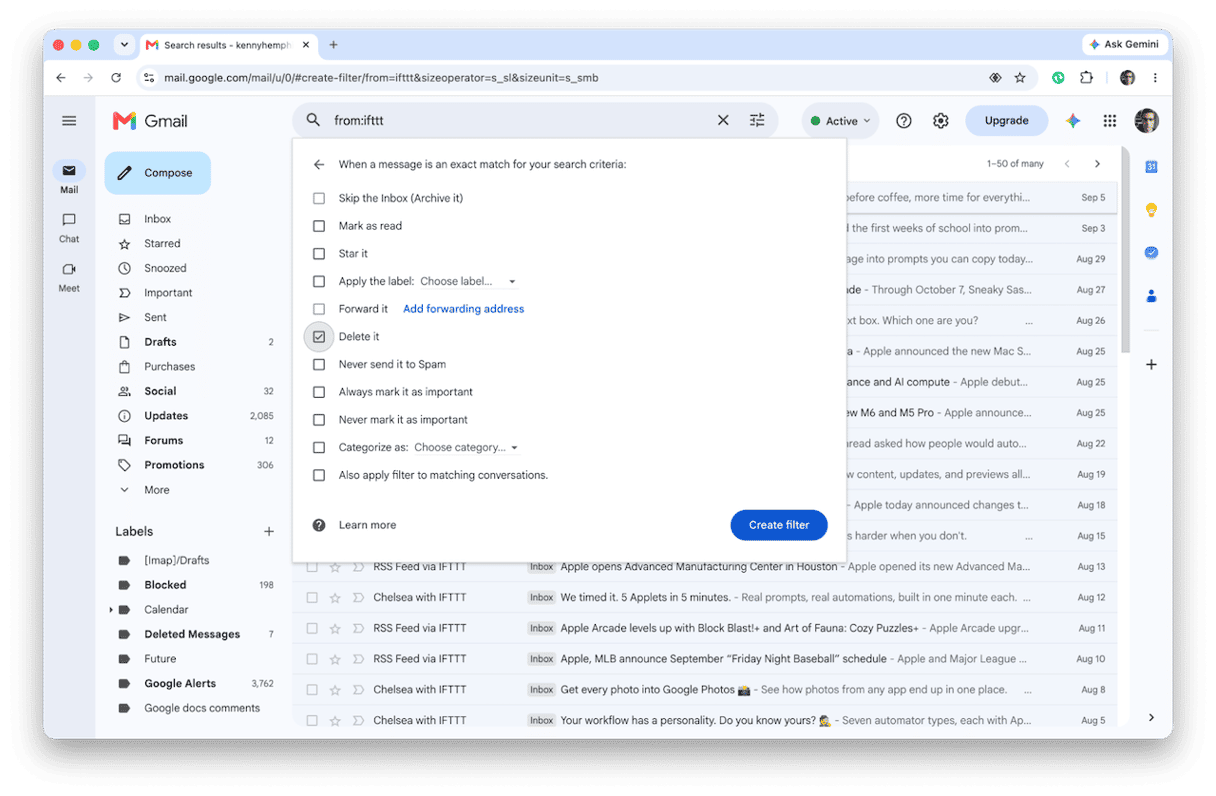
This is a useful option if you can’t find an unsubscribe link or using Gmail’s unsubscribe features doesn’t work. Filters in Gmail work like rules in Outlook. You specify criteria that messages must meet in order for an action to be triggered, then you specify the action that you want to take on those messages.
- In Gmail, click the search options button to the right of the search bar.
- Fill in the details for the criteria you want to set. For example, the sender's email address or a subject line. You don’t have to fill in all the fields.
- Choose Create Filter.
- Check the box next to the description of the action you want to take. For example, apply a label or delete the message.
- Click Create Filter.
What to do after unsubscribing
Once you’ve unsubscribed from email newsletters, keep an eye on your inbox to make sure you are not receiving them. Not all unsubscriptions are immediate, so allow a few days before taking further action. If you do notice that some emails are still arriving after that, unsubscribe again or contact the sender directly via their website. Don’t reply to the email address the newsletter comes from, as that won’t reach the sender.
Unsubscribing doesn’t delete emails you’ve already received, so to free up space in your Google account, you’ll have to delete them manually. The easiest way to do that is to use Google’s Promotions label. Click on the label in your Gmail inbox, and you can then select all the messages there and delete them. I’ve also noticed that some promotional emails and newsletters show up under the Forums label, although they don’t come from forums. So it’s worth checking there if you want to be thorough.
It’s easy to become overwhelmed by the number of email newsletters and promotional messages that arrive in your inbox. But it doesn’t have to be that way. By following the steps above to unsubscribe from emails in Gmail, you can take back control of your inbox and focus on the messages that really matter.
Frequently asked questions
Is it safe to unsubscribe from emails in Gmail?
Yes, it’s completely safe. All that will happen is that you will no longer receive emails from the sender.
Does unsubscribing free up Gmail storage?
Unsubscribing from an email doesn’t on its own free up Gmail storage. However, if you take the next step and delete all the emails from the sender you’ve unsubscribed from, that will free up storage space. For some other cleaning tips, jump to this article on how to free up Gmail storage.
What if the unsubscribe link doesn't work?
If you try to unsubscribe using Gmail’s features or the unsubscribe link at the bottom of an email and it doesn’t work, the next step is to contact the sender via their website and unsubscribe there. You can also set up filters in Gmail so that emails from that sender are immediately deleted.