
Most of us have a Gmail account or use Google’s cloud storage, and many of us find that the 15 GB of free storage quickly fills up. The combination of mail attachments, photos, and other files in Google Drive means that it doesn’t take long to run out of room. In this article, we’ll show you how to free up space when your Gmail storage is full.
Why is my Gmail storage full?
Google gives everyone 15 GB of storage for free. That sounds like a lot if you only use it for Gmail and the occasional file in Google Drive. But when you realize that the allocation includes all attachments in your Gmail inbox, all the photos you keep in Google Photos, every file in Google Drive, and all the documents you create in Google Docs, suddenly 15 GB doesn’t seem like much at all. For many users, the answer to ‘why is my Google storage full’ is lots of high-resolution photos, but it could just as easily be Gmail attachments or files in Google Drive.
Even if you delete hundreds of emails, you may not see much change in available storage. That’s because when you delete an email, it goes to the Trash folder and stays there for 30 days. Only then is it deleted and space freed up. You can easily check how much storage you have available by logging into your Google account and going to one.google.com/storage. Or, in Gmail, go to Settings > Manage account storage.
How to free up Google storage space
1. Use CleanMyMac’s Email Cleanup
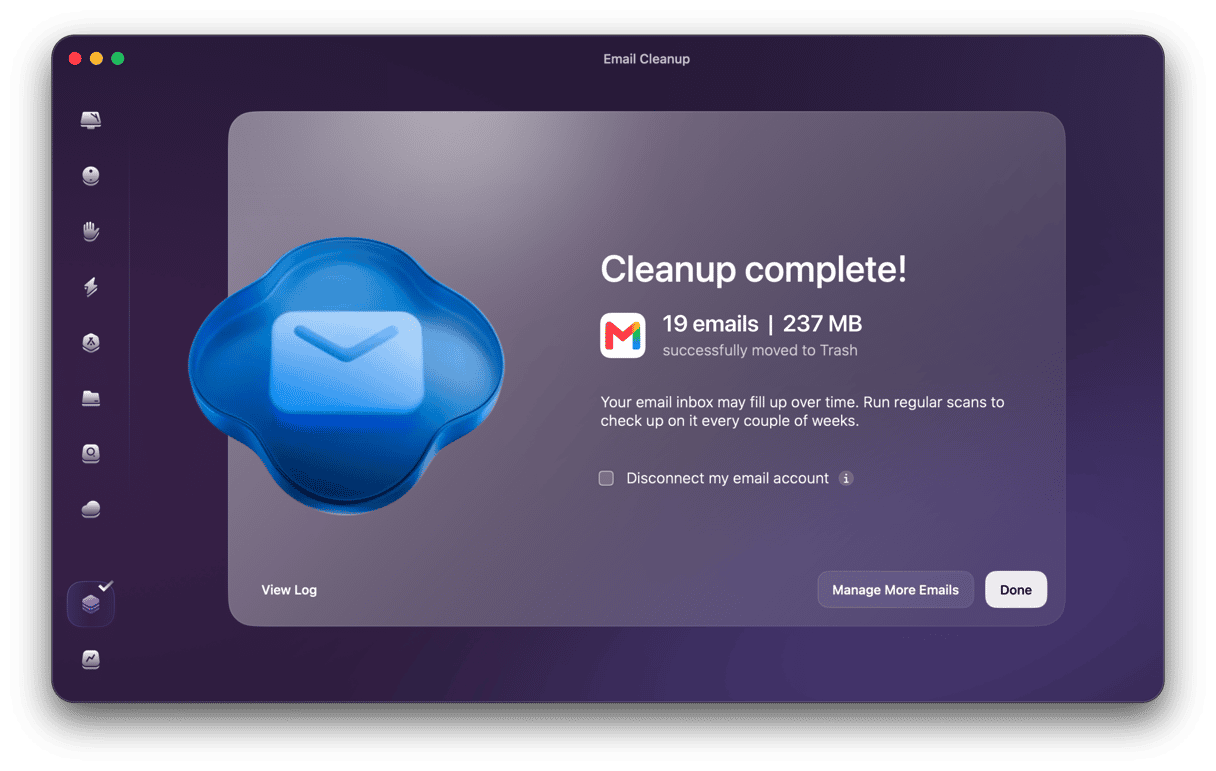
CleanMyMac’s Email Cleanup works with Gmail to get rid of unwanted emails that clutter up your inbox, like newsletters, promotions, spam, and bulk mail, all in one place. It shows you how much space will be freed up before you take any action. And it organizes results by type, sender, year, and attachment size — making it easy to find the biggest storage consumers first.
You can remove and archive messages or unsubscribe from newsletters across multiple senders at once — and you always get the chance to review what’s going to happen before taking action. Importantly, it connects to your account safely through the standard Google sign-in; you can disconnect permissions anytime directly in the app.
- Start your free CleanMyMac trial — you can test it for 7 days.
- Click My Tools > Email Cleanup.
- Connect your Gmail account using the standard Google sign-in.
- Browse the results by type, sender, year, or attachment size while the scan continues in the background.
- Select senders or individual emails to remove, archive, or unsubscribe — confirm every action. Deleted emails move to Gmail Trash and remain recoverable for 30 days, or until you empty the Trash.
2. Empty Gmail Trash and Spam
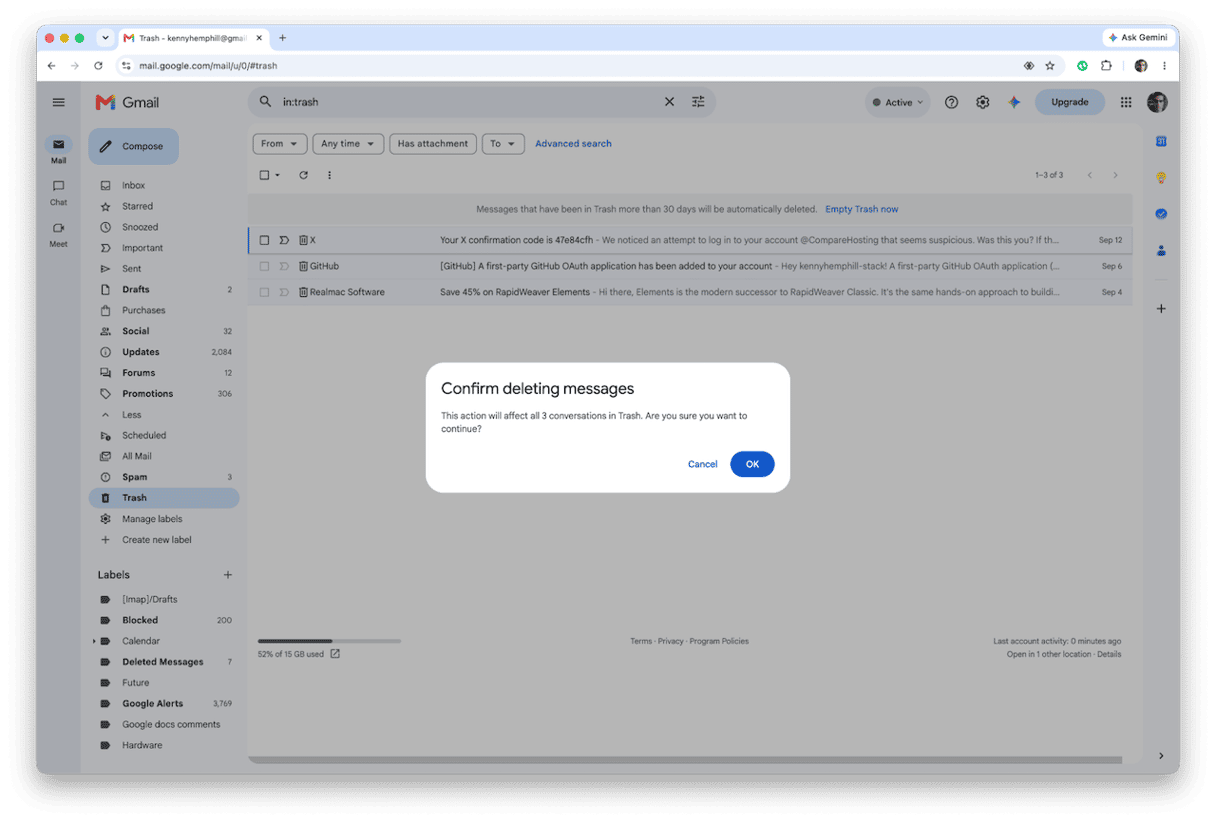
As we’ve already said, when you delete an email, it doesn’t disappear immediately; it goes to the Trash for 30 days, unless you delete it sooner. The same applies to mail in your spam folder. To free up space, you should delete it immediately. Click on Trash in the sidebar in Gmail and choose Empty Trash now. Then choose Spam and click Delete all spam messages now.
3. Delete large attachments
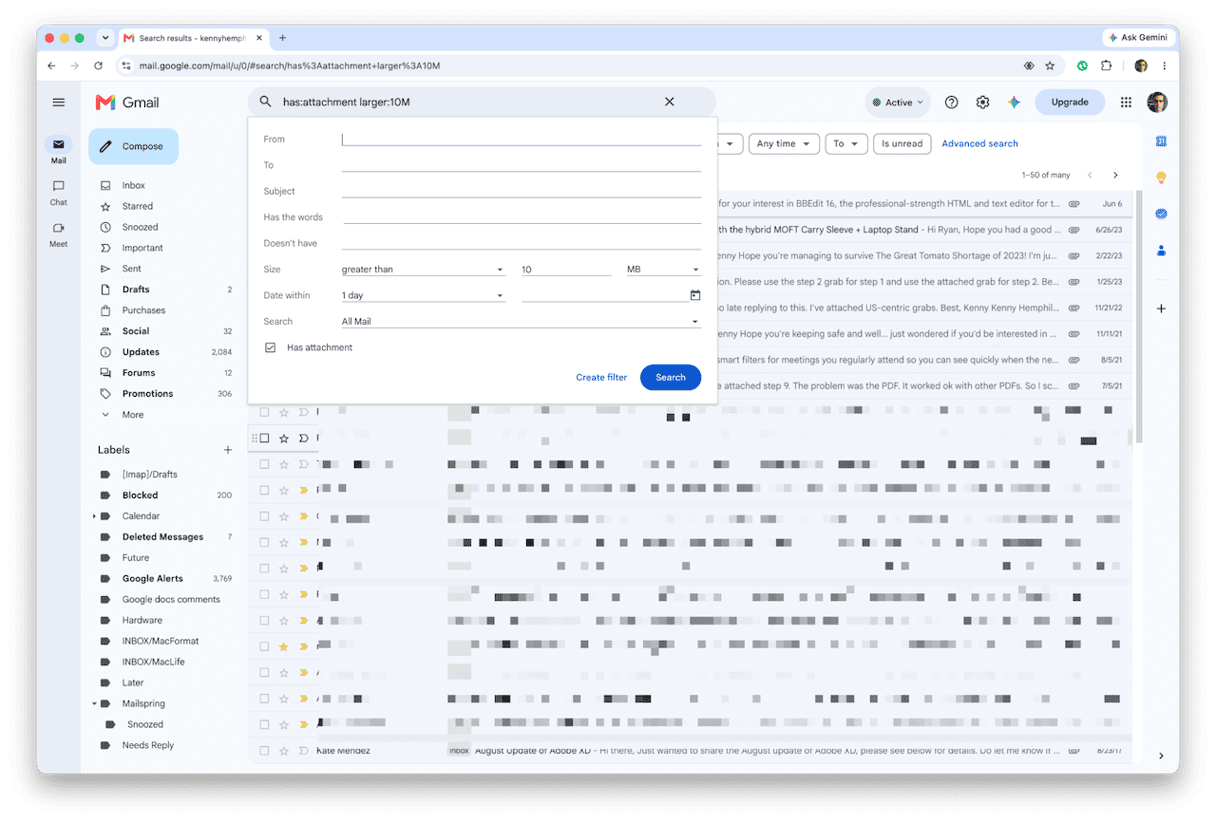
Getting rid of messages with large attachments is a very effective way to free up space. You can use the search bar in Gmail to find them easily. Type ‘has:attachment larger:10M’ to find messages with attachments larger than 10MB, or change 10M to whatever number you want.
4. Delete emails by category
Gmail makes it really easy to find emails that are promotional or come from social media sites. You can then delete them in bulk easily. In Gmail, choose Promotions, Social, or Forums, then check the box at the very top to select all messages, and click the trash icon. Don’t forget to empty the Trash afterward.
5. Free up Google Drive and Photos
Documents in Google Drive and photos in Google Photos use the same storage allocation as Gmail. So if your Google storage is full, deleting those will free it up. To find out how much of your storage allocation is accounted for by photos and files, go to one.google.com/storage. You’ll see immediately how much storage you have used and where it has been used. You can then click on the link next to Google Drive or Google Photos to go to those services. Once you’re there, you can delete files or photos. In Google Drive, click the Storage Used heading to list files by the amount of storage they use. You can then select and delete the ones you don’t want. In Photos, Shift-click the checkmark at the top left of photos you want to delete and click the trash can to delete them. In both cases, you will need to empty the trash after deleting to free up space.
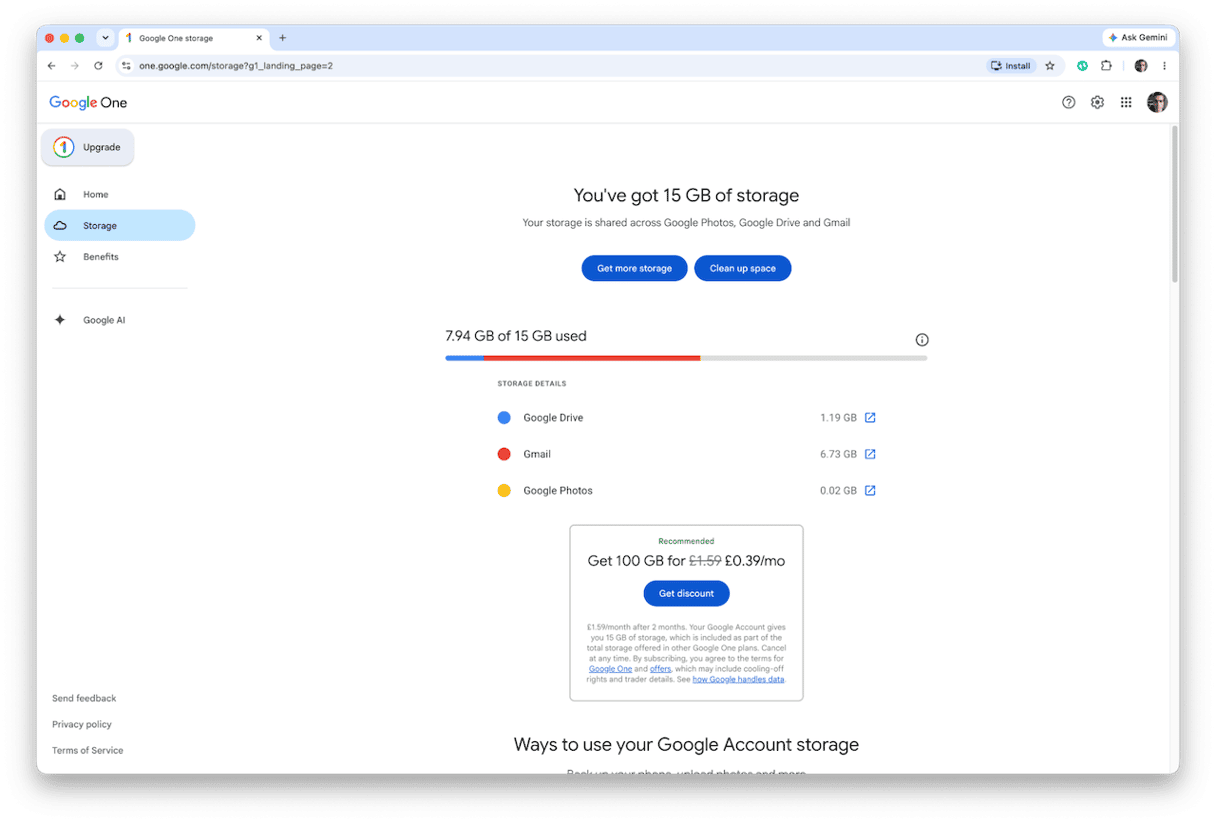
6. Upgrade your storage
If you’ve tried everything above to free up space and still don’t have enough, the last resort is to upgrade to a paid storage plan, known as Google One. Google pushes these quite enthusiastically, so you should have no problem finding a link in Google Drive or Google Photos. Evaluate each plan carefully to decide which best meets your needs and take advantage of any special offers that are currently running before you sign up. You can cancel a Google One plan at any time and revert to the free storage tier. So, it’s a good option if you only need additional storage for a project you’re working on.
How to stop Gmail storage from filling up again
Once you’ve gone to the effort of clearing out your Google storage space, the last thing you want is for it to fill up again. One way to avoid that is to unsubscribe from newsletters and promotional emails that you never read. You can use Gmail’s Manage Subscriptions feature to do that, or you can unsubscribe from individual newsletters. If you still get too many emails after unsubscribing, use Gmail’s filters feature to automatically delete emails you don’t want.
You can find full instructions on how to do that in this article on how to unsubscribe from emails in Gmail.
Frequently asked questions
How do I check how much Gmail storage I'm using?
Go to one.google.com and sign in to your account if you’re not already signed in. You will see a message showing you how much storage you have used, how much you have left, and where you have used storage.
Does deleting emails immediately free up Gmail storage?
No. When you delete emails, they go to the Trash folder and stay there for 30 days. To free up storage, you either need to wait 30 days or go to the Trash folder and delete emails from there.
What happens when Gmail storage is full?
You won’t be able to send or receive new emails, upload photos, or add files to Google Drive until you free up space or upgrade to a paid plan.