Cloud storage is such an important part of all of our lives that it’s difficult to remember a time when it didn’t exist. But 20 years ago, if you wanted to share files or move them from one computer to another and they were too large to send by email, a USB stick was the most common solution. Then, along came Dropbox, one of the first services that allowed you to store files on a remote server and sync them with all your devices or share them with others. Now, there are lots of different cloud storage services to choose from, including iCloud Drive, Google Drive, and Microsoft’s OneDrive. But Dropbox remains popular. In this article, we’ll show you what to do if the Dropbox installer won’t open on your Mac.
How Dropbox works
While you can access your Dropbox account in a web browser and upload and download files that way, its real attraction is that you can install apps on all your devices, including your Mac, and access files that way.
On Mac, Dropbox, once installed, exists as a folder in the Finder, so you can use it just like any other folder. However, in this case, when you copy files to and from the folder, that is mirrored across all the devices connected to your Dropbox account.

What is the Dropbox installer?
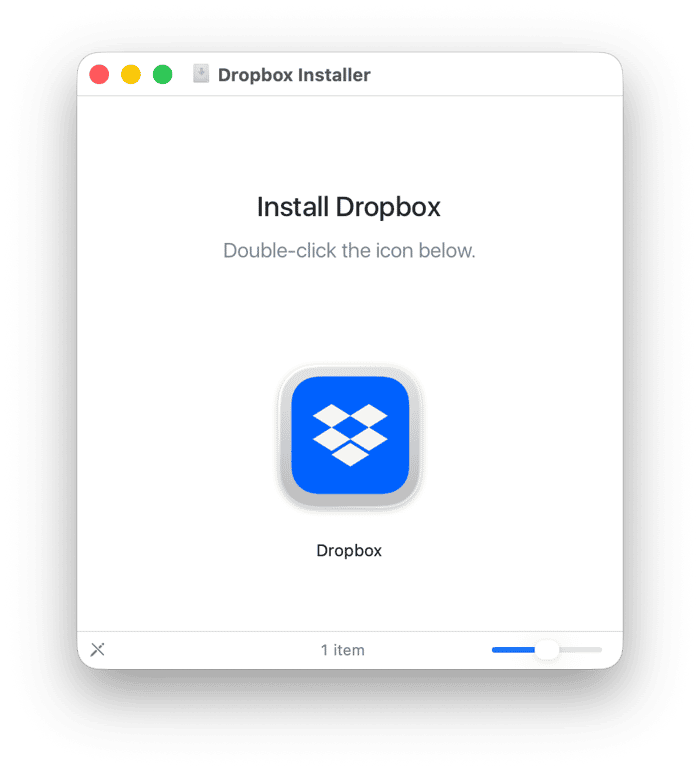
The Dropbox installer is a DMG file that you download from Dropbox’s website. When you double-click the dmg file, it mounts, and when you double-click the file inside the disk image, it installs Dropbox on your Mac.
Why won't the Dropbox installer open on my Mac?
There are a few possible reasons why the installer won’t open on your Mac:
- You didn’t double-click the disk image to mount it.
- The installer didn’t download properly, or your internet connection dropped out during the download.
- The downloaded installer file is corrupt.
- You didn’t download the installer from Dropbox’s website. For example, you may have had an old installer on your Mac and tried to use that. If it’s not compatible with the version of macOS installed on your Mac, it may not open.
- Your Mac and the installed version of macOS may not meet the minimum system requirements for Dropbox.
- Your Mac is managed by an organization you work for, and its security policies prevent the installation of some applications.
How to fix it when the Dropbox installer won’t open on your Mac
Before diving into the fixes, check the minimum system requirements on Dropbox’s website and confirm your Mac meets them.
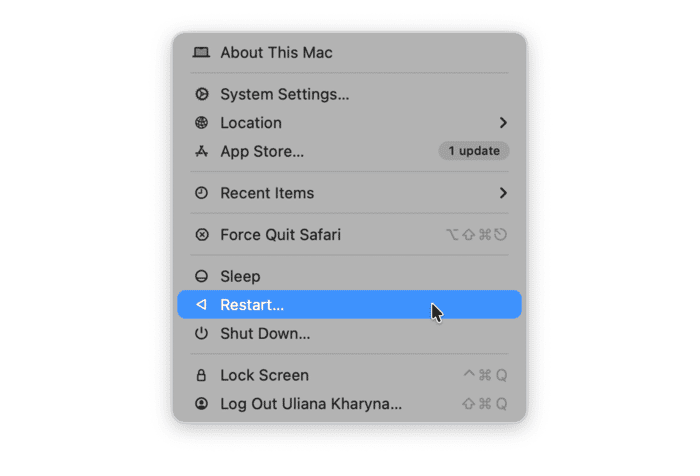
1. Restart your Mac and try again
Restarting your Mac clears out cache and temporary files and frees up RAM. On Macs with Apple silicon, it also resets NVRAM and the system management controller. Quite often, it’s all you need to do to fix a problem.
2. Check your internet connection
Make sure your internet connection is working properly and download the installer from Dropbox’s website again. When it has downloaded, double-click the dmg file to mount the disk image and then double-click the Dropbox icon in the disk image.
3. Check macOS security settings
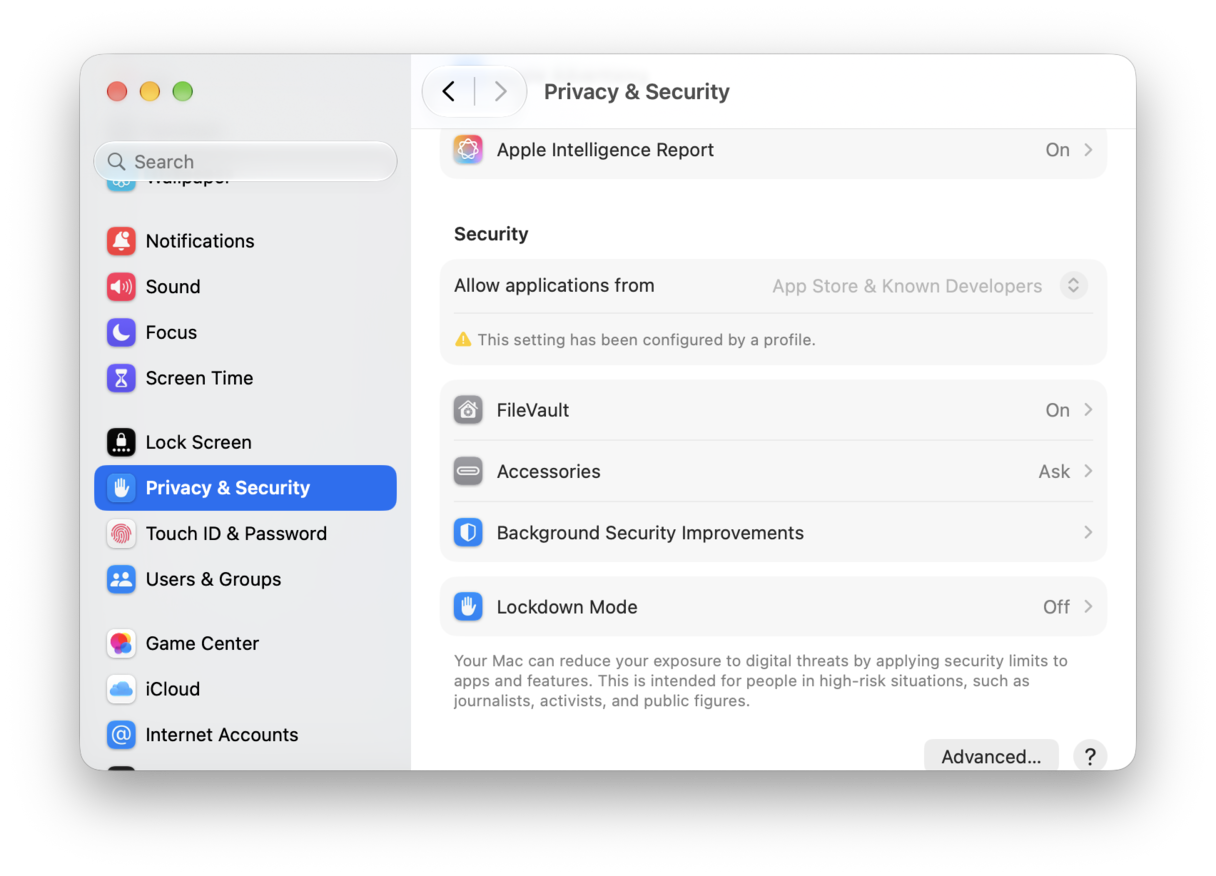
macOS has a built-in tool that prevents unsafe applications from being installed on your Mac. If you have it configured to only allow apps from the App Store to be installed, it won’t allow you to install Dropbox. To change that, follow the steps below:
- Click the Apple menu and choose System Settings.
- Go to Privacy & Security.
- Scroll down until you see ‘Allow applications from’ and make sure it says ‘App Store & Known Developers’. If not, choose that option from the menu.
4. Turn off third-party security
If you have installed security apps, it’s possible that one of those may be preventing the Dropbox installer from opening. Likewise, if your Mac is managed by a company or organization, they may have configured it to prevent you from installing some applications. Either turn off the security software yourself or speak to your organization’s IT admin and ask for their advice.
5. Run maintenance tasks and review background extensions
Running regular maintenance on your Mac helps it run more speedily and smoothly and prevents problems like the Dropbox installer not opening. Maintenance tasks include:
- Thinning out Time Machine snapshots
- Repairing disk permissions
- Reindexing Spotlight
- Flushing DNS cache
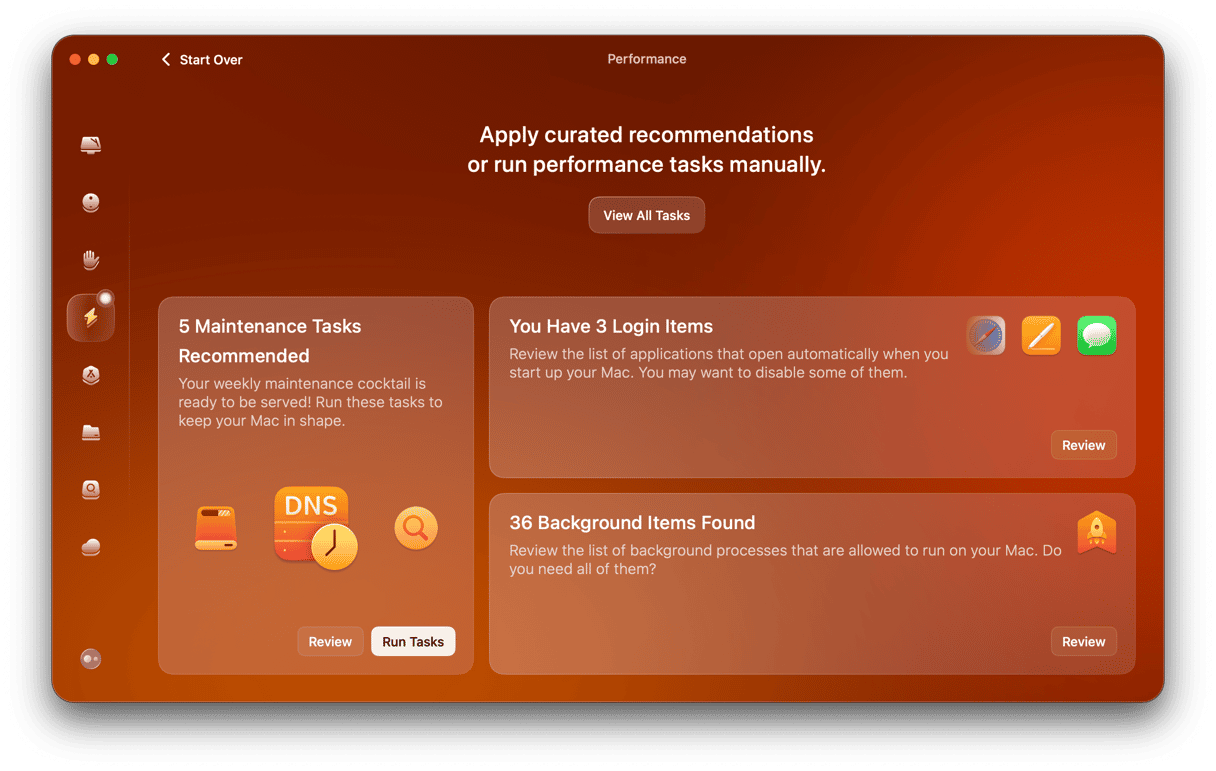
Carrying out all those tasks manually would be time-consuming, that’s if you knew how to do them. Thankfully, you don’t have to do them yourself — CleanMyMac’s Performance feature can do them for you.
It scans your Mac, looking for maintenance tasks that need to be run, and then recommends them to you. You can either run them with one click or review what it has found and choose for yourself which ones to run.
The Performance feature also allows you to easily manage background extensions — files installed by apps that run in the background, even if the app isn’t open. Sometimes, these can conflict with other apps and cause problems, so it’s a good idea to only enable those you really need, something that CleanMyMac makes easy.
Here’s how it works:
- Get your free CleanMyMac trial — you can test it for 7 days for free.
- Choose Performance in the sidebar.
- Click Scan.
- To run Maintenance tasks, click Run Tasks. To review Background Items, click Review in that section.
- To see everything the Performance manager recommends, click View All Tasks.
If you’re trying to install Dropbox on your Mac and the Dropbox installer won’t open, there are a number of possible reasons, including security settings on your Mac, your internet connection, and the version of macOS installed on your Mac. Follow the steps above to identify the cause and fix it so you can install Dropbox on your Mac and start accessing and syncing files in the Finder.