I switched Macs recently, and I needed to know how to export bookmarks from Chrome. I started reading a couple of articles and thought it was going to be a complicated job, but it turns out it only takes a few minutes.
Both Chrome and Firefox let you export all your bookmarks as HTML files, and Safari uses a ZIP file system for all your browsing data. I’ll walk you through the steps for these three browsers so you don’t lose any important saved links.
Before you start exporting Chrome bookmarks
I know you probably just want to jump in and export bookmarks, but first, a few things.
Start by deciding where you want to save your bookmarks file. I used my Documents folder, but I think a dedicated backup folder, if you have one, also works.
When you export your bookmarks, you’re creating a saved copy of all those links you’ve been collecting. The originals are going to stay in your browser; this is a really good way to back up your browsing life when you’re, like me, switching over to a new MacBook, or if you’re changing browsers for good,
One thing I did find with Safari, though, is that its newer browsing data export had more than my bookmarks; it had some of my sensitive info in there too, like passwords and a saved payment method. When I looked into it, I saw that Apple even warns that data is encrypted when exported, so you might want to be really careful where you’re saving that or what you’re doing with it once your export is finished.
Export bookmarks from Chrome to your Mac
In Google Chrome, you’ll need to click on the three-dot menu (top right) and select Bookmarks and lists > Open Bookmark Manager.
Once you're in the Bookmark Manager window, click on the three dots again (top right) and press Export bookmarks. Then you’ll just need to select the location you had in mind from earlier.
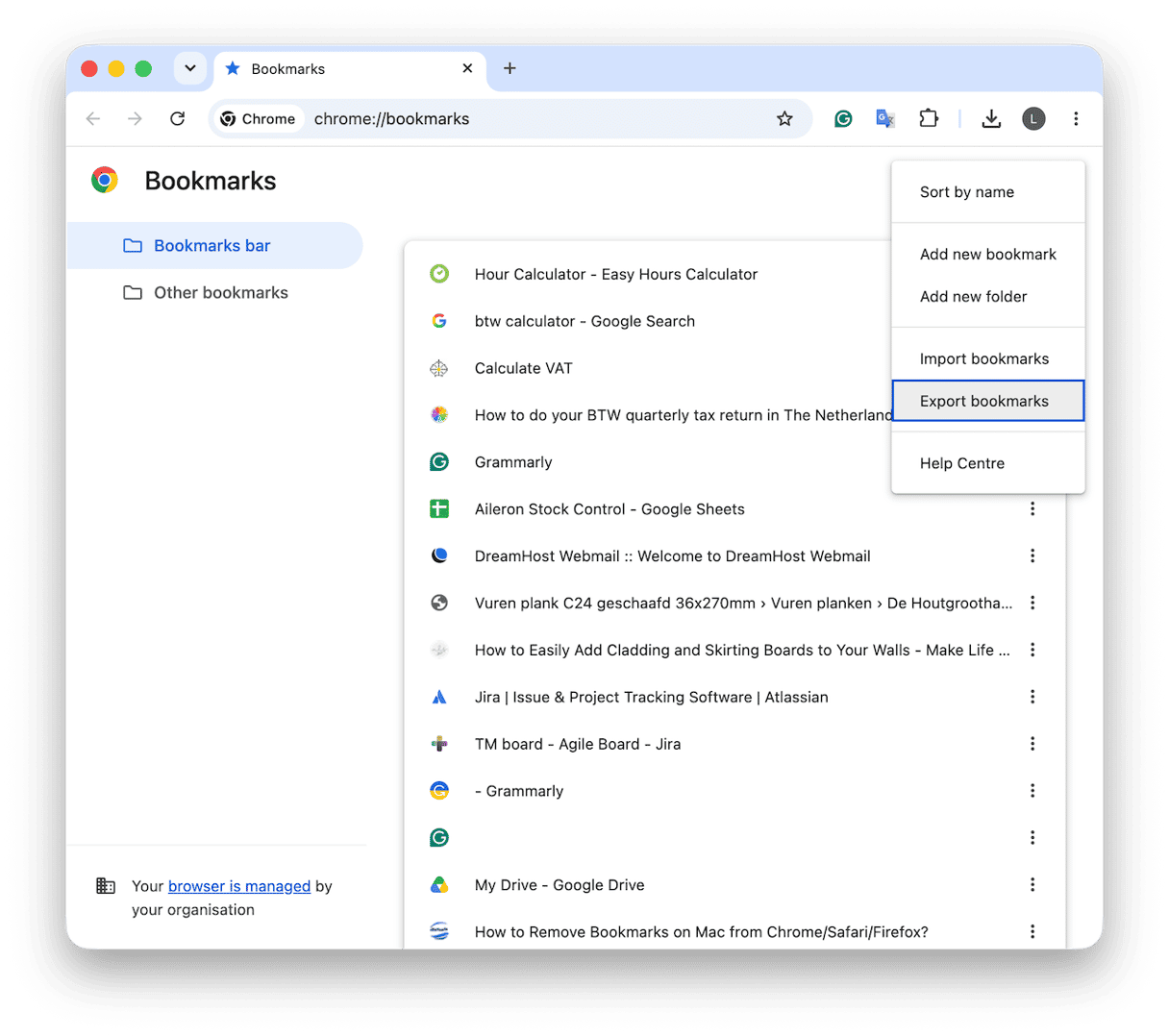
That’s it, they’re saved and ready to import later, and nothing has been deleted from Chrome either. Your bookmarks are all still there.
A little handy tip here, whilst we’re on the subject of Chrome, if you’ve got yourself into a habit of keeping certain tabs open and maybe you’ve been meaning to bookmark them, you can use the new Browser Care feature from CleanMyMac to sort through them all, see which ones are using memory, and manage what’s open. It doesn’t export bookmarks, but I have been finding it really useful. It’s included in the CleanMyMac subscription cost, too, no extra fees (get your free trial here). It only works with Chrome right now.
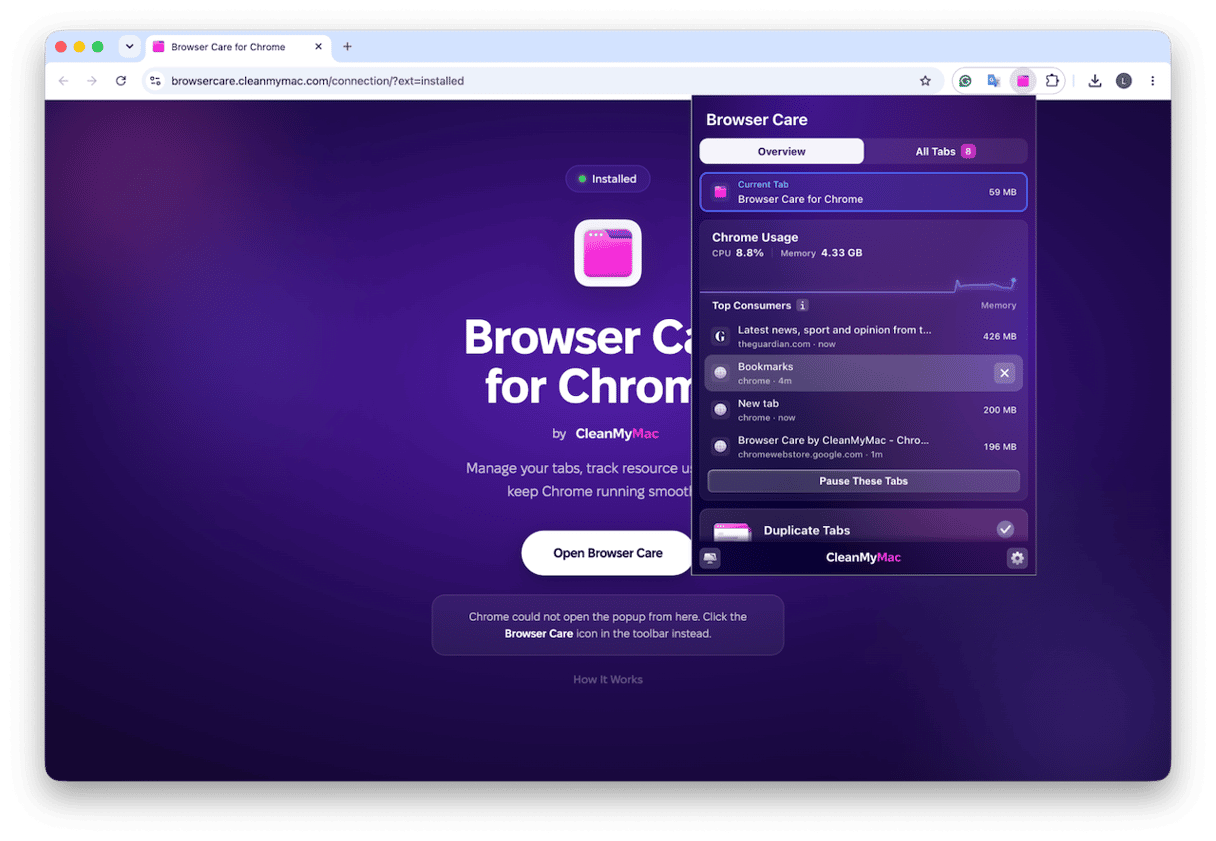
To install Browser Care, open CleanMyMac > My Tools > Browser Care. Open the link to Chrome Web Store and install it like any extension.
How to import bookmarks to Chrome
Ok so let’s say you’ve exported bookmarks from Chrome, Safari, or Firefox as an HTML file. If you then want to import them into Chrome, it’s actually really easy.
You need to make sure you’ve got Chrome open, then go to the three-dot menu > Bookmarks and lists; this time, click on Import bookmarks and settings. You need to select Bookmarks HTML file here, then click Choose file, and grab your file from where you had it saved. You can try Command - Option - B to open that Bookmarks menu too.
Once you press Done, all those links will be added to your bookmarks list, next to the ones already saved; they usually appear in the Other section.
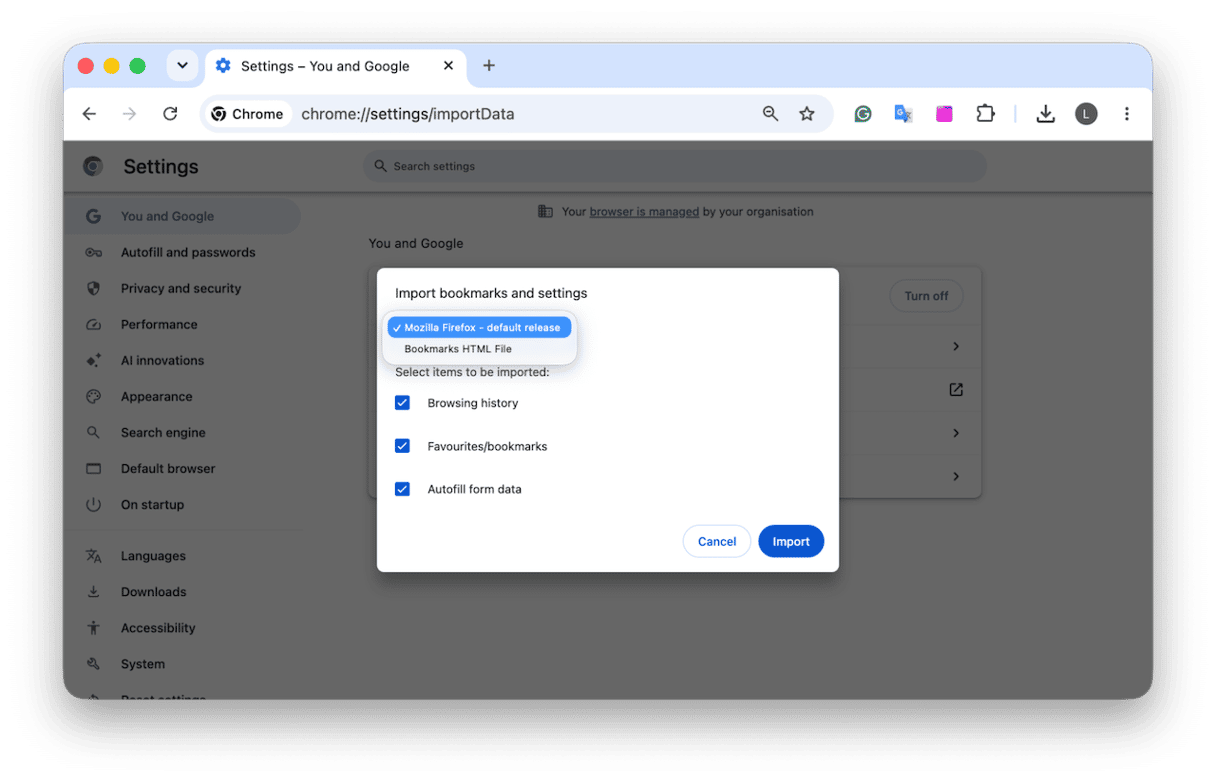
Depending on what version of Chrome you’re running, sometimes you can move them directly instead of via HTML. I had this option for Firefox; you can then just follow the steps on the screen.
How to export bookmarks from Safari and import
Safari works a bit differently from Chrome, so let’s focus on that next. There’s no simple HTML file; instead, you can export all your selected browsing data as a ZIP file.
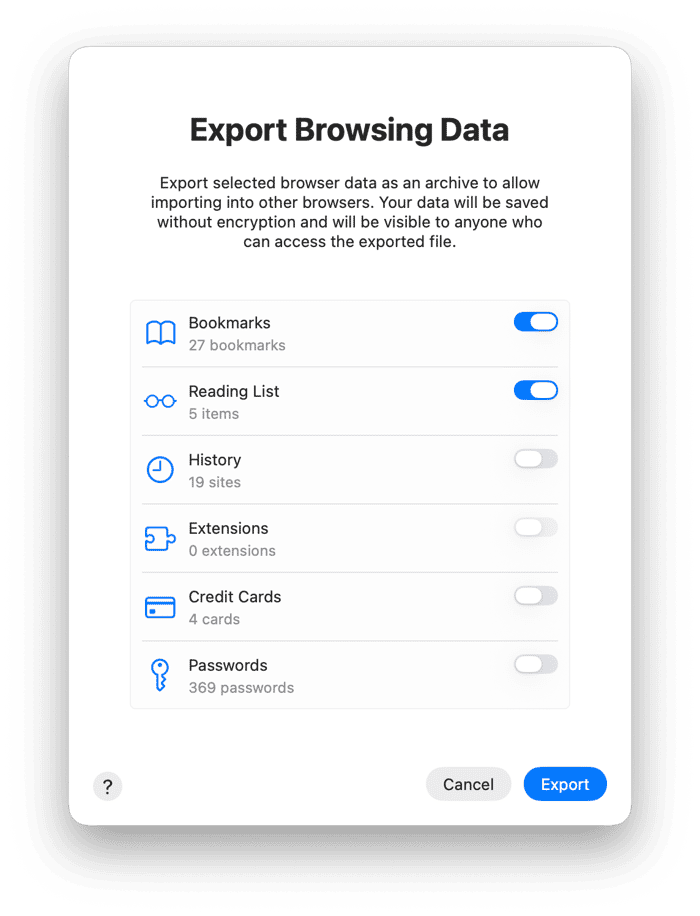
Open Safari and go up to File > Export Data to File. Then you need to select the bookmarks, and actually deselect anything you don’t want to export, too. Once you’re happy, just select Download and save it to your location.
Older Safari versions might still use File > Export Bookmarks, which creates an HTML file instead. But you’ll need to check.
So if you want to import bookmarks into Safari from another browser or old Mac, you need to have Safari open and click File > Import Browsing Data from File or Folder. Then click Choose File or Folder and select.
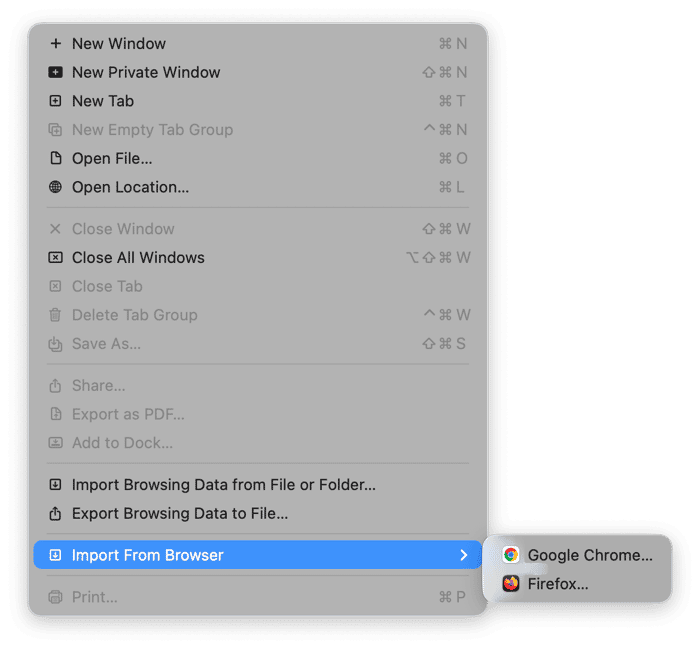
If you’re bringing items over from Chrome or Firefox, you could also select File > Import from browser and select them directly; you can pick what you want to bring across too.
It’s quite a good system, actually, but don’t forget, as I mentioned earlier, those ZIP files aren’t encrypted, so once you’ve done your import, I’d delete that file straight away.
How to export bookmarks in Firefox
Again, Firefox has its own little system, but it’s simple. Just open a browser window and select the three-line menu (top right) > Bookmarks > Manage bookmarks. Look for the two arrows that stand for import and backup. When you click that, select Import Bookmarks from HTML, then choose your saved HTML file and click Open. To export, use the same dropdown and select Export Bookmarks to HTML. You can also use Command - Shift - O to get into that menu quicker.
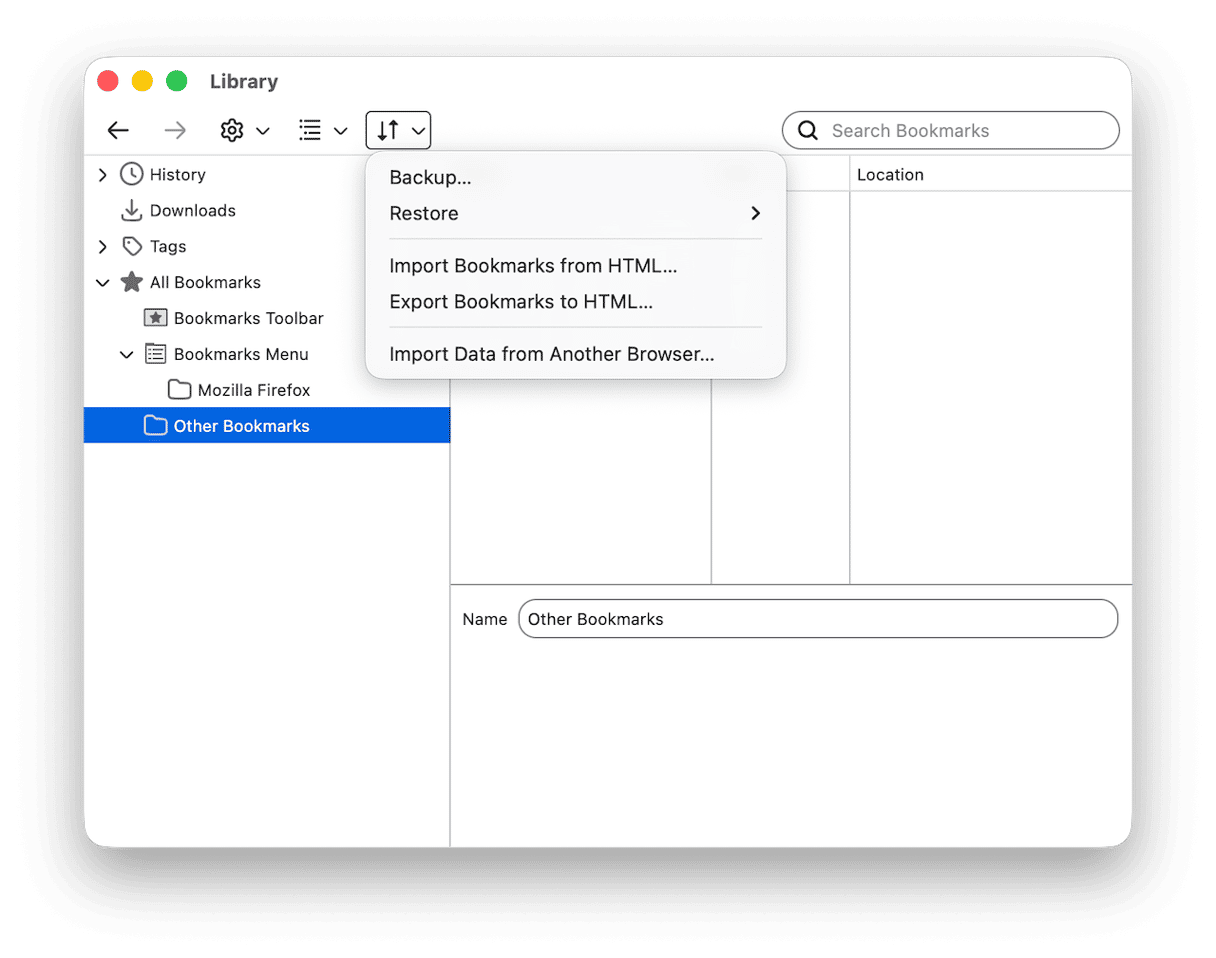
Firefox also has the option to import from another browser; you’ll see that in the list. If you need a Firefox-only backup, use Import and Backup > Backup to create a JSON file. Just remember that restoring a JSON backup replaces your existing bookmarks rather than adding to them.
Moving bookmarks between browsers
Alright, so here’s the quick overview of all your options.
From Chrome to Safari | In Safari, go to File > Import From Browser > Google Chrome |
Safari to Google Chrome | First unzip Safari's export, then import Bookmarks.html into Chrome. |
Firefox to Chrome | Export bookmarks as HTML, then import the file into Chrome. |
From Chrome to Firefox | Open Firefox and go to Import and Backup > Import Data from Another Browser |
Firefox to Safari | In Safari, go to File > Import From Browser > Firefox |
Don’t forget if you're looking to import from Safari to Google, it exports bookmarks in its new ZIP file system, which Chrome won't accept directly, so you first have to extract those out from the ZIP (they should be HTML).
Tidy up after importing and exporting
After you’ve imported all your bookmarks, it’s a good time to check and remove any old browsing data from your old browser too. I’ve been using the Protection feature from CleanMyMac because it handles browsing history and cookies.
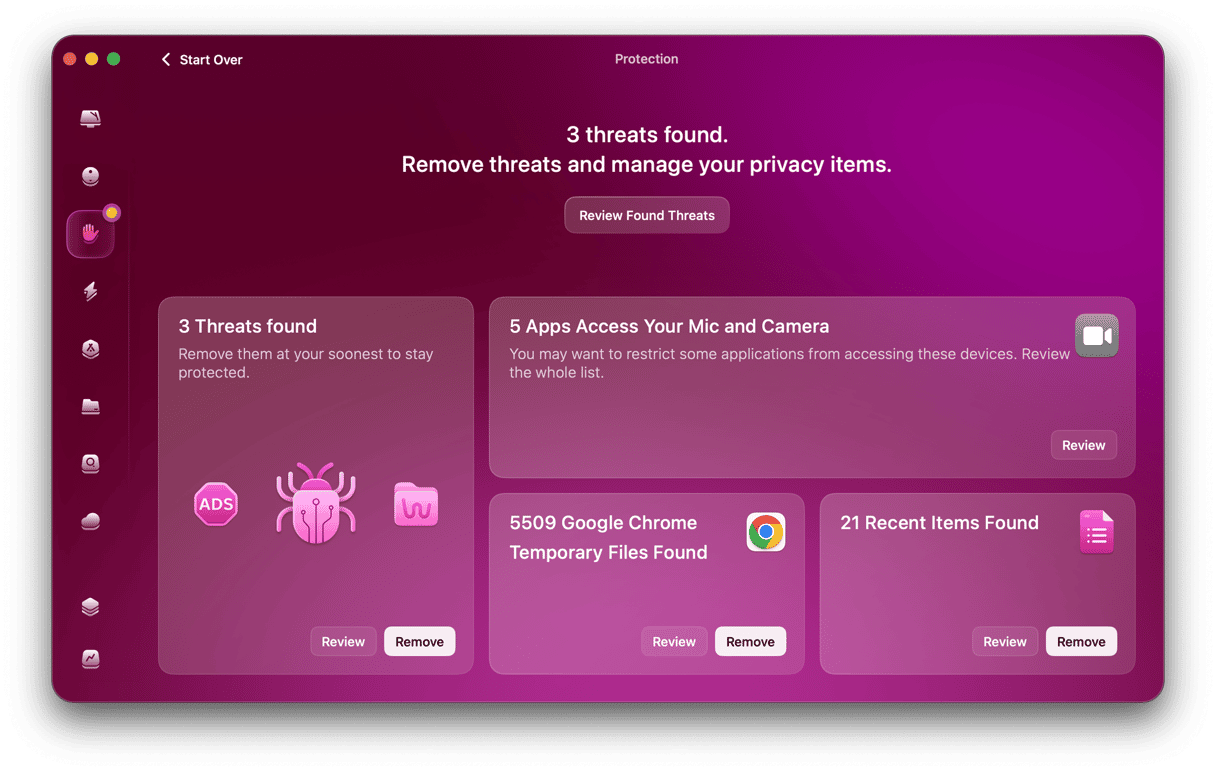
Open CleanMyMac, go to Protection, and review the available cleanup options. It saves digging through all the info manually. Just click Scan in Protection to review what it finds.
Frequently asked questions: How to export bookmarks from Chrome
Where are bookmarks stored on a Mac?
They’re in your browser's profile data, and their exact location depends on whether you use Safari, Chrome, or Firefox.
Can you export bookmarks without signing in?
Yes, there’s no need to be signed in to any browser account to export your bookmarks.
What does bookmark export include?
Chrome and Firefox HTML exports contain your bookmarks only, no passwords or browsing history. But Safari's browsing-data export can include sensitive information if you select additional categories, so keep the ZIP secure.