

Want to find large files on Mac in Terminal? If your Mac says storage is almost full, but the usual breakdown doesn’t give away much. It can be hard to know where to really start recovering space from.
“System Data” or “Other” can often hide the real problem: a handful of huge files sitting in Downloads, old project folders, even forgotten archives, or build directories.
Terminal gives you a faster, more precise way to find large files on Mac and remove only what you actually mean to delete.
How to find and delete large files on Mac
Method one: Find large files on a Mac in Terminal
So, before we get into the deleting part, knowing how to use Terminal to map the problem is key.
I always want to be able to first identify which folders and files are actually taking up space, then decide what’s safe to remove.
I always tend to start broad with du, then move on to find when I want specific file-size thresholds.
To check the biggest top-level folders and files in your home folder:
du -sh ~/* | sort -rh | head -10
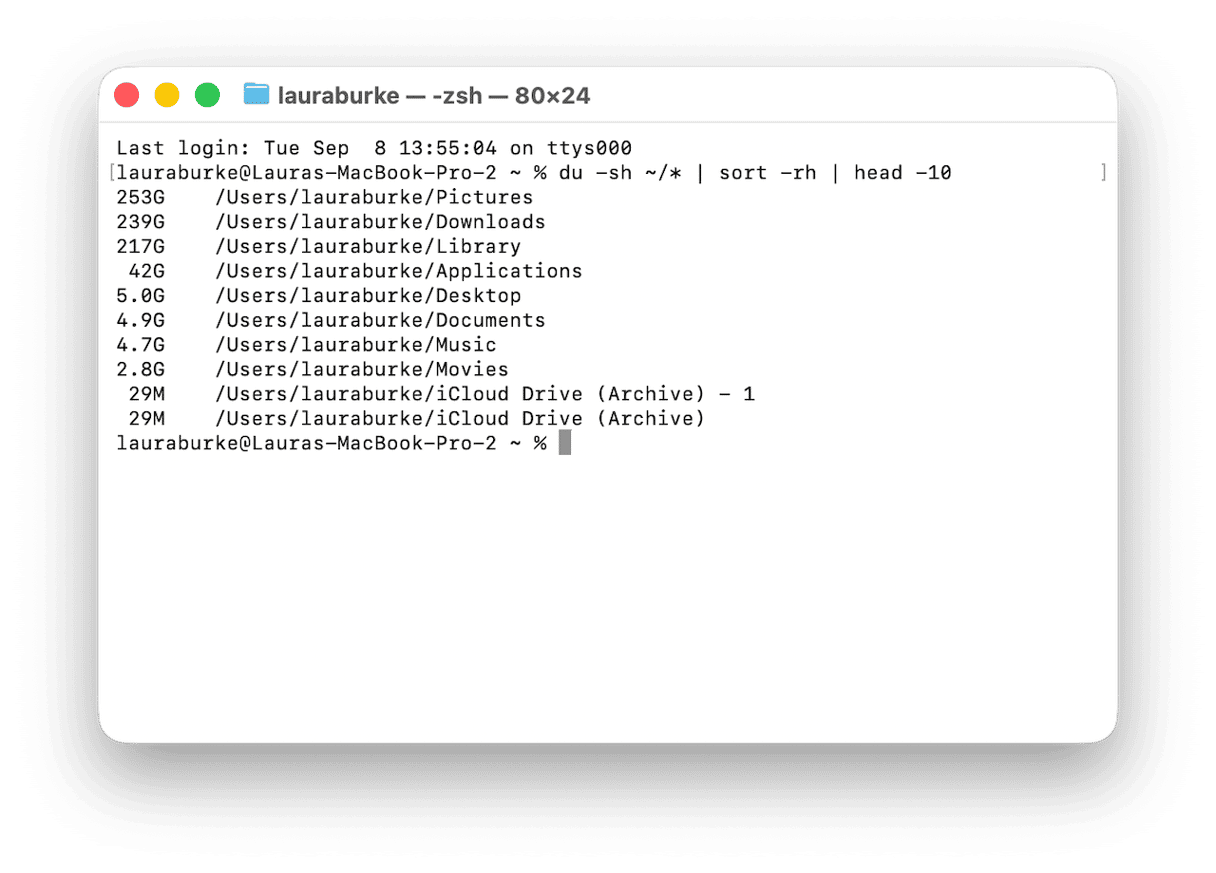
If you want to find all files over 1 GB anywhere on the Mac, then run this command:
find / -size +1G -type f 2>/dev/null
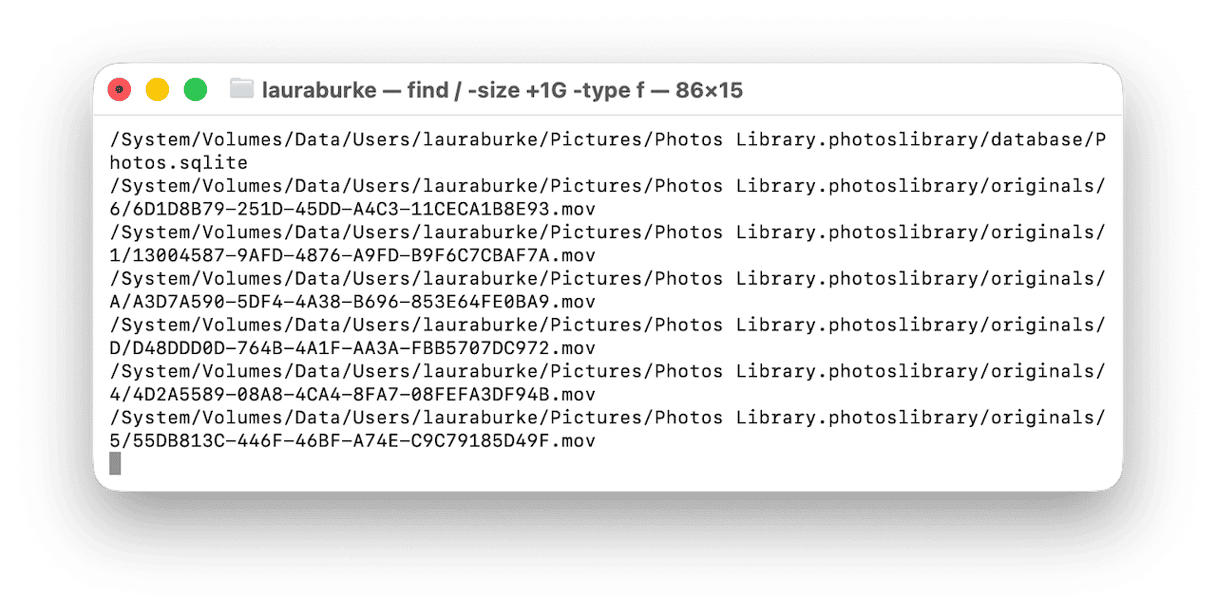
This can understandably take a while, and on managed Macs, you’ll probably hit some permission warnings too, but the 2>/dev/null part here hides that noise so you only see useful results.
If you want to go a bit more in depth and find any files over 500 MB in your home folder, use:
find ~ -size +500M -type f
This one will list all results sorted by size, so it’s very readable:
find ~ -size +100M -type f -exec du -sh {} + 2>/dev/null | sort -rh
This one is handy because it sorts all files, starting with the biggest first, so it’s quick to see what’s taking up the most space there.
Method two: Deleting large files from Terminal
Once you’ve found the files taking up space, I wouldn’t jump straight into permanent deletion. I’d start by moving anything questionable to Trash first, things like installers, old exports, or archives you might want to recover later.
To move a specific file to Trash, you’ll need to use:
mv ~/path/to/largefile.dmg ~/.Trash/
If you want to permanently delete a file (don’t forget this is irreversible, so double-check first), run this:
rm ~/Downloads/oldbackup.zip
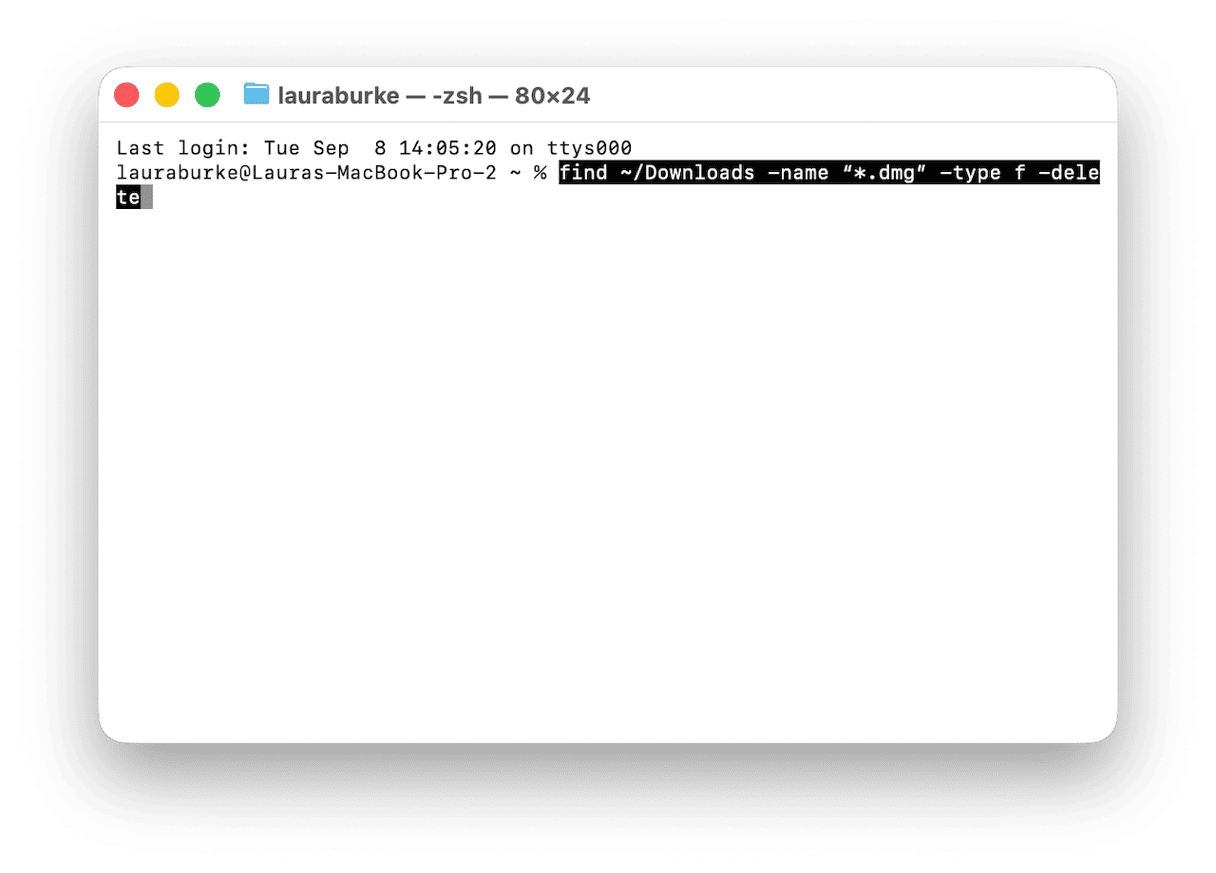
I'm adding this one because I found it really useful to know how to delete all my .dmg files in my Downloads folder. I had a lot of lost space here.
find ~/Downloads -name “*.dmg” -type f -delete
Method three: Find large files with CleanMyMac CLI analyze
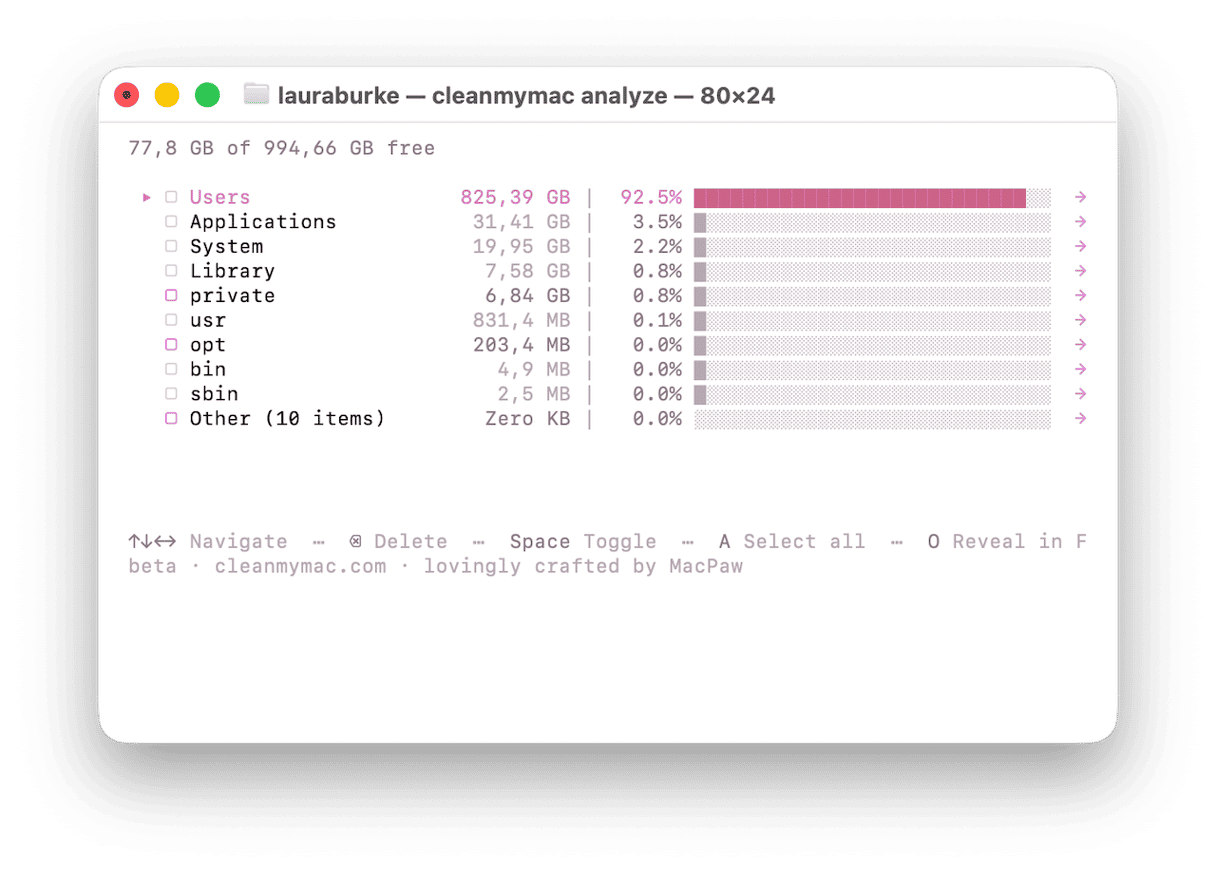
If you’re looking for a Terminal approach without stitching together du, find, sort, and head, then CleanMyMac CLI’s analyze command gives you a more readable disk breakdown from the command line.
I like the overview because it groups storage by category (like dev tools, user files, caches, and even project artifacts); no need to spend time parsing raw output yourself.
Install it once with Homebrew: brew install --cask macpaw/taps/cleanmymac-cli
Then to run the disk analyzer, use:
cleanmymac analyze
From the analyze results, use purge to remove stale project artifacts:
cleanmymac purge
Or clean all junk in one pass with:
cleanmymac clean
CleanMyMac CLI does require macOS 11 Big Sur+. You can get more info on GitHub here.
Method four: Finder shortcut for non-Terminal users
Not everyone wants to find large files on a Mac with Terminal. And if you fall into that category, Finder has a decent fallback.
All you need to do is open Finder and go to your home folder, Downloads, or any folder you want to check. Press Command - F, then click the + button on the right to add a search rule. In the first dropdown, choose Other, search for File Size, tick it, and click OK. Set the rule to File Size > is greater than > 100 MB.
To search your whole Mac, click This Mac if Finder shows it at the top of the search window. If it doesn’t, just run the search from your home folder or Downloads first. That’s usually where the biggest personal files are hiding anyway.
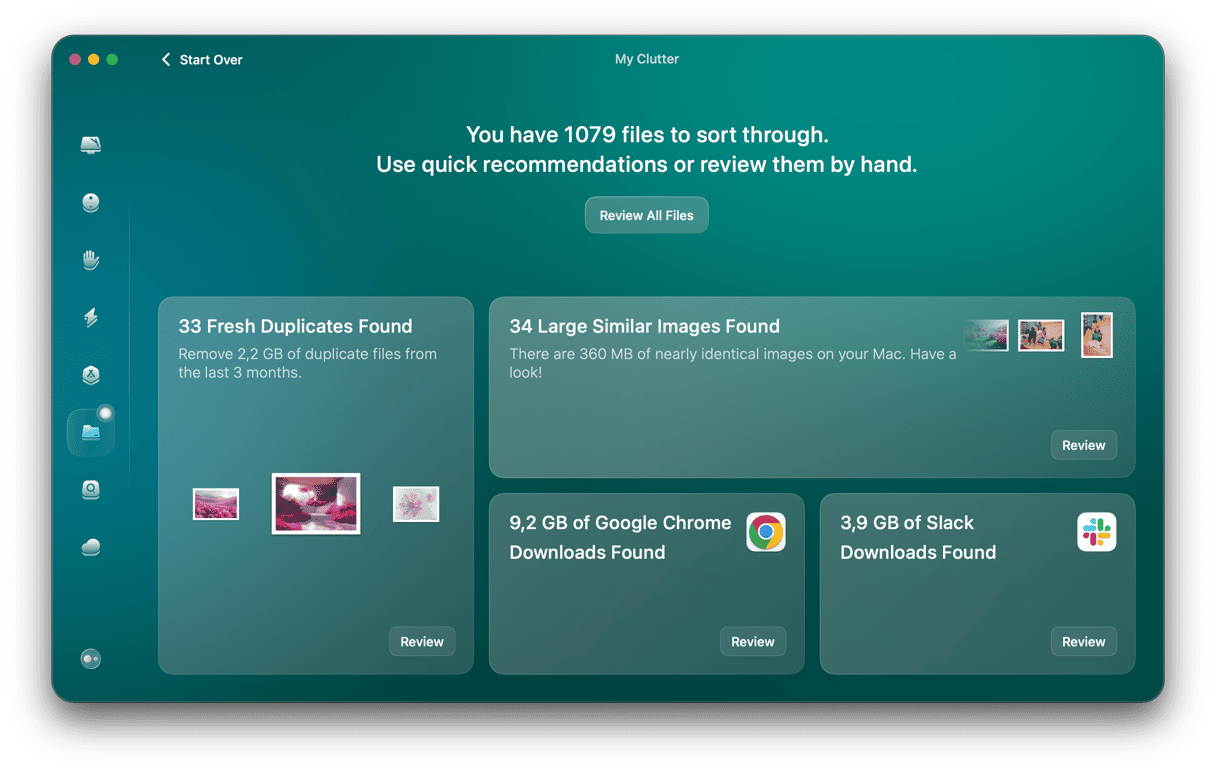
If you haven’t got the time or energy to go hunting through folders, then I’d just use the My Clutter feature from CleanMyMac to search for large, old, and even forgotten files. It literally does this in seconds automatically for you. You can test it for 7 days — get your free trial here.
More tips on freeing up disk space here in 2026.
Knowing how to clear disk space on a Mac in Terminal is pretty powerful. Once you know how to surface the biggest files first, your Mac’s storage stops feeling like a mystery box.
Frequently asked question
What’s really taking up space on my Mac?
There are two really strong ways to do this. First, in Terminal, run the cleanmymac analyze command for a fully categorized view, or go to System Settings > General > Storage.
Is it fully safe to delete large files from Terminal?
I think so, if you always take a minute to review first. I always use mv to Trash for safety, as an extra fail-safe.
What files are safe to delete on Mac?
Any old .dmg installers, unused .zip archives, duplicate exports, outdated downloads, and abandoned build files are usually safe once you’ve checked you don’t need them. You have to be more careful with system folders, app support files, or basically anything inside the Library.
How do I find the biggest folders on Mac?
Use du -sh ~/* | sort -rh | head -20
This shows the largest top-level folders in your home directory, sorted by size.
Can I undo a file deletion in Terminal?
Only if you’ve moved the file to Trash. If you used mv filename ~/.Trash/, you can recover it from Trash. If you used rm, the deletion is permanent unless you have a backup.