I ran into the Activate Mac screen after an erase. I was pretty concerned at first, until I started digging around and doing some research. Although annoying, this isn’t entirely uncommon. The screen is Apple’s security check that verifies ownership and connectivity before setup continues. If you’re lost and not sure what to do next, this article explains it all. Let’s start with the basics.
Why am I stuck on the Activate Mac screen?
If you just finished a factory reset, a big macOS reinstall, or erased the startup disk, here is what happens next. Your Mac contacts Apple, confirms the device belongs to you, and checks that its setup pieces are healthy. Here’s what gets checked:
- That you have a solid Internet connection.
- If Find My still ties the Mac to another Apple ID, only that account can unlock it or remove the device from their list.
- If recovery files were scrambled by an interrupted erase or update, a reinstall or a firmware revive puts them back in order.
If any of the above checks fail, you’ll find yourself stuck on the Activate Mac screen.
OK, that's the why, but let’s get into the most important part, the fixes.
How to fix the Activate Mac screen (no Wi-Fi)
So here are all the fixes, work your way through.
Method one: Things you can do right on the Activate Mac screen
1. Give your Mac real internet
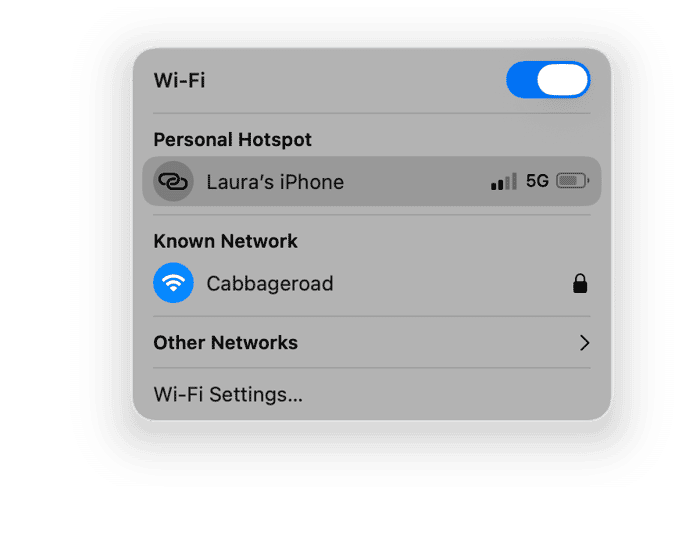
- Click the Wi-Fi icon in the top right. Pick a home network or your phone’s hotspot.
- If the network wants you to open a web page to “accept terms,” it usually won’t work here. Use a hotspot or USB-C Ethernet for a clean connection.
- Wait a minute and try again. If Apple’s services are having issues, the screen will still hold. In that case, try again later or switch networks.
2. Try a different Apple Account if you know it’s a company or a previous owner’s Mac
If you see a sign-in prompt and you know the Mac is still tied to another account, that account has to unlock it or remove the device from their list. If it’s a work Mac, IT can give you a bypass code. If it’s not yours, you won’t get past this step with your own Apple Account.
If those two don’t move the needle, stop poking the screen and go to macOS Recovery.
Method two: Things you do from macOS Recovery
How to get there on Apple silicon:
- Shut down, then press and hold the power button until you see Options.
- Click Options > Continue.
- Once you're in, continue below with the fixes.
For an Intel-based Mac, press Command + R while restarting your Mac.
1. Join a network in the menu bar
- Click the Wi-Fi icon at the top right.
- Connect to a stable network or your phone hotspot.
2. Open Terminal
- In the menu bar, choose Utilities > Terminal.
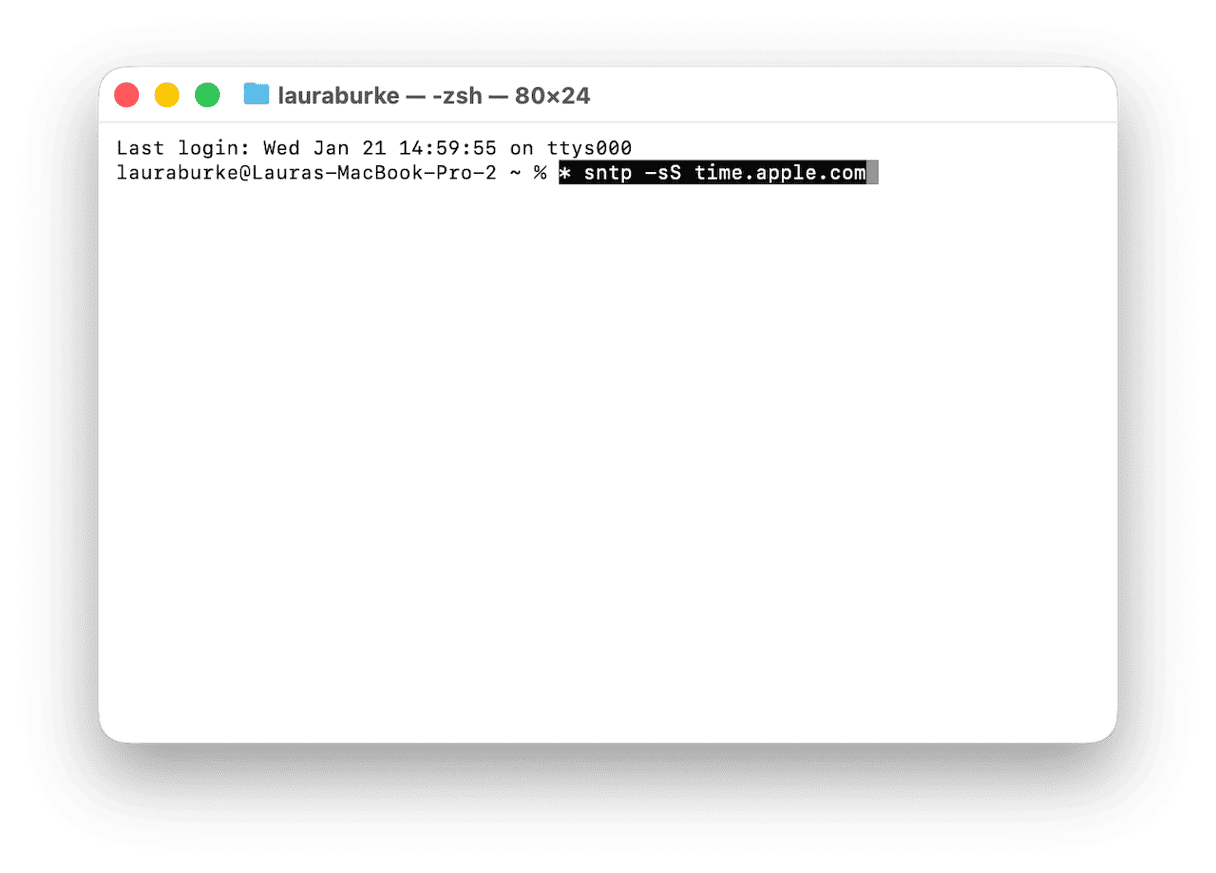
- Sync time from Apple’s time server by typing in this command and pressing enter:
sntp -sS time.apple.com - Wait a few seconds. You won’t see much output if it succeeds, but the system time will update. This is the simplest way to set a correct clock in Recovery.
3. Retry activation
- Exit and close Terminal and return to the Recovery window and try again.
4. Reinstall macOS without erasing again
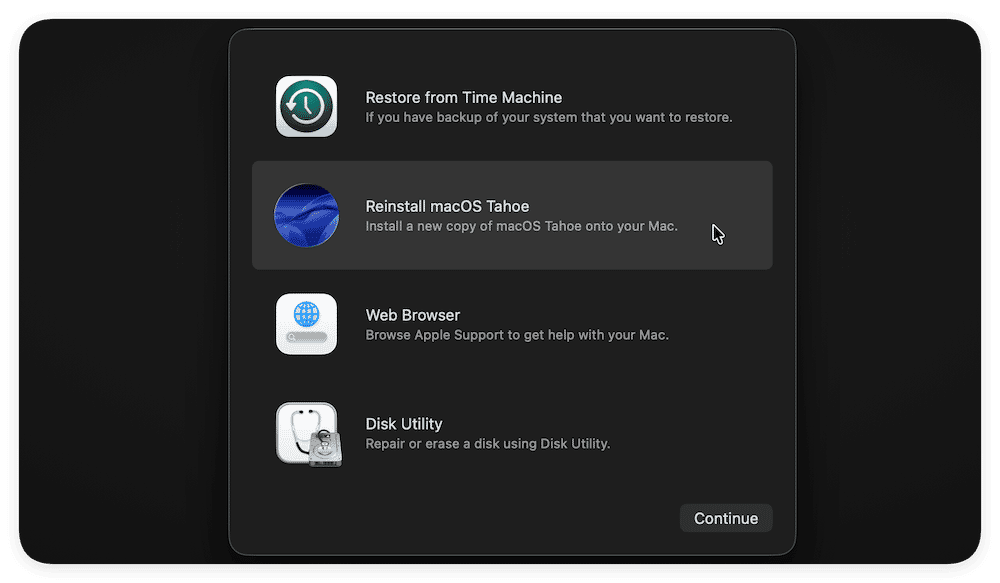
- In macOS Recovery, choose Reinstall macOS. This refreshes the system parts that activation relies on.
- Let it run, connect to a clean network again, and try activation once more.
5. Clear an ownership block
If you bought the Mac used, and it’s still locked, activation will keep stopping here. Here are your options:
- Ask the seller to remove the Mac from their Apple ID device list.
- For a work Mac, ask IT for the Activation Lock bypass key and use Recovery Assistant > Activate with MDM key.
If reinstalling still sends you back to Activate, move on.
Method three: The last resort is to use another Mac
1. Revive the firmware with Apple Configurator
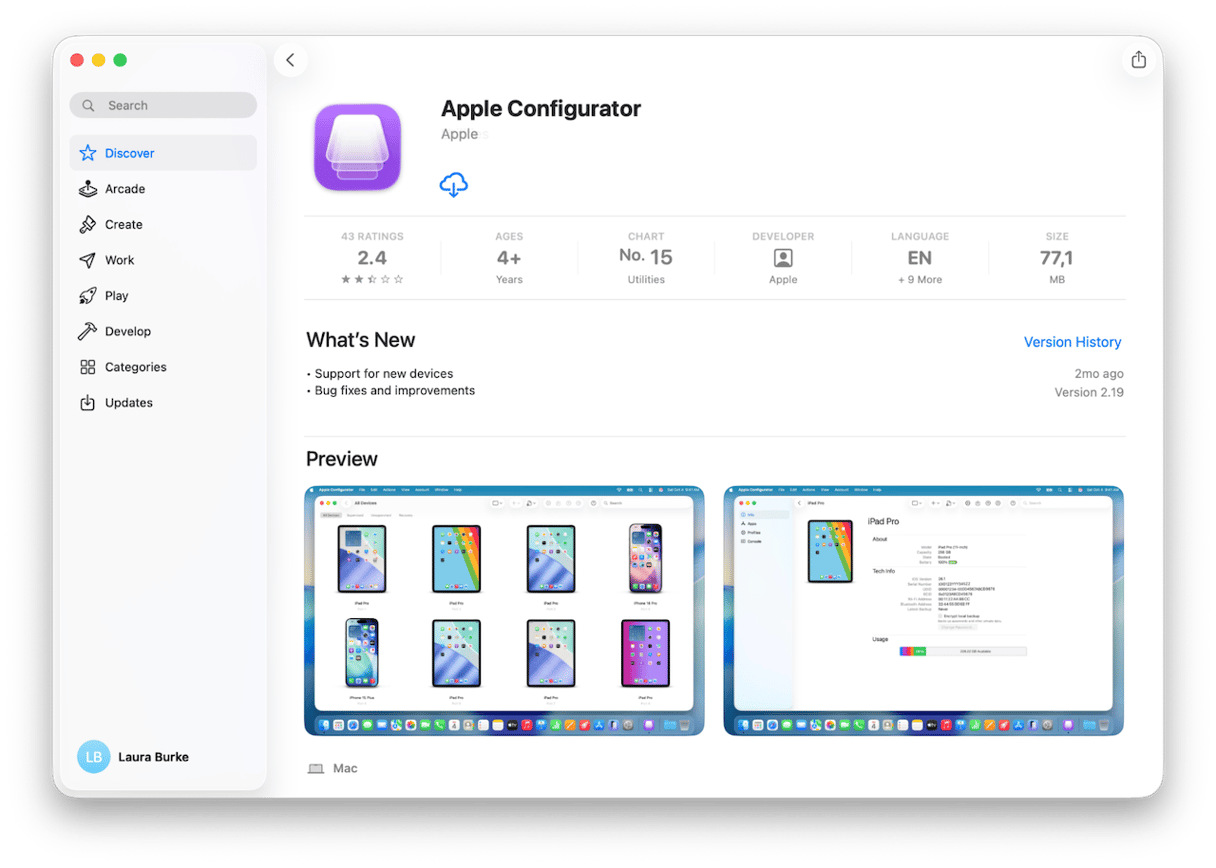
- If the helper Mac is older than Sonoma, install Apple Configurator from the App Store.
- Plug the two Macs together with a USB-C data cable. On the stuck Mac, try first the leftmost USB-C. If that fails, try the rightmost on the left side.
- On the stuck Mac, hold the power button until it turns off.
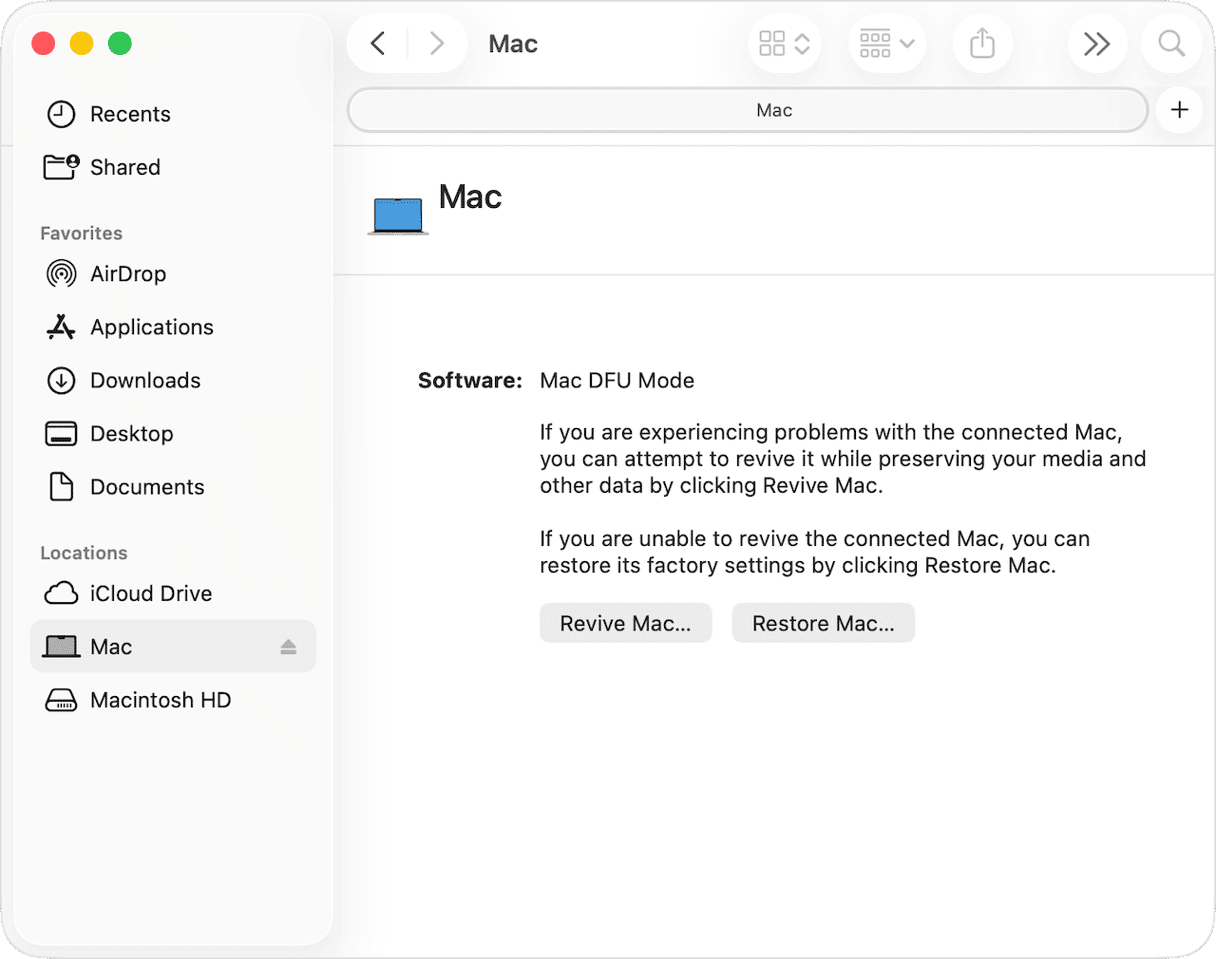
- Press and release power, then immediately hold Left Control - Left Option - Right Shift - Power for 10 seconds, let go of the three keys, and keep holding Power up to 10 more seconds. (The helper Mac should pop a DFU window in Finder. The stuck Mac’s screen stays black).
- In that Finder window, click Revive Mac and let it finish. If Revive won’t complete after retrying with a known-good cable and the correct port, use Restore Mac, which erases and reinstalls.
After you’re in, avoid a repeat
There’s a couple of things you can do to prevent issues with the Activate Mac screen in the future.
1. Remove Mac from your device list
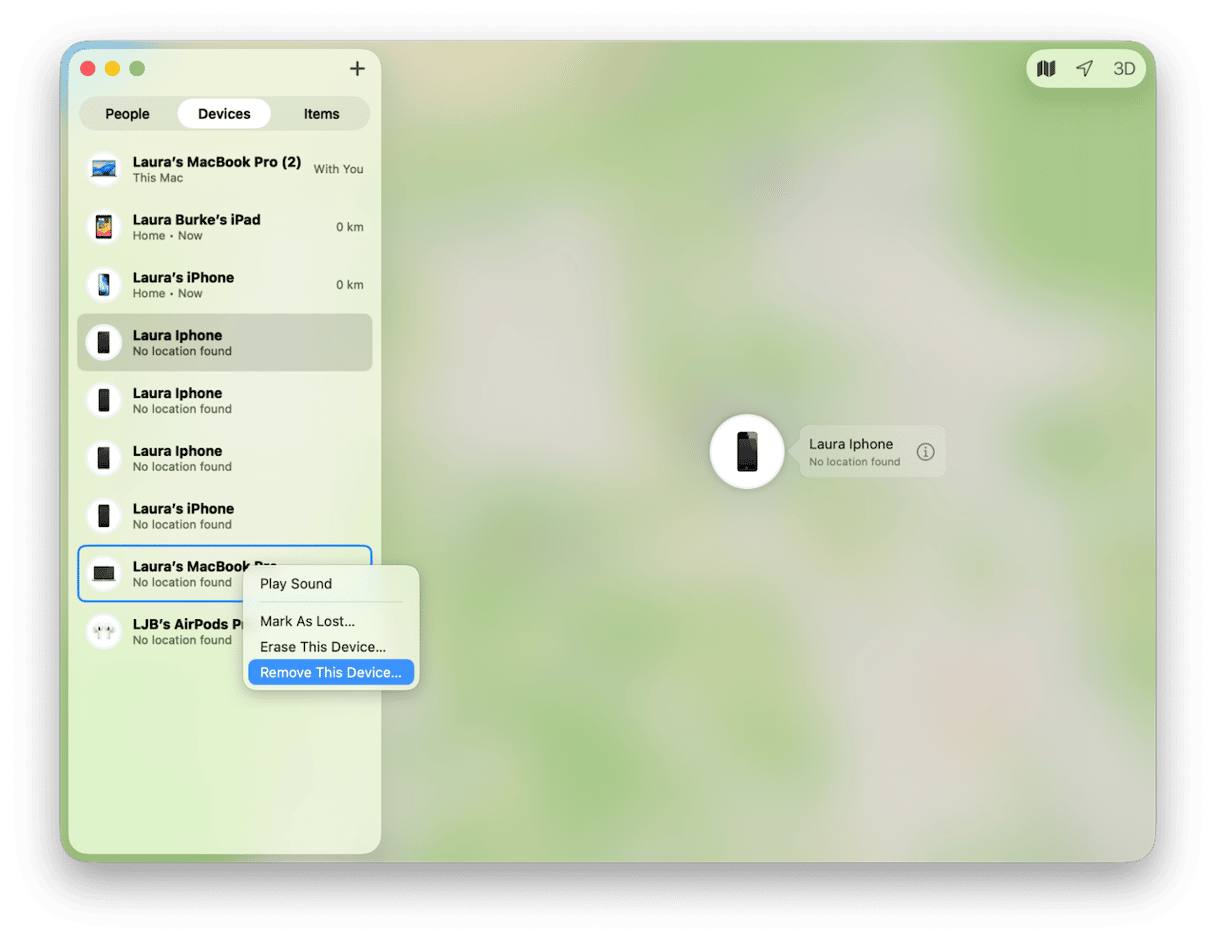
If you plan to sell or hand the Mac to someone else later, you need to remove it from your device list first, then erase it. That prevents the next owner from hitting the same wall. Here’s how.
- Open Find My and click Devices.
- Select the Mac you’re getting rid of, right-click, and press Remove device.
Now you can complete the Erase steps by following the official Apple guide here.
2. Keep time automatic
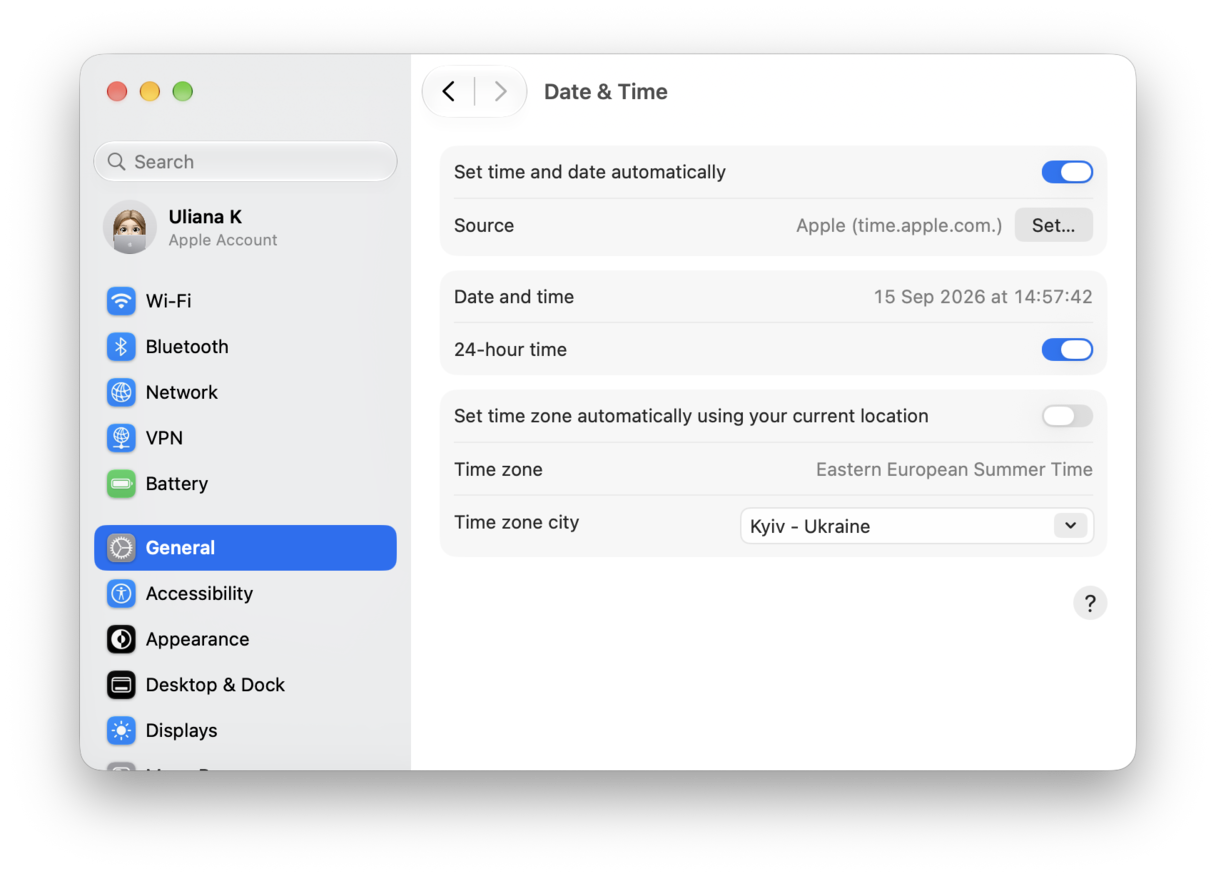
- System Settings > General > Date & Time.
- Set time and date automatically and Set time zone automatically. The wrong time is a known issue that causes Activate screen issues.
3. Update macOS and firmware before a big reinstall
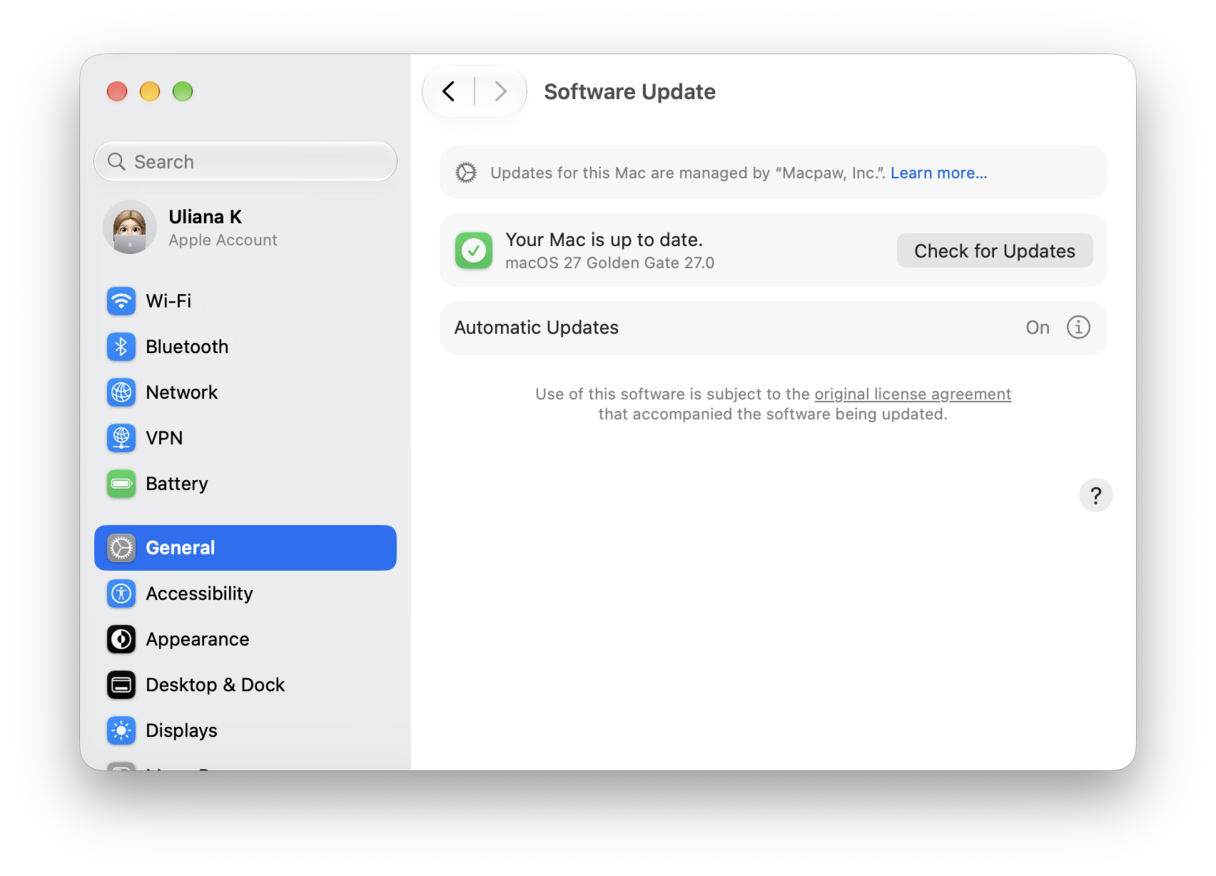
- If you are planning on erasing your Mac, always run a Software Update first from System Settings > General > Software Update so that recovery and firmware are current. Fewer surprises when you erase or migrate.
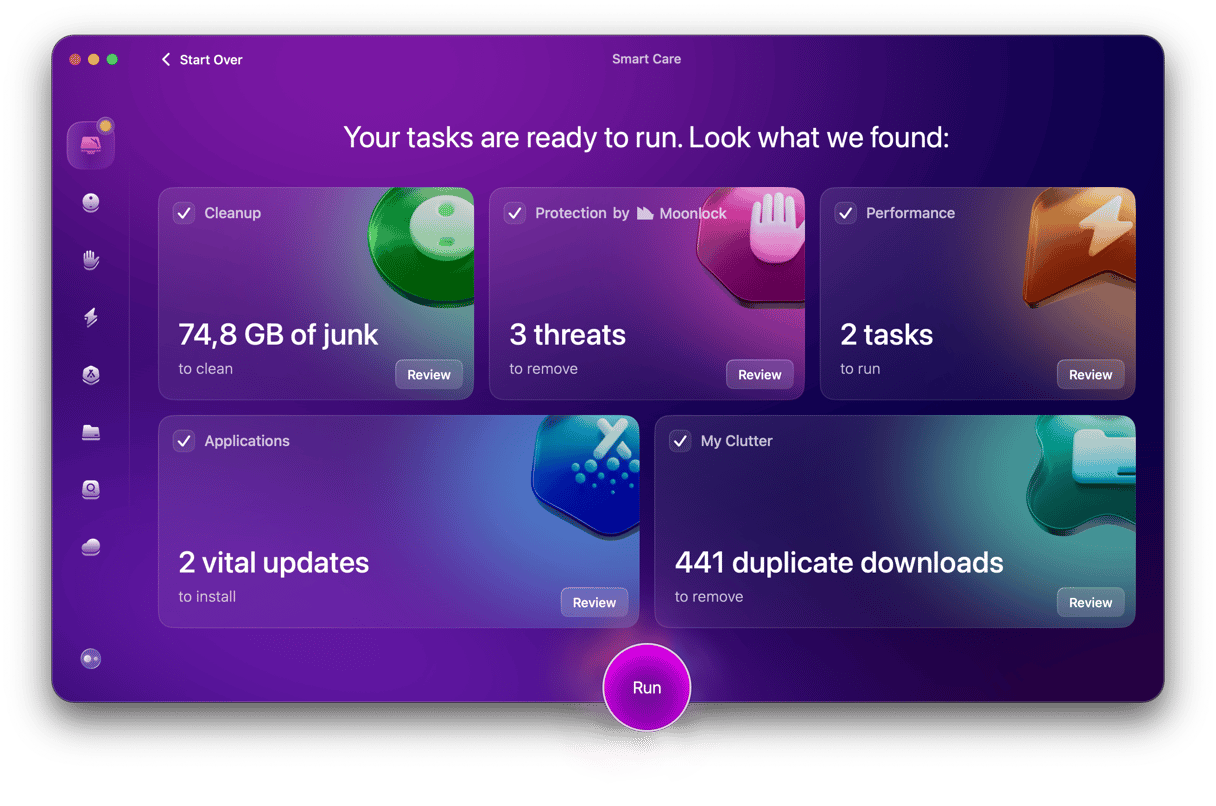
Finally, I use the Smart Care feature from CleanMyMac as a five-minute tidy to reduce hiccups on the first boot after a reinstall.
- Open CleanMyMac — get your free trial here.
- Click Smart Care > Scan.
- Review and run tasks.
So, now you know what the Activate Mac screen issue is, how to resolve it and avoid it in the future.