
Installing pyenv on your Mac? macOS ships with its own Python, but that doesn’t mean it’s the version your projects need, and taking the time to manually switch between them, as many of us know, can lead to a ton of broken installs and really messy environments.
For many of us, pyenv is a solid lightweight version manager alternative that lets you install multiple Python versions on your Mac, then switch between them globally or per project, and avoid touching the system Python.
Install pyenv on Mac
The quickest way to get pyenv on your Mac is with Homebrew. If you’re already using it as your package manager, then you can run this:
brew install pyenv
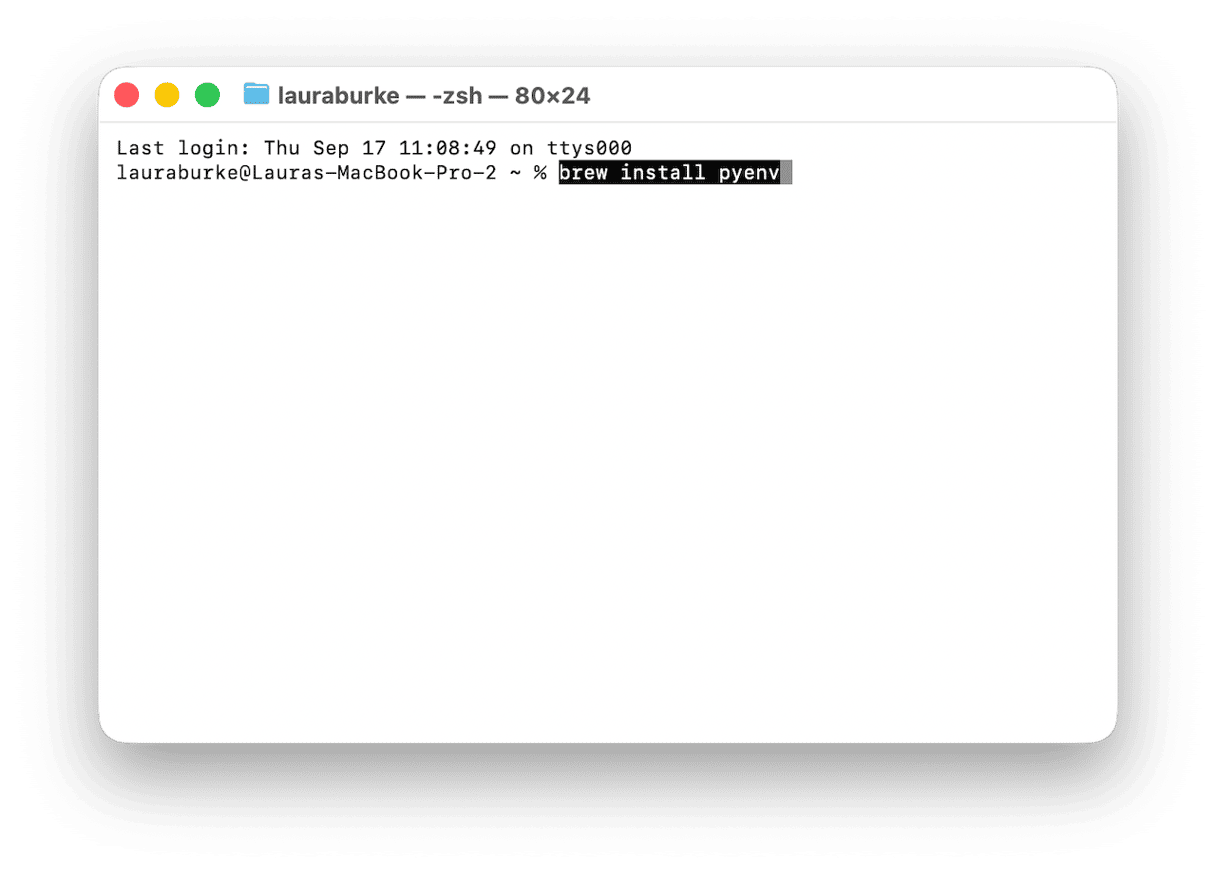
You can then check that it’s been installed correctly, and you’ll get a version number back, when you run:
pyenv --version
This doesn’t mean your shell is fully configured yet. Your shell still needs to know how to load it each time Terminal starts; I’ll show you that next.
Configure your shell on pyenv Mac
Installing pyenv is pretty simple, but it’s just the beginning. You’ll also need to add it to your shell config so your Mac knows to load pyenv when Terminal starts.
Use the config file for your shell:
Shell | Config file to edit |
zsh (default on macOS Catalina+) |
|
bash |
|
fish |
|
On most newer MacBooks, the default shell is always zsh. Open your ~/.zshrc file:
nano ~/.zshrc
Add these lines:
export PYENV_ROOT="$HOME/.pyenv"[[ -d $PYENV_ROOT/bin ]] && export PATH="$PYENV_ROOT/bin:$PATH"eval "$(pyenv init -)"
Next up, save the file, then reload your shell (or just open a new Terminal tab):
exec "$SHELL"
Finally, check everything is working properly with this command:
pyenv versions
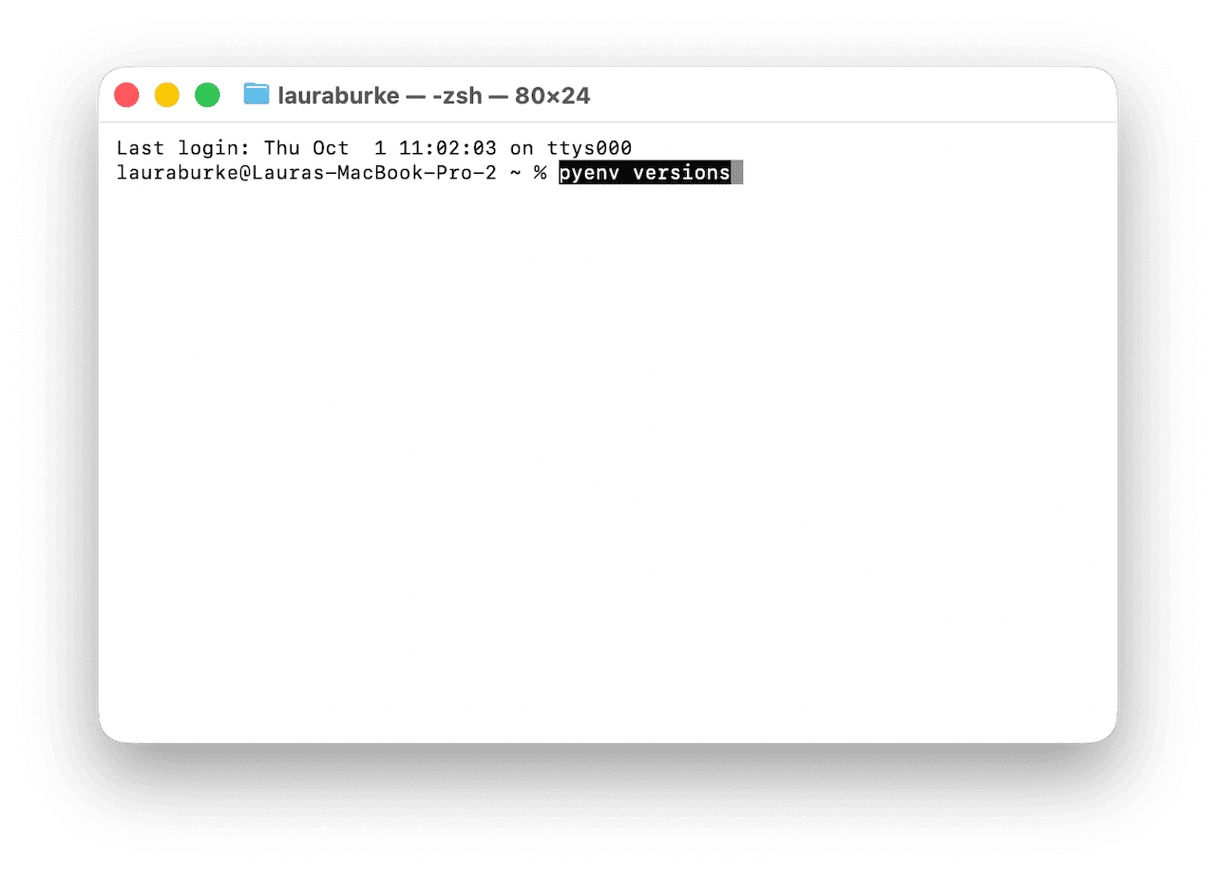
If that runs without an error, your shell is properly configured and ready to manage Python versions with pyenv.
Install and switch Python versions
Now pyenv is set up to act like the main switchboard for your Python versions. It can then set a default for your MacBook, even pin a version inside a project, or override it temporarily in your current Terminal session.
I’d personally tend to always start with this to see what’s available (long list incoming):
pyenv install --list
You can just go straight for a specific version install, for example:
pyenv install 3.12.0
After that, I’d say these are the commands you’ll use most often:
| List all installed Python versions |
| Set the global default Python version |
| Set Python version for the current directory and write a |
| Set the version for the current shell session only |
| Confirm which Python version is active |
| Remove an installed Python version |
| Rebuild shim files after installing a new version or package |
Common issues and fixes with pyenv
Python not found after install
Most likely the shell is not configured correctly; I’d simply re-check ~/.zshrc additions and run exec "$SHELL".
Homebrew conflicts
If you’ve got python3 installed via Homebrew separately, pyenv might then cause a conflict. Run brew unlink [email protected] in this case to avoid issues.
Pyenv install fails with build error
This is probably down to missing build dependencies. You can install them with: brew install openssl readline sqlite3 xz zlib tcl-tk@8.
Clean up Python and pyenv caches
It’s not unusual that after a couple of months of any kind of active Python development, your pyenv and pip will have built up. All those cached packages, even old build files, and leftover developer-tool clutter from different projects. Each Python version you install with pyenv has its own pip, so the buildup is easy to miss.
I love Terminal for my cleanup tasks, and I’ve been having a lot of ease by using CleanMyMac CLI from MacPaw to get to all my pip caches alongside all the other stuff (Homebrew, npm, Docker, Xcode, and other dev-tool leftovers).
Install it with Homebrew:
brew install --cask macpaw/taps/cleanmymac-cli
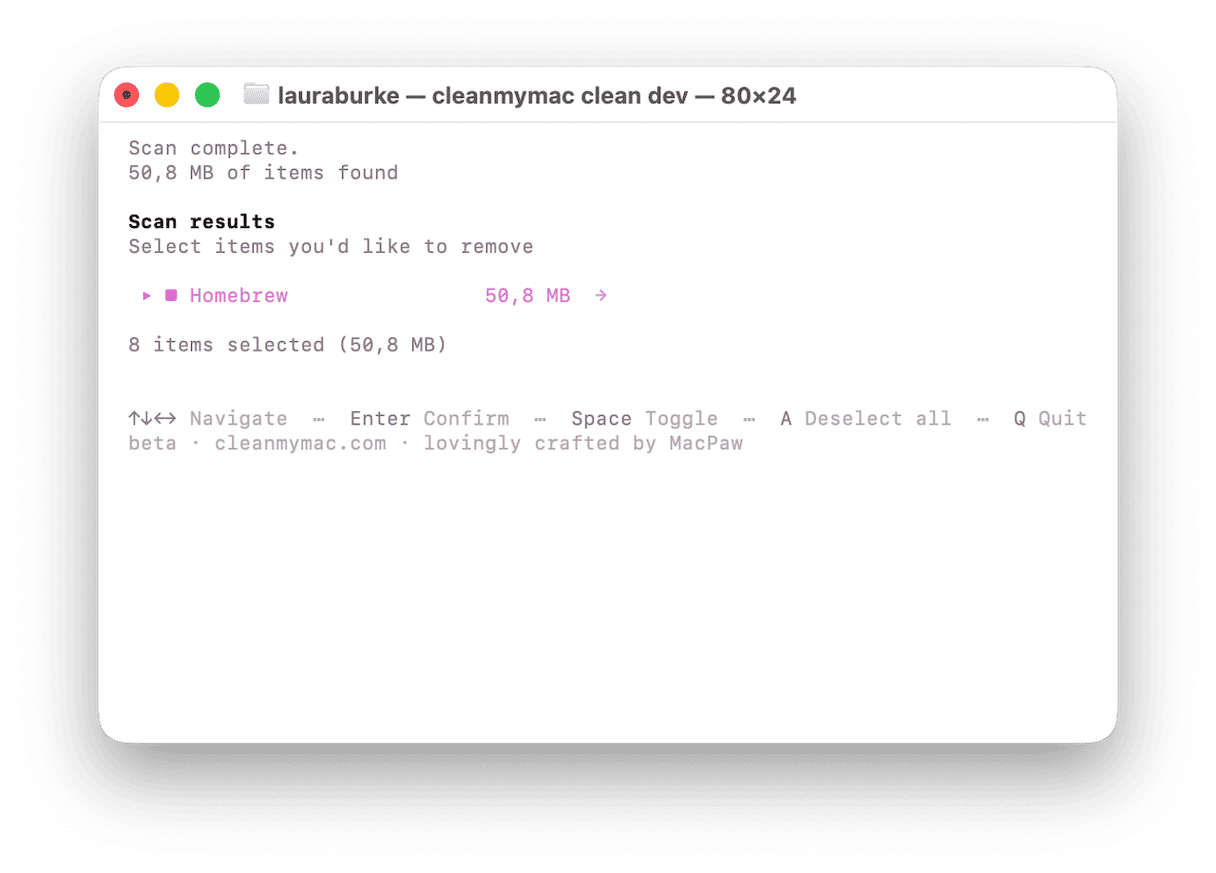
First, try running a full dev-tools cleanup with this command:
cleanmymac clean dev
Then for a much wider cleanup in one pass, use:
cleanmymac clean
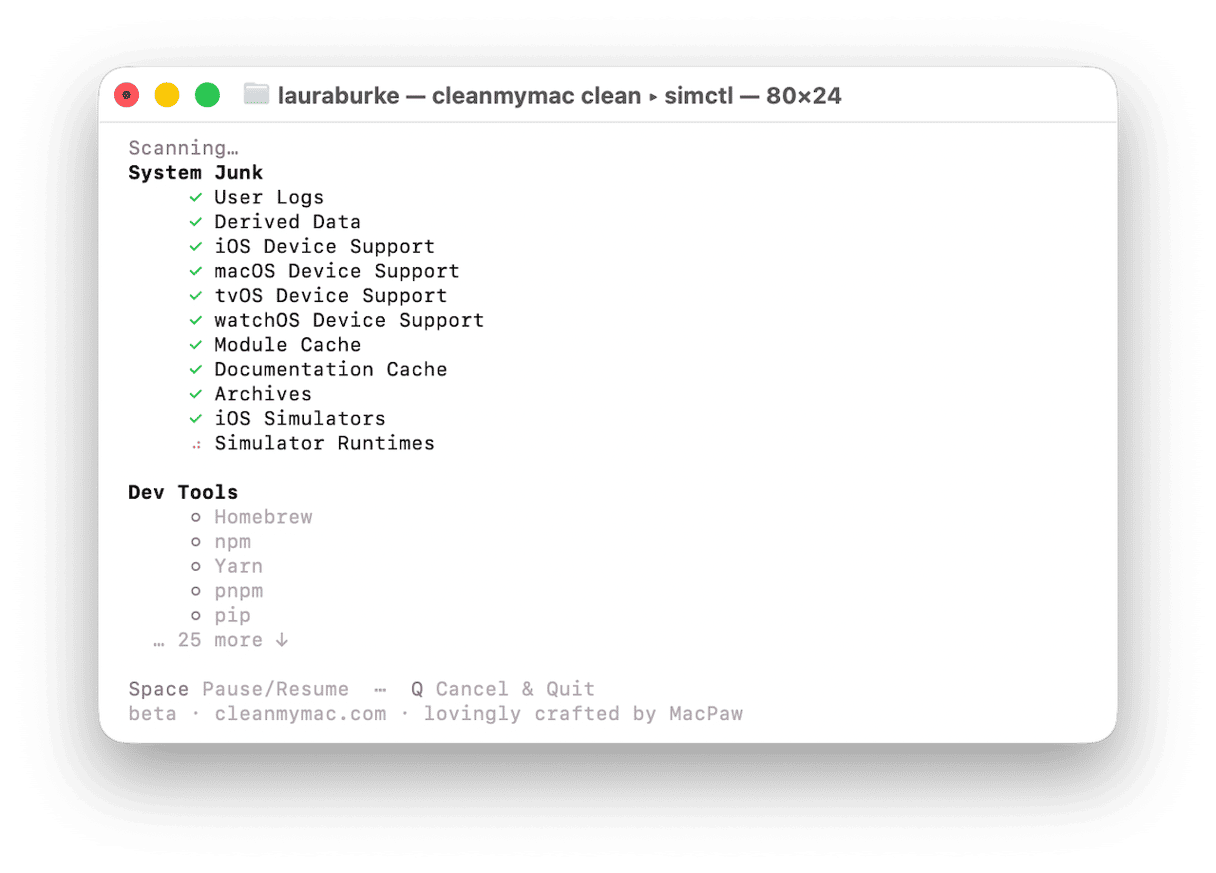
Each cleanup shows what it found before removing anything and asks for confirmation first. CleanMyMac CLI requires macOS 11 or later, and the full docs are available on GitHub here.
pyenv is, I think, a really good way to manage Python versions on your Mac without touching the system Python.
Frequently asked questions
Does pyenv work on Apple Silicon (M1/M2/M3/M4) Macs?
Yes, it does. But don’t forget: the shell needs to be configured correctly, and Homebrew needs to be installed in the right location. On Apple Silicon, Homebrew usually lives under /opt/homebrew, while Intel Macs usually use /usr/local.
Should I use pyenv or conda for Python version management on Mac?
If you mainly need to manage Python versions across projects, then pyenv is a good solution. It’s lightweight and works well with standard tools like venv and pip.
Conda is probably the better option if you need full environment management (data science projects with non-Python dependencies).
Does pyenv work with virtual environments (venv)?
Yes. A common setup is to use pyenv to choose the Python version, then create a virtual environment inside the project, which helps to keep the project’s packages isolated while pyenv controls which Python version the environment is built from.
How do I completely uninstall pyenv from Mac?
Remove pyenv via Homebrew with:
brew uninstall pyenv
Then you’ll need to remove the pyenv directory with:
rm -rf ~/.pyenv
Then finally, you need to open your shell config file and delete the pyenv lines you added earlier. For zsh, that usually means editing:
nano ~/.zshrc
Reload your shell afterward with:
exec "$SHELL"