

We all know that feeling. You realize you need to find an important email, and you need to find it now. You can’t remember when it arrived and have only a vague memory of who it was from or what the subject line was. You open your email application, and your inbox is full of messages going back years. You try searching, but nothing turns up. If only you’d organized your email inbox better, you’d be able to find it in seconds. The best time to organize your email inbox was years ago. The second best time is right now. So, with that in mind, we’re going to show you how to do just that.
How to organize email box
1. Use a dedicated cleaner
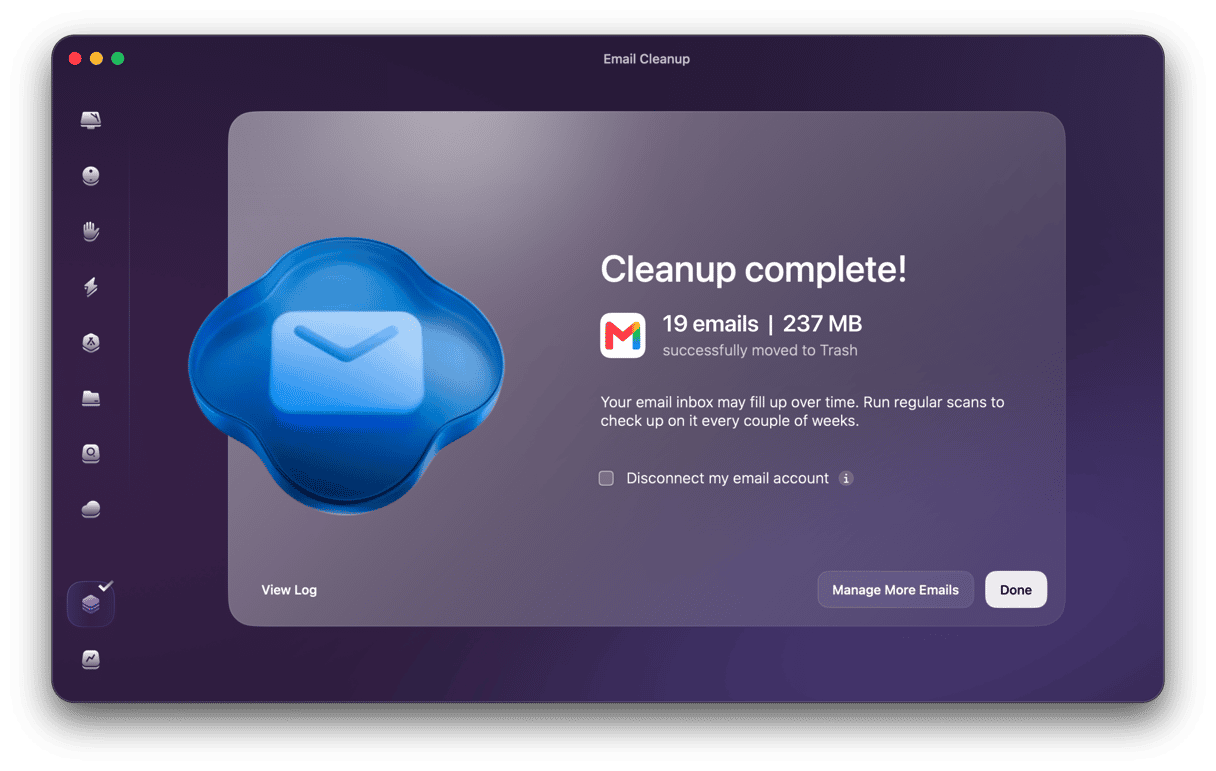
CleanMyMac’s Email Cleanup tool works with your Gmail account to sweep away background noise: newsletters, promotions, spam, trash, drafts, and large attachments in one place. Then, it organizes messages by type, sender, year, and attachment size — including a time-based view of the three most recent years.
It shows you how much space on your Gmail account it will free up and allows you to bulk delete, archive, or unsubscribe — you are always in control and have to confirm every action. It connects to your email safely through your Google sign-in, and you can disconnect it at any time.
Here’s how it works:
- Start your free CleanMyMac trial — you can test it for 7 days.
- Open CleanMyMac, go to Tools in the sidebar, and choose Email Cleanup.
- Connect your Gmail account using the standard Google sign-in.
- Browse the results by type, sender, year, or attachment size while the scan continues in the background.
- Select senders or individual emails to remove, archive, or unsubscribe — confirm every action.
- Deleted emails move to Gmail Trash and remain recoverable for 30 days.
2. Unsubscribe from newsletters you never read
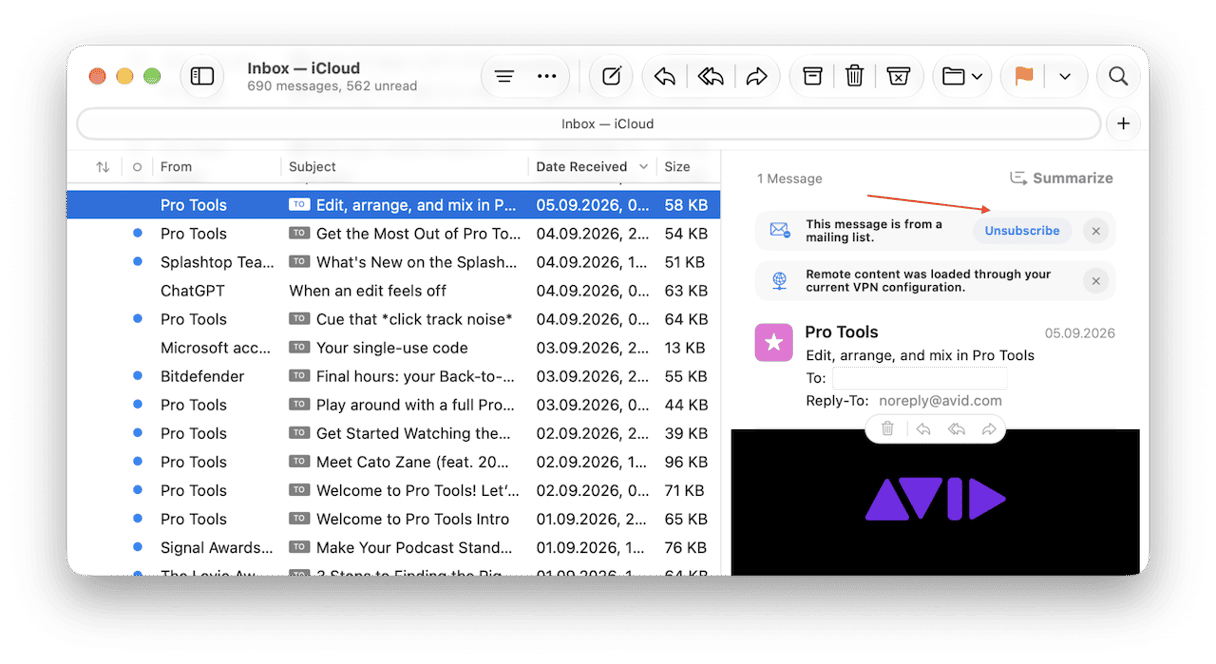
You can use the unsubscribe link at the bottom of the newsletter, or Apple Mail’s Unsubscribe button at the top, but the easiest way to unsubscribe from lots of newsletters is to use Email Cleanup’s Unsubscribe tool.
3. Create folders or labels and file emails as soon as you read them
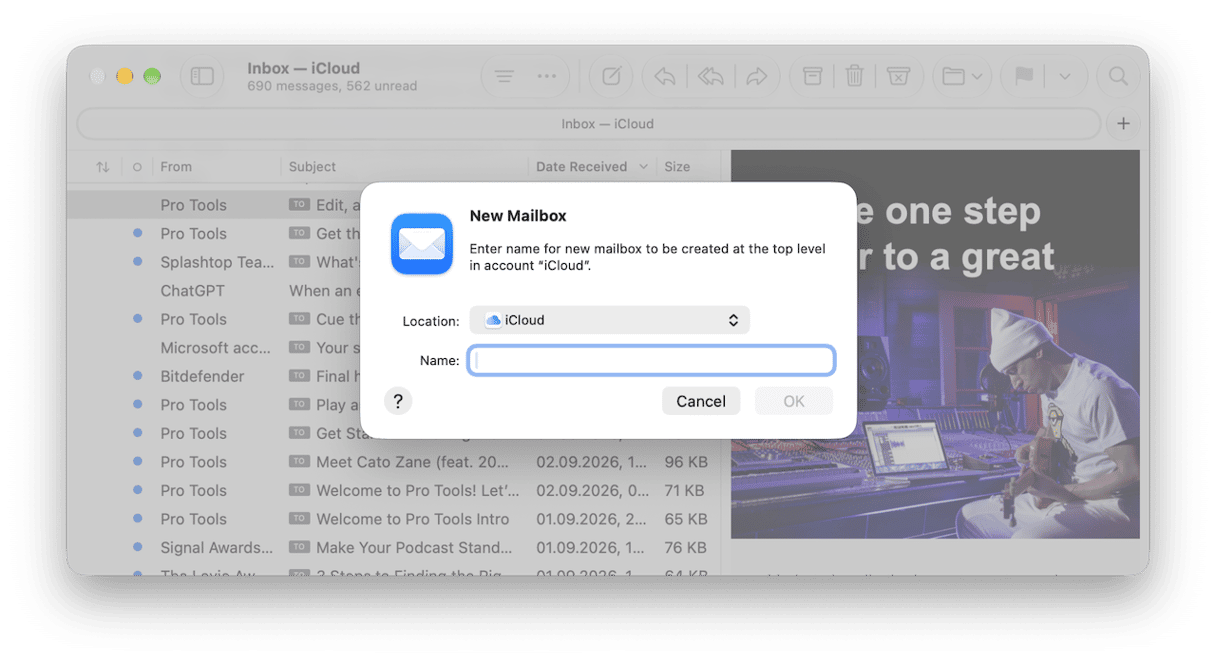
Each email application has a different way of doing this, but the principle is the same: the email is removed from your inbox and filed somewhere you can easily find it later.
In Apple Mail, for example, you go to the Mailbox menu and choose New Mailbox, then give the mailbox a name and save it. You can then drag messages to it.
4. Use rules and filters to automatically move messages
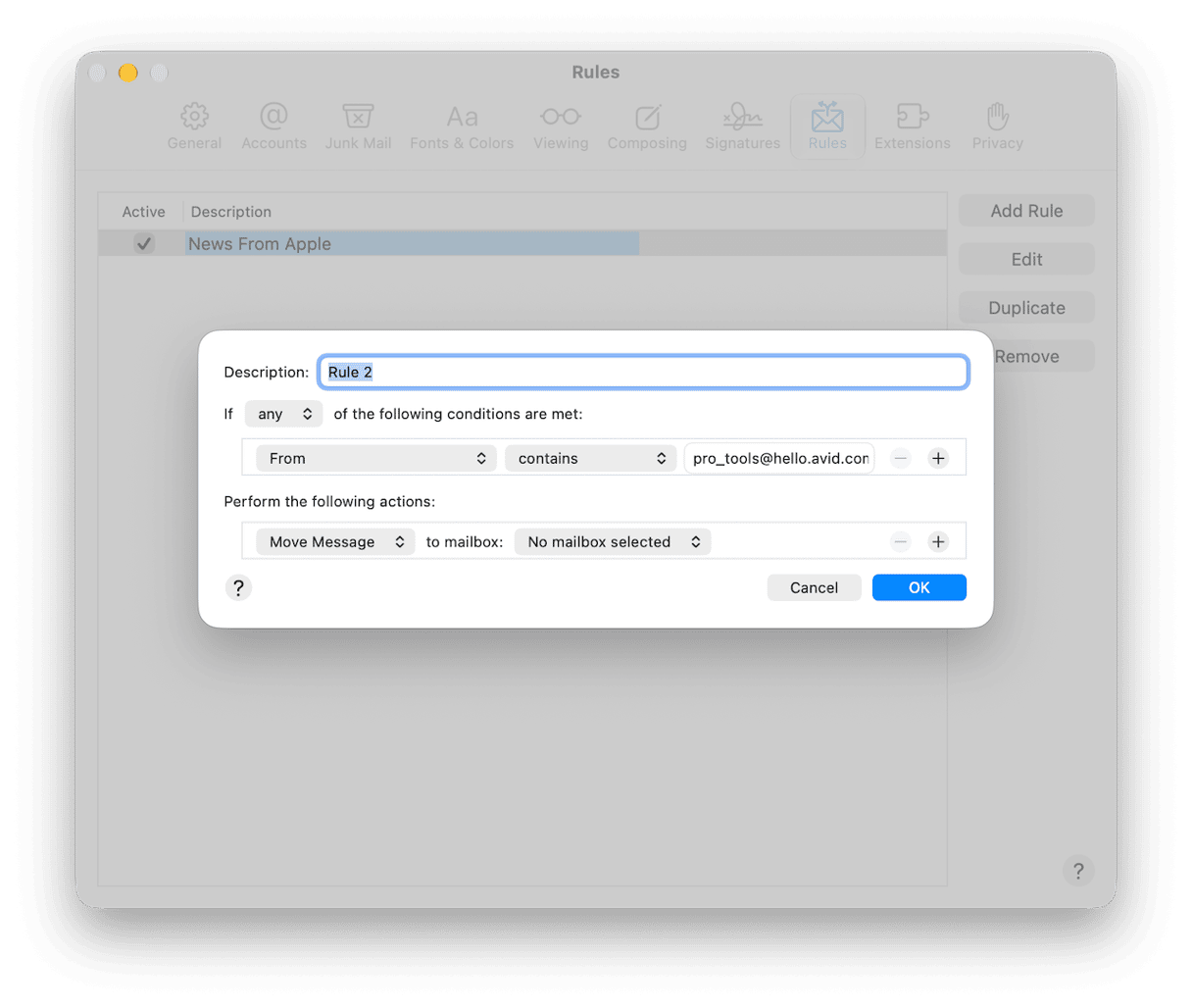
Rules and filters are a great way of clearing your inbox without you having to do anything once set up: any messages you receive that meet the conditions set in a rule are automatically moved to a folder, archived, or deleted, depending on how you set up the rule.
To create a rule in Apple Mail, click the Mail menu, then choose Settings > Rules > Add Rule, and set the conditions a message must meet and the action that should be taken if it meets them.
5. Delete messages by category
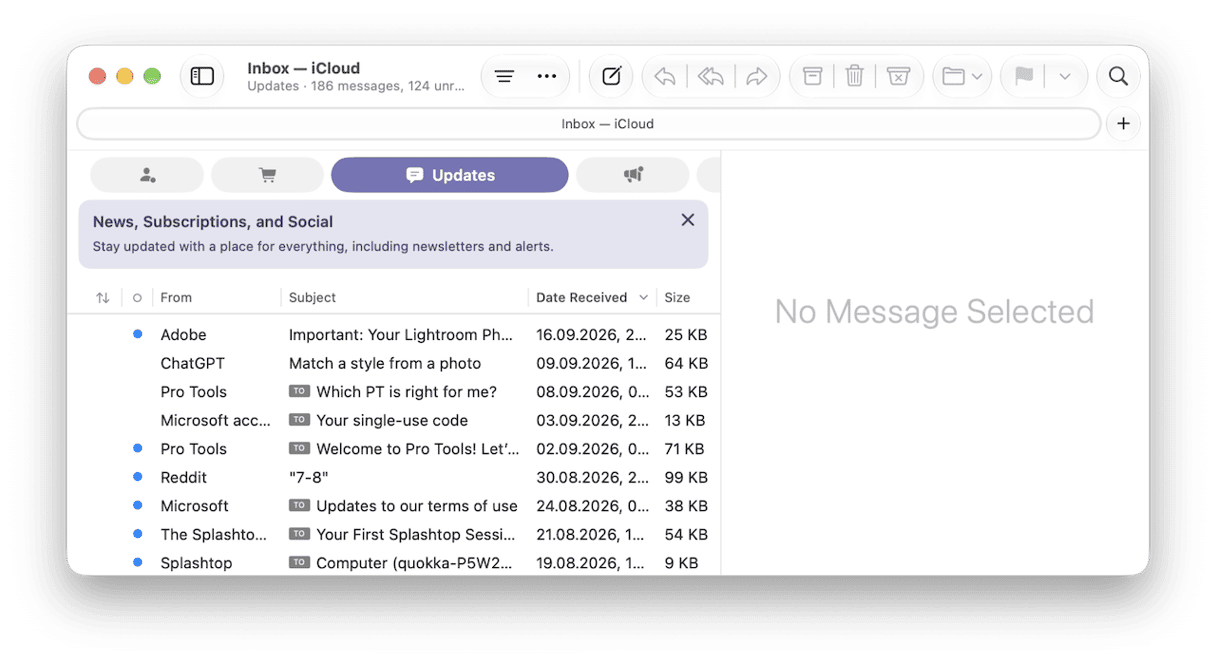
Some email clients, like Apple Mail and Gmail on the web, allow you to automatically sort messages by category.
For example, in Apple Mail, when you turn categories on (click the three dots in the toolbar next to the filter button and choose Show Mail Categories), it splits messages into Primary, Transaction, Updates, and Promotions. To delete all the messages in a category, click on the category, press Command-A to select all, and press Delete.
6. Use search operators to find and delete old clutter
If you use Gmail on the web, there are a whole host of search operators you can use to identify messages you might want to delete. For example, to find all messages older than a year use ‘older_than:1y’ or for messages with large attachments, use ‘has:attachment larger:10M’, where ‘10M’ is 10MB.
7. Archive instead of delete
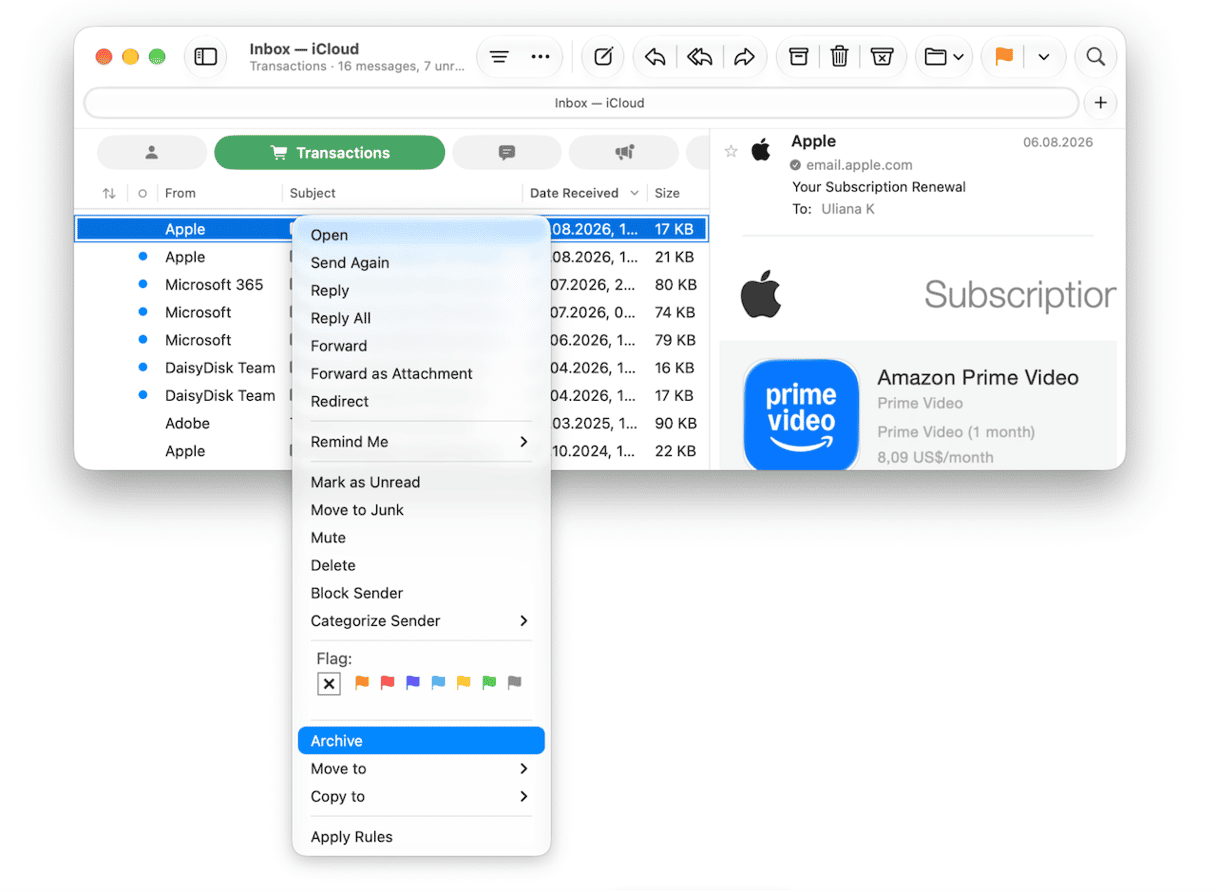
If you want to clear messages from your inbox but don’t want to get rid of them completely or put them in a folder, you can archive them. Every email client has a different method for archiving, but you can usually either Control-click on a message and choose Archive, select the message and click an archive icon in the toolbar, or choose the Message menu and choose Archive.
8. Adopt an inbox-zero mindset
This is a technique that became popular around 20 years ago but is still useful. Get into the habit of dealing with messages that can be processed in under two minutes straight away, whether that means replying, adding an appointment to a calendar, or delegating a task. Messages that will take longer to deal with should be filed, or you can use the feature that some clients have where a message is hidden for a period of time and then pushed to the top of your mailbox at a later date. In Mail, this is called Remind Me.
9. Schedule a time to process email
If your email application alerts you every time you receive a new message and you react immediately, you’re not going to have a very productive day. It’s far better to set a time each day to deal with email and ignore it the rest of the time. If you know you’re going to receive time-sensitive emails, you can set up specific alerts for those.
10. Keep work and personal email separate
It’s a good idea to have separate email accounts for work and personal email. It’s more professional and more secure. I go one step further and use different email clients for work and personal email. That way, I can focus on work email and ignore personal messages during the day, and vice versa in non-work hours.
Frequently asked questions
What is inbox zero?
Inbox zero is a method of working that includes processing emails that can be dealt with quickly and immediately and filing or delegating the rest.
How often should I organize my email inbox?
It’s a good idea to clean your inbox as you go using the inbox zero approach. If you don’t want to do that, you should schedule time once a week to do it.
Does organizing Gmail free up storage?
Yes, if you delete messages and attachments you don’t need, it will free up your Google account storage.