The increase in the popularity of Macs in large organizations in recent years has led to more Macs being enrolled in mobile device management programs (MDM) that allow for the remote management of MacBooks and other Macs by IT administrators. Most of the time, there is no reason to remove this software, and usually doing so would be a bad idea because it would breach the organization’s usage policies.
However, there may be occasions when you need to get rid of it from your Mac, such as if you bought the Mac second-hand or inherited it from an organization you previously worked for. In this article, we’ll show you how to remove remote management from Mac.
What is remote management?
Usually, remote management on a Mac refers to MDM tools that are installed by the organization that owns the Mac. These tools — provided by companies like Microsoft and Jamf — typically work in conjunction with Apple’s Device Enrollment Program and install a profile in the Mac’s System Settings. This means that the MacBook can be shipped directly to the user and configured automatically.
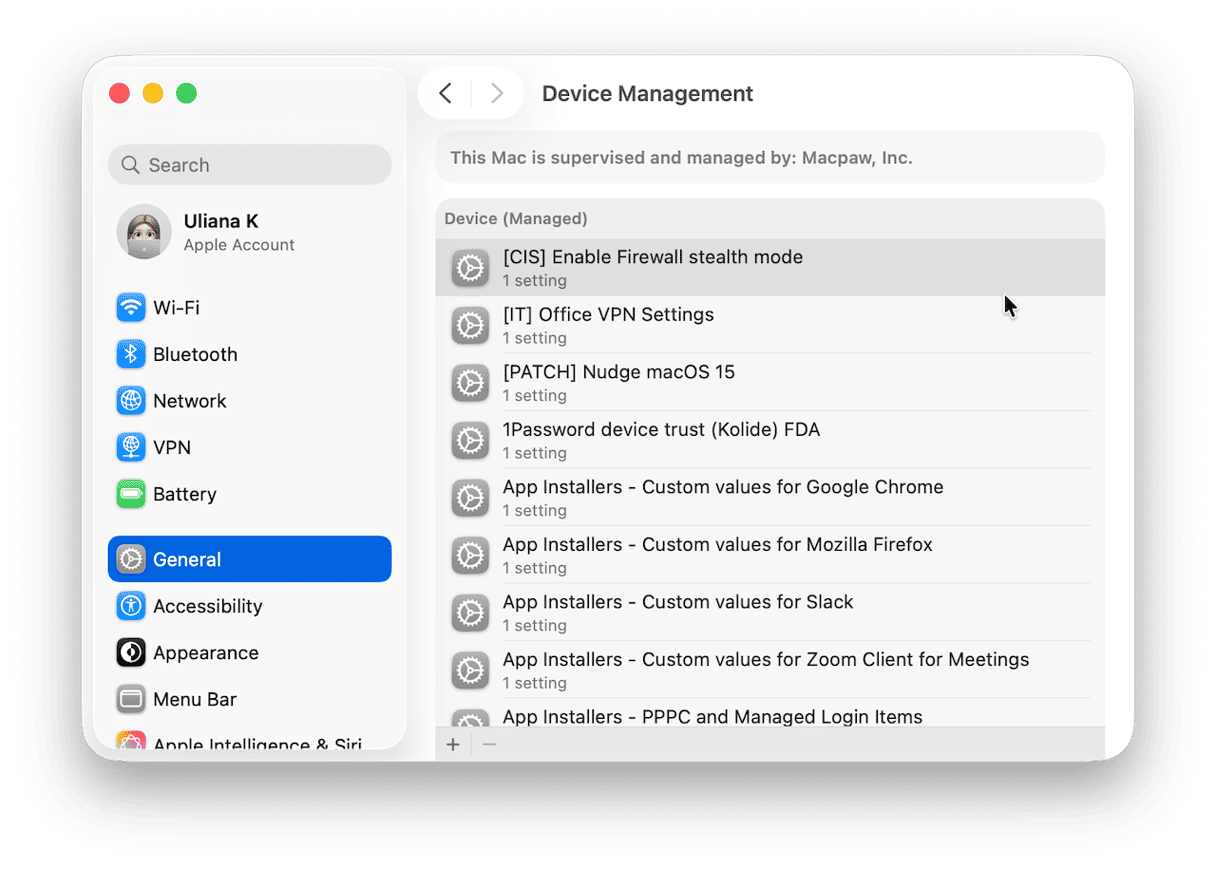
Remote management software also manages the installation of third-party applications on the Mac and security features like VPNs and virus detection.
In rare cases, remote management may also refer to malicious software that has been installed without the user's knowledge to allow someone else to take control of the Mac in order to steal data.
Why remove remote management?
There are a few reasons you might want to remove remote management on Mac. The most important is that if it is malware, it could damage your Mac as well as compromise its security and invade your privacy. If it’s a legitimate tool, it could still compromise your privacy and will likely limit the applications you can install, changes you can make, and possibly even websites you can visit.
How to remove remote management on a Mac
There are a couple of ways to remove remote management tools on a Mac. The most straightforward is to ask the IT department of the organization that installed it to do it for you. If you have taken ownership of the Mac from them, they should do that as a matter of course before it is passed on to you, so if that hasn’t been done and you are able to contact them, do so.
If you are unable to ask the organization that installed it to remove it, follow the steps below one by one.
Preparatory step: Back up your Mac
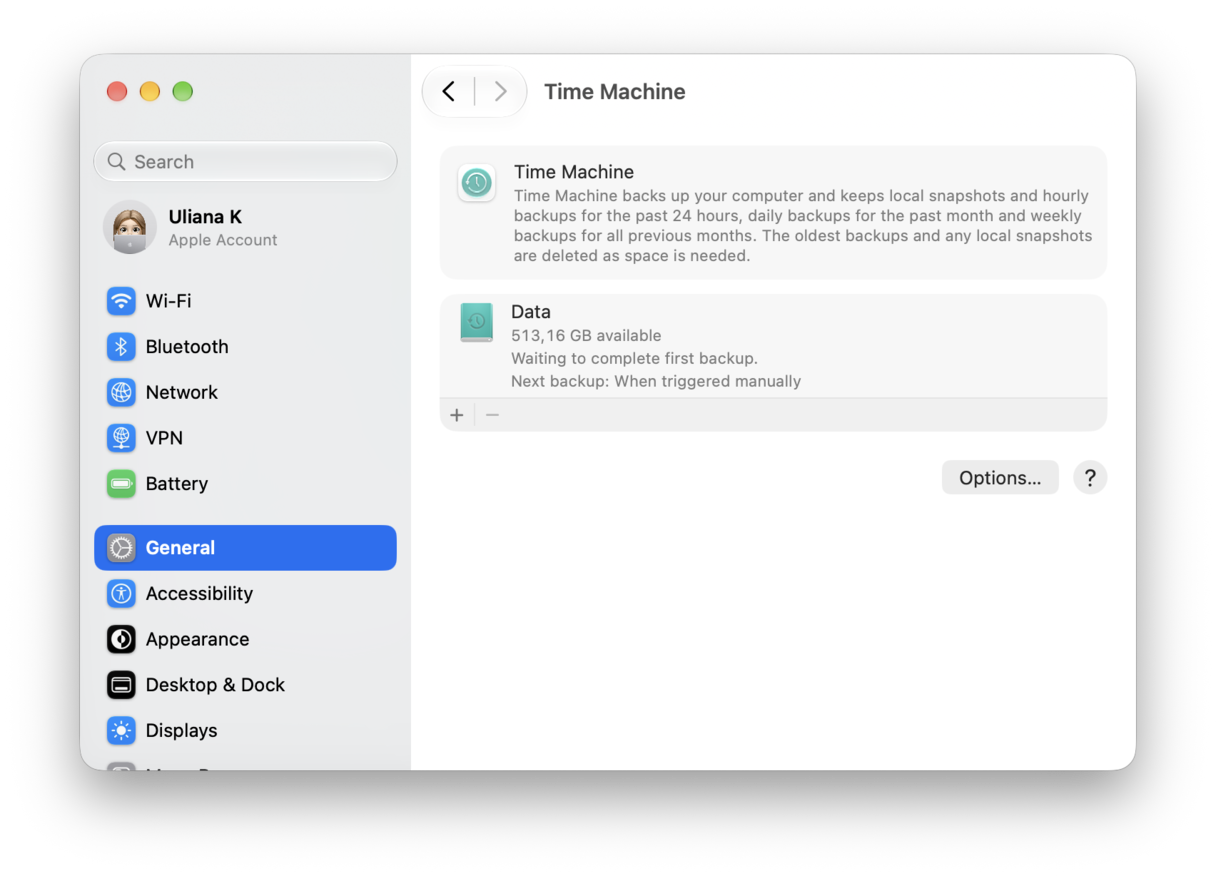
Before you do anything else, back up all your data. One of the steps below involves erasing your startup disk, and you will lose all your data if you don’t back it up. The simplest and best method is to use Time Machine to back up the Mac to an external disk. Don’t do anything else until you have backed up your data.
1. Disable system integrity protection (SIP)
SIP is a part of macOS that places restrictions on what changes root users can make to protected parts of the operating system. To remove a remote management profile, you first need to disable SIP.
- Restart your Mac in recovery mode.
On an Intel Mac, shut it down and press the power button and Command-R. Hold down Command-R until you see the Apple logo.
On a Mac with Apple silicon, shut it down and press and hold the power button until you see Startup Options. Choose Options and click Continue. Type in your username and password. - When you see macOS Utilities options, click the Utilities menu and choose Terminal.
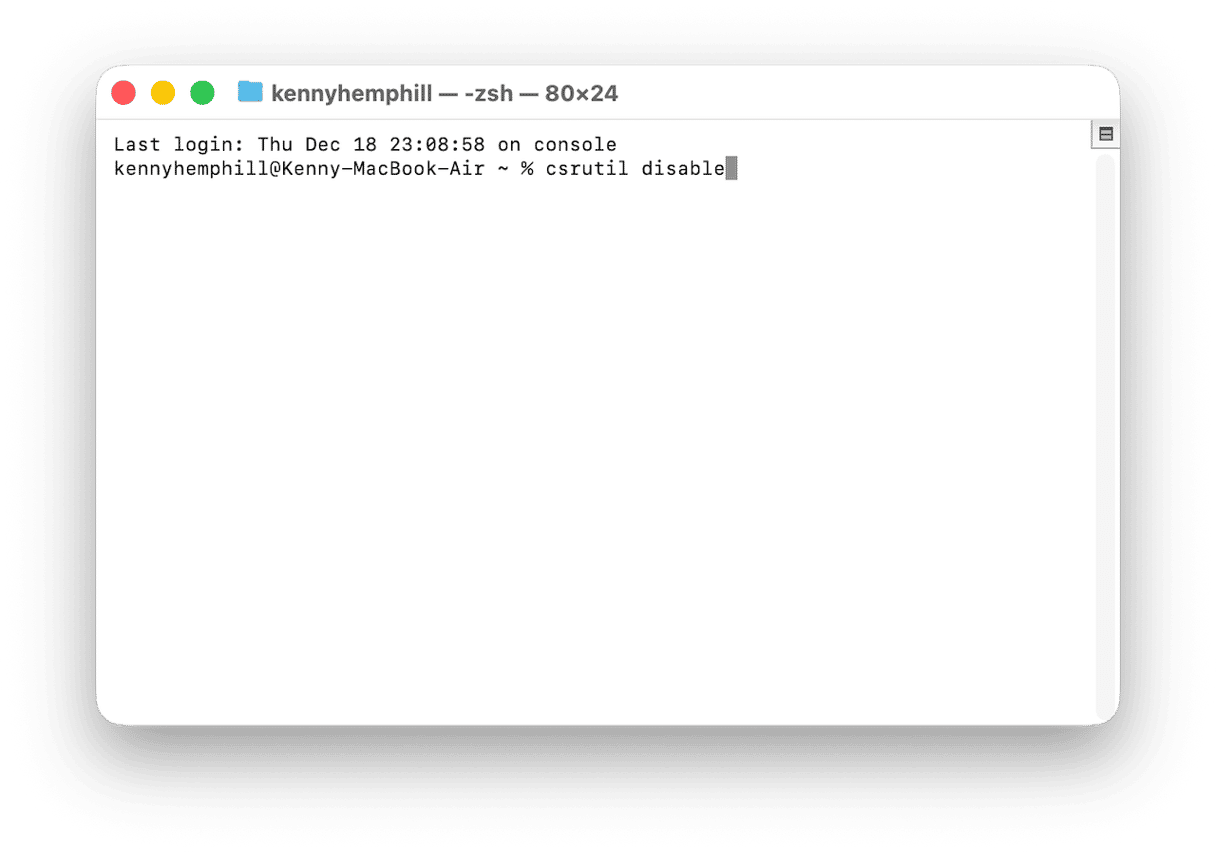
- Type:
csrutil disableand press Return - Restart your Mac normally.
2. Remove the profile
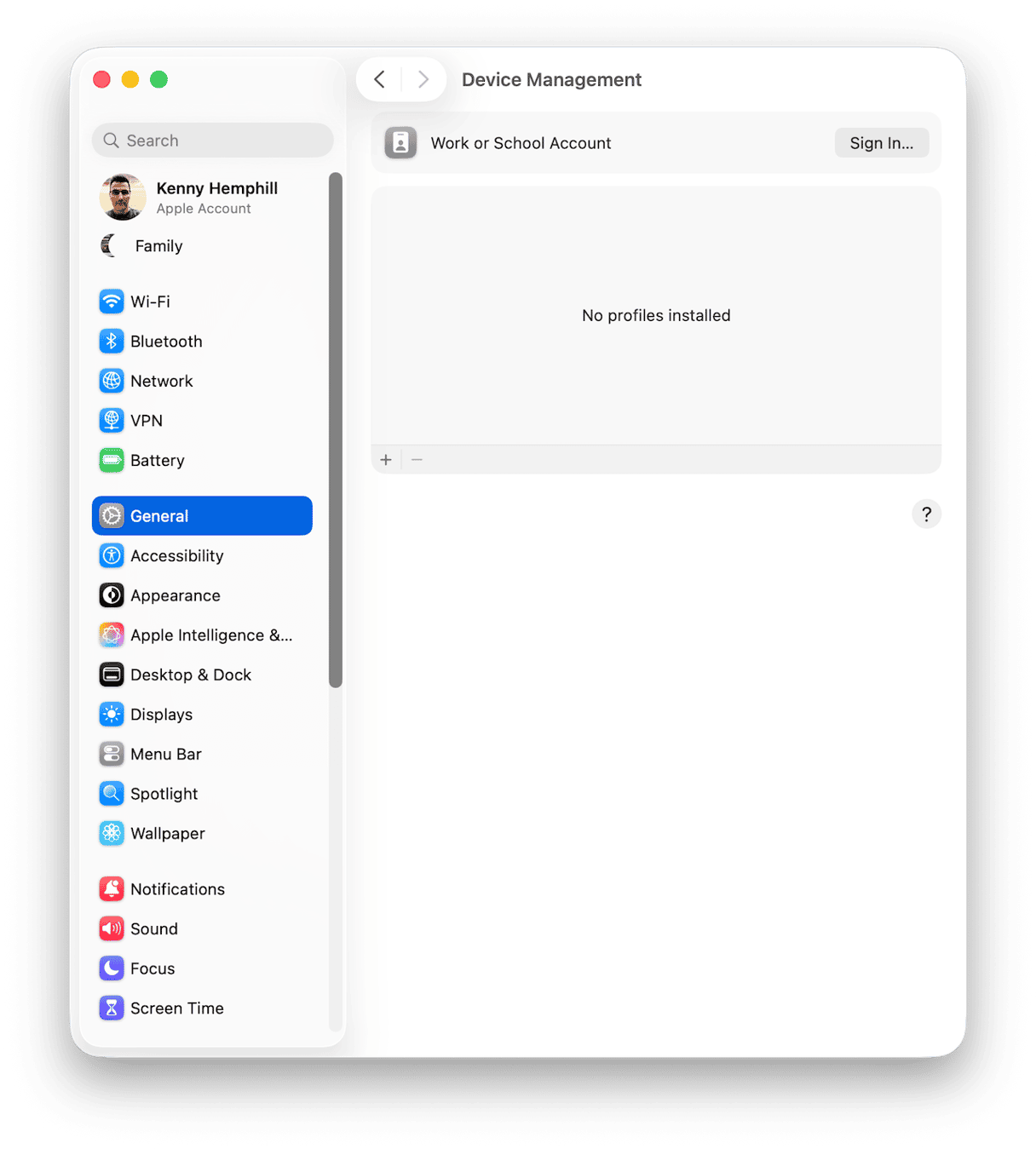
- Go to System Settings > General.
- Click on Device Management at the bottom of the window.
- Select the profile you want to remove and click the ‘-’ button.
- Type in your admin password if requested and quit System Settings.
3. Re-enable SIP
Boot your Mac into recovery mode again and re-enable SIP by launching Terminal and typing csrutil enable followed by Return. Then quit Terminal.
If nothing works
Reinstall macOS
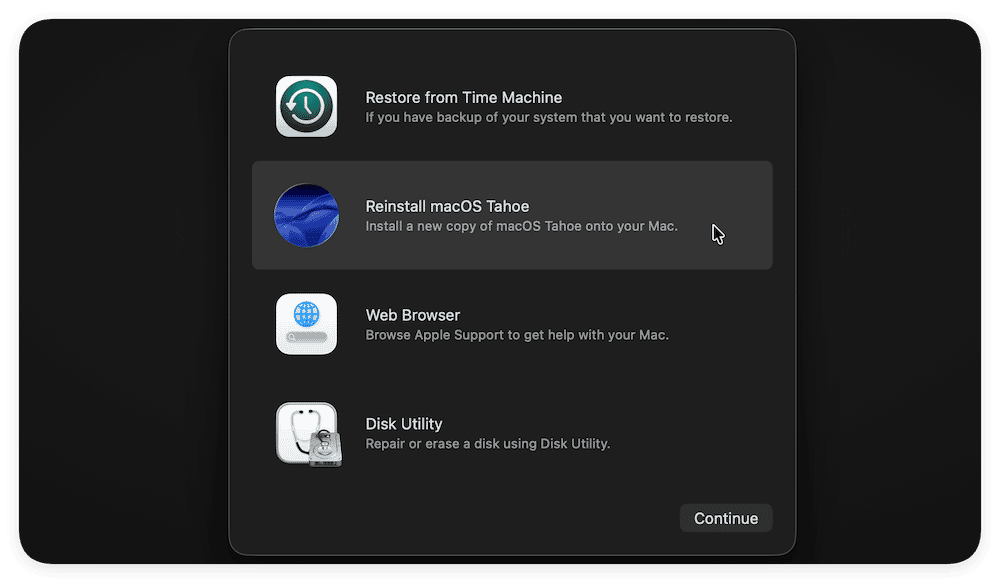
Try reinstalling macOS — it re-writes the operating system and will fix any glitches that do not allow you to remove the remote management profile. Here’s how:
- Boot into recovery mode and from the macOS Utilities menu, choose Reinstall macOS and follow the instructions on the screen.
- Once macOS has reinstalled, your Mac will restart and Setup Assistant will launch. When prompted, choose your Wi-Fi network, sign in to your Apple account, and create an admin user account.
- When Migration Assistant appears, choose the option to transfer data and settings from a Time Machine backup and follow the instructions on screen.
Erase your startup disk
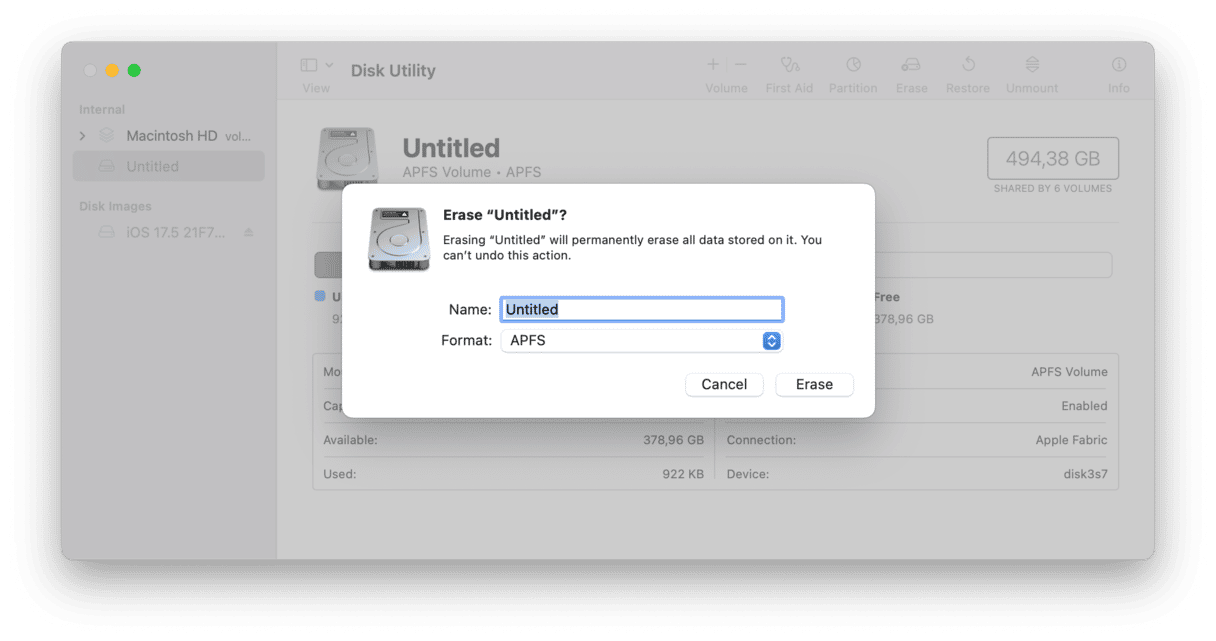
If reinstalling macOS does not help, erase the drive. Note: you will lose all your content and settings, so make sure that you have a recent backup — ideally, without the remote management profile.
- Boot into recovery mode.
- In macOS Utilities, choose Disk Utility, select your startup disk, and click Erase in the toolbar.
- Give the disk a name, e.g., ‘Macintosh HD.’
- Choose APFS as the format.
- Click Erase and confirm you want to erase the disk.
- Quit Disk Utility.
How to protect your Mac from privacy and security threats
We explained earlier that if the remote management software on your Mac wasn’t installed by an organization that owns or owned the Mac, it may be malware installed by a malicious actor with the intention of stealing data or worse.
Taking control of your Mac remotely isn’t the only way your privacy or security can be compromised while using your Mac:
- Anyone who has access to your Mac can use your Recent Items list or browser history to compromise your privacy
- Third parties can download malware when you click a link in an email
- Apps may use access to screen recording or even your webcam or microphone in nefarious ways
- Your Mac may automatically connect to an insecure public Wi-Fi network using the list of networks you’ve previously connected to
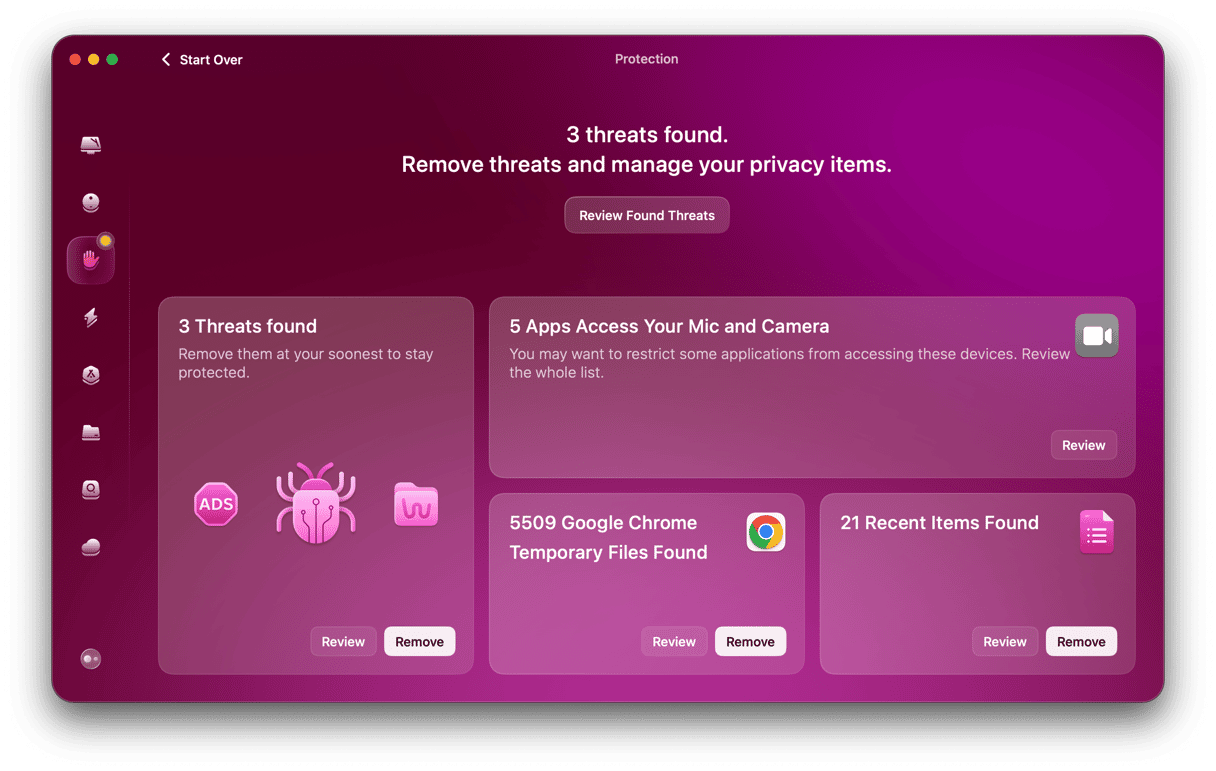
Keeping on top of all these privacy and security threats is very difficult. But CleanMyMac can help, thanks to its Protection feature. It scans your Mac looking for malware, checking app privileges, and collecting information on browser files. You can configure the malware scanner to perform a quick scan, a deep scan, or a balance between the two. And once it’s finished, it’s easy to remove malware, delete browser data, the Recent Items or Wi-Fi networks lists, or revoke app permissions.
Here’s how it works:
- Get your free CleanMyMac trial — you can test it for 7 days for free.
- Open it and choose Protection in the sidebar.
- Choose Configure Scan and adjust the settings.
- Click Scan.
- When it’s finished, use the Dashboard to remove malware or other data or review what it has found.
Remote management tools generally help manage the deployment and operation of Macs owned by large organizations and used by employees or other authorized personnel. The management tool typically controls the applications that can be installed and settings that can be changed, as well as enforcing the organization’s security policies. If you have acquired a Mac that has this kind of software installed, or you are worried that it has malware that enables it to be controlled remotely, follow the steps above to remove remote management from your MacBook.