

Stumbled across the trustd process Mac in Activity Monitor? If it’s at the top of your CPU list, you might be wondering what it is and if you should kill the process. First up, let me reassure you it’s not a virus. I’ve seen a lot of threads on this across the forums; it is a genuine macOS process. Let’s unpack it.
What is the trustd Mac process on Mac?
Before you start panicking, the trustd Mac process is a legitimate macOS system daemon and 100% not a virus or malware attack.
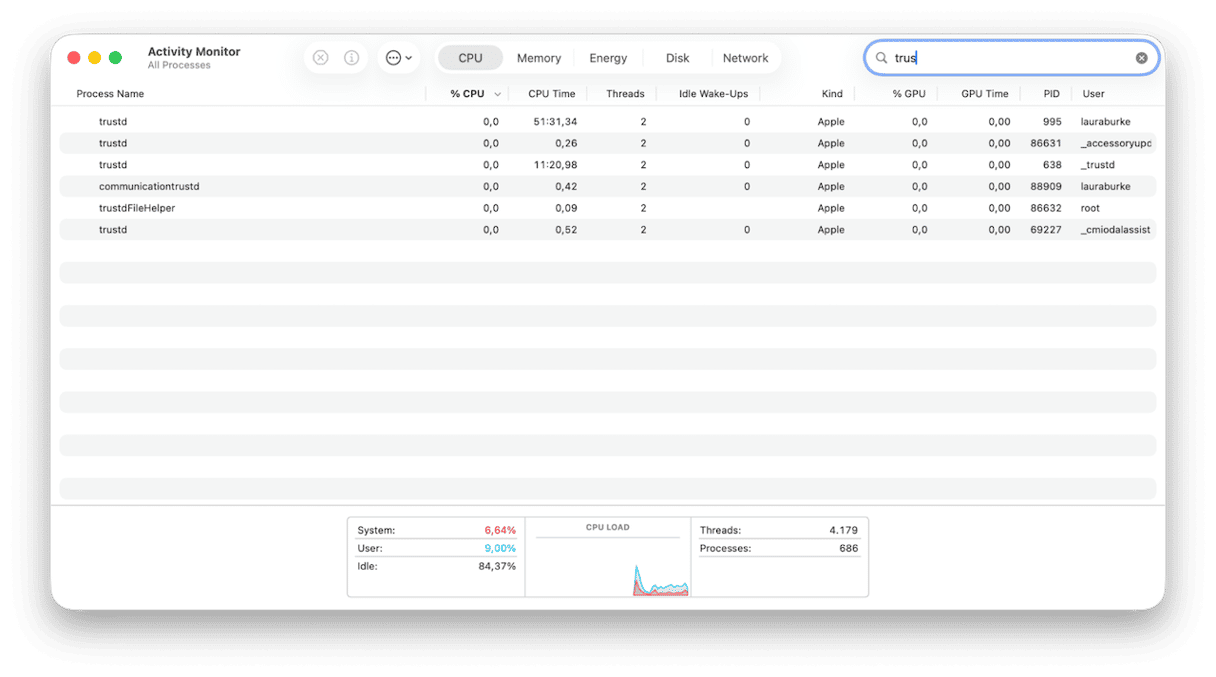
It basically evaluates code signatures and certificate trust, so think along the lines of verifying apps and downloads, making sure they’re genuine and haven’t been tampered with. It comes built into your macOS and cannot and should not be permanently disabled.
But why is it spiking? Well, keep on reading.
Reasons why the trustd process on Mac has high CPU
If your Mac’s been feeling stretched, and you’ve decided to check the CPU list in Activity Monitor, and noticed a huge spike with the trustd process, there are some common and perfectly normal reasons why this happened.
It could be that the process is just checking code signatures after a macOS update or app installation, or it could be down to Certificate revocation checks over a really slow or congested network, forcing the spike. Sometimes, corrupted cache could be interfering, causing repeated validation loops, hence the spike. And on occasion, if a number of apps are being validated simultaneously after Migration Assistant, for instance, that could also be why. In very rare cases, malware could be mimicking the trustd process; it’s highly unlikely, but it's worth a quick mention.
Is it safe to quit the trustd process Mac?
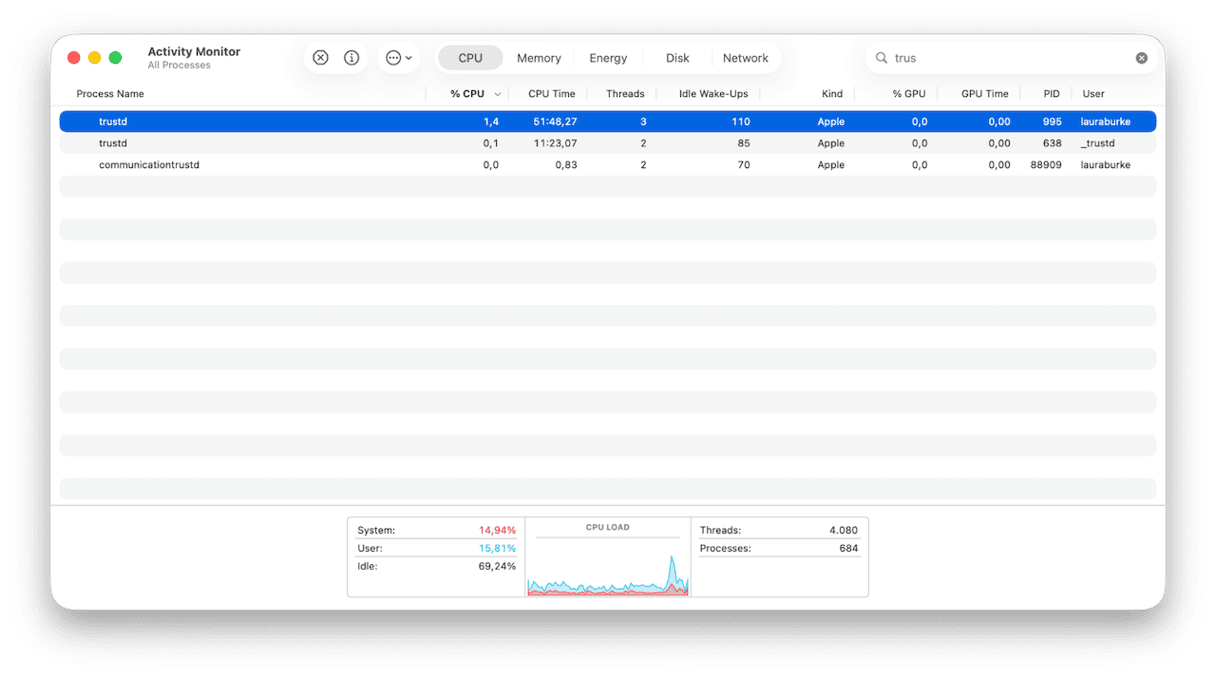
Technically, yes, via Activity Monitor when you select it and press the X button, but it will restart. I would say the more important thing to do is to actually try to figure out what’s causing your spike, and address that. I’ll help you figure out the root cause below.
How to fix trustd process high CPU usage
Cause | Fix |
Recent macOS update or app install | Wait a few minutes |
CRL checks failing | Check Wi-Fi, VPN, proxy, or firewall |
Older OCSP cache issue | Clear cache on OS X 10.11 or earlier |
Third-party app conflict | Try safe mode |
Possible malware | Run a malware scan |
System junk or corrupted caches | Clean up old caches and leftovers |
Fix one: Wait it out
If the process literally just appeared after a macOS update or app install, it’s most likely that it’ll resolve itself after a few minutes. In that case, just wait and see if the spike clears all by itself.
Fix two: Network connections
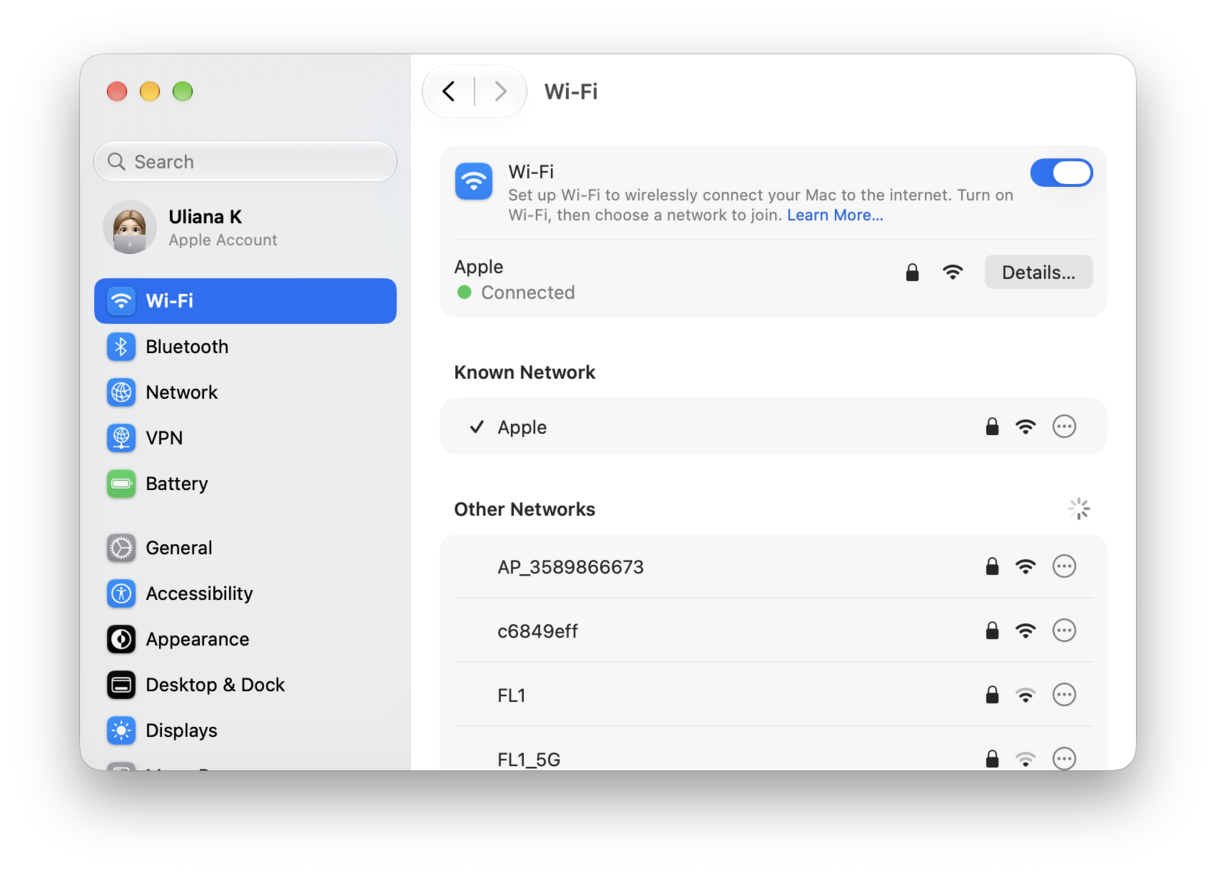
Network issues will also cause problems with Certificate Revocation List checks(CRL). What happens is that this will keep triggering failures or repeated security loops. Make sure there are no problems with your Wi-Fi connection, then rule out whether your VPN is blocking any traffic or whether a proxy or firewall is interfering.
Fix three: Clear the OCSP/certificate cache
If you’re running an older Mac OS X version (up to OS X 10.11 El Capitan), you can still clear the OCSP/certificate cache manually. You’ll just need to open Terminal from Applications > Utilities and run the command below and make sure you restart your Mac after.
sudo rm /var/db/crls/*cache.db
On newer macOS, sadly, although there are lots of articles online that say you can, I couldn’t find a command that actually worked, but you could restart your Mac. I saw some users posting that this sort of acts as a replacement step.
Fix four: Try safe mode
At this stage, if the trustd mac process is still high CPU, I’d start up in safe mode. This will help to try to isolate the issue and double-check if any third-party apps are interfering.
Fix five: Check for malware
In extremely rare cases, malware can disguise itself as a legitimate system process. If nothing has worked, even safe mode, then it’s absolutely worth checking. I use the Protection feature from CleanMyMac to run malware scans on my Mac. All you’ve got to do is open up the app, select Protection, and run a scan. If it finds anything, follow the removal steps it recommends. You can test the app for 7 days — get your free trial here.

Fix six: Clean up system junk
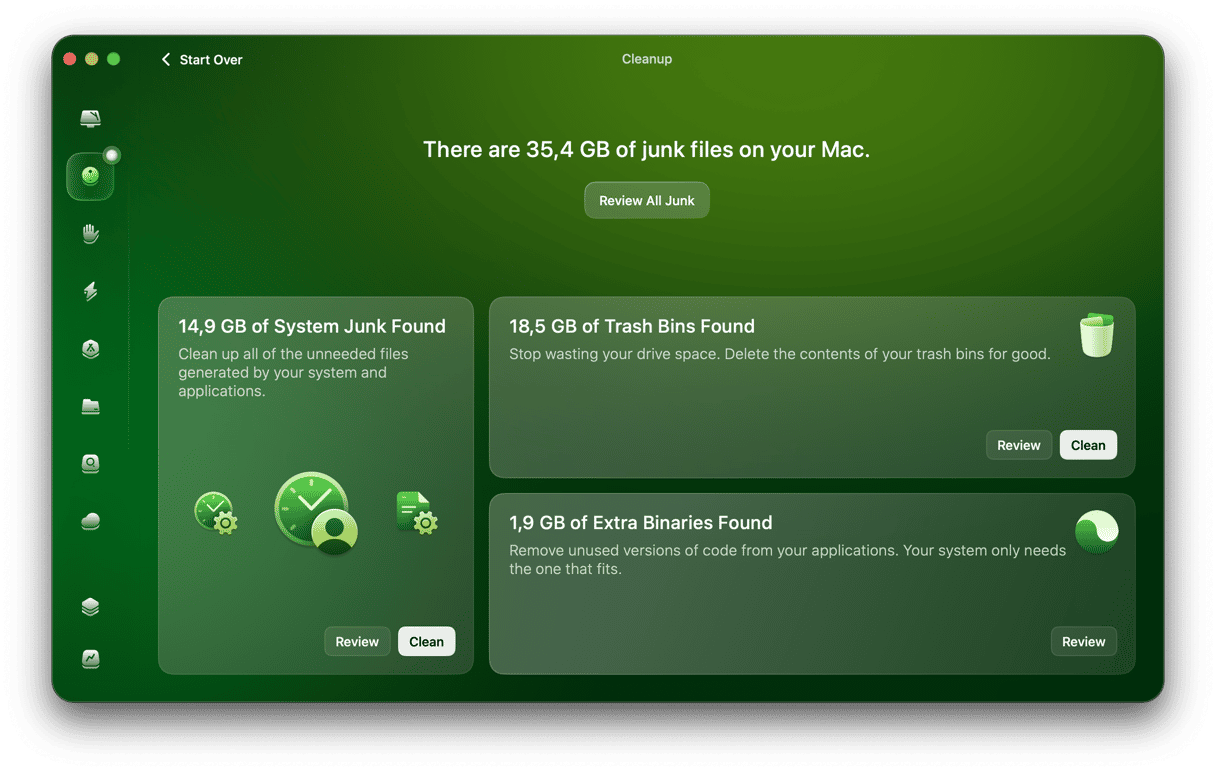
Any kind of buildup of system junk — I'm talking anything from old caches, even unknown app leftovers and corrupted temporary files — can interfere with genuine macOS processes. Clearing them up can significantly improve your Mac's output, but also resolve a ton of issues like the trustd process Mac.
You can do a lot of this manually, but it does take time and a bit of know-how. I prefer to use the Cleanup feature from CleanMyMac. It’s not only quicker, but it can find stuff I just wouldn’t be able to manually. With the app open, click Cleanup > Scan.
When to contact Apple Support
Honestly, if none of the fixes work and CPU usage persists across restarts, then it’s time to reach out.
trustd process high CPU usage prevention
If you want to prevent your Mac from running into this issue further down the line, then there are a few simple things I can recommend. First, make sure your Mac is always running the latest macOS software.
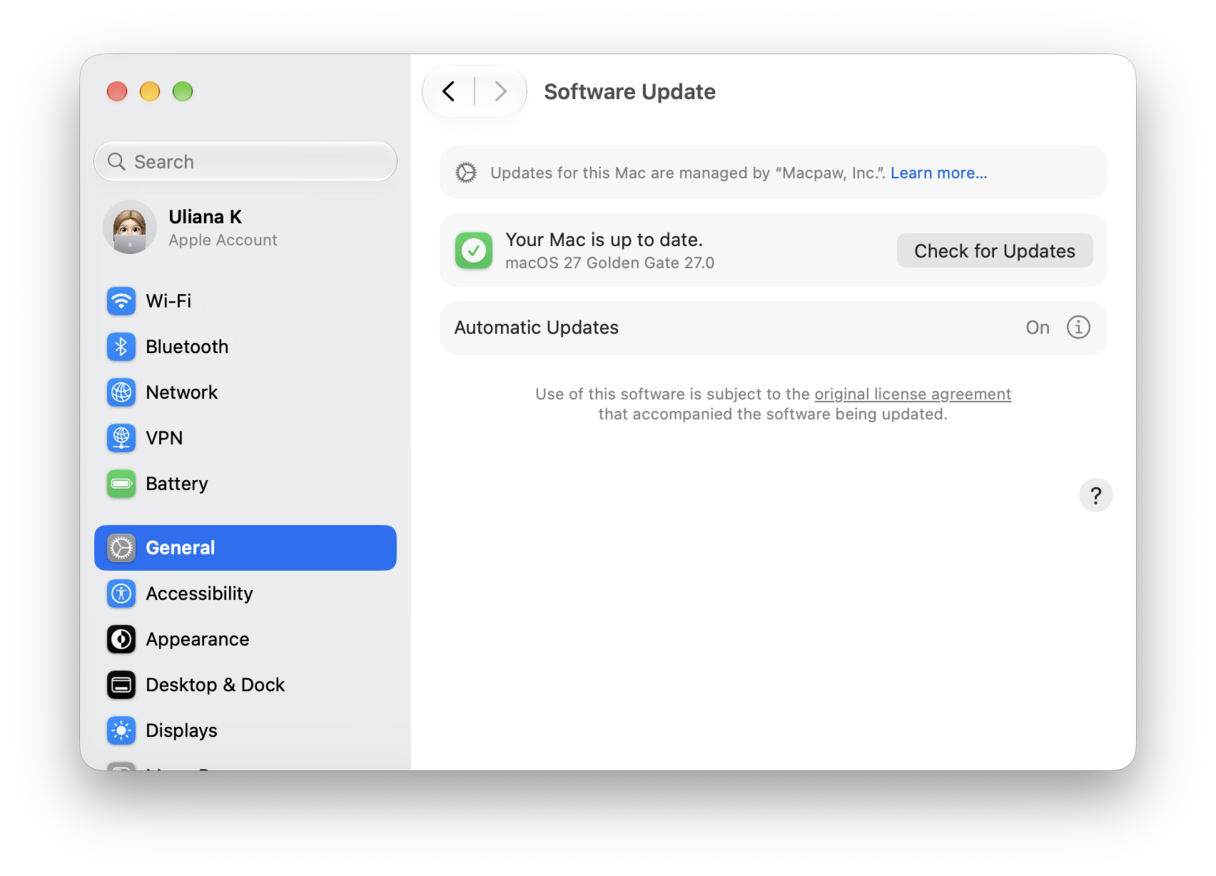
It’s a no-brainer, but we’re all guilty of lagging behind from time to time. This just gives you the best chance of staying ahead of glitches and corruptions. I always try to keep some free disk space too; any machine, no matter how new, if it's running low on space, will struggle. This just helps to give us some extra room to breathe. Finally, regular scans and maintenance will go a long way, helping to prevent issues before they arrive. CleanMyMac is always my go-to for this.
I really hope I’ve managed to help you pinpoint what’s causing your trustd process Mac spike.