
If you want to uninstall FileMaker Pro or Claris FileMaker, as some users call it, did you realize that simply dragging the app icon into your Trash doesn’t actually fully remove all app data? While that's a sure way to rid your Desktop of its icon, its digital leftovers are still consuming space on your drive. If this is total news to you, then you might want to read this more in-depth article on fully removing Mac apps.
App removal actually requires a couple of manual steps or a proper removal tool. Either way, it’s not overly complicated; you just need to know how. I’ll walk you through your options.
Method one: How to uninstall FileMaker Pro from Mac manually
The native way to remove apps, or the manual way, is still surprisingly misunderstood. When you just send an old app to the Trash, it’s still not 100% gone from your Mac unless you take the time to actually check your library folders; things like support files and even old cache can stick around. Not only does it take up space, but there’s a chance that data could become corrupt over time and start interfering with other apps or processes. You need to remove it properly.
- Make sure you properly quit the app; you can use Force Quit from your Mac's main menu if you’re not sure.
- From your Applications folder, you can move the FileMaker Pro app to your Trash.
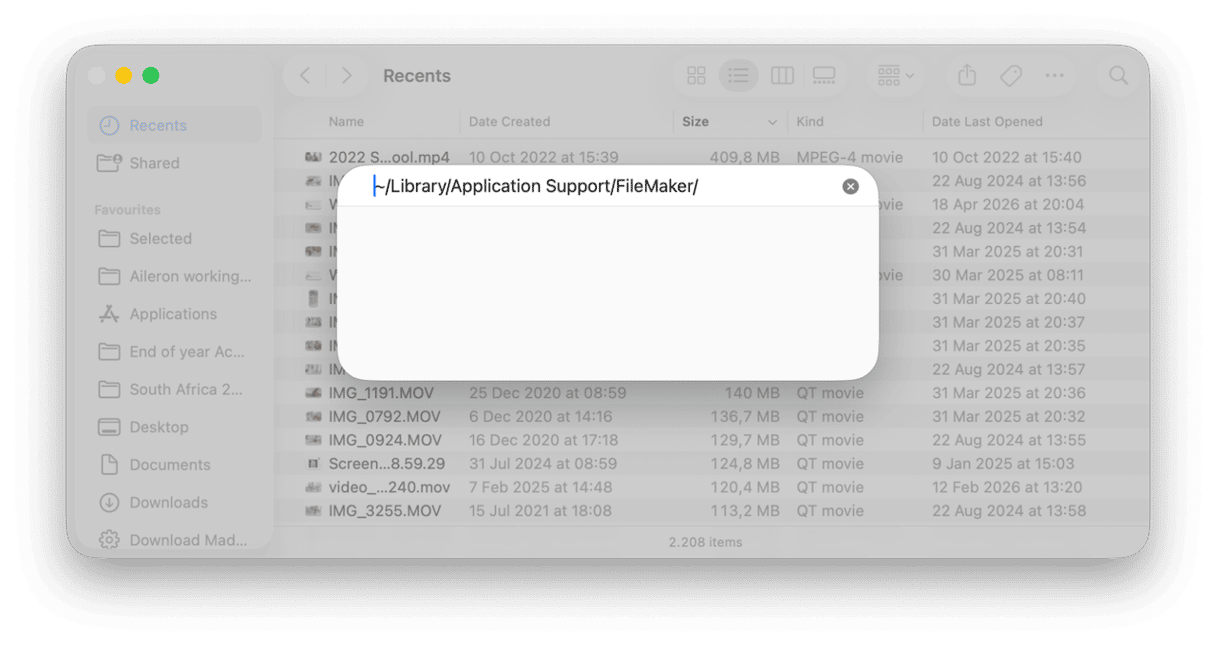
- Now you will need to check each of these file locations manually for app leftovers. Open Finder and press the Shift - Command - G keys
- ~/Library/Application Support/FileMaker/
- ~/Library/Preferences/com.filemaker.client.pro12.plist
- ~/Library/Caches/com.filemaker.client.pro12/
- ~/Library/Logs/FileMaker/
- If you find any leftovers, send them to the Trash too.
- Empty your Trash to fully complete this manual deletion.
If you also have FileMaker Server installed on your Mac, you’ll need to follow Claris’s official server uninstall steps here.
That's the complete uninstall filemaker Mac manual method, but I do just want to add a word of caution here: Be careful what you delete in your Library folders, removing the wrong thing could cause issues with your system. If you’re not sure, don’t delete it; use a safe dedicated removal tool instead.
Method two: Uninstall FileMaker Pro with CleanMyMac
There are plenty of us out there who don’t have the time for manual app deletion or who find digging around in Library folders a little unnerving. Thankfully, like most things on a MacBook, there are multiple ways and tools to do things.
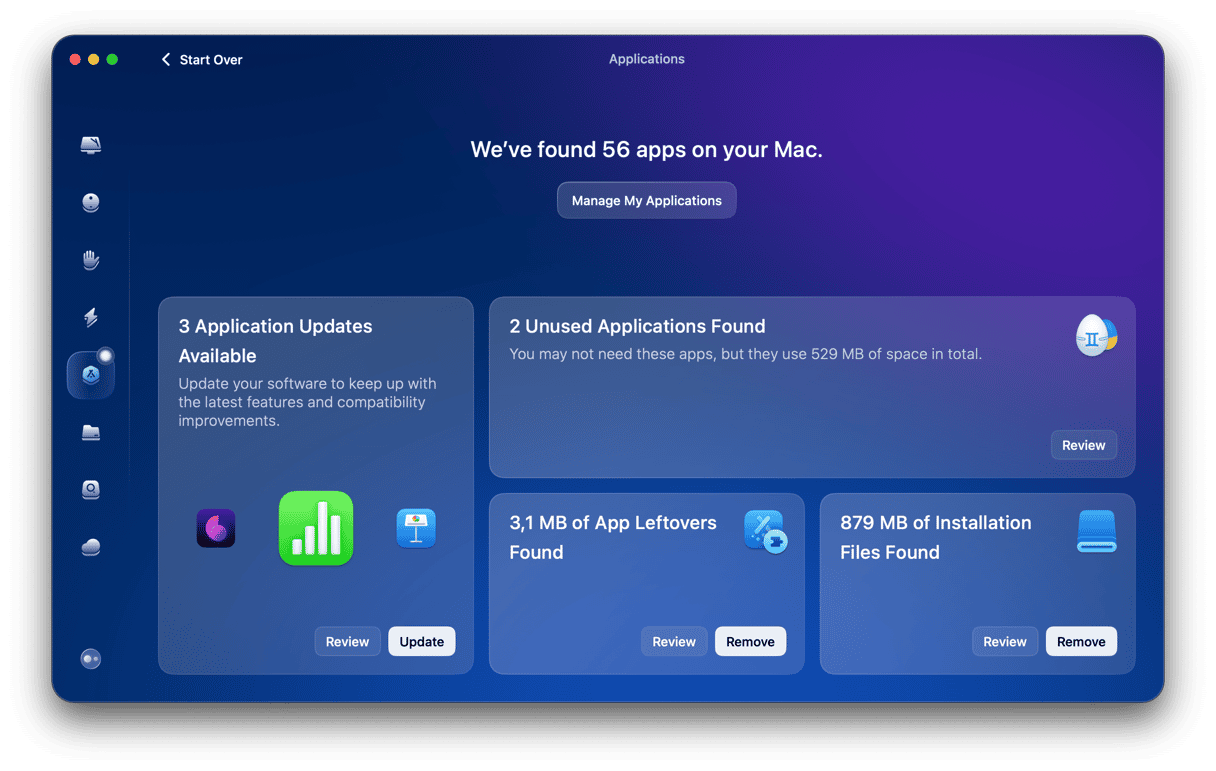
I’ve been using CleanMyMac’s Applications feature to fully and safely uninstall apps from my Mac. It removes the app itself and all the leftover support files, too. I really like the fact that it also shows you what it’s found before it actually removes stuff, so you can have a last sanity check before you hit delete.
Just open up the app > Applications > Manage My Applications > find FileMaker Pro > click Uninstall.
You can test CleanMyMac for 7 days before deciding whether to subscribe to it — get your free trial here.
There are, of course, a ton of other third-party tools out there that offer application removal, but this is my favorite option.
FileMaker still showing up after uninstall?
When you think you’ve safely uninstalled FileMaker Pro only to see it pop back up again, there’s usually a pretty simple explanation for this. It’s most likely that a background process is still running, or you didn’t fully close it before removal. I always use Activity Monitor to double-check, then repeat the removal steps again.
If that doesn’t work, it could be down to Spotlight re-indexing. That’s a bit of a waiting game, but restarting your Mac from the main menu can help refresh what Finder and Spotlight are showing.
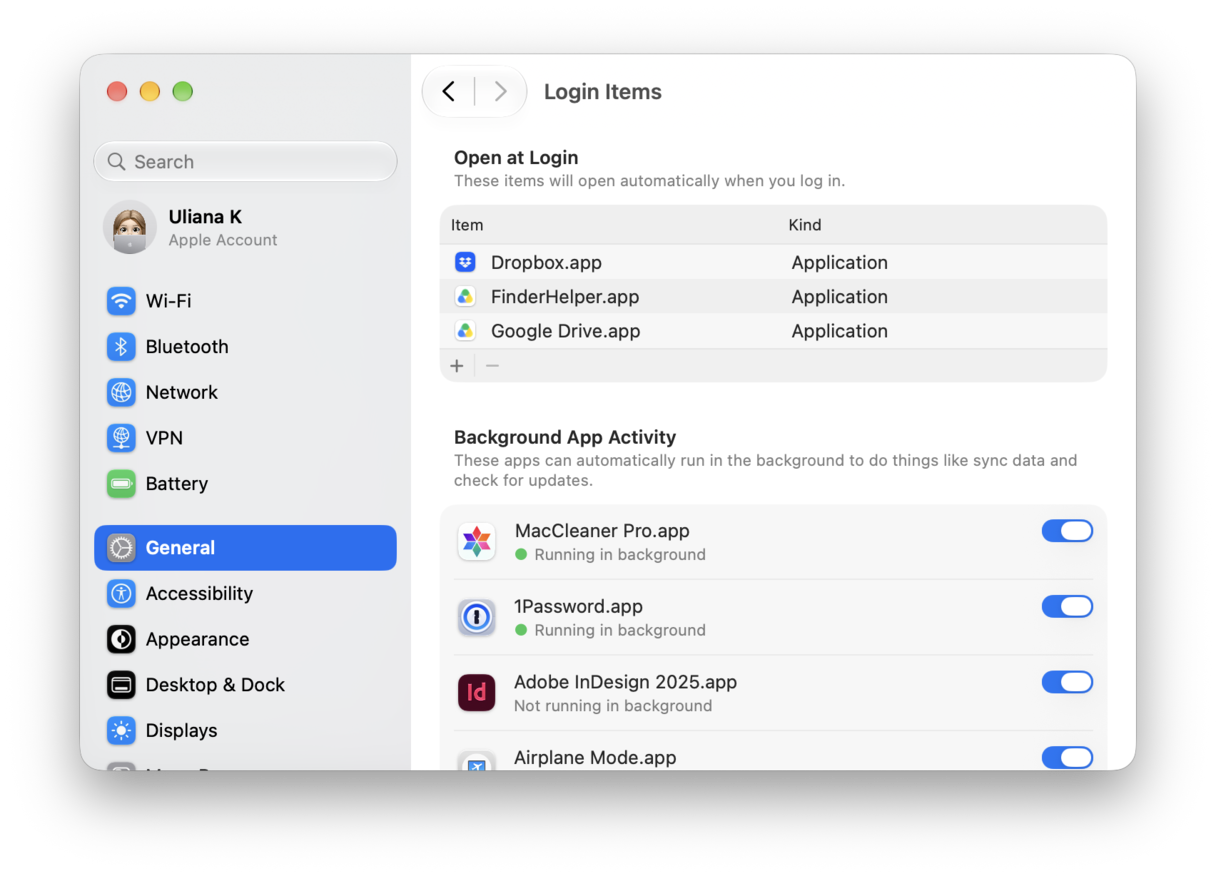
I’d also check System Settings > General > Login Items & Extensions. If you see anything related to FileMaker Pro, remove it, then restart your Mac again.
Both the manual and app removal tool work for how to uninstall FileMaker Pro Mac; you just have to pick the one that suits you best. I always think that the manual route gives you a little more control, but it does take longer, and it’s going to depend on you actually finding the right Library files in the first place; you can’t always be sure you’ve got everything either. An app removal tool is definitely quicker and better if you want to avoid missing hidden leftovers. Either way, my last piece of advice is to just make sure FileMaker is fully closed before you start any removal steps.
Frequently asked questions
How do I completely uninstall an application on a Mac?
Removing the app alone from your Applications folder isn’t enough; you have to remove leftovers from your Library folder too, otherwise items like Application Support, even saved Preference files, old Caches, and useless Logs will linger. Manually search or use a removal tool.
Why can’t I uninstall apps on my Mac?
It’s almost always because the app is still open somewhere on your MacBook, either as a background process or startup login item.
Does dragging an app to Trash fully uninstall it?
Not always. This usually just gets rid of the main app file. Any of the methods I’ve covered here will help you to completely and fully remove an unwanted app.