Ever wanted to know every single macOS version in order? I’ve put this handy guide, complete with absolutely everything there is to know, about how to get your MacBook ready for any new updates and installs.
That's right, from Cheetah all the way to Golden Gate, I'll cover a lot of ground, including the recent naming shift, which has left a lot of people a bit confused (even me, until I did the research). Let me clear that up quickly, because I saw a ton of threads on this. Apple basically skipped what would have been macOS 16 and moved straight to macOS 26 under a year-based numbering system. So, don't panic, you didn't miss ten releases, Apple just switched things up.
If you’re not sure if you really do need an upgrade, I’ll cover that too, because depending on your device and current OS, there’s some important stuff to consider. That’s also not all, I’ll show you how to keep your Mac running at its best after a major upgrade, too. Ok, so let’s get into it all.
What’s the latest macOS?
The latest stable release macOS 27 — officially named Golden Gate released in September 2026.
What's important to know about the previous macOS version — Tahoe 26 — is that it's the final version that supports Intel-based Macs, which is pretty big news for Mac users operating older devices. macOS Golden Gate runs exclusively on Apple Silicon.
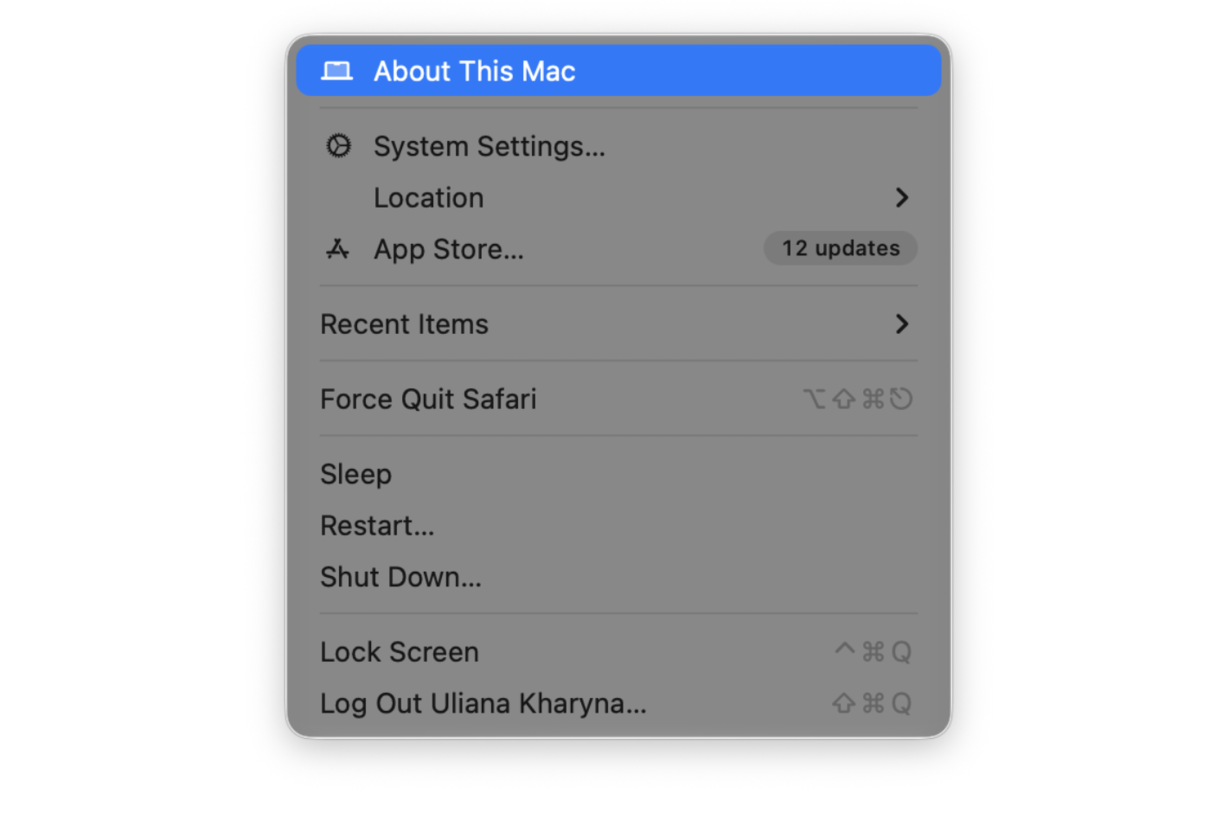
If you want to double-check what you’re running, here’s a quick reminder where you need to look:
- Press the main Apple menu > About This Mac.
- Before you even think about upgrading, checking your current macOS version and your Mac model year is really important, because depending on your setup, upgrades might not be possible (we’ll get to that later).
Ok, so we’ve looked at what is current, but let’s go back and take a look at all macOS versions in order.
The complete list: All macOS versions in order
I forgot just how many releases there have been over the years until I started putting this list together. And one thing I thought that might simplify this is if we talk about releases, in eras, because what you might quickly notice looking through this rather long list is that Apple changed its naming system and its philosophy quite a few times along the way.
Era 1: The Big Cats (2001–2012)
All the releases with yes, you got it, big cat names.
Mac OS X 10.0 Cheetah: March 24, 2001.
The beginning of modern Mac OS X, with Aqua and a look that made classic Mac OS feel instantly old.
Mac OS X 10.1 Puma: September 25, 2001.
Faster, more practical, and the first version that felt usable for regular people.
Mac OS X 10.2 Jaguar: August 24, 2002.
Lots of speed improvements and the arrival of Quartz Extreme.
Mac OS X 10.3 Panther: October 24, 2003.
Finder improved, Exposé arrived, and the overall OS felt more mature.
Mac OS X 10.4 Tiger: April 29, 2005.
Spotlight was a new major addition.
Mac OS X 10.5 Leopard: October 26, 2007.
Time Machine, Spaces, Leopard is still talked about as a landmark release.
Mac OS X 10.6 Snow Leopard: August 28, 2009.
Less flashy, more foundational. This was Apple cleaning the house and pushing hard toward 64-bit.
Mac OS X 10.7 Lion: July 20, 2011.
More iOS influence started showing up, and not everyone loved that.
OS X 10.8 Mountain Lion: July 25, 2012.
Notification Center, Messages, and more iCloud integration. This was Apple pulling the Mac deeper into its ecosystem.
Ok, so what came after the cats?
Era 2: California Locations (2013–2020)
When it comes to the list of macOS versions in order, these are the names that hold some kind of Apple nostalgia with many users, enter the famous Californian locations.
OS X 10.9 Mavericks: October 22, 2013.
The first free Mac upgrade felt like a real policy shift.
OS X 10.10 Yosemite: October 16, 2014.
Big visual redesign, much flatter, much closer to iOS.
OS X 10.11 El Capitan: September 30, 2015.
A refinement release, though Split View quietly mattered a lot.
macOS 10.12 Sierra: September 20, 2016.
We said goodbye to the OS X name. Siri made an appearance, and the platform branding finally matched the rest of Apple.
macOS 10.13 High Sierra: September 25, 2017.
APFS and Metal 2 were the real story, even if the name sounded modest.
macOS 10.14 Mojave: September 24, 2018.
Dark Mode. For many people, that alone is what they remember.
macOS 10.15 Catalina: October 7, 2019.
32-bit apps died here, which was painful for some users and long overdue for others.
macOS 11 Big Sur: November 12, 2020. Big visual overhaul, giant version-number jump, and the first release to really mark the Apple Silicon era.
Era 3: The Modern Era (2021–Present)
These names will probably be very familiar to users.
macOS 12 Monterey: October 25, 2021.
Universal Control was the standout feature for me. It made Apple’s multi-device story feel less theoretical.
macOS 13 Ventura: October 24, 2022.
Stage Manager was introduced, to mixed reactions; it definitely changed desktop behavior.
macOS 14 Sonoma: September 26, 2023.
Desktop widgets and Game Mode were standout changes; you might also remember that the desktop also felt much livelier.
macOS 15 Sequoia: September 16, 2024.
iPhone Mirroring and Apple Intelligence pushed continuity and on-device AI much harder.
macOS 26 Tahoe: September 15, 2025.
Things like Liquid Glass design deserve a shout-out here, a redesigned Spotlight experience, and a dedicated Games app, and let’s not forget, this is the final Intel-compatible release.
macOS 27 Golden Gate: September 14, 2026

Golden Gate is a refinement release rather than a redesign. The headline feature is Siri AI, a completely rebuilt, conversational version of Siri built on new Apple Foundation Models. It also brings a full slider for adjusting Liquid Glass transparency, faster app launches, and improved AirDrop speeds. It's the first version of macOS to run exclusively on Apple Silicon, ending Intel support for good.
Version | Name | Release Date | Status |
| macOS 27 | Golden Gate | Sep 14, 2026 | Supported |
macOS 26 | Tahoe | Sep 15, 2025 | Supported |
macOS 15 | Sequoia | Sep 16, 2024 | Supported |
macOS 14 | Sonoma | Sep 26, 2023 | Supported |
macOS 13 | Ventura | Oct 24, 2022 | Older, limited support window |
macOS 12 | Monterey | Oct 25, 2021 | End of life |
macOS 11 | Big Sur | Nov 12, 2020 | End of life |
macOS 10.15 | Catalina | Oct 7, 2019 | End of life |
macOS 10.14 | Mojave | Sep 24, 2018 | End of life |
macOS 10.13 | High Sierra | Sep 25, 2017 | End of life |
macOS 10.12 | Sierra | Sep 20, 2016 | End of life |
OS X 10.11 | El Capitan | Sep 30, 2015 | End of life |
OS X 10.10 | Yosemite | Oct 16, 2014 | End of life |
OS X 10.9 | Mavericks | Oct 22, 2013 | End of life |
OS X 10.8 | Mountain Lion | Jul 25, 2012 | End of life |
OS X 10.7 | Lion | Jul 20, 2011 | End of life |
Mac OS X 10.6 | Snow Leopard | Aug 28, 2009 | End of life |
Mac OS X 10.5 | Leopard | Oct 26, 2007 | End of life |
Mac OS X 10.4 | Tiger | Apr 29, 2005 | End of life |
Mac OS X 10.3 | Panther | Oct 24, 2003 | End of life |
Mac OS X 10.2 | Jaguar | Aug 24, 2002 | End of life |
Mac OS X 10.1 | Puma | Sep 25, 2001 | End of life |
Mac OS X 10.0 | Cheetah | Mar 24, 2001 | End of life |
It’s worth mentioning that Apple still officially has an up-to-date version list here, which you can visit at any time to check end-of-life dates too. Worth a bookmark.
Should you upgrade your macOS?
Whenever Apple announces a new OS, the temptation is to quickly jump on board, and in some cases that's wise, and makes the most sense, in terms of staying up to date with security patches and performance improvements, but it’s not always the case, and with each big release, you’ll quickly see the forums flood with users asking the same question, should I upgrade?
So, I thought I’d cover this question because, actually, it's pretty important. If I were in any of the three scenarios listed below, then I would look into upgrading quickly.
- If you’re running Ventura 13 or earlier, you’re just about on the edge of Apple's security update window.
- You have an Intel Mac and want to stay on a supported version — Tahoe is the last version that supports Intel hardware, consider upgrading to it if you still run an older macOS.
- If you like living on the edge and want a first look at Siri AI, macOS 27 Golden Gate is already available.
But of course, the decision isn’t always that simple, and it can feel like a lot of pressure to upgrade, if you’re comfortable and happy with your current OS and setup, it’s not always necessary, and I think thats’ important to say, because a lot of articles out there, are all about pushing you to upgrade, so here’s a few really important scenarios, to wait, because it might an upgrade might actually not be the best option, if any of these fit your situation, take your time and consider your options carefully:
- You rely on specific apps or workflows that are not yet confirmed to be compatible with Golden Gate right now.
- You're on a Mac with limited storage, so you’ll really need to make sure you’ve got at least 20GB free before upgrading.
- If your Mac is older and already running on the slow side, then upgrading without a really good declutter and cleanup first might actually make it feel worse.
Knowing all the versions of macOS in order is one thing, but if you are thinking about an upgrade, let’s just take a few moments to talk about how an upgrade, really won’t fix a cluttered or slow Mac, because a lot of time, people assume it’s going to be the magic cure-all, but the truth is, If your Mac is already struggling, you need to stop and really clean it before upgrading, otherwise you're installing a new OS on top of a foundation that might already be compromised. If that sounds familiar, then do not skip the next section.
How to prepare your Mac before an OS upgrade. Step-by-step
So, as I mentioned above, this is the section you definitely don’t want to skip if you’re considering an upgrade. This won’t take you long, and it can honestly save you hours in troubleshooting later. I’ve broken it all down into simple steps; just follow along at your own pace.
1. Check your macOS and compatibility
- Press Apple menu > About This Mac.
- Then head to Apple's compatibility list here.
- Confirm your current version is supported.
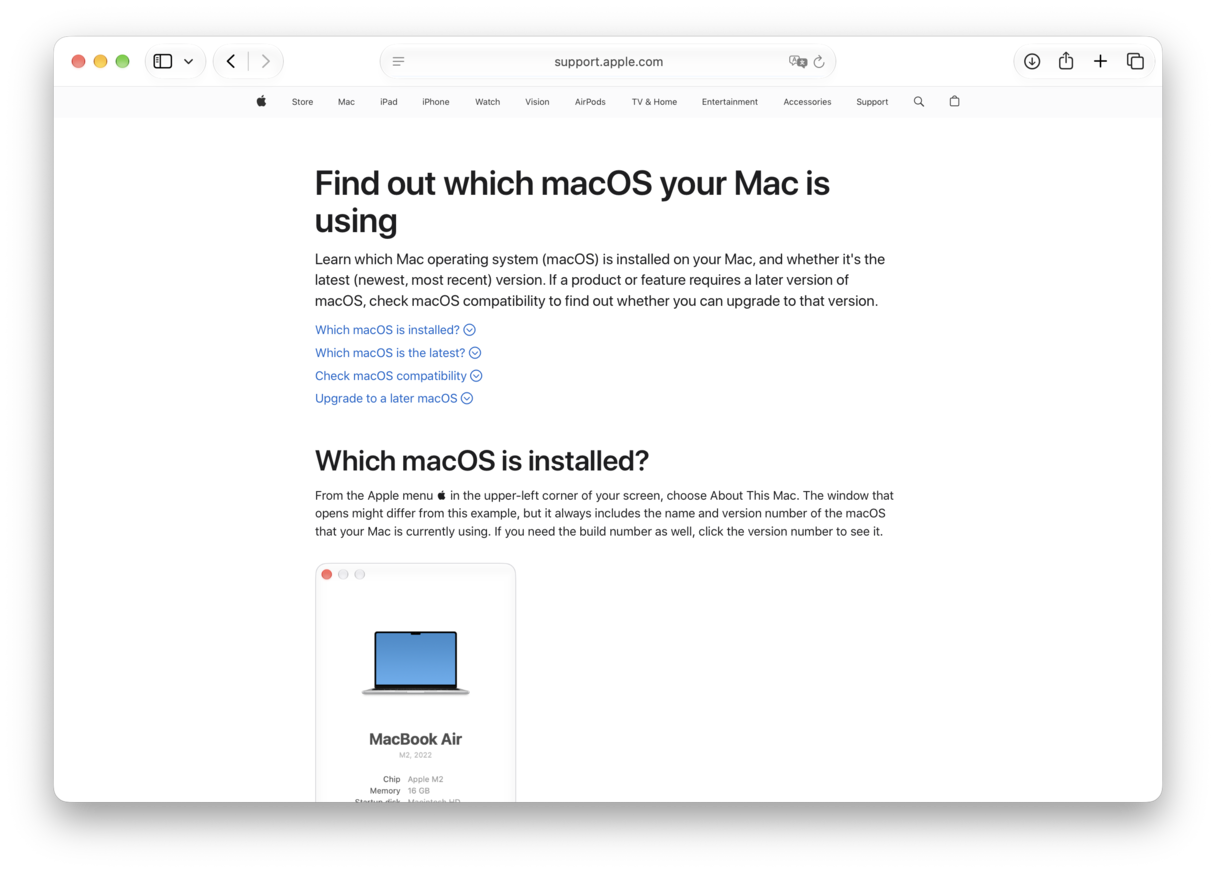
If your Mac is fully supported, then it’s time to move on.
2. Free up storage
It’s absolutely no secret that new macOS upgrades need space; you’ll see loads of differing recommendations online, but typically it’s between 15 – 20GB. An older Mac, or one that hasn’t been decluttered in a while, might struggle here, but actually, there’s a lot you can do, and it doesn’t need to cost you a weekend.
Use a tool like CleanMyMac. It has some really focused features built specifically to locate, target, and clean up junk files, boost performance, save space, and keep your Mac running well; here’s how it works:
- Start your free CleanMyMac trial — you can test it for 7 days free.
- First, open the Cleanup feature to locate and remove system junk. Follow the onscreen steps.
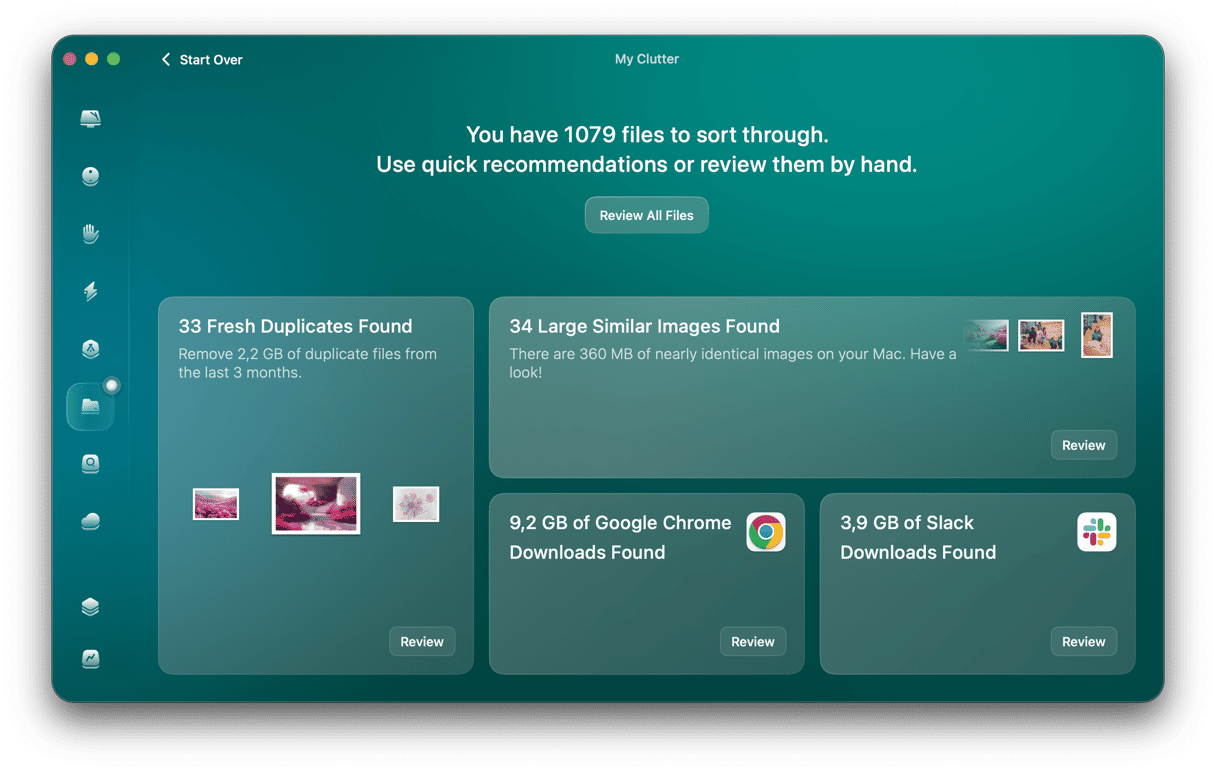
- Next, try the My Clutter feature to find things like forgotten downloads and duplicates taking up hidden gigabytes.
- Finally, use the Space Lens feature to see exactly where your storage is going before making any decisions.
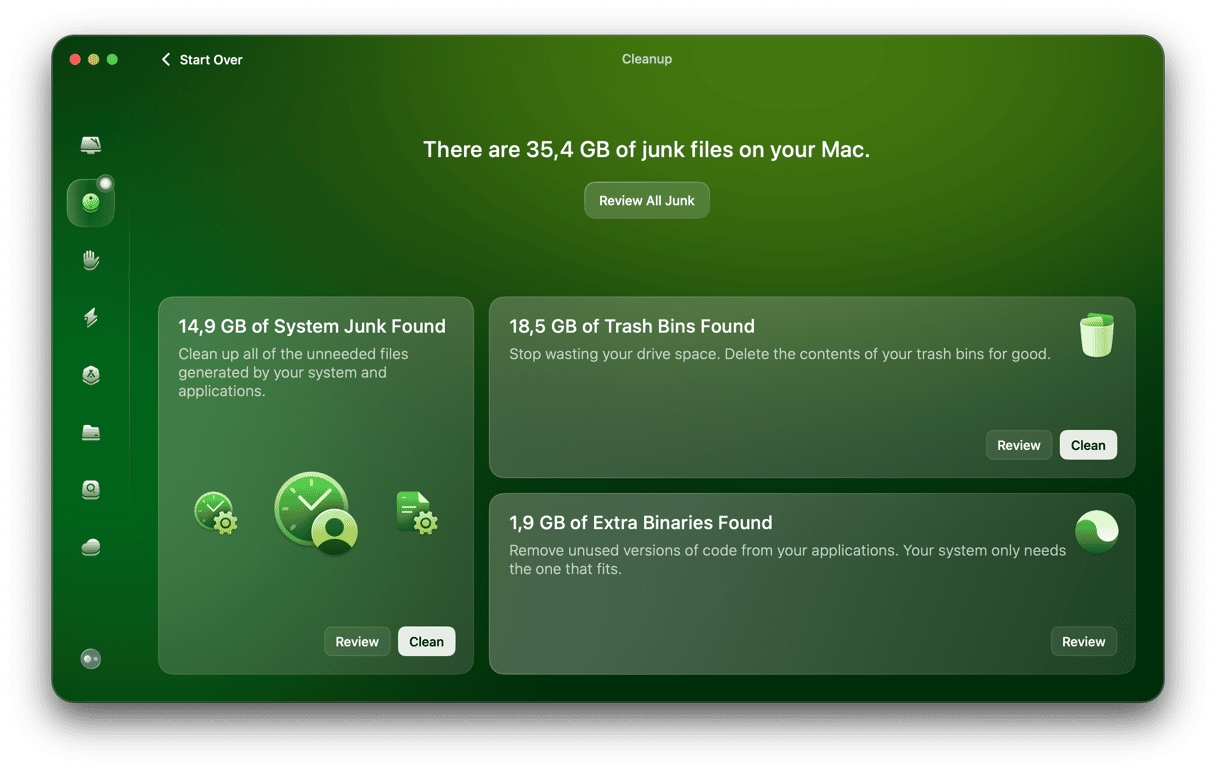
CleanMyMac reports that a typical Cleanup scan on a MacBook that hasn't been cleaned in 6 months can help remove 5-15 GB of safe-to-delete files, which is considerable and 100% worth doing.
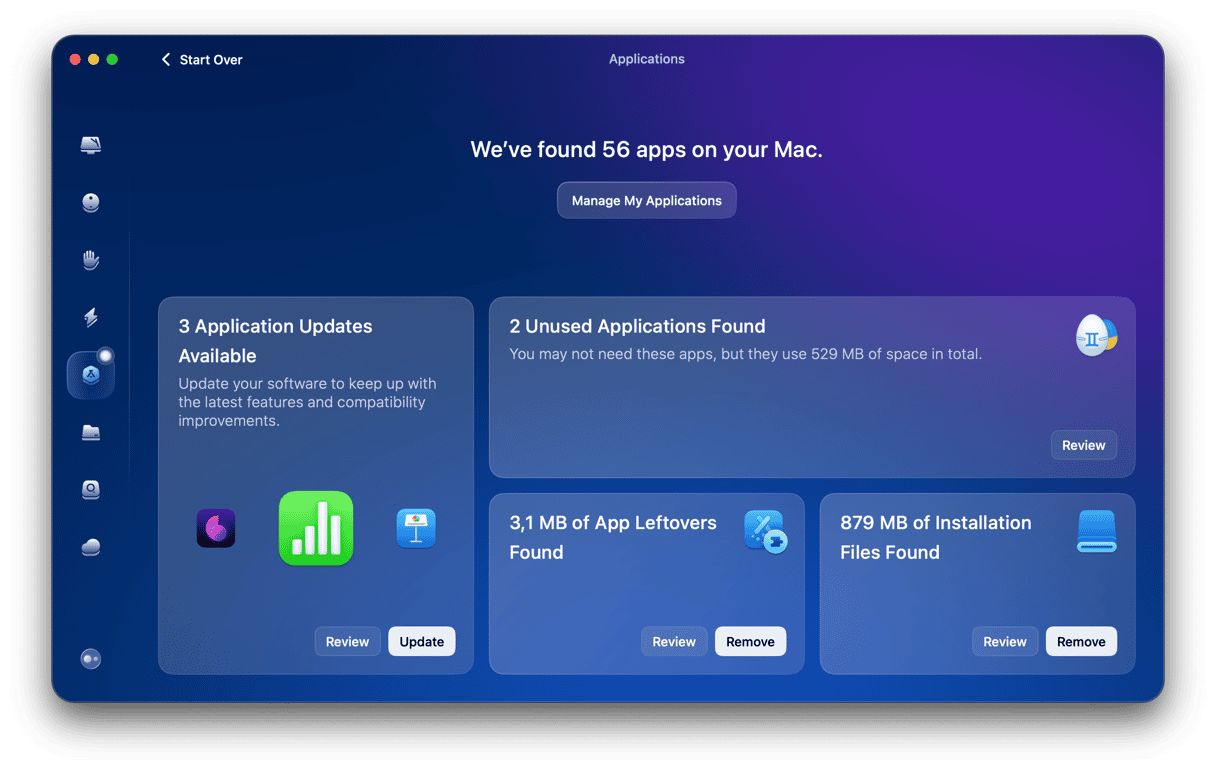
3. Remove apps you don’t use
It’s amazing how many people still don’t realize that old apps leave behind support files, caches, and preferences that take up storage long after the app has been deleted. You can remove all this manually, but it does mean looking for all these items in your Mac’s Library folders. This takes a bit of time and patience, or you could also use the Applications feature from CleanMyMac, which will not only remove the app itself but all the traces it leaves behind.
4. Review your login items and background processes
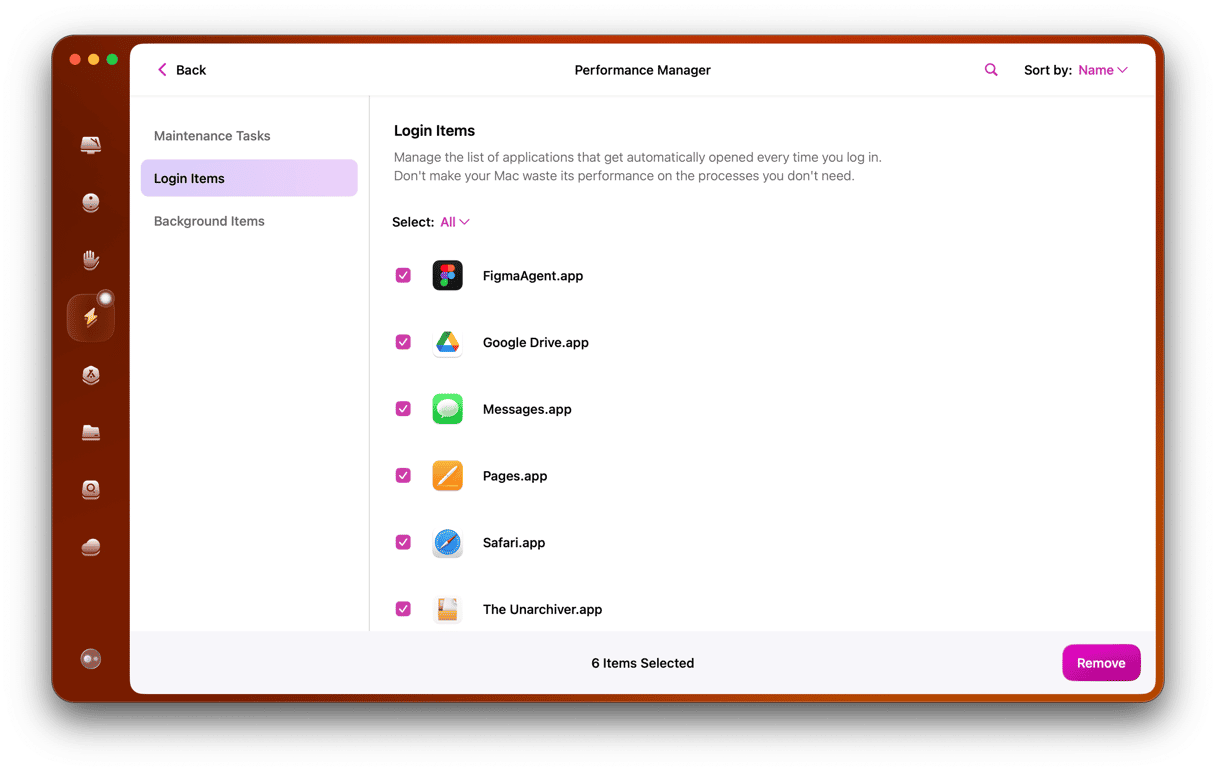
Have you ever noticed that your Mac feels really sluggish at or just after startup? That’s probably because multiple software and processes are springing into life. You can manage these in Apple > System Settings > General > Login & Extensions, or use the Performance feature from CleanMyMac to surface any long-forgotten launch agents.
5. Back up your Mac
Now your Mac is all fresh, clean, and decluttered, it’s time for a backup. There’s simply no point backing up junk, so it’s worth waiting until you’ve completed all the steps above. Whichever you use, Time Machine or Cloud storage options (or the combo of both), don’t skip this step; you never know, and this could save you a lot of heartache later if something goes wrong.
6. Run the upgrade
Now you’re officially ready to install. Here’s a quick reminder on how:
- Apple menu > System Settings > General > Software Update > Update Now.
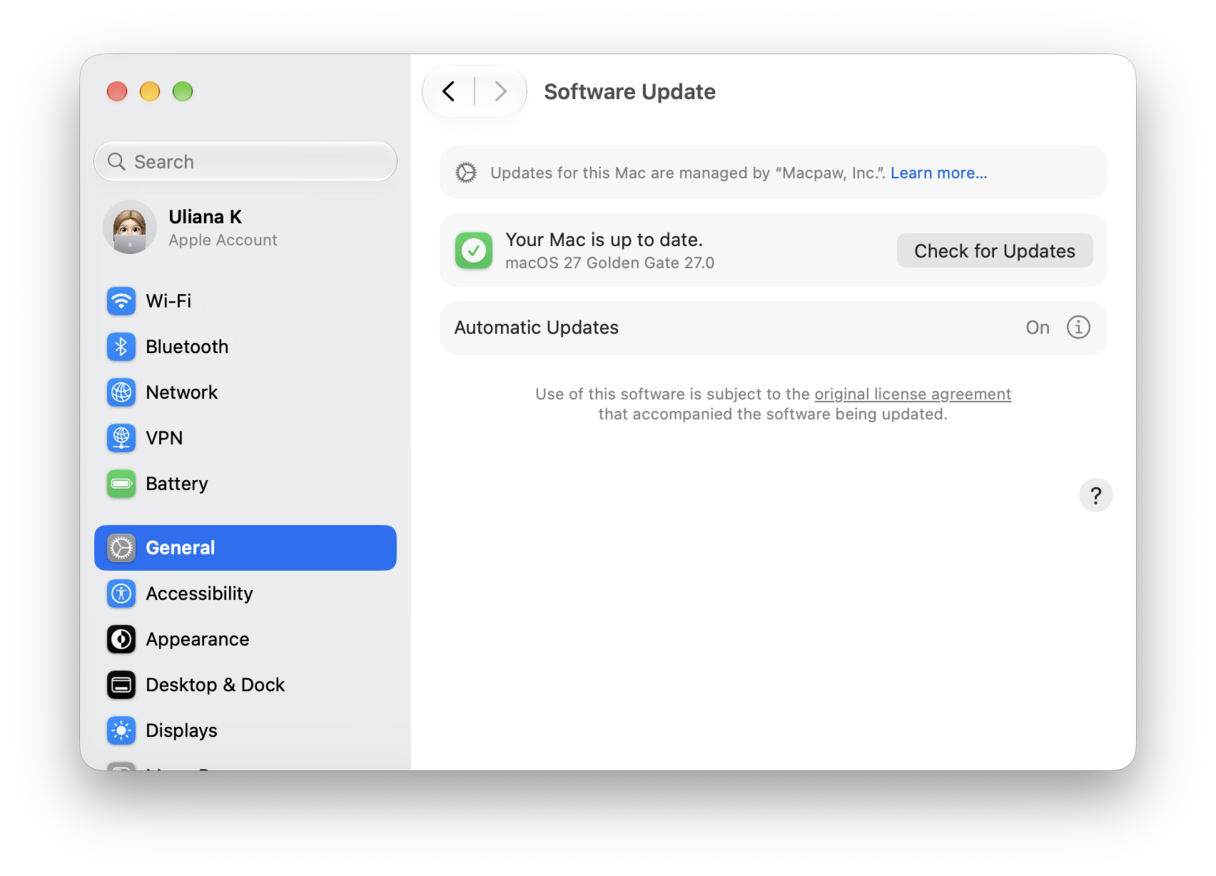
Now, you’ve got a clean, backed-up Mac, the upgrade process should be faster and less likely to run into avoidable errors.
Get CleanMyMac, run a Smart Care scan before your next major macOS upgrade. It only takes literally two minutes, but could save you gigabytes.
How to keep your Mac running in top shape
By now, you know what the macOS versions in order are, and how to prep your Mac for a new upgrade, but here’s the part a lot of people tend to forget: how do you keep your MacBook working well, long after you’ve installed a new update?
Well, there are no secrets here; it’s actually pretty simple. Here are my go-to tactics.
1. Run a Smart Care scan
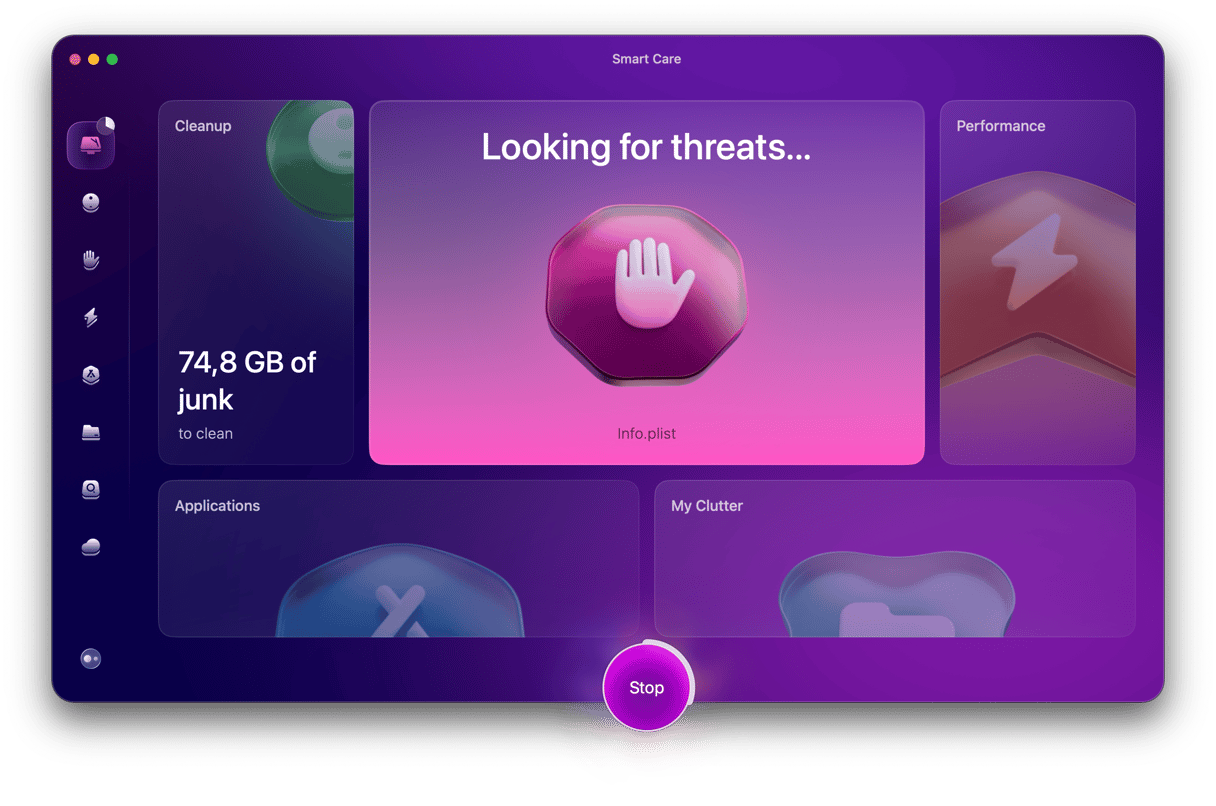
Get this habit into your weekly maintenance routine, and you’ll seriously keep on top of accumulating junk and any weird upgrade leftovers, before they get a chance to impact your Mac. Run a quick Smart Care scan from CleanMyMac; here’s how:
- Open the app, press Smart Care > Scan.
- Review or hit Run right away.
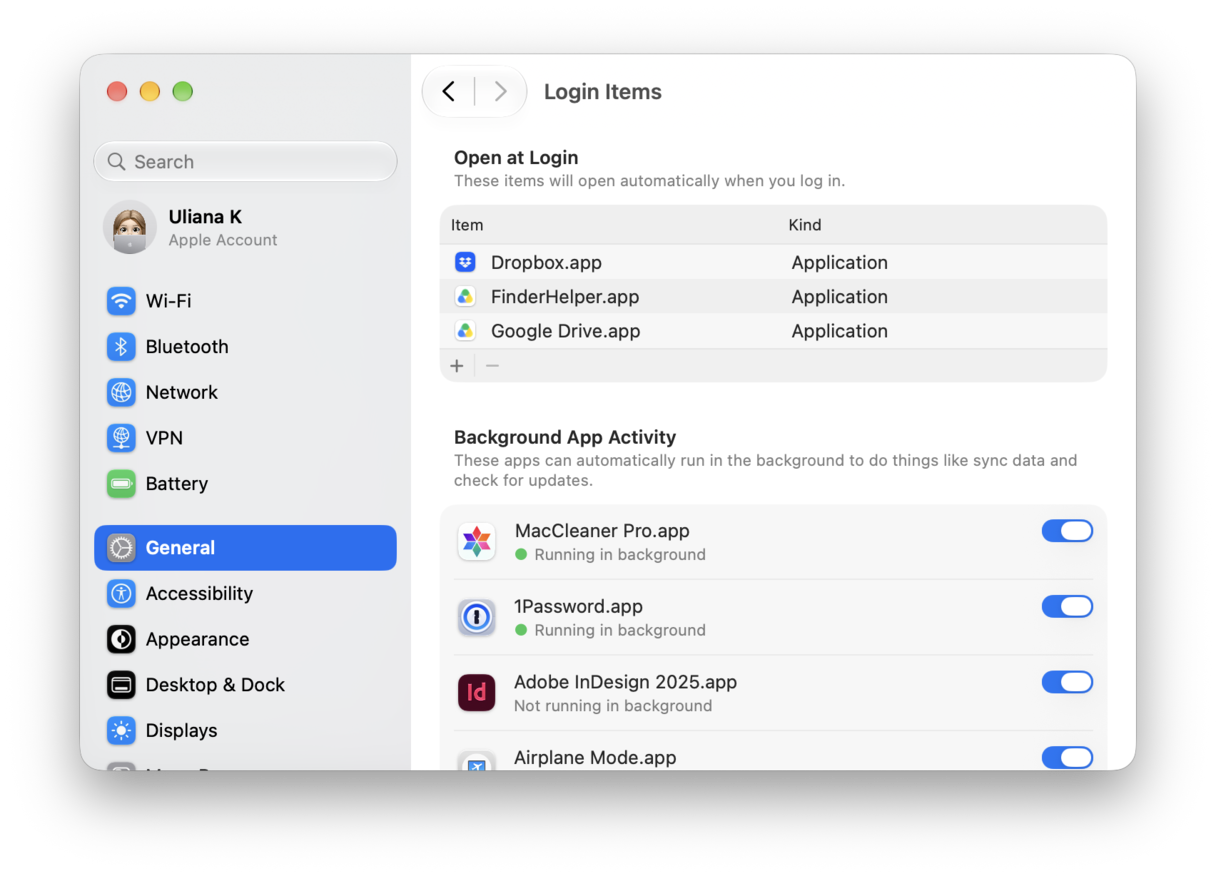
2. Double-check your login items
It’s not unheard of that some login or launch agents get duplicated with new system updates, so make sure you check in here and remove anything that isn’t needed.
- System Settings > General > Login & Extensions.
3. Monitor your CPU and RAM
The first couple of days after an update, there’s a lot going on behind the scenes; it’s not entirely unusual that things feel a little off. It’s a good idea to keep an eye on what is going on, so you can see if it’s normal activity or something unexpected. I use the Menu App (found in the menu bar) from CleanMyMac to monitor CPU and RAM in the first few days.

4. Set up a CleanMyMac scheduled scan
Ongoing maintenance is always going to be a Mac owner's best option. You’ll read a million threads online about what's best and how to do it, but in all my years owning and using a Mac, staying on top, weekly, really does help. Use CleanMyMac, the Smart Care or Cleanup features, which are quick and powerful, and can provide you with a long-term maintenance solution that is practically no extra work for you.
We’ve covered so much. The all-important macOS versions list in order, but also if you actually need to upgrade, plus all the really practical steps for getting yourself and your device fully ready for a big upgrade, and how to keep things running smoothly after. Make sure you bookmark this one for later.