
When Apple made the switch from Intel to its own silicon back in 2020 and started to release Macs with the M1 chip, there was one topic that dominated discussion: RAM. The baseline for most Macs released in the wake of the switch was 8GB, which by then seemed somewhat underwhelming on computers that Apple was promoting as being significantly more powerful than their Intel predecessors. Apple's argument then, and for years afterwards, was that M-series silicon was much more efficient in its use of resources, and so 8GB was fine for most people. Since then, thankfully, Apple has doubled the baseline RAM in its Macs to 16GB. But for many users, that still seems a little low. So, in this article, we'll take a look at one Mac range in particular and ask: MacBook Air 16GB vs 24GB RAM — what's the real difference?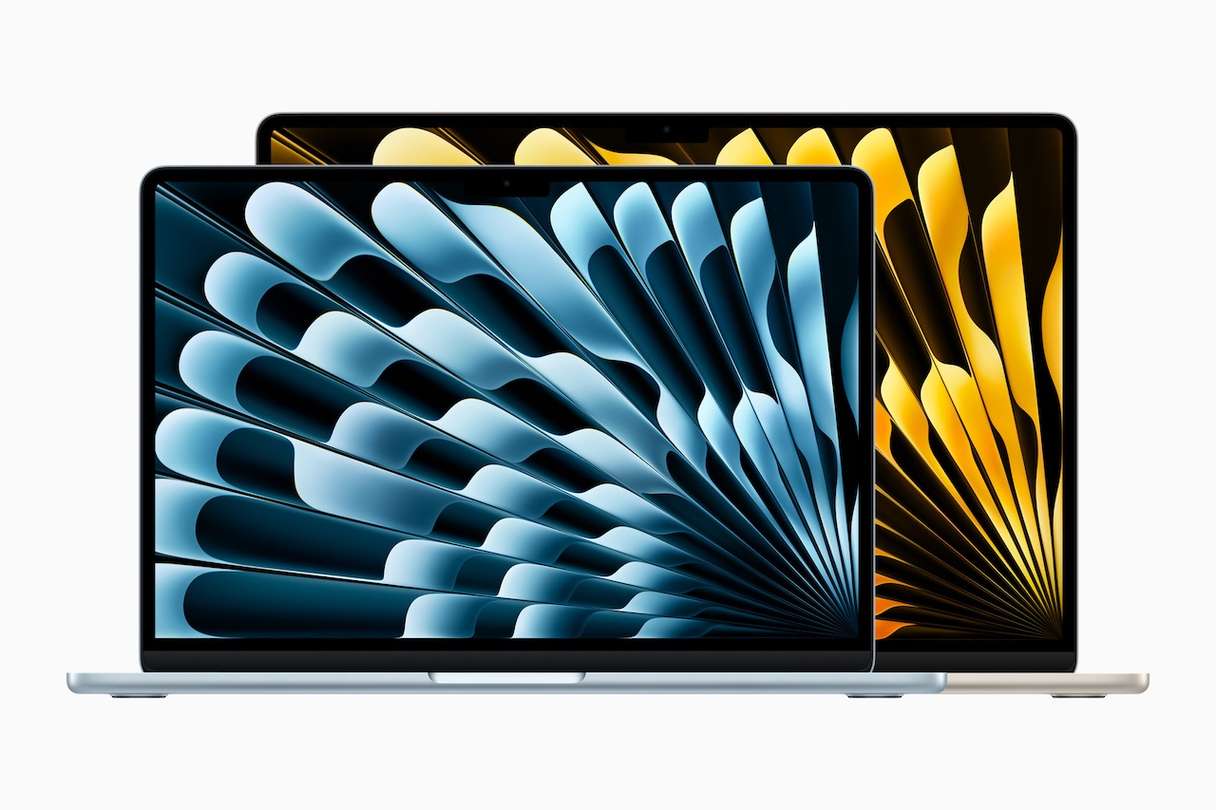
What do we mean by RAM?
Before we get started, let's define exactly what we're talking about. Take a look at Apple's specs for the MacBook Air, and you won't find any mention of RAM. That's because Apple prefers the term "unified memory." Why unified? It comes down to the Apple Silicon architecture. Whereas Windows machines usually have a separate processor — a GPU — to handle graphics-intensive, and nowadays AI-intensive, tasks, Macs have one integrated chip that does both CPU and GPU duties. That means there is no separate graphics RAM, as there is on a dedicated GPU. The main RAM unit does the job of both. Hence, "unified," because it unifies both system RAM and video RAM (VRAM). So, when you see the term "unified memory" on an Apple spec sheet, know that it means the one block of memory that handles data for both system and graphics tasks.
What does RAM do?
The simplest explanation of what RAM does is that it stores the results of calculations while further calculations are performed during a process. Storing the results in RAM, rather than on an SSD or hard drive, means they can be accessed more quickly, and so tasks are performed faster than they otherwise would be. Once a task is complete and the result is used to change a document or file, RAM can be cleared, ready for the next set of instructions. RAM is volatile, which means that when you shut down your Mac, it is cleared, unlike an SSD or hard drive, where files remain until you delete them.
How to keep your Mac running smoothly, no matter how much RAM it has
Whether you choose a 16GB or 24GB MacBook Air, one thing is certain: over the course of the first few months you use it, it will gradually slow down. The smooth, speedy performance of the brand new Mac will give way to something that is noticeably slower. Why? Because as you use it, your Mac accumulates junk files and clutter, adds background processes and login items, applications become out of date, and malware can creep in unnoticed.
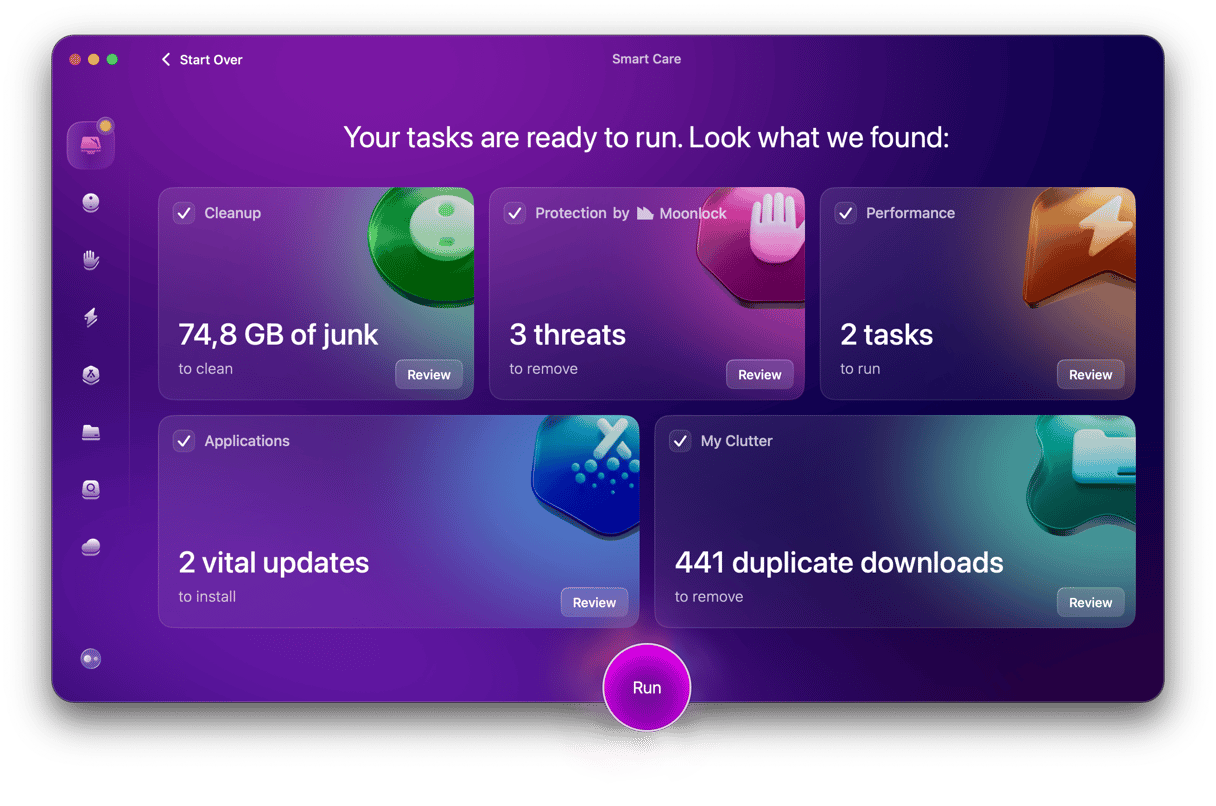
The good news: you don't have to deal with any of that manually. CleanMyMac’s Smart Care feature can take care of it all for you. Here’s what it does:
✅ Scans your Mac looking for junk, clutter, and malware
✅ Checks maintenance tasks that need to be run
✅ Identifies apps that have updates available.
Once the scan is finished, you can click one button to implement all of its recommendations or review them and decide for yourself what to do next.
Here’s how to keep your MacBook in top shape using CleanMyMac:
- Start your free CleanMyMac trial — use all 25+ tools at zero cost for 7 days.
- Launch CleanMyMac and choose Smart Care in the sidebar.
- Click Scan.
- When it's finished, choose Run to implement all recommendations or Review to check what CleanMyMac has found.
Is unified memory better than separate RAM and VRAM?
That depends on what you're doing on your Mac and who you ask. Apple's view is that unifying RAM is more efficient and so leads to better performance. And for most everyday tasks, that may well be true. However, we live in a world that is increasingly dominated by AI. Apple even has its own AI system, Apple Intelligence, which, as you would expect, is optimized for Apple Silicon. The problem is that third-party AI systems like ChatGPT, Anthropic's Claude, and Microsoft's Copilot, not to mention a range of smaller models, are not designed for Apple's integrated system-on-a-chip. Those are designed to run on computers with separate GPUs, usually with Nvidia chips and plenty of VRAM. For running those models, a separate GPU with its own dedicated VRAM is definitely better.
What are the RAM options in the MacBook Air?
In both the 13-inch and 15-inch MacBook Air lineups at the time of writing, there are three models:
- 16GB RAM with 256GB storage
- 16GB RAM with 512GB storage
- 24GB RAM with 512GB storage
In each case, the RAM can be upgraded — to 24GB or 32GB in the two 16GB models and to 32GB in the 24GB model. The 32GB option is worth considering if your workload is especially demanding: think large-scale video editing on the timeline, running local AI models, or working simultaneously across many resource-heavy applications. That said, users with those needs are more likely to gravitate towards a MacBook Pro, which is better suited to sustained professional workloads.
MacBook Air 16GB vs 24GB RAM: what is the difference?
Performance
For most uses, 16GB is absolutely fine, and you will never run out of memory. Upgrading to 24GB or more would be a waste of money because you wouldn't see any benefit. On the other hand, if you regularly edit high-resolution images or work with large multi-layered files in Photoshop, or if you edit multi-track 4K video or use a professional digital audio workstation, upgrading from 16GB to 24GB will mean that you have enough headroom to handle most tasks. That in turn will mean that your Mac continues to run smoothly when it might struggle if you only had 16GB installed.
That's because when your Mac runs low on RAM, it stores data in a swap file on your startup disk. And that means it takes longer to save and retrieve when it needs it, so your Mac slows down. In extreme situations, when memory management fails, an app may crash or your Mac will freeze.
Memory management is much better in macOS than it used to be. But it's not perfect. Applications still need to cache data on your startup disk in what's known as a swap file and, even then, you may still run out of memory, which can cause applications to crash or your Mac to freeze. One way to prevent that is to keep an eye on memory usage and free up RAM when there's lots of pressure on it. CleanMyMac's menu bar item makes it easy to do that.
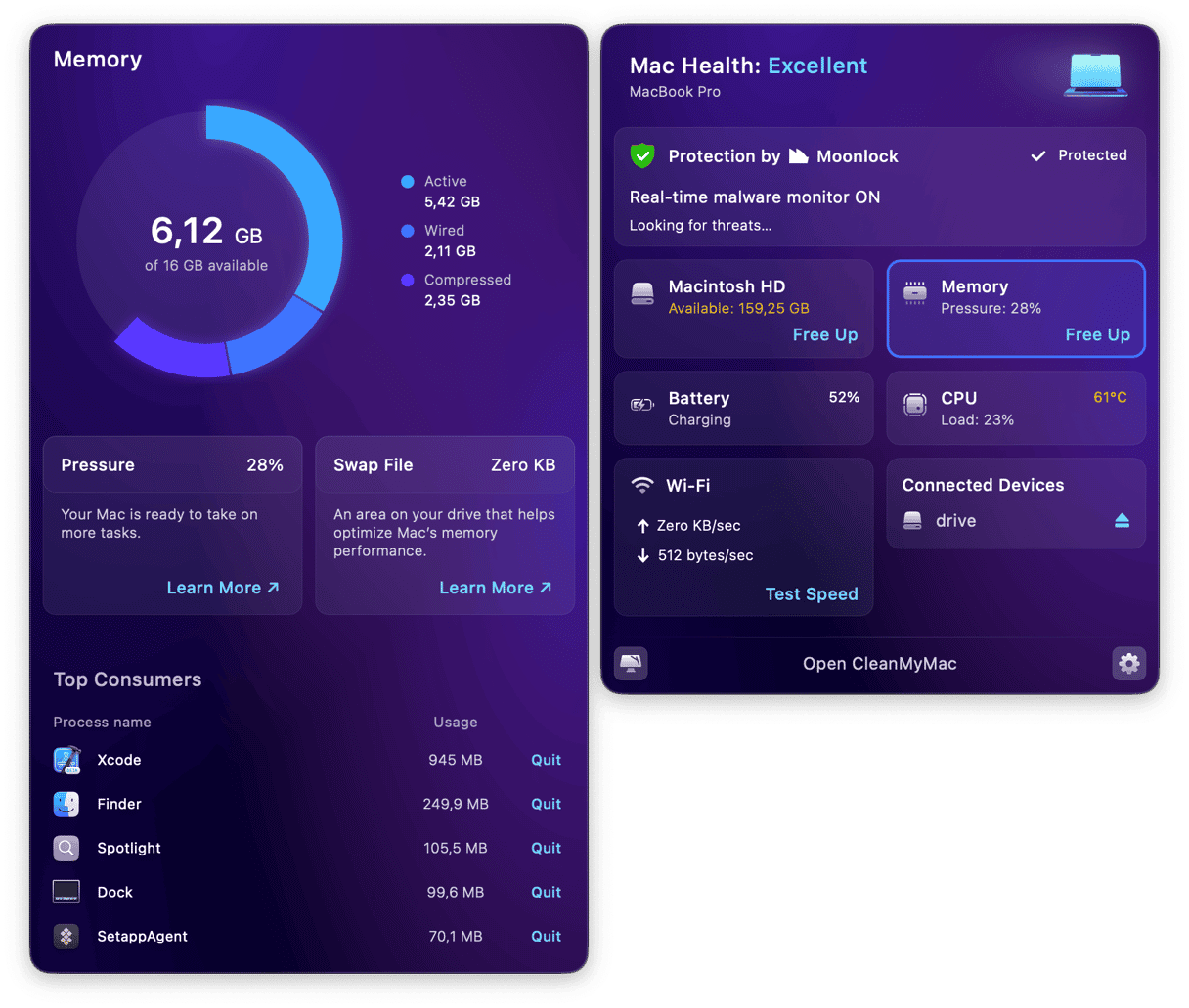
- Start your free CleanMyMac trial.
- Click the CleanMyMac icon in your Mac's menu bar.
- Click Memory to see how much RAM is in use and which apps are consuming the most.
- Click Free Up to release memory pressure immediately.
Price
The difference in price between the 16GB and 24GB options will depend on where you live. Apple varies pricing in different countries and regions, usually with an eye on exchange rates versus the US dollar. In dollar terms, each step up costs around $200 — so moving from 16GB to 24GB adds roughly that amount to the price. That's quite a hefty sum when compared with the overall cost of a MacBook Air, which starts at $999. And it also has an opportunity cost. The $200 you spend on extra RAM could also be spent on storage — that same amount would allow you to increase storage from 512GB to 1TB.
Looking to the future
The difference in price between the 16GB and 24GB options will depend on where you live. Apple varies pricing in different countries and regions, usually with an eye on exchange rates versus the US dollar. In dollar terms, each step up costs around $200 — so moving from 16GB to 24GB adds roughly that amount to the price. That's quite a hefty sum when compared with the overall cost of a MacBook Air, which starts at $999. And it also has an opportunity cost. The $200 you spend on extra RAM could also be spent on storage — that same amount would allow you to increase storage from 512GB to 1TB.
Do I have to decide now?
If by "now" you mean when you buy, yes, you do. Apple's Macs over the last decade or so haven't been upgradeable, with a few notable exceptions. And the MacBook Air is the least upgradeable of all. It's possible you may find a service provider that could swap out the RAM at a later date, but it's likely to be more expensive and could risk damaging your MacBook.
MacBook Air 16GB vs 24GB RAM: what's the real difference? In most cases and for most people, very little. That's because most of us can get by with 16GB. If you work with large files, however — like Photoshop images with many layers or complex spreadsheets — 24GB will give your Mac more headroom before it runs out of memory and may improve performance. And if you plan to keep your MacBook Air for the long haul, the upgrade is worth the investment.