Apple has made a big effort in recent years to make the Mac a much more popular platform for gaming. From tools like Game Center, performance enhancements like Metal, and features like Game Mode, it’s made a big play to attract gamers. And it has succeeded. While the Mac will never overtake PCs or consoles among gamers, it’s now a very competent platform for playing games. Whether you want to spend half an hour once in a while playing an Apple Arcade game or devote hours to building or exploring new worlds, you can do it on a Mac. But which one should you choose? In this article, we’ll show you which is the best MacBook for gaming.
How to choose the best MacBook for gaming
There are lots of things you should take into consideration when you’re choosing a MacBook for gaming.
- What kind of games do you intend to play? Will you stick to arcade-style games that don’t place many demands on your Mac’s resources? Or do you plan to play the latest, most resource-intensive games available? If it’s the former, you don’t need to worry about choosing a powerful Mac with lots of RAM and storage and can focus on other features like price and portability.
- How will you play games? Do you plan to only play games that have native Mac versions available? Or will you use cloud gaming services like Nvidia’s GeForce Now? Or perhaps you’ll use a compatibility xlayer like CrossOver to play PC games.
- Where will you play games? Most games benefit from the largest possible screen. But if you plan to spend most of your game playing time at home, with your MacBook hooked up to an external display, then the screen size doesn’t really matter. If, on the other hand, you want to play while you’re away from home and using only the screen on your MacBook, then a bigger screen makes sense.
- How much do you want to spend? This is perhaps the question that will narrow the field of contenders the most. There is a huge difference between the MacBook Air 13in and the MacBook Pro 16in in terms of price. And that gets even bigger if you want to add RAM or storage. As always, though, the law of diminishing returns applies. While you will notice a huge difference in performance between the basic MacBook Air 13in and a 16in MacBook Pro, there is likely to be a much less noticeable difference between the 20-core GPU 16in M4 Pro and the 40-core GPU M4 Max, despite the $1,000 price difference. Set your budget before you start and then match it against your priorities.
Which MacBook model is best for gaming?
MacBook Air 13in
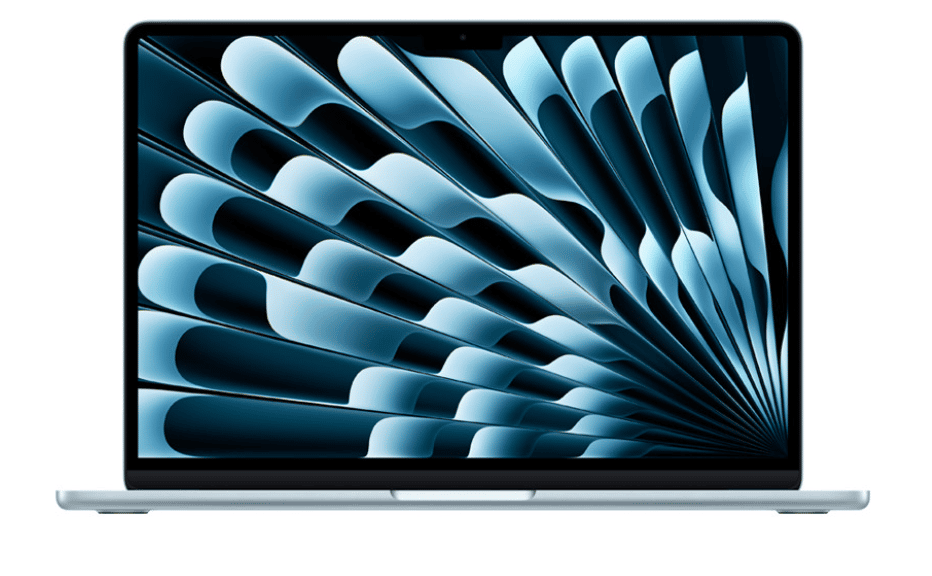
This is the least expensive MacBook Apple sells. It’s also the most portable, so it’s great if you want to play games while you’re traveling or taking a break from working in a coffee shop. The current version’s M4 system on a chip will cope very well with arcade-style and less resource-intensive games. It will struggle with more demanding games, though. And, like its sibling, the 15in MacBook Air, may get a little hot because it doesn’t have cooling fans.
✅ Plus: Easily portable and can cope with simpler, less demanding games
❌ Minus: Screen is on the small side and it will struggle with resource-hungry games
MacBook Air 15in
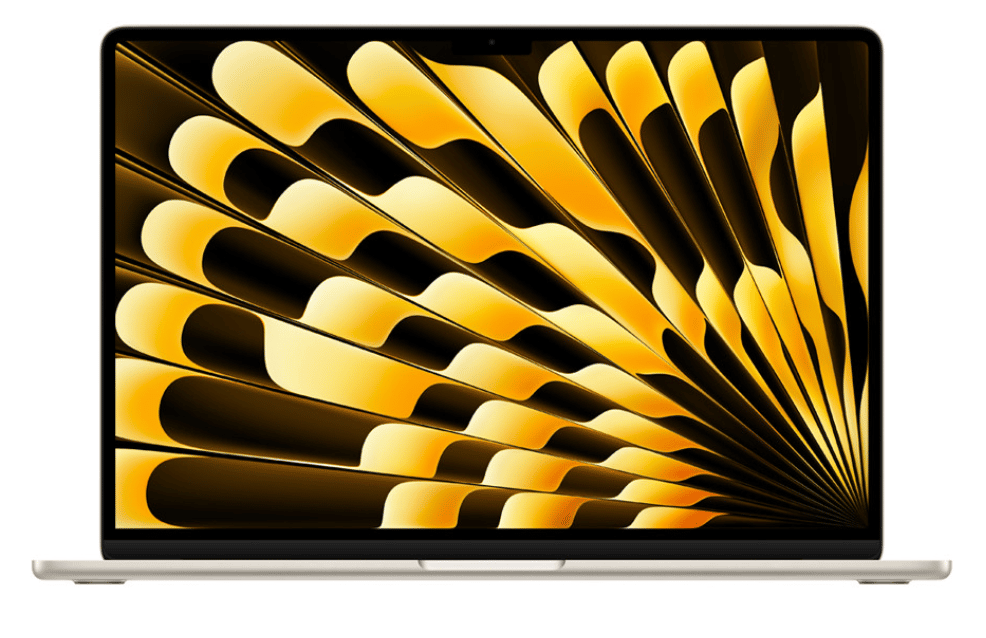
The 15in MacBook Air is exactly the same as the 13in model, with the exception of its larger screen. So, most of what we said above for the 13in model applies. Obviously, the larger screen means there’s more space for playing games, but it also makes it slightly less portable and a little more expensive.
✅Plus: Bigger screen than the 13in model but still very portable
❌ Minus: It’s no more powerful than the 13in version, so will struggle with graphics-intensive games
MacBook Pro 14in
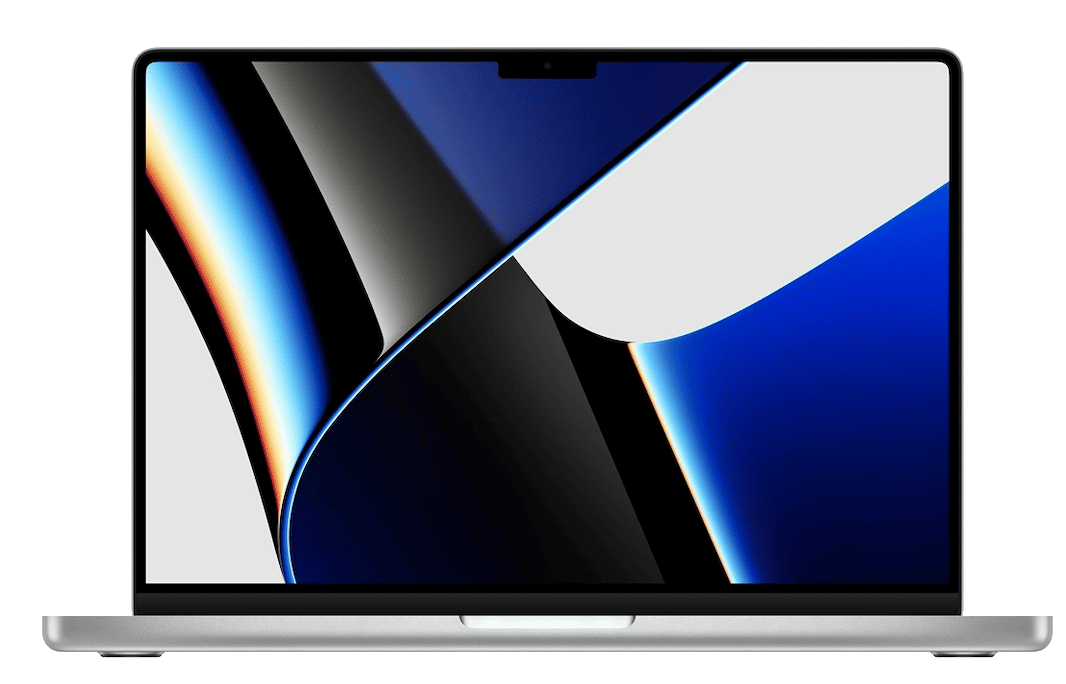
The 14in MacBook Pro comes in three versions, an M5, M4 Max, and M4 Pro. Both are significantly more capable when it comes to playing games than either of the Airs. The M5 Pro version has double the GPU cores compared with the M5 model, so you can expect significantly faster and smoother gameplay. It also has a higher RAM ceiling.
On the minus side, the M4 Pro is more than double the price of the 13in Air, at their base configurations, and around 25% more than the M5 model. And if you choose the M4 Max, that’s another huge leap in price. All three models are heavier than the MacBook Airs, though they do have a fan to stop them from getting too hot. If you plan to play games when your MacBook is connected to a big display, the 14in Pro could be ideal as its smaller screen compared with the 15in Air or 16in Pro won’t be an issue.
✅ Plus: Capable of playing a much wider range of games than the Airs
❌ Minus: Heavier to carry around and with a smaller screen than the 15in Air
MacBook Pro 16in
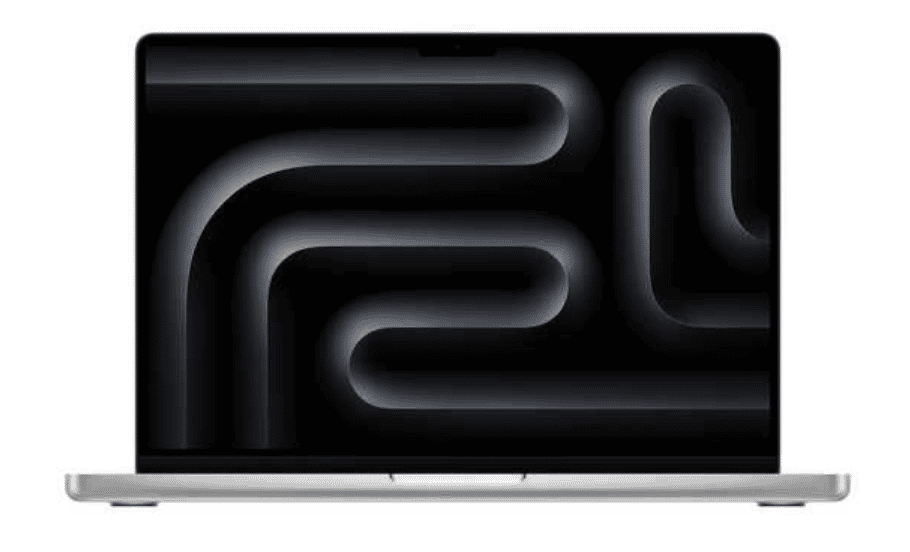
If you want the fastest, most capable MacBook for playing games, there is only one option — the MacBook Pro 16in M4 Max. And if you want to push its performance to the limit, you can fit it with up to 128GB RAM and max out its storage with an 8TB SSD. However, that’s overkill for even the most demanding games and is eye-wateringly expensive.
If you don’t need the 16in M4 Max and decide to look towards the middle of the MacBook Pro range, it gets trickier. You could save yourself $300 and go for the 14in M4 Max, keep the 40 GPU cores, and put up with a slightly smaller screen. Or you could save yourself $1,000 and opt for the 16in M4 Pro, keeping the bigger screen but settling for 20 GPU cores instead of 40.
✅Plus: Biggest screen and fastest performance available on a MacBook
❌ Minus: Terrifyingly expensive if you choose the Pro or Max versions and heavier than other options
So, which MacBook should you choose for gaming? For less demanding games, we’d say that either the 13in or 15in MacBook Pro would be fine. If you have the budget, you could spend some money on increasing the RAM. Given the extra screen real estate and the relatively(compared to the MacBook Pros) small difference in price, we’d also suggest that the 15in Air is a better bet than the 13in, unless you will only ever use it connected to a larger display.
For the most demanding games, it’s more complicated. The M4 Max models are overkill, and even the Pros are likely to provide more oomph than you need. However, if you want a 16in display, you will need to choose an M4 Pro or Max because, unlike the 14in model, there is no M5 16in MacBook Pro at the time of writing. To complicate things further, the M5 is a significant performance improvement on the M4, and so the gap between the M5 and the M4 Pro and M4 Max is reduced.
Finally, it’s very likely Apple will announce M5 Pro and M5 Max versions of both the MacBook Pro 14in and 16in at some point in the first half of 2026.
Bottom Line: If you only intend to play arcade-style and other less demanding games, we’d recommend the 15in MacBook Air. It’s not too much more expensive compared with the 13in model and provides more screen area. If you want to play more resource-intensive games, the 14in MacBook Pro M5 will do the job admirably and has a price point that is much more palatable than the M4 Pro or Max models.
How to optimize performance when you play games on a MacBook
There are a number of things you can do to max out the performance of games when you play them on your Mac.
1. Enable Game Mode
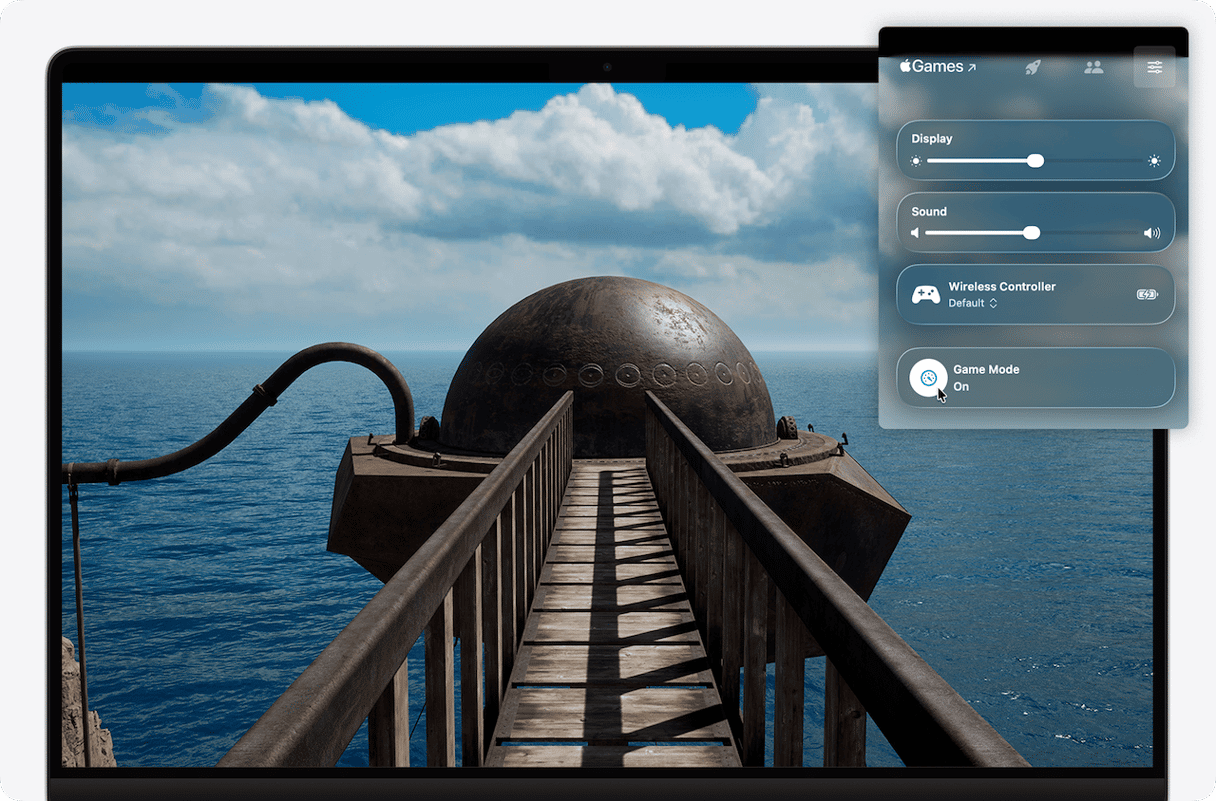
Game Mode is a relatively new feature in macOS, introduced in Sonoma. It prioritises the game you're playing when it comes to GPU and CPU cycles and lowers the usage for background tasks. It also doubles the Bluetooth sampling rate, reducing latency for accessories like controllers and AirPods. Game Mode is turned on by default when you play a game in full-screen mode.
2. Quit other apps
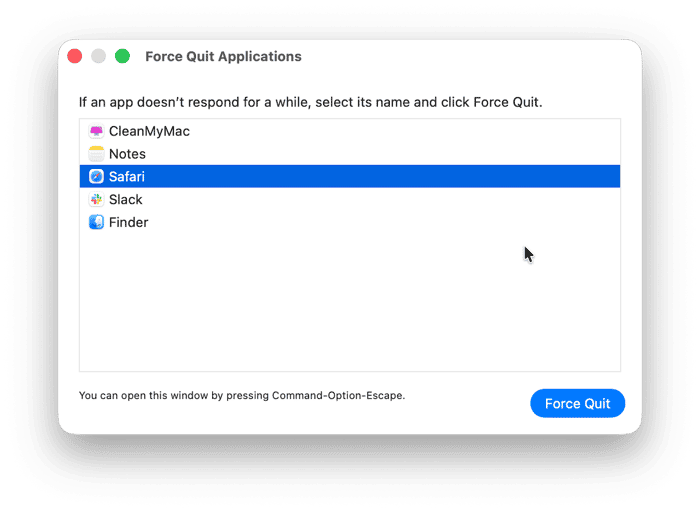
Open apps consume CPU and GPU cycles, even when you’re not using them. And while their use of resources will be limited by Game Mode, it’s better to quit them completely. You can use the Force Quit menu for that.
3. Clear out the junk
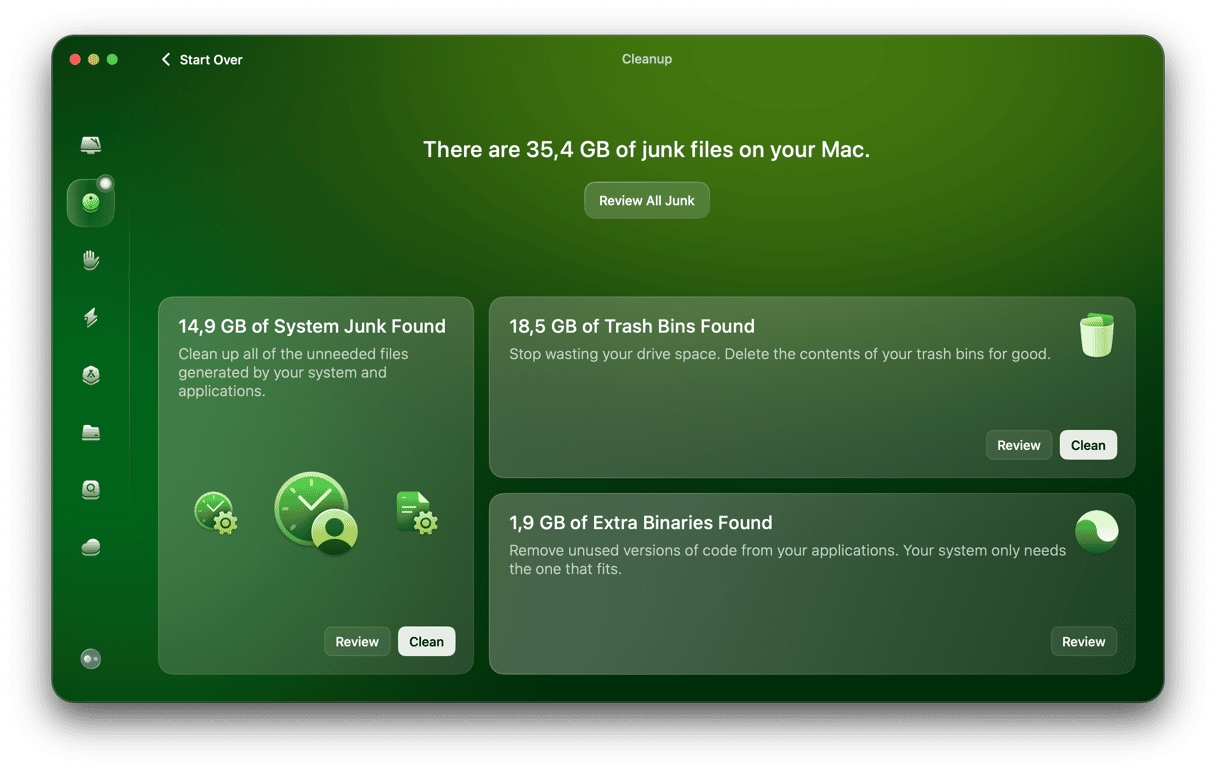
Junk files don’t just take up lots of space on your startup disk; they can have a significant impact on your Mac’s performance. That's often because they conflict with each other or with other files on your Mac. By removing them, you will not only free up space for more games but also make your Mac run faster and more smoothly, too. The problem is that they are scattered all over your Mac and include files like cache, temporary files that were never deleted, language files for languages you don’t use, and application binaries you don’t need.
The easiest way to get rid of all that junk is to use the Cleanup feature in CleanMyMac. It scans your Mac looking for junk and then allows you to remove it with a click.
Here’s how it works:
- Get your free CleanMyMac trial — you can test it for 7 days for free.
- Open CleanMyMac and choose Cleanup in the sidebar.
- Click Scan.
- When it's finished, choose Clean to free up space immediately or Review in any section to see what it has found.
4. Quit heavy consumers
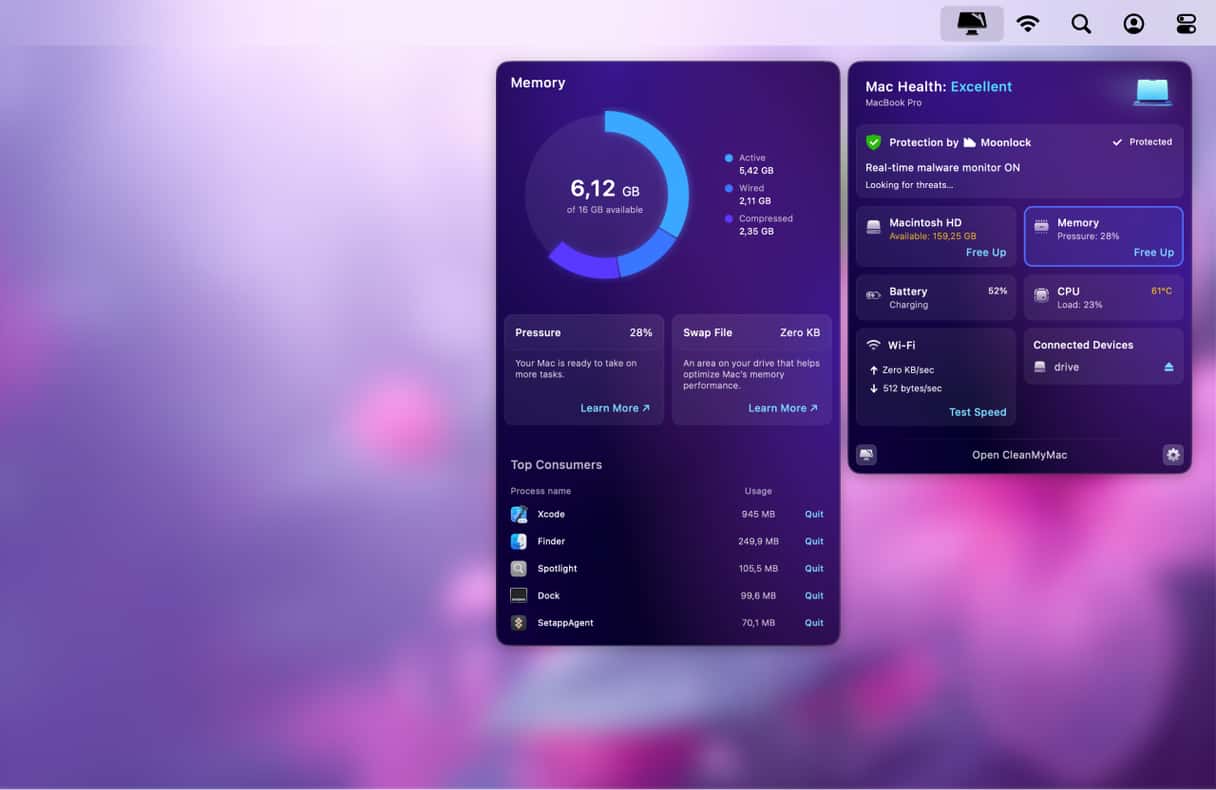
Heavy consumers are processes or tasks that use much more than their fair share of resources. They can cause other applications or games to run slowly or even hang. You can use Activity Monitor to identify and quit them, but there’s an even easier way.
Click the CleanMyMac menu bar, and you will immediately see whether there are any tasks that are using lots of resources and quit them with a click.
Choosing the best MacBook for gaming is not easy. There’s a great deal to think about. But if you approach it methodically, starting with the budget you have available and a list of your priorities, it makes the decision much easier. As we said above, for many people the MacBook Air 15in is a great choice, combining portability with a good-sized screen and decent performance. If you want to play more demanding games, the M5 14in MacBook Pro will do the job comfortably without sacrificing too much in the way of portability or costing too much.