The MacBook Neo is Apple’s most affordable laptop in years. On paper, it feels too good to be true: a modern Mac, a premium aluminum design, solid battery life, and a Retina display. And that’s all for $599.
But Apple made one decision that’s had people talking. Instead of the M-series chip found in every other Mac, the Neo runs on the A18 Pro — the same chip inside the iPhone.
So the obvious question is: Can it really handle everyday work like a MacBook should?
In this review, you’ll learn:
- What the MacBook Neo does really well
- Where it struggles
- How to keep it running fast long-term
Inside the MacBook Neo: What the A18 Pro chip actually means for speed
The MacBook Neo uses the same A18 Pro chip that was first introduced in the iPhone 16 Pro. It’s an unusual choice for a Mac, but in practice, it works better than you’d expect.

For most people, performance isn’t about raw power. It’s about how fast things feel: how quickly apps open, how smoothly you switch between tasks, and whether anything slows you down during the day. That’s where the Neo does surprisingly well.
The A18 Pro delivers strong single-core performance, which is what powers the kinds of tasks most users rely on:
- Opening multiple tabs in the browser
- Editing documents
- Making video calls
- Answering emails
This means that the MacBook Neo feels quick and responsive in daily use. Apps open almost instantly, switching between them is smooth, and even with several things running at once, no lag happens.
Where the MacBook Neo shines
The MacBook Neo is built for everyday work, so that’s exactly where it performs best. For most people, most of the time, it's more than enough. Let’s take a look.
Everyday productivity
- Email, calendar, Slack, Notion — great experience
- Google Docs, Microsoft 365, Pages — fast and responsive
- Video calls on Zoom or FaceTime, even with multiple apps running in the background

Web browsing and multitasking
- 15-20 browser tabs open — still smooth
- Switching between apps — instant
- Streaming music or video while working — no slowdowns
Battery life
- A full day of classes or work — no charger needed
- Writing or browsing — 12–14 hours
- Great for remote work
The Neo feels designed for people who want a simple, reliable Mac without overpaying for power they don’t need.
What the MacBook Neo struggles with
The Neo performs well within its comfort zone, but once you move beyond that, its limitations turn visible. Just be aware of them — it will save you from frustration later.
The storage situation
- 256GB sounds fine until you start using it
- Large files and downloads take more space than expected
- When storage gets close to full, the whole system can slow down
RAM-heavy multitasking
- Open too many apps at once, and you'll notice things slow down
- Browser tabs are sneaky memory eaters
- Switching between heavy apps becomes less smooth over time
Hardware restrictions to keep in mind
- RAM is fixed and can’t be upgraded later
- Only one external display is supported
- Not designed for intensive workloads
The good news: none of these limitations are permanent problems. With the right habits, most of them are manageable, and that's exactly what the next section covers.
How to get the most out of your MacBook Neo
To keep your MacBook Neo running at its best, it is important to develop a few simple maintenance habits. Here are four things experienced Mac users recommend to make your machine last longer.
Tip #1: Free up storage regularly
With just 256GB of storage, space fills up faster than you expect. Over time, your Mac accumulates junk files and caches, duplicates, old downloads, and large files you no longer need. They can take up gigabytes of space without you noticing.
👉What to do:
- Review your Downloads folder weekly
- Delete unused apps
- Remove duplicate files
- Clear out caches

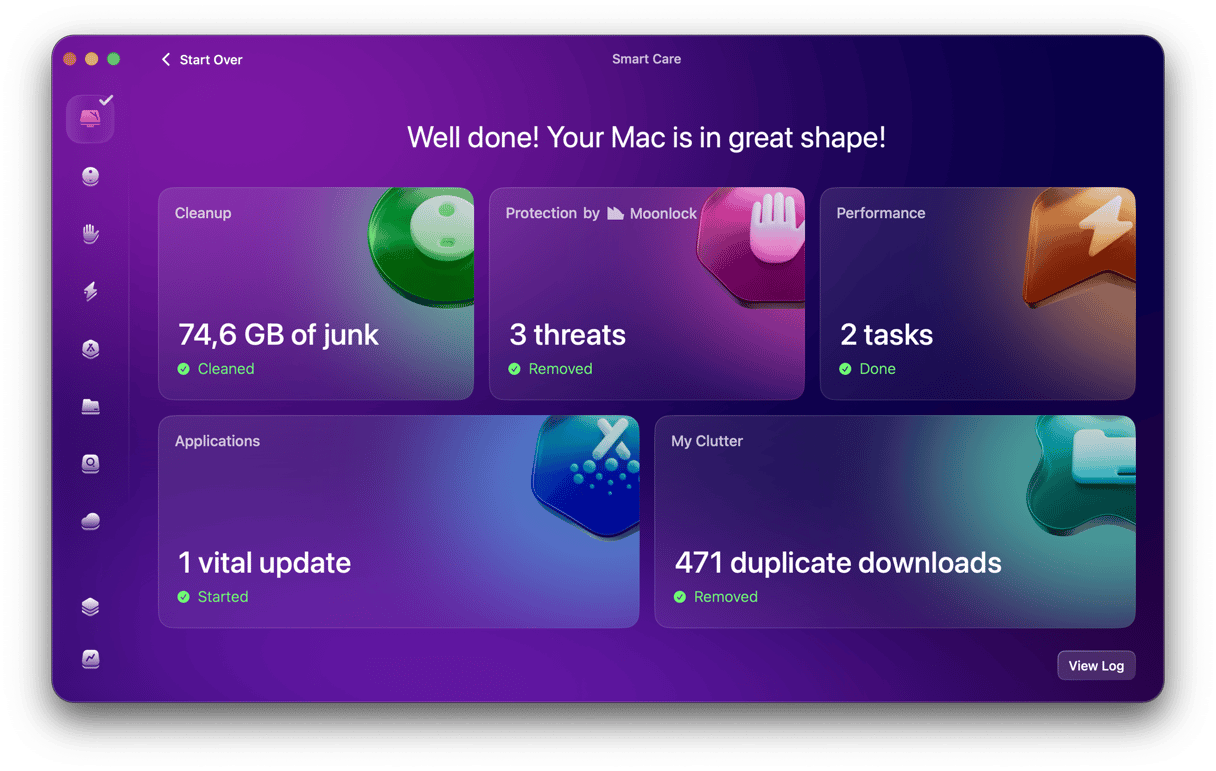
If you don’t want to do this manually, tools like CleanMyMac can scan your system and quickly identify junk files and large, forgotten items that take up a lot of space. Its Smart Care feature will help you clean and optimize your MacBook in just a few clicks, so you don’t have to dig through files and folders, wondering what is safe to remove.
Here’s how to keep your MacBook Neo in top shape using CleanMyMac:
- Start your free CleanMyMac trial — use it at zero cost for 7 days.
- Open the app and choose Smart Care.
- Click Scan.
- When it's finished, click Run to implement all recommendations.
Tip #2: Treat RAM like a limited resource
8GB of RAM is enough for daily tasks, but only if you manage it carefully. Unlike storage, memory is always in use, and it fills up quickly when you have various apps, browser tabs, and background processes running at the same time. When RAM is under pressure, your Mac starts slowing down and even simple tasks take a lot of time.
👉 What to do:
- Close applications you’re not actively using
- Limit the number of browser tabs open at once
- Avoid running multiple heavy apps simultaneously
- Restart your Mac occasionally
Tip #3: Check what launches at startup
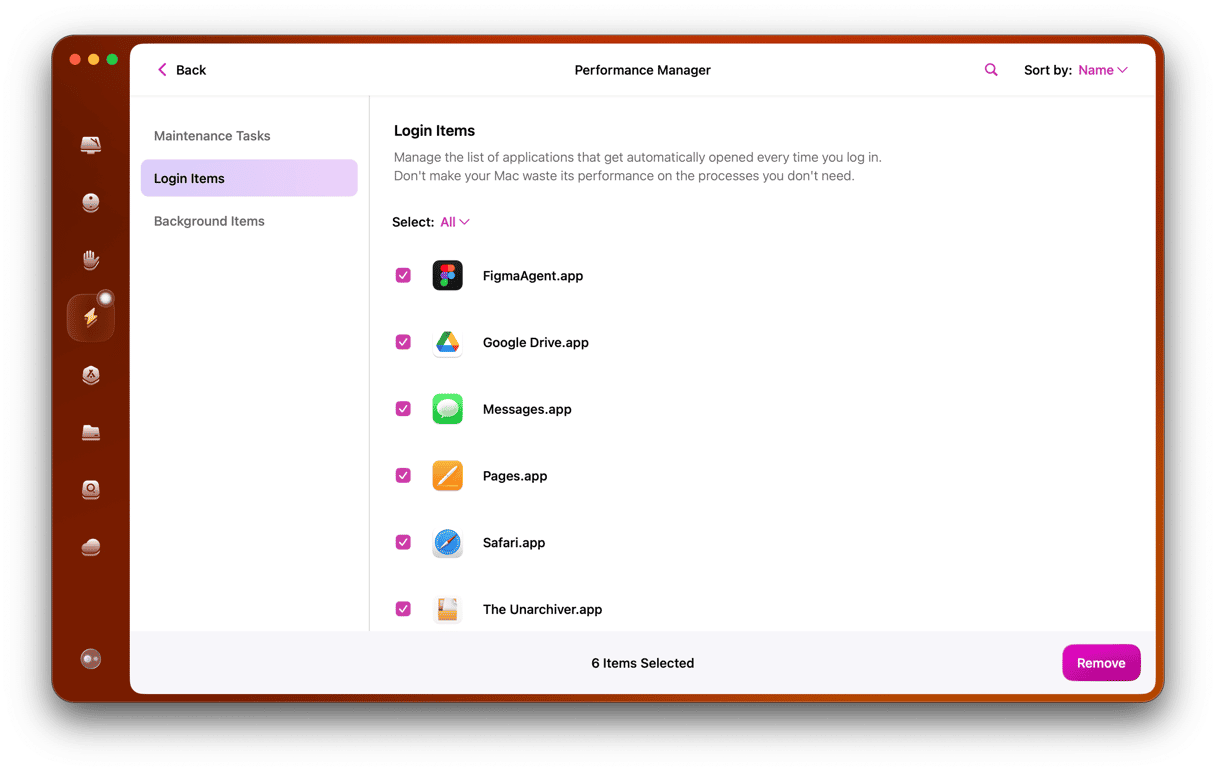
Many programs automatically launch when you turn on your Mac, and most users don’t even notice it happening. Over time, this list grows as you install new apps, each including its own background processes.
On a machine like the MacBook Neo, where memory is limited, these hidden processes can significantly affect overall performance.
To see everything that launches at startup and disable what you don’t need in seconds, consider using CleanMyMac’s Performance tool. It gives you a clear overview of your login items and background apps, so your Mac starts faster and doesn’t waste memory on things you don’t need.
Tip #4: Monitor performance over time
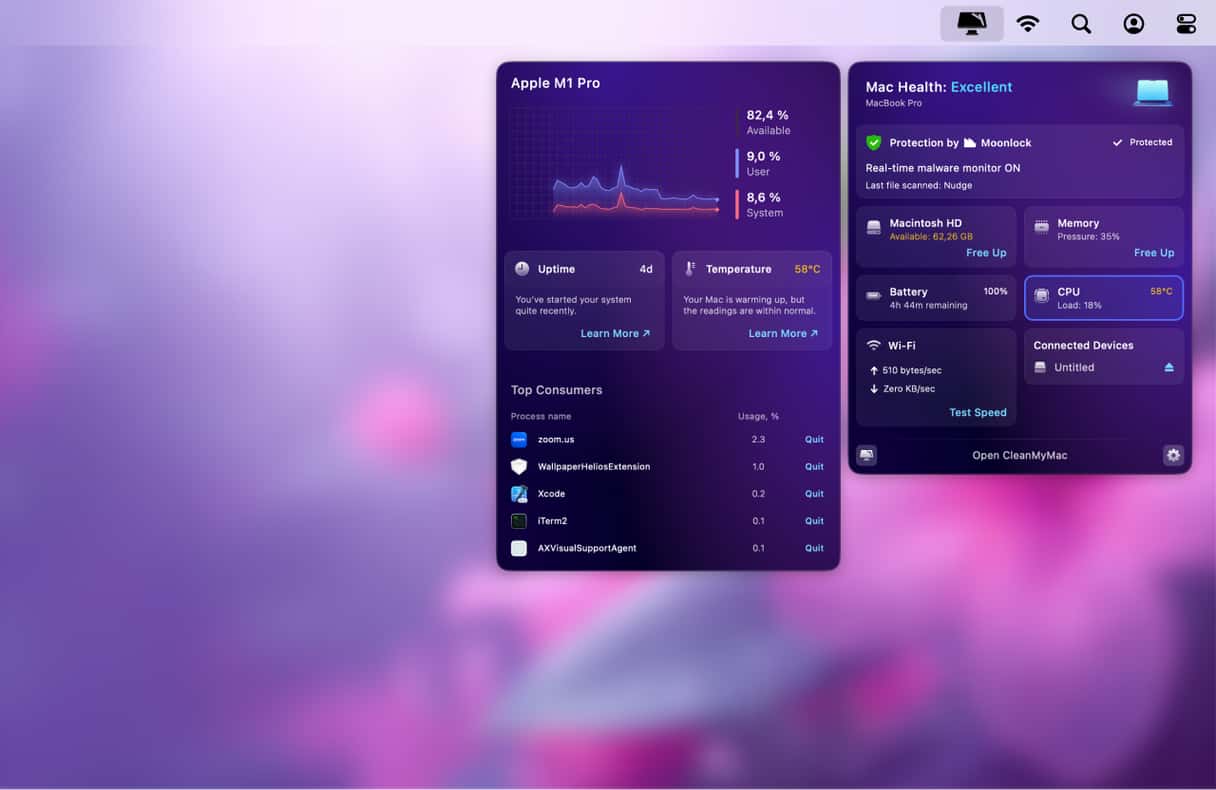
On a MacBook Neo, it helps to have a quick way to see what’s going on behind the scenes. If your Mac starts feeling slow or gets warm, there’s usually a reason, like a browser tab, an app, or something running in the background. The sooner you spot it, the easier it is to fix.
CleanMyMac’s Menu gives you a simple, real-time view of what’s using your CPU and memory right from your menu bar. You can quickly check what’s taking up resources and close anything you don’t need.
It’s especially helpful if you’re new to Mac and not used to tools like Activity Monitor — everything is easy to understand and always just a click away.
Get your free 7-day CleanMyMac trial and monitor your MacBook Neo performance with ease.
Quick verdict: Who should (and shouldn’t) buy the MacBook Neo
The MacBook Neo is great for some users, but it depends on the kind of work you do. See which of these three categories fits you best.
Buy the MacBook Neo if:
- Your day is made up of browsing, video calls, streaming, and documents
- You’re switching from Windows and want to try macOS
- You’re a student and want to buy an affordable Mac
- You need a lightweight secondary MacBook
Skip it (for now) if:
- You regularly edit long videos
- You compile code or run development environments
- You use local AI models
- You need to connect more than one external display
Consider the MacBook Air instead if:
- You’re going to work with larger projects and heavy files
- You plan to use it as your only computer for the next several years
- You want the option of more than 8GB RAM or 512GB storage
Wherever you land, the bigger picture is this: the MacBook Neo is a genuine achievement. It meets Apple's high standards of quality and delivers everything many users need in a premium aluminum package for $599.
But it does come with limits you’ll notice over time. With 8GB of RAM and 256GB of storage, things can start to slow down if your system gets cluttered or too many apps run in the background.
Keeping things running smoothly doesn’t require much — just a bit of regular maintenance. Tools like CleanMyMac make that easier by helping you stay on top of storage, manage memory, and keep your system running the way it should. Take care of the MacBook Neo, and it will take care of your everyday work.