
The approach of a new version of macOS always brings a sense of excitement and anticipation. But it also creates a question: should I upgrade? Sure, there might be lots of shiny news features and improvements. But there’s also the possibility that it will slow your Mac down, break apps you rely on, or even have bugs that cause significant issues. The imminent arrival of macOS 27 is no different. So, let’s take a look at what’s likely to be coming in the new macOS and whether or not you should upgrade.
macOS 27 release date
Apple announces each new macOS version at the Apple Worldwide Developers Conference (WWDC) in June. This year is not an exception: Apple unveiled macOS 27 Golden Gate at WWDC on June 8, 2026, and released the first developer beta the same day. The first public beta arrived a month later, on July 13, so if you've joined the Apple Beta Software Program, you can try it right now. The official release is expected in September, most likely arriving alongside iOS 27 and the new iPhones.
macOS 27: What will it be called?
We no longer have to speculate: macOS 27 is officially named Golden Gate. Having gone through a phase of naming OS releases after big cats, Apple settled on California as a theme with Mavericks 13 years ago, and Golden Gate continues that tradition.
macOS 27: New features and improvements
Unlike Tahoe, which introduced new apps and an interface redesign, macOS 27 Golden Gate mostly brought refinements, just as the rumors suggested. It focuses on polishing the Liquid Glass interface, boosting performance, and introducing a completely rebuilt Siri. Now that Apple has shown it all at WWDC, here's what's confirmed.
Siri
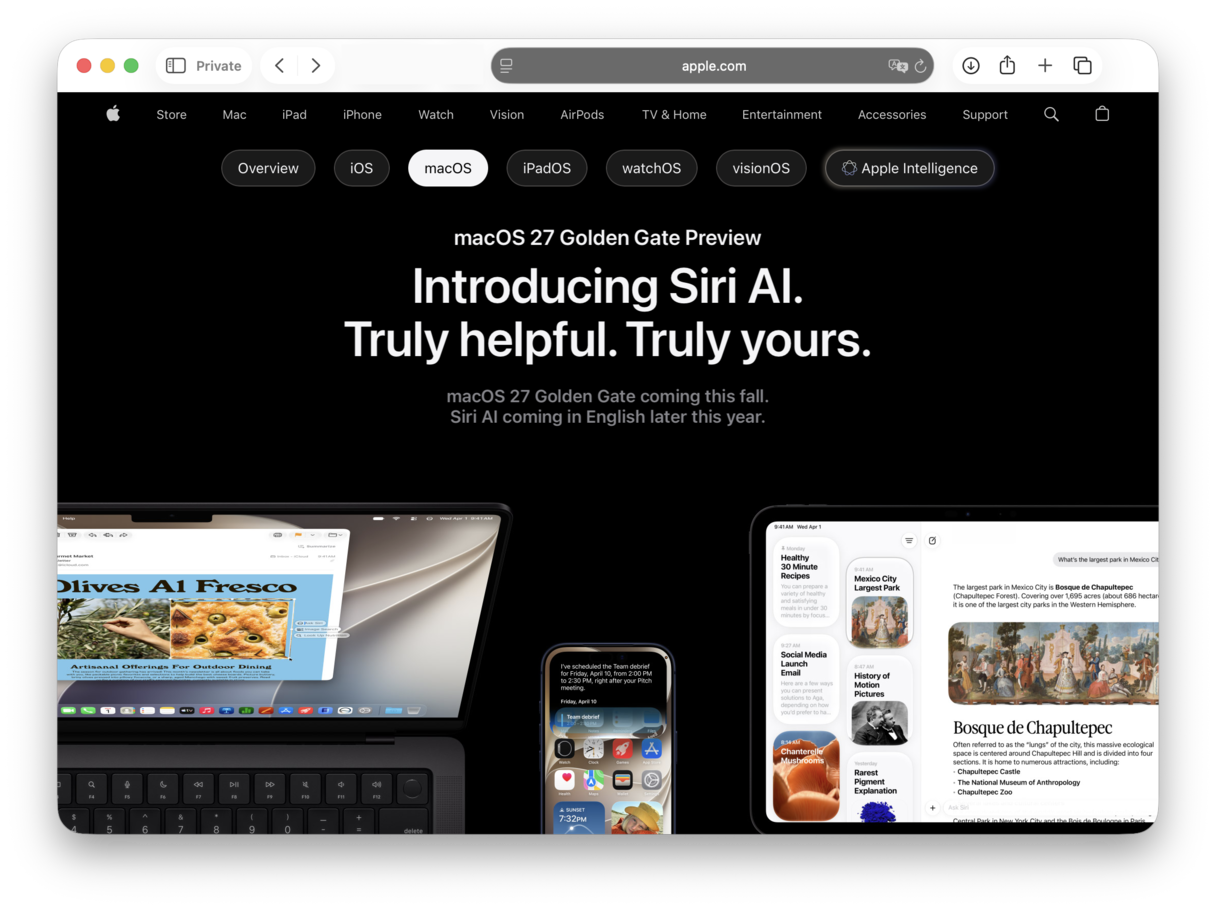
After two years of underwhelming progress since Apple Intelligence was announced, Siri finally got its big moment at WWDC. The new assistant, officially called Siri AI, is a rebuild powered by the next-generation Apple Foundation Models, developed using technology from Google Gemini. Requests run locally where possible and on Apple's Private Cloud Compute when more power is needed, and Apple says personal data is never stored or made accessible to it.
In practice, Siri AI behaves much more like a chatbot. It holds back-and-forth conversations, answers questions using web knowledge, and understands personal context across Mail, Messages, Photos, Calendar, and Notes. It can also take actions across apps, and Visual Intelligence comes to the Mac, letting you ask questions about whatever is on your screen, whether that's an image, a document, or text. There's even a dedicated Siri app, with conversation history synced privately across your devices via iCloud, and you'll be able to route queries to third-party chatbots such as Claude or Gemini via extensions.
Two caveats you should know. First, on-device Siri AI requires a Mac with an M3 chip or later and at least 12GB of RAM. Second, the full Siri AI experience arrives as a beta later this year, initially in English, and reportedly won't be available in the EU or China at launch.
Photos
The rumors here were close, but not quite right. Photos does get three AI editing tools, but the lineup is Clean Up, Extend, and Reframe (with the predicted Enhance feature missing).
- Clean Up is a significantly improved version of the existing image-editing tool, producing far more realistic results.
- Extend uses AI to add content beyond the original frame, allowing you to change an image's aspect ratio or straighten a crooked horizon.
- Reframe lets you shift the perspective of a photo after it's taken, as if the camera had been repositioned in the original scene.
Interface
The touch-screen optimizations that some media have speculated about didn't make it into Golden Gate. Instead, the interface changes are all about improving Liquid Glass. The main addition is a full slider that adjusts Liquid Glass transparency from clear to opaque or fully tinted, making text far easier to read. Toolbars now have a uniform look, and corners are now less rounded than in macOS Tahoe.
Security
Security and privacy remain priorities at Golden Gate, with particular emphasis on families. Apple has expanded the parental controls and redesigned the setup process for child accounts. Parents can now approve web access when they get an Ask to Browse request. The Passwords app gets an impressive upgrade, too: it can now navigate to a website, sign you in, and automatically replace a weak or compromised password with a strong one.
The new AI architecture keeps requests locally wherever possible and uses Private Cloud Compute when it can't, with personal data never stored or made accessible to Apple. Golden Gate also said goodbye to the outdated Apple Filing Protocol (AFP) and Time Machine backups to AirPort Time Capsule.
Performance improvements
This is where Golden Gate stands out, especially after Tahoe. Mac apps now launch up to 30% faster thanks to pre-loading, AirDrop transfers are now nearly twice as fast, and photos appear in your library more quickly. Search has been rebuilt across Spotlight, Photos, and Mail, with a new index that loads fresh content almost immediately.
Built-in apps
Safari gets the biggest upgrade among the built-in apps. It can now automatically group related tabs into topics, monitor webpages for changes using a Notify Me feature, and create custom extensions for you based on a simple description. Image Playground has been overhauled and now generates photorealistic images (with a hidden watermark indicating they are AI-generated). Elsewhere, macOS can suggest names for files and folders based on their contents. Notes and Freeform get the Markup drawing tools from iOS, pull-to-refresh comes to Safari, Mail, News, Podcasts, and Calendar, and the iPhone Mirroring window can finally be resized.
macOS 27 supported devices
As Apple confirmed last year, macOS 10.14 (Tahoe) was the last version of macOS to support Intel Macs. macOS Golden Gate runs exclusively on Apple Silicon, which means any Mac with an M1 chip or later. It's also the final version of macOS with full Rosetta 2 support, so if you rely on apps built for Intel processors, their days are numbered.
- Reasons to upgrade
If your Mac is running macOS Tahoe, the major reason to upgrade to macOS 27 is that it fixes many of Tahoe's problems and gives you real control over the Liquid Glass interface. If you haven't upgraded to Tahoe yet, the performance improvements should be enough to persuade you to make the leap. And then there's Siri AI, which really is like having an AI chatbot built into your Mac, though keep in mind it needs an M3 or later with 12GB of RAM, and the full experience rolls out in stages after launch.
- Reasons to wait
The main reason to wait is the same as with every new version of macOS: to see whether there are any problems with it. Early adopters bear the brunt of bugs and performance issues, and often waiting until there have been a couple of updates is a smart strategy. The other reason is that every new version brings with it a performance overhead and you might not consider the new features worth paying that price for.
Before you upgrade: Prepare your Mac
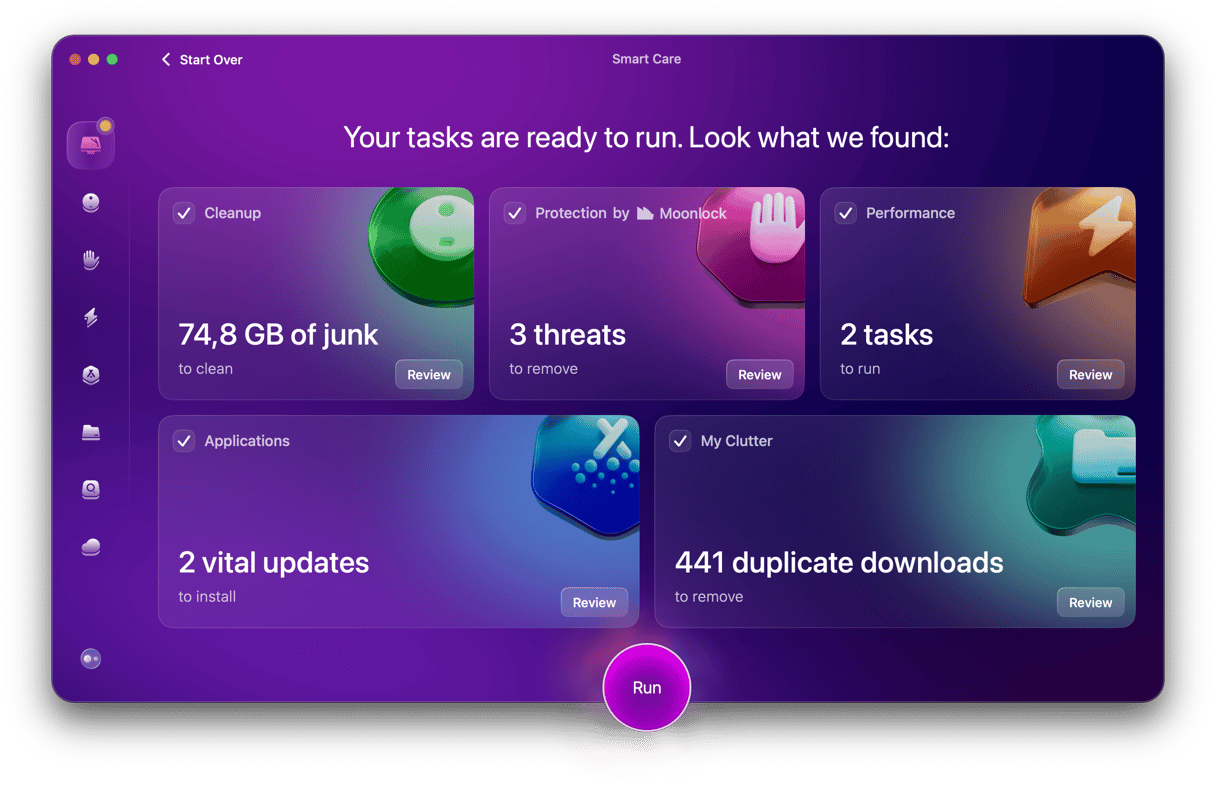
If you’ve decided to go ahead and upgrade your Mac, it’s a good idea to do some preparation first. That means getting rid of junk files and clutter that may not be causing a problem at the moment – aside from taking up several gigabytes of disk space – but could cause your Mac to slow down or become unstable after you upgrade. It also means upgrading your apps and clearing out remnants of apps you thought you’d uninstalled but left files behind.
Upgrading without preparation is like building a house on shaky foundations, it’s likely to lead to problems later. CleanMyMac’s Smart Care module takes care of all of that for you. It scans your Mac looking for junk files, broken app remnants, and space hogs that could slow down the installation or cause problems afterward. Think of it as a pre-flight check before you upgrade. Try CleanMyMac free for 7 days here.
How to upgrade to the new macOS 27
Upgrading a supported Mac is simple. When macOS 27 is available, you will get a notification and see an alert in System Settings > General > Software Update. It will be clearly labeled as macOS 27 so that you don’t confuse it with an update to the version of macOS you are currently running. Before you upgrade, though, make sure you follow the advice above to prepare your Mac.
If you run into problems when you try to upgrade, it could be that Apple’s servers are very busy, so you may just have to wait a little while and try again. If it still doesn’t work, you can download macOS 27 from the Mac App Store and install it that way.
If you can't wait for the fall, the macOS 27 public beta is available now through the Apple Beta Software Program.
Should you upgrade?
The decision to upgrade is one you should take some time to consider. That’s even more so if the Mac you are thinking of upgrading is one you use for work. If something were to go wrong and you couldn’t use an important app, what would you do? In that case, especially if you don’t have a backup Mac, it’s a good idea to wait until the first or second update. If, on the other hand, the Mac is one that you don’t rely on for work and it meets the criteria for macOS 27, there’s no reason not to go ahead and upgrade straight away.