All Mac users should really know how to back up a MacBook to iCloud. Data loss is one of the most frustrating yet completely unavoidable issues you could ever run into on your machine.
While you’ve got multiple backup options, iCloud just has to be the easiest: no routing around for cables or external drives; it's automatic and quick, but yes, I hear you cry, it’s not a full system image, like Time Machine; that is very true. But it is a solid option for a lot of Mac users out there.
So, if you haven’t done a backup for a while, or haven’t got round to setting up iCloud to sync your files, here’s everything you need to know.
Before you back up MacBook to iCloud
Before I jump straight in on how to back up a MacBook to iCloud, don’t forget you should actually spend a little bit of time cleaning up your device first; that means you don’t end up saving useless junk files and wasting your storage space. Trust me, you will be happy you did this later.
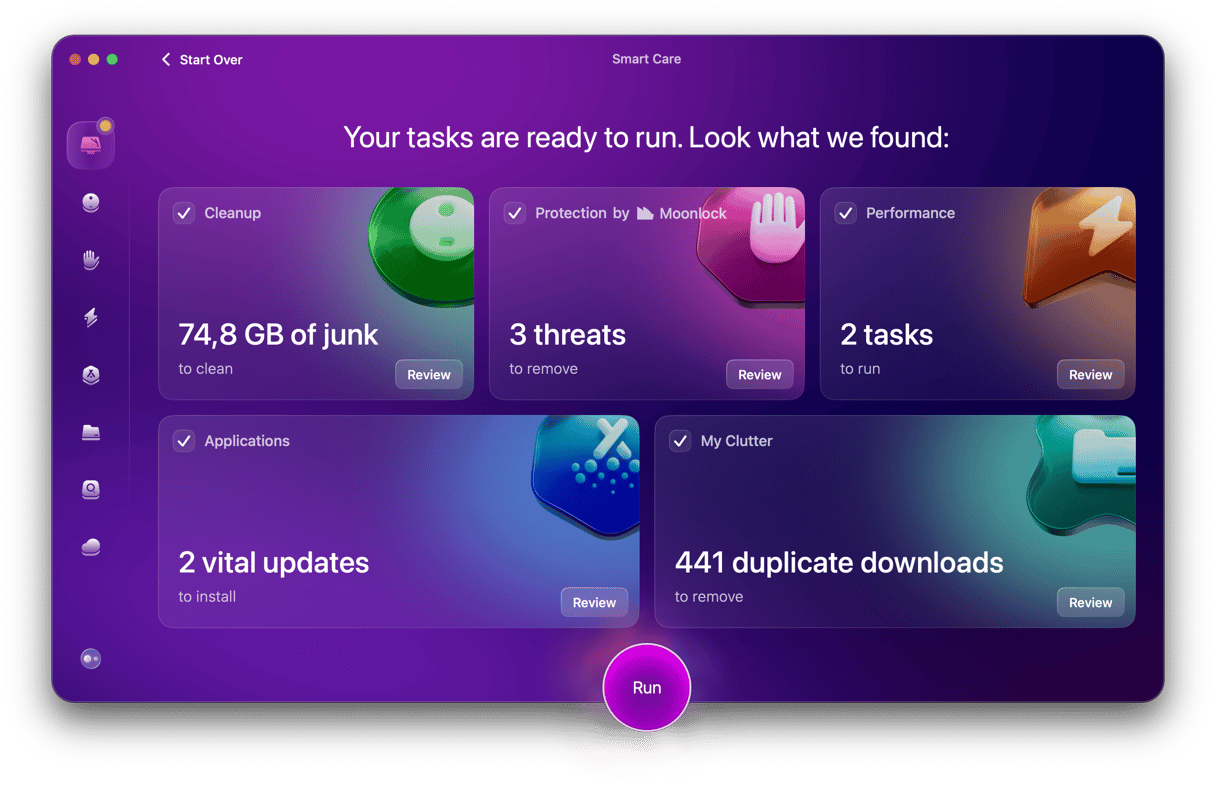
Clean up your Desktop, sort through your Downloads folder, even remove any old or forgotten apps; every little bit of space you can claw back here will help, and you might even notice a performance boost too. If you haven’t got time to spare, then I can highly recommend the Smart Care feature from CleanMyMac. It can clean up your junk, including stuff like cache and system clutter, so you're not copying over any garbage to iCloud. Try CleanMyMac for free — test it for 7 days.
How to back up to iCloud
There are a few steps to take — follow them closely one by one.
Step one: Enable iCloud Drive & sync Desktop and Documents
Ok, so once your Mac is all clean, it's time to get to the real backup steps. Despite what a lot of people think, this is actually a pretty simple and pain-free process.
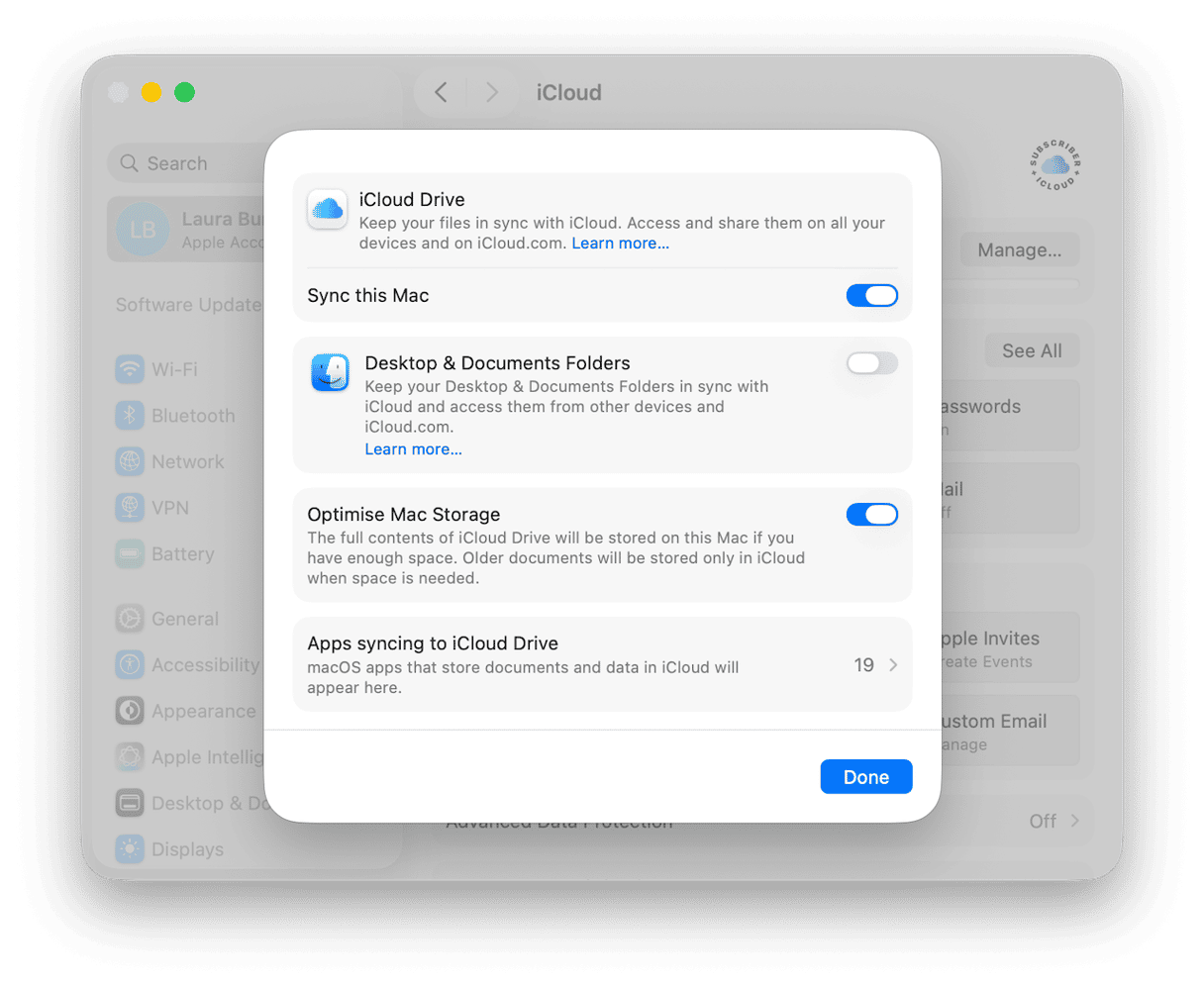
- Open your Mac’s System Settings > Apple Account > iCloud.
- Click Drive and turn it on.
- Enable the Desktop & Documents folders, too.
- Click Done, and the sync will start.
Next, it’s selecting what you should sync.
Step two: Choose what else to sync
Next, you need to take a bit of time in selecting what items you really want to sync and back up. You can customize this to your exact needs, anything from Photos to Contacts. Back in the main iCloud settings, click the See All button at the top of Saved to iCloud to see all the possibilities.
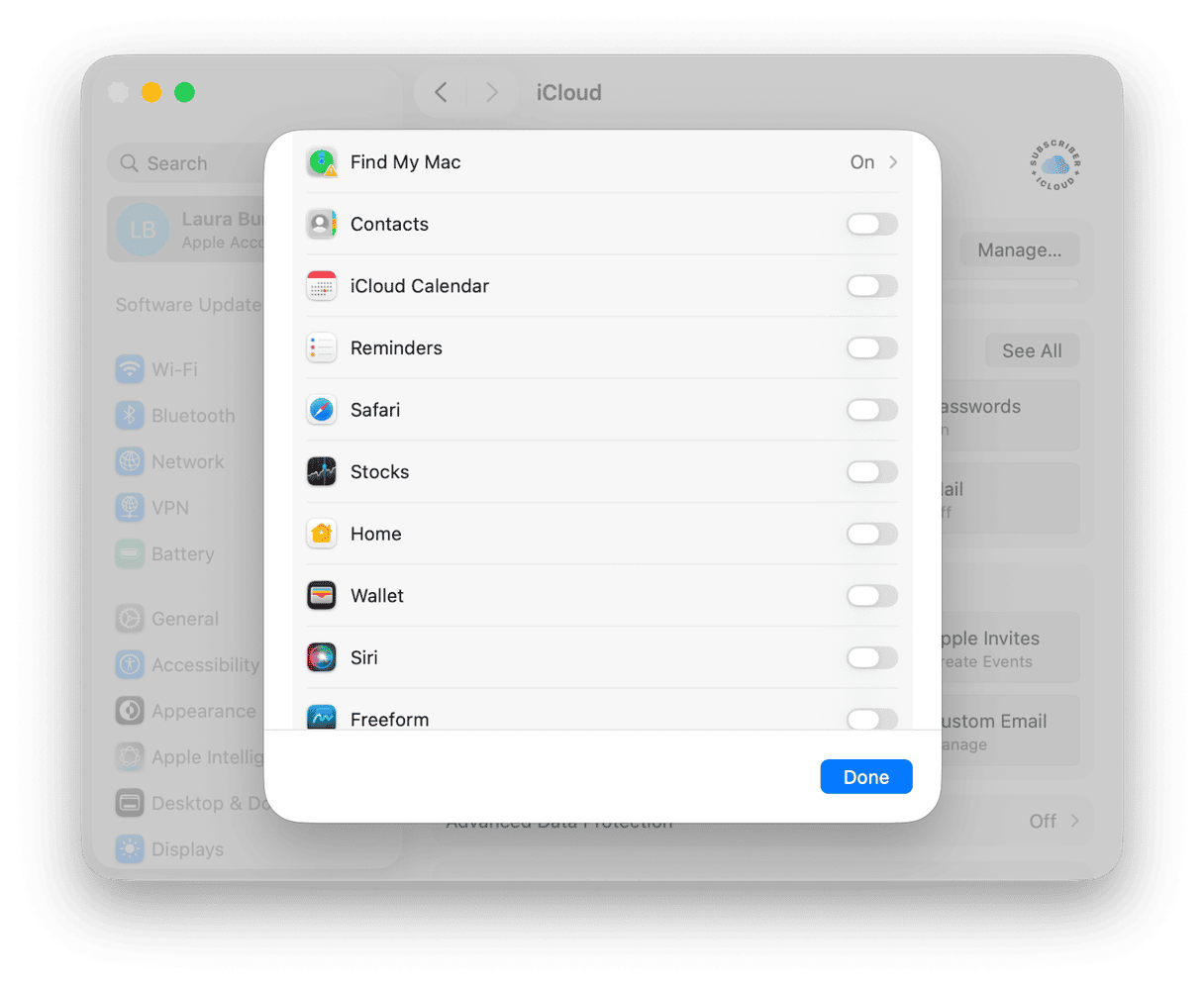
I think it’s worth stating the obvious here: don’t turn everything on blindly. Photos and Messages, for instance, can eat through iCloud storage very quickly: most of us out there have a large accumulation of years' worth of videos, attachments, and screenshots. This is where cleaning up your Mac beforehand will come in handy.
On the other hand, apps like Notes, Contacts, Reminders, and even Safari are usually pretty low on storage and worth syncing because they’ll keep everyday data consistent across all your synced devices.
Mail is another possible large offender, but that depends on how much you store locally; I’d personally skip it if your iCloud storage is already tight. You can always come back and sync this at a later date.
Step three: Check iCloud storage and verify backup
Ok, so you’ve backed up your MacBook Pro to iCloud; it’s time to make sure it’s all working and monitor your storage levels.
In your Mac's System Settings, open up your Apple Account > iCloud.
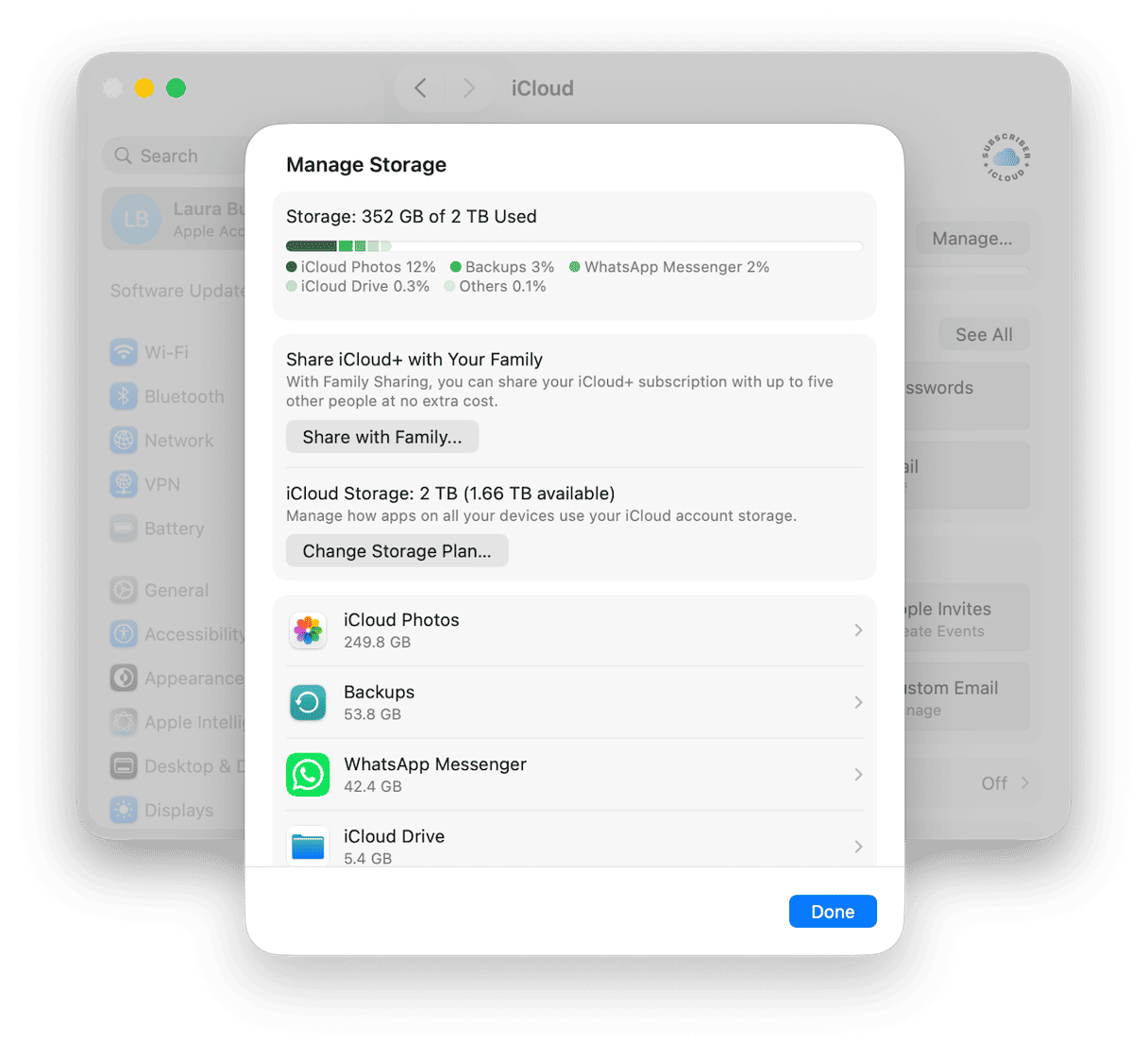
Here, you just want to keep an eye on that colored storage bar at the top; that's going to help you know how much space you’ve got left.
You can also check that files are uploading properly by taking a look in your Finder sidebar at your iCloud Drive, and checking for cloud icons next to your files.
It’s also possible to see what’s actively syncing. Keep an eye out for status messages in Finder, iCloud Drive, or the app you’re syncing. For Photos, if you scroll right to the bottom of your library, you’ll see the last synced status.
Managing your iCloud storage can at times feel like a bit of a balancing act. It’s easy to turn on syncing for Photos, Desktop, Documents, Messages, and app data, then only realize later that your storage is filling faster than expected. The key is knowing what actually needs to live in iCloud and what can stay local, be archived, or be deleted. If you’re interested in how to get the most out of it, I recommend this article: How to manage iCloud storage on Mac.
Not enough iCloud space?
If you’re monitoring your storage levels and you do notice that they’re on the low side, this is always a bit of a reminder that it’s time for a cleanup. Next to the storage monitoring bar, press the Manage button and start to locate the areas that are taking up the biggest chunk of space; then you can target those manually or use the My Clutter feature from CleanMyMac to help review and clear out things like duplicates and large or old files.
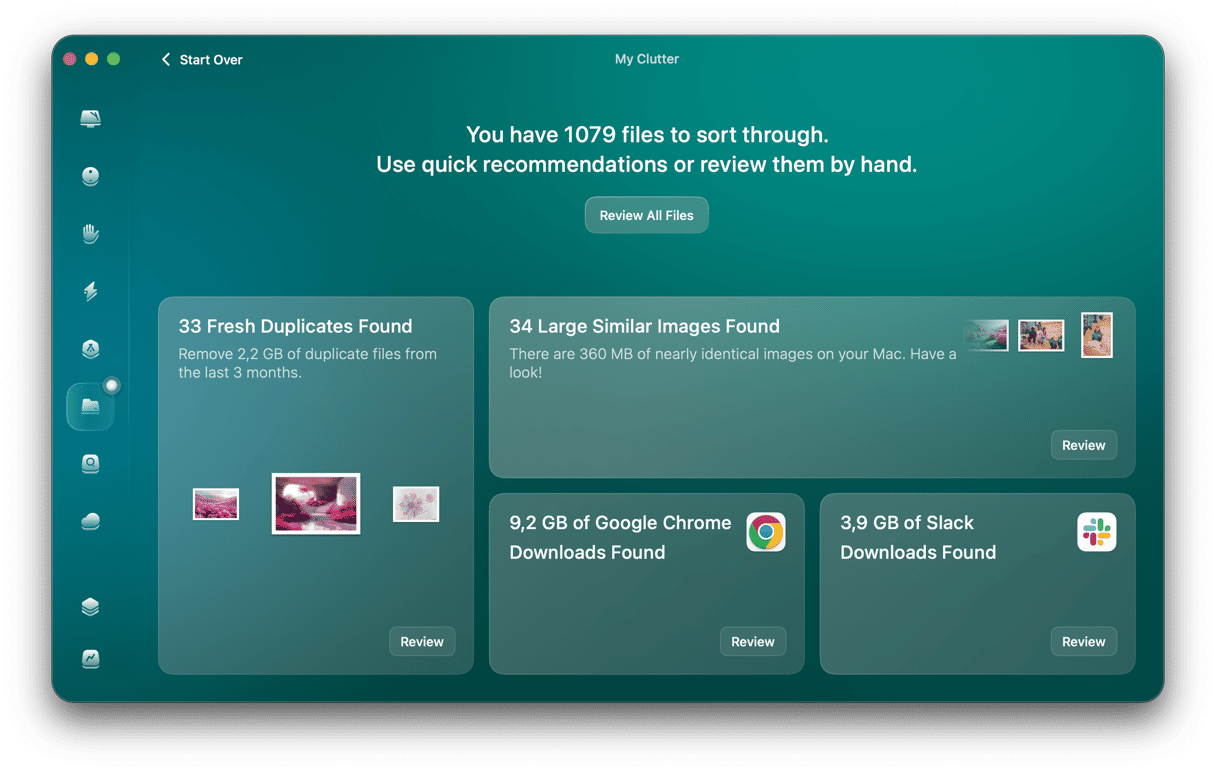
Once you’ve followed all these steps, your Mac should be fully syncing with iCloud. Keep an eye on levels, because it can be alarming at just how quickly things can fill up. iCloud can fill up. The Cloud Cleanup feature from CleanMyMac can help you keep things under control. It’s saved me a few times from upgrading to the next storage level.
Backing up a MacBook Pro to iCloud is a great way to protect your important files or make them accessible from your other devices. Just remember to keep an eye on storage levels and use Time Machine alongside it for a more complete Mac backup.
Frequently asked questions
Is iCloud a proper full Mac backup?
No, it’s not a system image. It’s only selected files and app data. If you need a proper system backup, Time Machine is what you need.
How much iCloud storage do I need?
The free 5 GB tier fills quickly, so 50 GB is the minimum realistic plan for light users, while photos and multiple devices may need 200 GB or more.
What happens if I delete a file from iCloud Drive?
It’ll delete everything across all synced devices, but you can usually recover it from Recently Deleted within 30 days.