Screenshots are useful in all kinds of circumstances, from explaining to friends or colleagues how to perform a task to saving receipts or order confirmations when you do online shopping. Taking screenshots is easy, but there is a strange anomaly when it comes to saving them. Despite widespread advice not to clutter your Desktop with too many files, screenshots are still saved there by default. So, if you take lots of screenshots, you will end up with a Desktop full of them. In this article, we’ll show you how to change where screenshots are saved on your Mac. Let’s dive in!
Why change where screenshots are saved on your Mac?
The main reason for changing where screenshots are saved is to avoid cluttering your Desktop with lots of files. However, you may want to save individual batches of screenshots in separate folders, so you can find them more easily.
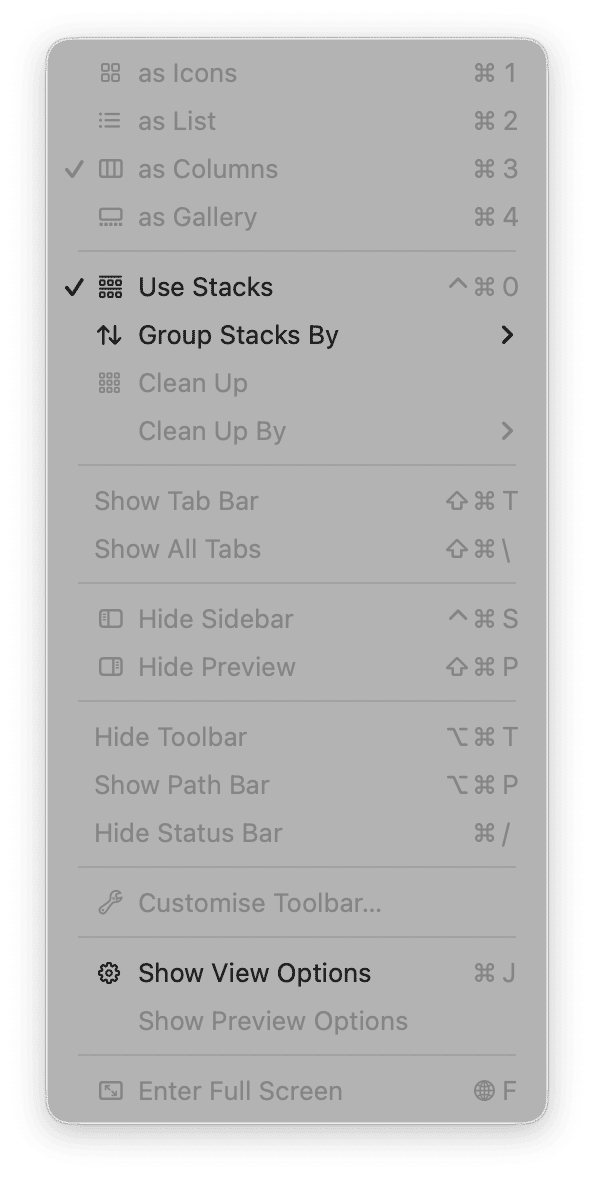
If you want to keep saving screenshots on your Mac’s Desktop or have lots of other files saved there and it's becoming cluttered, you can tidy it up using a feature in macOS called Stacks. Stacks creates piles of files of the same type and adds new files of that type to the stack whenever you copy one to the Desktop or create one on the Desktop. Here’s how to use it:
- Click the Desktop and the View menu.
- Choose Use Stacks.
- If you want to change how stacks are grouped, click the View menu and choose Group Stacks By and then select an option.
How to change where screenshots are saved on your Mac
There are a couple of different methods for changing where screenshots are saved on your Mac, depending on which version of macOS you are running. The first method below applies to Macs running macOS Mojave or later, while the second applies to all Macs.
The Screenshot tool
Since macOS Mojave, the Mac has had its own Screenshot utility. It’s stored on Applications > Utilities, and you can launch it by double-clicking. However, it’s easier to use its keyboard shortcut, Command-Shift-5.
- Click Command-Shift-5 to launch the Screenshot tool — you will see the Screenshot control bar appear on screen.
- Click Options. Under Save to…, either choose an option or click Other Location to set a different one. If you clicked Other Location, navigate to the folder you want to use or create a new one. Click Choose.
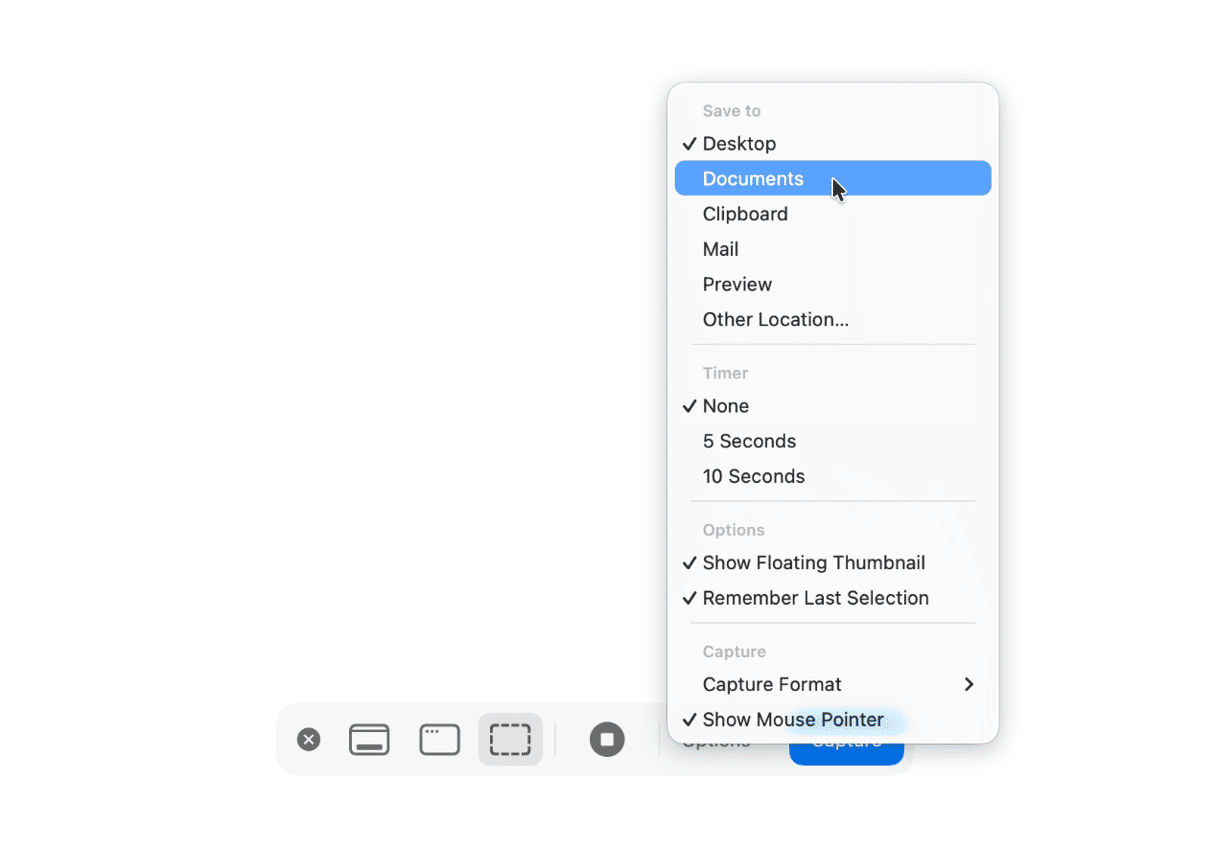
You can now either use the other controls to take a screenshot or click the ‘x’ at the left to close the Screenshot utility. The next time you take a screenshot, it will be saved in the location you chose.
Terminal
If you’re using a Mac running a version of macOS earlier than Mojave or just prefer to use Terminal, follow the steps below.
- Create a new folder and call it Screenshots or whatever you want to call it.
- Go to Applications > Utilities and double-click Terminal to open it.
- Paste this command:
defaults write com.apple.screencapture location(there needs to be a space after ‘location’). - Drag the folder you created in step onto the Terminal window and press Return.
- Now, paste this command and press Return:
killall SystemUIServer - Quit Terminal.
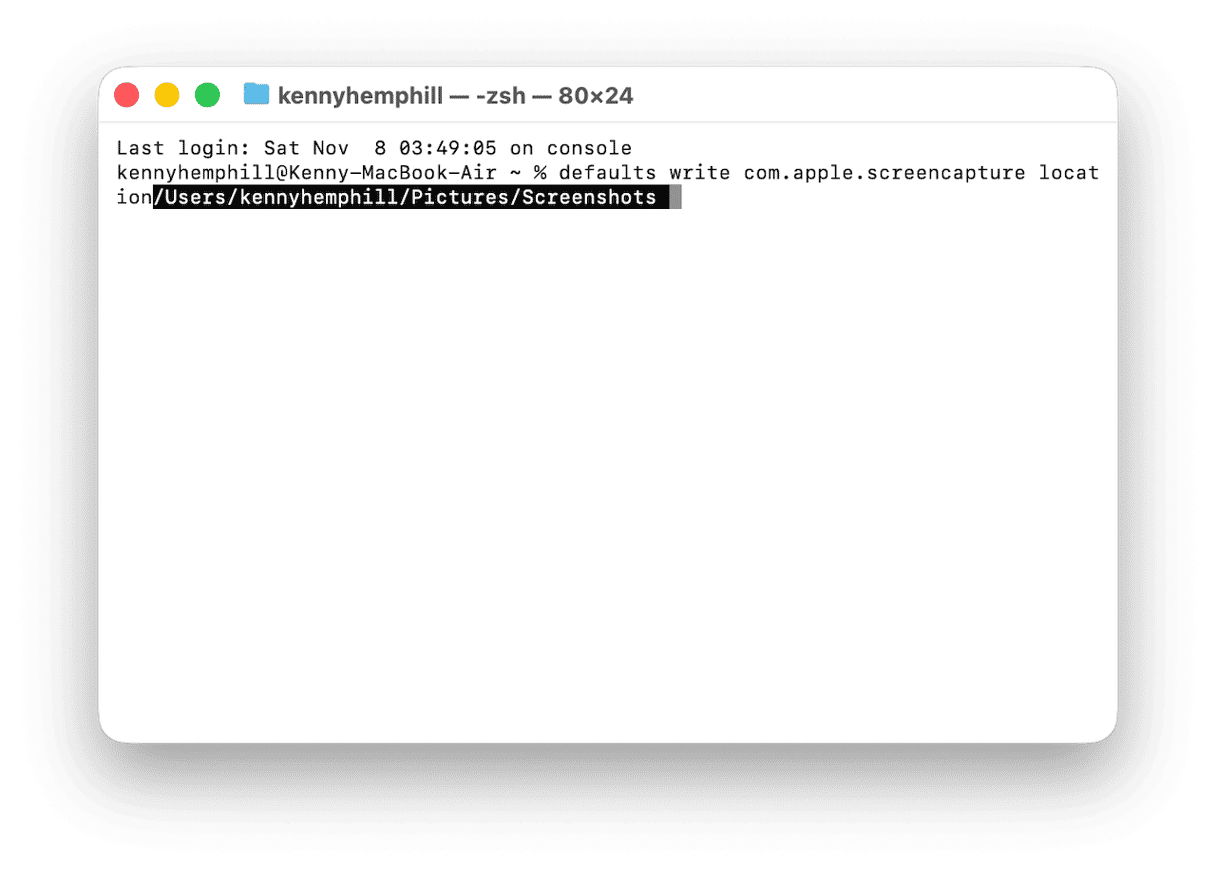
Screenshots will now be saved to the new folder by default. Remember not to delete that folder. If you want to revert to saving to the Desktop by default, repeat the steps above. At step 4, navigate to your user folder in a Finder window and drag the Desktop folder from there onto the Terminal window.
Bonus option: use a third-party screenshot tool
The methods above don’t need any additional software. However, there are several third-party screenshot utilities available that make it very easy to change where screenshots are saved. Many of these tools also have extra features like the ability to hide Desktop icons when you take screenshots, as well as the ability to markup, edit or redact sections of a screenshot.
How to easily clear out the clutter on your Mac
There’s nothing like the feeling of a brand new Mac, running smoothly and speedily and free from all the clutter and junk that builds up over time. Sadly, that feeling doesn’t last very long — once you start using your Mac, the junk builds up and starts to slow your Mac down.
But you can recapture that brand new Mac feeling by getting rid of clutter. Root out all those duplicates, images that are so similar to each other you can’t tell the difference, old files you haven’t opened in months or years, and downloads that have been lurking in your Downloads folder for far too long.
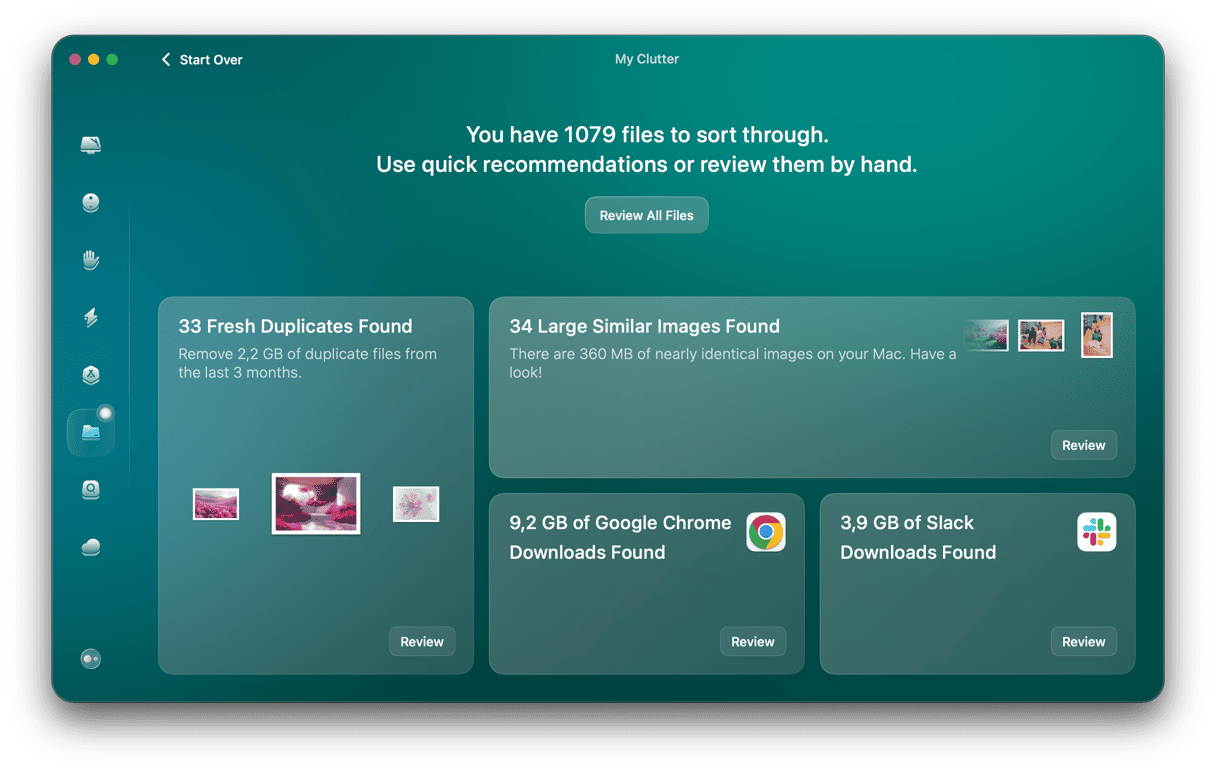
Getting rid of all those files will free up several gigabytes of space on your startup disk and help your Mac run more smoothly. The problem is, of course, that getting rid of all those files is time-consuming and laborious, and so most of us just can’t spare the time. That’s where CleanMyMac comes in. Its My Clutter feature scans your Mac, looking for the largest and oldest files on your Mac, images that are very similar to each other, duplicate files, and downloads and then allows you to remove them all with a click, or review what it has found and choose for yourself what to do.
Here’s how it works:
- Get your free CleanMyMac trial — you can test it for 7 days for free.
- Open it and choose My Clutter in the sidebar.
- Click Scan.
- When it’s finished, click Review to see what it has found and remove unneeded stuff.
Screenshots are, by default, saved to your Mac’s Desktop. But you can save them wherever you like. Follow the steps above to change where screenshots are saved on your Mac.