Want to know how to clear Google Drive cache on a Mac? I imagine you’re here because you discovered there isn’t a simple one-button remove option. I’ve been there. When I started having issues with annoying sync stalls and some really large cache folders on my Mac, I got to work researching what was happening.
I’m a huge fan of the Google Drive desktop app, and it’s really an integral part of my day-to-day work, so I needed a quick solution. It’s not until you encounter an issue with a tool like Google Drive that you realize just how much you rely on it.
If you’ve experienced any of these issues, then clearing your cache is a great option:
- Sync seems to be stuck.
- Finder previews don’t load or are very slow.
- Your cache folder is ballooning by gigabytes after a big project.
- Drive behaves strangely after an update.
If any of those symptoms look familiar, clearing the cache is not a scary move. It is housekeeping. It’s probably a good time to reassure users that it doesn’t mean you’re deleting actual files in your Google Drive account. I’ve got all the tips you need, so let’s get started.
What actually is Google Drive cache?
So in this article, I’m specifically talking about the cache used by Google Drive for desktop, not your web browser cache. I think a lot of people get confused here, because it’s easy to forget that the working area the desktop app provides lives inside your user Library, in a DriveFS directory that contains per-account folders.
If you’re curious where that is, here’s how to find it in Finder.
- Open Finder.
- Choose the Go to Folder option from the Go menu and enter the below pathway:
~/Library/Application Support/Google/DriveFS
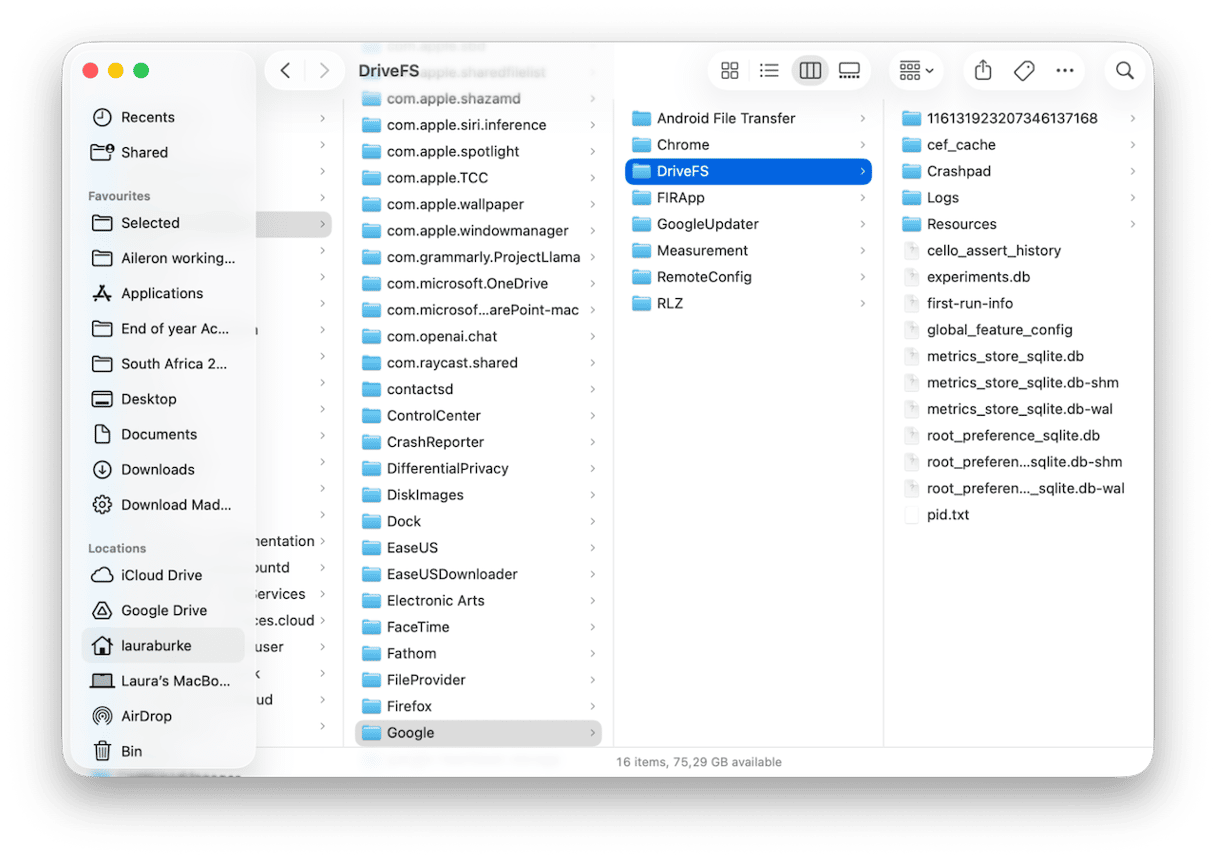
OK, so you know where it is, but what do all those files do and mean? Well, cache exists to ultimately streamline processes; all those little file pieces, thumbnails, and indexes mean your files can open faster, and so your offline folders work without constant reloading.
When the cache gets in the way
- The app stalls at “Syncing” without progress.
- You keep running out of local storage space.
- You have issues with duplicates.
- The app upgraded or moved storage and left the old cache behind.
If you’ve come across any of these things, then clearing Google Drive cache on Mac is the next step. It forces the app to rebuild its local working set, and fixes a bunch of glitches along the way.
How to clear Google Drive cache on Mac
So before we jump straight in, just another reminder that these tips are for how to clear Google Drive cache on Mac, not your browser cache. I’m going to break this down into steps.
Option one: Manual Google Drive cache removal
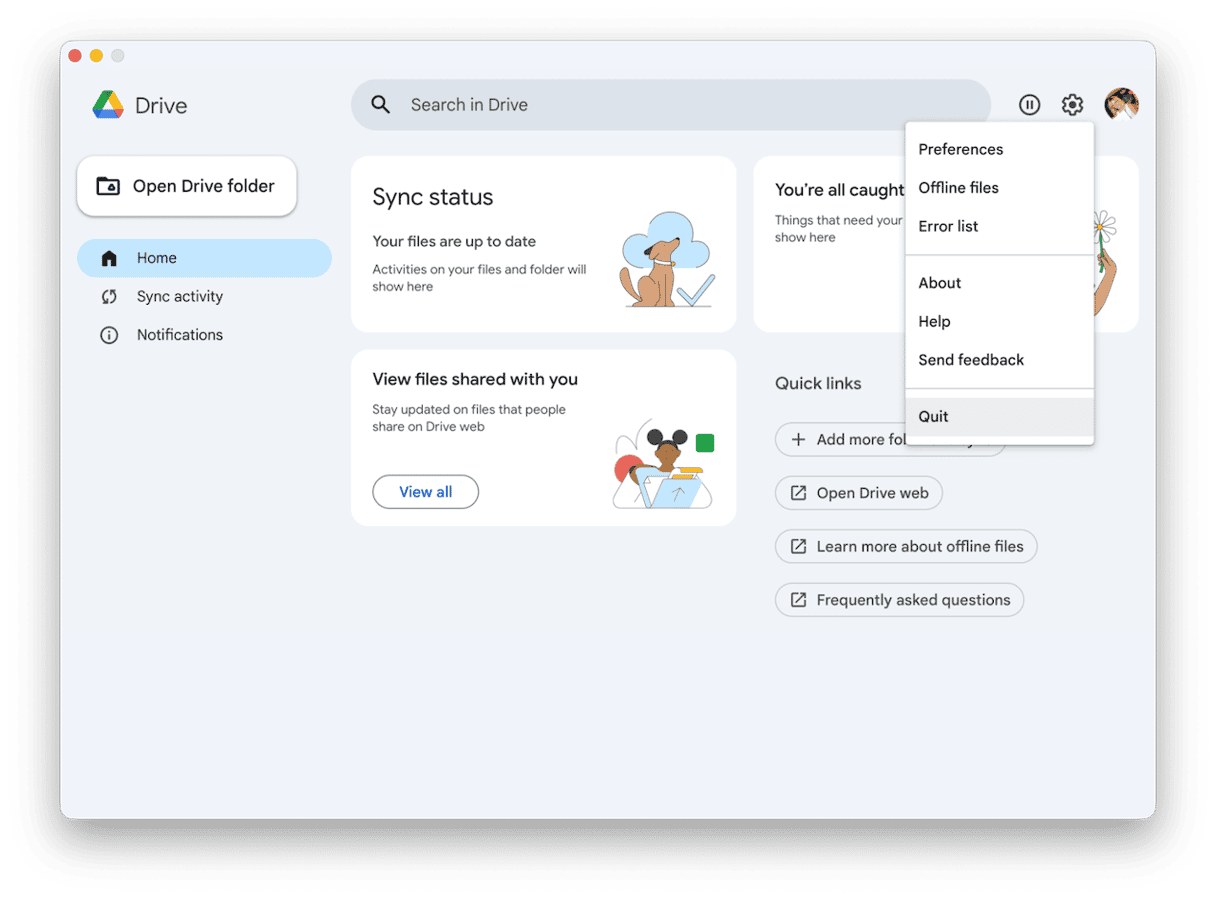
Step one: Quit Drive for desktop
- In Google Drive for Desktop, click the gear icon and press Quit.
- Just give it a few seconds to fully unmount.
Step two: Open the DriveFS folder
So, we’re going to open the folder I showed you in the section above; here’s a reminder.
- In Finder, press Shift - Command - G, paste this path:
~/Library/Application Support/Google/DriveFS - Next, open the long numeric folder.
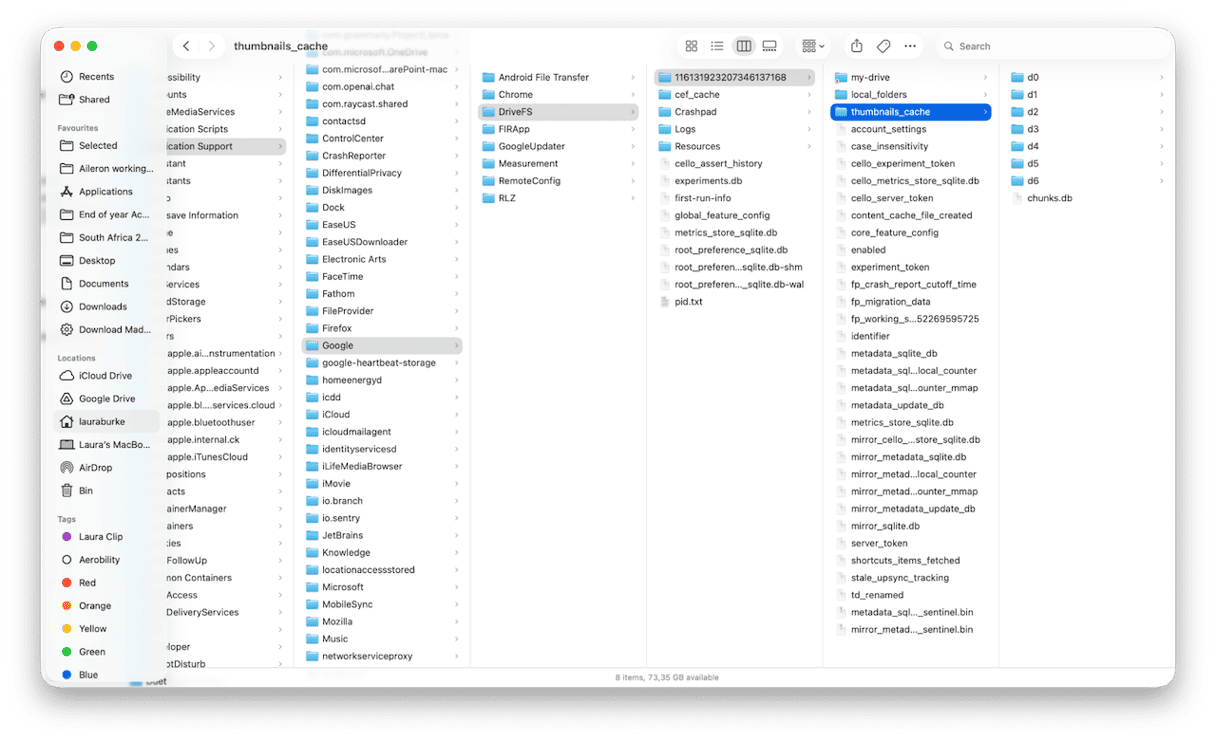
Step three: cache removal
- If you see content_cache/ you can open it and delete its contents (but leave the folder itself).
- Do the same for local_folders/
Optional, safe extras to clear:
- thumbnails_cache/ – remove contents
- cef_cache/ – remove contents
- Logs/ and Crashpad/ – remove older files if you want a little space back
Do NOT touch the database files (*.db, *.sqlite, *.wal, *.shm) or my-drive/ folder.
Step four: Relaunch Drive for desktop
- Open up the desktop app again; you might need to sign in.
- And give it time to rebuild.
Depending on the size of your Drive, this can vary, so maybe think about doing this in the evening.
Step five: Check your local storage
- Go to the main menu > System Settings > General > Storage.
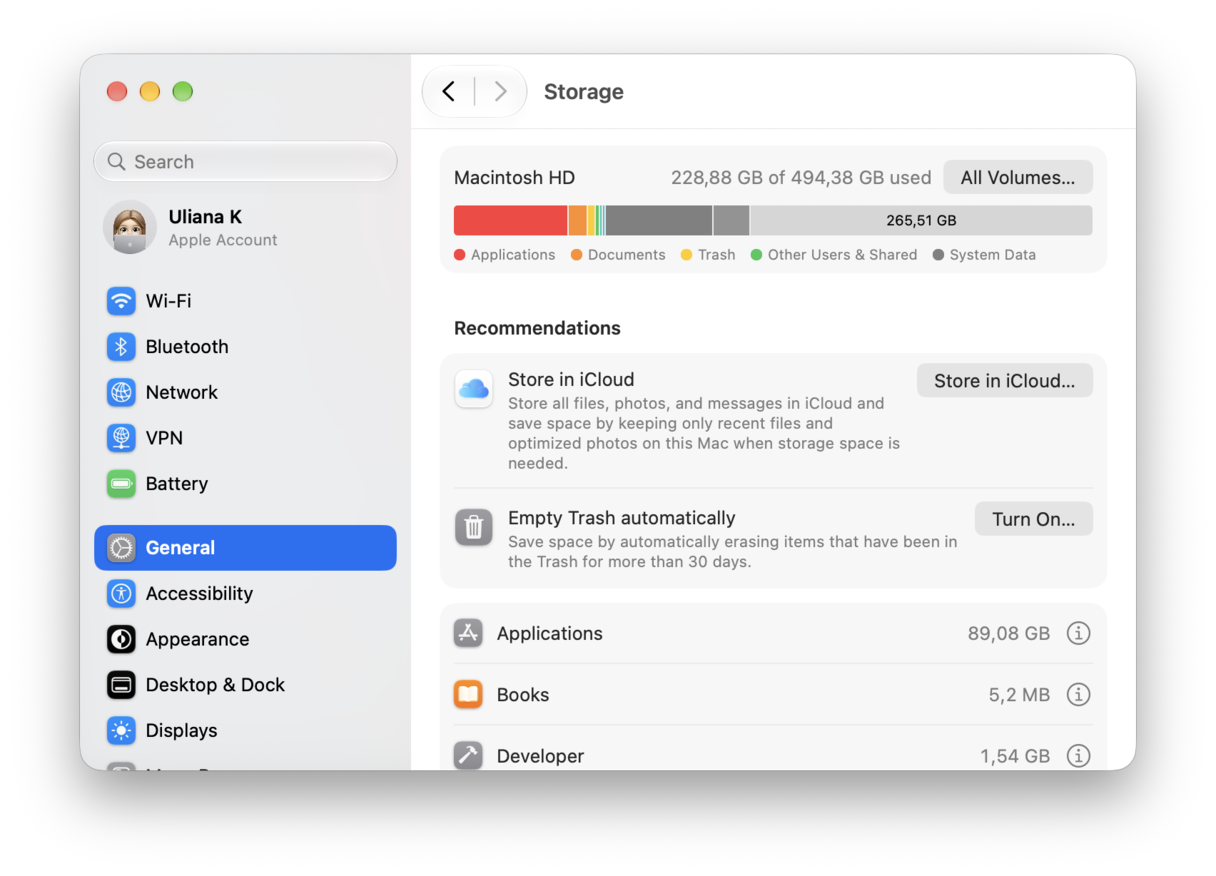
You should see space on your Drive free immediately.
Step six: Test the previous pain point
Either open the file or folder you were having trouble with, or check your sync progress, to see if previous issues are fixed by manually clearing up your build-up cache.
Option two: Local Google Drive reset
If the manual method above helped to free up system space, but you still have issues with syncing or crashes, then you can try resetting your local database; here’s how:
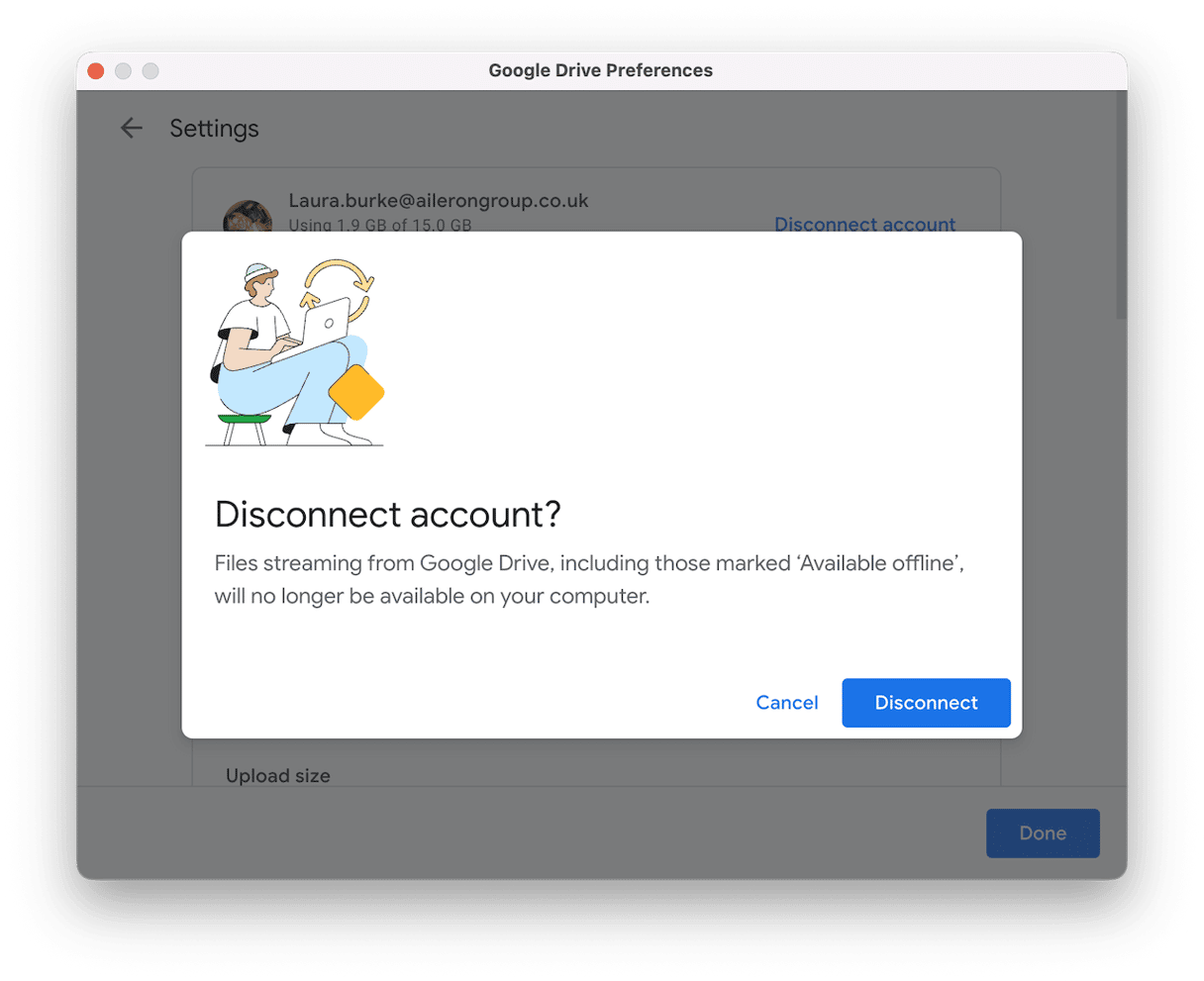
Step one: Fully disconnect from your Google Drive desktop account
- Open the app, select Google Drive > Preferences from the top menu.
- Select the gear icon and press Disconnect and confirm.
- Make sure you close the app down entirely.
Step two: Back up your local state
- In Finder, press Shift - Command - G, paste this path:
~/Library/Application Support/Google/DriveFS - Next, select the long numeric folder and rename it to 123456-backup.
Step three: Log back in
- Relaunch Drive > sign in.
- Verify everything looks right and your files are present on drive.google.com.
When you’re satisfied, delete 123456-backup (or keep it for a few days).
Here, renaming doesn’t delete anything, and because the account is disconnected, the local folder is no longer linked to the cloud, so there’s no way a local removal can propagate upstream.
Another tip is to use the Cloud Cleanup feature from CleanMyMac. It scans my Google Drive and gives me an instant, clear view of large cloud-synced folders that are sitting locally. (It even connects to Dropbox and OneDrive; here’s how to use it.
- Open CleanMyMac — get your free trial here (free for 7 days).
- Open and click Cloud Cleanup.
- Connect your Google Drive and click Scan.
- You can either use this as an overview or remove the files here.
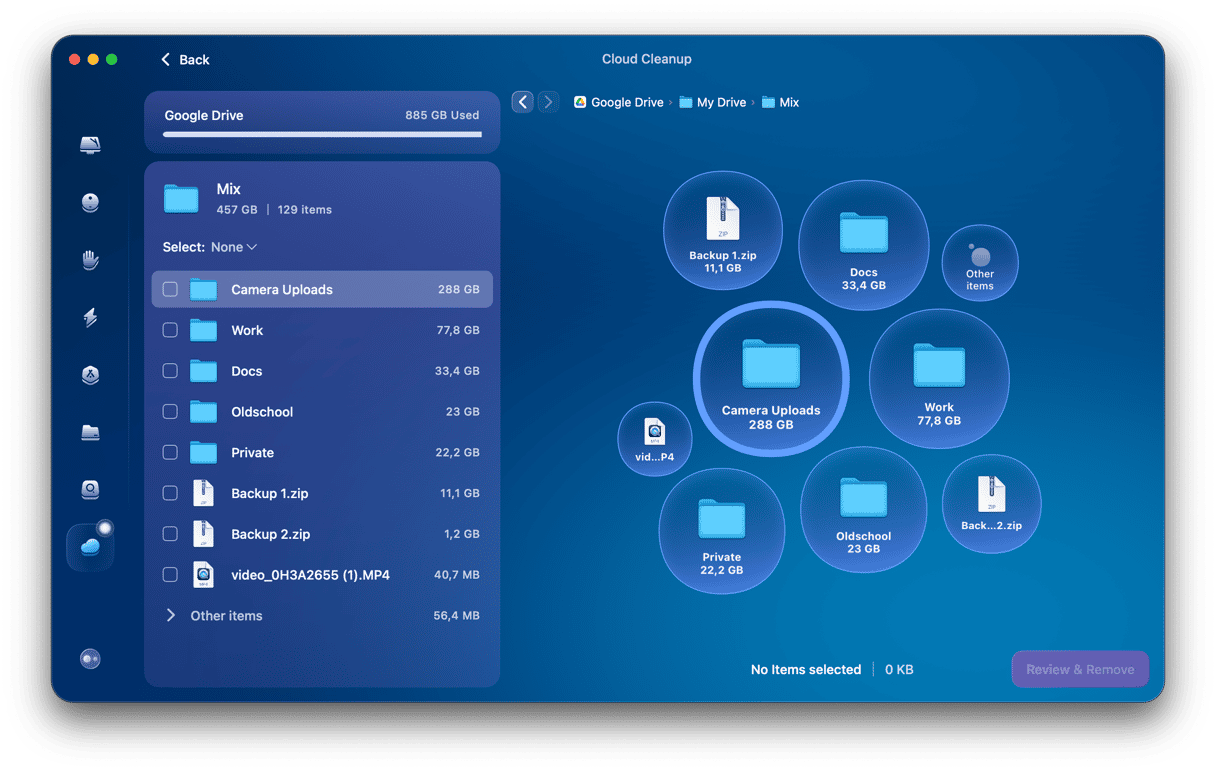
Personally, I use the overview to help me decide what truly needs to stay Available offline in each app. For me, this is a way I get a better understanding of what's taking up space.
Extra notes from first-hand testing on macOS Tahoe
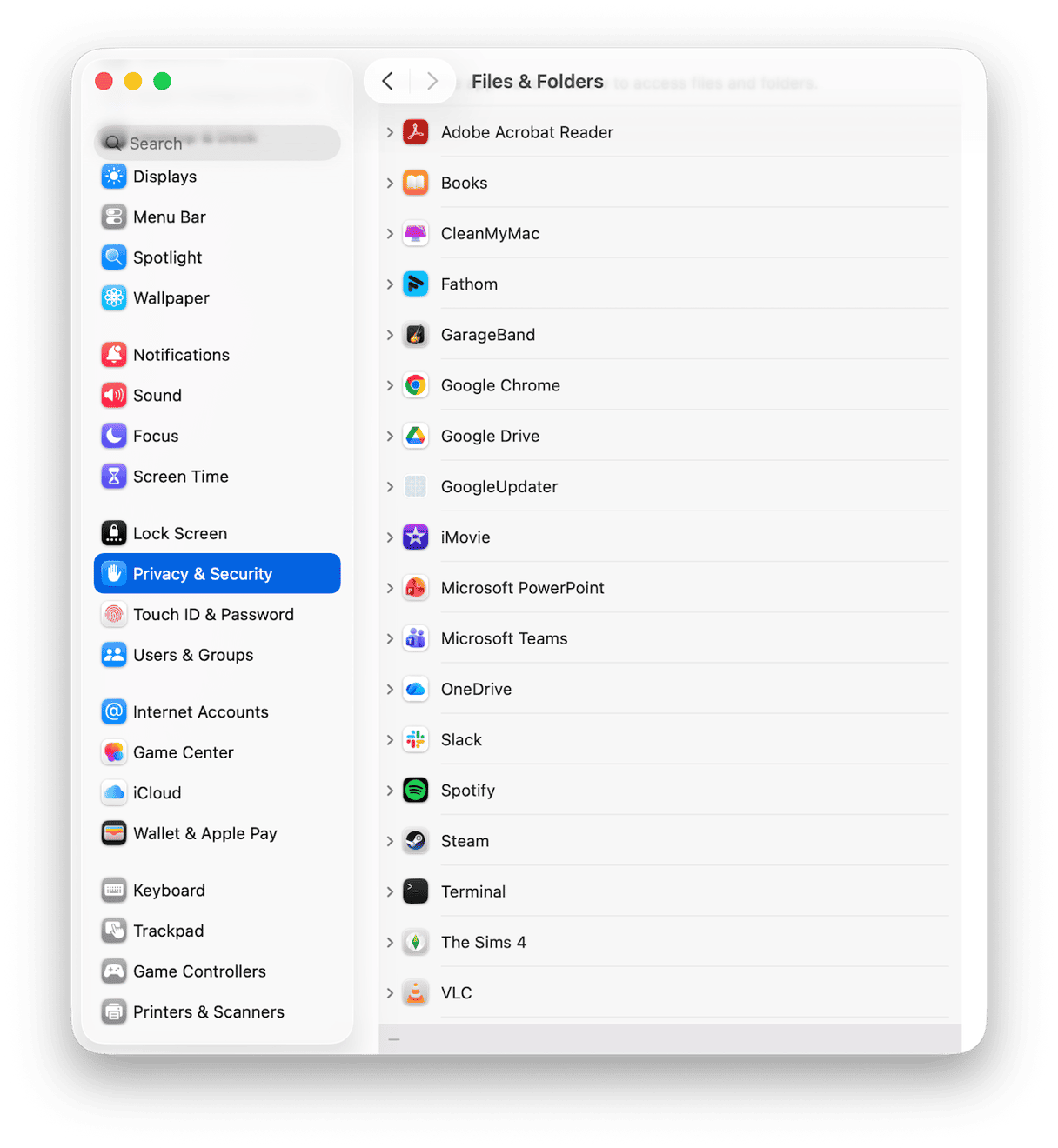
- macOS Tahoe’s privacy prompts can pause Drive the first time it asks for access to folders like Desktop or Documents. If you clicked Deny earlier, revisit System Settings > Privacy & Security > Files and Folders, then give Google Drive for desktop access.
- Offline folders re-hydrate on demand. After clearing the cache, available offline items re-download. I let the Mac sit on power and Wi-Fi for a while after the cleanup.
- Multiple accounts mean multiple numeric folders. If one account has issues, you can clean just that account’s cache by targeting its numeric folder. The others stay intact.
Extra macOS cache management tips
1. System junk removal
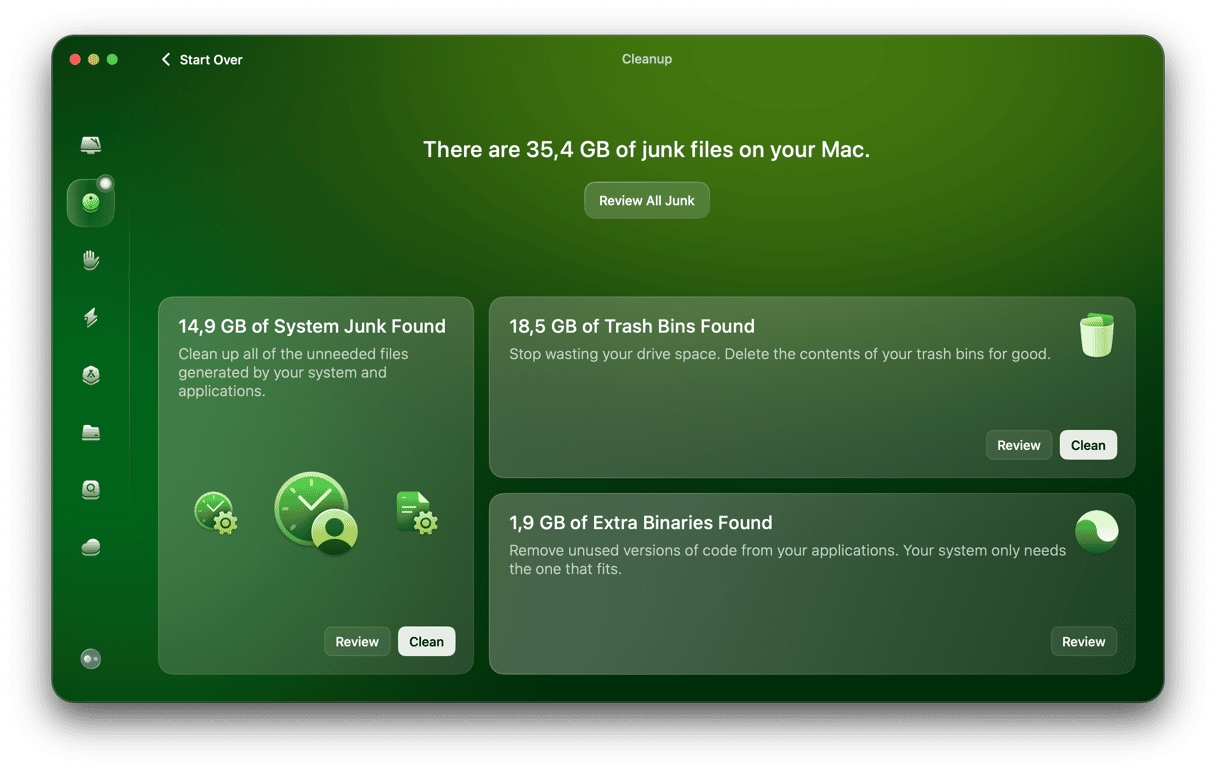
It is not just Google Drive that contributes to system cache buildup; at any given time, there’ll be a ton of temporary, broken, system-related logs and files sitting around consuming precious disk space. I use the Cleanup feature from CleanMyMac weekly to just help me keep on top. What I like most is that there’s no digging around in Library folders, worrying I’m deleting something that might be important, but it removes a lot of the background bloat. I just wouldn’t be able to find on my own. Here’s how:
- Open CleanMyMac and select Cleanup > Scan.
- Press Review All Junk and do just that.
- Take a look through the categories, select items you are happy to delete and press Clean Up.
2. Regular reboot
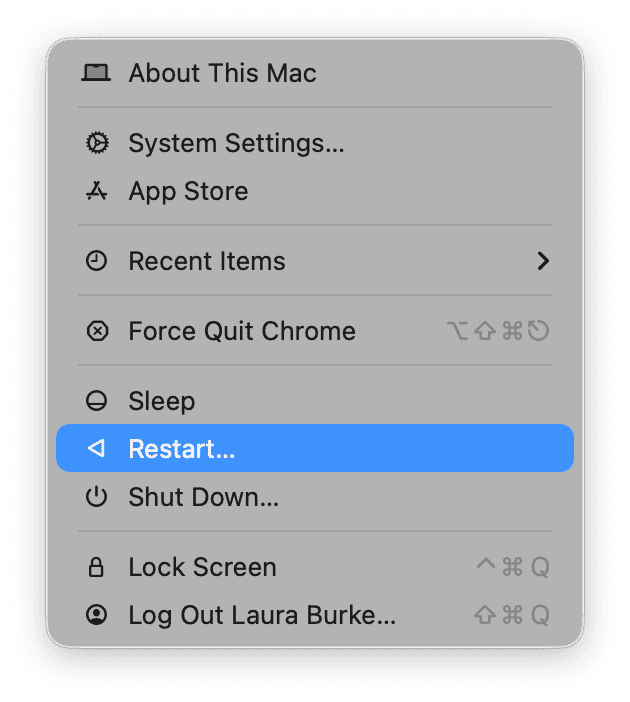
Get in the habit of rebooting regularly. It can quickly clear many temporary caches and release file locks that keep junk around longer than it should. I do it on Friday afternoon, so Monday starts clean.
3. Keep fewer folders offline
Only mark the stuff you really need; you can easily unmark old project folders, so the cache does not keep growing for no reason.
4. Pause Google Drive during huge file moves
If you are shuffling thousands of items, you can save your Mac a lot of pressure by pausing sync. Instead, finish the move, then resume the full sync when you’re finished.
5. Keep some free space available
Try to keep at least 10–15% of your disk free. When storage is tight, caches cannot rotate, and everything feels slow.
6. Close massive preview sessions when finished
If you just skimmed hundreds of photos or videos, quit Preview and Finder windows for those folders.
When not to clear the cache (and what to do instead)
It might feel tempting to jump straight to clear Google Drive cache on Mac mode every time something feels off, but there are moments when it’s not the best option. Let’s take a look.
1. A short outage or service blip
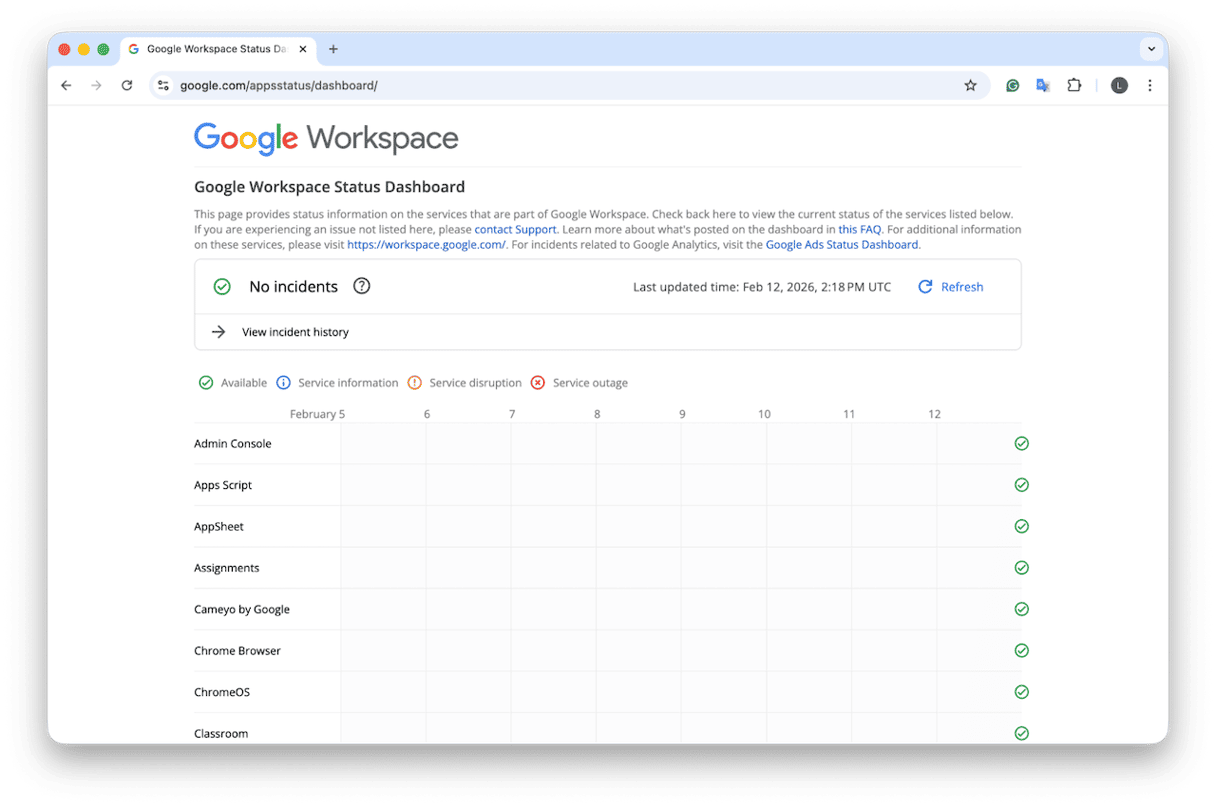
If Google Drive just started acting odd and the web app is also slow, wait it out. Server outages can happen, and clearing cache won’t help at all here. Check here for real-time app outages from Google.
2. Brand new install
If you’ve just set up and installed the Google Drive Desktop app for the first time, then it’s perfectly normal that it feels or acts busy; it’s working away to complete indexing. Clearing the cache mid-index only stretches out the process. Just let it finish one full pass.
3. Unstable internet
If you’re on hotel Wi-Fi or a hotspot, you might find that syncing stalls or feels very slow. Instead of clearing the cache, you might want to wait till you’re back on your regular connection.
4. Only one strange file or one folder
If you’re having a sync issue with just one particular document, first try to open it on the Google Drive web version. If it’s working fine over there, you can instead duplicate it online, rename it, and let the desktop app catch up. No cache clearing needed.
Knowing how to clear Google Drive cache on Mac is still important if you use it heavily. In 2026, it still trips people up, and I get why; there’s still no quick remove all cache button, it remains a somewhat manual job. But thanks to these tips, you know how and where to look.
Frequently asked questions
If I delete my Google Drive cache, will it delete my actual files?
No. Cache clearing only removes local working data. Your files remain in Google Drive. You will see re-downloading for anything you keep Available offline, which is expected behavior.
I have two Google accounts in Drive. Do I clear both caches?
Not required. Each account has its own numeric folder under DriveFS. If only one account misbehaves, clear just that account’s content_cache. The other account remains untouched. The structure is one folder per account id.
Will clearing cache sign me out of my online account?
No. Clearing the cache does not remove your sign-in on the desktop app. If you choose to disconnect, then you’ll be signed out of the Desktop app only, not your online account.
Will clearing Google Drive cache make my Mac run faster?
You should notice the biggest change in Drive itself. As a side effect, your Mac may feel lighter because you freed up some storage, but the speed boost comes mainly from Drive behaving normally again.
How often should I clear the cache?
Only when you have a real reason. If Drive is healthy and storage looks fine, there is no routine schedule to follow.
Can I keep working while the cache rebuilds?
Yes, but keep it simple. Let Drive catch up for a bit, then open the files you need first and avoid jumping between huge folders immediately.
Do I need to clear my Google Drive web browser cache too?
Browser cache and the desktop app cache are separate. Clearing the desktop cache will not change how the website loads in Safari or Chrome.
Will clearing cache change file versions or history?
No. Versions and history live in the cloud. Your local cleanup does not rewrite that history.