I was recently sent down a how to delete corrupted files rabbit hole, after I couldn’t, no matter what I tried, delete an old file I found in my Downloads folder. It was really annoying, because as far as I could tell, nothing was open or using the app. I’m running macOS Tahoe on my machine, and what surprised me wasn’t that files go bad, but instead, how many little roadblocks show up when you try to remove them. I’ll show you the patterns I ran into and the exact fixes that work in 2026. So let’s get this article started.
What corrupted files actually mean on a Mac?
A file is corrupted when your Mac or the app can’t make sense of it anymore. The file might be half-written. Or its internal label is broken, so the app opens it, but nothing happens. Sometimes the Mac’s index points to the wrong place, and the file looks fine in Finder but won’t open. The result is the same for me: the file doesn’t behave like a normal file and won’t reliably open, copy, or move.
So why remove them, instead of ignoring them?
Corrupted files just waste space and can start to cause a ripple effect of issues. Backups can fail, imports can stall, and even searches can take longer. In the worst cases, they hide a bigger problem by throwing the same error over and over.
So knowing how to delete corrupted files on a Mac clears the noise so the rest of your stuff works normally again.
How to delete corrupted files on a Mac
Before you do anything, give your Mac a quick Restart from the main Mac menu. This might sound basic, but you would be surprised at just how many little glitches this can fix. Once it’s rebooted, try to delete the file again. If it doesn’t work, run through these steps in this order; you can stop once you find the tip that works.
1. Run First Aid
- Open Disk Utility > select your startup volume group > First Aid.
- Run First Aid on each volume in the container, then on the container itself. If Disk Utility says the disk is failing, back up and replace it. Don’t fight the files.
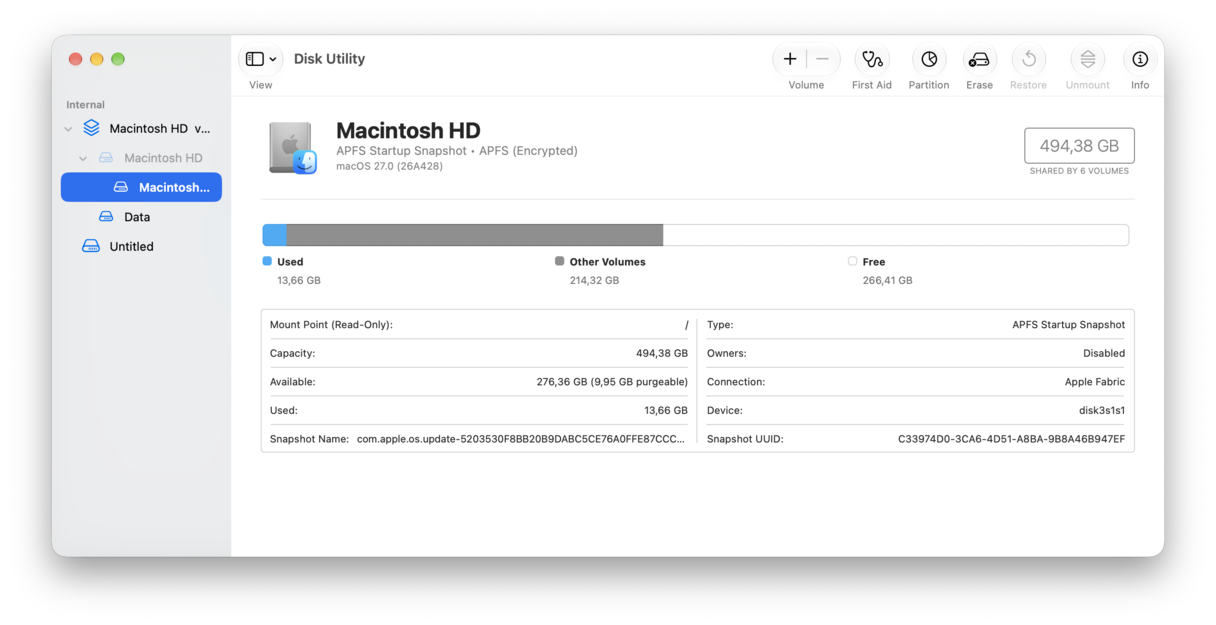
I’ve seen issues with corrupt files vanish after a clean directory repair. Saves time and avoids deleting files that were fine. First Aid is a great native tool from Apple, but I also like to use the Smart Care feature from CleanMyMac to clear obvious system clutter, which can also sometimes clear corrupted files too; here’s how:
- Open CleanMyMac —get your free trial here (you can test it for free for seven days).
- Click Smart Care > Scan.
- Review recommendations and press Run.
- Restart your Mac once done and then continue with the next step.
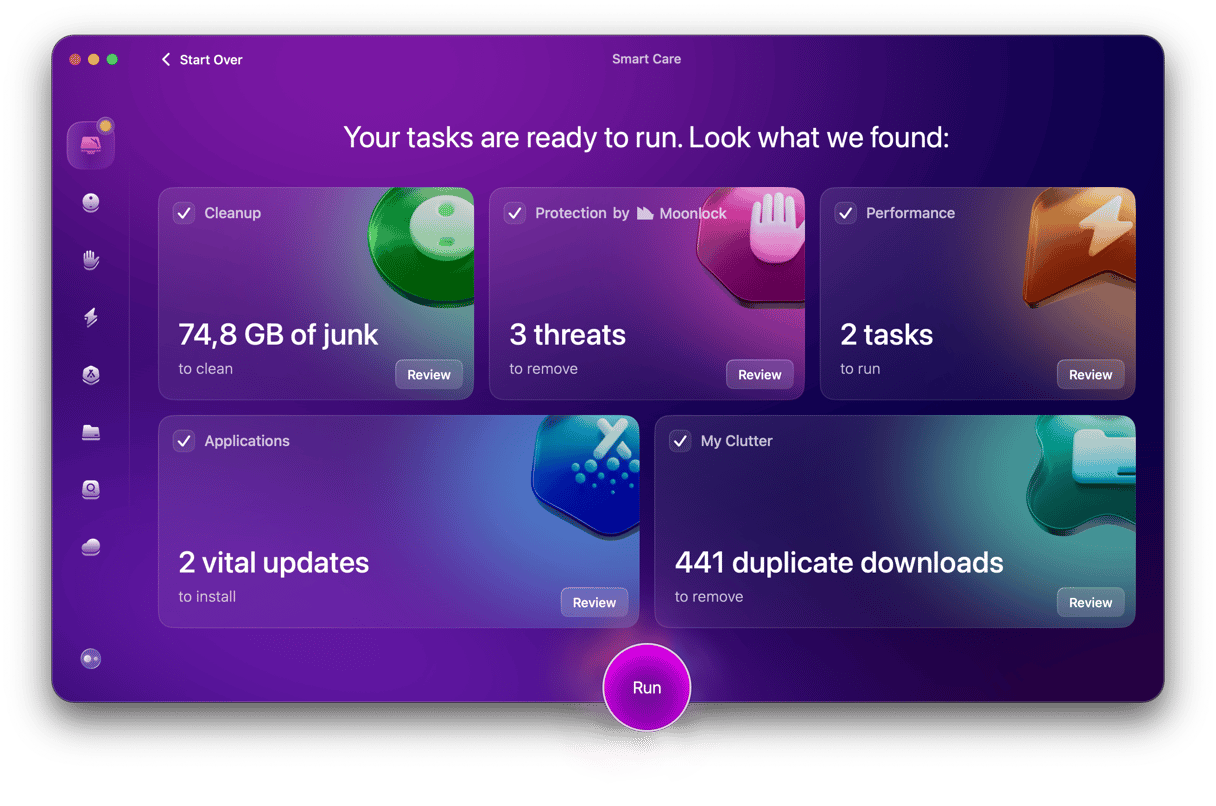
What I really like about this tool is that if you build this into your regular MacBook maintenance routine, you can actually avoid file corruption altogether, and as most Mac users will know, with most of these annoying problems, prevention is often the key.
2. Try to move or delete in safe mode
Safe mode disables third-party launch agents and clears caches. It also runs a quick check at startup. If Trash empties in safe mode, you just learned that a helper app was holding the file open.
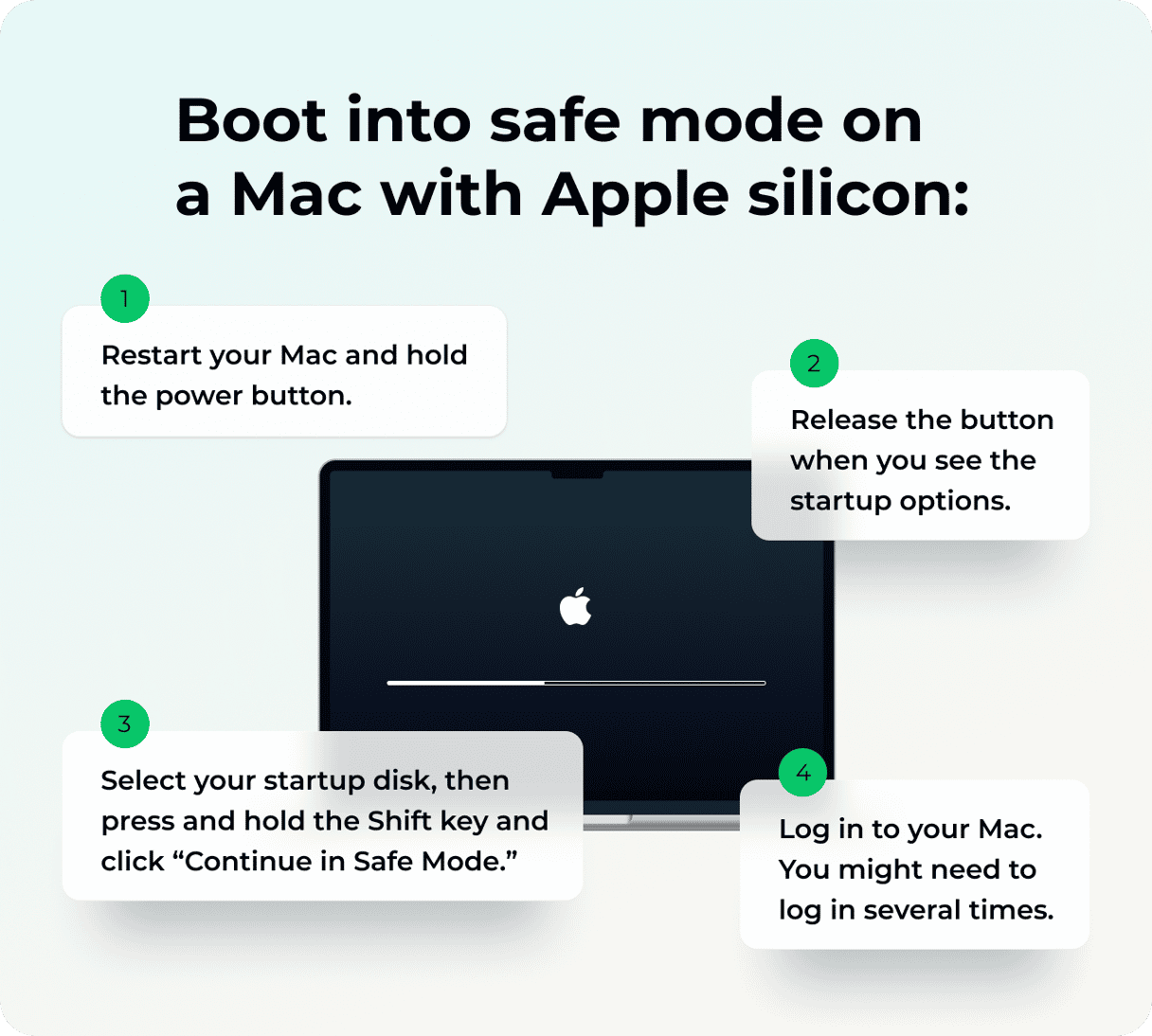
Apple silicon
- Shut down your Mac from the main Apple menu.
- Hold your Mac’s power button until Loading startup options appears.
- Select your system volume. Hold Shift and click Continue in Safe Mode.
- Sign in and try deleting again. Reboot normally afterwards.
Intel-based Mac
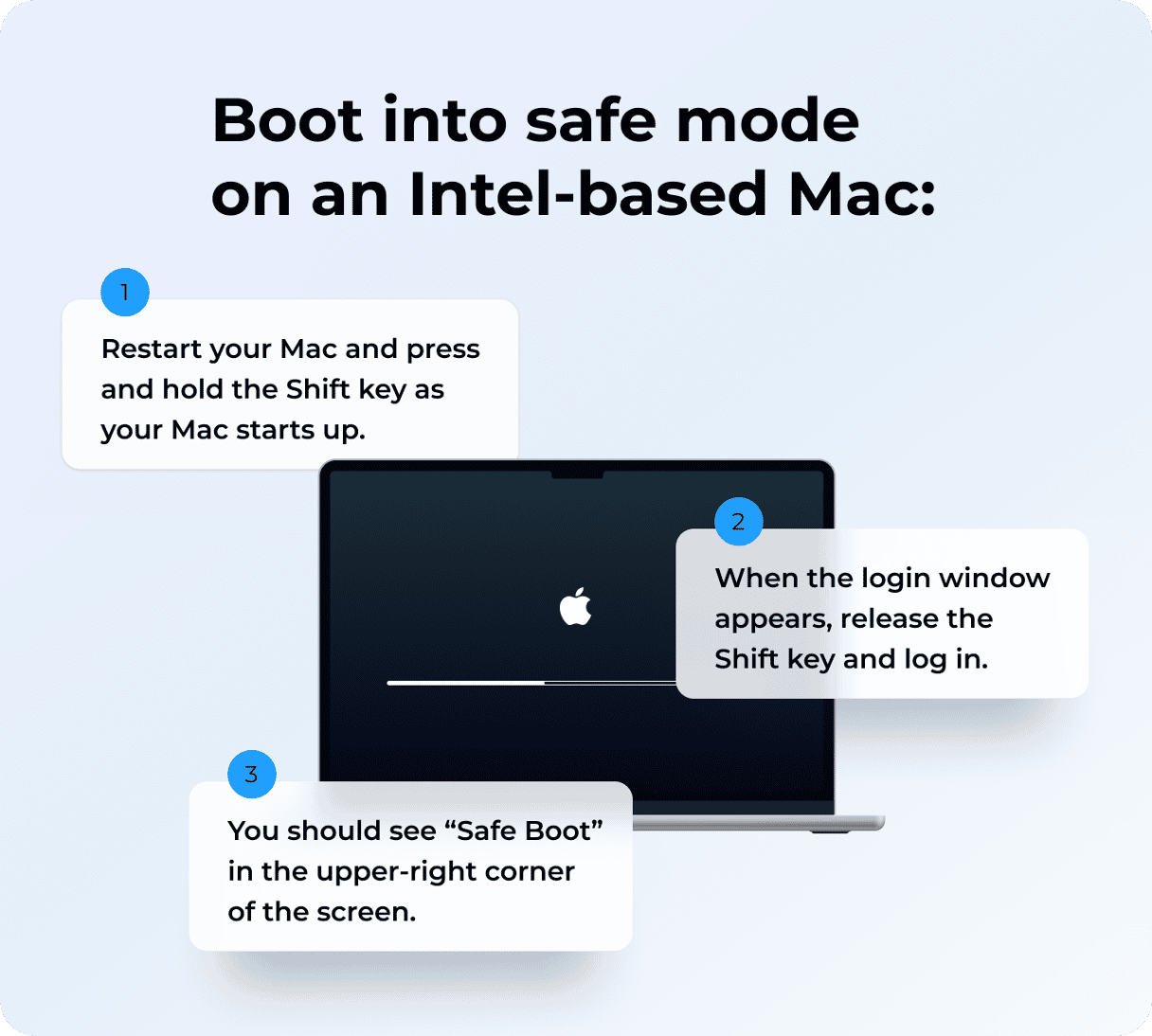
- Turn on or restart the machine. As soon as your Mac switches on and lights up, press and hold the Shift key.
- Release the Shift key as soon as the login window appears.
- Try deleting the file and reboot normally.
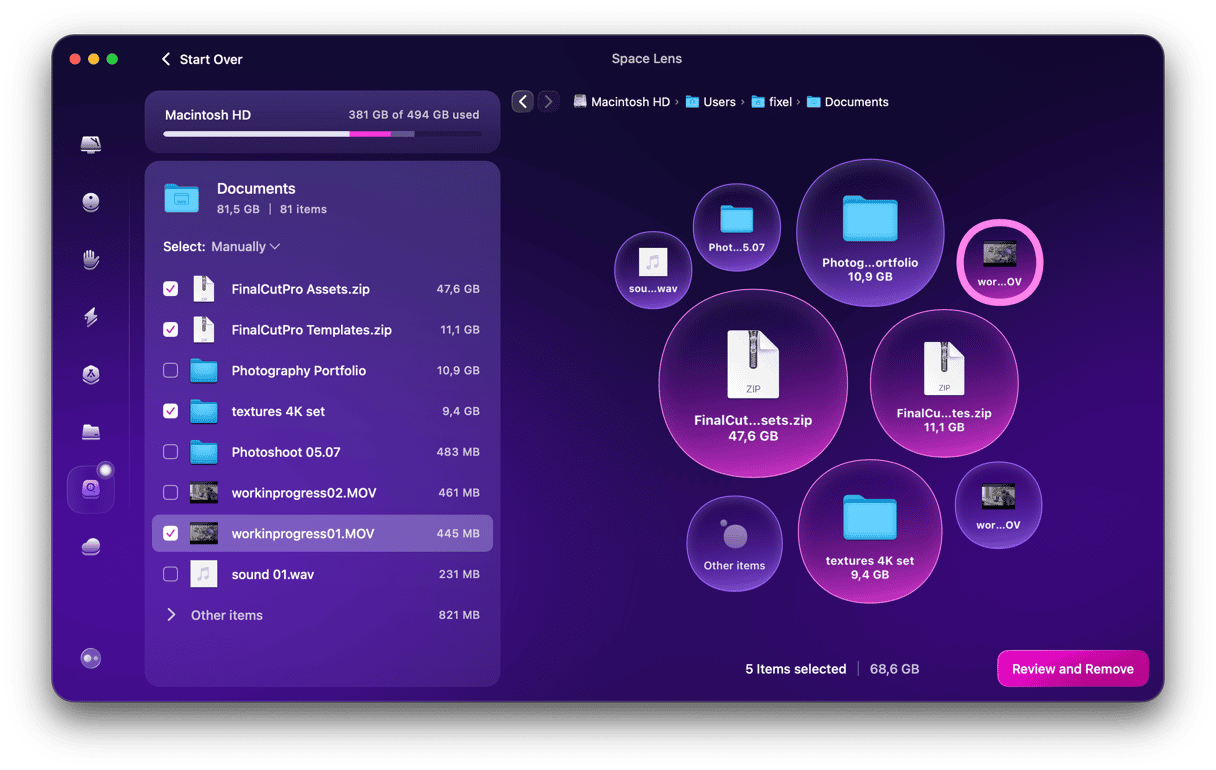
Sometimes the problem is a half-downloaded file or a forgotten failed installer. I use the Space Lens feature from CleanMyMac to spot those big, obvious items fast. Whilst it’s not explicitly a corruption scanner, it can help you remove large items that you didn’t even know were lurking; here’s how:
- Open CleanMyMac > Space Lens > Scan your startup disk.
- Review and remove what you no longer need.
3. When you cannot delete a file
When you cannot delete a file, it’s usually because the file is open, locked, or you lack permission; here’s what to do:
- From your main Apple menu > Force Quit > Select the app you used with that file and try deleting again.
- If that still doesn’t work, locate the file in Finder.
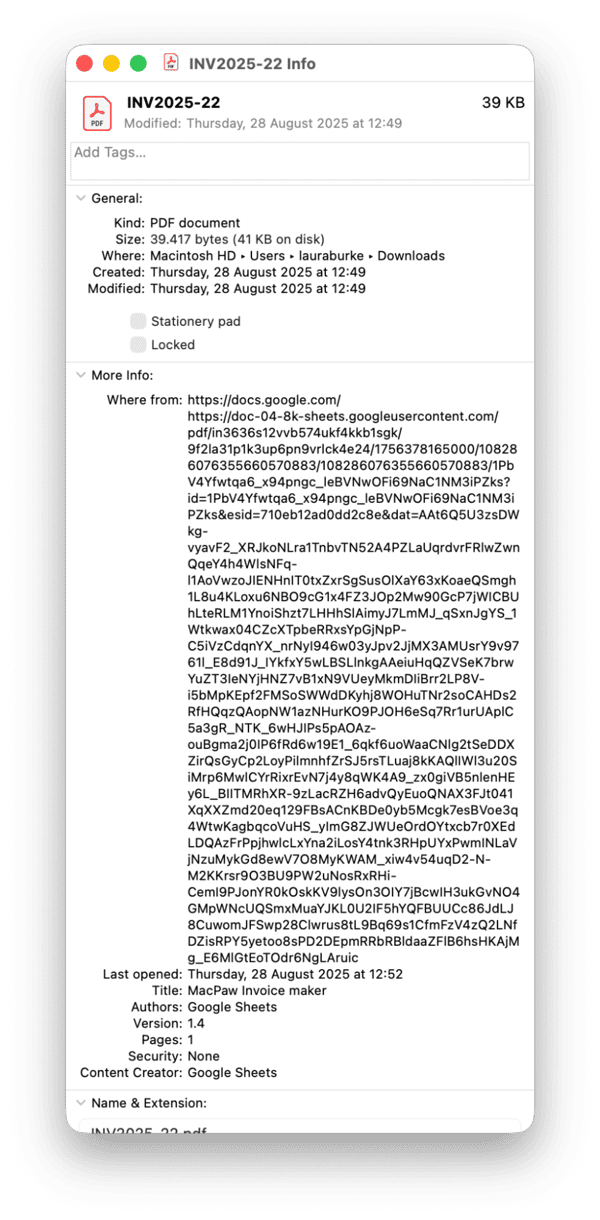
- Right-click and choose Get Info.
- Uncheck Locked. Scroll down and under permissions, set your user profile to Read & Write.
- Try again. If it’s a folder, delete what’s inside first, then the folder.
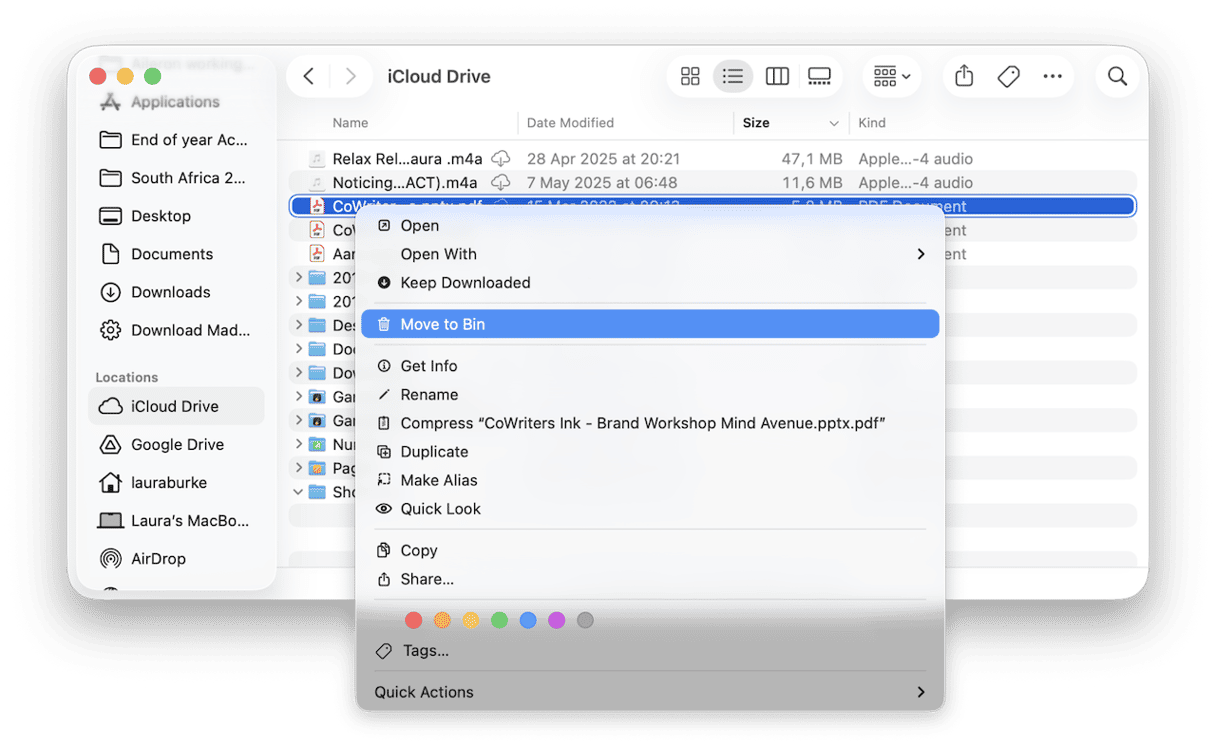
4. When a file keeps coming back or says it’s in use
- Quit any third-party sync apps like Dropbox, OneDrive or Google Drive.
- If the item lives in iCloud Drive, sign in at icloud.com and delete it there first.
- Empty your Recently Deleted folder, and then reopen Finder on your Mac and remove the local copy.
- Give your Mac time to catch up and resync, then try removing it again.
5. Create a new admin account
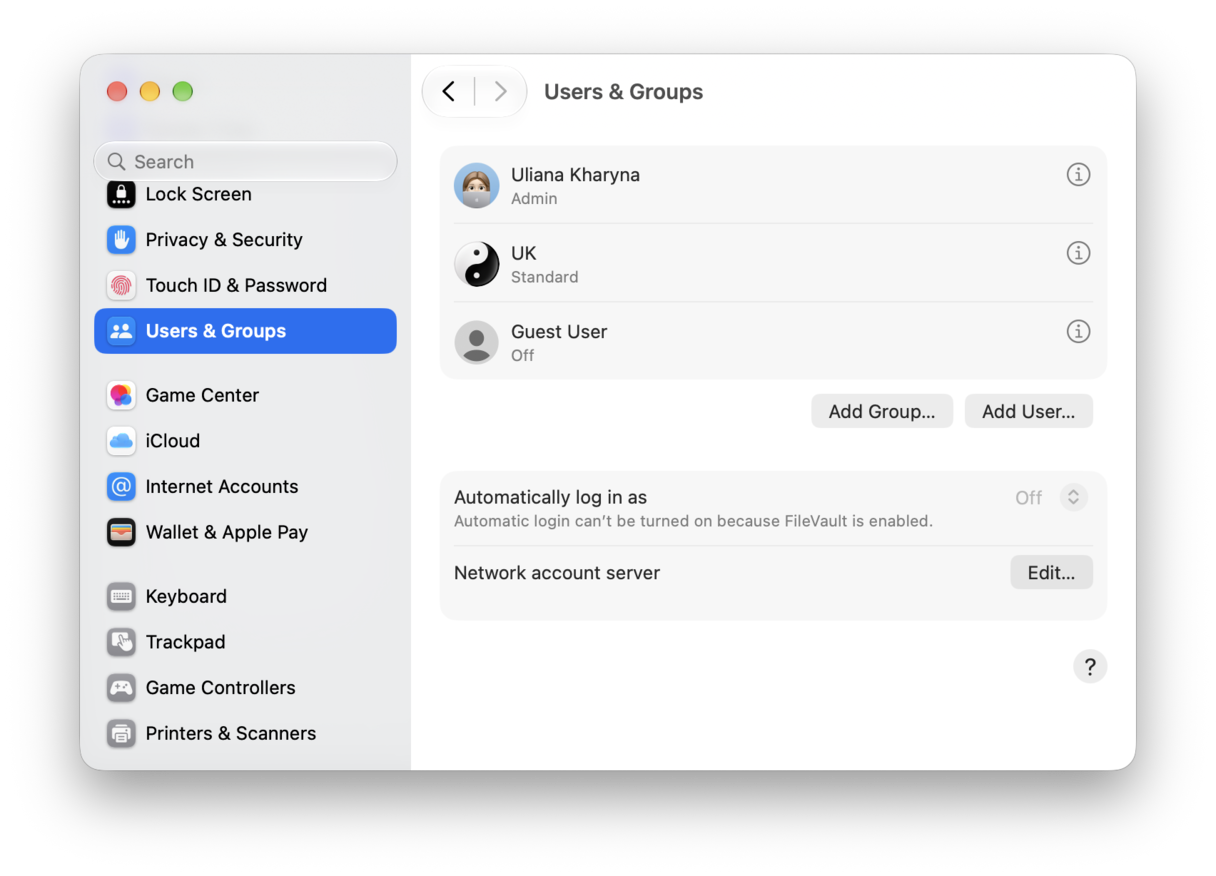
If nothing's worked yet, you could try creating a new admin account; here’s how:
- System Settings > Users & Groups.
- Click Add User and create a temporary Administrator.
- Log out of your account, and log back in to the temp admin.
- Try to delete the file, then Empty Trash.
- Log back into your account, then remove the temp admin.
So, that's all there is to know about how to delete corrupted files on Mac. Hopefully, one of these tips helped you solve your issue.
FAQs: How to find and delete corrupted files
Can a wrong system time cause file errors or weird delete failures?
Yes, this is a well-known issue; the incorrect time can break secure checks and confuse services. If I see SSL or permission weirdness while handling files from the web. Go to System Settings > General > Date & Time. Make sure everything is set to automatic.
Why do corrupted files keep coming back after I delete them?
This is a really annoying problem. From what I researched, if a sync or backup app is restoring a copy, it can appear as if the file respawned. You should pause sync, delete, then resume. This also happens when a launch agent recreates the file at login, so you might need to check your login items from System Settings > General > Login Items & Extensions.
Will First Aid delete my files?
This is a really common question, and a good one to be fair. No, it doesn’t delete anything; it simply repairs directory structures. If it can’t be repaired or says the disk is failing, I copy important data off immediately and replace the disk rather than poking at individual files.
Is there a way to check if the file is actually corrupt?
Nope, sadly, there isn’t a magic button. But If a file won’t open in two different apps, also fails on another Mac or user, won’t preview or has a weird file size, that's really all the proof you need.
Could a drive format be the reason a file looks corrupted?
Sometimes. Files on NTFS volumes (with third-party drivers) or flaky exFAT sticks can act weird on macOS. I copy the file to my internal APFS drive and test it there. If it behaves on APFS but not on the external, the issue is the external drive or its driver, not the file.