It’s remarkable that most of the time, when you connect to a remote server on your Mac, it just works. So much so that we don’t give any thought to the process behind it and all the tasks that need to be completed to make it work. It’s all the more remarkable when you realize that, besides the obvious tasks like checking email or connecting to a web page, there are many situations in which your Mac connects to a remote server, and you probably don’t even realize it. Still, occasionally things do go wrong, and when they do, you may see a message that says ‘network error posix 61.’ So, in this article, we’ll show you how to fix network error posix 61 on your Mac.
Why does network error posix 61 occur?
The error usually happens when there is a problem with the server you’re trying to connect to or when something on your Mac is preventing it from making the connection. That could be security software, a VPN, or something else entirely.
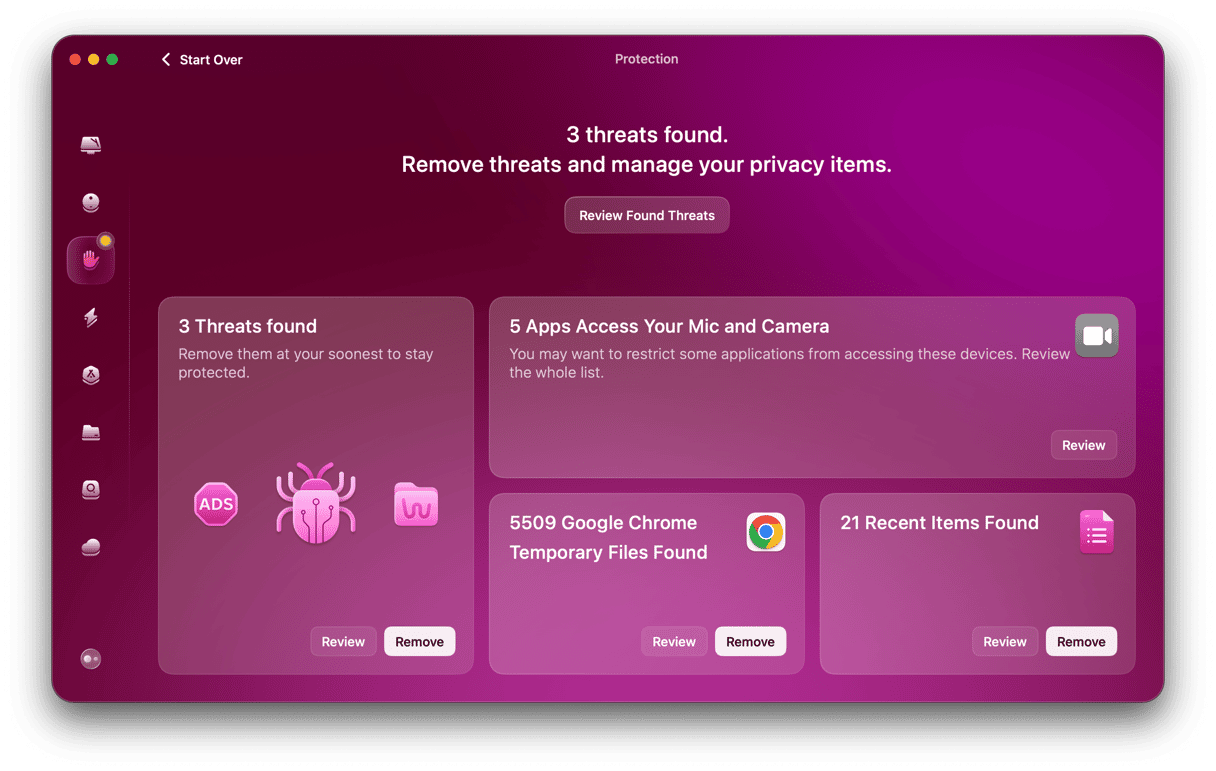
macOS offers built-in privacy controls, such as managing which apps can access your camera, microphone, or files. But your privacy could be compromised in other ways. The Recent Items list in Finder, browser history, and saved Wi-Fi networks can also expose sensitive data. Keeping on top of all that data isn’t easy. CleanMyMac’s Protection manager helps by scanning your Mac for potential privacy issues, showing which permissions apps have, and letting you revoke access or clear out stored data like the Recent Items list or saved Wi-Fi networks. It also scans your Mac for malware, letting you remove threats with a click.
- Get your free CleanMyMac trial — you can test it for 7 days for free.
- Launch it, then select Protection in the sidebar.
- Click Scan.
- When it’s finished, choose Review or Remove in each panel, or select Manage Privacy Items for an overview of everything it has found.
How to fix network error posix 61 on your Mac
- Restarting your Mac. There’s a reason ‘turn it off and turn it on again’ is a cliche´– it works frequently. In this case, restarting your Mac clears out temporary files and cache and frees up RAM. If restarting doesn’t work, move on to step 2 below.
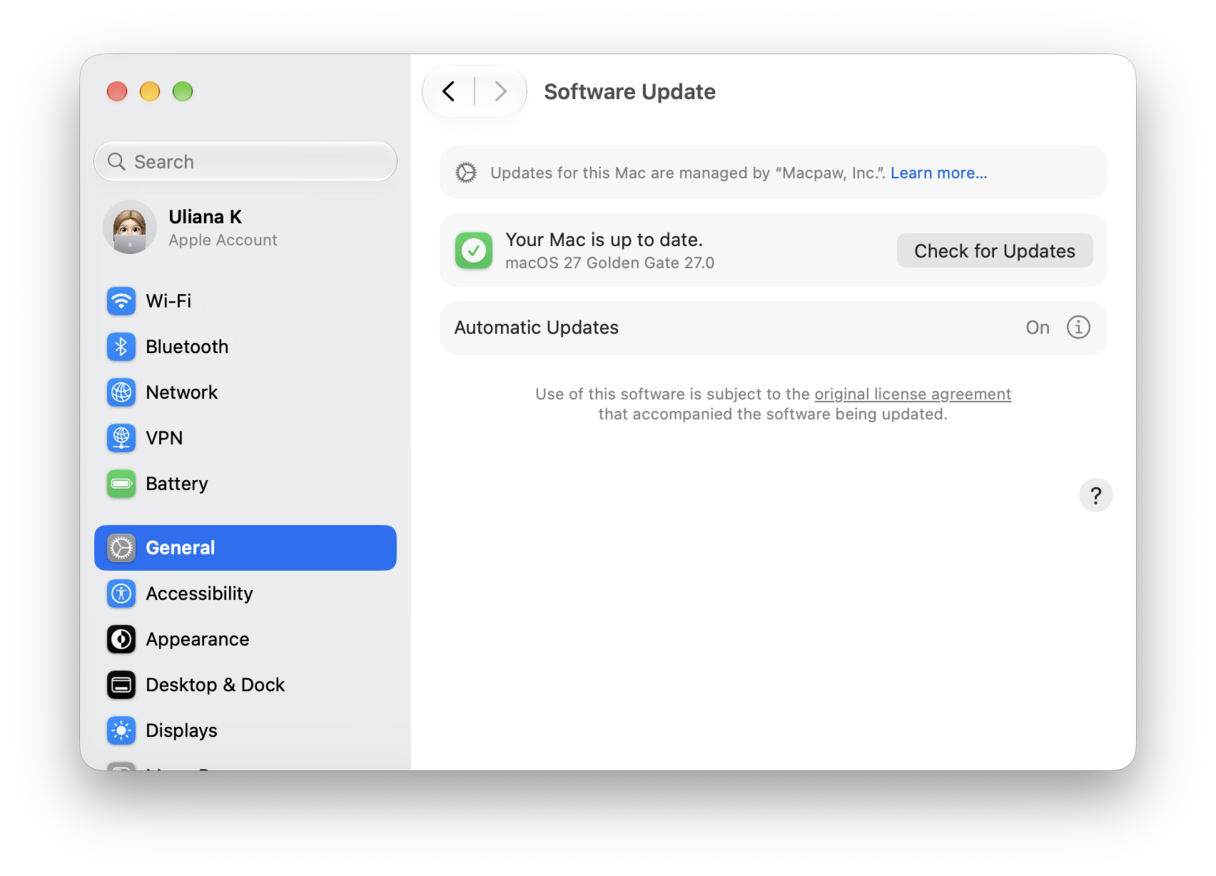
- Update macOS. If the problem is caused by a bug in the version of macOS installed on your Mac, updating will fix it.
- Click on the Apple menu and choose System Settings.
- Go to General > Software Update.
- Wait for it to check for updates.
- If there is one available, follow the instructions to install it.
- Check that the server you’re trying to connect to is working. If it’s a local server, try connecting to it from another device. If it’s an Apple service, like iCloud Drive or iCloud email, go to Apple’s status page here and check the status of the service. If the light next to it is green, that means it’s working. If it's a website that’s not operated by Apple, use a service like Down Detector to check that it’s working.
- Check with the service provider. If the problem occurs with a non-Apple email account, the next step is to check with the service provider. For example, if it’s a POP or IMAP email account that is linked to a domain you own, check with the domain host that all their services are working and whether any settings have changed for email. If it’s an email account from the likes of Google or Microsoft, check their support pages.
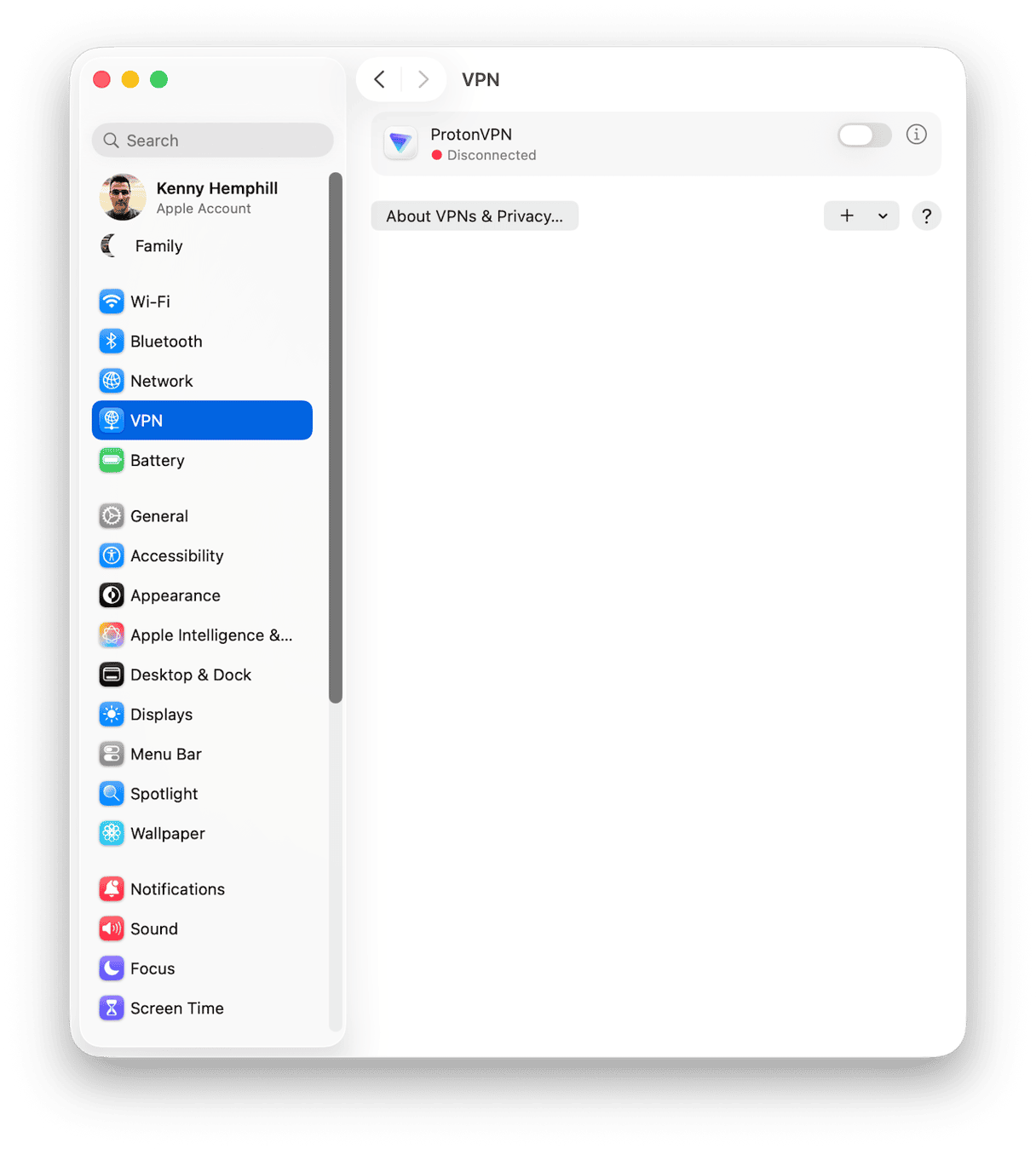
- If you’ve established that the problem is with your Mac rather than the service you’re trying to connect to, the next thing to do is turn off any VPNs or security software you’re running. A number of users have reported that the error is fixed when they turn off a VPN. Others had to uninstall the VPN completely to fix it. So, if turning it off doesn’t work, try that. Likewise, if you have a third-party firewall or other security software that may block incoming or outgoing connections, disable it and check whether the problem persists.
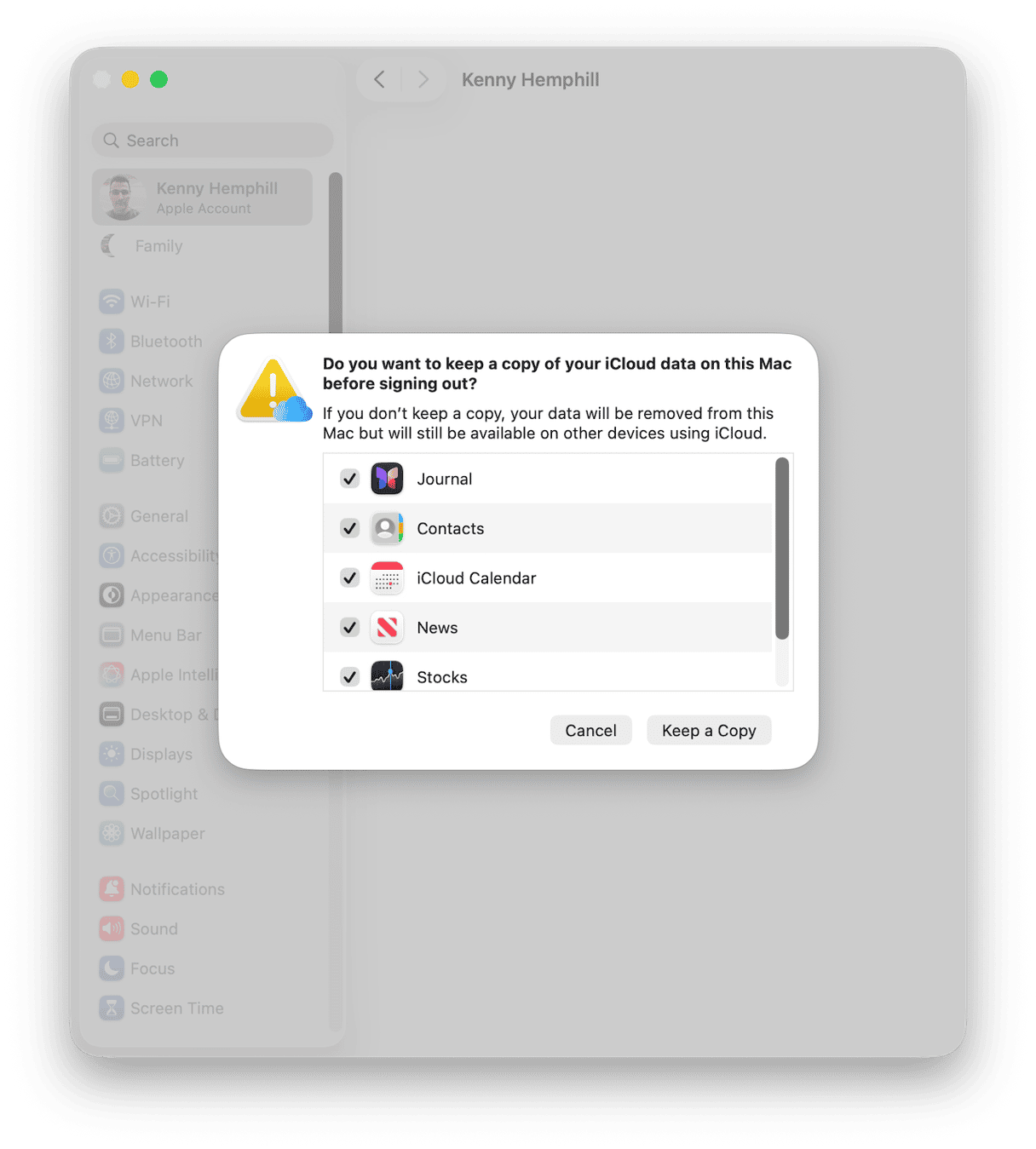
- Sign out of your Apple ID, then sign back in. If the error occurs when you’re using Apple Mail or another iCloud-related service, signing out of your Apple ID might fix it.
- Open System Settings.
- Click Sign Out.
- Choose the data you want to keep a copy of on your Mac and click Keep a Copy.
- Once you have signed out, wait a minute or two, then sign back in.
- Delete the email account, then re-add it. If an error affects an email account, try removing that account from your email application. If it’s an IMAP account, your Mail will be on the server, and you will be able to download it again when you add the account back. If it’s a POP account, you will need to back up your mail first.
Network errors can occur for many reasons — anything from a poor internet connection to overly strict security software or problems with the service itself. One of those errors is known as posix 61. Follow the steps above to fix network error posix 61 on your Mac.