Downloading and installing apps is something most Mac users do on a fairly regular basis. Most of the time, everything goes OK, and the app installs without a problem. But occasionally, you will run into an error message. In this article, we’ll deal with one such error message and show you how to fix the 10661 error on your Mac.
What is 10661 error on Mac?
The error code 10661 usually means that your Mac can’t install an application you have downloaded. This could be for one of a number of reasons, including:
- The Mac is not compatible with your Mac. For example, it’s a Windows exe file or a 32-bit application that won’t run on modern Macs.
- The application doesn’t meet the security criteria set by Gatekeeper – although in this example, you would normally see a message telling you the application may not be safe.
- The application hasn’t downloaded fully.
- The package hosting the application is corrupt.
How to keep your Mac secure and your data private
One of the reasons that the 10661 error may appear is macOS’ focus on security and privacy. It’s very fussy about what apps it will allow to be installed. But you shouldn’t rely on macOS’ built-in tools to keep your Mac safe and your data secure. There are lots of other things you can do:
- Scan your Mac regularly for malware.
- Regularly review the permissions you have granted to apps to access, for example, your Mac’s camera and microphone, screen recording, and folders with your files in them.
- Clear out all the lists your Mac keeps: Recent Items, Wi-Fi networks, browser history, downloads, and more.
All these could reveal information about you and compromise your privacy if they were accessed. The easiest way to scan your Mac for malware and take control of all that sensitive data is CleanMyMac’s Protection feature. It scans your Mac looking for malware and potential weak points in security and privacy. If it finds malware, it allows you to remove it immediately. You can then review its findings related to permissions and privacy and revoke permissions or remove data easily.
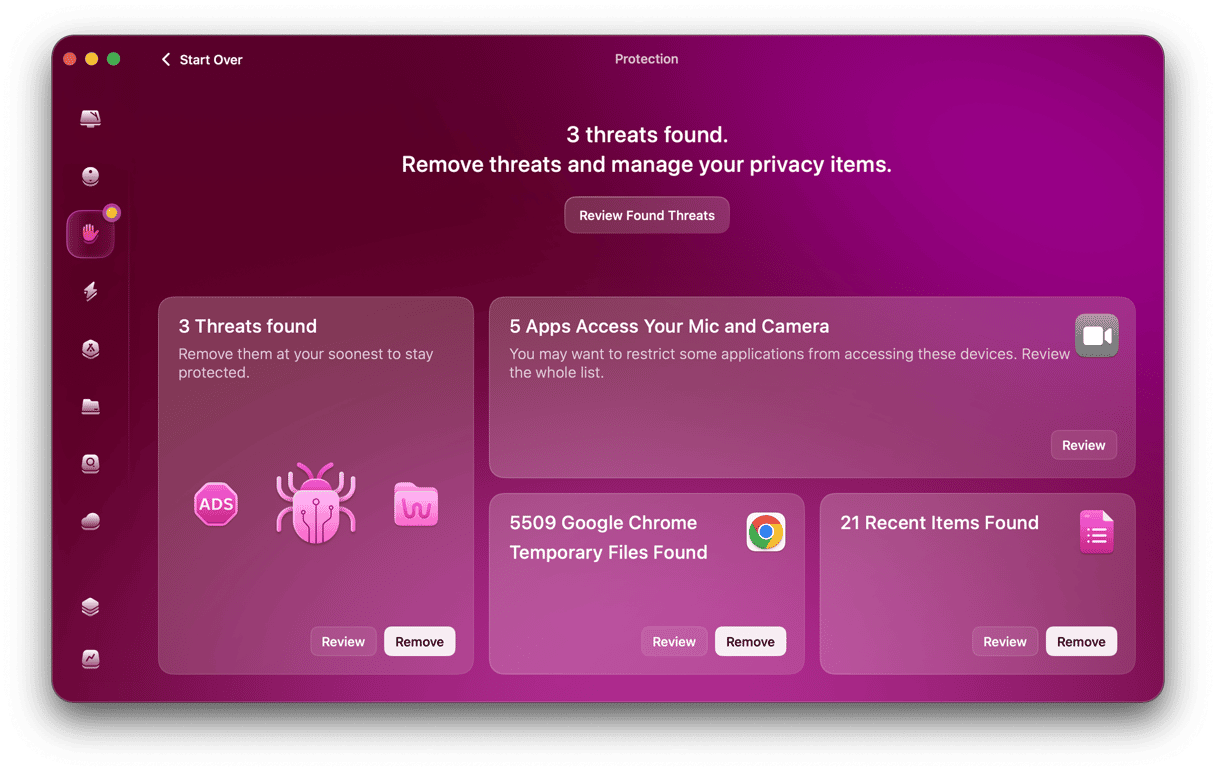
Here’s how it works:
- Get your free CleanMyMac trial — you can test it for 7 days for free.
- Open it and choose Protection in the sidebar.
- Click Scan.
- When it’s finished, choose Remove to get rid of any malware it has found, then go through the other panels, removing files or reviewing permissions as needed.
How to fix the 10661 error on your Mac
1. Rule out app incompatibility
First off, make sure that the application you have downloaded is compatible with your Mac. The easiest way to do that is to go to the website you downloaded it from and read system requirements to then compare them with your Mac. Is the app a Mac app? Did you download the correct version?
2. Check that the download completed
If the app was downloaded as a disk image, does the disk image mount when you double-click it? If so, it has downloaded successfully. If not, the download may have been interrupted.
Another clue that an app has downloaded successfully is that it should have an icon that denotes how it can be opened. For example, a zip archive should have an Archive Utility icon. If you can’t tell whether the app has completely downloaded, the final option is to check its file size in Finder by clicking it and looking at the info window in column view, or looking at the size column in list view, and comparing that with the size listed on the website you downloaded it from.
3. Restart your Mac
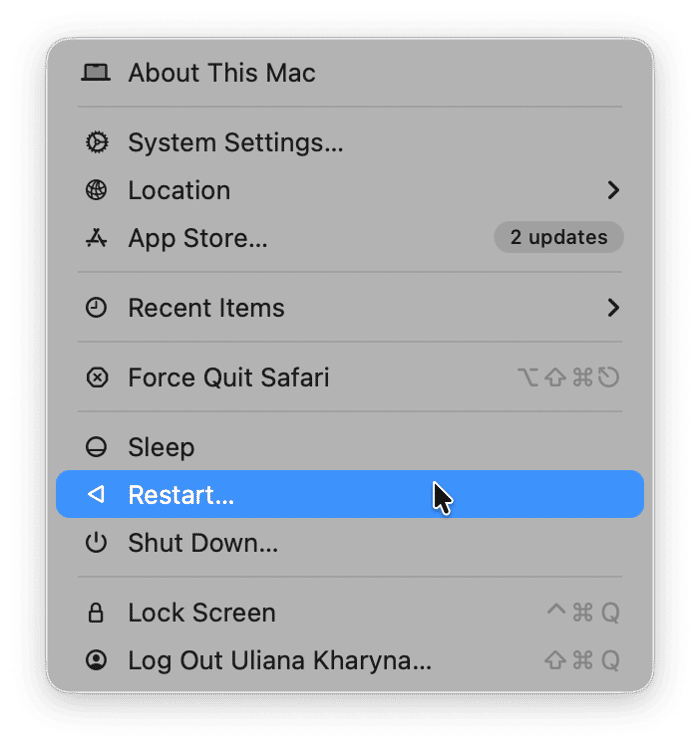
Restarting your Mac clears out temporary and cache files, frees up RAM and on Apple Silicon Macs, repairs disk problems and resets NVRAM. Between them, those tasks can fix lots of problems, so it’s always worth trying.
4. Update macOS
It’s possible that the 10661 error on your Mac is caused by the incompatibility between the app and the version of macOS currently installed on your Mac and that that incompatibility has been fixed in a recent update, so it’s a good idea to update macOS.
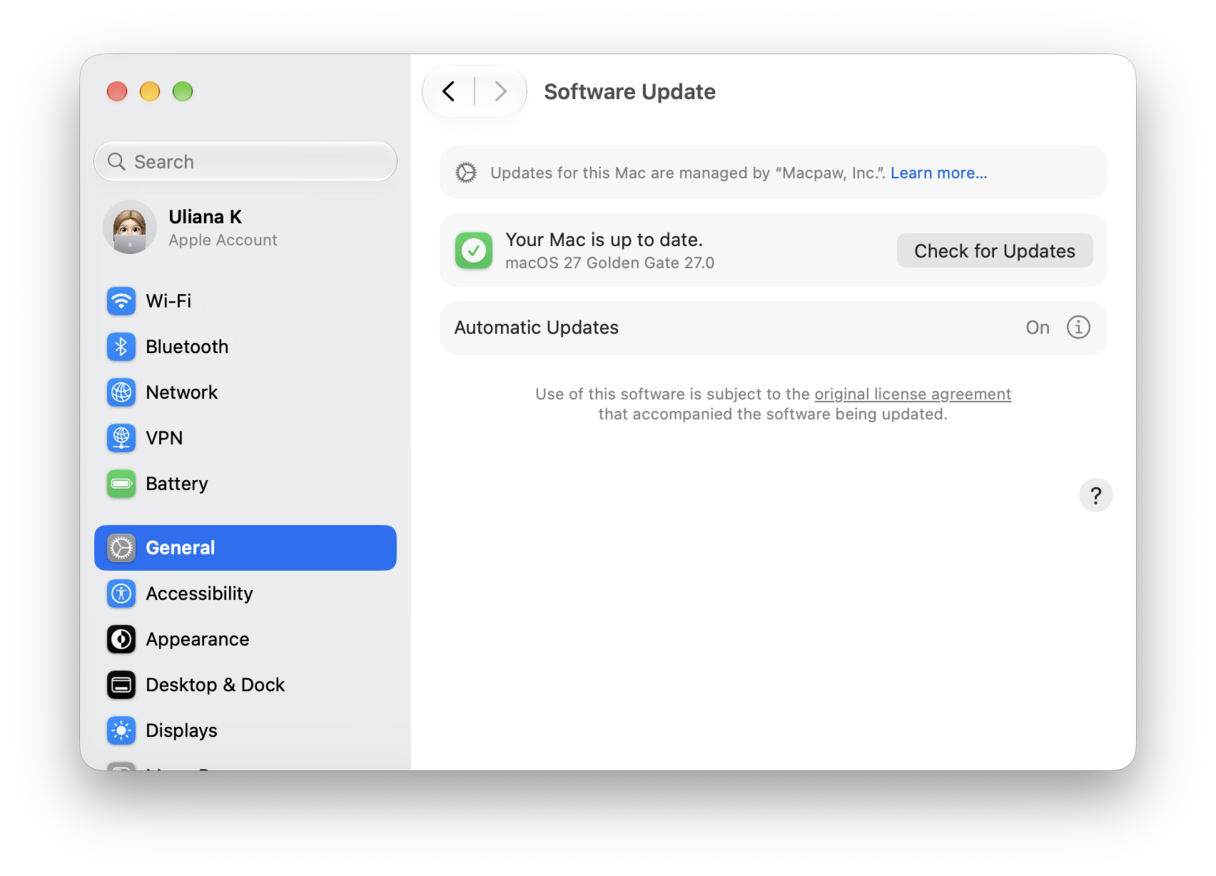
- Go to the Apple menu and choose System Settings
- Select General > Software Update.
- Wait for it to check for an update and, if there is one available, follow the instructions on screen to install it.
- Quit System Settings.
5. Check your privileges
Are you logged into an admin account on your Mac? If not, you may not have the correct privileges to install some applications. Even if you are logged into an admin account, if your Mac is owned and managed by an organization you work for, there could be settings in the management profile that prevent you from installing some apps.
The best solution in this case is to try to install the app using the method required by the management tool used by the organization, or contact the IT support department and ask for their help.
6. Check Privacy & Security settings
If you are an admin user and you own the Mac then there could still be security settings preventing the app being installed. macOS has a tool called Gatekeeper that is designed to prevent dangerous software that could intrude on your privacy or damage your Mac from being installed. It’s a good idea to check these settings if nothing so far has worked.
- Open System Settings.
- Go to the Privacy & Security section and scroll down.
- Under Security, make sure App Store & Known Developers is selected.
- Quit System Settings
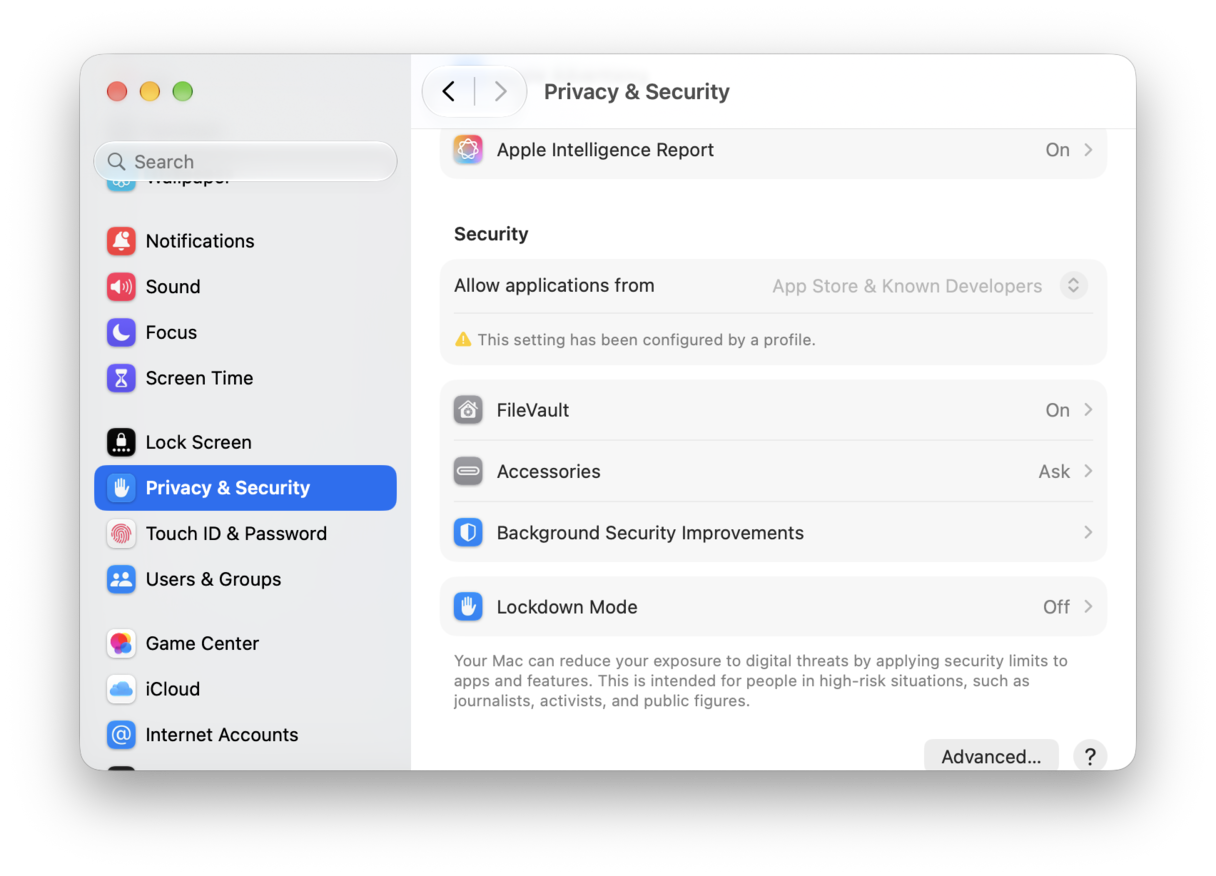
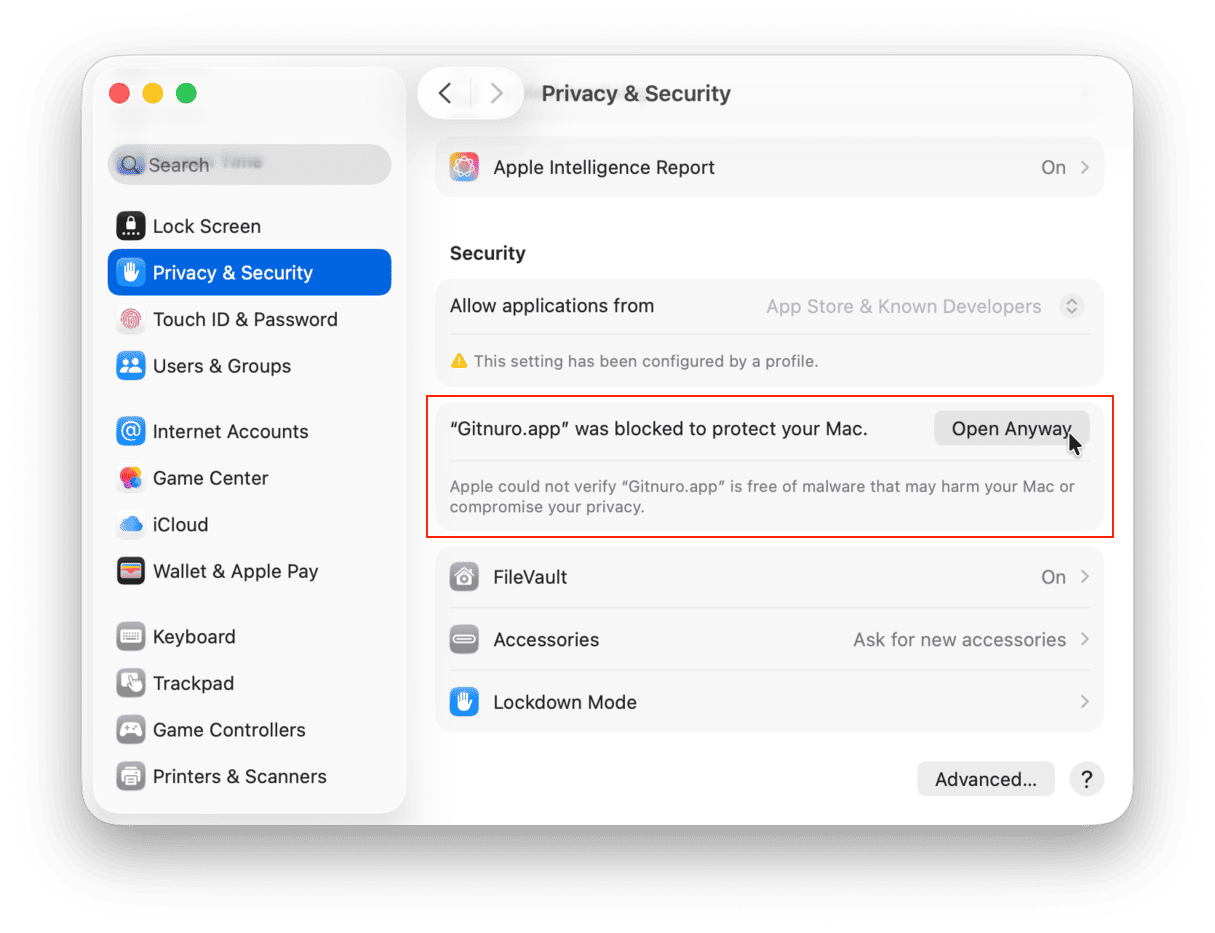
It’s possible that even with App Store & Known Developers selected, Gatekeeper may prevent an app from opening. This usually happens because an app hasn’t been signed by the developer or macOS doesn’t recognize the signature.
To check, go back to System Settings > Privacy & Security and look in the Security section for a message telling you that the app couldn’t be opened. There should be an option there to Open Anyway. Choose that. If you are running a version of macOS older than Sequoia, you can also right-click or Control-click on the application in Finder and choose Open.
7. Disable Gatekeeper
If nothing so far has worked, one final option is to temporarily disable Gatekeeper in Finder. This is not recommended because it makes your Mac less secure. But, if you are certain the app is safe and you re-enable Gatekeeper as soon as you’ve opened it, it may work. Here’s how to do it.
- Go to Applications > Utilities and open Terminal.
- Type this command followed by Return:
sudo spctl —master-disable - Open or install the application.
- In Terminal, type:
sudo spctl —master-enableto re-enable Gatekeeper
The 10661 error on Mac usually occurs when you try to install an app and macOS prevents it. That could be because the app is incompatible with macOS, the downloaded file is incomplete or corrupt, or macOS’s security settings are preventing it from running. Follow the steps above to fix the 10661 error on your Mac.