
If you’re looking for tips on how to mass delete emails on Gmail, then it’s probably fair to assume your inbox has got a little out of hand. A few unread newsletters can quickly turn into a few hundred, then suddenly you’re staring at thousands of emails.
The good news is Gmail does give you several ways to clear emails in bulk. So depending on if you want to literally delete everything, or just target one sender, or entirely clean out whole categories like Promotions, you’ve got options.
And because Gmail shares storage with Google Drive and Photos, clearing inbox clutter can also help with your overall Google storage.
Bulk delete Gmail: all ways
Select all and delete (web)
The fastest way to mass delete emails in Gmail is from the web version, because Gmail lets you select more than one page at a time.
- Open Gmail in your browser and go to your Inbox.
- Click the checkbox at the top left of the message list.
- Gmail will select the first 50 emails on the page.
- Click Select all conversations in Inbox when the banner appears.
- Click the Delete icon.

That “select all conversations” is the most important part here. Without it, you’re only deleting the 50 emails shown on the current page. It should give you the number of conversation threads those emails hold, so you can see the difference.
Delete emails by category
If your inbox is mostly newsletters, things like sales emails, and app notifications, categories are the quickest cleanup route for bulk delete in Gmail.
- So again, open Gmail in your browser and click on
- Click the Promotions, Social, or Updates tab.
- Click the checkbox at the top left of the message list.
- Click Select all conversations in Promotions when the banner appears.
- Click the Delete icon.
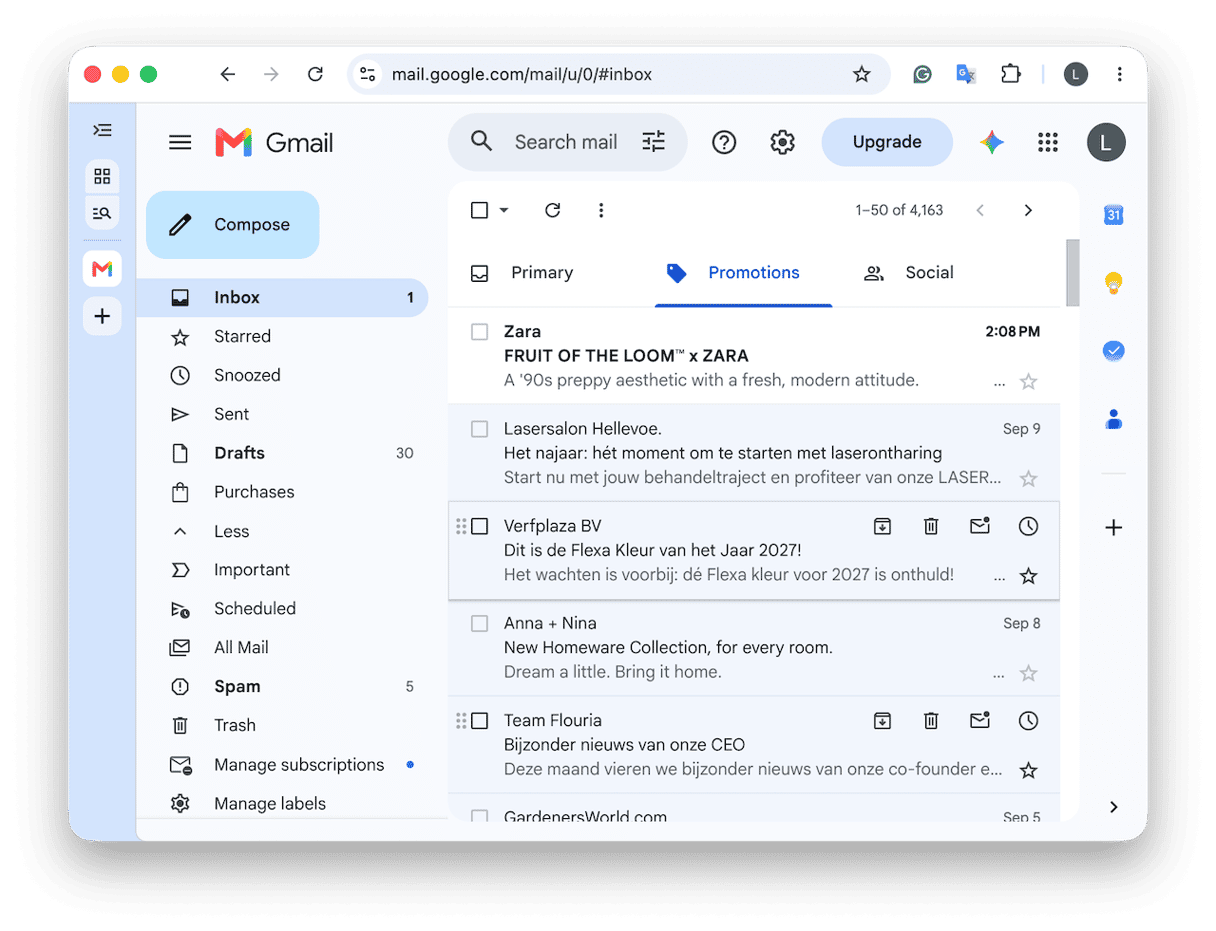
You can just repeat these steps for any other categories you want to clear. I tend to think this is usually safer than deleting your whole inbox because you’re targeting lower-priority email first.
Use search or filter
If you want to target very specific clutter, then you can also use Gmail search operators to do that.
- With Gmail open again, head to the search bar and enter a specific parameter like:
from: [email protected]
older_than: 1y
has: attachment larger:10M - Just press Return, and then you can click the checkbox at the top left of the results again.
- Then, select all conversations in this search and press Delete.
I find this method handy when I know it’s one sender or large attachments are taking up most of the space.
Use CleanMyMac's Email Cleanup
If you’re looking for a way to really see exactly what you’re clearing before you hit delete, then the Email Cleanup feature from CleanMyMac is a much smarter alternative to deleting emails directly in Gmail.
Once you’ve synced your Gmail account, it can sweep away all the background clutter, like newsletters, all those annoying promotions, even spam, your trashed items, forgotten drafts, and large attachments, all in one place.
I really like the way you can sort by type, sender, year, or attachment size. But it also has a time-based view from the last three years. It lets you properly review and choose what to clean, and see the potential Gmail storage savings before you confirm anything.
You can also play around with bulk actions like removing or unsubscribing across multiple senders at once, which I absolutely can’t get enough of, and you can disconnect and unsync your account at any time you want.
Here’s how it works:
- Open CleanMyMac and navigate to Email Cleanup, which is located in My Tools.
- First, you do need to connect your Gmail account safely through standard Google sign-in.
- Then, you’re free to browse results by type, sender, year, or attachment size while the scan continues in the background.
- Select senders or individual emails, review if needed, then choose to remove, archive, or unsubscribe.
- Confirm the action.
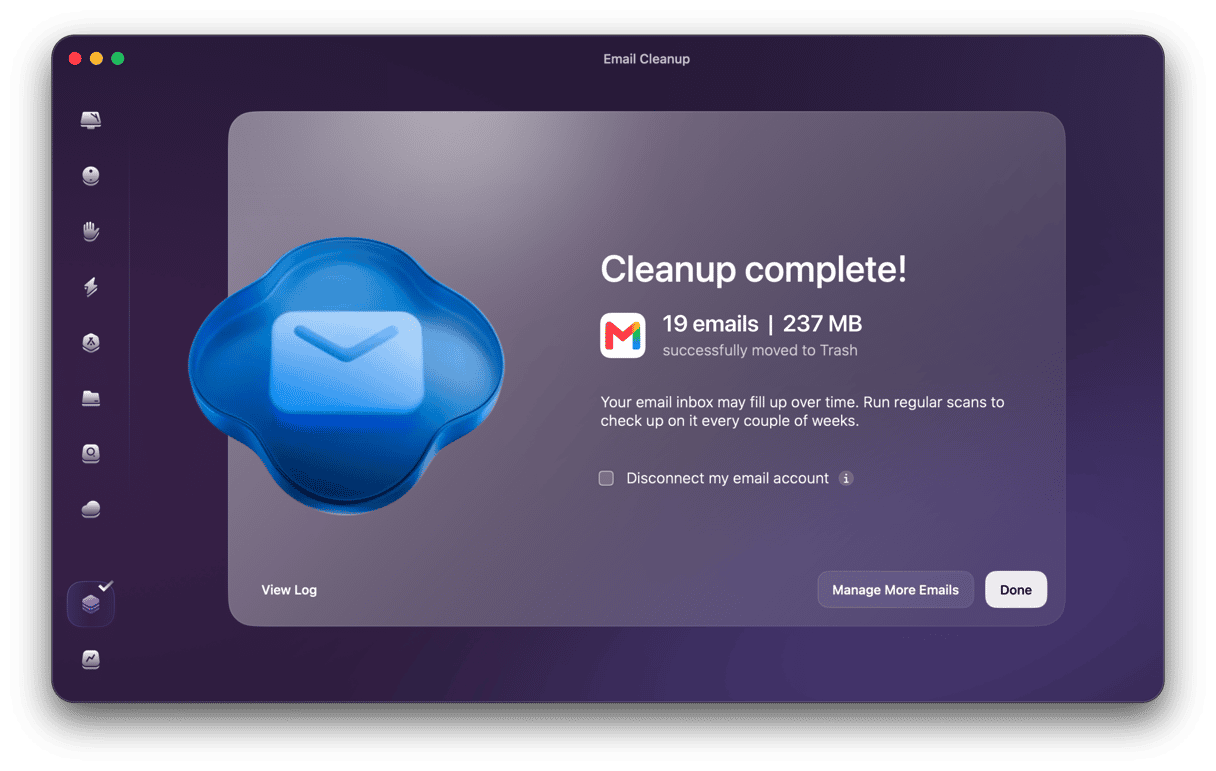
Deleted emails then move over into Gmail Trash, and for me, the important part here is that they remain recoverable for 30 days. If you don’t already use this tool, you can test it for 7 days — get your free trial here. And that’s a proper test; all its features are available.
What happens after you delete emails in Gmail?
Whenever you delete any emails in Gmail (no matter which method you use), they don’t disappear immediately. They move to Gmail Trash, and you’ve got 30 days to recover them. So I think it’s worth saying that unless you empty that Trash folder, you might not see an immediate update to your Google storage either. It’s a bit of an extra security net for you, but because Gmail shares storage with Google Drive and Google Photos, if you’re on the tight side and you need space quickly, then you’ll need to permanently delete from Trash. So, if you need storage back urgently, open Trash, review what’s there, and empty it manually.
So, that’s pretty much all there is to know about how to bulk delete emails in Gmail. If you want a few more cleaning tips, check out this guide on how to organize your email inbox.
Frequently asked questions
Can I undo a Gmail bulk delete?
As long as the emails are still in Gmail Trash. Then you’ve got 30 days to recover them; all you need to do is open the Trash folder, select the emails you want back, and choose Move to inbox. After 30 days, they’re permanently deleted.
Does deleting Gmail emails free up storage?
It does, but it's good to remember that it doesn’t always happen instantly. Deleted emails only free up shared Google storage once they’ve been permanently deleted from your Trash. So, you’ll need to go in and manually empty Gmail Trash if you need the space sooner. For more tips, jump to this article on how to free up Gmail storage.
How do I delete emails on Gmail mobile?
Open up your Gmail app, select the emails you want to remove, and tap the Trash icon. For true bulk deleting, Gmail web is usually faster because you can use search operators, categories, and the Select all conversations option.