Searching for tips on how to install Claude Code on Mac? I've done the legwork on my MacBook running macOS Tahoe. There are three solid routes. The Claude Desktop app for everyday AI help. Claude Code in your Terminal for agentic coding on real projects. And the Claude Code extension for VS Code if you live in the editor. I'll show what each one is, when to use it, and the exact install paths that work in 2026. Let's go.
What is Claude Code install on Mac?
Claude is an AI assistant from Anthropic. Think smart helper that you can ask to explain code, draft text, or suggest changes. On a Mac, you'll see it in a few forms:
- Claude Desktop app: a simple Mac app where you chat with Claude. Paste code, text, or screenshots. Get answers back in seconds.
- Claude Code for VS Code: an add-on for the VS Code editor. You ask questions in a side panel, and it suggests edits or shows diffs next to your files.
- Claude Code in the Terminal: a command-line tool. You run Claude in a project folder and ask for tasks like "explain this function" or "write tests." You approve any changes.
Basically, Claude reads the context you give it and proposes clear, reviewable outputs.
How to use Claude Code on a Mac?
I saw a ton of threads online about this, so I thought I'd try to break this down, especially for those who might be thinking about using it for the first time.
Good uses of Claude
- Getting up to speed on a codebase. For example, what does this module do or map the flow from A to B?
- Every day coding help. Draft a function, write unit tests, clean up repetitive code, and generate docs.
- Quick research. Summaries of API docs, examples, or edge-case checks while you work.
- Writing support material. README updates, commit messages, PR descriptions.
Be cautious or skip it
- Security or private data. Don't paste secrets, tokens, or customer data.
- Huge, messy refactors in one go. Break work into small steps, review diffs, and commit often.
- Areas you don't understand. If an edit looks wrong, stop and ask Claude to explain the change before accepting it.
How to install Claude Code on a Mac and set it up
If you are brand new to Claude, start with the simplest option, try one tiny task, then add the others as you get comfortable. You do not need to switch editors. Claude works alongside your tools, and you approve every change.
1. Fastest start: Claude Desktop app
Use this to ask questions, paste small snippets, and get quick help.
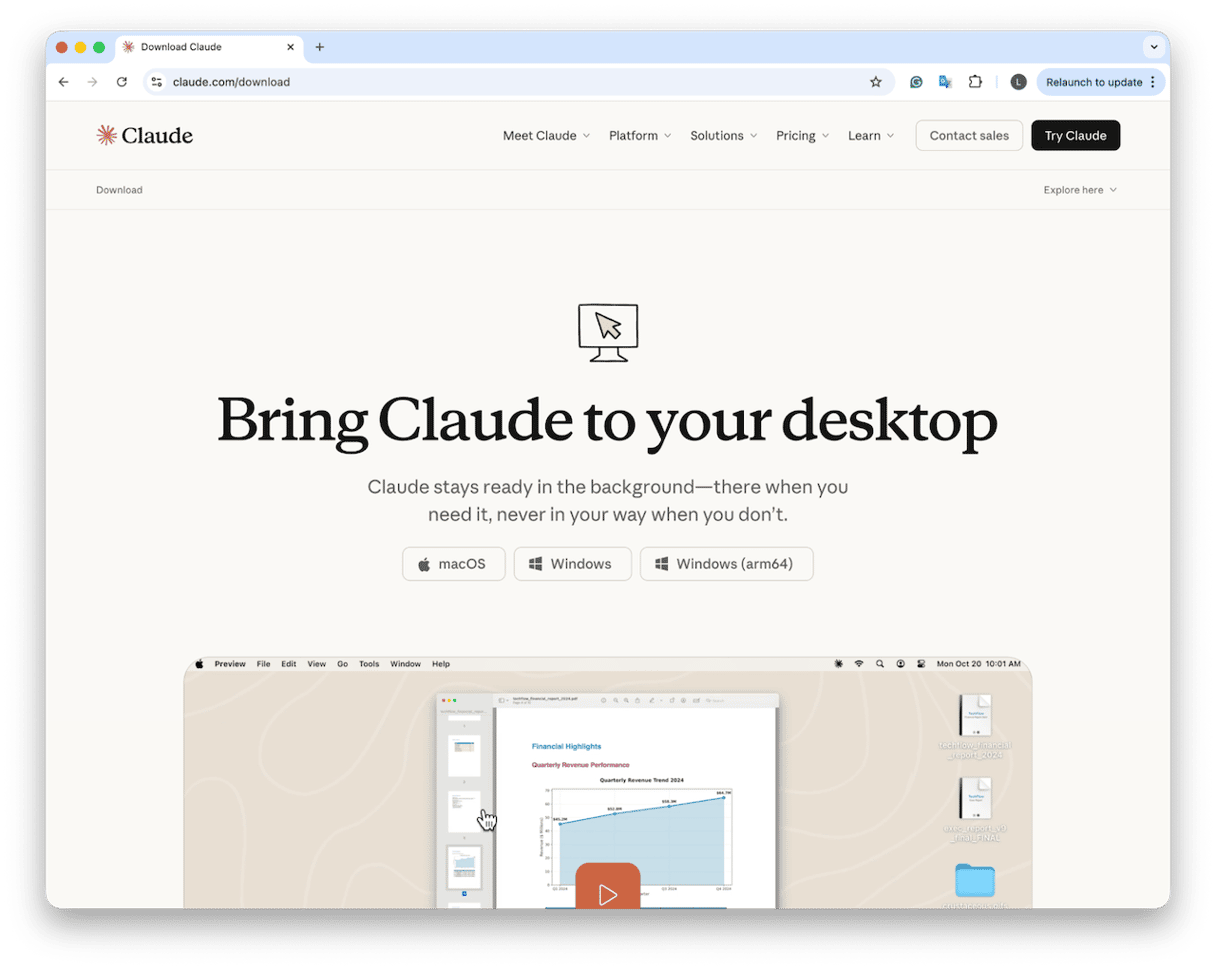
- Visit the official macOS Claude download page here.
- Download the macOS version and drag it to Applications.
- Then open Claude from your Finder > Applications and sign in with your account.
- In Preferences, set a keyboard shortcut to open Claude from anywhere.
Some first task tips
- Paste a function or paragraph and ask: "Explain what this does in plain English."
- Follow up with: "Suggest a safer version and show the diff."
- Copy the result back into your file and test.

2. In your editor: Claude Code for VS Code
If you edit files on your Mac and want Claude's suggestions right next to your code or text, this is the easiest way. If you don't edit files at all, you can skip this and just use the Claude Desktop app.
Here's how:
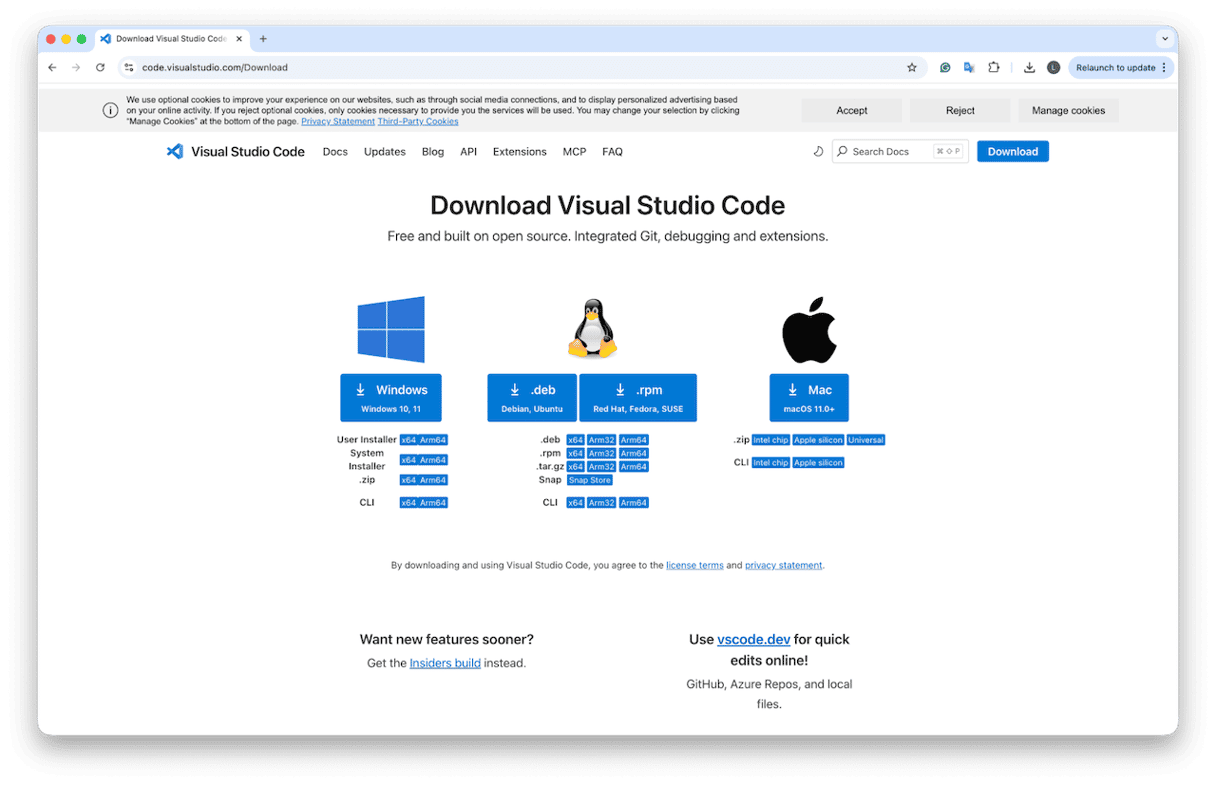
- Open Visual Studio Code or download it here.
- Go to Extensions, search for Claude Code, and click Install.
- Open the Claude side panel and sign in.
3. In your Terminal: Claude Code CLI
Choose this only if you already use Terminal. Running Claude inside your project folder lets Claude see the files and help right there. It's quick for repeat chores like writing tests, explaining errors, renaming files, or tidying code. You're always in control because Claude shows changes first as a diff and waits for your approval. It even works over SSH on a remote Mac or server with no desktop.
Here's what to do:
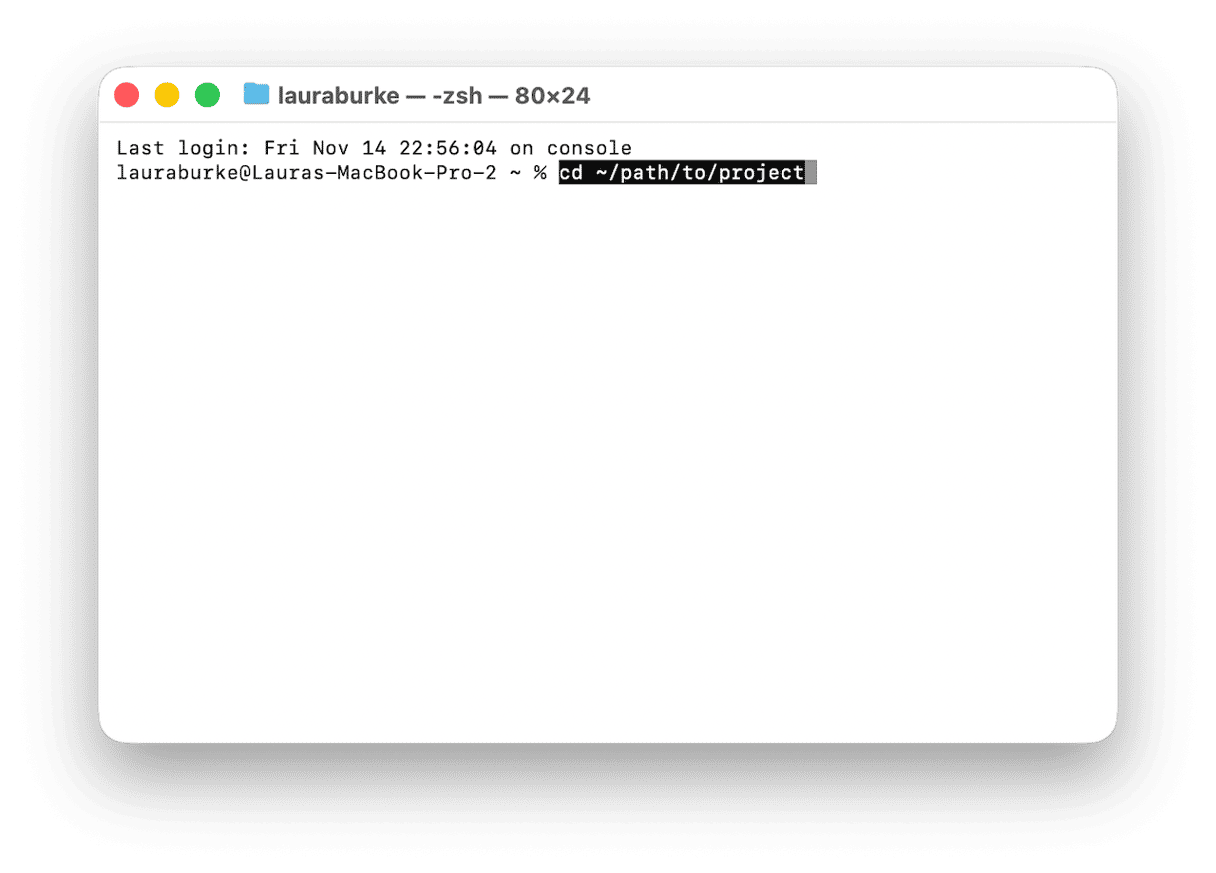
- Open Terminal, go to your project:
cd ~/path/to/project - Type Claude and sign in if asked.
- Ask one small task: "Write tests for file X" or "Explain this file."
- Read the proposed diff. Approve only what you want.
- Save and run your usual check (tests, build, or reopen the file).
Not comfy in Terminal? Skip this and use the Claude Desktop app or VS Code extension instead.
Keep your Mac responsive while you work
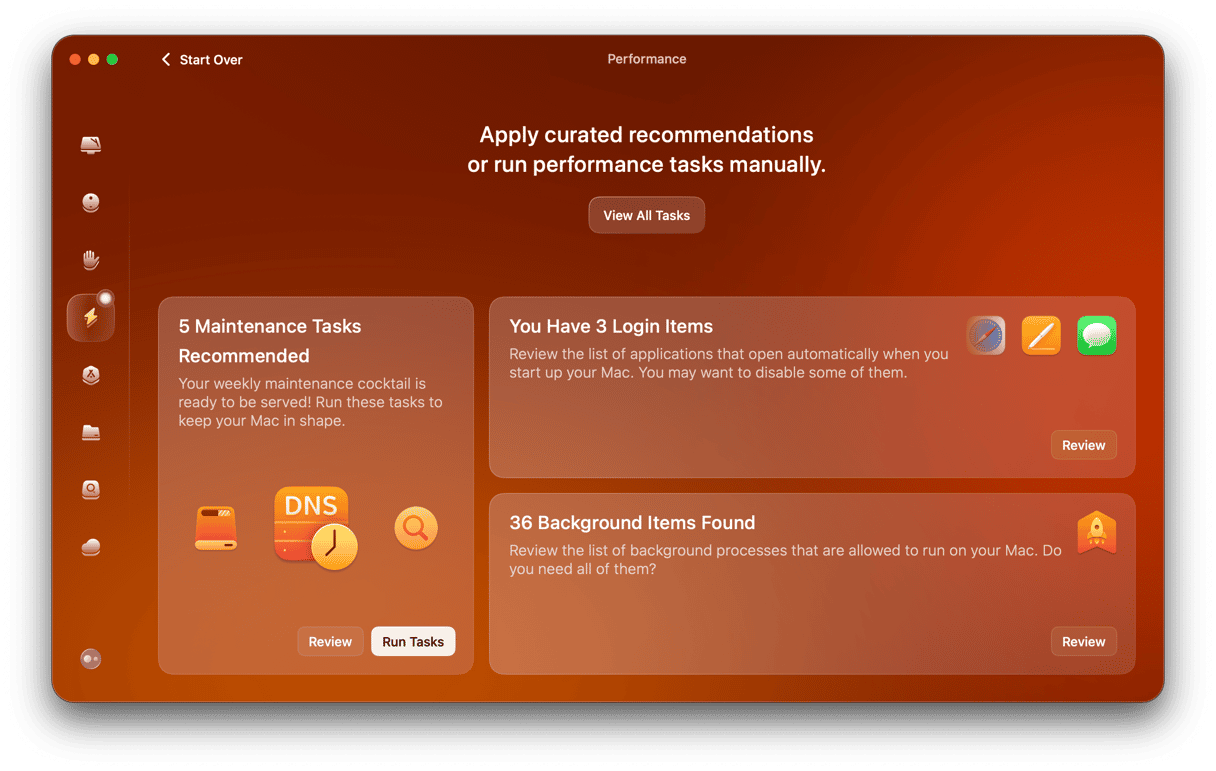
Big tool installs and active projects can make macOS feel sticky, so don't forget to run regular maintenance on your Mac to keep its performance at its best. I use the Performance feature from CleanMyMac weekly, to keep on top of my Mac's output.
Here's how:
- Open CleanMyMac — get your free trial.
- Click Performance> Scan.
- Take a look at the recommended maintenance tasks, and run the items you want to.
This bonus tip will really help keep your Mac snappy while you switch between Claude, your editor, and Terminal.
Installing Claude Code on Mac is pretty straightforward in 2025. Start with the Claude Desktop app for quick questions and screenshots; it's the lowest-friction entry. For edits beside your files, add the Claude Code extension for VS Code to view proposed changes as clear diffs inside the editor. For projects already managed from Terminal, the Claude Code CLI fits naturally because it operates inside the repository. Different entry points, same outcome: Claude works alongside existing tools, and changes remain under your control.