If you develop web applications, you need a way to test them before unleashing them on the world. There are several different options for doing that on your Mac, but one of the best and most widely used is Cypress.io. In this article, we’ll show you how to install Cypress on your Mac.
What is Cypress?
Cypress is a front-end test automation framework for testing web applications. It’s open source and runs on Windows, Mac, and Linux. It’s based on JavaScript. To run it on your Mac, you need to install it using Terminal. You can then create test files using JavaScript (some examples are included with Cypress) and run them.
Before you install Cypress
If you want to run Cypress on your Mac, there are a couple of components you will need to install first, if you don’t already have them installed on your Mac. These are node.js and npm, the package manager for node.js. To install npm, you will need Command Line Tools and Homebrew installed. If you have those, skip to step 3 below; otherwise, start at step 1.
- To install Command Line Tools, launch Terminal and type:
xcode-select -v
If you see a response with ‘xcode-select version’, it’s already installed. If not, typexcode-select —-installto install it. - To install Homebrew, use this command in Terminal and press Return:
/bin/bash -c "$(curl -fsSL https://raw.githubusercontent.com/Homebrew/install/master/install.sh)" - With Command Line Tools and Homebrew installed, you can install npm with this command:
brew install npm - To make npm available every time you open a Terminal window, open a new Terminal window and type:
source $(brew --prefix npm)/npm.sh - To install node.js, paste this command and press Return:
$ brew install node
How to install Cypress on your Mac
Now that you have node and npm installed, you can go ahead and install Cypress.
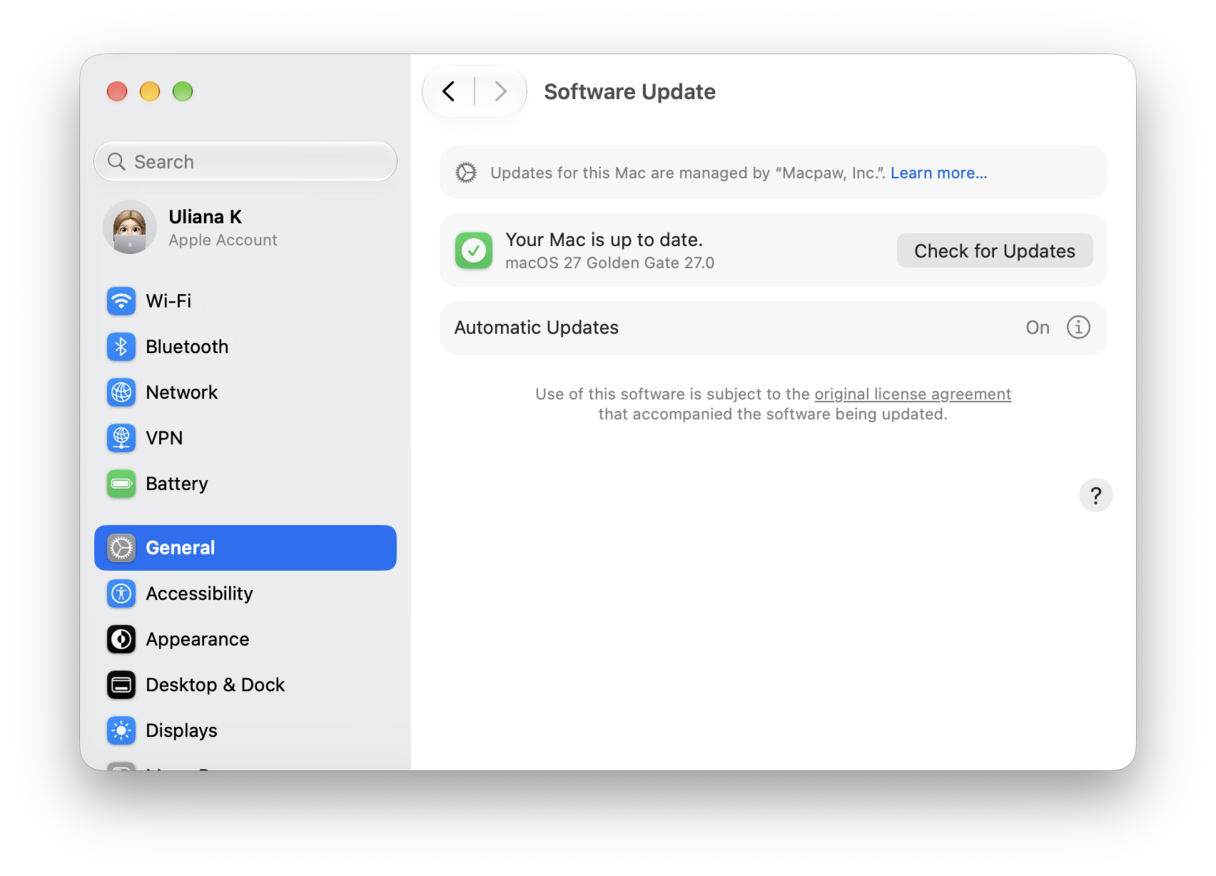
First, update macOS. It’s a good idea before you install anything on your Mac to update macOS.
- Launch System Settings.
- Choose General > Software Update.
- Wait for it to check for an update. If there is one available, follow the instructions on screen to install it.
- Quit System Settings.
Now, follow these steps to install Cypress:
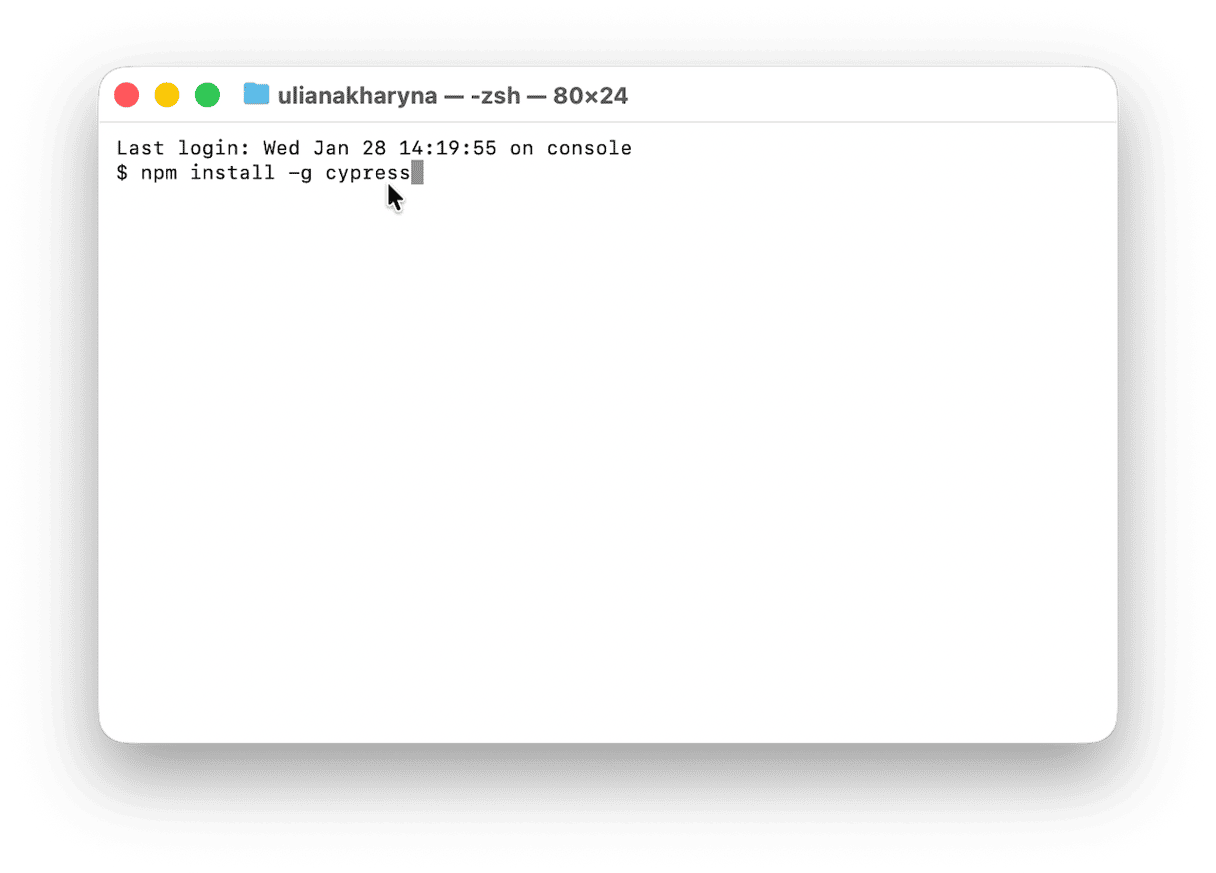
- Launch Terminal. Paste this command and then press Return:
npm install -g cypress - In Finder, create a folder to host your project.
- Go back to Terminal and type
‘cd’then drag the folder onto the Terminal window and press Return. - To start using Cypress, type:
cypress open
The final step above will create a folder called cypress inside the folder you created at step 2 and open the Cypress Test Runner in a new window.
To see some examples of test files, click the examples folder. To create a new test file, use the Add new test button, and to run all your tests, use Run all tests.
Cypress installs the Electron bundles Chromium browser when you install it. And it also supports Google Chrome, Firefox, and Microsoft Edge. When you launch Cypress, it automatically recognizes supported browsers on your Mac.
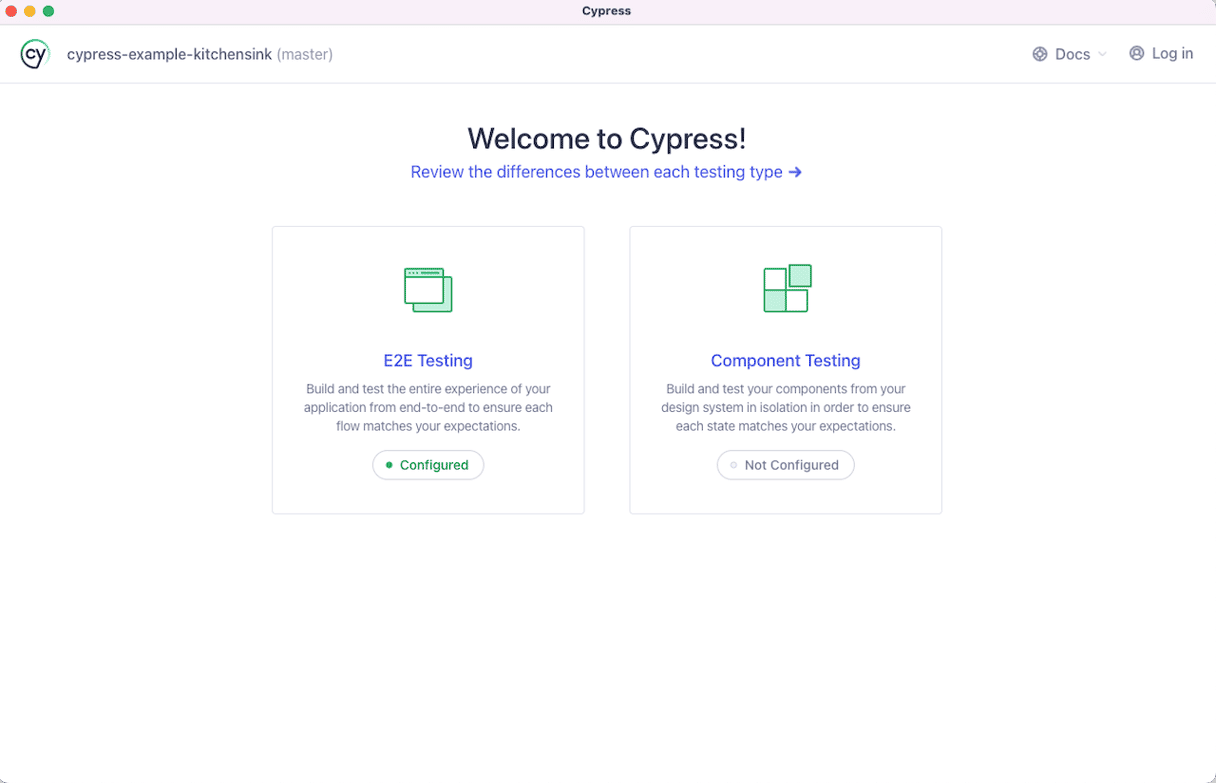
When you first run Cypress, you will see the Launchpad, which allows you to start either end-to-end testing, where you test your entire application in a web browser, or component testing, where you test individual parts of your app.
How to keep your Mac running smoothly
Before you install any new software on your Mac, it’s a good idea to run maintenance tasks to make sure it’s running as speedily and smoothly as possible. Maintenance tasks include:
- Reindexing Spotlight
- Flushing DNS cache
- Repairing disk permissions
You should also check for malware, not just before installing software, but on a regular basis. And you should update your installed apps whenever an update is available. Finally, it’s good practice to clear out junk files and clutter like old cache files, temporary files that should have been deleted but weren’t, and language files for languages you don’t use.
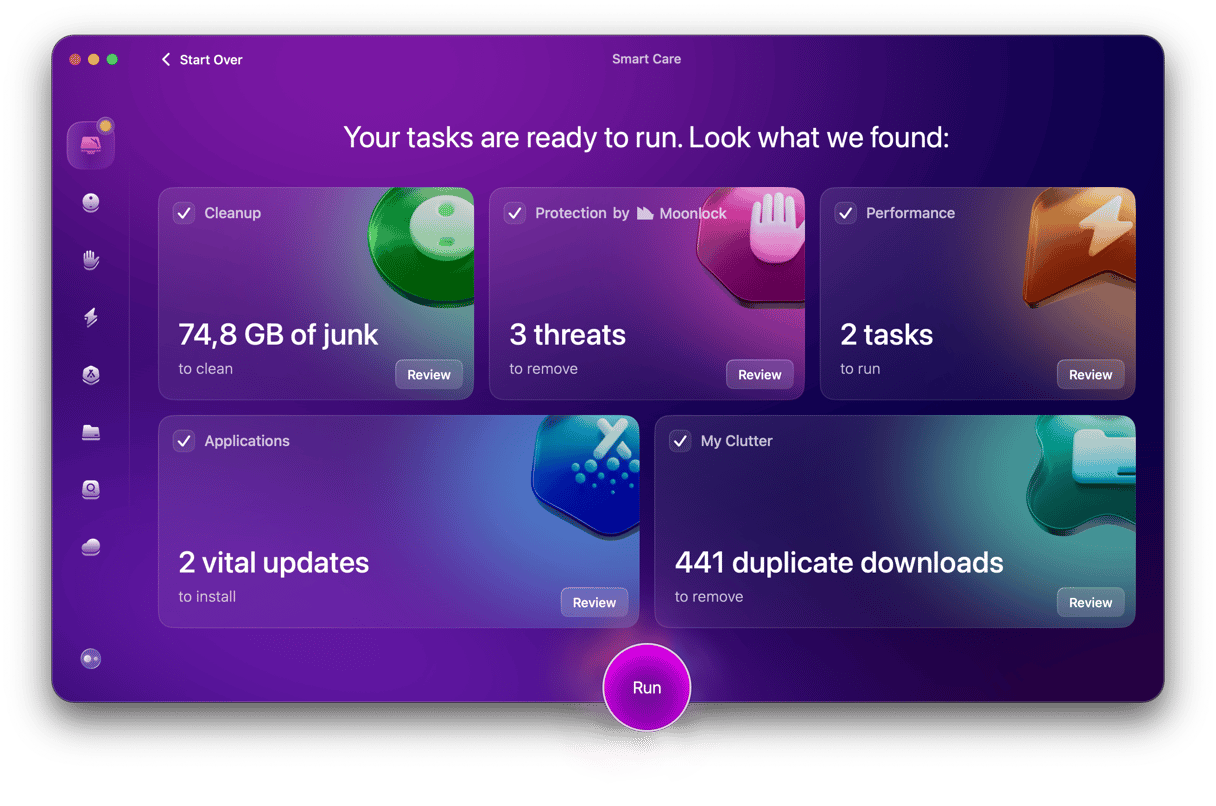
Doing all that manually is time-consuming and laborious, which is why most of us don’t bother. But it doesn’t have to be — CleanMyMac’s Smart Care feature can take care of it all for you, with just a few clicks.
- Get your free CleanMyMac trial — you can test it for 7 days for free.
- Open CleanMyMac and choose Smart Care in the sidebar.
- Click Run.
- When it’s done, click Run to implement all of its recommendations, or review to see the recommendations in each section.
If you develop web applications and need a way to test them, Cypress is a great option. It’s open source, based on JavaScript, and runs on Mac. You’ll need to install it using Terminal, once you’ve installed a few prerequisites. It’s not difficult, though. Just follow the steps above, and you will have Cypress installed on your Mac in no time.