So you want to know how to lock messages on a MacBook? I’ve seen a lot of questions on this subject recently, so I ran my own tests on my Mac running macOS Tahoe to see what actually works. Spoiler alert: There isn’t a single lock Messages button.
You’ll need to stack a few different controls so it behaves like a locked app, but don’t worry, I’ll cover it all in this guide, including the practical setup I landed on after trying all the usual forum advice. Risks, quick protection wins, account sync choices, and why permission hygiene matters in 2026. So let’s get started.
Lock messages on MacBook: Why is the Messages app privacy important?
Let’s face it, nowadays most of us sync across our iPhones, iPads, and Macs. But if your MacBook is the one device you leave unattended on a desk or you share it with someone, you need extra guardrails to keep your private info safe.
Here’s a scenario to consider: If someone walks up to your open Mac or if a notification preview lands on your screen while you’re screen-sharing, that’s enough to expose something you didn’t mean to share.
The risks when Mac Messages are not protected
- Anyone can read entire threads if your Mac is unlocked and unattended.
- Message previews on the lock screen or while presenting can leak content.
- If your disk is unencrypted, a stolen Mac can expose local chat history.
Why these risks might have you heading to the app store for a third-party app locker, it’s not actually necessary; your macOS already gives you the pieces. You just have to put them together, so I’ll show you how to lock the Messages app on a MacBook in the section below.
How to lock your Messages on a Mac
This is a bit of a layered approach. Do the quick wins first. Add the heavier locks if you share your Mac or leave it unattended a lot.
1. Enable Lock screen
This makes walk-ups a non-issue, if you need to step away, and really a basic security step all Mac users should have set up.
- Go to System Settings > Lock Screen.
- Set Require password after screen saver or display is turned off to immediately.
- Optional: Desktop & Dock > Hot Corners button > set one corner to Lock Screen. Flick the mouse there when you step away.
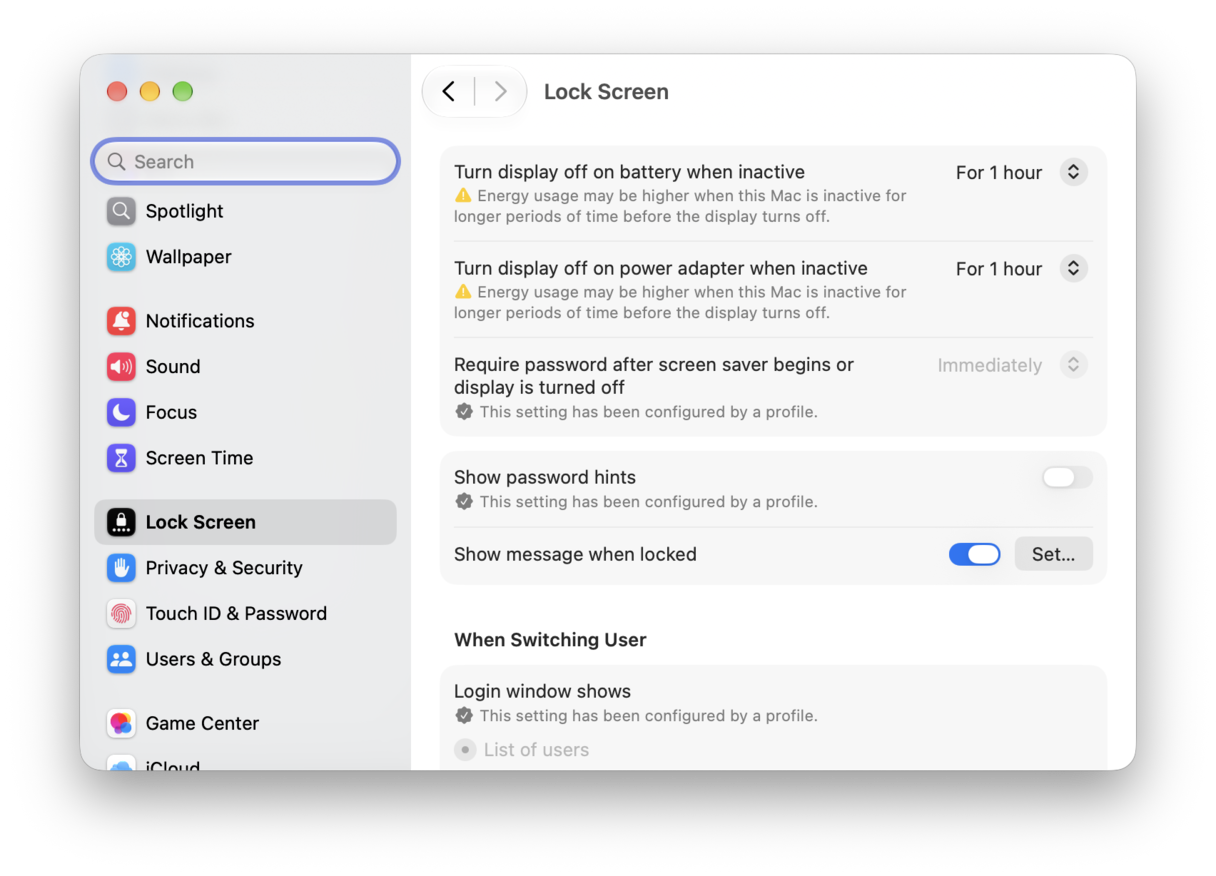
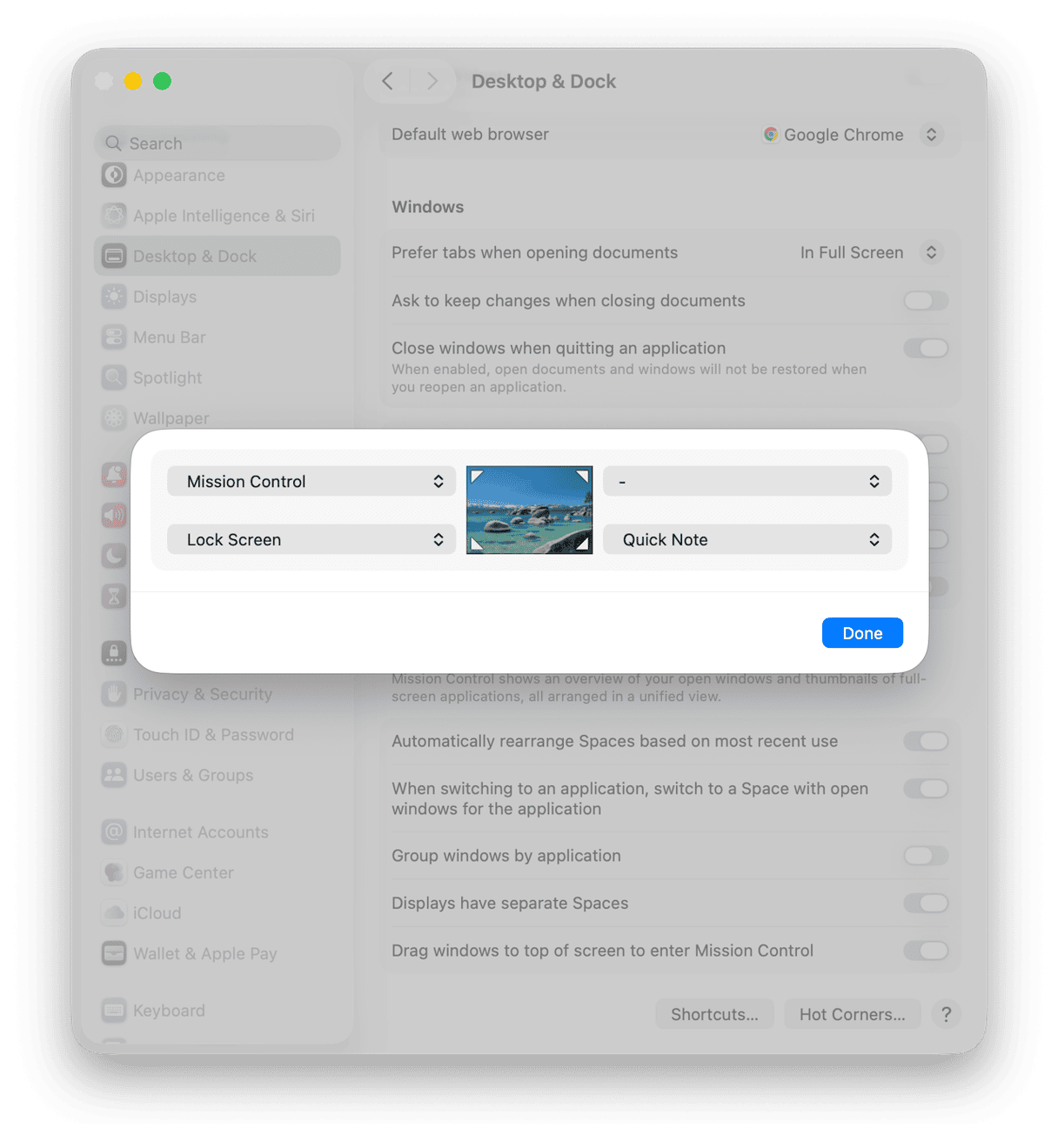
Now, if you leave your desk, Messages is behind your Mac login password or Touch ID.
2. Hide Message previews
Even if the Mac is unlocked, you can stop content from showing.
- System Settings > Notifications > Messages.
- You can manage notification types here and toggle off banners and lock screen notifications.
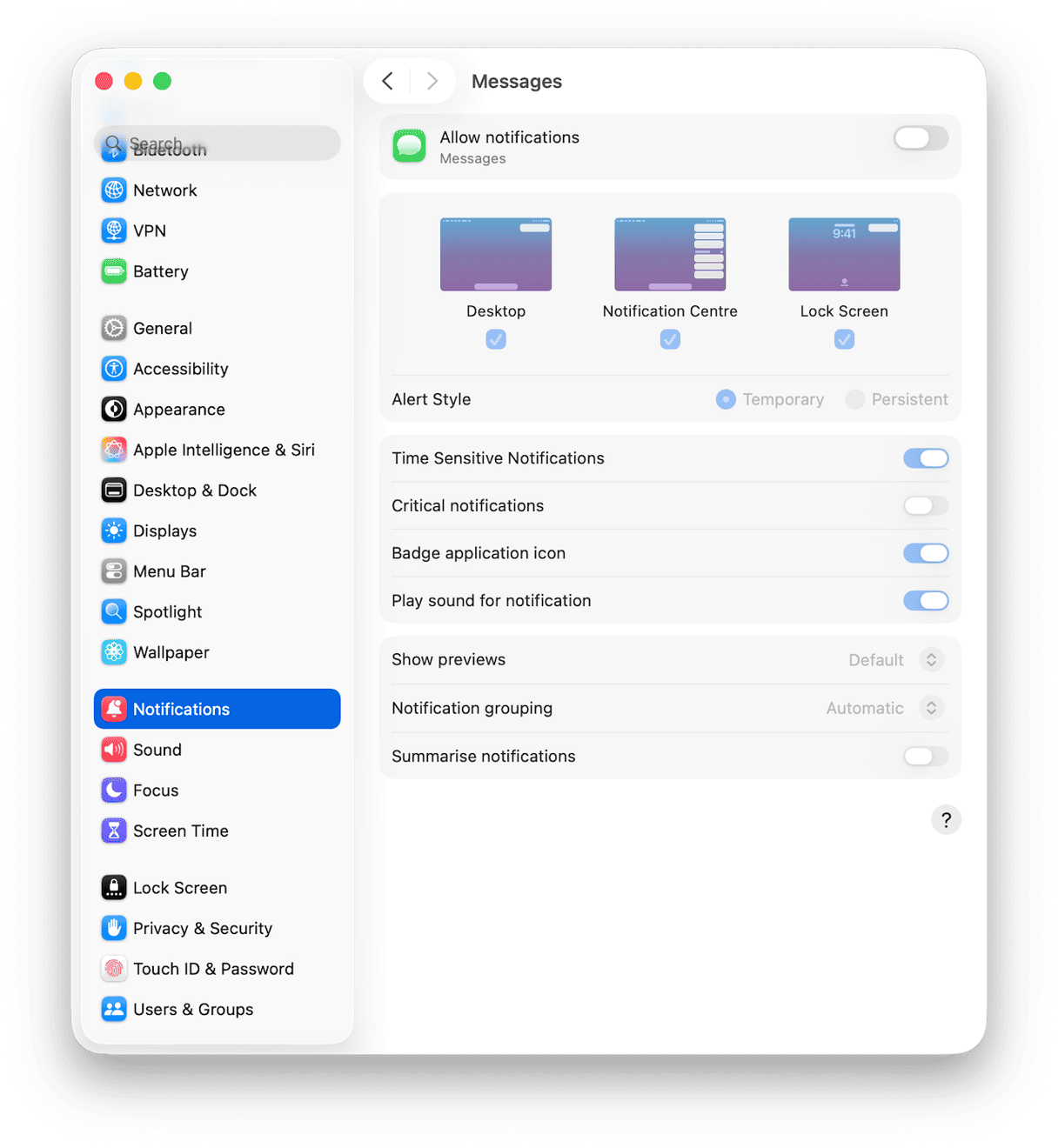
This means names or content do not splash across the screen at the worst time.
3. Use Screen Time as the app lock for Messages
There isn’t a dedicated Messages password, but Screen Time can require a passcode to open it after a time limit. It works like an app gate.
- System Settings > Screen Time.
- Scroll down and toggle Lock Screen Time Settings on.
- Select All This User to administer this computer > Continue.
- Set a four-digit passcode that is not your Mac login.
- Go to App Limits > Press add and select Messages. Set 1 minute per day, Every Day.
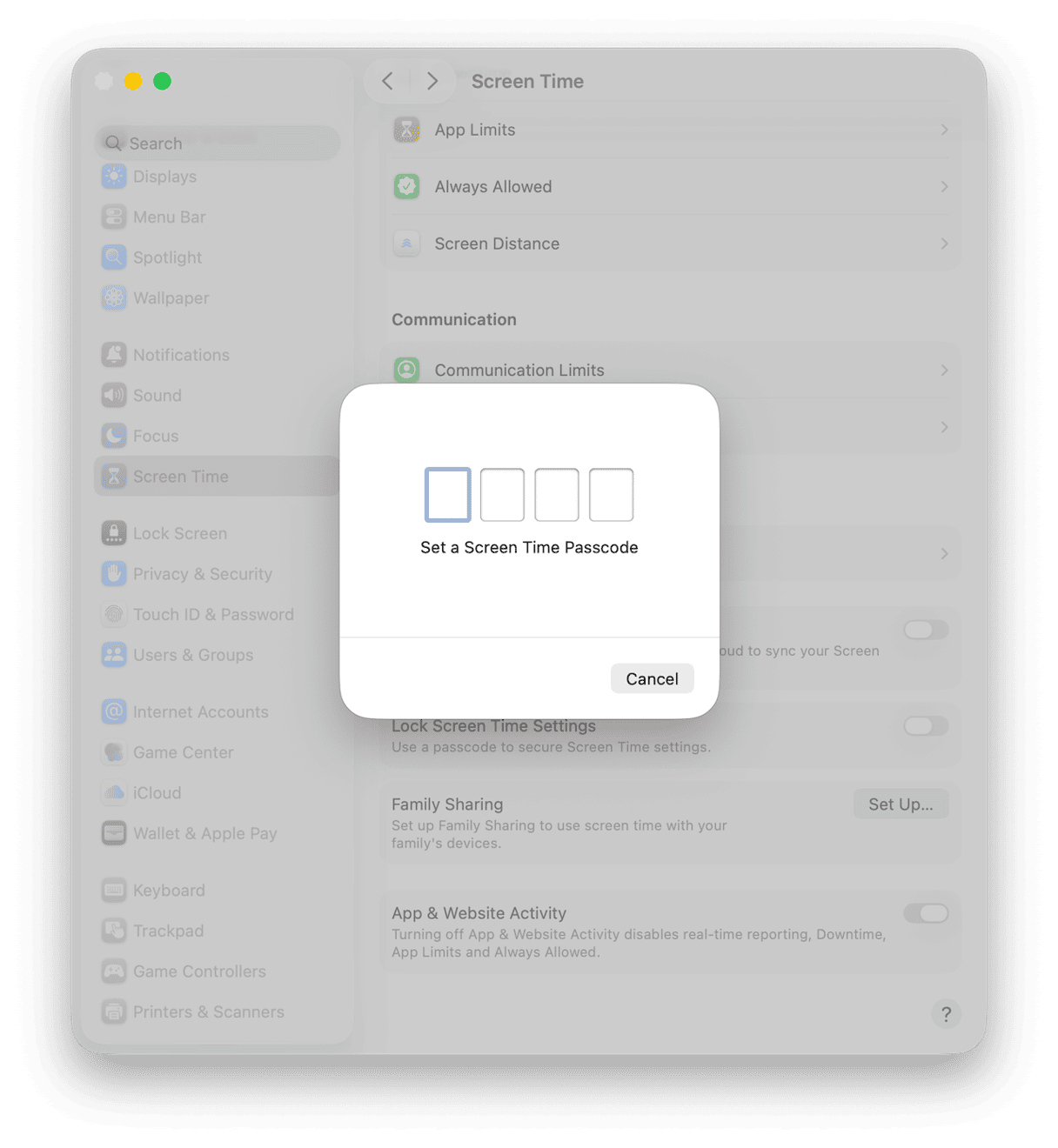
After one minute of use per day, opening Messages prompts for the Screen Time passcode. That is effectively a second password on the app. This is a great option for a shared Mac or if you want an extra step before anyone can open Messages.
4. Use FileVault
If your Mac gets lost or stolen, FileVault is a protection layer for local chat history.
- System Settings > Privacy & Security > FileVault.
- Turn it on and store the recovery key somewhere safe.
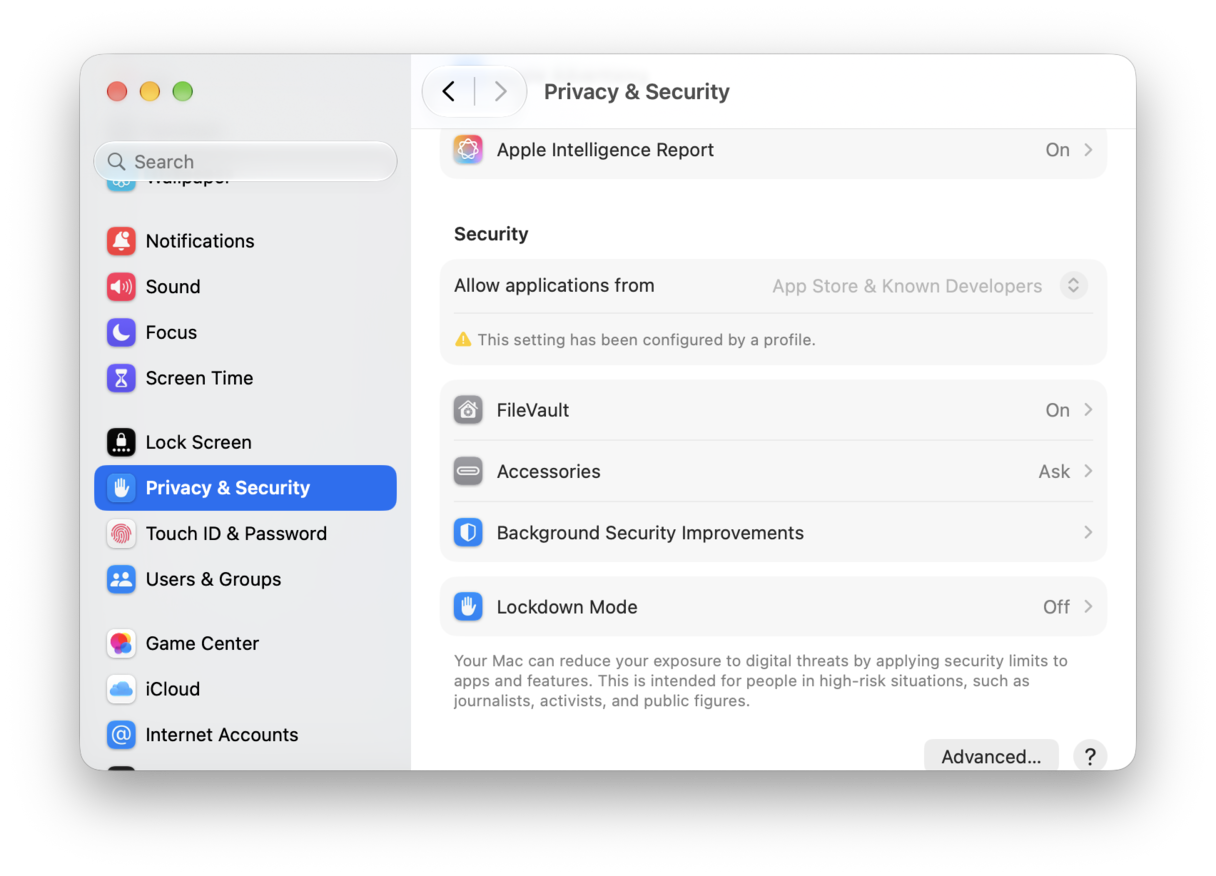
Now your disk is encrypted. Without your login or the key, chat databases are unreadable.
5. Decide what lives on your Mac
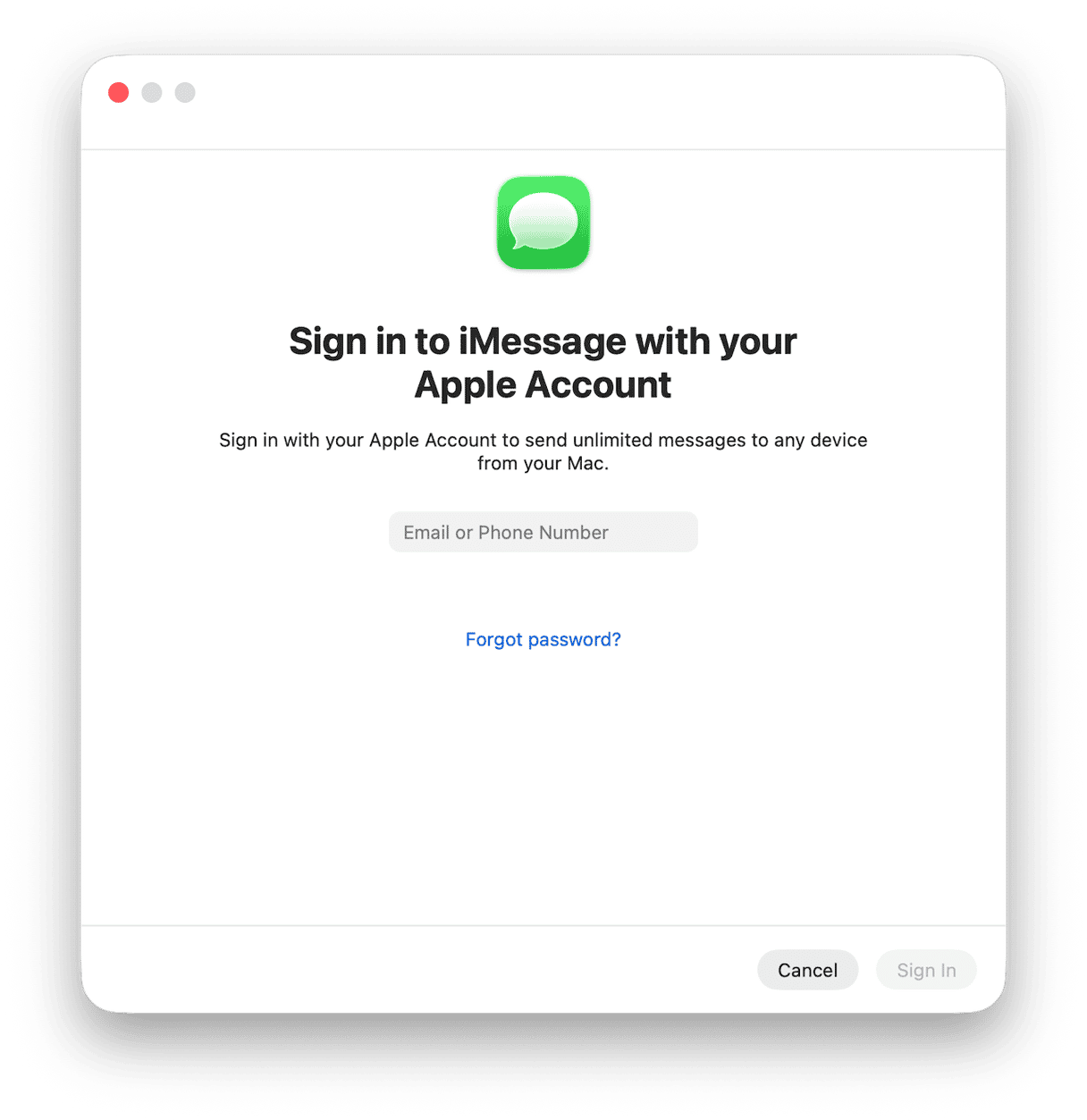
If you do not want Messages content stored locally on the Mac at all, sign out of the iMessage account on your Mac. That is the strongest form of app lock because there will be literally nothing to read; here’s how:
- Open the Messages app.
- Select Messages > Settings > iMessage> Sign Out.
- You can literally sign back in any time you want.
6. Create different user accounts
Another method for the how to lock messages on MacBook Air or Pro question is to create new user accounts. This is really helpful if multiple people share one Mac. That will keep Messages, Keychain, and iCloud apart by default.
- System Settings > Users & Groups > Add Account.
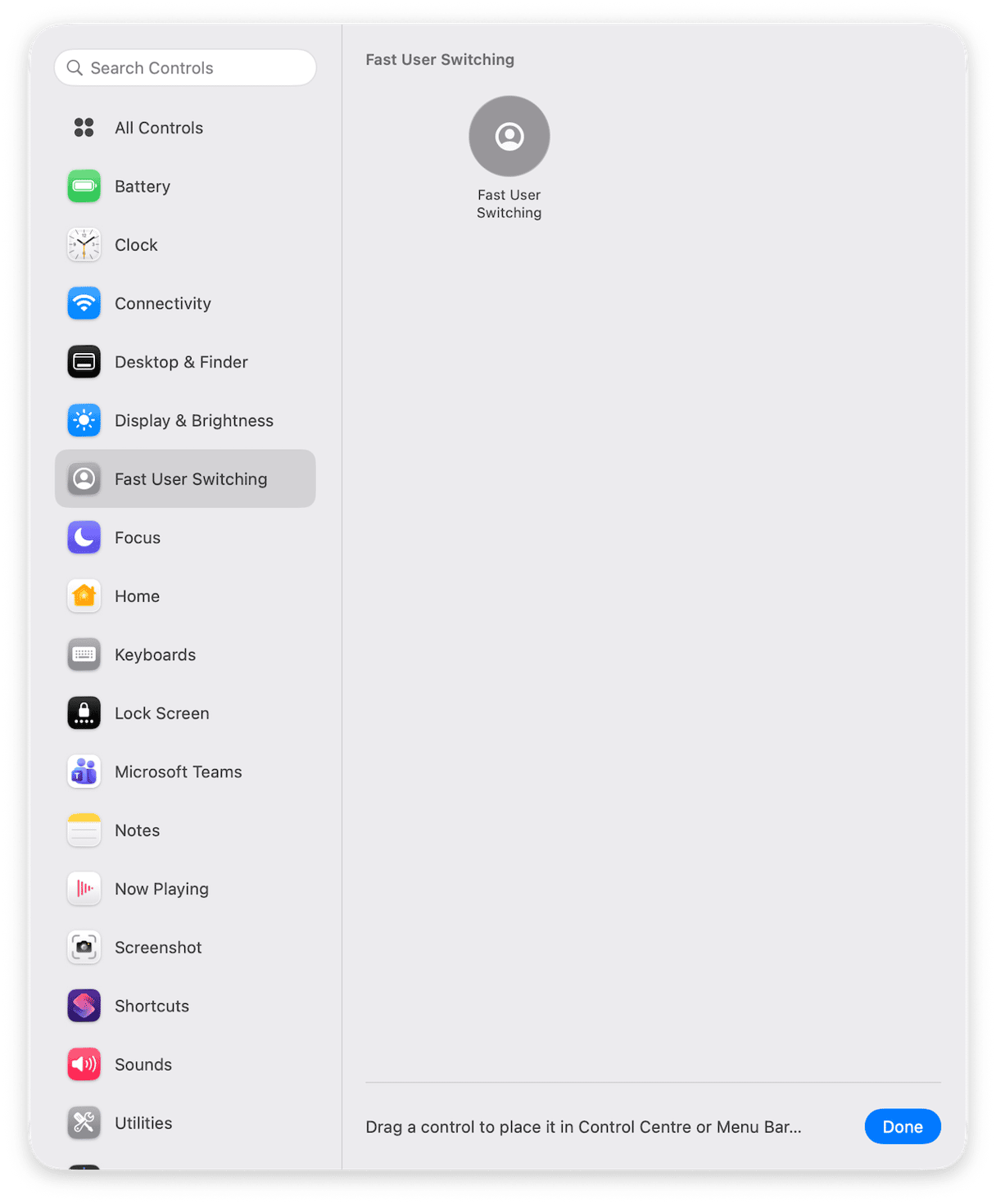
- Turn on Fast User Switching in Control Center to hop between users quickly.
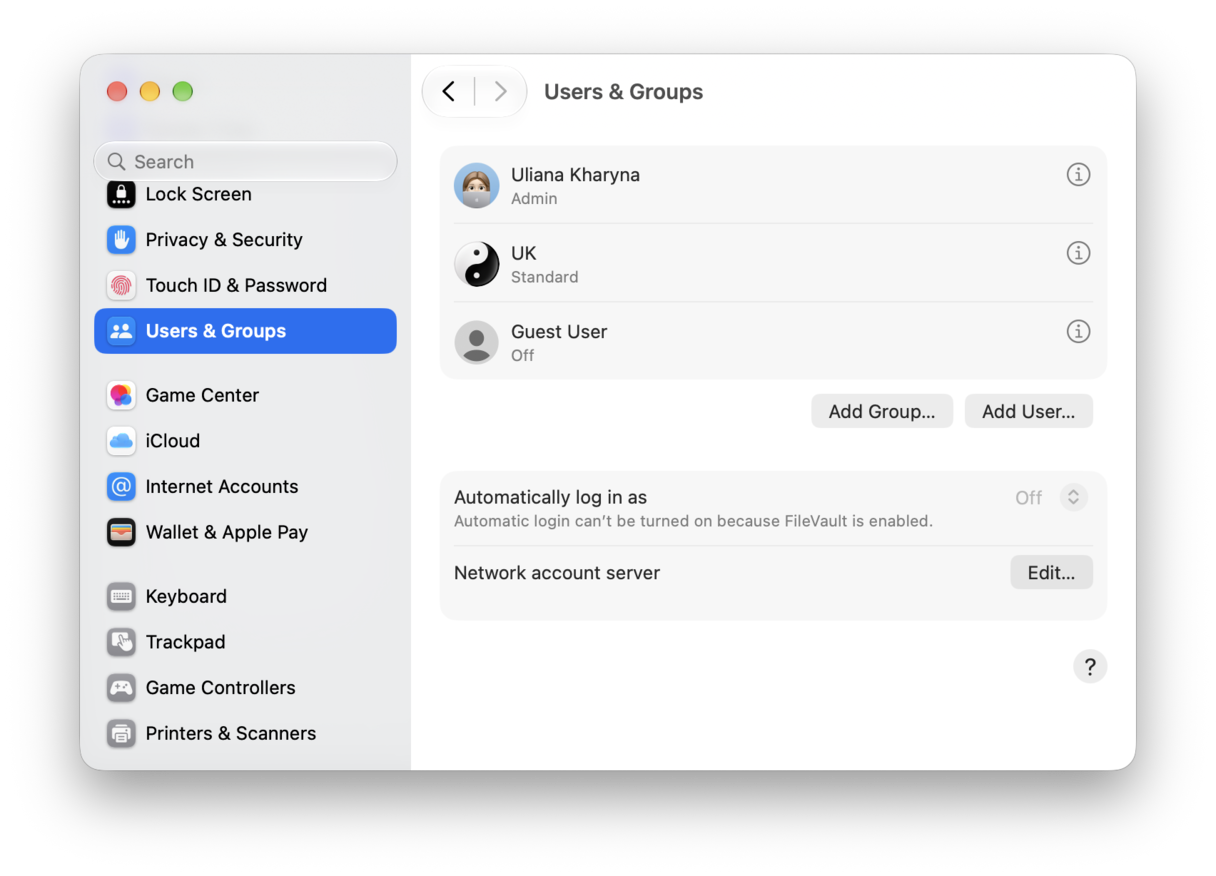
This way, nobody opens your Messages without your user password or Touch ID.
7. Use Focus and per-app rules
OK, this is my last trick for you. If you teach or demo, you can set a Focus to simply hide notifications while sharing; here’s how:
- System Settings > Focus. Click Add Focus > Custom.
- Give your new Focus a name like Presenting and start personalizing it.
- In Options, toggle Share Focus Status off.
- Under Allowed Notifications, allow none, or allow only critical work apps.
- In Messages > Settings > Notifications, turn off Show in Notification Center entirely if you constantly share your screen.
Mac protection in general
While knowing how to lock messages on a MacBook is important to some, overall, data and privacy should be something all users consider. The real win is shrinking what other apps can see or record and keeping malware out. That’s where CleanMyMac’s Protection feature helps. It scans for threats with the Moonlock engine and surfaces privacy items (camera/mic/screen-recording access, browser traces, Recent Items) so you can tighten things up.
- Open CleanMyMac — get your free trial here (totally free).
- Click Protection > Scan.
- Click Manage Privacy Items:
- In Applications Permissions, review Camera, Microphone, Screen Recording, and Full Disk Access.
- Under Privacy, remove any stored data you no longer need.
- Under Malware removal, check for any threats.
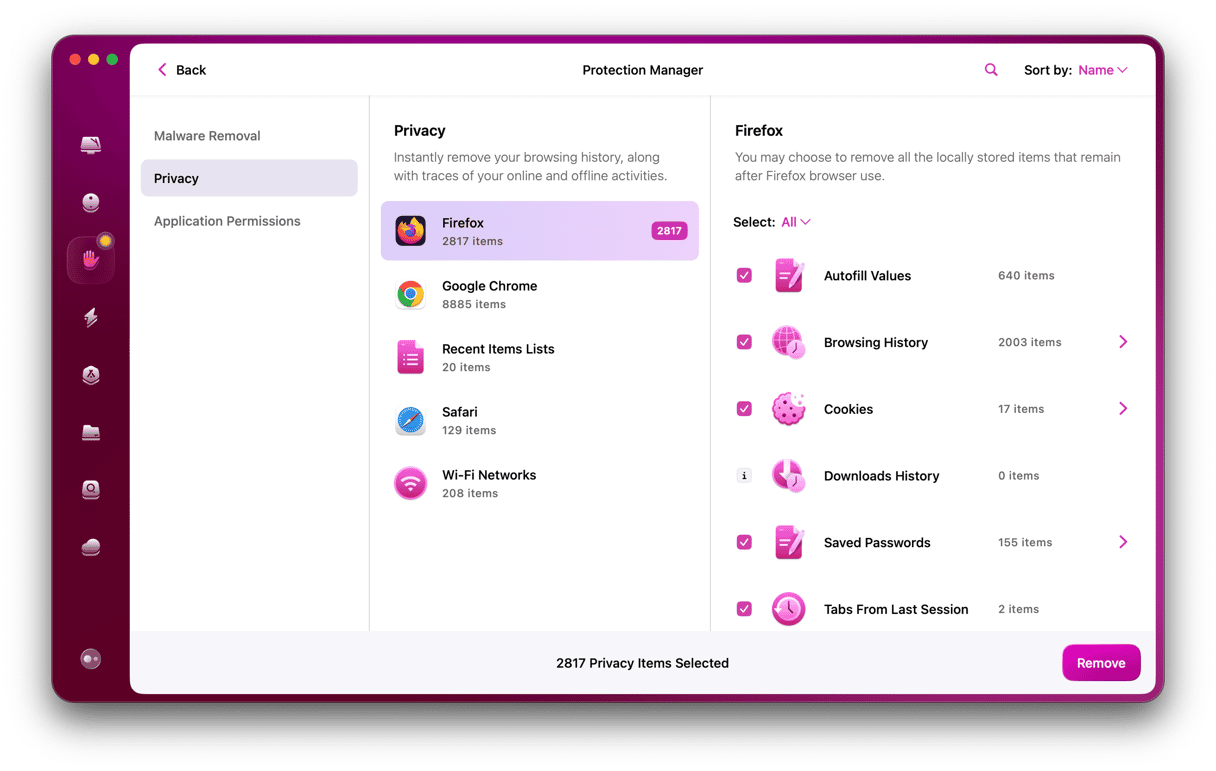
This doesn’t change Messages itself; it reduces the chances that another app or hidden process can capture or expose your messages while you work.
So, hopefully you’ve found a couple of methods in this article to help you achieve locking the Messages app on your MacBook effect. It certainly would be a lot simpler if there were a quick toggle lock button, but these workarounds get the job done.
FAQs: Can you lock messages on a MacBook?
Can you lock just one conversation with a password on a Mac?
No. macOS does not support password-locking individual threads in Messages. Who knows, maybe in a future update.
Does Messages use end-to-end encryption on Mac?
Yes, iMessage is end-to-end encrypted in transit and when synced with Messages in iCloud under your Apple Account (aka Apple ID) with two-factor. Local storage is protected by FileVault if it’s enabled (as shown in tip #4).
Does signing out of iMessage mean I lose everything?
Signing out removes message data stored on your Mac, but your history remains on devices still signed in and in your iCloud if Messages in iCloud is enabled. Just sign back in to resync your old messages.
Is a third-party “app locker” worth it on macOS?
In my testing, most rely on helpers or screen overlays and do not integrate as deeply as iOS restrictions. Apple’s own stack works better: Screen Time passcode, FileVault, lock-screen on idle, and tight notification settings.