
If you’ve had the same email address for several years, you’ll know the frustration of having an inbox filled up with hundreds of promotional emails and newsletters, many of which you only signed up to get a discount code or to read a blog post. It can feel overwhelming. Thankfully, you can get rid of them and stop them arriving again. There is no one-stop solution, but with a bit of time and patience, you can implement a few tricks that will get the job done. In this article, we’ll show you how to mass unsubscribe from emails in Gmail, Outlook, and Apple Mail, including one Mac solution that works across different providers.
How to mass unsubscribe from emails
Gmail
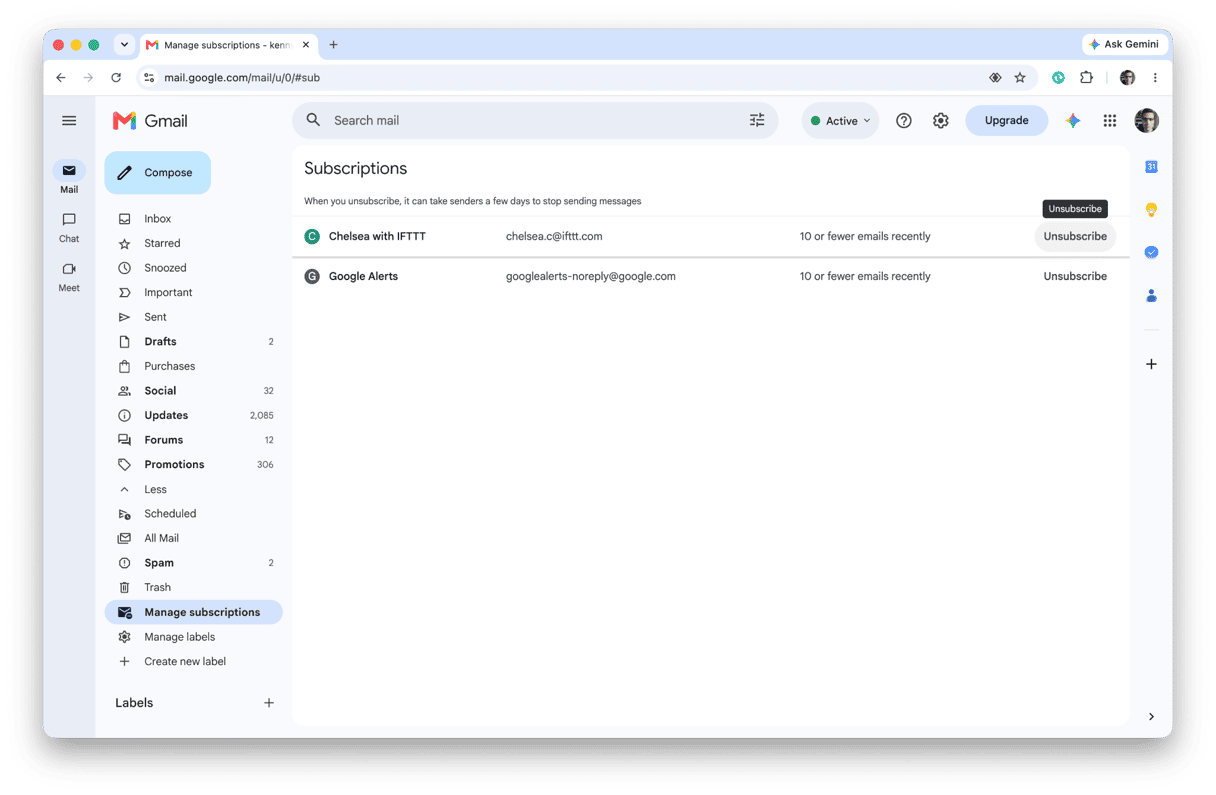
Like other providers, including Apple, Google relies on email senders using a proper unsubscribe header to allow it to make it easy to unsubscribe from emails using Manage Subscriptions.
- Open Gmail and click the More button under the list of folders on the left.
- You should see a Manage Subscriptions option. If not, go to the Promotions folder and turn on Smart Features using the link at the top of the inbox.
- Choose Manage Subscriptions. You will see a list of email newsletters, with a number beside each, showing how many emails there are from that sender.
- To unsubscribe, click the Unsubscribe button to the right of the number.
- Repeat that for every email list you want to unsubscribe from. Any future emails from senders you’ve unsubscribed from will go straight to spam.
You can also unsubscribe from individual email newsletters or promotions by hovering over the subject line of an email and clicking the Unsubscribe button that appears.
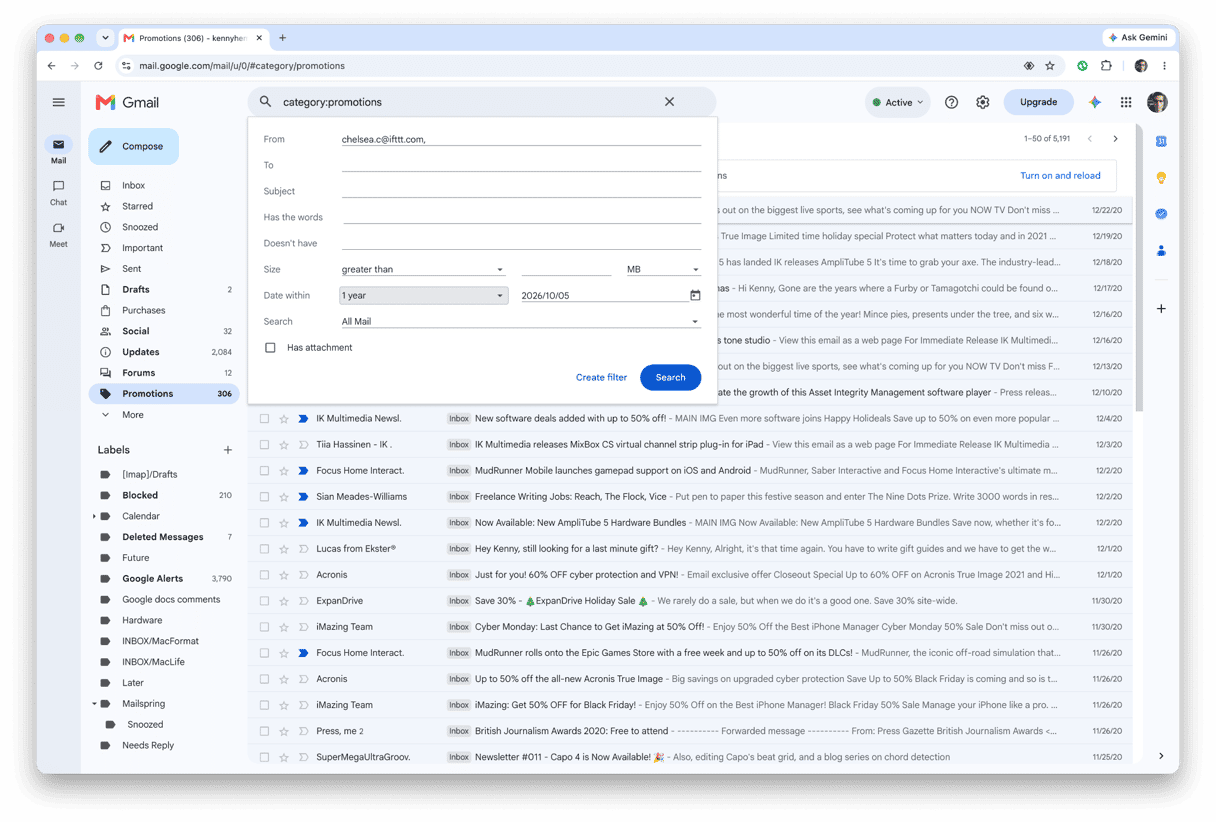
If you find that emails you thought you’d unsubscribed from keep arriving, you can create a filter to automatically move them to the Trash.
- Click the search options button to the right of the search bar.
- Fill in the email address of the sender of the email or the subject line it normally uses. You don’t have to fill in all the boxes.
- Select Create Filter.
- Check the box next to the option for deleting the message.
- Click Create Filter.
And if you want to declutter your Gmail even more effectively, jump to this guide on how to delete all promotions in Gmail.
Apple Mail
Apple Mail doesn’t have a Manage Subscriptions tool like Gmail, but you can still unsubscribe easily from promotional emails and newsletters by clicking the Unsubscribe button at the top of the email. You can also create rules for emails that don’t have an unsubscribe button.
- Select an email you want to unsubscribe from in your inbox.
- Click Mail > Settings.
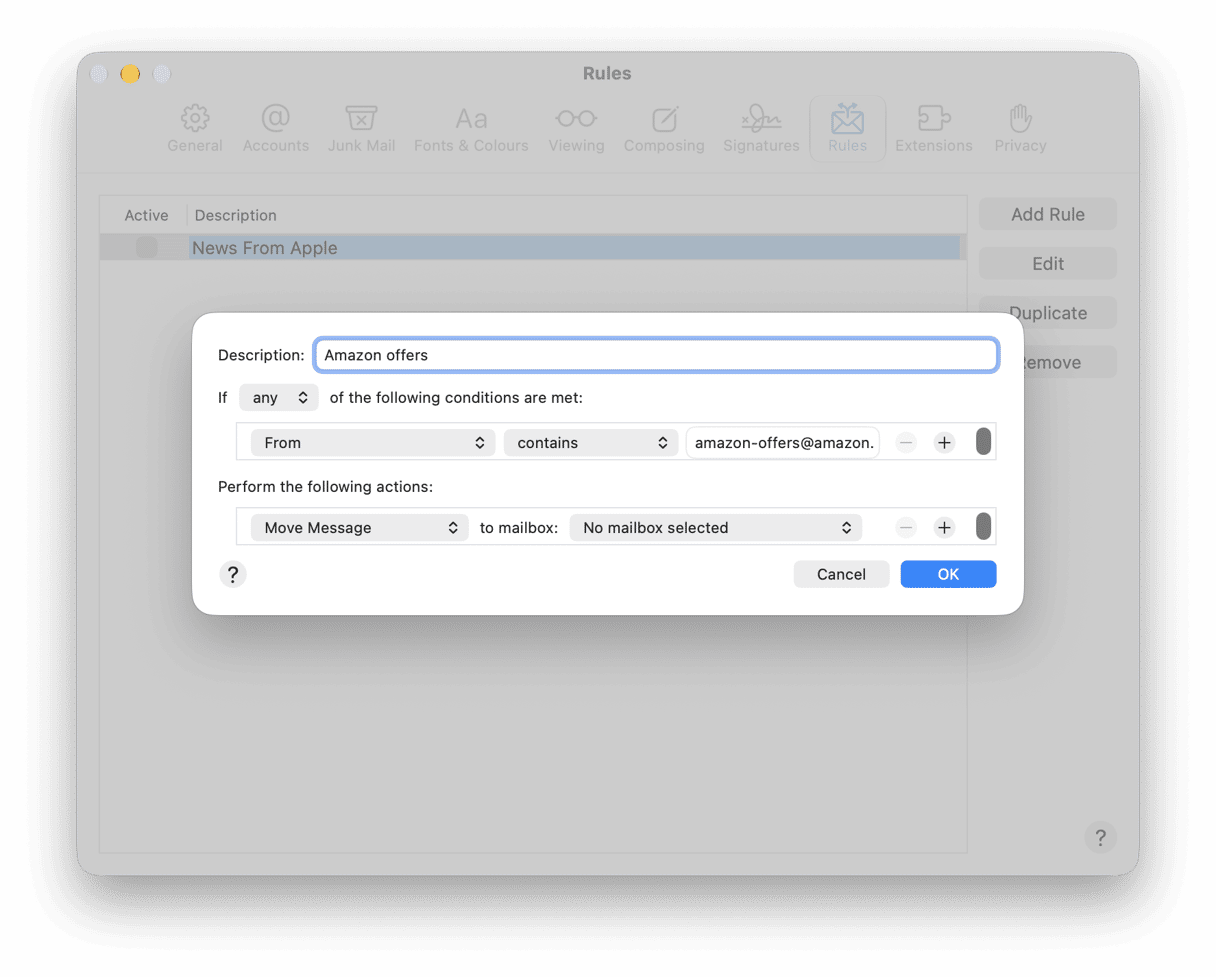
- Select the Rules tab.
- Choose Add Rule.
- When the next window opens, you should see the first condition already in place and populated with the sender address of the email you selected.
- Under ‘Perform the following actions’, choose Delete Message.
- Click OK.
- Repeat steps 1-7 for every email you want to unsubscribe from.
Tip: If you subscribe to iCloud+, it’s a good idea to use Hide My Email when you sign up to newsletters. That way, instead of unsubscribing or creating a rule, you can just turn off forwarding in Hide My Email’s settings.
Outlook
There are a number of methods available for unsubscribing from emails in Outlook, depending on whether you’re using the Mac client or the web version and whether you have an email address, such as outlook.com, that supports rules.
Both the Mac client and the web version allow you to click Unsubscribe at the top of an email to stop receiving emails from that address.
If you have a supported email account, you can also create a rule (Tools menu > Rules) to immediately send emails from the sender to the Trash.
- Click + to create a new rule.
- Paste the sender’s address into the sender field.
- Choose Delete or Move from the available actions.
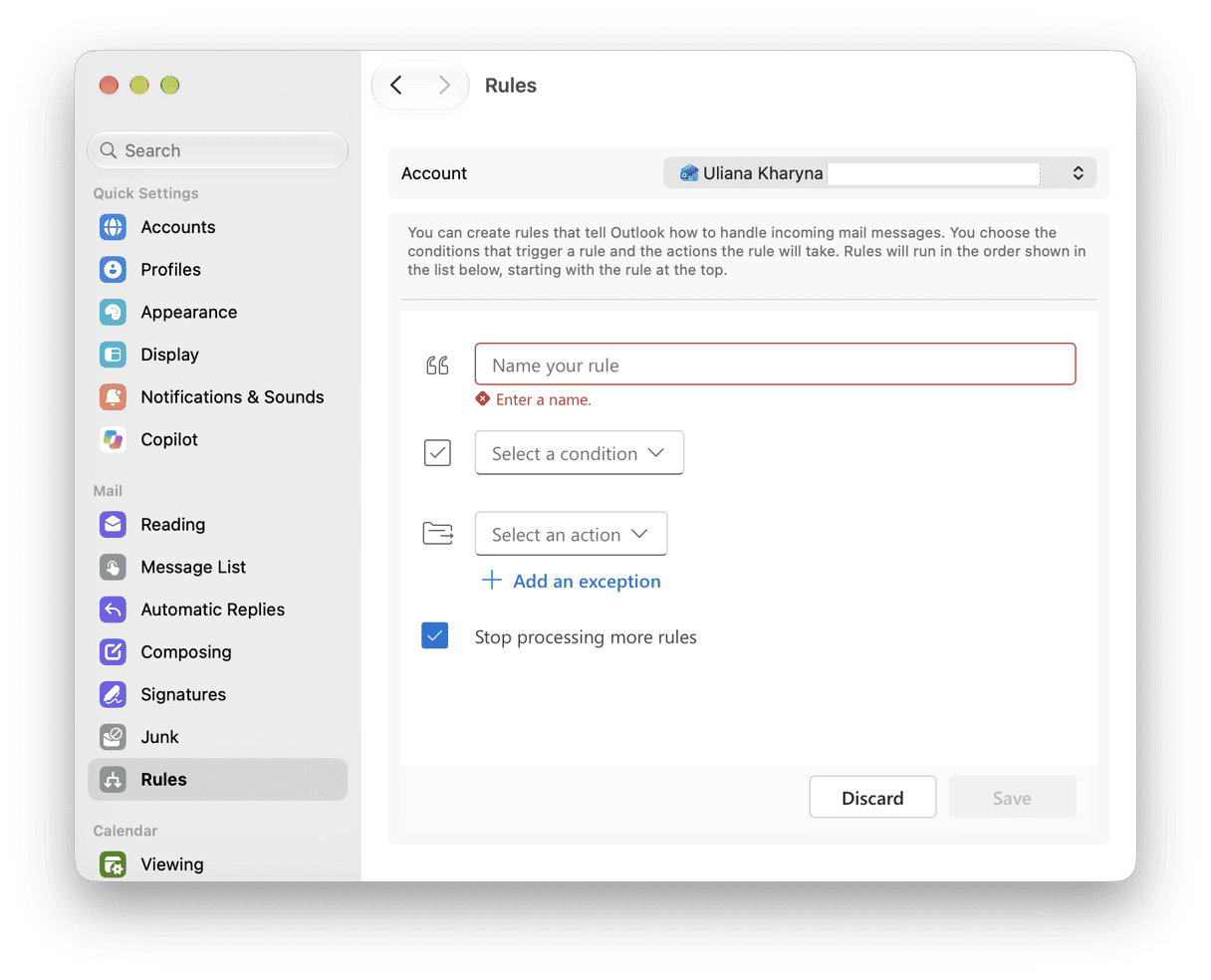
Important: If you use non-Microsoft mailboxes (like Gmail, Yahoo, or iCloud), you won’t be able to create rules.
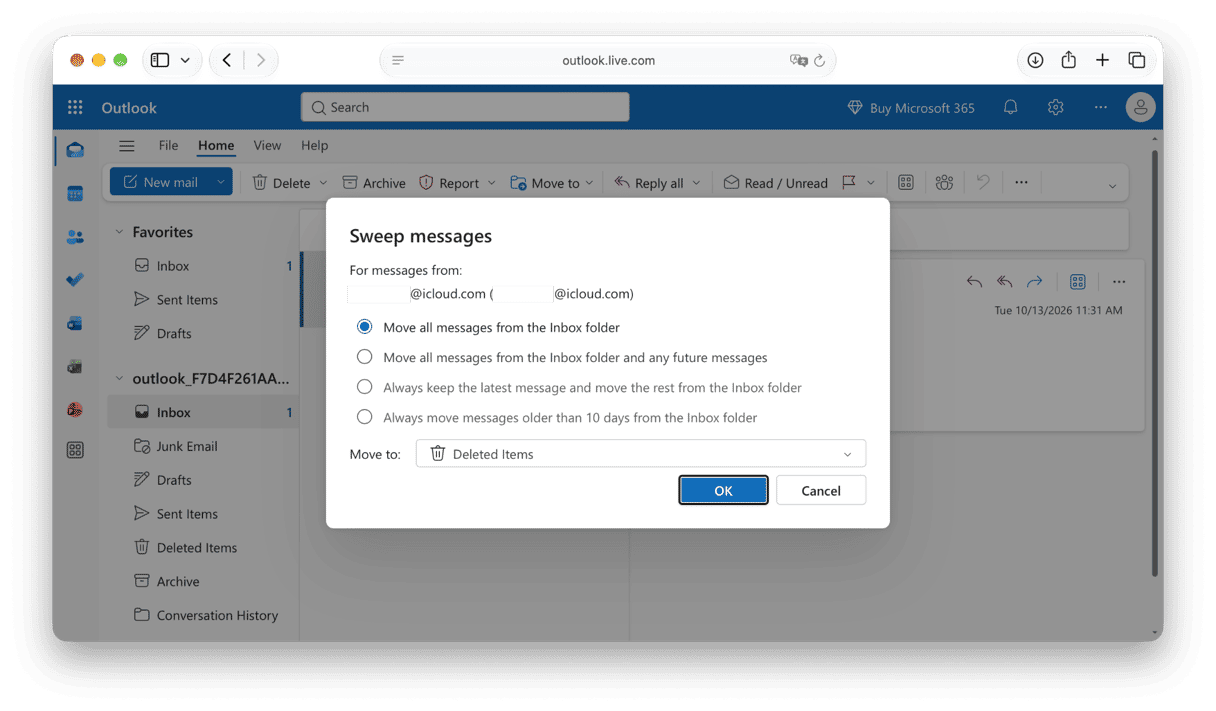
The web version of Outlook allows you to use the Sweep feature.
- Log in to outlook.com
- Select a message from the sender whose emails you want to delete.
- Click the More button (three dots) in the toolbar and choose Sweep.
- Select the option that best describes what you want to do.
- Click OK.
You can also go to Settings in Outlook on the web (click the three dots at the top right next to your account icon and choose Settings), then choose Subscriptions, and you will see a list of your subscriptions. You can then choose Unsubscribe next to the ones you want to unsubscribe from.
How to prevent inbox overload going forward
There are a number of things you can do to prevent your inbox from being overwhelmed by promotional emails:
- Be careful about whether you check the box or leave it unchecked to avoid receiving promotional emails when you sign up for an account or buy something online.
- Use a dedicated email address for promotional emails (or Hide My Email if you have iCloud+).
- Audit your inbox once a month to make sure you are only receiving emails you want.
Clean up what’s left in your inbox with CleanMyMac
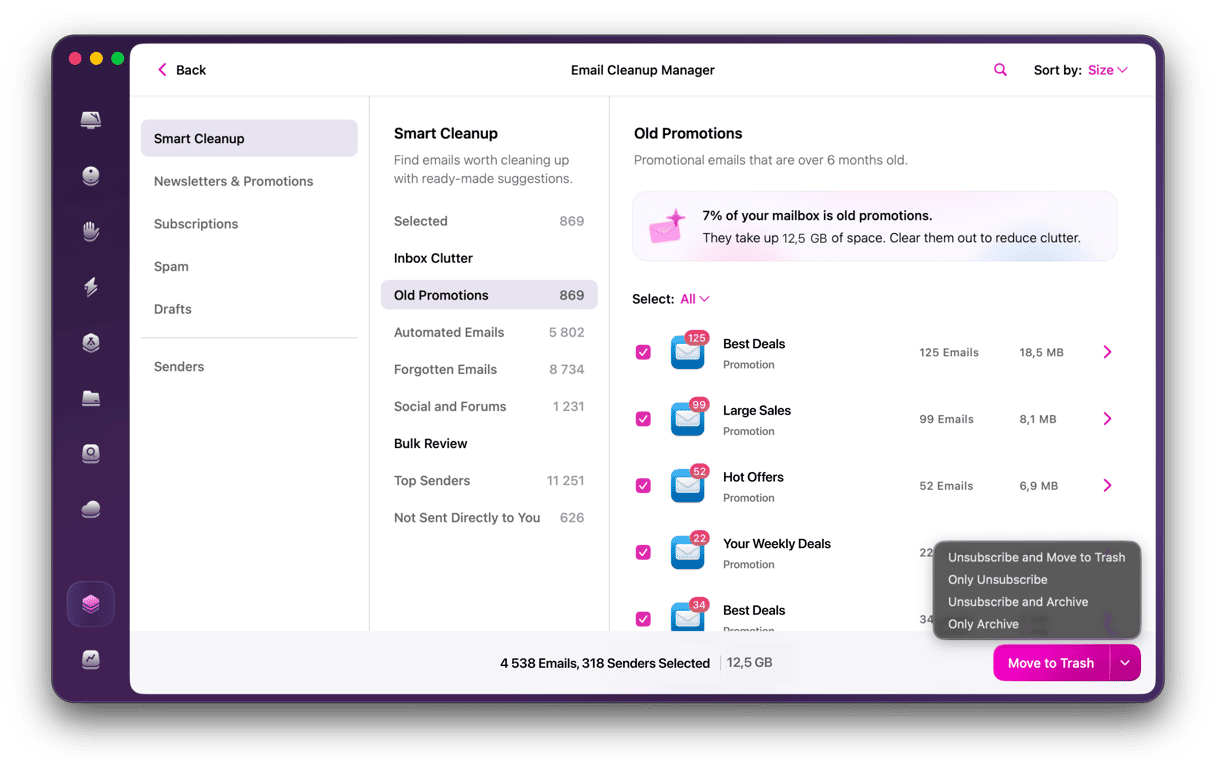
Unsubscribing clears your inbox, but every attachment file those newsletters delivered is still cached on your Mac. CleanMyMac’s Email Cleanup tool removes all of it in minutes. It connects to your Gmail account safely through the standard Google sign-in, and you can disconnect permissions anytime directly in the app.
- Start your free CleanMyMac trial — you can test it for 7 days.
- Open CleanMyMac and choose My Tools › Email Cleanup.
- Connect your Gmail account and click Scan.
- Either wait for the scan to finish or click Review Now.
- Select what you no longer need and click Remove.
Gmail, Apple Mail, and Outlook all make it very straightforward to unsubscribe, and Gmail allows you to mass unsubscribe from emails quickly. Once you’ve done that, CleanMyMac can clean up your inbox and free up storage space.
Frequently asked questions
Is there a single button to unsubscribe from all emails at once?
The method for unsubscribing depends on the email client or webmail service you use. Gmail allows you to select the emails you want to unsubscribe from and press Unsubscribe once. In other apps, you need to individually unsubscribe.
Are third-party unsubscribe tools safe to use?
It’s always a good idea to check how third-party tools access your mail and how they unsubscribe you.
Does unsubscribing actually work, or will I keep getting emails?
Yes, unsubscribing works. Once you’ve clicked unsubscribe, you should no longer get emails from that address.
How do I stop emails without an unsubscribe link?
You can block senders in most email applications. If you use Hide My Email, you can stop it from forwarding emails from an address to your inbox.