
Switching from Windows to Mac can feel, at first, like a bit of a steep learning curve, not because Mac is massively harder; it’s more the fact that you’ll need to rid yourself of 15 years of muscle memory, and by that, I mean forget all those quick little shortcuts, get your head around the new file system, and how all the apps work differently.
The good news is, this doesn’t actually take that long. A MacBook does everything a Windows PC does, and in honesty, often in fewer steps.
So if you’re freaking out, wondering what Cmd is vs Ctrl, where the Task Manager equivalent is, I’ve got it all covered.
This is going to be one of those guides you should bookmark, because it’s full of tips and tricks you can come back to, time and time again.
Windows to Mac: Transfer your files first
The switch from Windows to Mac really needs to start with moving over the files you need.
Mac comes with a tool called Migration Assistant, and it’s the easiest option for most Windows switchers because it can transfer documents, photos, contacts, calendar data, email accounts, and even some settings from your PC to your new Mac.
On your Mac, go to System Settings > General > Transfer or Reset > Open Migration Assistant.
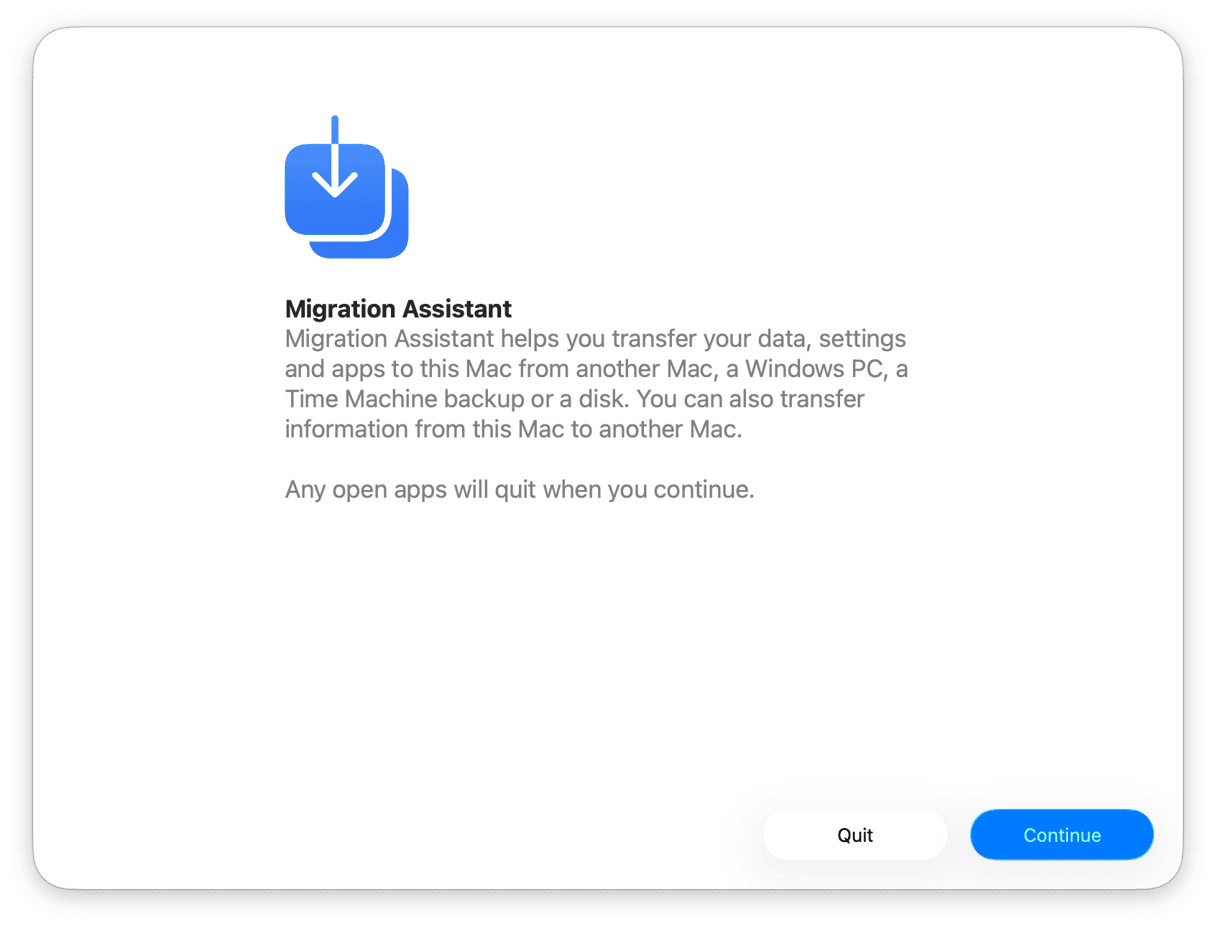
Then, you’ve just got to follow the prompts and choose the option to transfer from a Windows PC.
You’ll need to make sure that your Mac and PC are both on the same Wi-Fi network, and Apple will guide you through installing the Windows Migration Assistant on your PC if needed.
It’s also possible to move your files manually with an external drive, USB-C to USB-A cable, or cloud storage like OneDrive, Google Drive, or Dropbox.
The one thing not to bring over is your old Windows apps. Files ending in .exe won’t simply run on macOS, so leave those behind and install Mac versions or alternatives instead. (I’ll get to that a little later).
Learn the interface: Mac for beginners
So, these are my absolute quick-glance Windows-to-Mac must-know equivalents.
On Windows | Mac equivalent | Explainer |
Taskbar | Dock | Sits at the bottom by default; draggable to any edge |
Start Menu | Launchpad / Spotlight | Cmd - Space opens Spotlight, much faster than Start |
File Explorer | Finder | Same concept; different sidebar layout |
Task Manager (Ctrl - Alt - Del) | Activity Monitor | Find in Applications › Utilities |
Control Panel / Settings | System Settings | Apple menu › System Settings |
Right-click | Right-click or Ctrl+click | Trackpad: tap with two fingers |
Recycle Bin | Trash | Lives in the Dock; empty manually or auto-clear |
Minimize to taskbar | Minimize to Dock | Yellow dot (Cmd - M); window hides in Dock |
Mac keyboard shortcuts
The single most important rule every switcher needs to know: you’ll basically replace Ctrl with Cmd (⌘) for 90% of your shortcuts. Cmd - C, Cmd - V, Cmd - Z all work exactly as you’d expect.
Action | Windows shortcut | Mac shortcut |
Copy / Paste / Undo | Ctrl - C / V / Z | Cmd - C / V / Z |
Cut and paste (files) | Ctrl - X | Cmd - C, then Cmd - Option - V in destination |
Find in document / page | Ctrl - F | Cmd - F |
Switch apps | Alt - Tab | Cmd - Tab |
Force quit (like Ctrl+Alt+Del) | Ctrl - Alt - Del | Cmd - Option - Esc |
Open Spotlight (like Start) | — | Cmd - Space |
Take a screenshot | PrtSc / Snipping Tool | Cmd - Shift - 3 (full), Cmd - Shift - 4 (area) |
Quit an app completely | Alt - F4 | Cmd - Q (note: closing a window ≠ quitting) |
Rename a file | F2 | Select file, press Return |
Delete a file (to Trash) | Delete key | Cmd - Delete |
There are two shortcuts that catch most Windows switchers out.
First, file move works differently. In Finder, you don’t use Cmd - X to cut a file. You’ll instead need to memorize Cmd - C to copy it, go to the destination folder, then press Cmd - Option - V to move it there.
Second, closing a window doesn’t always quit the app. The red button closes the window, but the app may keep running in the Dock. To quit it properly, use Cmd - Q.
Windows apps on Mac
Before you start hunting for familiar icons, most Windows tools have a Mac equivalent, but they’re not always named the way you’d expect. Some are built into macOS, some have proper Mac versions, and a few Windows-only apps need a workaround.
Windows App | Mac Equivalent | Notes |
Microsoft Office | Free and paid versions Microsoft Office for Mac / Pages, Numbers, Keynote | Office for Mac is full-featured; Apple apps are free |
Internet Explorer / Edge | Free, Safari (built-in) / Chrome / Firefox | Safari is fast and battery-efficient on Mac |
Notepad | Free, TextEdit | More powerful than Notepad; supports rich text |
Windows Media Player | Free, QuickTime Player / IINA | IINA plays virtually every format |
Windows Photos | Free, Photos (built-in) | Syncs with iCloud and iPhone |
Windows Defender | Built-in XProtect and paid protection via CleanMyMac | CleanMyMac adds active malware scanning |
WinRAR / 7-Zip | The Unarchiver (by MacPaw) | Free on Mac App Store; handles all archive formats |
Skype | FaceTime is Free / Zoom / Skype for Mac paid and free options | FaceTime built-in for Apple devices |
The main thing to remember is that Windows .exe files don’t run on macOS. If an app has a Mac version, install that instead. If it doesn’t, you still have options, but they’re more involved.
For Windows-only software, tools like Parallels Desktop can run Windows inside a virtual machine on your Mac. CrossOver can run some Windows apps without installing the full Windows system, but compatibility depends on the app. For most new Mac users, though, it’s better to start with native Mac apps wherever possible, and if you are interested in a Windows emulator, I’d read this full guide.
Mac features you’ll not get over
Once the basics start to feel familiar, then these are the Mac features that usually make the switch totally worth it.
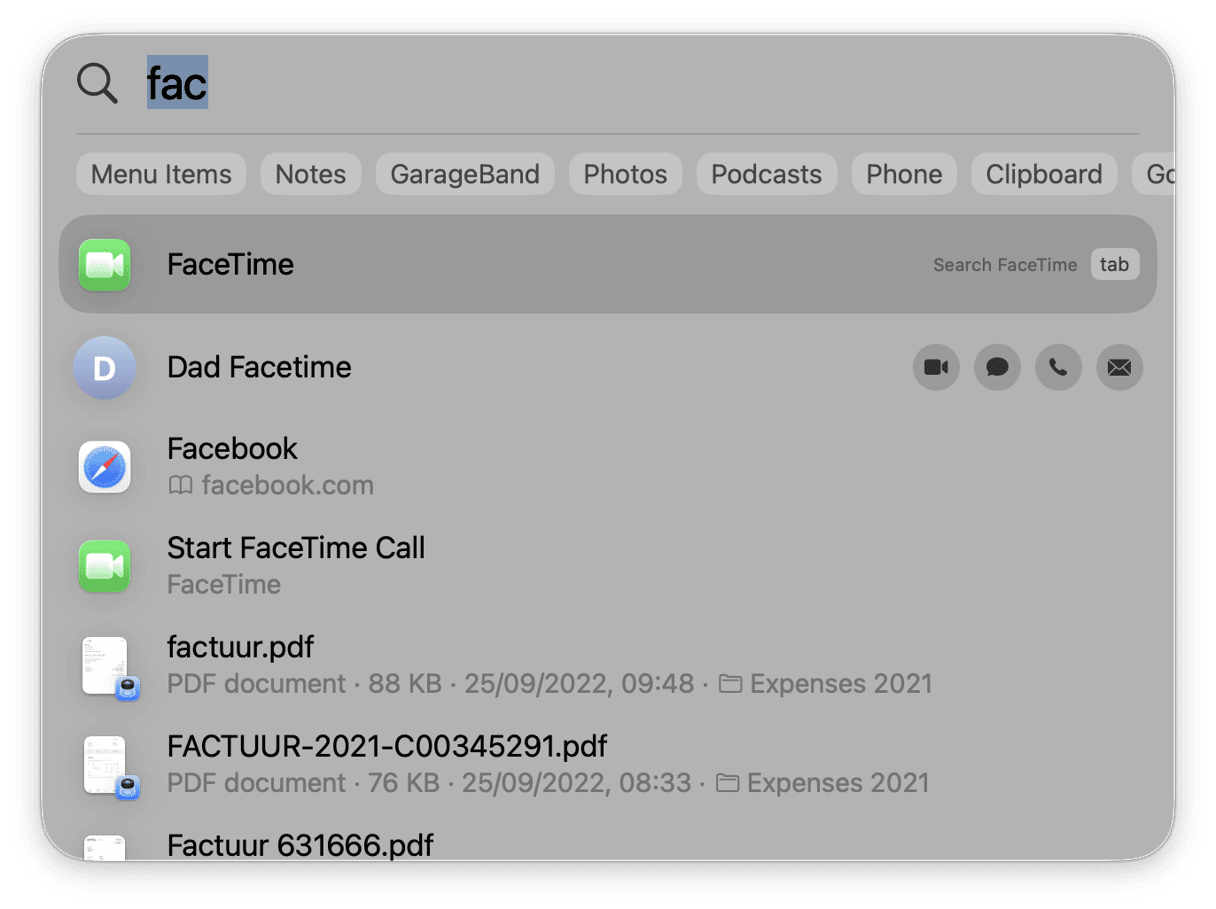
Spotlight
It’s the fastest way to open apps, find your files, search the web, and run quick calculations. All you need to do to open it is press Command - Space.
Then type what you need. It works like a much faster Start menu.
Quick Look
This is another one you’ll use constantly. Select almost any file and press Space to preview it — works on PDFs, images, videos, and even documents. You can basically take a glance without fully opening the file or app.
AirDrop
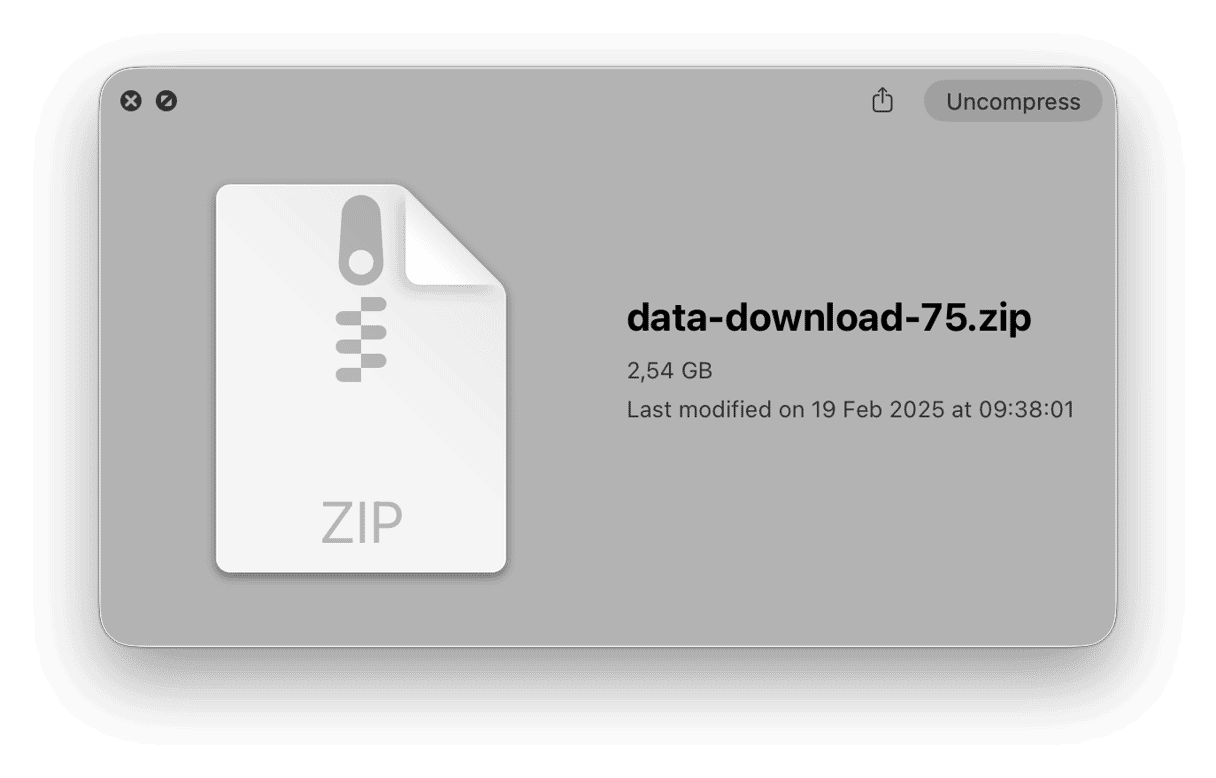
For file sharing between Apple devices, if you have an iPhone or iPad, you can send photos, PDFs, links, and documents to your Mac wirelessly, without cables or emailing yourself files.
Handoff and Continuity
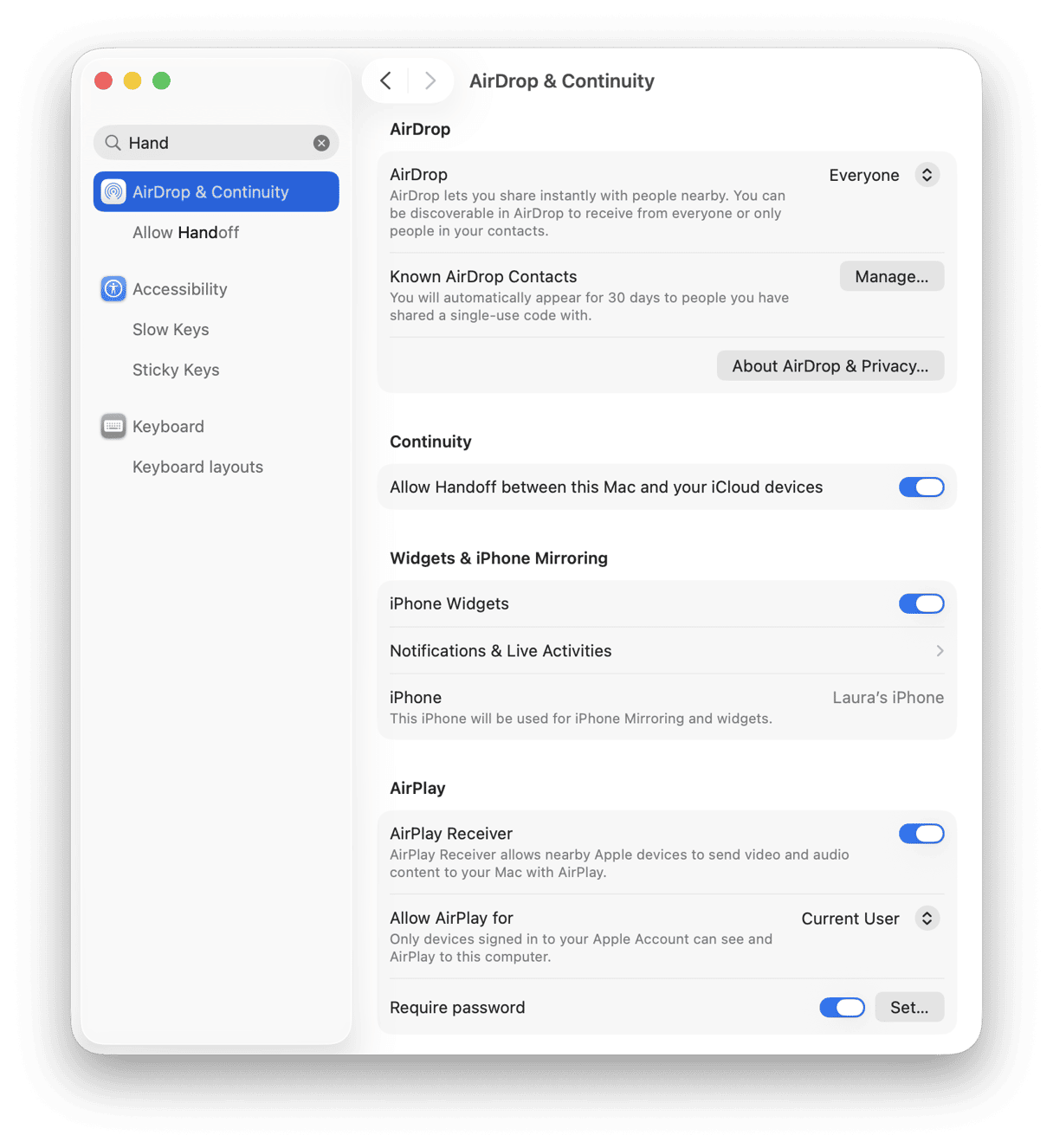
These tools are really useful if you live between devices. You can start writing something on your iPhone and pick it up on your Mac, answer iPhone calls from your Mac, or copy something on one Apple device and paste it on another.
Mission Control
If your screen is starting to get crowded. Swipe up with three fingers on the trackpad to see all open windows at once. You can also create extra desktops for different tasks, like work, personal, and admin.
Hot Corners
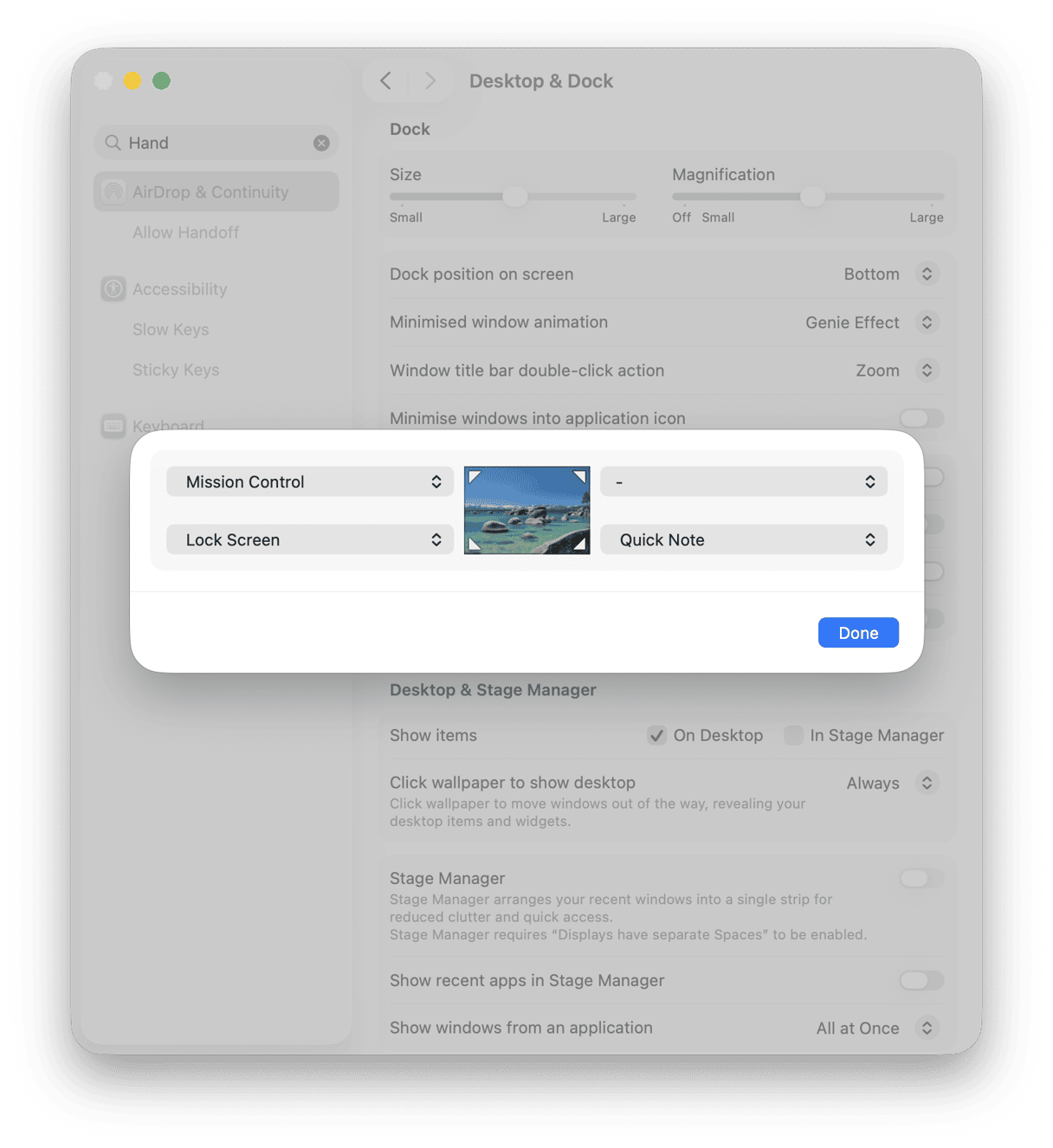
You can trigger actions by moving your pointer into a screen corner; you’ll need to set them up first in System Settings > Desktop & Dock > Hot Corners to set actions like lock screen, show desktop, or open Mission Control.
Keep your new Mac running like new
Switching from Windows to Mac is one thing; keeping your Mac running like new consistently is another. Junk files, even login items, and unnecessary background processes pile up just as they do on any computer, and after a couple of months, if you haven’t actively kept on top of this, your Mac might start to feel a bit slower.
The Smart Care feature from CleanMyMac is a popular tool for users because, with just one click, they can start a cleanup routine that runs five tasks simultaneously (junk cleanup, malware scan, performance boost, software update, and storage declutter).
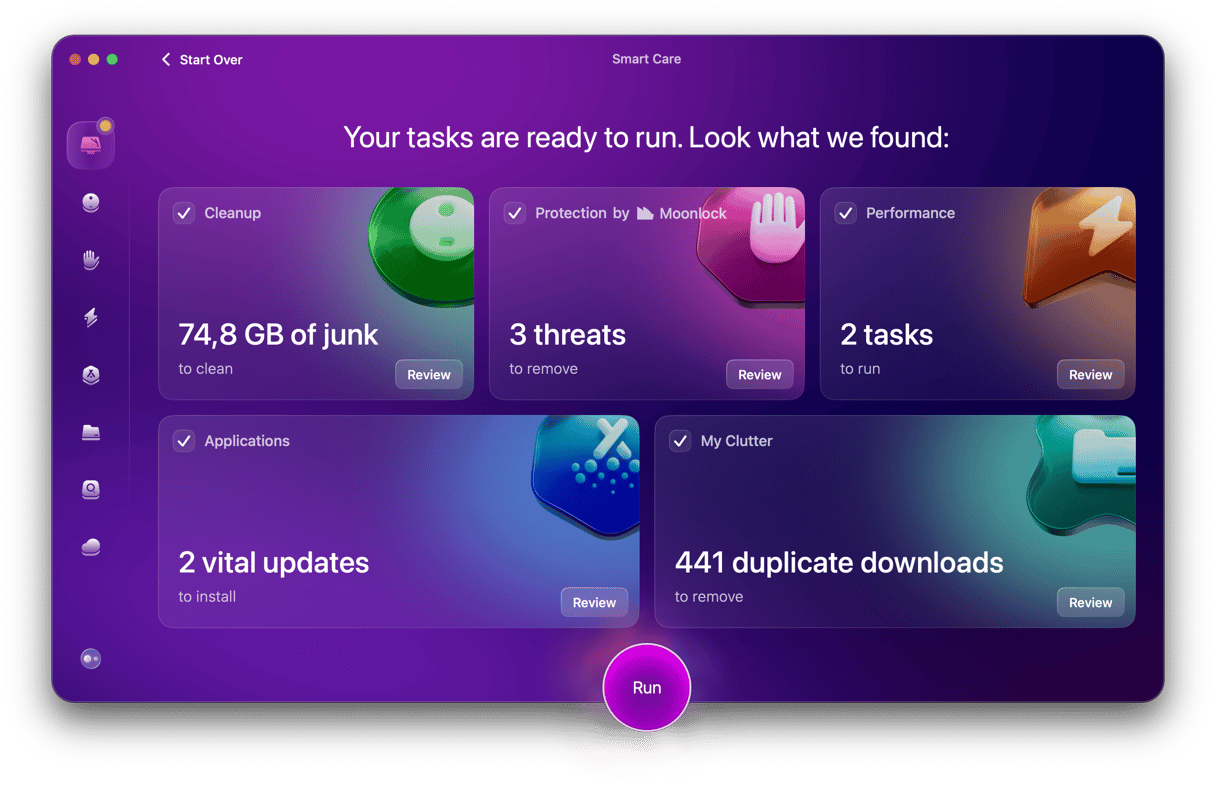
Based on internal data, on average, the first scan can remove a whopping 5.5 GB. You can test it for 7 days — get your free trial here. Once you’ve got it installed, simply open it up and click Smart Care > Scan > Run.
Now you know how to switch from Windows to Mac. I’d keep this guide handy for a few weeks.
Frequently asked questions
Can I run Windows apps on a Mac?
Not directly. Any .exe files just won’t run on macOS. For most apps, you’ll have to install the Mac version instead. But if it’s Windows-only software, then your options are to use an emulator like Parallels Desktop to run Windows on your MacBook.
Will I lose my files when I switch from Windows to Mac?
If you transfer them properly, then you absolutely shouldn’t. Apple’s Migration Assistant is your go-to here for safely transferring documents, photos, contacts, email accounts, and some settings from your Windows PC to your Mac. You can also move files manually with an external drive or cloud storage.
How long does it take to get used to Mac after Windows?
Not long; I think a couple of days, and you’ll have your head around the interface. It might take a couple of weeks to forget those muscle memory shortcuts and embed the new Mac equivalents.
Is Mac harder to use than Windows?
No. It’s just different, not harder. Once you know the main shortcuts, most everyday tasks feel just as easy, and often quicker. And to learn more about the main differences, jump to this MacBook vs. Windows comparison.