Switching to iPhone from Android doesn’t have to be difficult. You can transfer all of your data — photos, contacts, apps, and even messages — with the help of a few dedicated tools. Keep on reading, and you’ll learn about some of the native features you can use to copy everything over to your new iPhone.
How to move from Android to iOS
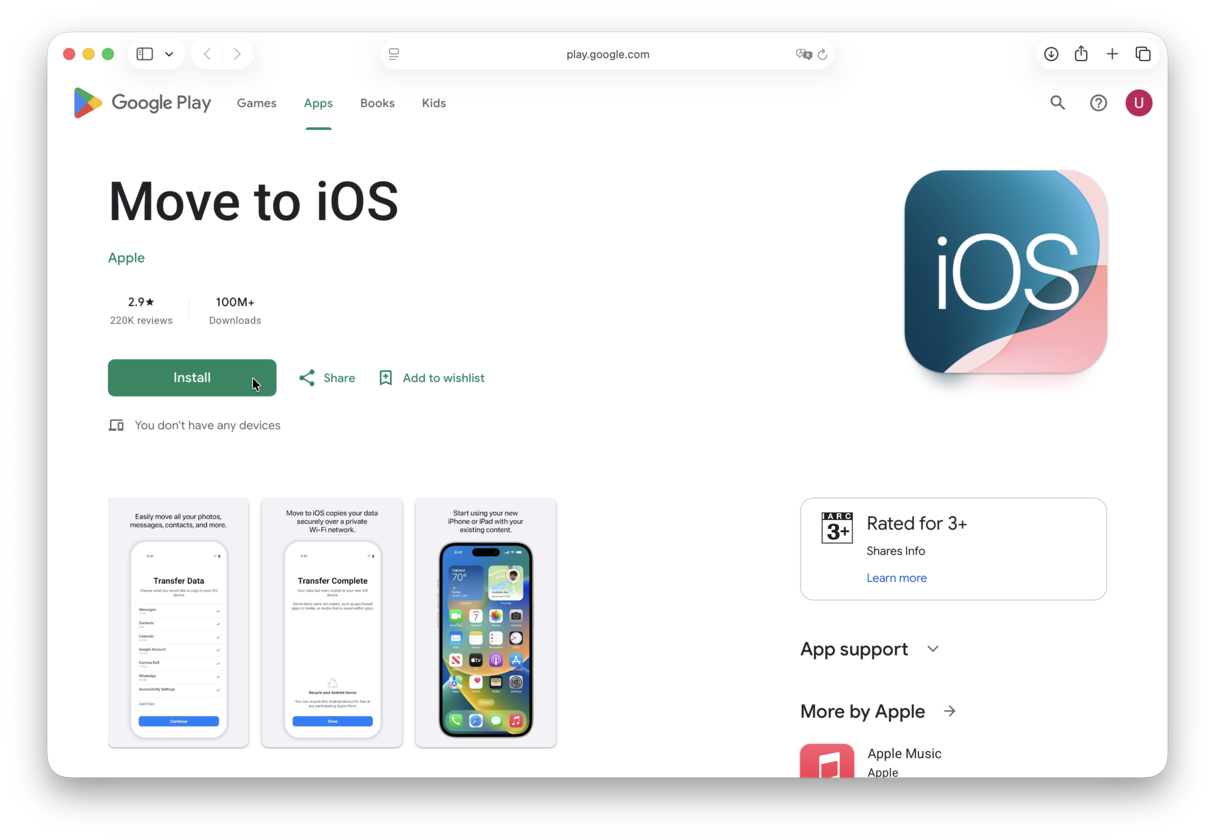
Fortunately, Apple has created an Android app called Move to iOS that makes it simple to transfer most of your information over to your new iPhone. Once you have that app downloaded, you’re ready to get started transferring.
Use your limited iPhone storage wisely
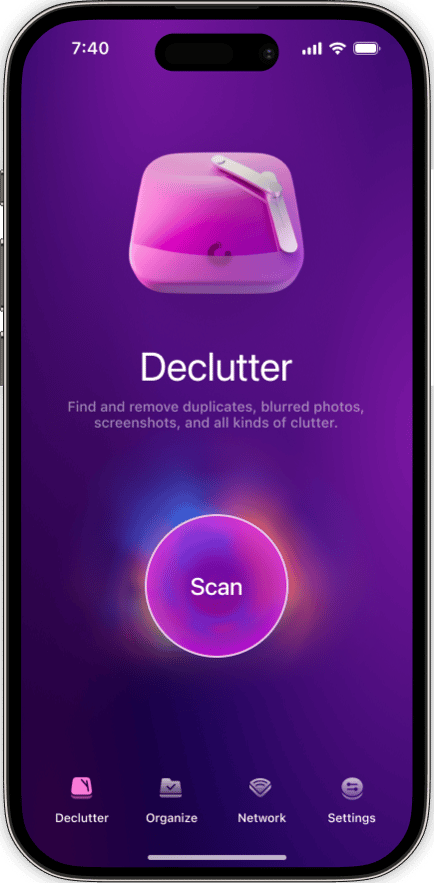
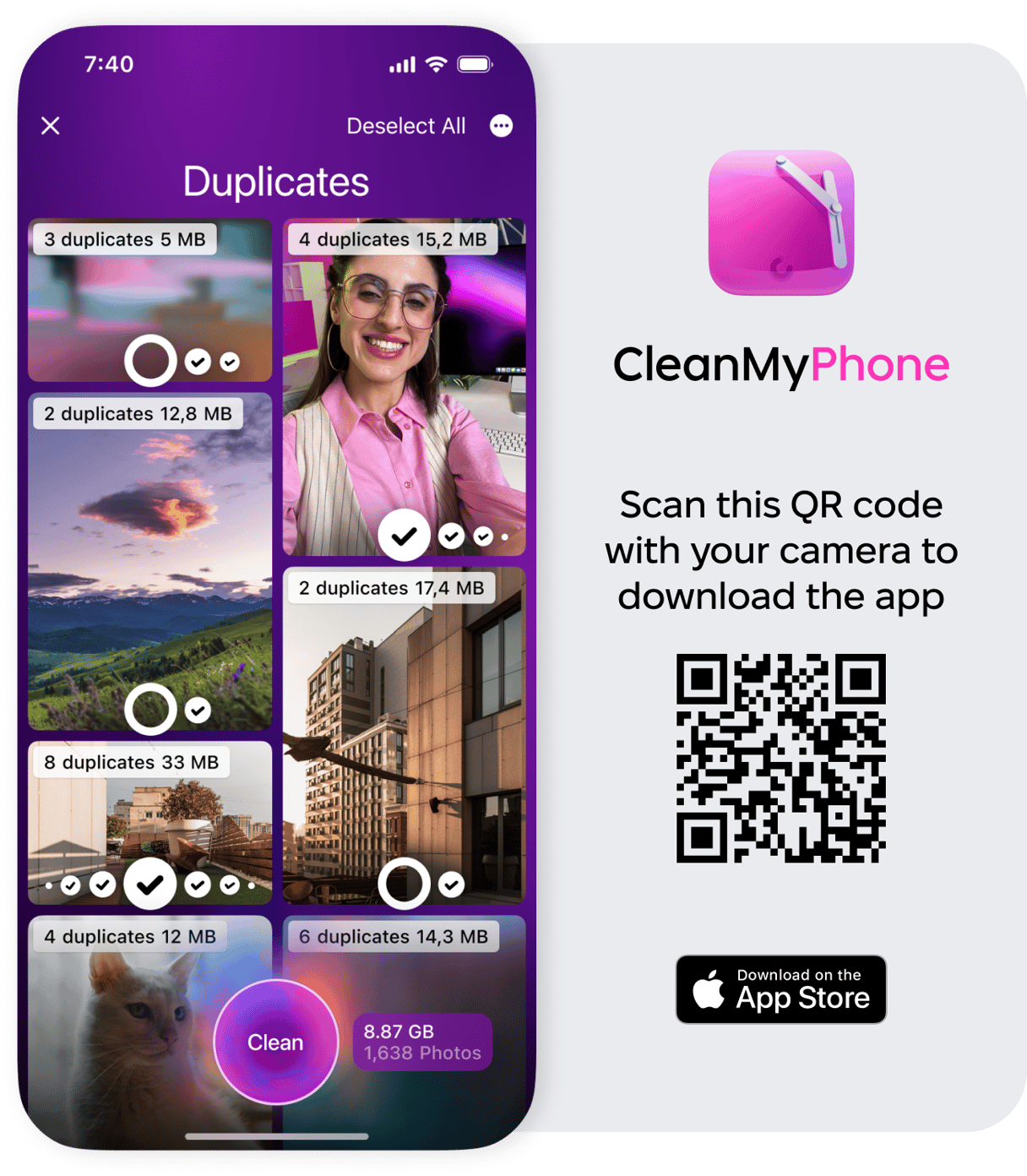
iPhones don’t have external memory like micro SD cards, so you need to be smart about using your built-in GB. After you’ve moved your data, get an app like CleanMy®Phone to find and delete similar and blurred pics, duplicate photos, and other stuff that’s wasting storage.
How to transfer photos from Android to iPhone
If you don’t need to move all of your data, there are a couple of ways to transfer just your photos from Android to iPhone. The easiest way is by using Google Photos. Because all the photos are stored in the cloud, you can just download the app on your iPhone to view and start using Google Photos on your iPhone just like you did on your old phone.
Alternatively, you can manually move your photos with the Finder on your computer. Here’s how:
- Connect your Android to your computer with a USB cable.
- Find your photos and videos. Note: With most phones, you can find these files on your computer in DCIM > Camera. On a Mac, install Android File Transfer, open it, then go to DCIM > Camera.
- Select the photos and videos you want and move them to a folder on your computer.
- Unplug your Android from the computer.
- Connect your iPhone to your computer.
- Open the Finder on your computer and sync the folder with your photos to your iPhone.
- After the sync is complete, the photos will be in the Photos app on your iPhone, under Albums.
Another way to move photos from Android to iPhone is to use Google Photos. If you weren’t already using Google Photos, you can download Google Photos to your Android phone and start transferring your pics.
- On your Android, open Google Photos and sign in to your Google account.
- Choose “High quality” and then tap “Confirm.” Wait for your photos to upload.
- While they are uploading, download Google Photos on your iPhone and open it. Tap “Sign in.”
- Finish the setup and allow Google Photos to access your photos.
- Start the download of your pictures.
Remember, it can take some time to transfer your entire photo library over, depending on how many pictures and videos you have.
How to transfer data from Android to iPhone
Once you’ve downloaded the Move to iOS app from the Google Play Store onto your Android phone, you can power on your iPhone to get started.
- On your iPhone, follow the setup screen prompts until you get to the Apps & Data screen.
- Tap Move Data from Android.
- On your Android, open the Move to iOS app.
- Tap Continue on both phones.
- Your iPhone will display a 6- or 10-digit code. Type that into your Android phone.
- After the phones connect to each other, select what you would like to transfer.
- When the transfer finishes, tap Continue Setting Up iPhone on your iPhone.
- After you’ve finished the setup wizard on your iPhone, it will prompt you to log in to your Google account, and then you’re done!
Remember that any time you’re transferring data like this, it can take some time to complete the process. Depending on how much data you’re trying to transfer, it can speed up or slow down the transfer.
How to transfer contacts from Android to iPhone
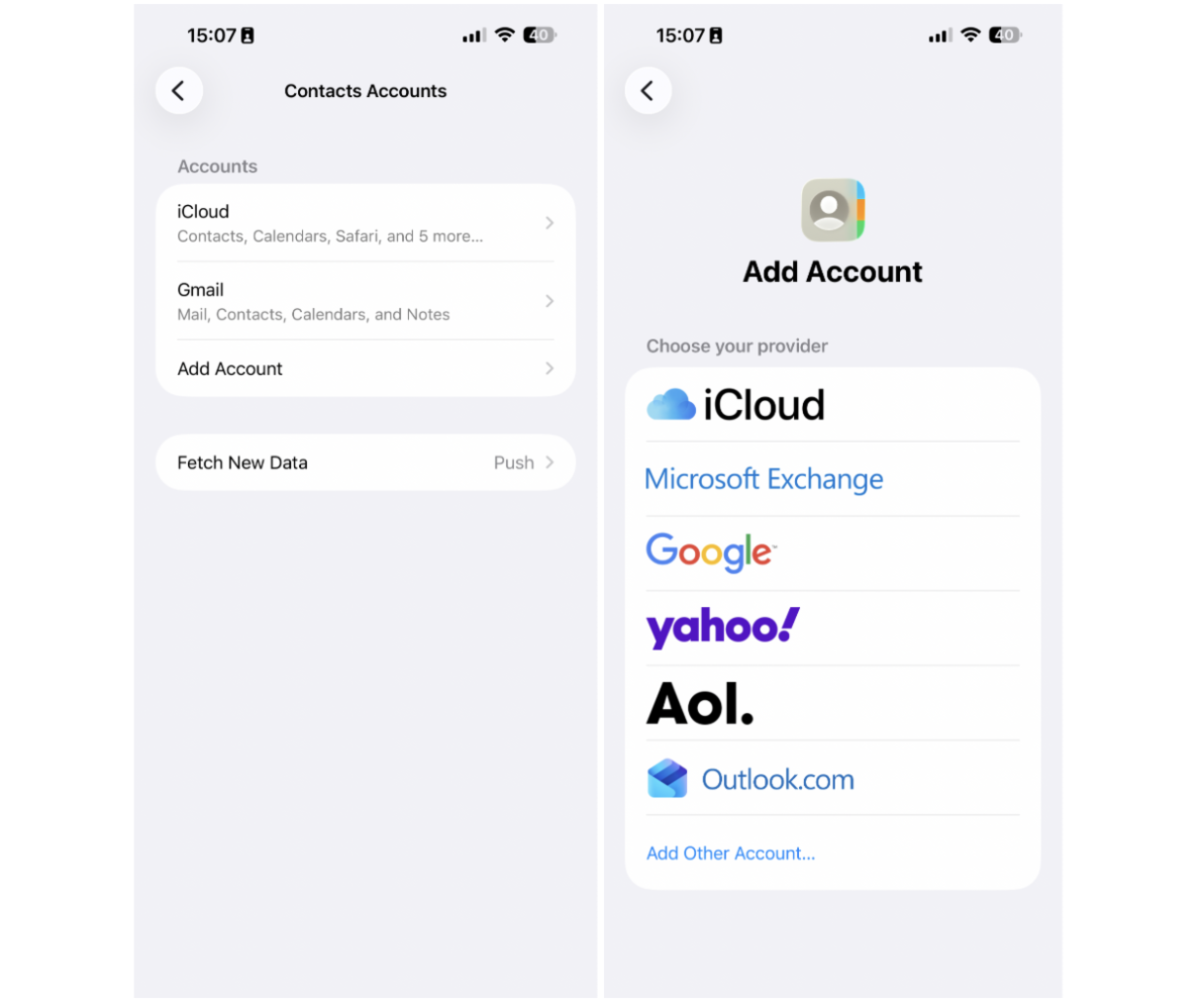
If you want to transfer your contacts from your Android to your iPhone, you can set up your Google account, and it will download all your saved contacts from your account.
- On your iPhone, go to Settings > Apps > Contacts > Contact Accounts.
- Tap Add Account.
- Choose your email provider > Open Browser.
- Enter your email address and password.
- Tap Next.
- Choose what you’d like to sync from your email account, like Contacts or Calendars.
- Tap Save.
How to transfer WhatsApp messages from Android to iPhone
The easiest method for transferring your WhatsApp messages is by using the app’s built-in chat backup feature.
- In WhatsApp on your Android, go to Settings > Chats > Chat Backup.
- When the backup is ready, uninstall WhatsApp on your Android phone and then install it on your iPhone.
- On your iPhone, use the same phone number to sign in to your WhatsApp account.
- After you’re prompted with A Message Backup Was Found, tap Restore.
How to transfer apps from Android to iPhone
One thing that won’t transfer directly is all of your apps. Because Android and iOS are two different operating systems, apps are essentially written in different languages that don’t translate. But fortunately, most apps are made for both Android and iOS, so you can manually download all of the apps you were using from the App Store.
How to transfer text messages from Android to iPhone
There’s good news and bad news when it comes to transferring your text messages from Android to iPhone. As long as you’re setting up your iPhone for the first time, using the Move to iOS app will transfer all of your messages over just fine.
The bad news is that if you’ve been using your iPhone for some time, then there’s no real way to transfer your old texts to it. The only workaround is downloading a third-party SMS exporting tool either on your Android or your computer to export your text messages. Then you can transfer them to your iPhone to view them, but that’s about all you’ll be able to do with them.
How to switch from Android to iPhone: Things to keep in mind
To sum it up, here are the things you should keep in mind when you’re switching from Android to iPhone.
- There’s no expandable memory on iPhone. That means you need to be more frugal with your storage space. Use apps like CleanMy®Phone to trim some weight off your photo library and only keep the photos and videos you want.
- The easiest/cleanest way to transfer data is at the start. Using Apple’s Move to iOS app on your Android is going to be your best bet for getting most of your data to your iPhone.
- Apps have to be re-downloaded. There’s no way around it — the apps you know and love will have to be downloaded from the App Store for iOS devices.
- If there’s a cloud option, use it. Data stored in the cloud is usually OS-agnostic. So if an app offers any type of cloud storage or backup, use that to help you transfer.
- Back up all your data before you start. Always sync your Android to the cloud or your computer before you start transferring everything. A number of things could happen when you’re trying to move around that much data.
Getting a new phone, especially an iPhone, is always a fun experience. And whenever you get something new, there’s a bit of a learning curve. But now that you know what to look out for and how to set up your new phone with all of your data, you can start enjoying your iPhone from day one.