

If you are searching for info on how to uninstall Claude Code on Mac, you are probably reorganizing your developer tools or troubleshooting an issue that is no longer working as expected.
Earlier this year, I cleaned up my workflow, and removing Claude Code was one of the tasks on my list. It was simple once I understood where its files live and what needs to go.
In this guide, I’ll walk through what Claude Code is, why you might remove it, and the safest ways I found to uninstall it from your Mac completely.
What is Claude Code on Mac?
Claude Code is Anthropic's terminal-based AI coding assistant: it lives in your command line, reads your codebase, and can write, edit, and run code on your behalf. Most people install it via a native installer script, npm, or Homebrew, so you probably won’t find its icon in the Applications folder or menu bar. Unlike a typical app, uninstalling Claude Code depends entirely on how it was installed. First, check which install method you used by running this in Terminal:
which claude

The returned path tells you the installation method:
- If it includes
.local/bin/claude, Claude was installed through the native installer. - If it includes
npmor a Node version manager path, you installed it through npm. - If the path includes
/opt/homebrewor/usr/local(Homebrew-style), Claude was installed through Homebrew.
Reasons to uninstall Claude Code
There are a few common reasons I see to uninstall Claude Code:
- Tool overlap is the biggest reason I see. It’s pretty common for developers to experiment with multiple AI coding tools. After testing, unused apps just sit around taking up space.
- Performance is another factor. Background processes, hidden cache, and system files all add up and can affect your Mac’s performance if not managed correctly.
- Workflow changes also matter. If you move from local development to cloud-based environments, certain local utilities stop being useful.
- Then there is simple system hygiene. I prefer keeping my Mac lean. If I am not using a tool regularly, I remove it.
In all these cases, knowing how to properly uninstall Claude from a MacBook is key; there are basically two options: a manual or an automatic approach. I cover them both in the sections below.
Claude Code uninstall manual steps
Depending on how you originally installed the Claude Code CLI, the exact removal process looks a little different. I've broken down the commands for each method below so you can completely clean it from your system, no traces left behind.
Native installer
The native installer downloads the Claude Code binary and creates a folder of version files. Use these commands to clear out both:
rm -f ~/.local/bin/claude
rm -rf ~/.local/share/claude
Homebrew
Homebrew installs Claude Code automatically, but it’s stored in a different directory. If you installed the stable cask, use this command:
brew uninstall --cask claude-code
npm
Similar to brew, npm has its own command to delete Claude Caude:
npm uninstall -g @anthropic-ai/claude-code
Remove configuration files
This is where Claude Code actually keeps its settings and session data — not the usual Library folders you'd check for a typical app. One thing worth knowing: if you've also got the VS Code extension, the JetBrains plugin, or the Claude Code Desktop app installed, any one of them will recreate ~/.claude/ the next time it runs. So if you're after a truly clean removal, uninstall those first, then delete the config files; otherwise, you'll find yourself back where you started.
Run these commands in the Terminal to remove user settings and state:
rm -rf ~/.claude
rm ~/.claude.json
And for project-level settings (run from inside each project directory that used Claude Code):
rm -rf .claude
rm -f .mcp.json
How to uninstall Claude Desktop
Claude Desktop is a separate chat app from Anthropic, and unlike Claude Code, it installs itself in your Applications folder like a normal Mac app. That makes removing it far more straightforward — the real catch, as usual, is in the leftover files.
- Quit Claude Desktop. Check Activity Monitor for any related processes and stop them as well.
- In Finder, go to Applications, find Claude, and drag it to the Trash.
- In Finder, click Go > Go to Folder and check each of these locations. Delete anything related to Claude that you find:
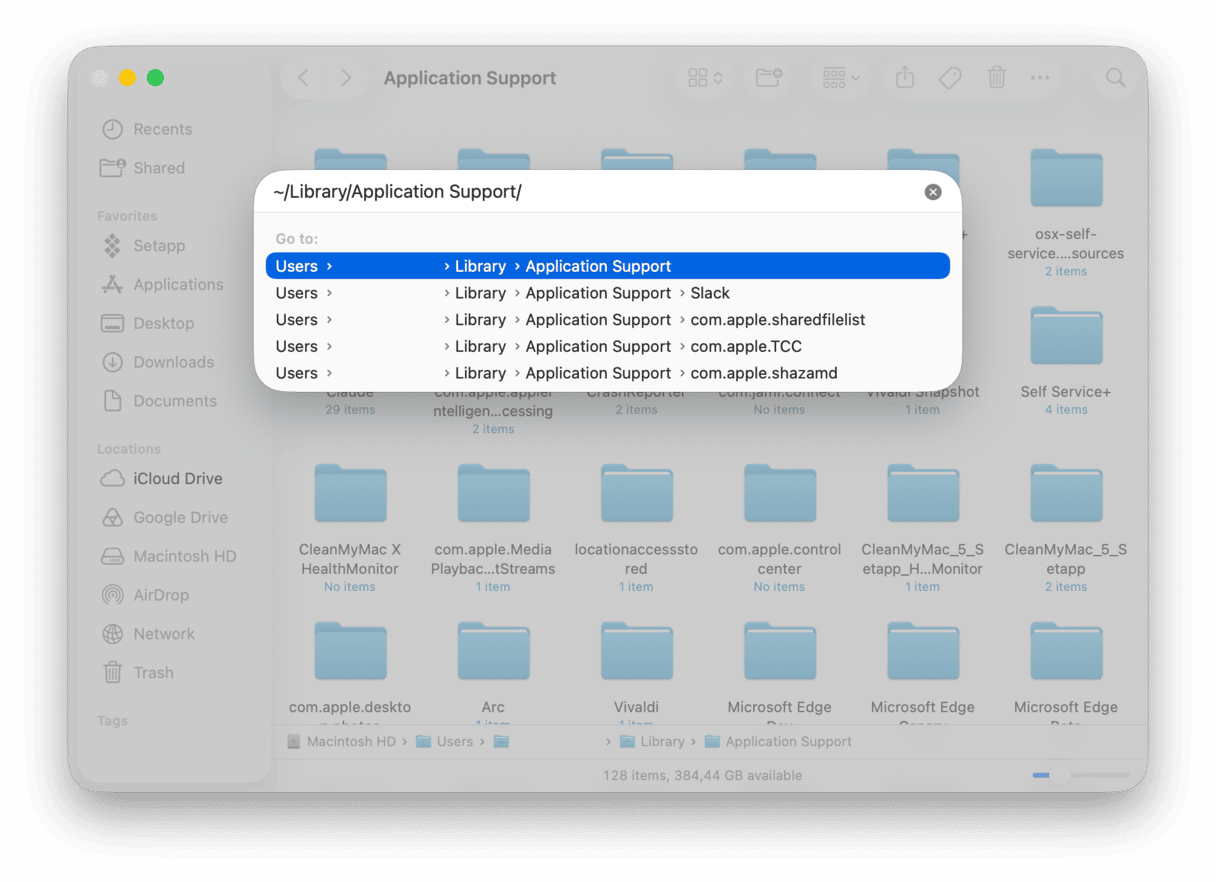

~/Library/Application Support/— delete the Claude folder (this is where the heavy vm_bundles directory hides) and the Claude-3p folder, which handles third-party extensions and MCP data.~/Library/Caches/— delete com.anthropic.claudefordesktop and com.anthropic.claudefordesktop.ShipIt.~/Library/Preferences/— delete com.anthropic.claudefordesktop.plist.~/Library/Logs/— delete the Claude folder. Easy to miss, since most people don't think to check Logs.~/Library/Saved Application State/— delete com.anthropic.claudefordesktop.savedState. Also easy to miss.~/Library/LaunchAgents/— Claude Desktop doesn't usually put anything here, but if you spot anything with "anthropic" or "claude" in the name, it's safe to delete.
Manual removal is a great way to uninstall Claude Code on Mac. But there's no denying it's fiddly, and it does take time. If you're not comfortable poking around in Library folders, no worries — the next method is for you.
How to uninstall Claude quickly
Dragging an app to the Trash without removing hidden Library files doesn't fully uninstall it. It leaves behind support files, caches, and preferences that can build up and cause issues or conflicts over time.
If you don't have time to locate all the files manually, the good news is you don't have to. Use a tool like CleanMyMac instead. It comes with an Applications feature that can safely and thoroughly remove applications like Claude Desktop, along with all related files, in one quick sweep. Here's how:
- Start your free CleanMyMac trial (all features free for 7 days).
- Open CleanMyMac > Applications > Scan.
- Click Manage My Applications.
- Find Claude in the list.
- Click Uninstall, and when it’s finished, check the Leftovers tab.

If you've previously tried to uninstall Claude and noticed traces of it still lingering, automated removal like this usually resolves that cleanly.
Well, that's all there is to know about how to uninstall Claude Code and Claude Desktop from Mac.
Frequently asked questions
Does uninstalling Claude Code affect my local code projects?
No, it shouldn't. Your project files are stored separately and remain untouched unless you delete them manually.
Can I reinstall Claude Code later?
Of course. All you need to do is simply download it again.
If I uninstall Claude Code, does it remove saved settings permanently?
Yes. Uninstalling Claude Code means any app-specific settings will be deleted along with it.
Is Claude Code safe to remove on newer macOS versions?
Absolutely. Removing it won't affect any macOS system files or other developer tools. Just be careful during manual removal not to delete any macOS system files from your Library — only Claude Code-related items.
Why does Claude Code still appear in Spotlight after uninstall?
This isn’t that unusual. Spotlight indexing can take time to update. If you haven't already, give your Mac a quick restart to jump-start the indexing process.



%20%201200x670_1711103261.png)
