
We all know we shouldn’t keep lots of tabs open at the same time in Safari, or any other browser. But the fear of missing out on that lightning deal, registration opening, or that oh-so-hard-to-find coat coming back into stock means that many of us keep tabs open just so we don’t miss out. Now, there’s no need, thanks to a new feature in Safari in macOS 27 Golden Gate released in September 2026. In this article, we’ll show you how to use the Safari Notify Me feature on your Mac.
What is Notify Me in Safari?
Instead of keeping a tab open in Safari and checking it regularly, you can now ask the web browser to notify you when a change you specify occurs on the page. You can also tell Safari how often to check the page. Then, you close the tab and wait for Safari to send you a notification.
How to use Notify Me in Safari
Requirements
There are a few requirements that need to be in place before you can start using Notify Me in Safari.
- You will need a Mac with Apple silicon that has been updated to macOS Golden Gate.
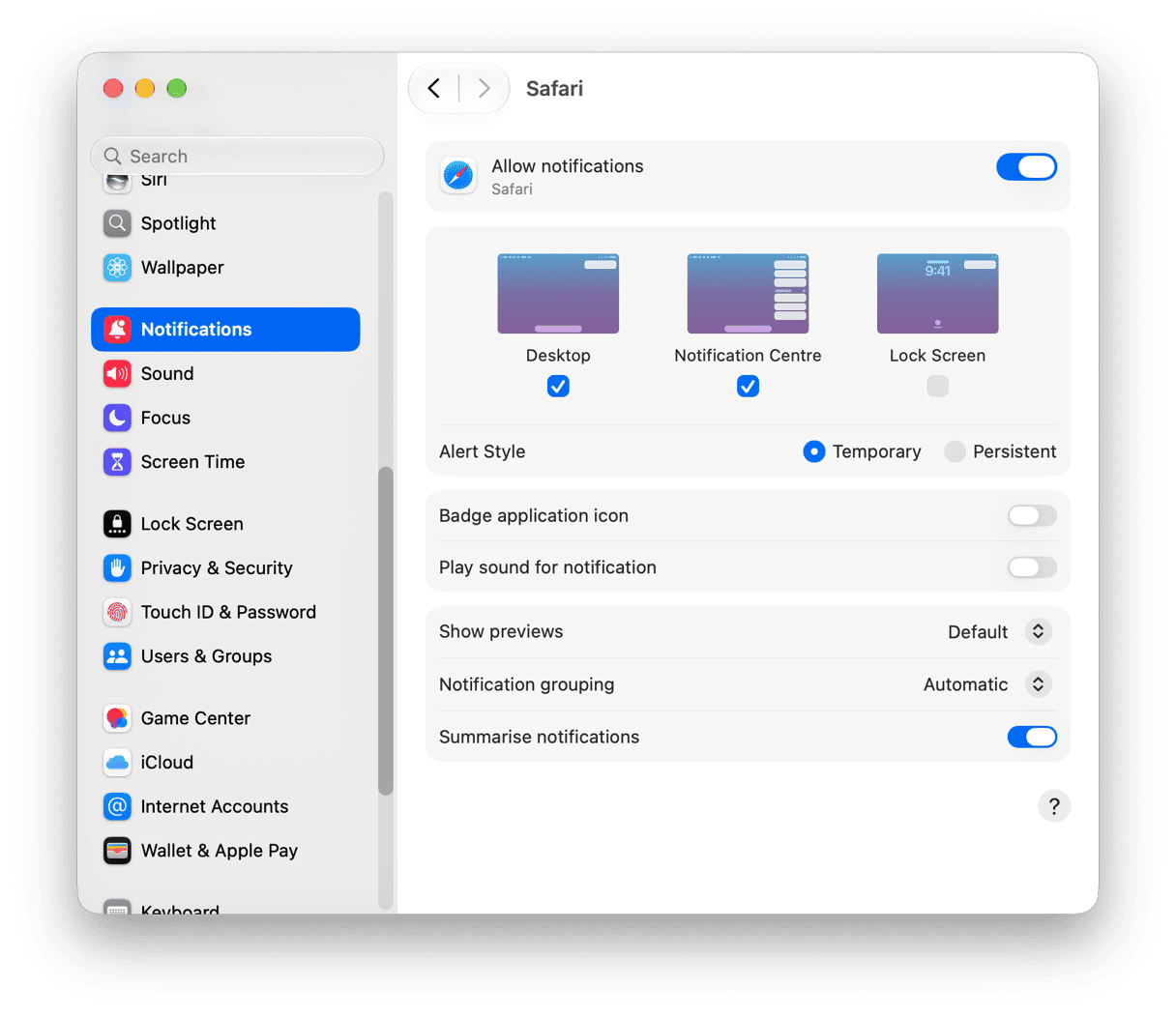
- You will need to enable notifications in Safari. You can do that by going to System Settings › Notifications › Safari › Allow Notifications. If you don’t do this first, you will be prompted to do it when you create your first notification request.
- The webpage you want to be notified about must be publicly accessible, not behind a login or paywall.
How to use Notify Me in Safari
- Open a new tab in Safari and navigate to the web page you want to be notified about.
- Click the three horizontal lines at the left of the address bar (also known as the smart search field).
- Choose Notify Me from the menu.
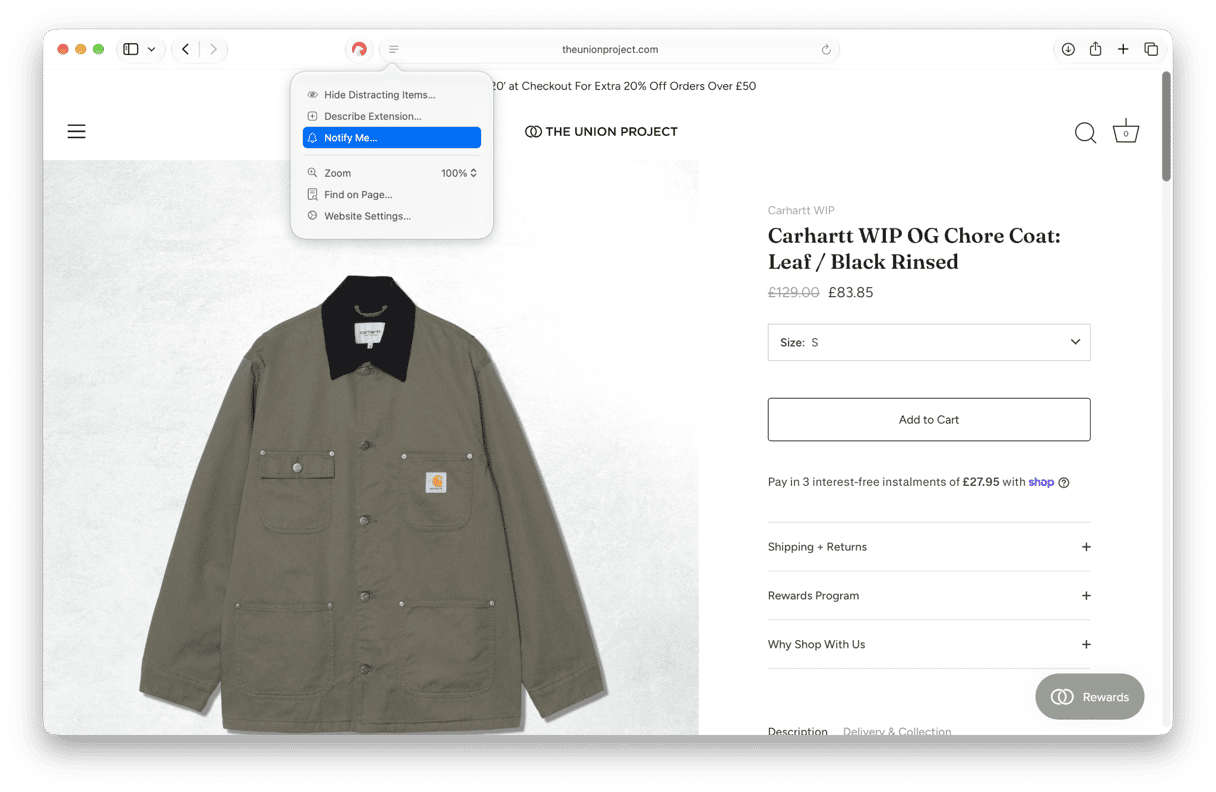
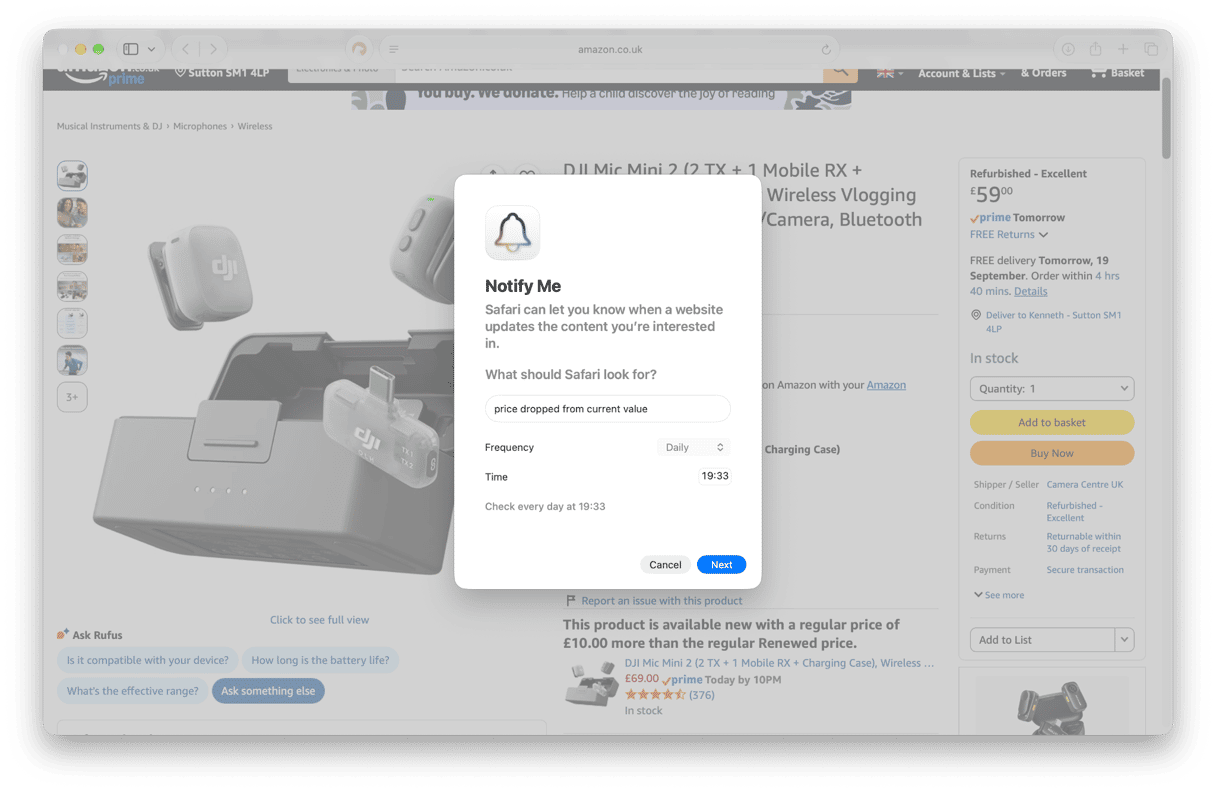
- In the panel that opens, type what you want Safari to look for (e.g., ‘when the price drops,’ ‘when this item is back in stock,’ or ‘when anything changes on this page’).
- Choose the frequency with which Safari should check the page: Hourly, Daily, Weekly, or Monthly (hourly is the most frequent it can check).
- Choose a check time. For example, for hourly, choose the minutes past the hour.
- Click Done. Safari will confirm the schedule.
What Safari can watch for
There are three built-in options: Price Drops, Back in Stock, and Registration Open. These are context-sensitive and will appear as selectable options where appropriate. You can also type a request in natural language. Safari uses Apple Intelligence to work out what you mean and respond accordingly.
Use Case | What to type in Notify Me |
Monitor a price drop before buying | “when the price drops” or “when price falls below $X” |
Get notified when concert tickets go on sale | “when registration opens” or “when tickets are available” |
Watch for a page update (news, docs, job listing) | “when anything changes on this page” |
Track when a visa appointment slot opens | “when an appointment becomes available” |
Monitor a sale going live on a retailer’s site | “when a sale or discount is added” |
Track a product restock (sold-out item) | “when this item is back in stock” |
How to manage your Notify Me watches
Once you’ve set up some Notify Me requests, you can manage them in Safari’s Settings. Go to Safari › Settings › Websites › Notify Me.
- To edit something that’s being watched, click next to the entry and change the description, frequency, or time.
- To delete a watched page, select it and click Delete.
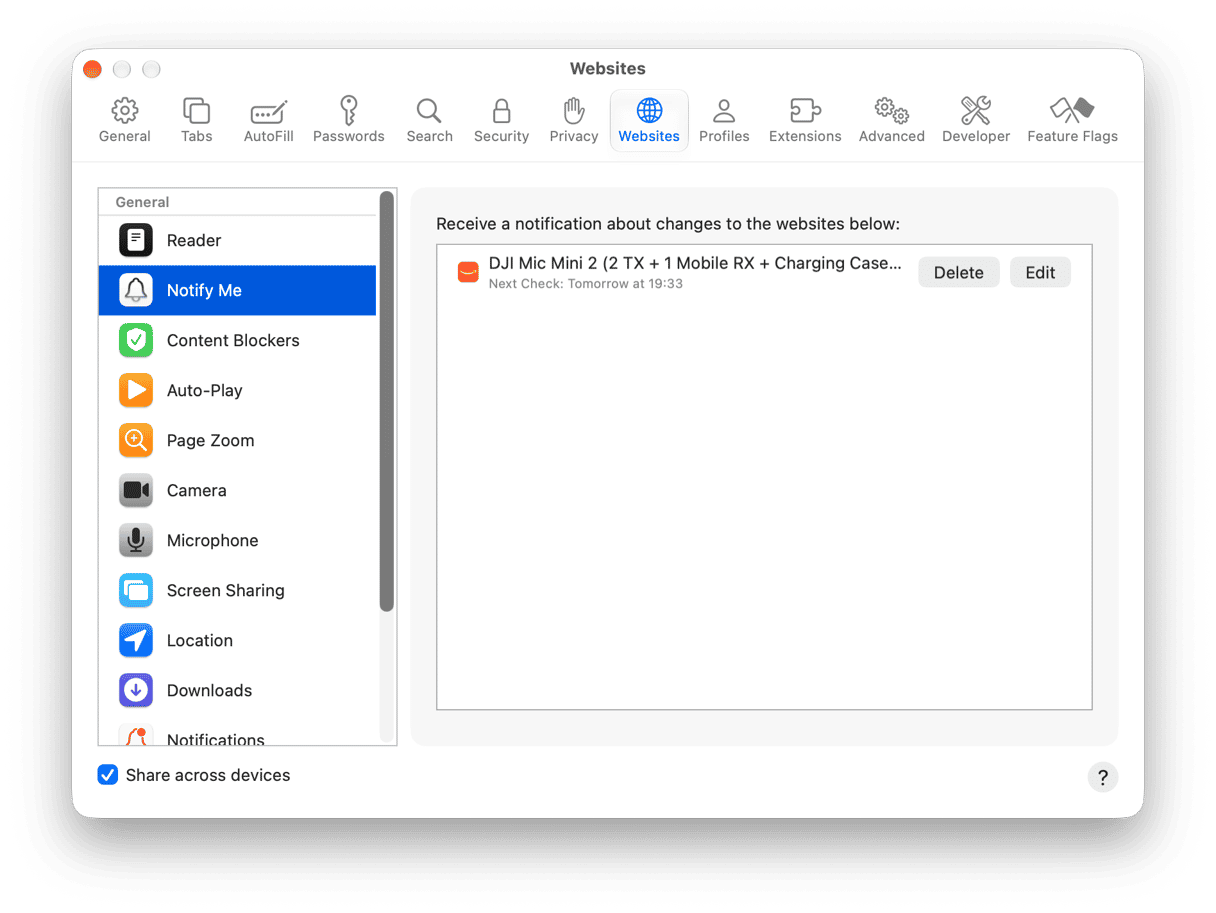
It’s also worth noting that Safari syncs Notify Me across all the devices connected to your Apple account. So, it may check a page on your iPhone instead of your Mac. That will count towards the frequency you specified.
Limitations to know before you rely on Notify Me
Notify Me is great, but it’s not perfect. There are a few limitations you should understand before you rely on it.
Limitation | What it means in practice |
Hourly check is the maximum | Fast-moving restocks (selling out in minutes) may be missed. Best for slower-changing pages. |
Public pages only | Won’t work for pages behind a login (your bank, university portal, member-only stores). |
No page interaction | If the price only appears after selecting a size or region, Safari can’t reach it. |
Notification doesn’t show what changed | Safari says ‘an update was detected’ but won’t show a before/after diff. |
Limited number of watches | Safari caps how many Notify Me automations can run at once. |
Apple devices only | Watches don’t extend to Windows, Android, Chrome, or Firefox. |
Checks may be skipped | Low Power Mode, device sleep, or thermal conditions can delay a scheduled check. |
Bonus: Keep Safari running at its best with CleanMyMac
Notify Me is one of several new features in macOS Golden Gate that use Apple Intelligence. To get the most from it and ensure it runs as smoothly as possible, you should keep Safari lean and up-to-date. The easiest way to do that is to use CleanMyMac’s Applications feature. It can check for updates to all your installed applications and allow you to update them all at the same time. And it allows you to reset apps by removing files they have accumulated over time and putting them back in the state they were in when they were first installed. Here’s how to use it:
- Start your free CleanMyMac trial — you can test it for 7 days.
- Launch it and choose Applications in the sidebar, then click Scan.
- Choose Review in the Updates section, then click Update to update all apps, or select the ones you want to update and click Update.
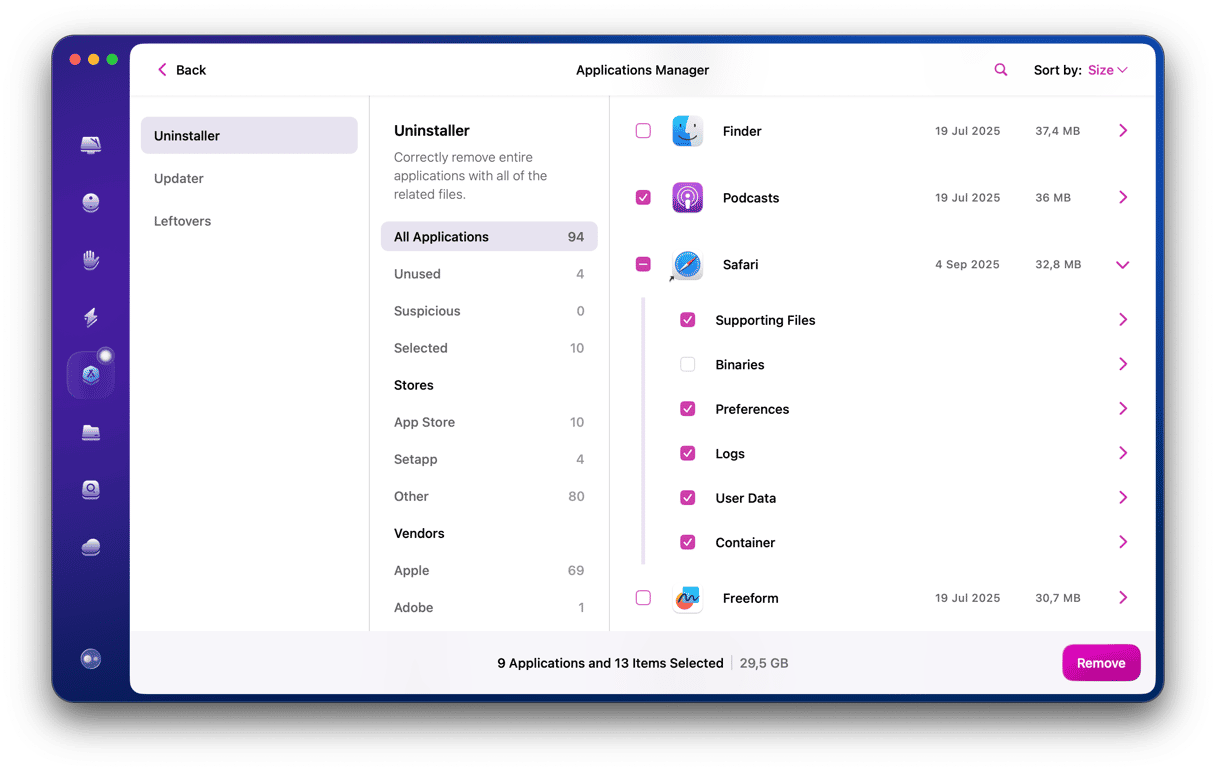
- To reset an app, choose Applications > Manage My Applications > click the arrow (>) next to the app you want to reset and check Container and Supporting Files.
- Click Remove.
Important: You won’t see an option to update Safari in CleanMyMac because it usually updates with the macOS. But we know a way to update Safari without updating your Mac.
Notify Me in Safari saves you time in repeatedly checking web pages and saves resources on your Mac by allowing you to close tabs you may otherwise leave open. If you have macOS 27 Golden Gate installed, give it a try.
Frequently asked questions
Does Safari Notify Me work on iPhone and iPad as well?
Yes, it works across all your Apple devices, but it does not sync, even if they are all signed into the same Apple Account.
How often does Safari check the page with Notify Me?
You set the frequency; the most frequent option is hourly.
Why isn’t the Notify Me option showing up in Safari?
Make sure that you have macOS Golden Gate installed; otherwise, it won’t work.
Can Safari Notify Me track price changes on Amazon or other retailers?
Yes, in fact, that is one of its key uses.