
Safari isn’t the only browser available on Mac, but for most of us, it’s the best, thanks to its speed, privacy focus, and fantastic features. However, no browser can cover all the bases, and that’s where extensions come in. Extensions allow you to add more functions to Safari, including blocking adverts, clipping pages, and adding more controls for watching video. I use several extensions and have tested lots more. So, in this article, I’ll share what I think are the best Safari extensions.
Best Safari extensions for Mac
Privacy and security
1Password
What: The 1Password Safari extension is part of the main 1Password app, which has a free trial download and then costs $4.99/month ($2.99 if paid annually). The extension allows you to generate secure passwords, auto-fill from existing saved passwords, and search your vault, including credit card details and secure notes.
Why: 1Password is one of the oldest and best password managers on the Mac. It syncs across all your devices and supports passkeys, as well as license keys, credit card details, and secure notes, making it an excellent companion to the Passwords app.
Ghostery
What: Ghostery doesn’t just block ads; it blocks cookies, pop-ups, and various trackers. You can choose its default setup or opt for a custom setup that allows you to choose which categories of trackers to block or allow. You can also whitelist specific websites where you want to allow ads so you can support the site. And its dashboard makes it very easy to see what it has blocked.
Why: Ghostery is free (though there are suggested donations) and open source. It’s been around for over a decade and has been downloaded over 100 million times, proving its effectiveness.
Writing and productivity
Grammarly
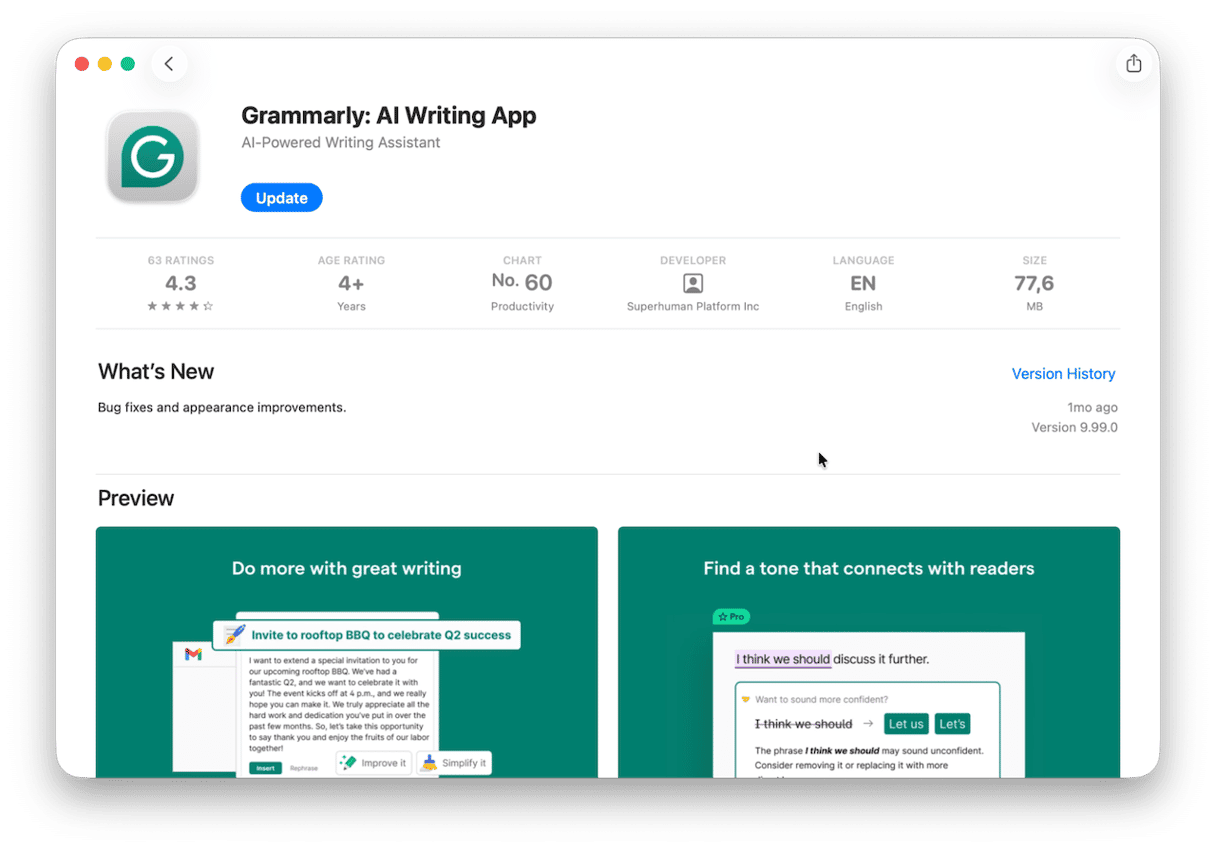
What: Not everyone wants to throw a prompt at an AI model and ask it to write text for them. For those of us who write online and want to keep doing it, Grammarly is an excellent tool. It checks spelling, grammar, and tone. It can rewrite sections for clarity, and, increasingly importantly these days, it can tell if text looks like it was AI-generated. Grammarly is free for basic features, or $12/month for premium.
Why: Grammarly’s free tier does an excellent job of catching spelling and grammatical errors, as well as giving useful tips for all online writing.
Raindrop.io
What: Safari’s built-in bookmarking feature is rudimentary and its Reading List useful only for articles you want to come back to, but neither provides a searchable, tagged database of the pages you save. That’s what Raindrop.io does. It even allows you to search YouTube videos and search for speech with them. It’s free for basic features and $3/month for premium.
Why: Raindrop.io is complementary to, not a replacement for, features in Safari. It works well and makes it very easy to find what you need in pages you save.
Reading and display
Dark Reader
What: Dark Reader allows you to view websites in dark mode, even if the site itself doesn’t support it. It works inside the website’s content areas and allows you to choose from a menu of themes or create a custom theme.
Why: Dark Reader complements the macOS Dark Mode and provides added contrast when working in low light or at night. And it’s free.
Reeder
What: Reeder allows you to save feeds from a variety of different sources to its app. Those sources include RSS, YouTube, podcasts, subreddits, Bluesky, and more. You can then access the content from within the Reeder app. The Safari extension allows you to click a share button to share the feed from a website you're browsing. It’s free to use for up to 10 feeds and $1/month after that.
Why: If you use Reeder, the Safari extension is essential, and if you don’t, and you find yourself saving feeds in different places, you should give it a try.
Video and media
Vinegar
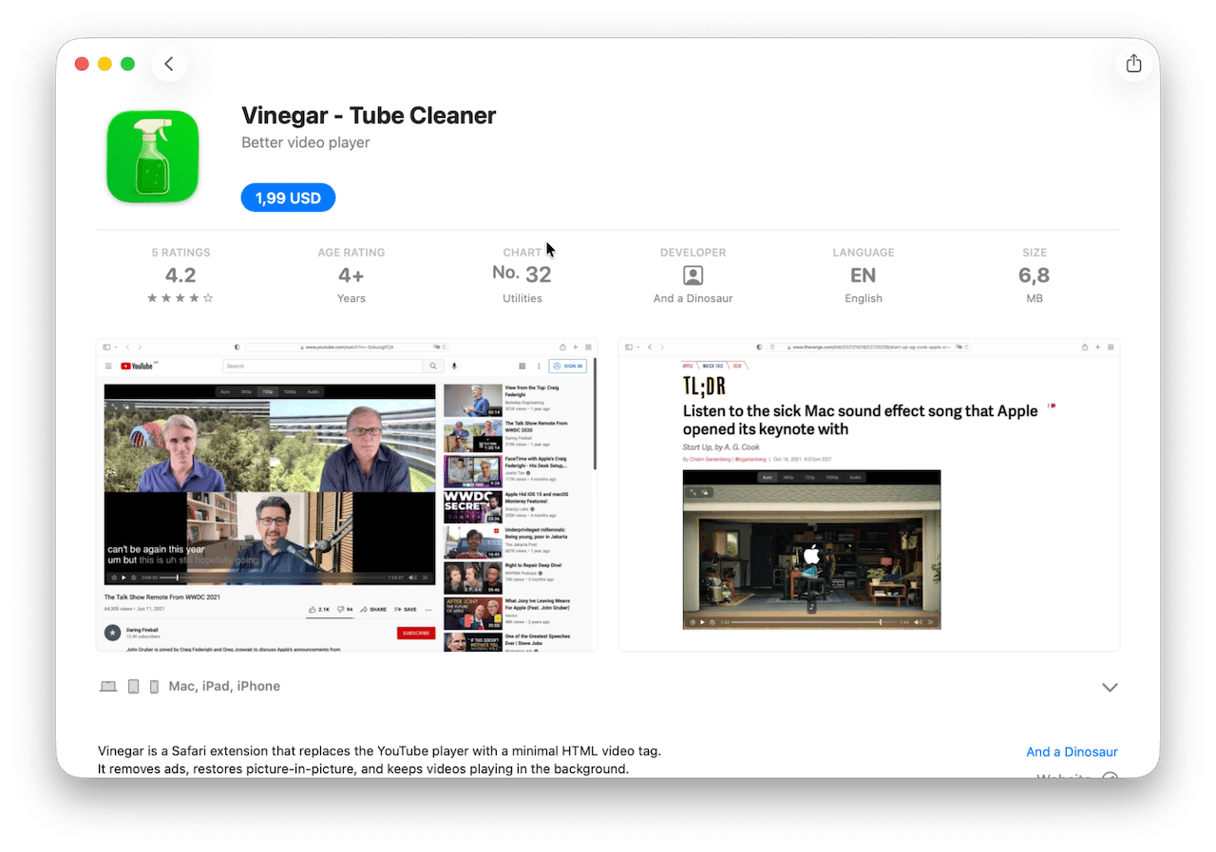
What: Vinegar is a YouTube Player that strips out adverts and replaces YouTube’s playback controls with its own. It has a picture-in-picture feature that allows videos to keep playing even when you switch to a different tab. You can move the player anywhere you want on screen and can even play videos in full screen and switch to a different tab without interrupting playback. Vinegar costs $1.99.
Why: The ad-removal feature alone would be worth $1.99, but the playback controls make watching videos much more convenient than with YouTube’s own controls.
Research and note-taking
Bear
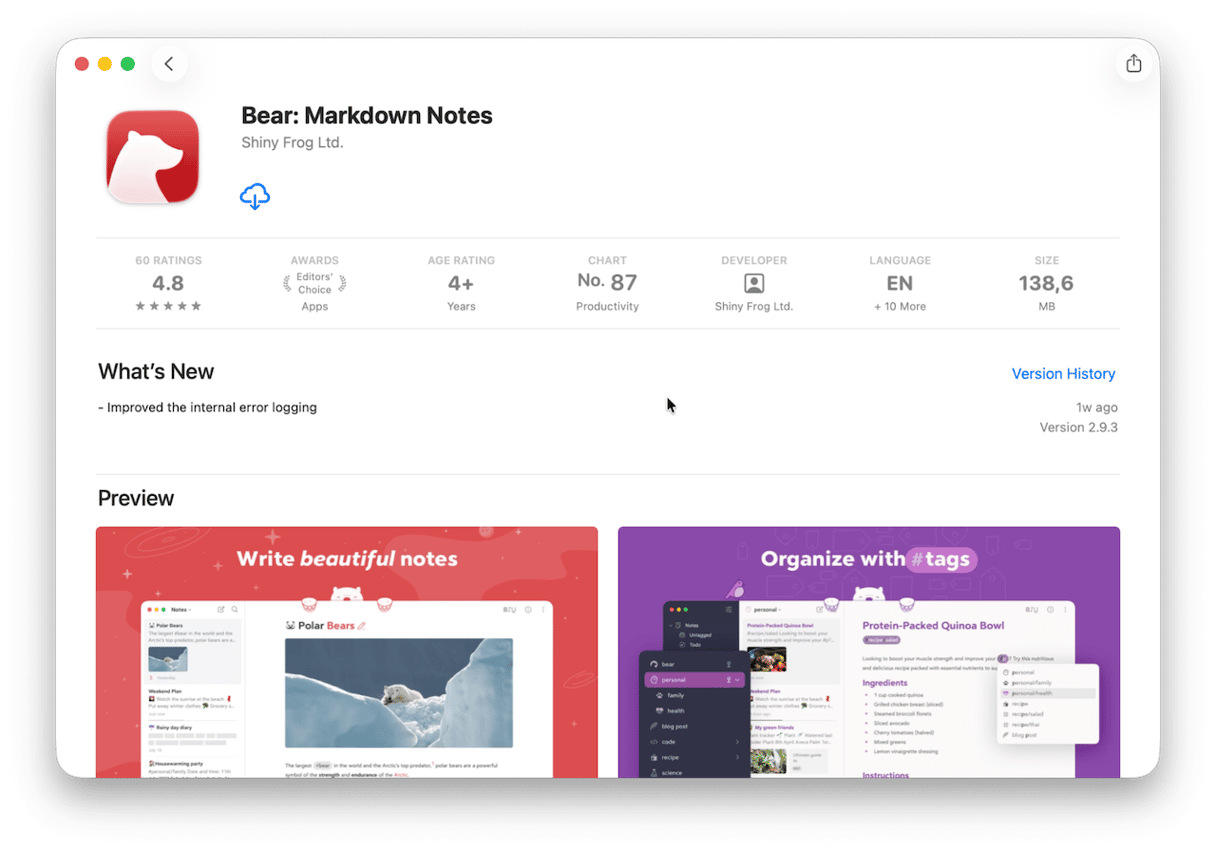
What: Bear’s web clipper extension is a companion to my favorite note-taking app. Click on the cute Bear icon in Safari’s toolbar and, after one more confirmation click, the current web page is saved to Bear, beautifully formatted and complete with images and links. From there, you can add tags so that the web page is easy to find in your Bear database. Bear, including the extension, is free to use on one device or $2.99 for the Pro version with iCloud syncing and more features.
Why: Bear is a gorgeous note-taking app, and the extension makes it easy to clip web pages and store them in Markdown format.
Honorable mentions
We think the extensions above are the best Safari extensions for Mac in 2026. But there are others that are worth mentioning:
- Bitwarden – an open source alternative to 1Password.
- StopTheMadness Pro – blocks annoying behavior like right-click blocking, copy-paste prevention, and forced redirects to apps.
- Obsidian – a web clipper for the popular note-taking and knowledge-base app of the same name.
- Mercury Reader – an alternative to Safari’s own reader mode that includes more font and layout control.
- Honey – the Paypal-owned discount code finder allows you to find coupons and track prices of products. However, it also tracks your shopping behavior and surfaces partner links that may not offer the best deal.
How to install extensions in Safari
- In Safari, click the Safari menu and choose Safari Extensions.
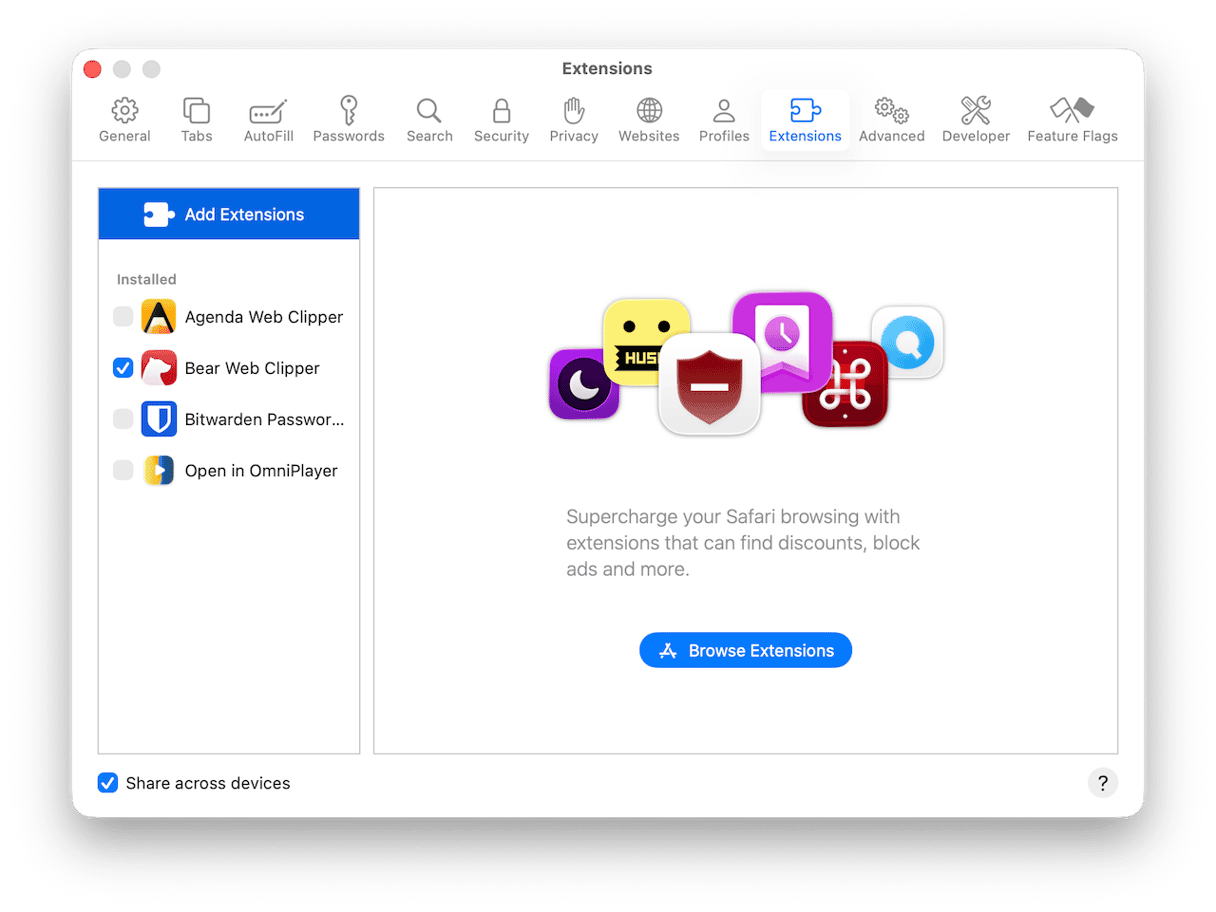
- Click Browse Extensions — it will open the App Store.
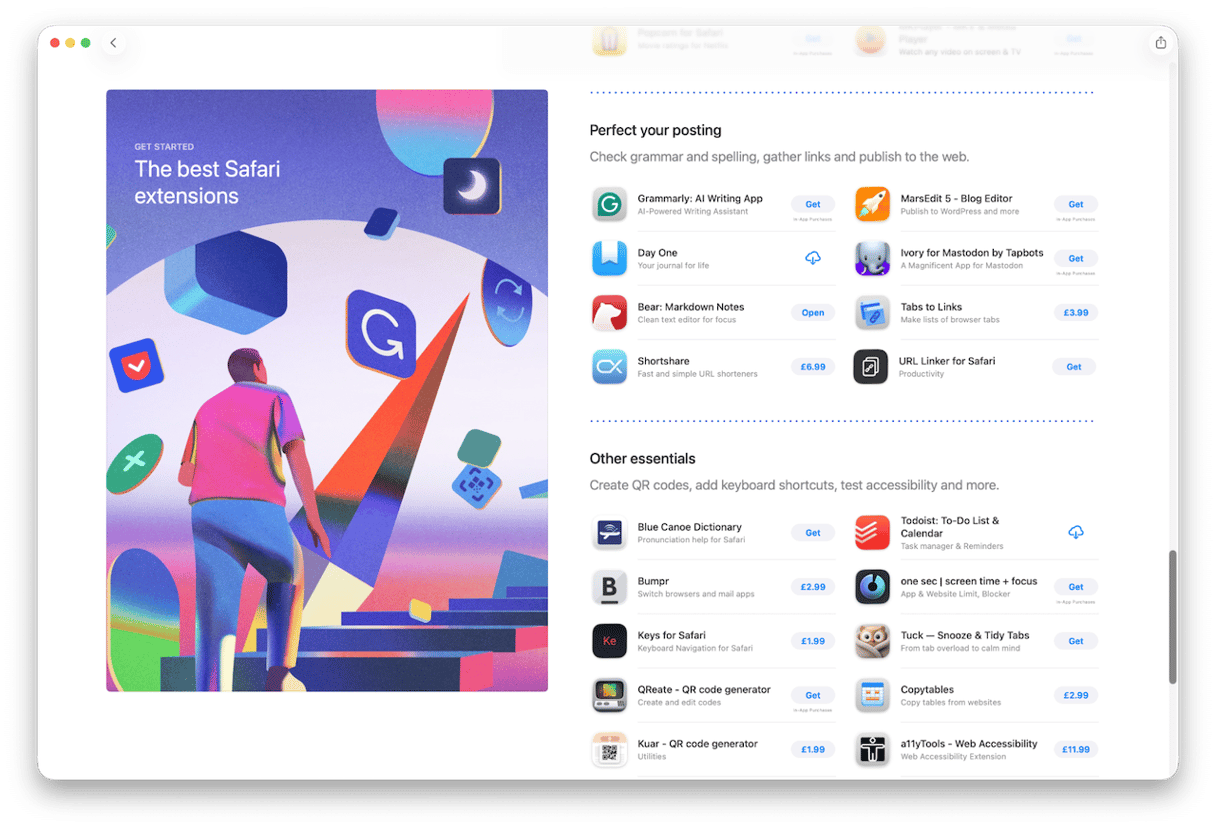
- Choose the Extension you want, and click Get or the price.
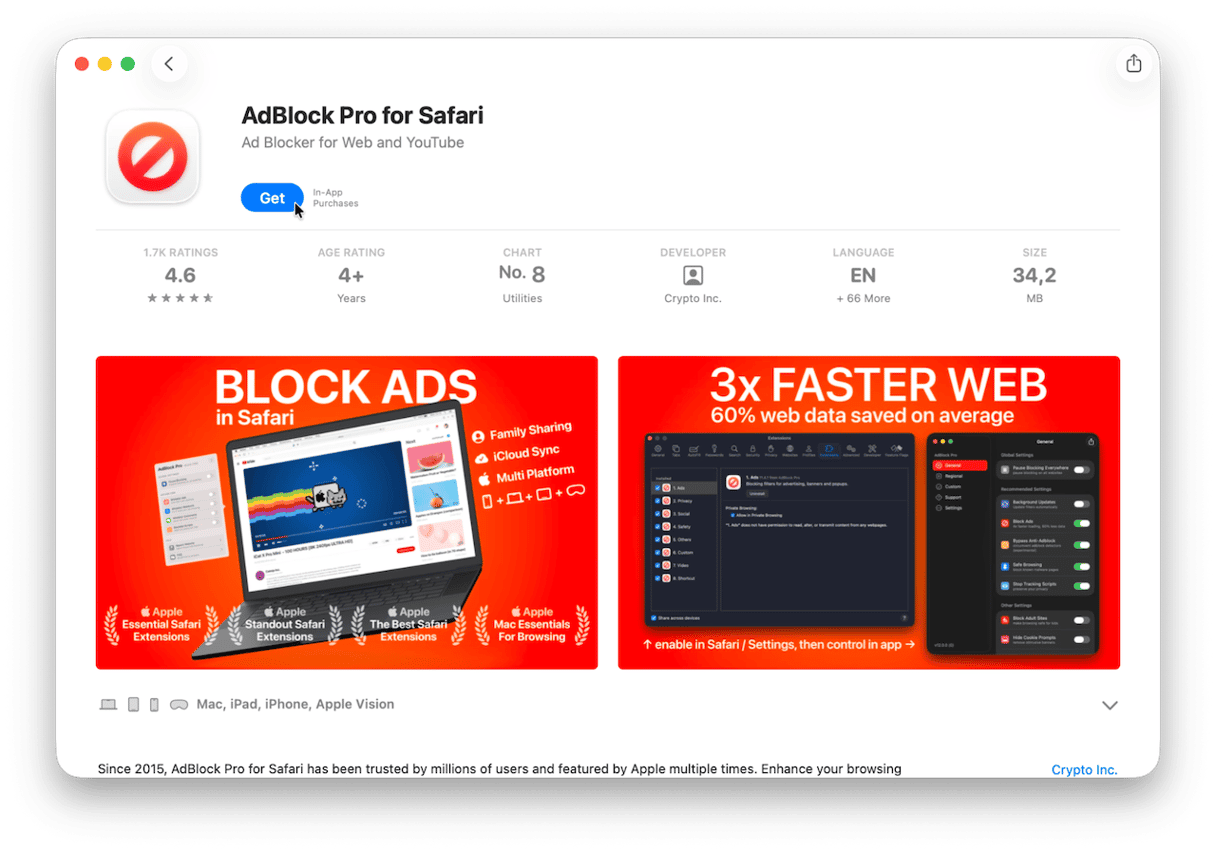
- Grant permissions for the extension when requested.
Tip: If you no longer need a specific extension, consider removing it. Not sure how? Jump to this guide on how to uninstall Safari extensions.
Prepare your Mac for Safari extensions
Once your Safari is set up with the right extensions, it's worth making sure the Mac underneath it is just as healthy. CleanMyMac's Smart Care scans everything at once — junk files, background processes, login items — and fixes what needs fixing in a single run. Think of it as the maintenance side of the setup you just did.
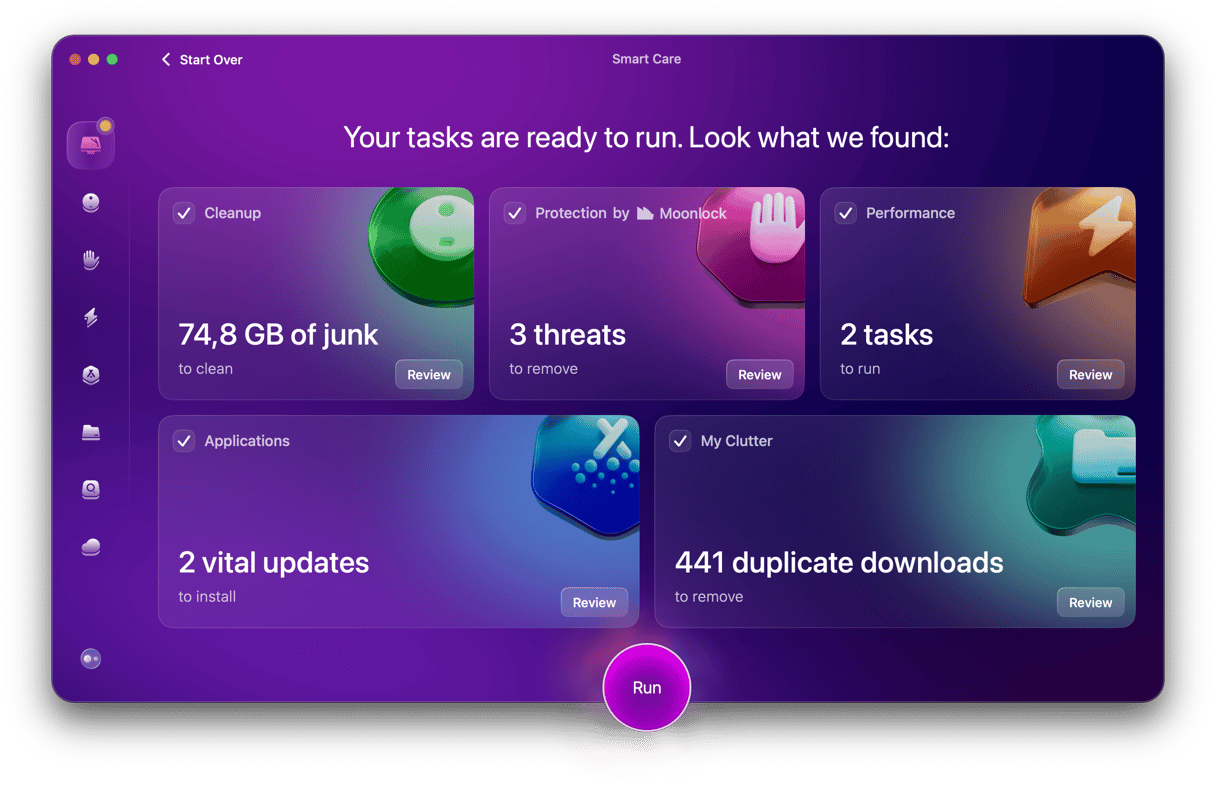
Here’s how it works:
- Start your free CleanMyMac trial — you can test the app and all of its tools for 7 days.
- Open the app and select Smart Care in the sidebar.
- Click Scan.
- When it’s finished scanning, click Run.
Safari is already one of the best browsers on Mac — fast, private, and deeply integrated with macOS. The right extensions make it genuinely powerful. Whether you're locking down your passwords, cutting out ads, or keeping your research organized, there's something on this list for you. Pick the ones that fit how you work, install them in minutes, and you'll wonder how you browsed without them.