
You’ve never saved the same photo five times on purpose. Or kept a zip file after you extracted it. But your Mac probably has both anyway.
We dug into real CleanMyMac data from January to October 2026 to find out how much clutter the average Mac is quietly hiding: duplicate files, forgotten large files, and more. Let's look at what those numbers mean for your Mac and how to find files you no longer need.
Two things quietly filling your Mac
CleanMyMac’s My Clutter feature has run approximately 3.4M scans since January. Together, those scans found 6.5B items, with an average of 1,909 items per scan. That's a lot of stuff. We saw that two kinds of clutter stood out:
- Duplicate files: exact copies of the same file, sitting in different places on your Mac.
- Large and old files: big files you haven't opened in ages, taking up space for no reason.
My Clutter also checks for similar images and messy Downloads folders. We’re focusing on duplicates and large files here because duplicates turn up more items than anything else, and large files are the quickest way to get space back.
Duplicate files: the biggest chunk of Mac clutter
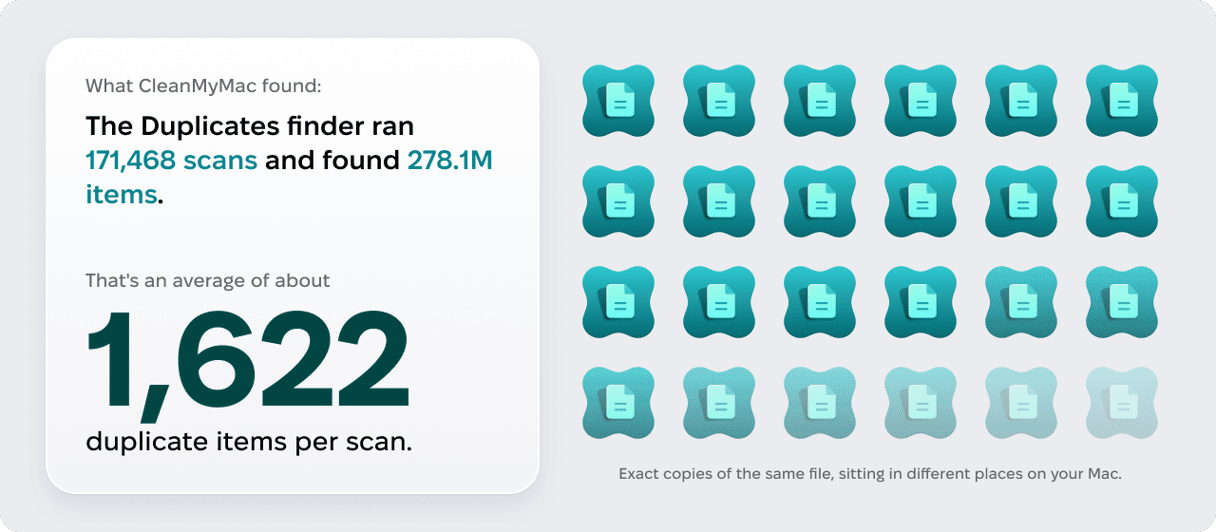
A duplicate might be a second copy of a document you downloaded, a photo imported twice, or a file copied into a new project folder. It’s easy to forget those copies when they're scattered across locations. A file’s name isn’t enough to prove it’s a duplicate: two files can have the same name but contain different content.
Why do duplicates pile up?
Most of us create duplicates every week without noticing. Here’s where they usually come from:
- Repeated downloads. You grab the same PDF or installer twice, and your browser saves it as “file (1)”.
- Photo imports from your iPhone. Import the same photos more than once, and you get copies.
- iCloud Drive sync conflicts. When two devices edit a file at the same time, you can get two versions as a result. Read more about freeing up iCloud storage in our guide.
- Saving versions. “Report_final”, “Report_final_v2”, and “Report_final_REALLY” all count.
- Drag-copying between folders. Copy instead of move, and the original stays behind.
Are 1,622 duplicates a lot?
Finding 1,622 duplicates might sound like a lot, but the number only tells you so much. A few large videos could take up more space than thousands of documents.
Imagine each of those extra copies is a 5 MB photo. Together, they’d take up about 8 GB. If they were 50 MB video clips instead, that would add up to about 80 GB.
So the file count is only part of the picture. Look at how much space the copies take up and whether you still need them. Start with files you recognize, like something you’ve downloaded more than once. Check where each copy is saved and keep the one you use before removing the extras.
How to find duplicate files on your Mac
You can do it manually or let a dedicated tool do the digging for you.
Method A: With Finder
- Open Finder and choose File > New Smart Folder.
- Click the + button in the top-right corner of the window.
- Set the first filter to Kind and pick the file type you want to check, such as Image or PDF.
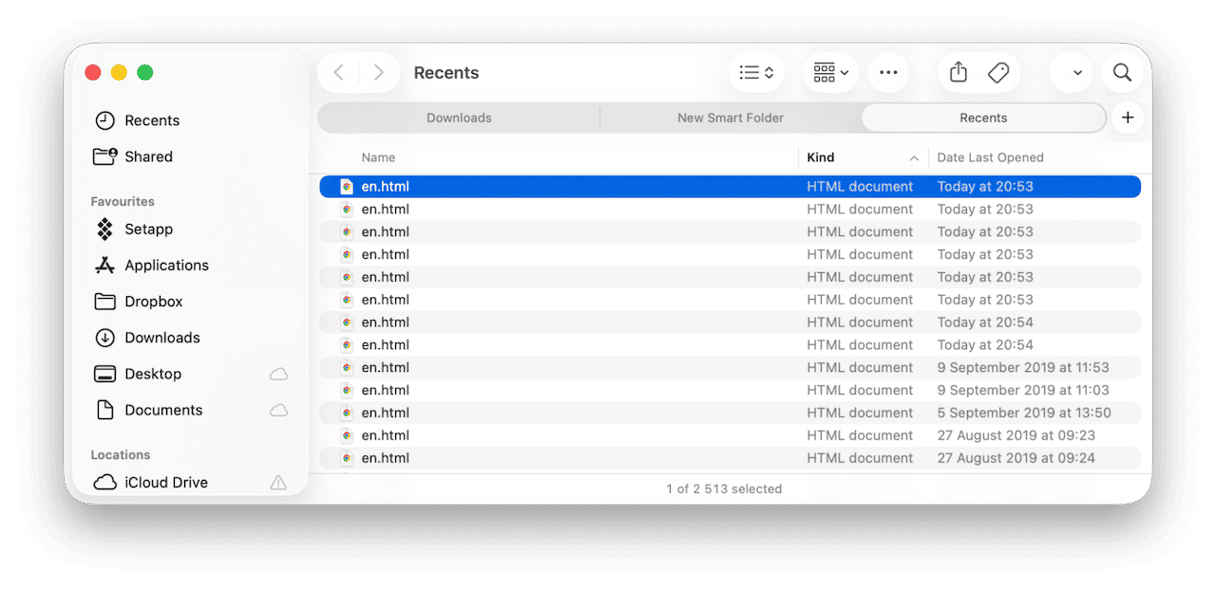
- Sort the results by Name so files with the same name end up next to each other.
- Compare the sizes and dates of any matches, then move the extras to the Trash.
Note: A Smart Folder spots files by name, not by what’s inside them. It’ll miss copies you’ve renamed, and it can flag files that share a name but have different content.
Method B: With CleanMyMac
Finding duplicates by hand means a lot of scrolling and comparing. CleanMyMac’s Duplicates finder does the comparison for you, and it checks what’s inside your files, not only their names.
Get your free CleanMyMac trial, then follow these steps:
- Open CleanMyMac and go to My Clutter.
- Select a location to scan.
- Click Scan.
- Review the results from the Duplicates tab.
- Choose the items you don’t need and click Remove.
CleanMyMac screenshot: My Clutter > Duplicates
Large and old files: the other half of your Mac clutter
What counts as a large or old file?
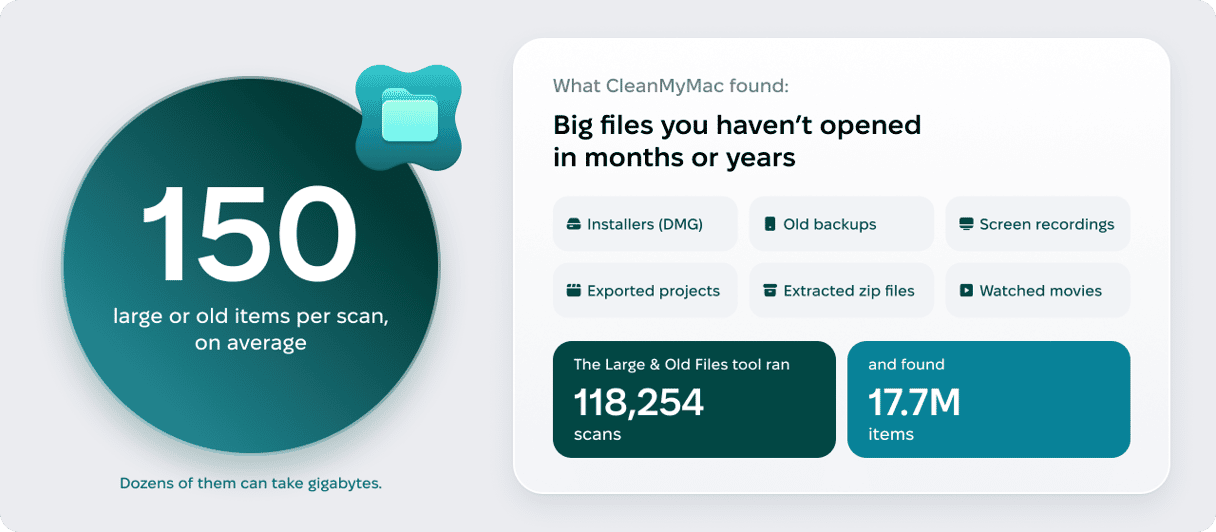
Think of big files you haven’t opened in months or years. Here’s what they usually look like:
- Installers (DMG files) for apps you’ve already set up
- Old iPhone or iPad backups
- Screen recordings
- Video or photo projects you exported and never reopened
- Zip files you’ve already extracted
- Movies or large downloads you’ve watched and forgotten
One forgotten file doesn’t matter much. Dozens of them can take gigabytes of space.
How to find large and old files on your Mac
You don’t need to go through every folder to find your largest files. Your Mac has a built-in place to start, or you can use CleanMyMac for a closer look.
Method A: With a built-in Storage tool
- Open Apple menu > System Settings > General > Storage.
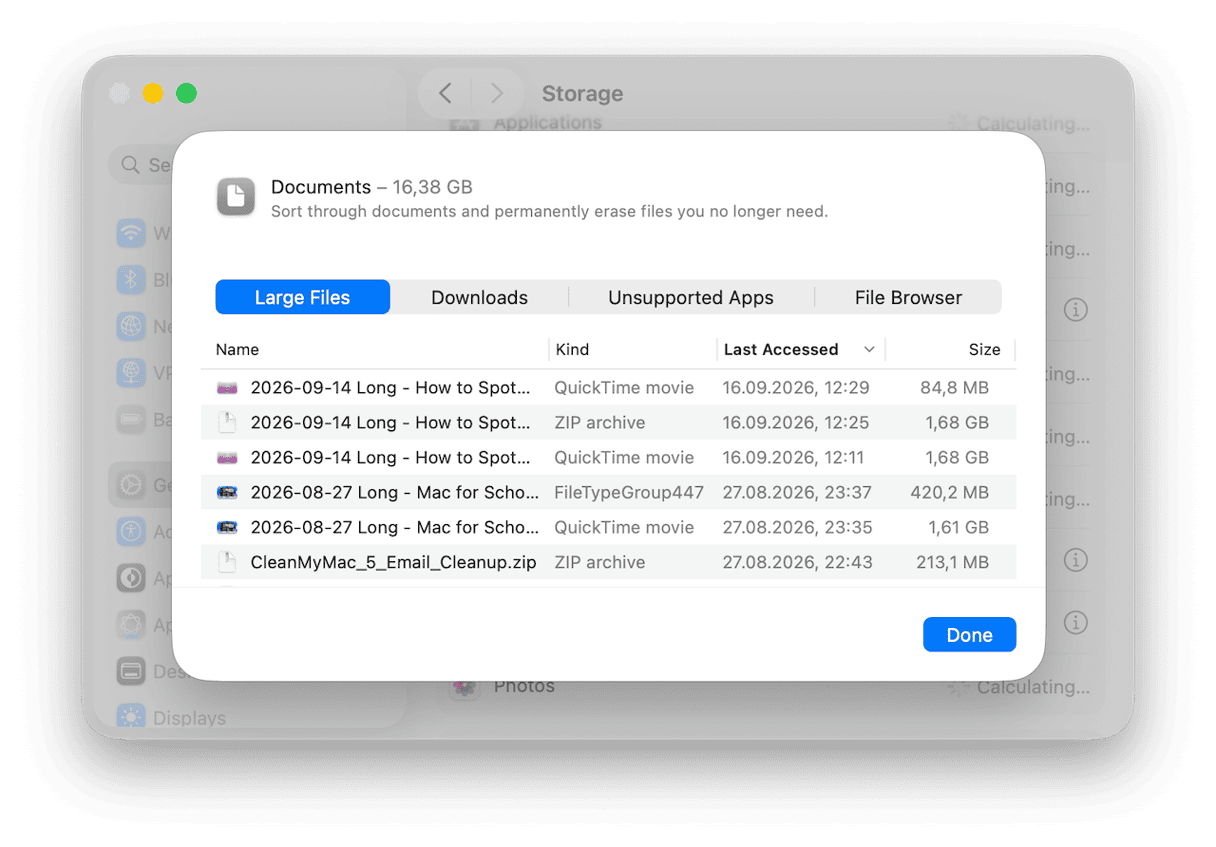
- Open the Documents category and choose Large Files.
- Sort by size or last accessed date, then inspect the items you don’t recognize.
- Delete only files you’re sure you no longer need.
Note: This view shows large files, but it can’t filter by age and it doesn’t let you remove them in bulk. For more ways to inspect your storage, see how to check storage on Mac.
Method B: With CleanMyMac
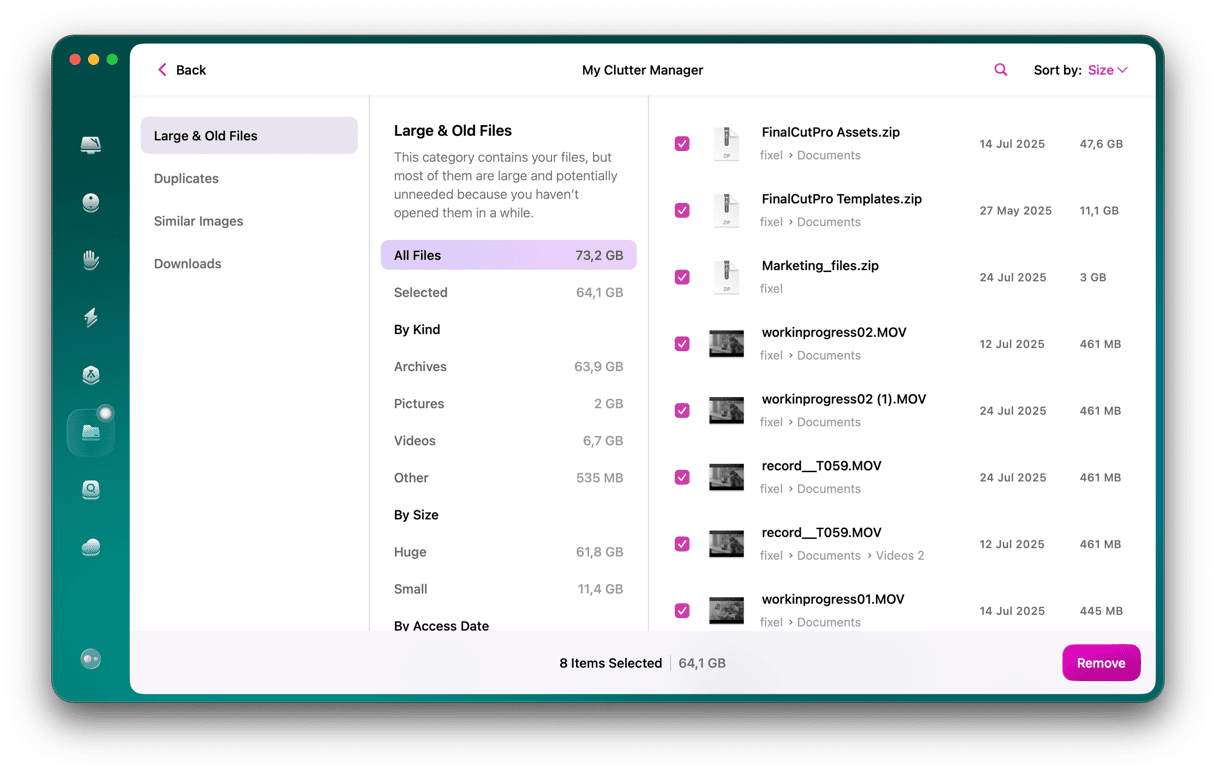
Use the Large & Old Files feature to bring those files into one view. Get your free CleanMyMac trial, then:
- Open My Clutter, choose a location, and click Scan.
- Choose Review All Files and then Large & Old Files.
- Sort by kind, size, or access date. Reveal it in Finder if you need more context.
- Select files you’ve checked and click Remove.
What do these numbers mean for your Mac?
Here’s a side-by-side look at what the two features found between January and October 2026:
CleanMyMac feature | Items found | Scans | Average per scan |
Duplicates | 278,068,270 | 171,468 | About 1,622 |
Large & Old Files | 17,693,977 | 118,254 | About 150 |
Your own results could be higher or lower depending on what you keep and which folders you check. Use these averages to put your results in perspective, then look at how much space the files take up and whether you still need them.
If you're wondering where to begin, try the Duplicates finder in CleanMyMac. Review the identical copies and start with files you recognize, such as repeated downloads. Next, open the Large & Old Files tool. A single forgotten video or old archive can take up more room than hundreds of duplicate documents. You don’t have to review the whole list at once. Removing a few large files you no longer need is a good start.
And if your Mac feels sluggish after you’ve freed up space, our guide on how to fix a slow Mac can help you work out what to try next.
The bottom line
The average scan turns up about 1,622 duplicate files and 150 large or old ones, all sitting in plain sight. CleanMyMac’s My Clutter feature finds both in a single scan, and a typical scan takes about 16 seconds. That’s a fair trade for getting back space you didn’t know you had.
Since January, about 3.6M cleanups in My Clutter have removed 80.6M items. A scan of your own Mac could turn up a few things you’d forgotten about, too — and some room for whatever comes next.
FAQ
How many duplicate files does the average Mac have?
Based on CleanMyMac data from January through October 2026, its Duplicates tool found about 1,622 duplicate items per scan. Your results will depend on which folders you scan and what you keep there.
Is it safe to delete duplicate files on Mac?
Yes, but do so with care. Review what’s flagged before you remove anything. And never delete files from /System or /Library by hand.
How many large files does the average Mac accumulate?
CleanMyMac’s Large & Old Files tool found about 150 items per scan, based on data from January through October 2026. Your own number could be higher or lower depending on how you use your Mac. Also check file sizes to see how much space you can reclaim.
How often should I check for duplicates and large files?
Every month works for most people. But if you regularly import photos from your iPhone, work with video files, or use iCloud Drive heavily, check more often because those habits create duplicates faster.