If you use a MacBook Air or MacBook Pro, chances are that you will need more ports than are available built-in. Whether it’s connecting your computer to a multiple-monitor setup on a desk, hooking it up to an Ethernet network, or giving you extra USB ports on the road, the solution is a docking station for your MacBook. But which open should you choose? USB-C or Thunderbolt? Which version of Thunderbolt? And what’s the difference between a docking station and a hub? We’ll answer all these questions and tell you which is the best docking station for MacBook Air, Pro, or any other Mac you own.
Why buy a docking station for your MacBook?
Most people hook their MacBook up to a docking station because they want to use one or more external displays while sitting at a desk. But it could also be because you want access to ports your MacBook doesn’t have, like Ethernet, USB-A, or an SD card reader. Docks also have the benefit that they will charge your MacBook while it is connected to them.
What’s the difference between a hub and a dock?
The two terms, hub and dock, are often used interchangeably, but there are differences between them:
- Hubs usually just add a few extra ports, like HDMI and USB-A, to your MacBook and often have a captive USB-C cable that connects to your Mac.
- A dock can be USB-C or Thunderbolt that usually has far more ports and an external power supply. That power supply allows it to charge your MacBook via a special USB-C or Thunderbolt port known as a power delivery port.
Generally speaking, if you plan to use the hub or dock at a desk, you should choose a dock that can charge your MacBook. If you want something you can throw in a laptop backpack and use while you’re away from home or your office, choose a hub.
Thunderbolt or USB-C?
Docks and hubs tend to be promoted as being either Thunderbolt or USB-C. However, that’s a little misleading. USB-C is a connector, not a USB protocol. When hubs and docks say USB-C, they usually mean USB 3.2 with a USB-C connector. Since the third iteration of Thunderbolt, it has also used the USB-C connector type.
Thunderbolt versions 1 and 2 used a Mini DisplayPort connector. However, just because the connectors are the same, it doesn’t mean that Thunderbolt and USB 3.2 are the same thing. Thunderbolt versions 3 and 4 have a bandwidth of 40 Gbits/s, and Thunderbolt 5 has a bandwidth of 80 Gbits/s.
By contrast, USB 3.2 on Apple’s MacBooks has a bandwidth of 10 Gbits/sec. In practice, that means that you can connect more displays at higher resolutions or more high-bandwidth peripherals to a Thunderbolt dock than a USB dock. If you want to connect more than one display to your new docking station or want the fastest possible speeds to and from a connected storage device, you should choose Thunderbolt. Otherwise, you can save quite a bit of cash by choosing a USB hub or dock.
If one of the reasons you’re considering buying a docking station for your Mac is to add more storage, you should know that there is an easy way to free up several gigabytes — even tens of gigabytes' worth of space on your startup disk — by removing junk files. These junk files include browser cache, system cache, mail attachments that are stored on the mail server but also on your Mac, trash bins that haven’t been emptied, and application binaries you don’t need. Obviously, tracking them down yourself isn’t easy. Using CleanMyMac to do it for you is much simpler.
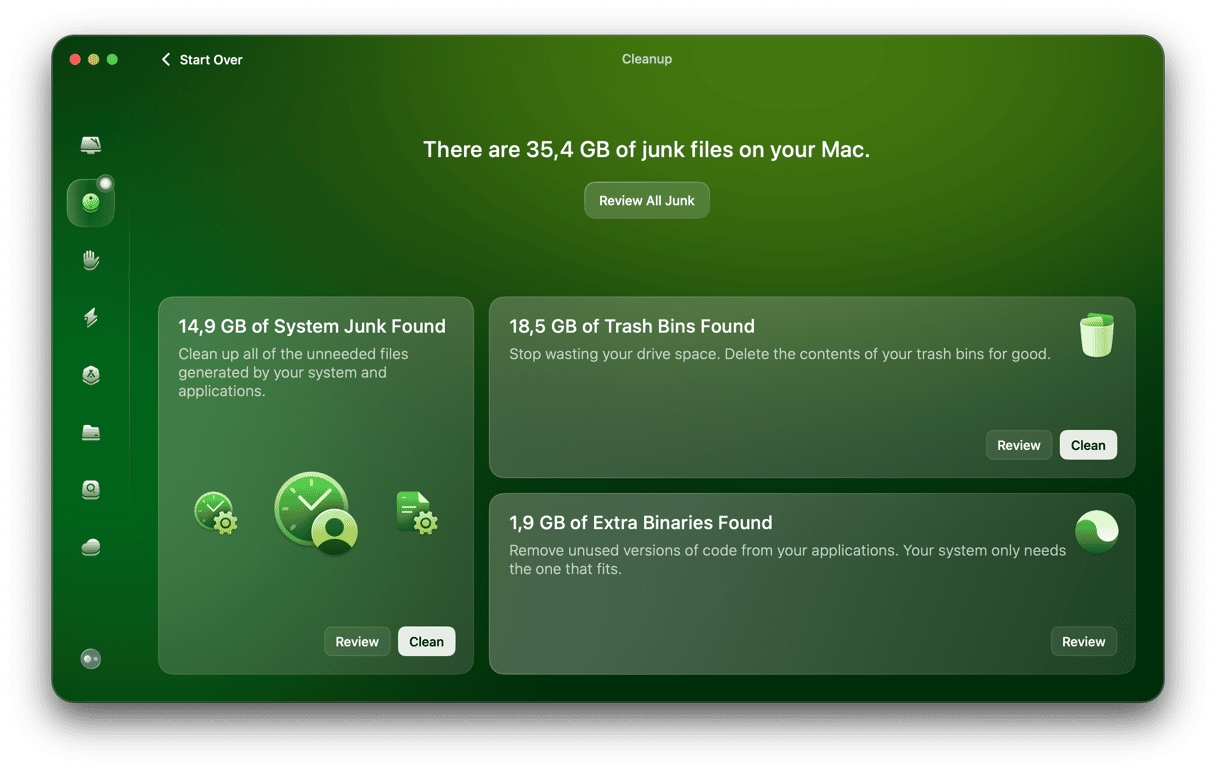
Here’s how:
- Get your free CleanMyMac trial — you can test it for 7 days for free.
- Open it and choose Cleanup in the sidebar.
- Click Scan.
- When it's finished, choose Clean to free up space immediately or Review to see what it has found.
The best docking stations for Mac
There is a big difference in price between the various Thunderbolt docking stations, with the most recent Thunderbolt 5 docks often a couple of hundred dollars more expensive than their Thunderbolt 4 counterpart. So, before you choose one, make sure your Mac is compatible (not all Thunderbolt docks are compatible with MacBooks that have Thunderbolt docks) and that you need the full speeds and range of ports available. USB-C docking stations tend to be slightly cheaper than the least expensive Thunderbolt 4 docks.
CalDigit TS5 Plus
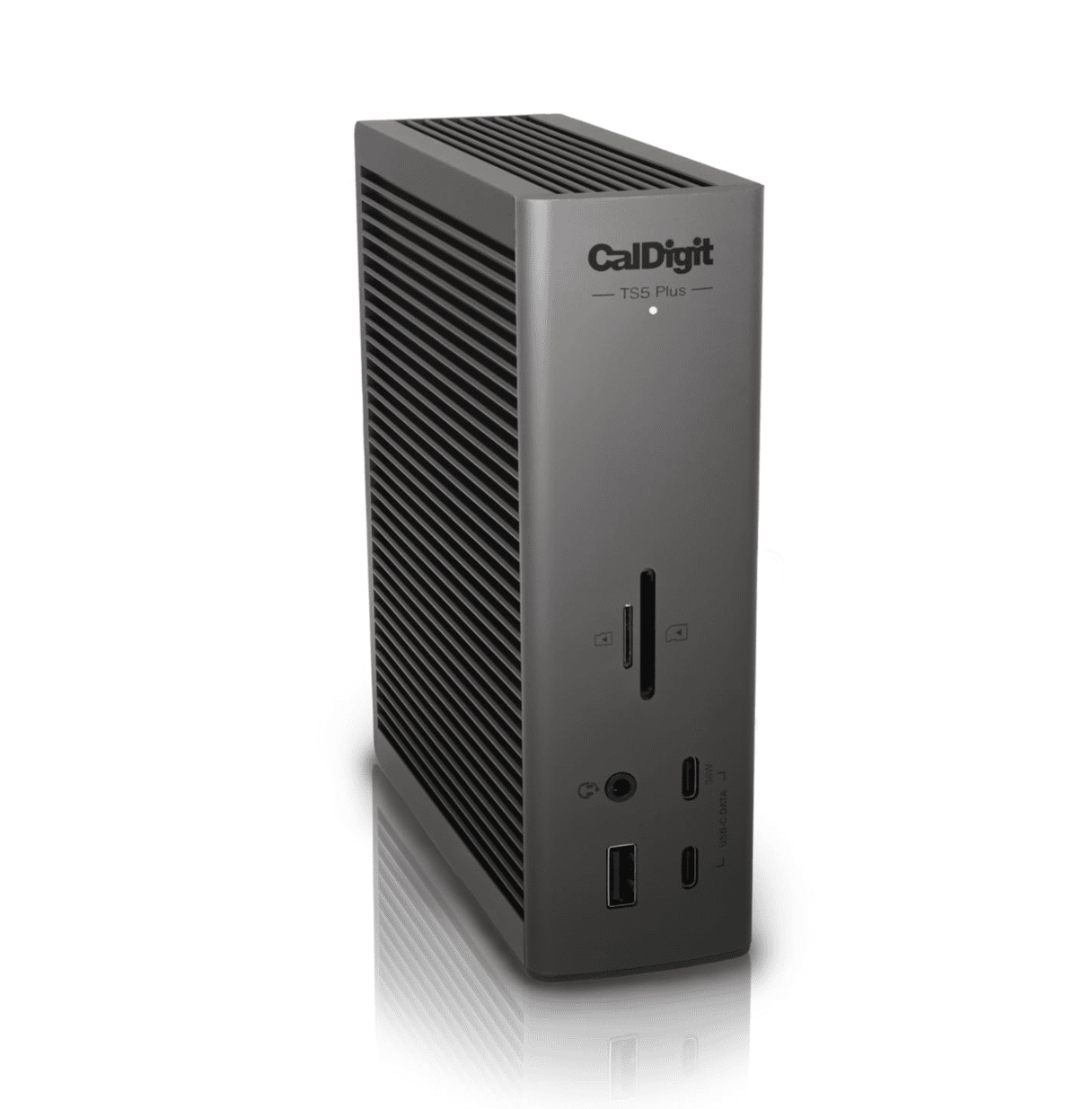
The CalDigit TS5 Plus is one of three Thunderbolt 5 docks the company sells. It supports data transfer speeds of up to 120 Gbits/sec and will allow your Mac to connect to two displays at up to 4K right out of the box. It has 20 ports, including Thunderbolt (with one dedicated to charging your MacBook), USB-C, USB-A, 10 Gbit Ethernet, headphone jack, and a microphone socket. It also has SD and microSD card readers. If you don’t use Thunderbolt or USB-C to connect a display, the only other option is DisplayPort, as there are no HDMI ports. However, you can always connect an HDMI adaptor to the DisplayPort or a USB-C socket.
Sonnet Echo 13 Thunderbolt 5 SSD Dock
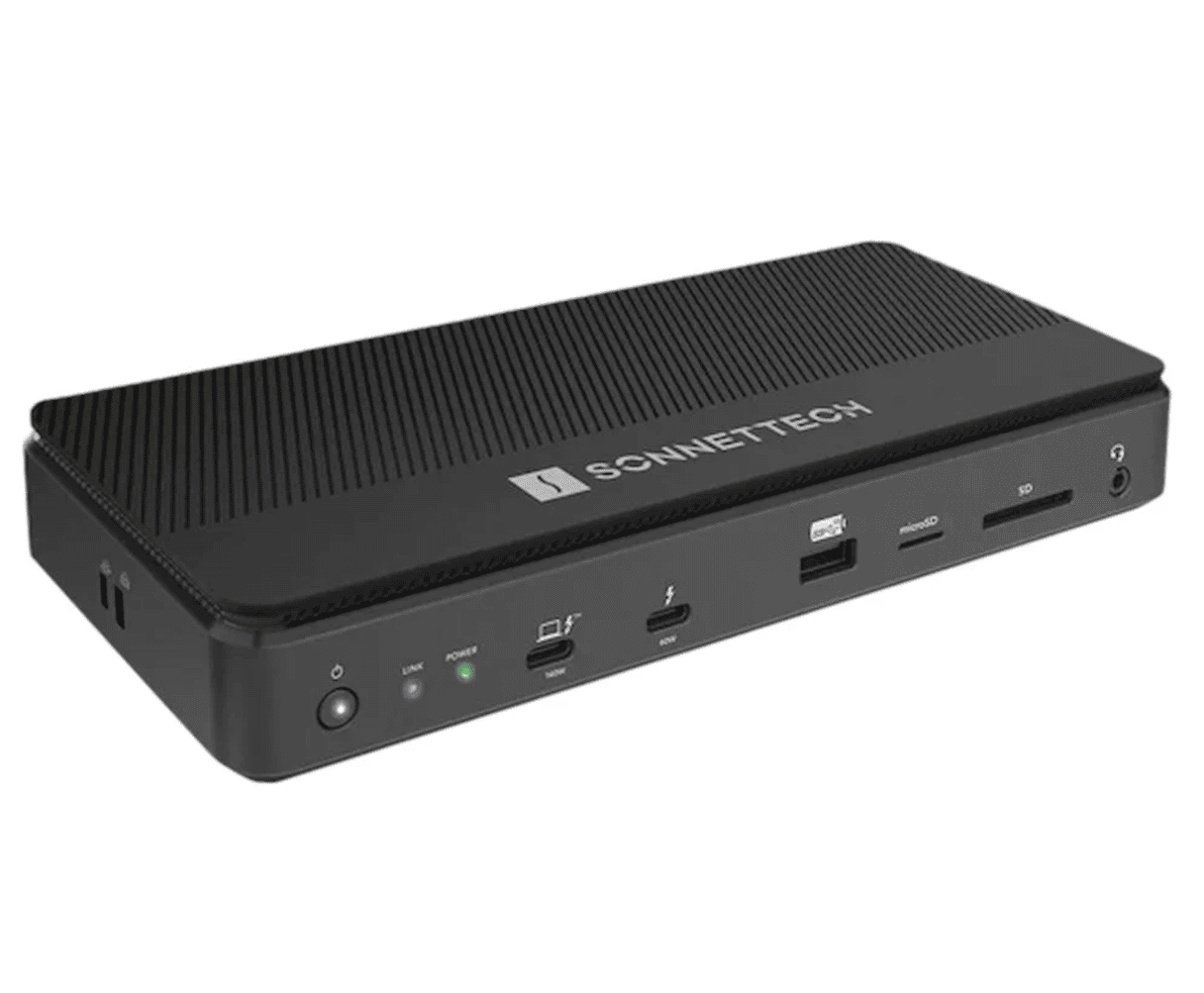
If you want a Thunderbolt 5 dock that doubles as housing for SSD storage, the Sonnet Echo 13 is a great choice. It has plenty of USB-C and USB-A ports, a 2.5 Gbit Ethernet connector, SD and micro SD slots, and a headphone jack. The Thunderbolt port to which you connect your MacBook supports up to 140W power delivery, while there are also a 60W power delivery and two 15W power delivery Thunderbolt ports. Again, there’s no HDMI port, nor even a DisplayPort connector, so you’ll need to use the Thunderbolt ports to connect a Thunderbolt or USB-C display — it supports two 4K displays on a MacBook Air or MacBook Pro.
WAVLINK Thunderbolt 4 Dock Triple Monitor
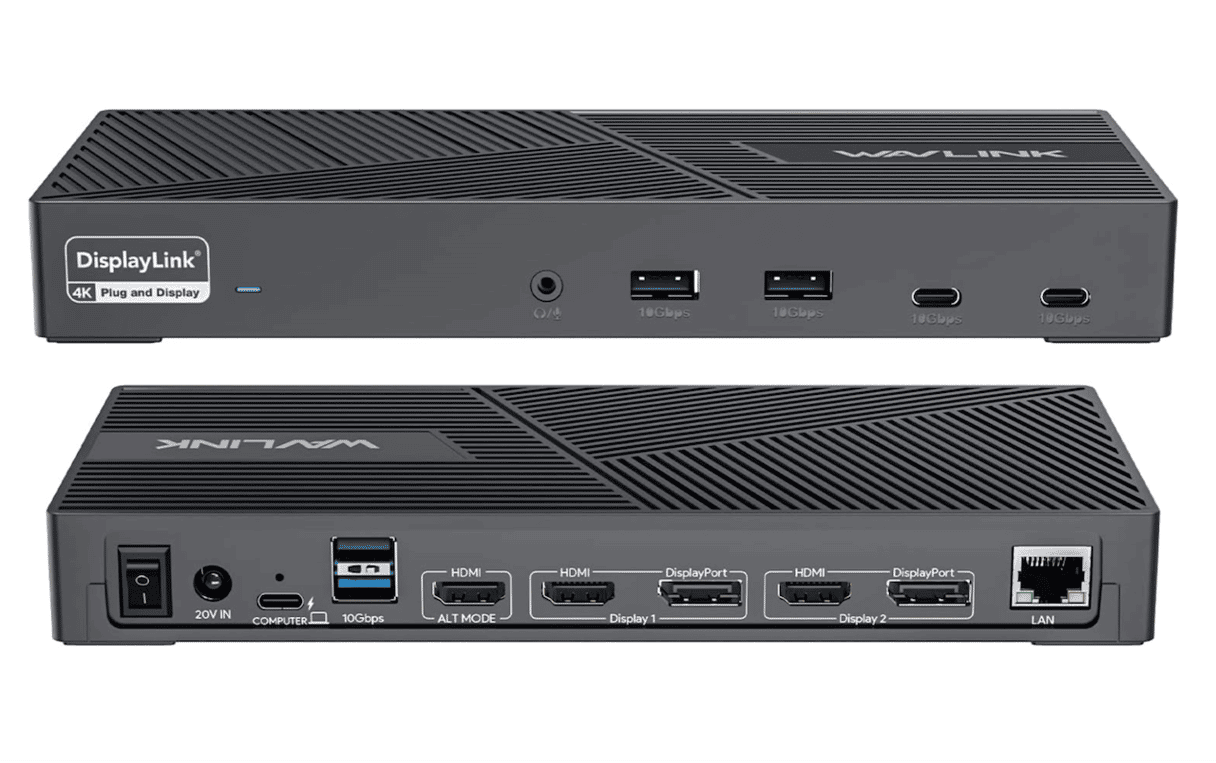
If you’re looking for a less eye-wateringly expensive option than the CalDigit or Sonnet Echo and are happy to stick with the $40 Gbits/sec speeds of Thunderbolt 4, this might be the dock for you. It connects to your Mac via a Thunderbolt port that offers 96W of power and has one more, 30W, Thunderbolt port and a 15W USB-C connector. There are also USB-A sockets, a 2.5 Gbit Ethernet connector, SD and microSD slots, and a headphone/mic socket. The WAVLINK is one of the few Thunderbolt docks to have HDMI sockets, two of them in fact. But, despite its name, you can only have two extended displays on a Mac. If you connect a third, it will mirror one of the other two.
SATECHI 8-in-1 USB-C Hub Multiport Adapter
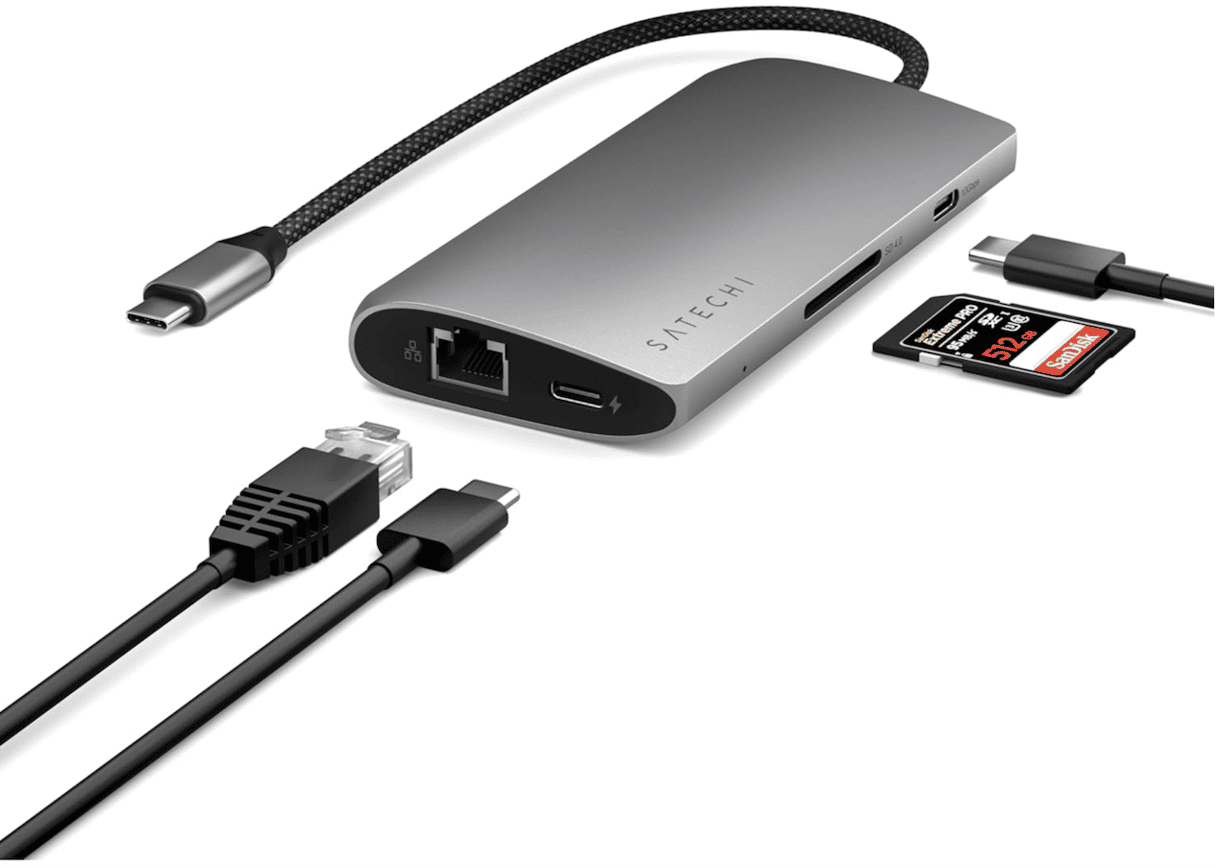
Don’t care about Thunderbolt and just want to charge your MacBook at your desk while it’s hooked up to a display and with the ability to add a few peripherals? This SATECHI has you covered. Its HDMI port supports resolutions up to 8K, albeit at only 30Hz (4K resolutions are supported at up to 120Hz). It also has a gigabit Ethernet port, 100W power delivery to charge your MacBook, an SD card slot, and four USB-C sockets (3 at 10 Gbits/sec and 1 at 5 Gbits/sec).
Anker Nano Docking Station
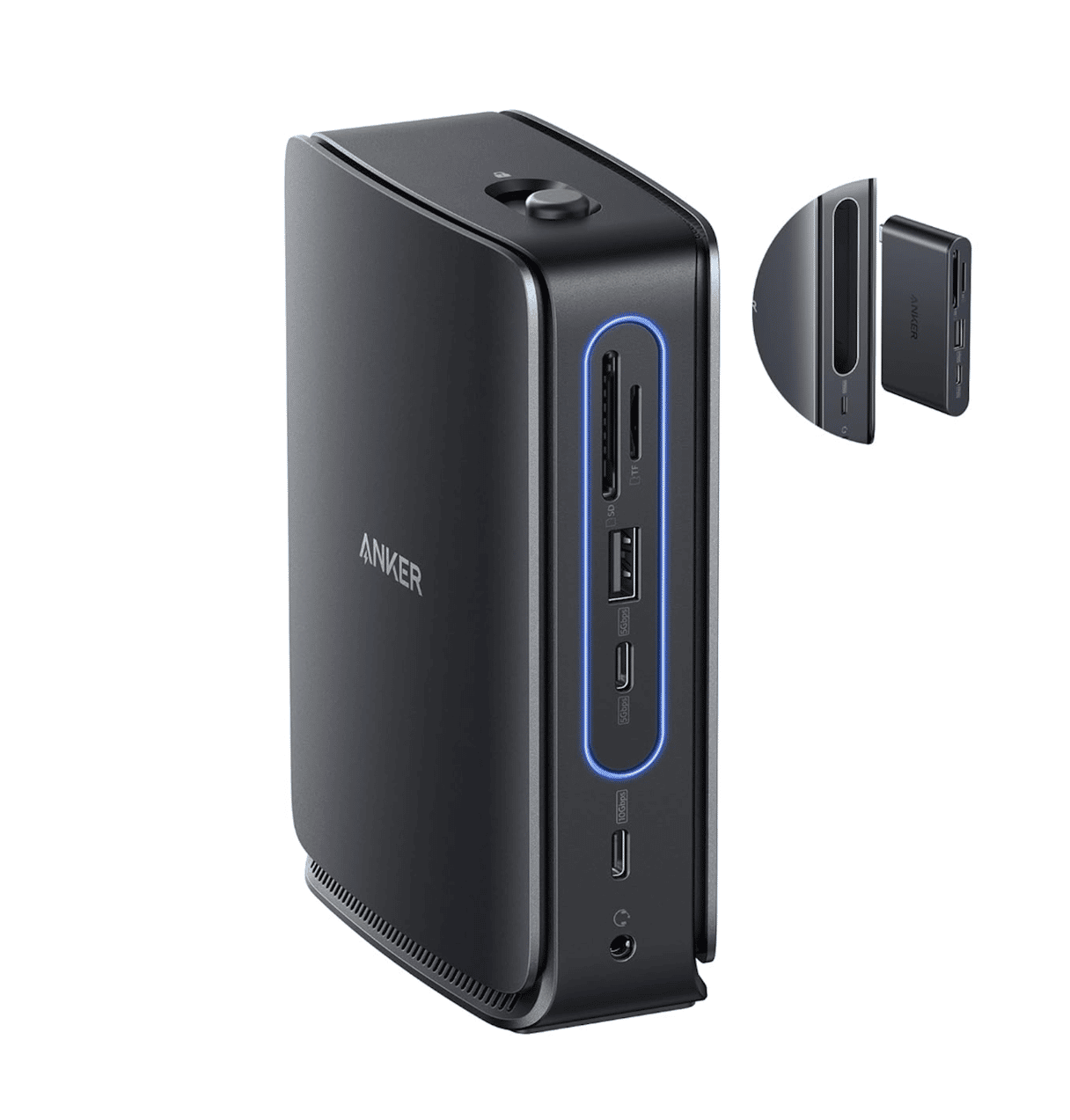
The Anker Nano Docking Station is unique in that it incorporates a removable hub. So, if you’ve been trying to work out whether to buy a docking station for your desk or a hub for on the road, you can have both in one unit. The full docking station has two HDMI ports and a DisplayPort. However, no matter which Mac you have, you can only mirror the screen via any or all of the outputs. So this is one for those who use their MacBook in clamshell mode. The hub has a couple of USB-C sockets, one of which can provide power to charge your MacBook, a USB-C slot, HDMI, and microSD and SD card slots. The dock adds gigabit Ethernet, another USB-C slot, two more USB-A, a headphone jack, one more HDMI, and a DisplayPort.
Buying a docking station for your Mac isn’t easy. There’s a lot to think about, including whether to opt for Thunderbolt or USB and which ports you need. Follow the guidance above, though, and there’s every chance you will choose the best docking station for your MacBook.